- Support Center
- Multiple Languages
- Language
- Help Us Translate
Expert in
PC Health Solution

All-in-one PC health solution: clean, optimize and secure

Comprehensive PC cleaning, optimization and protection

Keep drivers always up-to-date

More stable performance with less system crashes

Protect millions of computers against malware

Top computer security with full-round protection

Protect against viruses & boost PC performance
Complete forced uninstallation for stubborn programs.
Uninstall a batch of programs at once.
Scan and remove leftover files, folders, and registry entries.
Support the management of Universal Windows Platform apps.

Want to know why you can’t uninstall Rainbow Six Siege? Check this blog for the full answer and complete fixes to get R6 uninstalled successfully.



Warning Notice You Will See When Uninstalling R6
Possible Reasons Why I Can’t Uninstall Rainbow Six Siege
Troubleshoot When Unable to Uninstall Rainbow Six Siege
How to Uninstall Rainbow Six Siege with App Uninstaller
“Why can't I uninstall Rainbow Six Siege?” is not a single cry from many R6 players. You can dig out tons of threads and topics asking for help. Regardless of their reasons to quit the game, encountering issues while uninstalling R6 is indeed annoying and worth attention. Now, check the possible system notice you may see, the possible reasons, and fixes below.
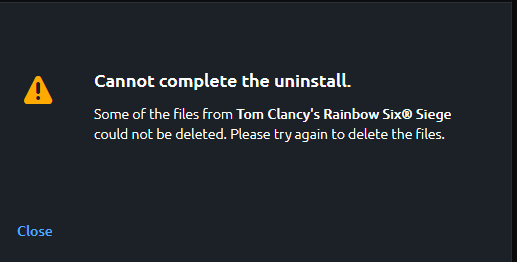
When you see these notice boxes, it indicates that you can’t uninstall Rainbow Six Siege now:
Cannot complete the uninstall.
Some of the files from Tom Clancy’s Rainbow Six Siege could not be deleted. Please try again to delete the files.
Failed to Uninstall Tom Clancy’s Rainbow Six Siege due to:
Connection time out.
Failed to Uninstall Tom Clancy’s Rainbow Six Siege due to:
An unexpected error occurred while uninstalling this application.
Several factors lead to this. Check which may explain your situation.
Background processes: The Uplay app is still running in the background.
Connection time out: the request was sent to the Ubisoft launcher, which opened an individual uninstall window.
Outdated Ubisoft Connect version.
The game registry is corrupted.
Actually, you have a bunch of methods to fix this issue; Let’s see what you can do.
Uninstall R6 with a third-party app uninstaller. Pick a reliable one for security and efficiency.
Check background processes: End the Ubisoft-related app in the Task Manager manually. For example, the Ubisoft web cores.
Uninstall it from the Steam end: go to the Steam folder > SteamApps > Common > delete the R6 folder, and then go to Steam Library, find R6, right-click on it > choose Uninstall.
Uninstall it from the folder path if Rainbow Six Siege not uninstalling Steam: Manually delete the whole R6 folder.
Check another uninstalling process: see if there is another uninstall window that asks you to uninstall BattlEye.
Contact Ubisoft Support.
If the above fixes fail to provide any help, it may imply that the uninstall registries are missing, or there are uninstaller issues. In this case, you may need a force uninstall. Try IObit Uninstaller, a professional app uninstaller that features a complete and clean force uninstall, removing apps that cannot be uninstalled in a routine way.
Steps to Uninstall R6 with App Remover
Step 1. Download and install IObit Uninstaller > launch the uninstaller.
Step 2. Try searching Rainbow Six Siege in the program list. If it is detected, choose it > click Uninstall. Here, you may also select other apps you don’t want to remove in 1 go.
Step 3. If not, go to Tools on the upper-right corner > choose Force Uninstall > click Browse to add the R6 > click Uninstall.
This is how you uninstall R6 efficiently. When you wonder, “Why can't I uninstall Rainbow Six Siege” in normal ways, try this app.

 People Also Ask
Free up disk space by safe Windows Installer folder cleanup. This guide shows how to use Settings, Disk Cleanup, etc., to remove unwanted installer files.
If you uninstall Steam, what happens to your games and saves? Learn whether your games are deleted, where files are stored, and how to keep your progress safe.
Is it okay to uninstall Copilot? This article provides a full guide on how to uninstall Copilot from Windows 10 without affecting your system.
Need to uninstall NPM package safely? Learn how to uninstall NPM package locally and globally, fix NPM uninstall not working issues step by step.
Can’t uninstall Adobe Creative Cloud, why? Can I force uninstall it? Get the answer here and find solutions.
Why is Windows Defender not turning off? How to remove and uninstall Windows Defender on Windows 11? Can I disable Windows Defender permanently?