Deleting games you don't want to play to tidy up your game library, or uninstalling some games downloaded from Steam to free up computer space, is quite simple. However, sometimes problems arise during the uninstallation process, like incomplete uninstallation. Or perhaps you only want to remove games from your library, not to uninstall them completely. This tutorial provides clear and detailed instructions, from completely uninstalling Steam games to removing Steam games from your account.
How to Uninstall Steam Games with Steam
Here gives a quick way to uninstall games in the Steam app, especially for users who want to reinstall the game later.
Step 1. Open the Steam app and go to the “LIBRARY” tab on the top left menu.
Step 2. Choose the game you want to uninstall and right-click it. Choose “Manage” > “Uninstall”.
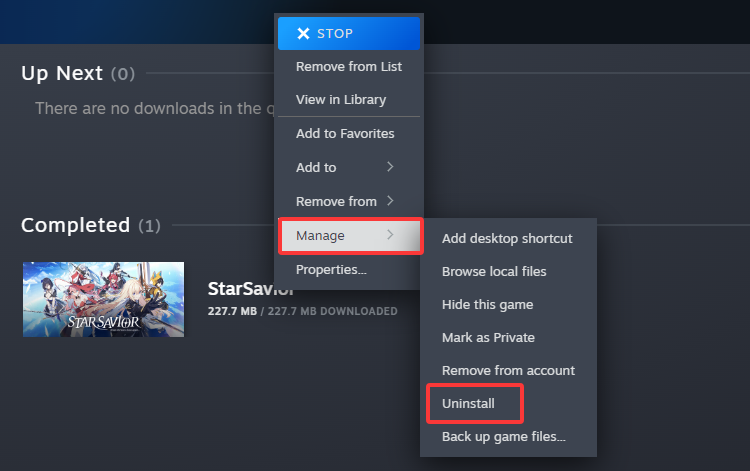
Step 3. The game is removed from your system. You can still find it in your Steam library and reinstall it.
When you uninstall games in the Steam app, it means that:
The game’s local files are removed from the computer, which can free up storage space.
The game’s information is available in your Steam account, such as achievements, save files (when cloud saving is enabled.)
When you reinstall the game, you don’t need to purchase it again as the game is still associated with your Steam account.
There are still some log files or other data saved on your PC. It won’t be deleted automatically.
>> Also check, How to Improve Download Speed on Steam
How to Uninstall All Steam Games in Windows Settings | One-by-One
You can uninstall Steam games in Windows Settings with ease.
Step 1. Click the Start icon > Settings > Apps.
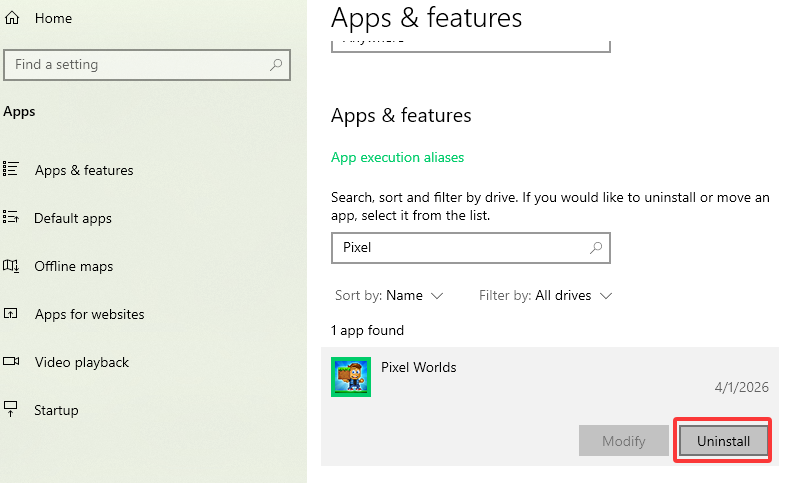
Step 2. Click Apps & features. Enter the game name in the search bar. Click on the game and choose Uninstall.
If you want to completely uninstall the game and get more storage space for your computer, here is a free uninstaller for Windows to help you. Clean leftovers and game related data automatically.
How to Completely Uninstall All Steam Games with Free Uninstaller
To uninstall a Steam game completely without any leftovers on your computer, try the professional uninstaller software IObit Uninstaller for free.
Step 1. Free download and install IObit Uninstaller on your PC.
Step 2. Search for the game you want to uninstall in the search bar.
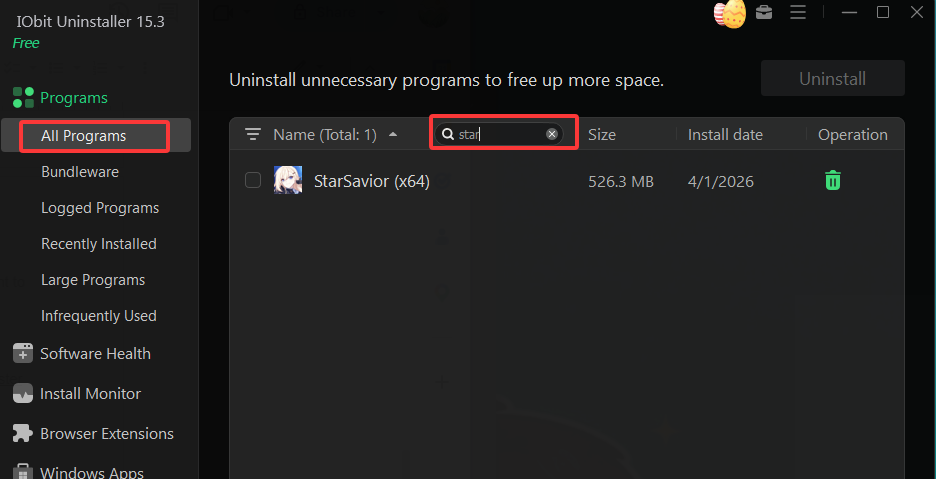
Step 3. Click the Uninstall icon. There is a pop-up window, where you can create a restore point in case you want to restore it again. )
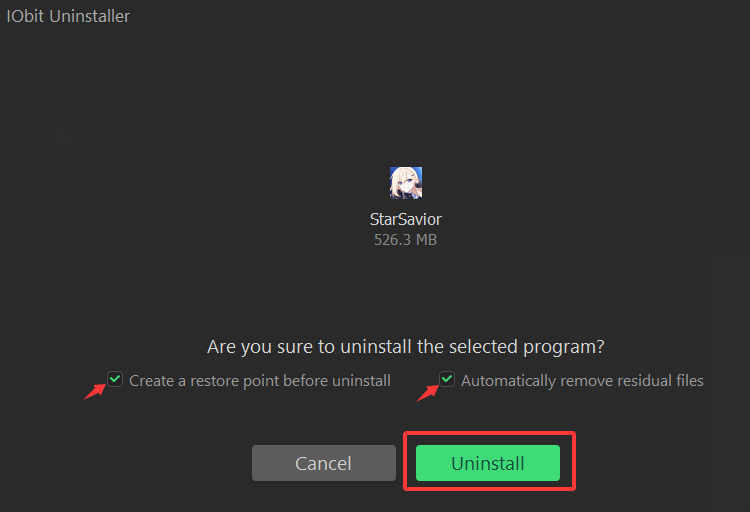
Step 4. Choose “Uninstall” in the pop-up window and then the game will be deleted completely.
Why choose IObit Uninstaller to uninstall Steam games?
IObit Uninstaller is a powerful tool that can help you completely remove the Steam app, Steam games and their associated files from your computer. It scans your system for leftover files, folders, and registry entries that can be left behind after a typical game uninstallation. In one word, your game and its data are fully deleted to free up disk space and clean the system.
IObit Uninstaller Free
- Complete forced uninstallation for stubborn programs.
- Uninstall a batch of programs at once.
- Scan and remove leftover files, folders, and registry entries.
- Support the management of Universal Windows Platform apps.

Uninstall Steam games and leftovers automatically
Compared to manually uninstalling games from Steam, IObit Uninstaller's most significant advantage is its ability to simultaneously remove all residual files, such as related registry entries, shortcuts, and residual data. These residual files are often overlooked during manual uninstallation, leading to ineffective memory cleanup.
Uninstall all Steam games in one click
Another significant advantage of IObit Uninstaller is its ability to uninstall multiple games at once. This means you can uninstall games installed on both Steam and non-Steam platforms simultaneously. Simply select the games and click the uninstall button. There's no need to manually uninstall them one by one. This is especially efficient for users with large game libraries and who want to quickly free up space.
Uninstall stubborn apps
Of course, IObit Uninstaller isn't just for uninstalling Steam games. It's suitable for removing any software, including some stubborn applications. IObit Uninstaller provides the uninstallation option. In addition, this free uninstallation app can identify and uninstall bundled software, stubborn toolbars, or browser extensions. It can also improve computer performance.
More FAQs about Remove Games on Steam
How to remove Steam games from account?
Step 1. Open the Steam app. Navigate to “Help” on the top.
Step 2. Choose the game you want to remove. Scroll down and click “I want to permanently remove this game from my account”.
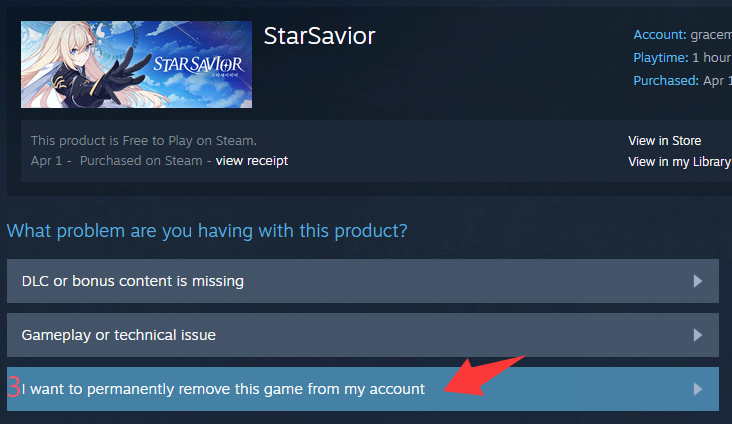
Step 3. Confirm again. The game will be removed from your account permanently.
What will happen if I remove a Steam game from my account?
In summary, removing a Steam game from your account means you have no access to replay or redownload the game on the Steam account. So hiding this game is an option as you can unhide it later all the time.
What if Steam doesn’t let you uninstall a game?
Close Steam, and open it again.
Clear download cache on Steam.
Restart your PC to resolve software conflicts or locked files.
Use Steam’s "Verify Integrity of Game Files” to fix corrupted or missing files.
Uninstall via Steam settings instead of Library.
Try Windows Control Panel or Settings to uninstall.
Navigate the Steam directory on your computer and delete the game folder manually.
how to delete steam game saves?
Step 1. Locate the relevant file storage location
Check your game saves on your computer, in one of the following directories, generally:
C:\Users\[Your Username]\Documents\
C:\Users\[Your Username]\AppData\Local\
C:\Users\[Your Username]\AppData\Roaming\
C:\Program Files (x86)\Steam\steamapps\common\[Game Name]\
Step 2. Delete files
Delete the file saves you found.
Tips: To avoid Cloud saves, disable Steam Cloud by going to Settings > Cloud > Enable Steam Cloud. Toggle off the option.
If I uninstall Steam games what happens to my saves?
If you uninstall a Steam game which isn’t on the Steam Cloud, your saves will be lost. So you can manually backup your save files before uninstalling.
Conclusion
It’s easy to uninstall Steam games via Steam, Windows Settings or IObit Uninstaller to maintain your game library for better performance. In most cases, leftovers are unavoidable without a professional uninstaller. So if you want to free up space, keep your computer always clean and private, try IObit Uninstaller app for Windows. Uninstall games and clean leftovers in the meantime. One click to remove extensions on Chrome is also realisable.