Chrome extensions are browser add-ons designed to enhance your browsing experience with features like ad blocking, grammar checking, and other useful tools. While they can be incredibly helpful, having too many—or the wrong ones—can slow down your browser or cause unexpected issues. If you’re still wondering, “How do I uninstall Chrome extensions?”, you’re not alone.
In this guide, we’ll cover all the reliable methods, from quick removal using the right-click option to more advanced troubleshooting techniques. You’ll also learn how to handle stubborn extensions that won’t uninstall, ensuring a thorough cleanup with no leftover traces.
Why Should I Uninstall Unwanted Chrome Extensions?
Here are the main reasons to remove unwanted extensions:
Boost browser speed: Every extension consumes memory and CPU power. Removing unnecessary extensions will help web pages load faster.
Protect online privacy: Some extensions may track your activity and collect personal data without your knowledge.
Reduce security risks: Malicious or poorly coded extensions can inject ads, hijack search results, steal login credentials, or install malware.
Prevent browser conflicts: Conflicts may arise between extensions or between extensions and websites, leading to crashes, errors, or abnormal behavior.
Simplify your toolbar: Removing unused extensions keeps your browser clean and improves productivity.
IObit Uninstaller Free
- Complete forced uninstallation for stubborn programs.
- Uninstall a batch of programs at once.
- Scan and remove leftover files, folders, and registry entries.
- Support the management of Universal Windows Platform apps.

How Do I Uninstall Chrome Extensions? [3 Ways]
Now that you recognize the importance of removing unwanted Chrome extensions, here are 3 easy ways on how to remove extensions from Chrome. Follow the step-by-step guide below:
Via the Toolbar (Fastest)
Step 1. Open Google Chrome.
Step 2. Locate the extension icon on the toolbar (next to the address bar).
Step 3. Right-click the extension you want to uninstall.
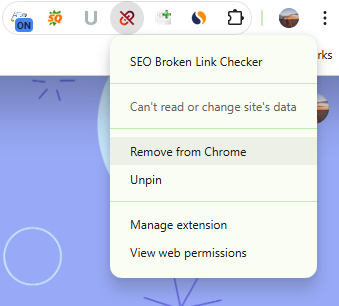
Step 4. Select “Remove from Chrome”, and confirm the removal again.
Via Extensions Menu
Step 1. Access Google Chrome and click the Extension icon in the top-right corner.
Step 2. Find the extension you want to uninstall, and click the three dots (⋮) next to it.
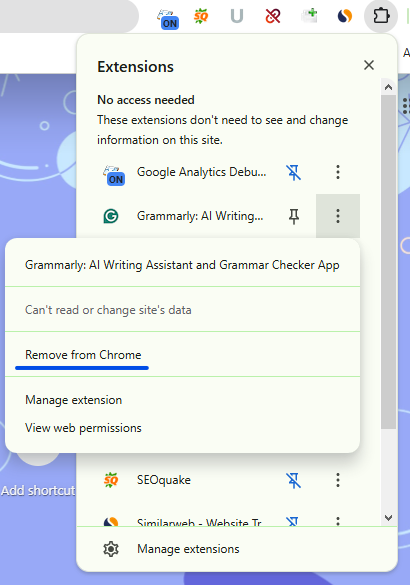
Step 3. Select “Remove from Chrome”, then click “Remove” to confirm.
Via the Extensions Page
Step 1. Open Google Chrome.
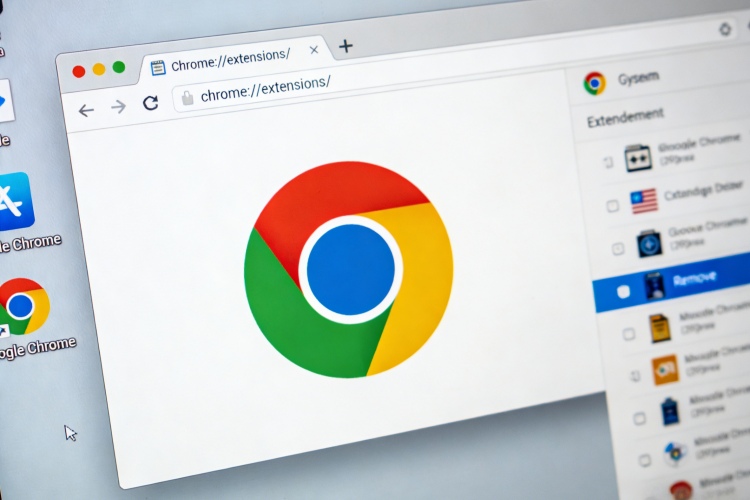
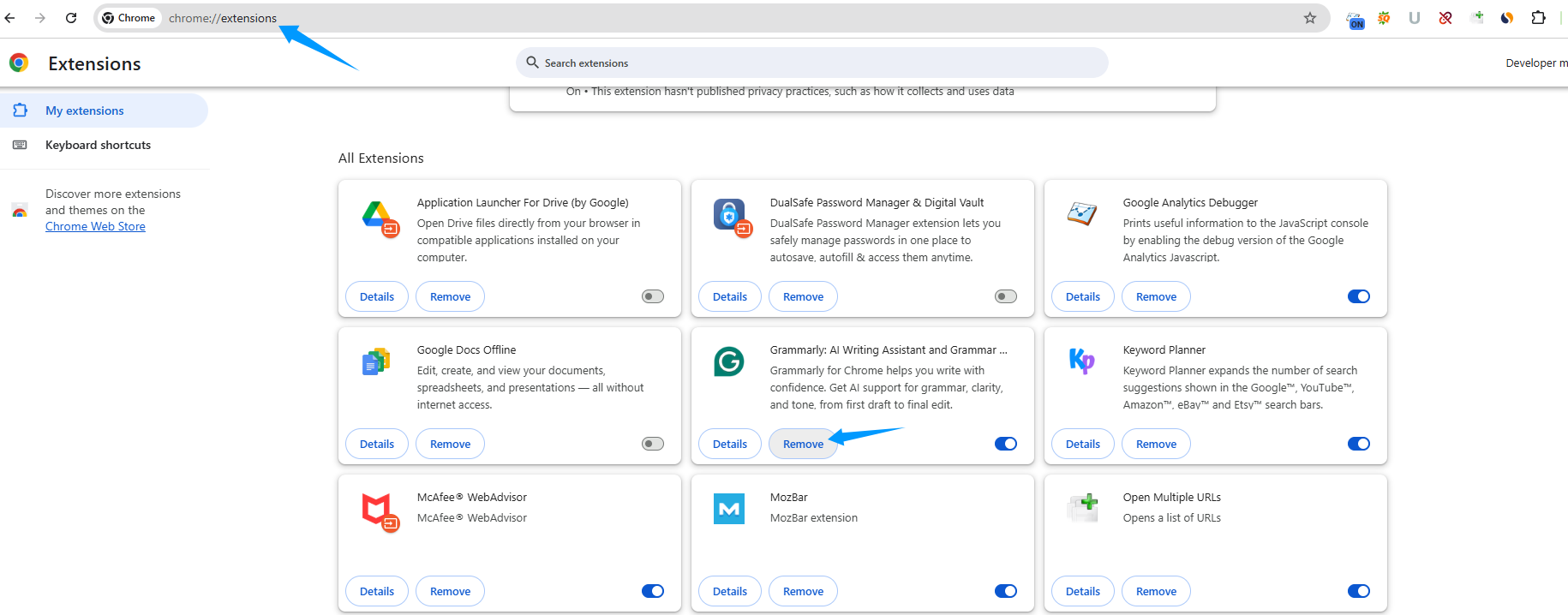
Step 2. Click the three-dot icon in the top right corner, then select Extensions > Manage Extensions. (or simply type chrome://extensions/ in the address bar and press Enter.)
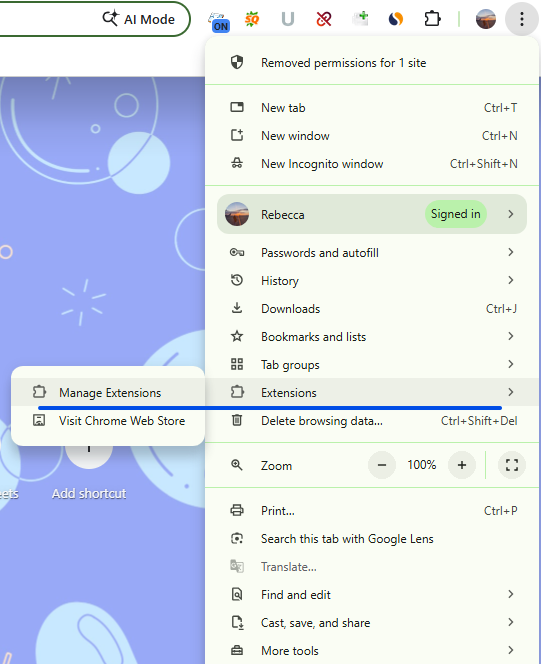
Step 3. Click the “Remove” button to uninstall the extensions.
How to Manually Remove Chrome Leftover Extension Files
Even after uninstalling a Chrome extension, leftover files can remain on your system, taking up space or causing unwanted reinstallation. For a complete cleanup, advanced users can manually remove these files by following the steps below.
Step 1. Close Google Chrome completely to avoid file access issues.
Step 2. Open the Chrome user data folder.
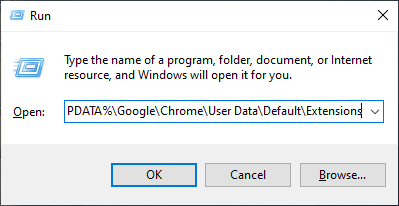
Windows: Press Win + R, type:
%LOCALAPPDATA%\Google\Chrome\User Data\Default\Extensions
and press Enter
Mac: Open Finder > Go > Go to Folder, then enter:
~/Library/Application Support/Google/Chrome/Default/Extensions
Step 3. Open chrome://extensions/ in Chrome and enable Developer mode on top right to find the extension ID (a long string of letters).
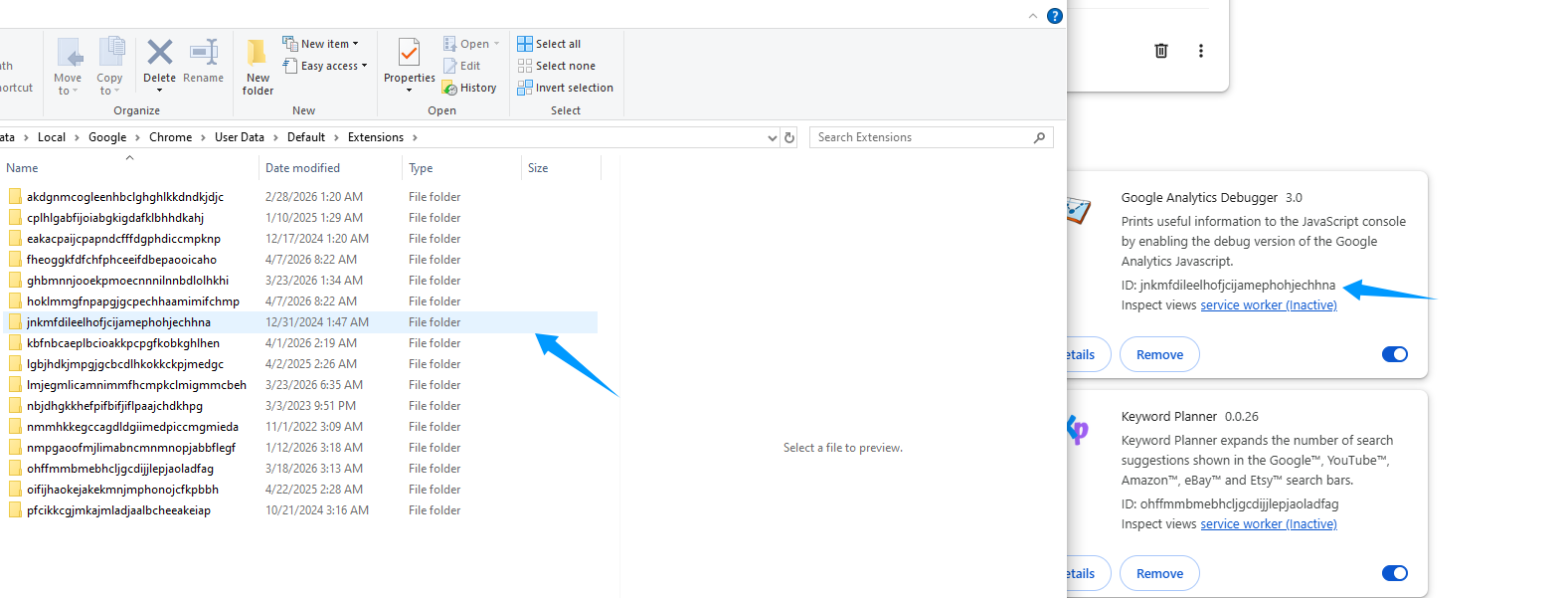
Step 4. Return to the Extensions folder and locate the matching ID folder. Once found, right-click it and select Delete, then empty the Trash/Recycle Bin to remove it permanently.
Step 5. Reopen Chrome and confirm the extension has been completely removed.
Go Beyond Basic Removal. Get a Fully Clean Chrome Extensions
Manually removing Chrome extensions and their leftover files is tedious and risky—you might accidentally delete the wrong file and disrupt your system. A dedicated tool like IObit Uninstaller automates the process, wiping out both the extension and every trace it leaves behind with a single click. It's the perfect solution for users who want a thorough, hassle‑free uninstall without touching system folders or the Registry.
IObit Uninstaller Free
- Complete forced uninstallation for stubborn programs.
- Uninstall a batch of programs at once.
- Scan and remove leftover files, folders, and registry entries.
- Support the management of Universal Windows Platform apps.
Key features of IObit Uninstaller for Chrome Extension Management.
Dedicated Browser Extension Cleaner. IObit Uninstaller features a dedicated module for managing and removing browser extensions. It supports major browsers—including Chrome, Edge, Firefox, and Opera—offering a centralized hub to clean up your add-ons in minutes.
Complete Extension Removal for Free. This powerful tool also performs deep scans after uninstallation to locate and remove leftover files, folders, and registry entries that standard tools often miss. Best of all, it's free to use.
Malicious Plugin Detection. With an expanded database, IObit Uninstaller can identify and remove adware or harmful extensions that may alter your browser settings, track online activity, or display intrusive pop-up ads.
Batch Uninstall for Efficiency. To save time, this free uninstaller supports batch operations. You can select multiple extensions at once and remove them all in a single, automated process.
How to Uninstall Chrome Extensions with IObit Uninstaller?
Step 1. Download this free uninstaller to your PC by clicking the Free Download button above.
Step 2. Click on the “Browser Extensions” section in the left panel, and choose “Google Chrome” to view all installed extensions.
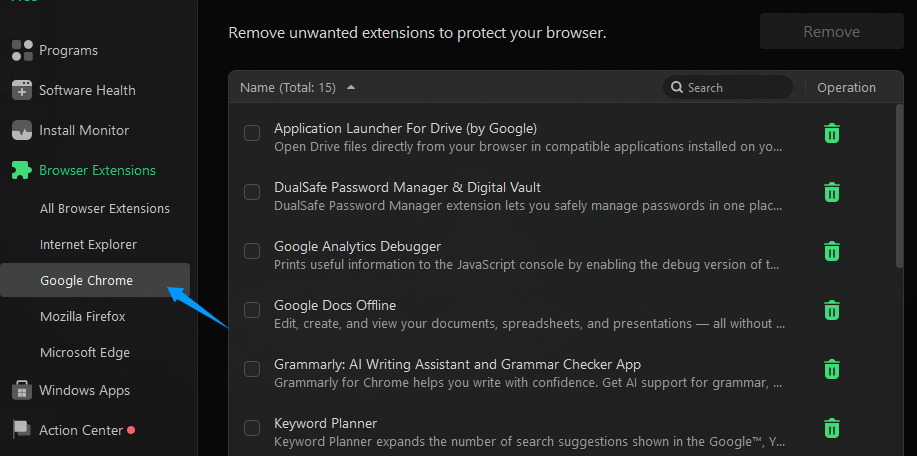
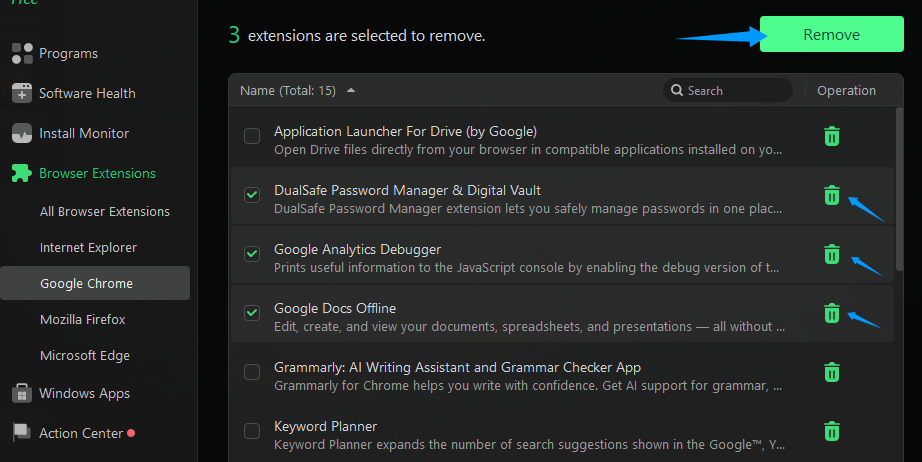
Step 3. Locate the extension and click the Uninstall icon on the right, or select multiple extensions to delete them all at once. Click the “Remove” button on the top right to confirm.
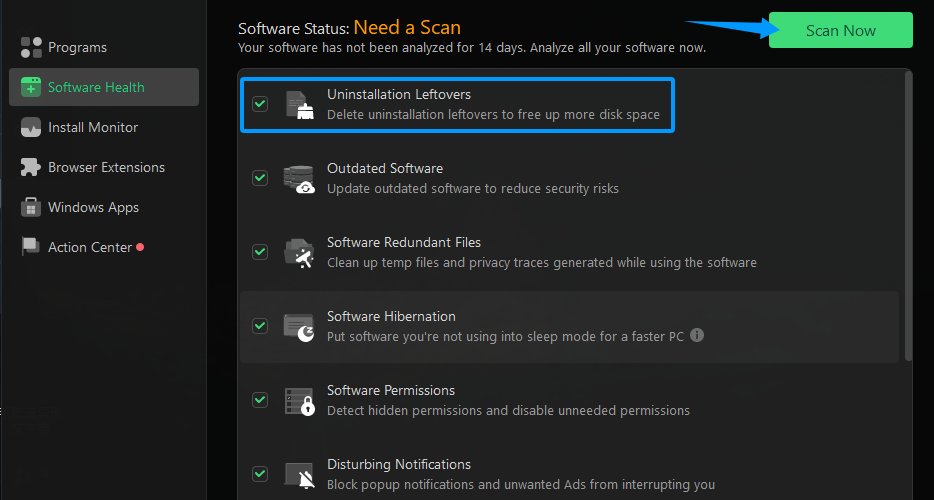
Step 4. After installation, you can click “Software Health” to scan for and delete leftover files to ensure a complete cleanup.
FAQs on How to Remove Extensions from Chrome
How to Know Which Chrome Extensions to Delete?
You should uninstall Chrome extensions that you rarely use, don’t remember installing, or find suspicious. This includes extensions from unknown publishers, those that trigger pop-ups, redirects, or sudden browser slowdowns, and any flagged as risky by Chrome's Safety Check.
Why Can't I Remove an Extension? The "Remove" Button is Grayed Out.
It usually means the extension is managed by an administrator (e.g., on a work or school computer). Check chrome://extensions/ and chrome://policy/, uninstall any related programs, and remove the policy restrictions. If it’s your personal device, running an antivirus scan or using a tool like IObit Uninstaller can help remove the source and restore control.
How to Remove all Extensions from Chrome?
For a faster reset, go to Settings > Reset settings > Restore settings to their original defaults to disable all extensions at once. Alternatively, use a tool like IObit Uninstaller to auto-detect and remove all extensions in bulk.
How to Disable Individual Chrome Extensions?
Open Chrome and go to chrome://extensions/, then locate the extension you want to disable. Click the blue toggle switch—when it turns gray, the extension is disabled.
Can I Recover a Chrome Extension after Removing It?
Yes, if you remember its name, you can reinstall it from the Chrome Web Store. However, its settings and local data will be lost unless you back them up.
Conclusion
"How do I uninstall Chrome extensions?" You should now have a clear answer. By applying the methods above, you can easily keep your browser fast, secure, and clutter‑free. However, manual cleanup regularly can be tedious. For a deeper and more efficient removal, especially when dealing with leftover files or stubborn extensions, tools like IObit Uninstaller can help ensure nothing gets left behind. Just a few minutes spent managing the extensions will give you a smoother, more secure Chrome experience.
IObit Uninstaller Free
- Complete forced uninstallation for stubborn programs.
- Uninstall a batch of programs at once.
- Scan and remove leftover files, folders, and registry entries.
- Support the management of Universal Windows Platform apps.