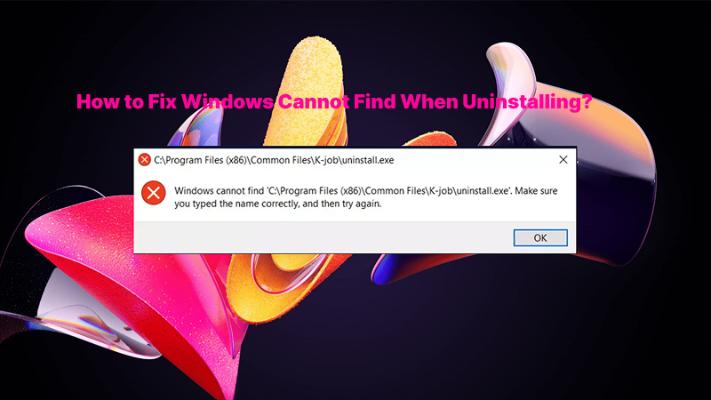
Let’s be real – you click “Uninstall” expecting a clean removal, and instead, Windows slaps you with a vague error: “Windows cannot find…” No path. No clue what it’s missing. Just frustration. This happens more often than you think, and it’s usually because the uninstaller file got deleted, the installation path broke, or some registry entry went haywire.
You don’t need to be a tech wizard to sort it out. In this guide, we’ll look at how to fix Windows cannot find when uninstalling by exploring what causes it, walking through step‑by‑step fixes, and sharing a few prevention tips so you can avoid the headache next time.
Quick Check: Why Windows Cannot Find When Trying to Uninstall?
Before we find out fixes, let’s quickly figure out what’s triggering this error. Identifying the root cause helps you pick the right fix. Based on what we know, here are the most common culprits:
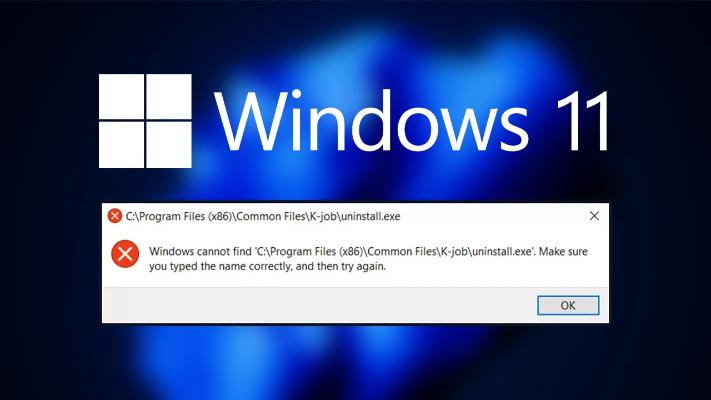
The program’s uninstall.exe file is missing or corrupted.
You (or some cleanup tool) deleted the program’s installation folder manually.
A malware infection damaged or removed the uninstaller executable.
Registry entries point to a path that no longer exists.
The uninstall string in the registry is completely broken.
Fix 1: Uninstall the Windows Cannot Find Programs via a Dedicated Uninstaller
If you want a foolproof method how to fix Windows cannot find when uninstalling that requires almost no manual work, grab a professional third‑party uninstallation tool such as IObit Uninstaller. It scans the Registry and your hard drive much more thoroughly than Windows’ default uninstaller, and no, you don’t have to spend a dime to get a good one.
It can uninstall programs safely and clean, remove stubborn programs, clean up leftover files, and fixe broken uninstall entries. It’s one of the easiest ways to solve the Windows cannot find when trying to uninstall error without touching the Registry or hunting for missing files.
How to fix Windows cannot find program when uninstalling using IObit Uninstaller:
Step 1. Download and install IObit Uninstaller by clicking the button below.
Step 2. Launch the program. You’ll see a list of all installed applications. Find the software you want to uninstall in the drop-down list, and click the green trash can on the right to uninstall it with one click, leaving no residue.
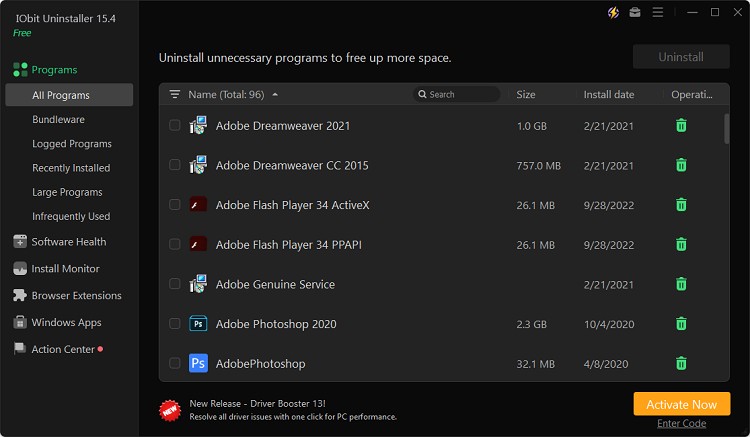
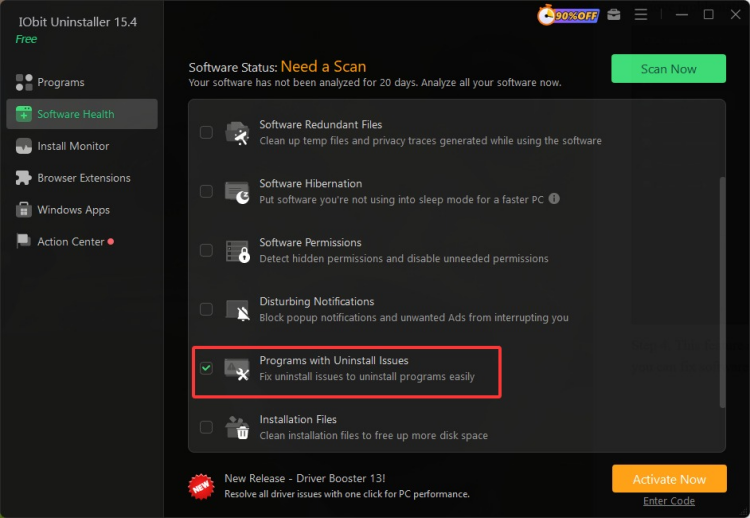
Step 3. If you can’t uninstall problematic software using the steps above, go to Software Health and select the “Programs with Uninstall Issues” category to scan for and remove problematic programs.
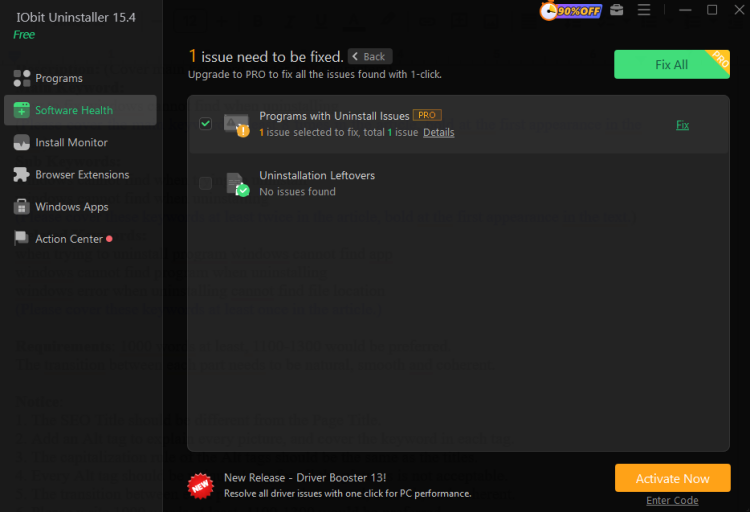
Step 4. This feature requires upgrading to the Pro version to experience, after which you can fix software with uninstallation issues with a single click.
Why you should define IObit as the easiest and most effective method:
IObit Uninstaller removes stubborn programs in one click, sweeps away leftover registry junk, and fixes Windows cannot find when uninstalling – all for free. Here are the features:
Free to uninstall programs that Windows cannot in one click. No digging through folders or messing with the Registry – the tool bypasses the missing uninstaller and removes everything directly.
Clean up the leftover Registry junk completely. After removal, it scans deep into the Registry and deletes hidden leftovers that could cause future errors or slow down your PC. This also helps you free up disk space by removing useless orphaned files.
Fix broken uninstall entries. It detects registry entries pointing to missing uninstallers and either repairs them or removes them so Windows stops showing the error.
Support force uninstall and stubborn uninstall. This feature powers through programs that are running, self‑protecting, or otherwise impossible to remove normally.
IObit Uninstaller Free
- Complete forced uninstallation for stubborn programs.
- Uninstall a batch of programs at once.
- Scan and remove leftover files, folders, and registry entries.
- Support the management of Universal Windows Platform apps.

Fix 2: Use the Program’s Built‑in Uninstaller
Sometimes the quickest way out is the most obvious one. If you’re wondering how to fix Windows cannot find when uninstalling, many programs keep their own uninstaller right inside their installation folder. This can bypass whatever issue is causing Windows to throw a fit - including the Windows cannot find when uninstalling error.
Step 1. Open File Explorer and navigate to the program’s installation directory – usually C:\Program Files or C:\Program Files (x86).
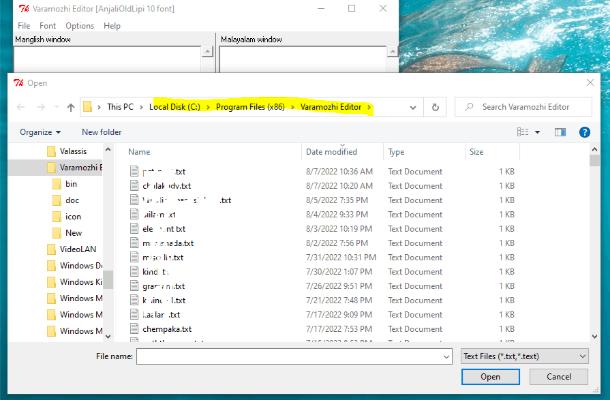
Step 2. Find the program you want to uninstall, open the installation folder and look for a file named uninstall.exe, unins000.exe, Uninstaller.exe, or something similar.
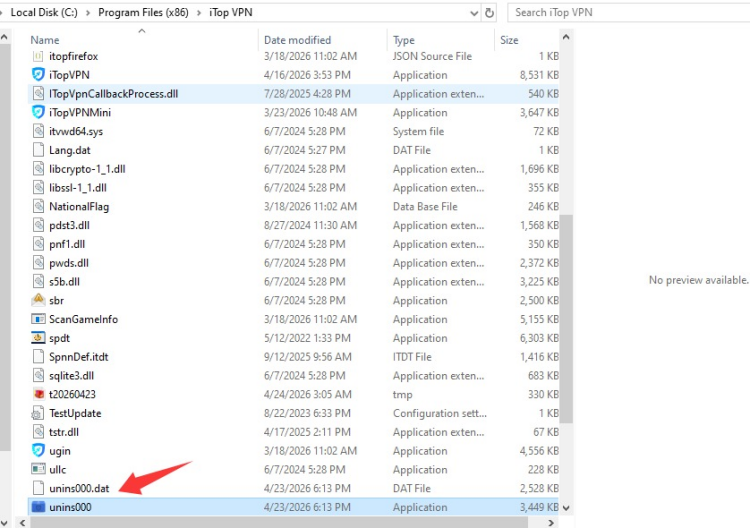
Step 3. Double‑click it and follow the on‑screen prompts to uninstall the program.
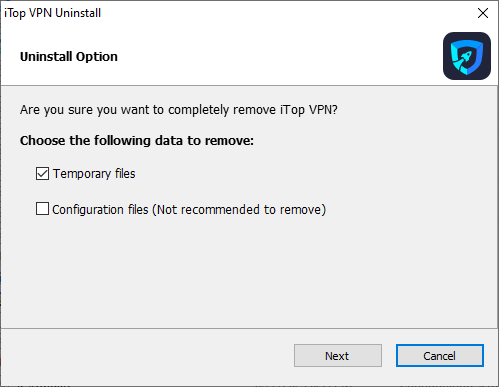
If you don’t find any uninstaller file in that folder, don’t worry. The program might not have one, or it may have been deleted accidentally. In that case, jump straight to Fix 3.
Fix 3: Reinstall the Program Then Uninstall Again
How to fix Windows cannot find when uninstalling? Let's check it step by step.
Step 1. Download the latest version of the program first.
Step 2. Then you should run the installer and reinstall the program directly over the existing one. Don’t uninstall first.
Step 3. Once the reinstall finishes, go back to Control Panel or Settings and try uninstalling the program normally again.
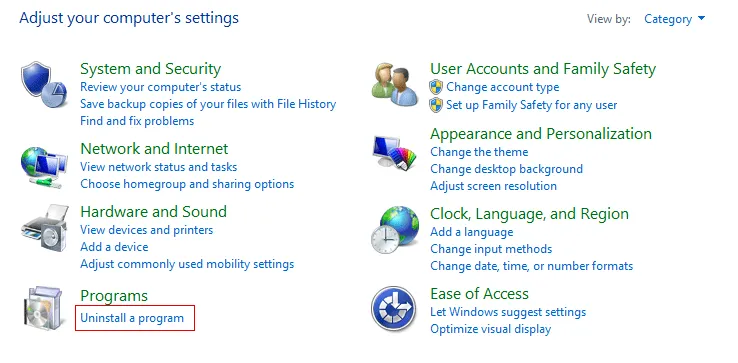
This fix repairs corrupted reference paths in the majority of cases. It’s one of the most effective and also definitely one of the simplest ways to deal with the error.
Fix 4: Clean Up the Windows Registry Manually
Sometimes, Windows cannot uninstall a program because broken or leftover registry entries are still telling the system that the software exists. Manually cleaning the Windows Registry removes these invalid entries, which can help fix uninstall errors and clear corrupted uninstall information. However, the Windows Registry is a core database that controls many system settings and programs.
Note: Deleting the wrong entry may cause software issues or even system instability. For this reason, this method is recommended for advanced users only. Before making any changes, it’s best to back up the registry or create a system restore point to avoid accidental problems.
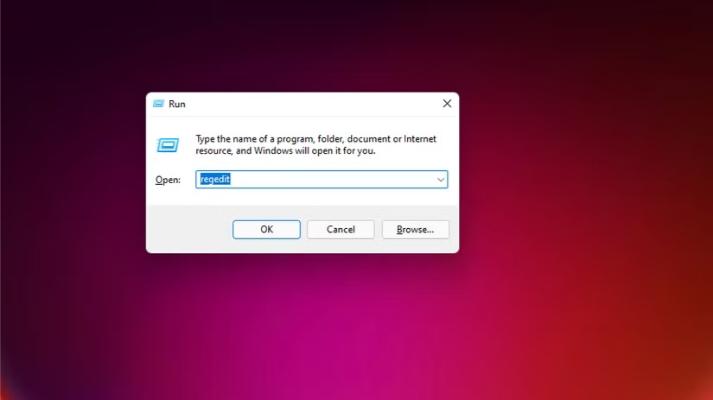
Step 1. Press Win + R, enter regedit, then press Enter to launch the Registry Editor.
Step 2. Navigate to this key: HKEY_LOCAL_MACHINE\SOFTWARE\Microsoft\Windows\CurrentVersion\Uninstall\Program Name.
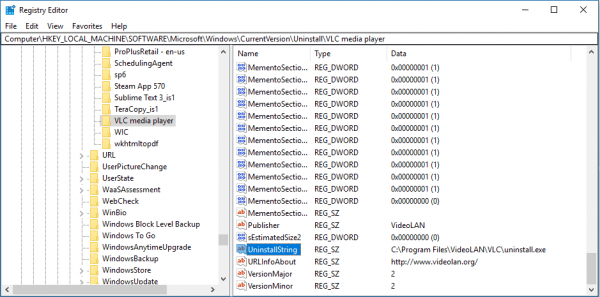
Step 3. Go through the subkeys listed there. Each one represents a program. Click on a subkey and look for the DisplayName value on the right. Find the one that matches the program you’re trying to uninstall. Right‑click the subkey and select Delete.
If you’re on a 64‑bit version of Windows, also check this key:
HKEY_LOCAL_MACHINE\SOFTWARE\WOW6432Node\Microsoft\Windows\CurrentVersion\Uninstall\Program Name.
After you delete the entry, restart your computer, you will know "how to fix Windows cannot find when uninstalling".
Fix 5: Uninstall Apps in Safe Mode – Last Resort
If the program is running in the background, it might be actively protecting itself - which can trigger the “when trying to uninstall program Windows cannot find app” error. Some software – especially antivirus tools or stubborn “potentially unwanted programs” – can lock their own uninstaller, preventing Windows from touching it. Safe Mode starts Windows with the bare minimum of drivers and services, allowing you to uninstall the software without interference.
Steps to uninstall software in safe mode:
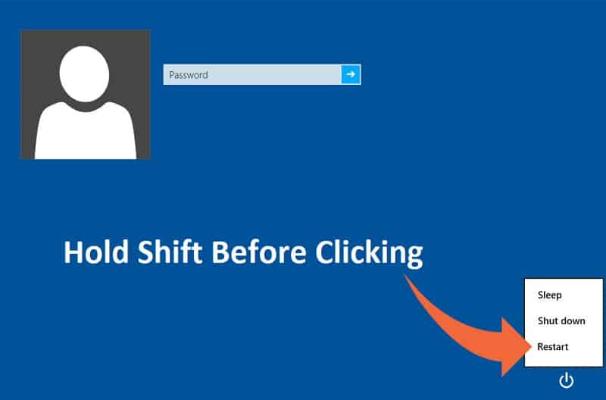
Step 1. Please keep the Shift key pressed first, then click Restart from the Start menu.
Step 2. Go to Troubleshoot, find Advanced Options > Startup Settings > Restart.
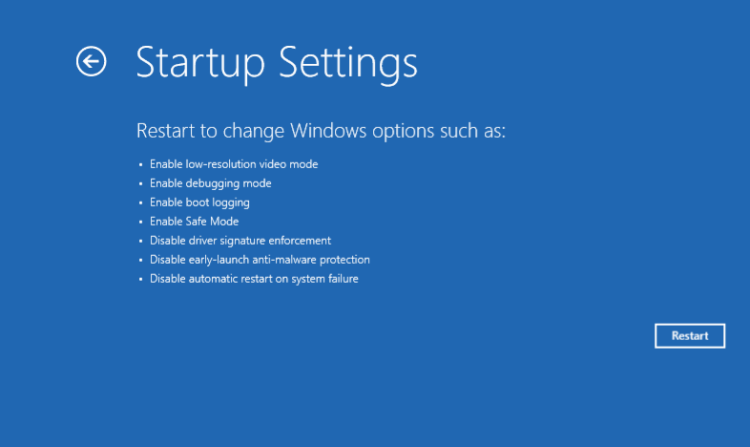
Step 3. When the system restarts, you should press 4 or F4 to enter Safe Mode. Once you’re in, open Control Panel or Settings and uninstall the program normally.
This method bypasses almost all third‑party interference, giving you clean access to remove the software.
How to Avoid Windows Cannot Find Program When Uninstalling Next Time
Prevention is a lot less painful than cleanup. Here’s how to stop the Windows cannot find when trying to uninstall error from coming back:
Don’t manually delete program folders. It breaks the references Windows relies on. Use the proper uninstall method every time.
Keep your system clean and updated. Run Windows Update regularly and clear out temp files to avoid corrupted uninstallers.
Always uninstall programs the right way. Use Windows built‑in removal or a dedicated tool. Don’t just drag folders to the Recycle Bin.
Use reliable uninstall tools proactively. Before you start seeing problems, run a tool like IObit Uninstaller to keep your Registry lean and your program entries clean. It can also remove Chrome extensions that may be causing browser issues.
Final Words
We’ve covered a lot: from reinstalling software to editing the Registry, from Safe Mode uninstalls to using professional tools. But if you want the most straightforward way to resolve how to fix Windows cannot find when uninstalling once and for all, give IObit Uninstaller a try. It’s free, it’s fast, and it handles the heavy lifting for you. Download it, run a Force Uninstall on the problem program, and let it sweep away every last leftover.
IObit Uninstaller Free
- Complete forced uninstallation for stubborn programs.
- Uninstall a batch of programs at once.
- Scan and remove leftover files, folders, and registry entries.
- Support the management of Universal Windows Platform apps.