

- Support Center
- Multiple Languages
- Language
- Help Us Translate
Expert in
PC Health Solution

All-in-one PC health solution: clean, optimize and secure

Comprehensive PC cleaning, optimization and protection

Keep drivers always up-to-date

More stable performance with less system crashes

Protect millions of computers against malware

Top computer security with full-round protection

Protect against viruses & boost PC performance
Complete forced uninstallation for stubborn programs.
Uninstall a batch of programs at once.
Scan and remove leftover files, folders, and registry entries.
Support the management of Universal Windows Platform apps.

Free up disk space by safe Windows Installer folder cleanup. This guide shows how to use Settings, Disk Cleanup, etc., to remove unwanted installer files.



4 Methods to Clean Windows Installer Folder
Method 1. Use Disk Cleanup
Method 2. Uninstall Unused Programs
Method 3. Use PatchCleaner
Method 4. Use Storage Sense
Cleaning the Windows Installer folder can help reclaim disk space by deleting unused installer cache files, but this must be done with caution. Please follow these safe methods to ensure you don't damage your system while freeing up space.
The Windows Installer folder (C:\Windows\Installer) is not a normal temp folder. It stores cached installation files (.msi/.msp) essential for repairing, updating, and uninstalling programs. Deleting files indiscriminately can break these functions and lead to errors, so cleanup must be done safely rather than manually.
Over time, the folder may become quite large as Windows stores installer packages and software patches for installed programs. Therefore, a large Windows Installer folder does not necessarily mean that all the files inside are unnecessary or safe to delete.
>> Also check, How to Clean Install Windows 11?
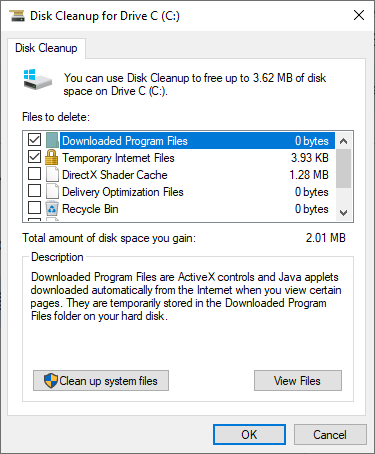
Disk Cleanup can help free up space on your system drive by removing temporary and unnecessary system files. However, it does not directly delete the active MSI or MSP cache files stored in C:\Windows\Installer.
Press Win+S, and type Disk Cleanup.
Select your system drive (usually C:), click OK to proceed.
Select Clean up system files and check boxes like "Downloaded Program Files" and "Temporary Internet Files".
Click OK.
You can reduce the size of the Windows Installer folder by removing unused programs, as it automatically deletes related installer cache files.
Press Win + I to open Settings.
Go to Apps > Installed apps(or Apps & features on Windows 10).
View the list, click on the apps you no longer need, and then click Uninstall.
Alternatively, you can use IObit Uninstaller to delete temporary files, update caches, or residual installer files with a single click.

If the built-in tools don't reclaim enough space, a tool like PatchCleaner can help. It compares files in the Installer folder against your currently installed software to identify potentially orphaned files. Before permanently deleting them, consider moving the detected files to another drive or backup location first. Also, be sure to create a system restore point before using it.
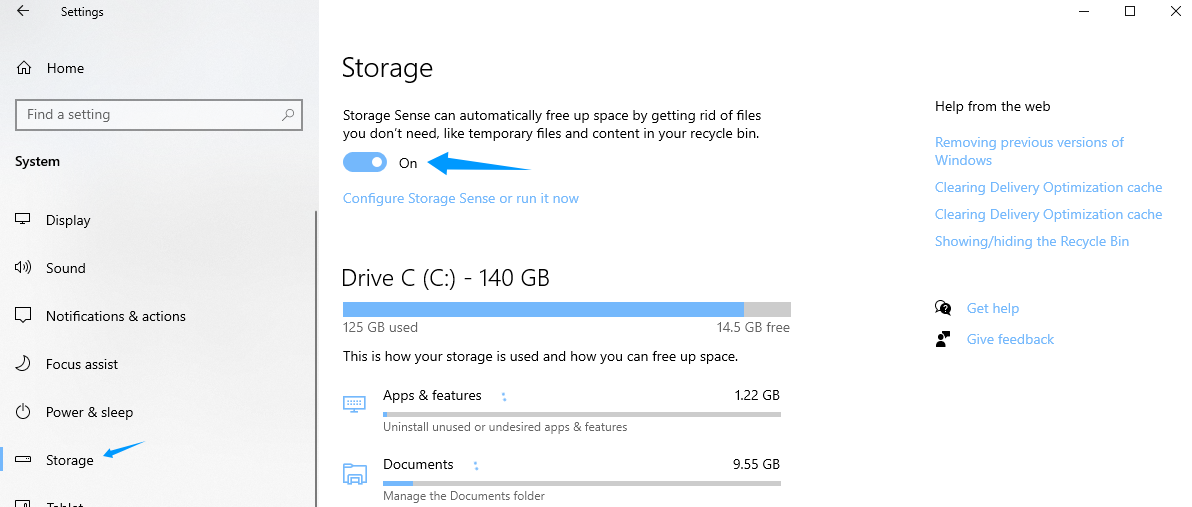
Press Win + I to open Settings.
Navigate to System > Storage, and turn on Storage Sense to automatically clean temporary and unnecessary files and help reduce overall disk usage.
DO NOT manually delete .msi or .msp files from C:\Windows\Installer folder.
DO NOT empty the folder completely, which could break app repairs, updates, and uninstall processes.
DO NOT skip backups. Always create a restore point or a backup before any cleanup.
DO NOT remove files without checking. Only delete orphaned files confirmed by a trusted tool.
In conclusion, if your Windows Installer folder is taking up a lot of space, safe Windows Installer folder cleanup can help you better manage disk usage. Since the folder contains critical installer cache files used for repairing and updating programs, you should never manually empty C:\Windows\Installer. Safe methods like Disk Cleanup, uninstalling unused apps, Storage Sense, or trusted tools such as PatchCleaner are strongly recommended. Additionally, avoid manual deletion and always back up your system beforehand to ensure stability while optimizing storage.
 People Also Ask
How to defrag hard disk Windows 11/10? Check this step-by-step guide inside.
How should I know if I can shift to Windows 11 safe and sound, and can my old hardware and system make it through the transition? WIndows Secure Boot and PC Health Checker help you know the answers.
How to fix corrupted files in Windows 11 to enhance system stability? This guide covers the most effective methods to repair damaged files on your PC.