Can't uninstall McAfee? If you’ve ever tried uninstalling McAfee and found it still lingering on your system, you’re not alone. Many users struggle with how to remove McAfee completely, only to discover leftover files, background processes, or persistent pop-ups. Whether it came pre-installed or was bundled with another program, figuring out how to uninstall McAfee from my computer can be frustrating. If you're specifically looking for how to uninstall McAfee on Windows 11, the steps are similar but may require additional cleanup to fully remove all components.
The truth is, a simple uninstall often isn’t enough. McAfee tends to leave behind residual files and registry entries that continue to affect your PC’s performance. In this guide, we’ll walk you through multiple proven methods - from basic to advanced - to ensure you fully understand how to fully delete McAfee, including the easiest and most effective solution using IObit Uninstaller.
Why You Need to Remove McAfee Completely
Removing McAfee partially can cause more problems than keeping it installed. Leftover files and services may continue running in the background, consuming system resources and slowing down your PC. This is why learning how to fully delete McAfee is essential. Many users searching for how to remove McAfee from Windows 11 discover that leftover files can still impact system performance even after standard uninstallation.
Another common issue is software conflict. If you plan to install another antivirus program, McAfee remnants may interfere, causing errors or reduced protection. Additionally, users often report annoying pop-ups and renewal notifications even after uninstalling.
In some cases, users encounter bundled or fake installations - often referred to as how to uninstall McAfee virus scenarios - where McAfee appears unexpectedly after installing other software. These situations make it even more important to completely remove every trace.

Before You Start – Important Preparations
Before diving into the removal process, take a few precautionary steps to ensure a smooth experience:
Back up important files to avoid accidental data loss
Disable McAfee’s real-time protection to prevent interference
Ensure you have administrator privileges
Close all running applications
These steps will make it easier to follow the methods below and successfully complete how to remove McAfee completely.
Method 1 – How to Uninstall McAfee from Windows Settings (Basic Way)
The most straightforward method is using Windows Settings. This is usually the first step when searching for how to uninstall McAfee from Windows 11 or earlier versions. However, uninstalling McAfee on Windows 11 using this basic method often leaves behind hidden files that require additional cleanup steps.
Steps to Uninstall McAfee from Windows Settings:
Press Windows + I to open Settings.
Go to Apps > Installed Apps.
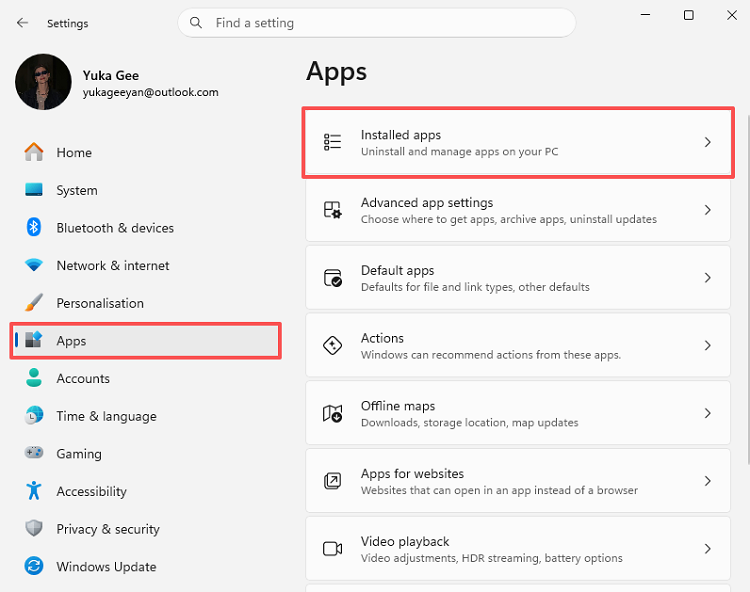
Locate McAfee in the list. Click Uninstall and follow the on-screen instructions
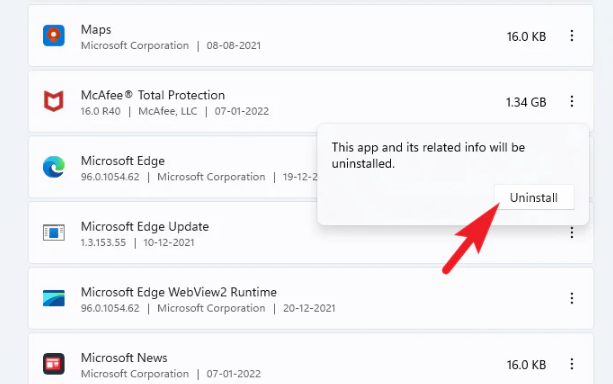
This method works for how to uninstall McAfee on Windows 11, as well as Windows 10, 8, and 7. However, it rarely removes all associated files.
Even after completing these steps, many users still search for how to remove McAfee completely because leftover files remain hidden in the system.
Method 2 – Use McAfee Removal Tool Windows 11&10 (MCPR)
McAfee provides an official cleanup tool called the McAfee Consumer Product Removal (MCPR) tool.
Steps to Use McAfee Removal Tool Windows 11 to Remove McAfee Completely:
Download the MCPR tool on Windows 11 from the official McAfee website.
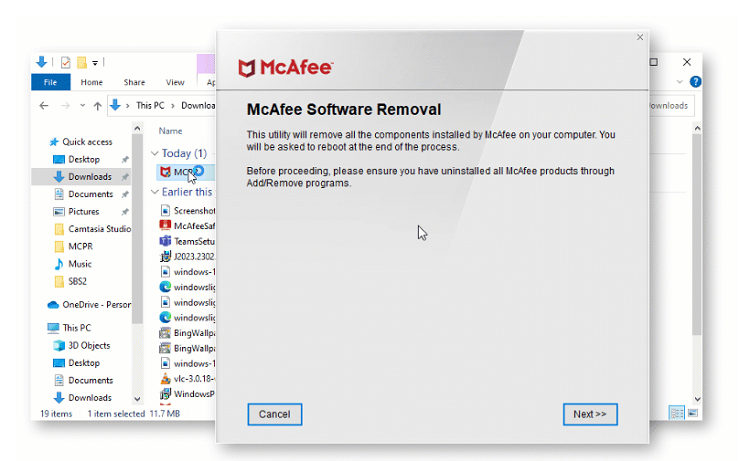
Run the tool as an administrator.
Follow the prompts and complete the process.
Restart your computer.
The MCPR McAfee uninstall tool is more effective than the standard uninstall method and is often recommended when learning how to uninstall McAfee from my computer.
However, it’s not perfect. Some users still report leftover registry entries or hidden files. That’s why many continue searching for a more thorough solution for how to remove McAfee completely.
Method 3 – How to Remove McAfee Completely with IObit Uninstaller (Recommended)
If you want the easiest and most reliable solution, using IObit Uninstaller is highly recommended. It is specifically designed to remove stubborn programs and clean up all leftover files.
IObit Uninstaller Free
- Complete forced uninstallation for stubborn programs.
- Uninstall a batch of programs at once.
- Scan and remove leftover files, folders, and registry entries.
- Support the management of Universal Windows Platform apps.

Why Choose IObit Uninstaller?
Deep scan technology removes all residual files and registry entries
Forced uninstall handles stubborn or corrupted installations
Detects and removes bundled programs (helpful for how to uninstall McAfee virus)
User-friendly interface suitable for beginners
How to Remove McAfee Completely via IObit Uninstaller
Step 1. Download and install IObit Uninstaller.
Step 2. Launch the program and find McAfee in the software list.
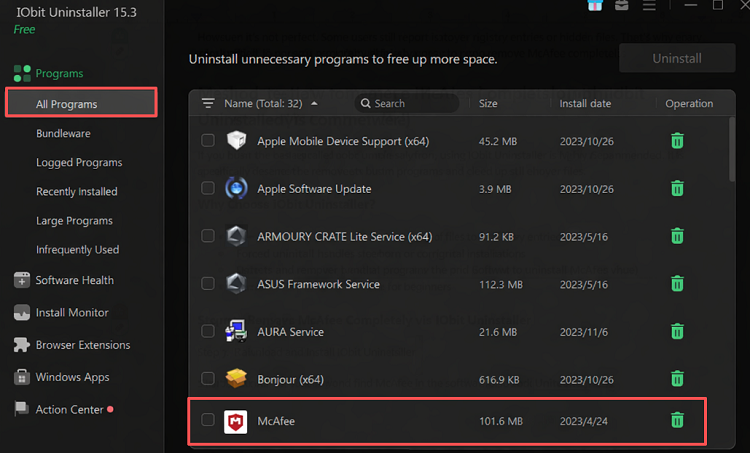
Step 3. Click the trash can icon to uninstall the software. Delete all detected leftover files and registry entries.
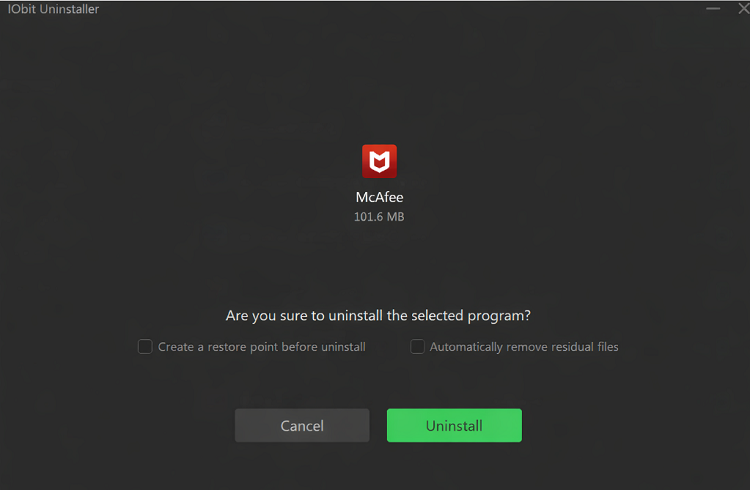
This method is the most effective way to solve how to remove McAfee completely without technical hassle. It’s especially useful if you’ve already tried other methods and still see traces of McAfee.
If you’re wondering how to uninstall McAfee from my computer quickly and safely, this is your best option.
More Features You Can Try in IObit Uninstaller
Powerful Scan – Deeply removes leftover files, folders, and registry entries after uninstalling programs, ensuring a completely clean system.
Force Uninstall – Eliminates stubborn or corrupted software that cannot be removed through standard uninstall methods, preventing lingering issues.
Batch Uninstall – Allows users to uninstall multiple unwanted programs simultaneously, saving time and simplifying system cleanup processes efficiently.
Bundleware & Extension Removal – Detects and removes bundled programs, browser extensions, and toolbars that may affect performance and security.
Software Health Optimization – Scans and fixes leftover data, invalid registry entries, and broken shortcuts to maintain overall system performance.
Troubleshooting & Verifying Complete Removal
Even after uninstalling, you may encounter issues. Here’s how to fix them and verify success.
Common Problems:
Solutions:
Restart your computer and try again
Use Safe Mode for stubborn cases
Use a forced uninstall tool like IObit
How to Verify Removal:
Check Installed Apps to ensure McAfee is gone
Search your system for leftover McAfee files
Open Task Manager and confirm no McAfee processes are running
These steps ensure you’ve successfully completed how to fully delete McAfee.
FAQ – How to Remove McAfee Completely
How to uninstall McAfee from my computer if it won’t uninstall?
Use a forced McAfee removal tool Windows 11 tool like IObit Uninstaller. It can remove stubborn programs that standard methods cannot.
How to uninstall McAfee from Windows 11 step by step?
Go to Settings > Apps > Installed Apps, find McAfee, and click uninstall. For complete removal, follow up with a cleanup tool.
How to uninstall McAfee on Windows without leaving leftovers?
Use a deep-cleaning uninstaller that scans and deletes residual files and registry entries.
How to uninstall McAfee virus or fake McAfee pop-ups?
These usually come from bundled installs. Use advanced uninstall tools and run a malware scan afterward.
Why is McAfee still on my computer after uninstalling?
Because standard uninstall methods leave behind files and registry entries. That’s why learning how to remove mcafee completely is important.
Conclusion
Removing antivirus software isn’t always as simple as clicking “uninstall.” As you’ve seen, leftover files and hidden processes can persist unless you take extra steps. Whether you use Windows Settings, the MCPR tool, or manual removal, each method has its limitations.
For the most reliable results, using a dedicated tool like IObit Uninstaller is the best way to ensure how to remove McAfee completely without missing anything. It simplifies the process and guarantees a clean system.