Outdated drivers probably lead to unexpected system glitches. You may need to update your driver to the latest version, making your computer run smoothly and stably. Windows has built-in tools that help you update drivers on Windows without extra tools while third-party driver updater offers one-click solution catered to non-skilled users. Here, we will walk you through how to update Windows drivers step by step, whether you prefer automatic or manual operation.
What Are Windows Drivers
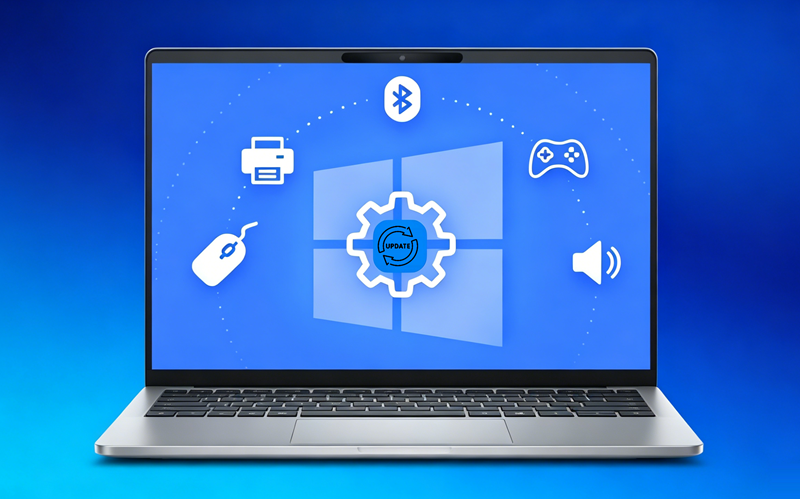
Window drivers are software components designed to let your operating system communicate with hardware, acting as translators to deliver requests back and forth so both sides can understand each other. To be specific, Windows will send a command when you need to do something. The drivers transform the command into technical signals that hardware can recognize and implement the task. After it finishes, Windows will receive the results delivered by the drivers and respond accordingly. In short, drivers are crucial to make your PC work properly and smoothly.
Why & When Should Update Drivers on Windows
Drivers are installed automatically when you set up Windows, but you should update Windows drivers for several reasons.
Performance optimization: New drivers are improved with better performance and new features to help your device run more efficiently.
Security enhancement: Some driver updates resolve vulnerabilities to eliminate threats from malware or attackers.
Bug fixes: Keep your drivers up-to-data to fix bugs, crashes and other unknown issues for a more stable system.
Compatibility: It may requires the latest drivers to run new installed software, games or Windows updates properly.
Updating drivers on Windows isn’t the thing you should do everything, but at the right time to stabilize and optimize your computer.
Your hardware is not working properly: If you are experiencing no sounds, screen flickers, printer not responding or other hardware issues, drivers updates may fix the issue.
You have new hardware installed: It requires the latest drivers for new component (for example graphic cards) to function correctly.
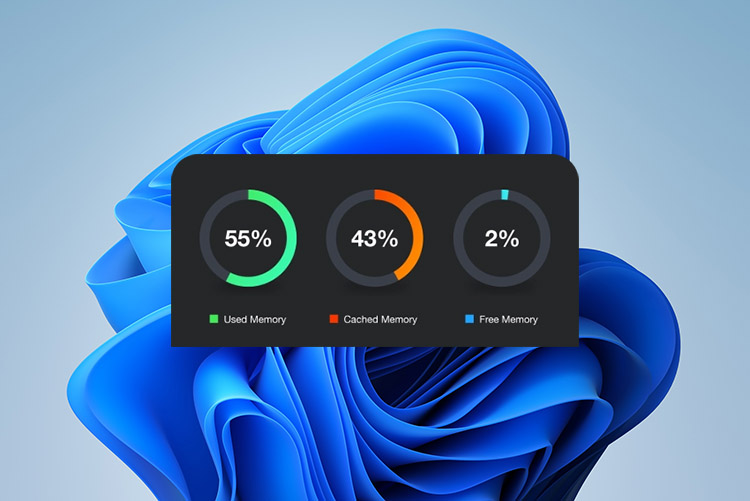
Your PC runs slowing suddenly: Outdated drivers may cause PC performance drops - for example, less responsive. Update drivers and check whether your PC runs smoother.
You have completed Windows updates: Sometimes, major Windows updates could lead to incompatibility issues with older drivers.
You are a game enthusiast or visual content creator: Updated drivers - especially graphic drivers - help create seamless performance when you are gaming or working with creative projects.
4 Methods to Update Drivers on Windows 11/10
There are multiple ways to update drivers on PC, both automatic and manual options available. Let’s check the step-by-step guides.
Method 1. Update Windows Driver with Driver Booster [Automatic Option]
Diver Booster, designed by IObit, is a smart solver to fix outdated drivers on your Windows-based computer. It streamlines the update process, enabling you to quickly install the latest drivers without manual operation.
Driver Booster Free
- Automatically scan and update drivers.
- Update game ready drivers for peak gaming performance.
- Identify and fix various common of hardware issues.
- Boost 30% of system performance for fast & smooth running.

Driver Booster automatically scans your system and find out the drivers that actually need to update. Its huge database collects numerous verified drivers from 1,200+brands, for almost all your devices, ranging from CPU to GPU, from audio/network devices to printer and more, ensuring safe and reliable updates. In the scan results list, you can choose to update a specific driver or update all Windows drivers at the touch of a button.
Driver Booster has an easy-to-navigate interface perfect for beginners. Here are the steps to update drivers on Windows using Driver Booster.
Step 1. Download and install the Windows driver updater on your PC. It is fully compatible with Windows 11 and 10, ARM64 devices included.
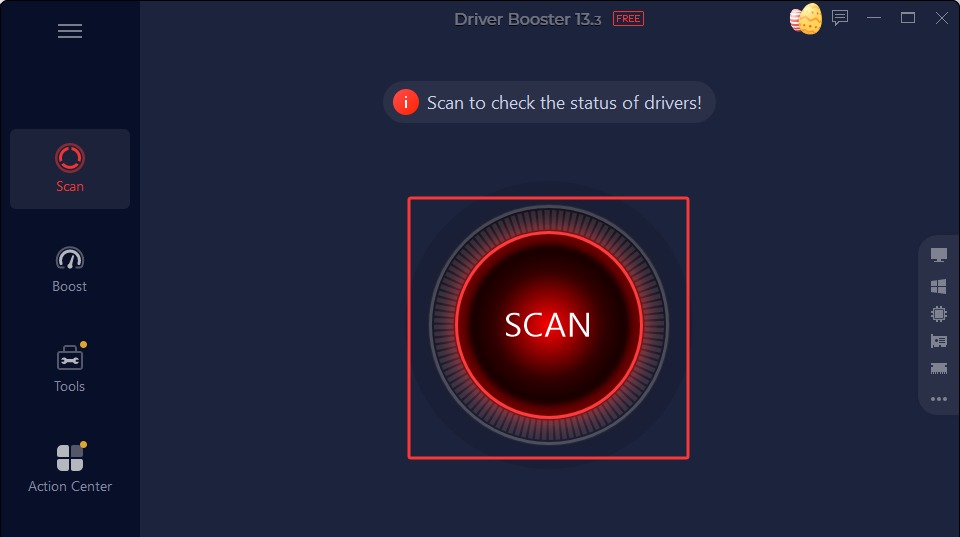
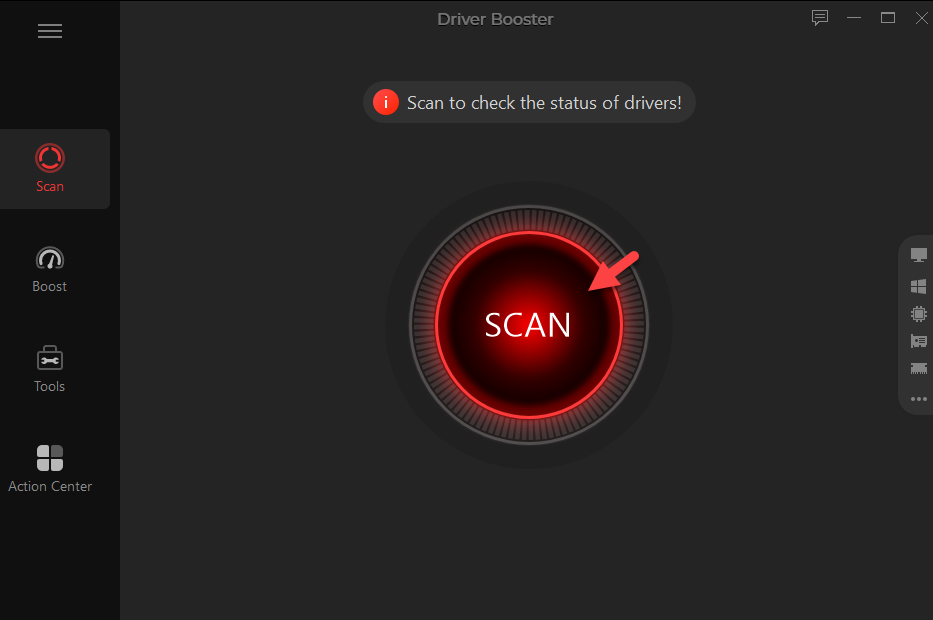
Step 2. Launch Driver Booster and click SCAN button.
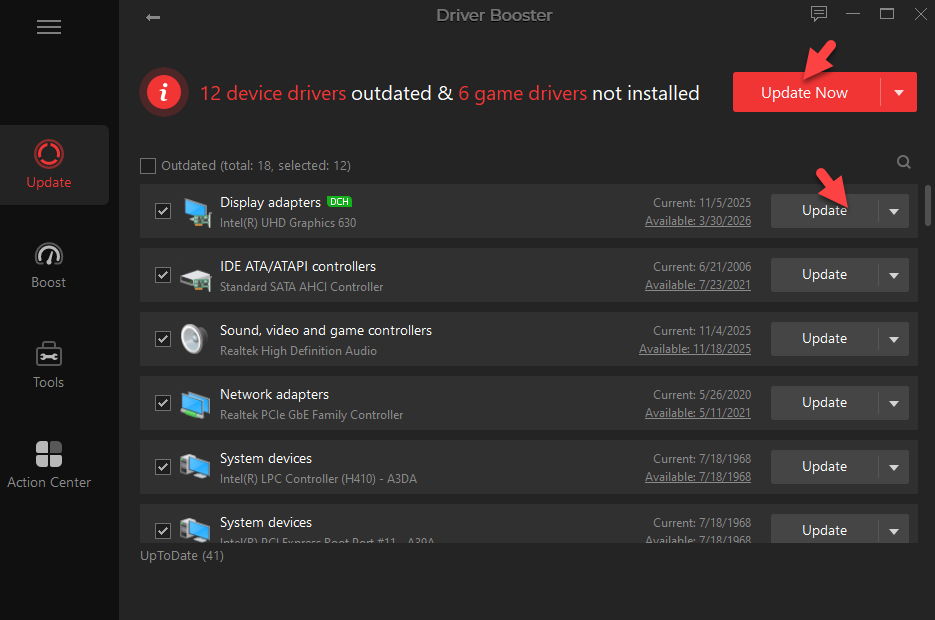
Step 3. After it finishes scanning, all outdated and not installed drivers will be shown in the list. Select a driver and click Update. Or, click Update Now to update all drivers.
Method 2. Update Windows Drivers with Windows Update [Automatic Option]
Windows Update can automatically download and install updates for Windows, including new features, bug fixes, security patches and device drivers. It can identify hardware devices in your system, download and install compatible drivers without extra tools.
Follow the guide to update drivers using Windows Update.
Step 1. Click Start > Settings.
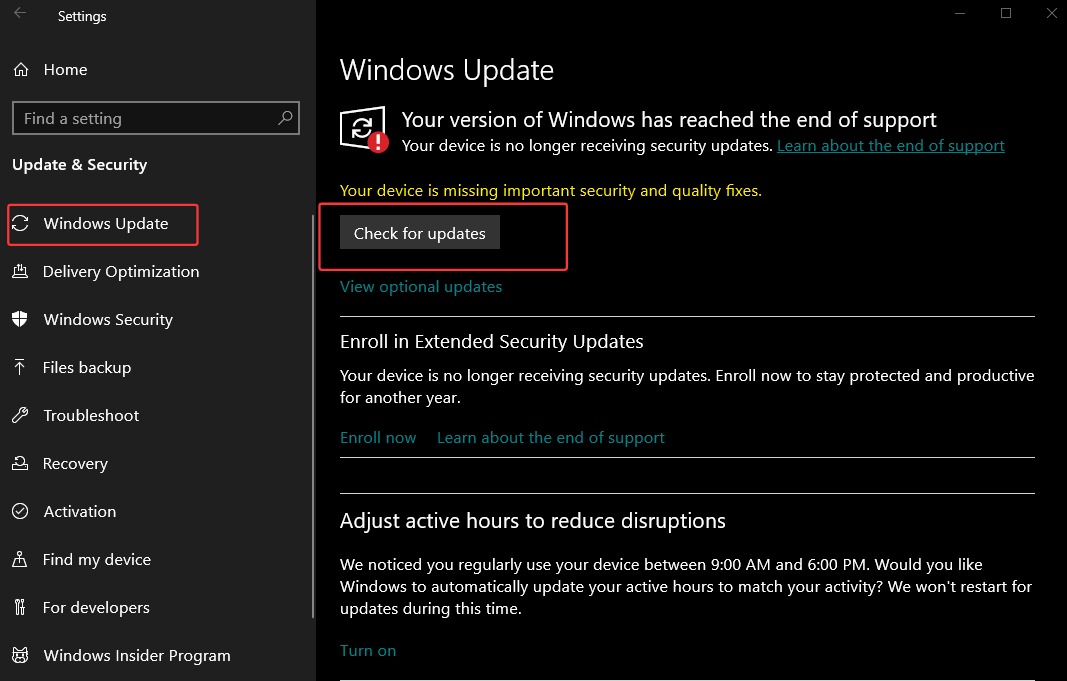
Step 2. Navigate to Windows Update on Windows 11, Update & Security on Windows 10.
Step 3. Select Check for Update.
Step 4. Click Download & install if any update is available. After it completes the installation, restart your PC.
Notice: Although Windows Update is recognized as an easy and safe way to keep your drives up to date, in some cases, it can’t provide the new driver versions for high-performance graphic cards and specialized hardware. Also, it is not so helpful when you only want to update specific drivers.
Method 3. Update Windows Drivers with Device Manager [Manual Option]
Device Manager is a built-in Windows tool used to view and manage hardware devices connected to your PC. Using it, you can update/reinstall drivers, enable/disable hardware and fix common issues to make everything run smoothly and properly.
It offers flexible control over drivers, allowing you to update specific drivers manually. Here is the guide of how to update drivers on Windows using Device Manager.
Step 1. Enter “Device Manager” in the search box and open it.
Step 2. All devices available on your PC are shown. Expand the category (like display adapters) and locate the device you want to update.
Step 3. Right click the device and select Update drivers.
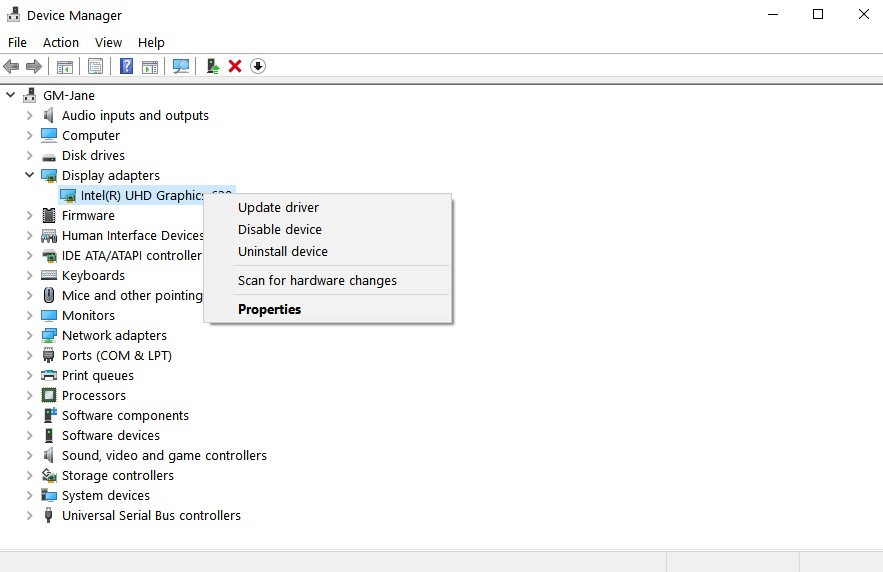
Step 4. Choose an option - Search Automatically for drivers letting Windows look online and locally for the latest driver, or Browse my computer for drivers if you have downloaded a new driver.
Step 5. Restart your PC after the new drivers are installed.
Notice: Device Manager is one of the simplest way to update drivers without extra tools. However, you should learn which device needs to update clearly. Improper operation probably results in device not working or system issues. If you are beginner, a reliable driver updater for Windows is the perfect choice.
Method 4. Download New Drivers from Manufactures’ Websites [Manual Option]
Manufactures always officially release the latest drivers featuring performance improvements and bug fixes on their websites for completely safe and reliable downloads. If you prefer a more trusted way to update Windows drivers, visiting manufactures’ websites is the best option.
Step 1. Open Device Manager, find your device and identify the exact model name.
Step 2. Go the official support or download page of your hardware brand.
Common manufactures
Graphics: NVIDIA, AMD, Intel;
Laptops/Motherboards: Dell, HP, ASUS, Lenovo
Audio/Network: Realtek
Step 3. Choose your Windows version and download the latest stable driver, avoiding beta version unless it is essential.
Step 4. Open the .exe file and install it following the on-screen instructions.
Step 5. Restart your computer to ensure the new driver is fully applied.
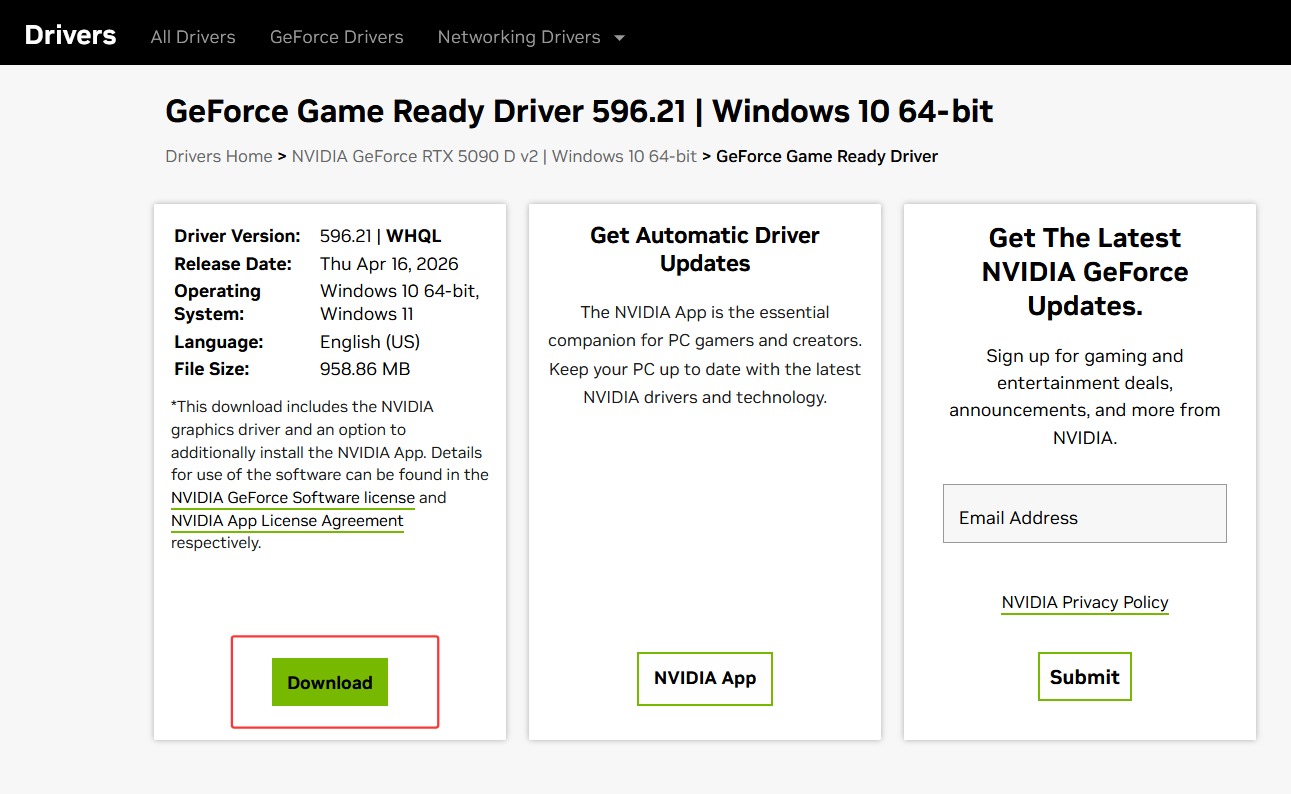
Notice: Please confirm the correct device model before downloading. A wrong driver may cause incompatibility issues.
Common Tips While Updating Drivers in Windows
Updating Windows drivers can save your from crashes and other annoying issues but sometimes blind updates lead to more serious problems. Here are some practical tips to follow whether you're using Windows Update, Device Manager or manufacture downloads.
Verify your device details: Always ensures your hardware model. Even small differences - like RTX 5090 vs. RTX 5090 D - matter a lot.
Download full and correct driver from official sites: Do not download drivers from third-party site and avoid corrupted downloads. Make sure the driver matches your Windows version (10 or 11 or 11 Arm64) and system type (32 or 64 bit).
Create a restore point: Sometimes, major updates may lead to data missing or unexpected errors. If something goes wrong when update drivers using Windows Updates, revert your system and roll back a working state.
Keep your system stable during update: Don't let anything interrupt the update. It is suggested to close heavy application to prevent conflicts.
Update Windows drivers only when necessary: If you encounter bugs or need to improve performance, it is the right time to update drivers. However, unnecessary updates sometime can introduce issues if everything runs fine.
Final Thoughts
Yes, you should update Windows drivers for many reasons, from enhancing performance to protecting from potential security risks. Windows Update automates the workflow while sometimes can't offer the real new version. Device Manager and Manufacture Websites allow you to install specific drivers that you actually need but requires learning curve to avoid risks due to improper update. Driver Booster, a free driver updater for Windows, provides reliable drivers that exactly fits your hardware models from official sources. Just with a single of click, you can update drivers on Windows without errors.
Driver Booster Free
- Automatically scan and update drivers.
- Update game ready drivers for peak gaming performance.
- Identify and fix various common of hardware issues.
- Boost 30% of system performance for fast & smooth running.