Deleting Windows user profile is a common way to fix corrupted profiles, free up storage space, or reset user settings. However, removing a profile is not as simple as removing a folder from the C:\Users directory. It stores custom preferences, app data, and registry entries; improper deletion may cause system errors and leftover clutter. This guide shows how to delete Windows user profile safely and clean residual files completely.
Why Delete Windows User Profile? What Gets Removed
Old or damaged user profiles create system bloat and unexpected errors. Many users need to delete Windows profile for different purposes. This section covers common reasons for removal and details what will be erased and what remains.
Common reasons to delete Windows user profile:
Remove inactive profile data → Reclaim disk space
Fix corrupted user profiles → Resolve sign-in failures
Reset user and app configurations → Stop app errors
Prepare PC for new user → Erase old personal data
What is deleted:
Personal files (Desktop, Documents, Downloads, Pictures, and Videos)
AppData folders (Local, LocalLow, and Roaming)
User-specific application settings and preferences
Browser profiles, cache, and saved customizations
User-specific registry settings associated with the profile
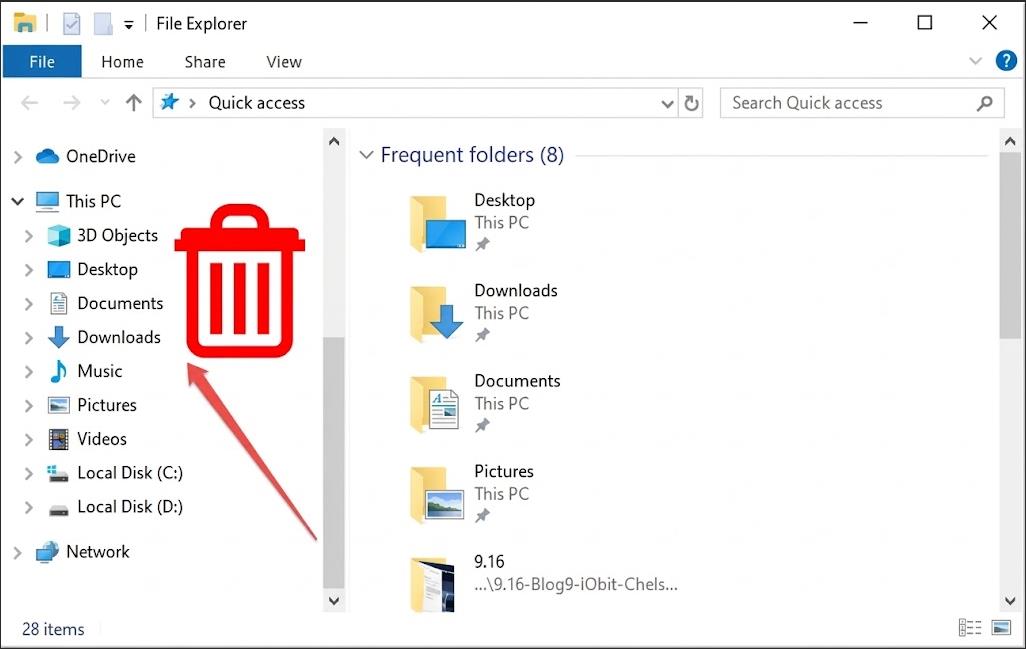
What is not deleted:
Now that you understand these details, it’s time to follow the 3-phase process to delete user profile Windows 10/11.
Phase 1: Prepare to delete profile
Phase 2: Delete profile
Phase 3: Remove leftovers
Phase 1: Prepare to Delete Your Windows User Profile
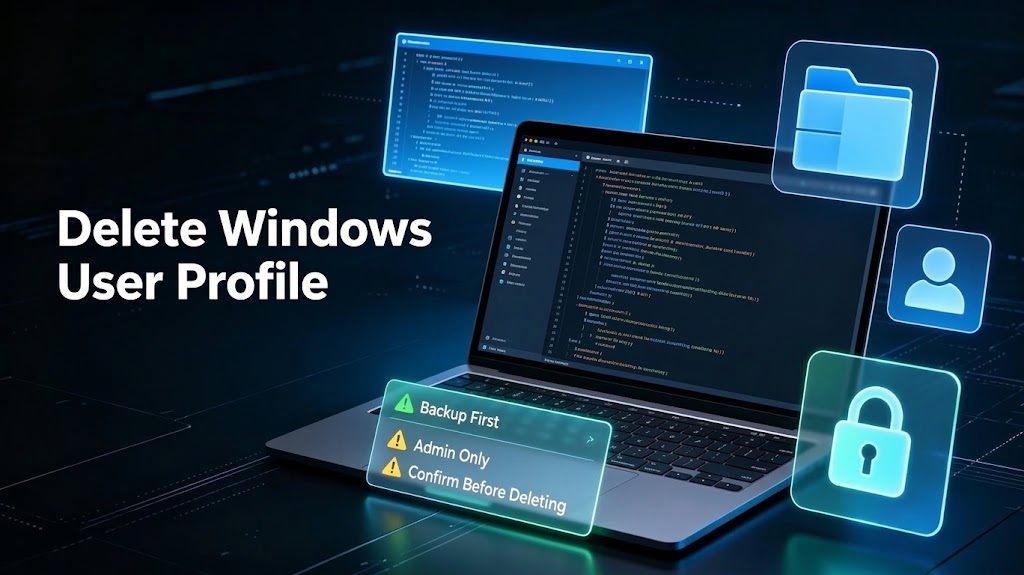
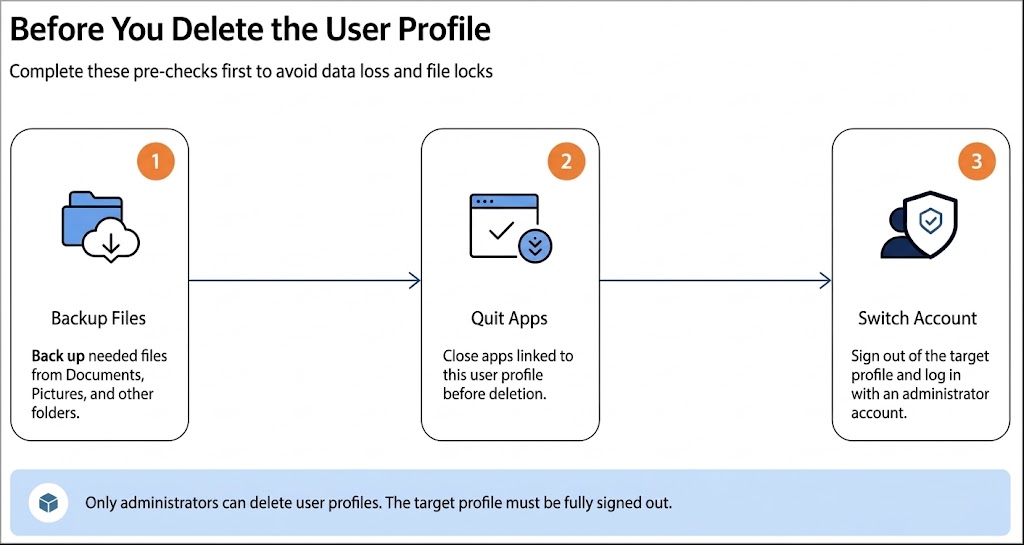
User profile deletion is irreversible. All related data gets erased completely. For system stability and data safety, verify the points below before you start:
Backup files: Back up your needed files.
Quit apps: Close all running programs linked to this user profile.
Switch account: Sign out of the target user profile and log in with an administrator account. (Only administrator accounts have permission to delete Windows user profiles.)
Phase 2. Delete Windows User Profile with 3 Effective Methods
Once your preparations are complete, you can start deleting Windows user profile. Below are 3 methods, suitable for both beginner and advanced users.
Method 1: Delete Profile via System Properties (sysdm.cpl)
Windows has a built-in graphical interface, System Properties (sysdm.cpl), that lets admins view and delete Windows user profile. This is the easiest way for beginners.
Step 1. Type System in the Windows search bar and press Enter.
Step 2. Scroll down to the Related settings section and click Advanced system settings.
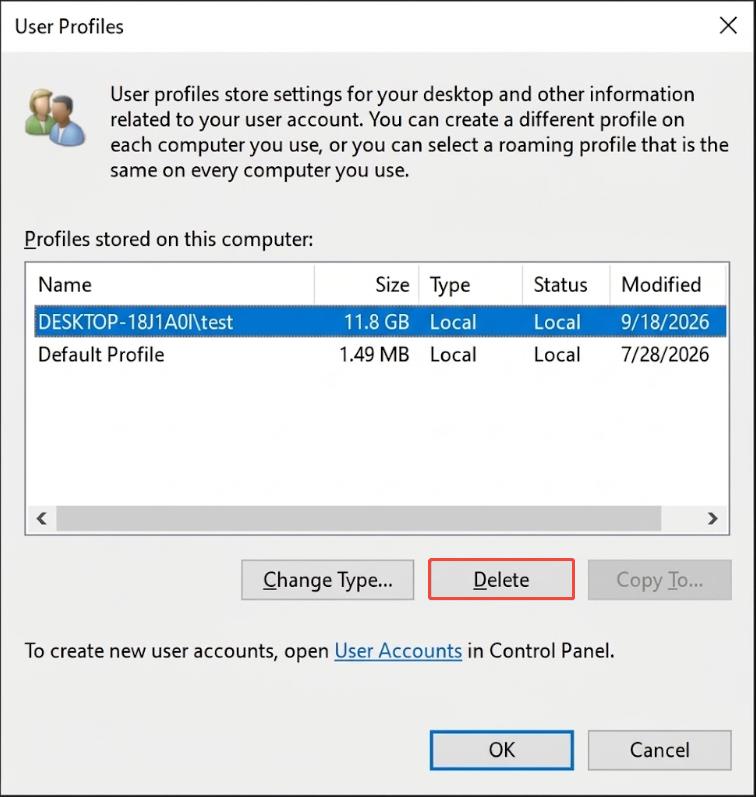
Step 3. In the User Profiles section, click the Settings button.
Step 4. Select the target profile, click Delete, and wait for Windows to finish deleting.
Method 2: Delete Profile by the PowerShell Command
PowerShell provides a fast, command-line-based way to delete Windows user profiles. This method bypasses graphical menus and lets you directly remove profiles with commands.
Step 1. Press Win + X and select Windows PowerShell (Admin).
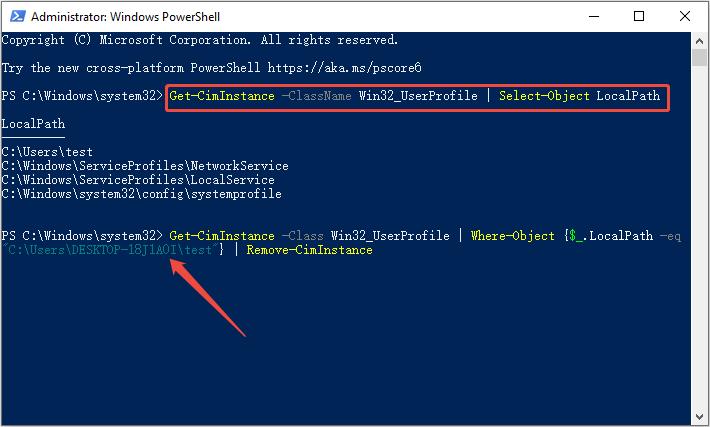
Step 2. Run the following command to list all local user profiles on your PC.
Get-CimInstance -ClassName Win32_UserProfile | Select-Object LocalPath
Step 3. Continue running the removal command to delete the specified user profile, and wait for the process to complete. (The username should be your actual username.)
Get-CimInstance -Class Win32_UserProfile | Where-Object {$_.LocalPath -eq "C:\Users\Username"} | Remove-CimInstance
Method 3: Delete User Profile with Delprof2 Tool
Delprof2 is a free third-party command-line tool. It can remove stubborn or bulk inactive user profiles when you can’t delete user profile windows 11 with the above methods.
Step 1. Download Delprof2 from the Helge Klein download page, then extract the executable file.
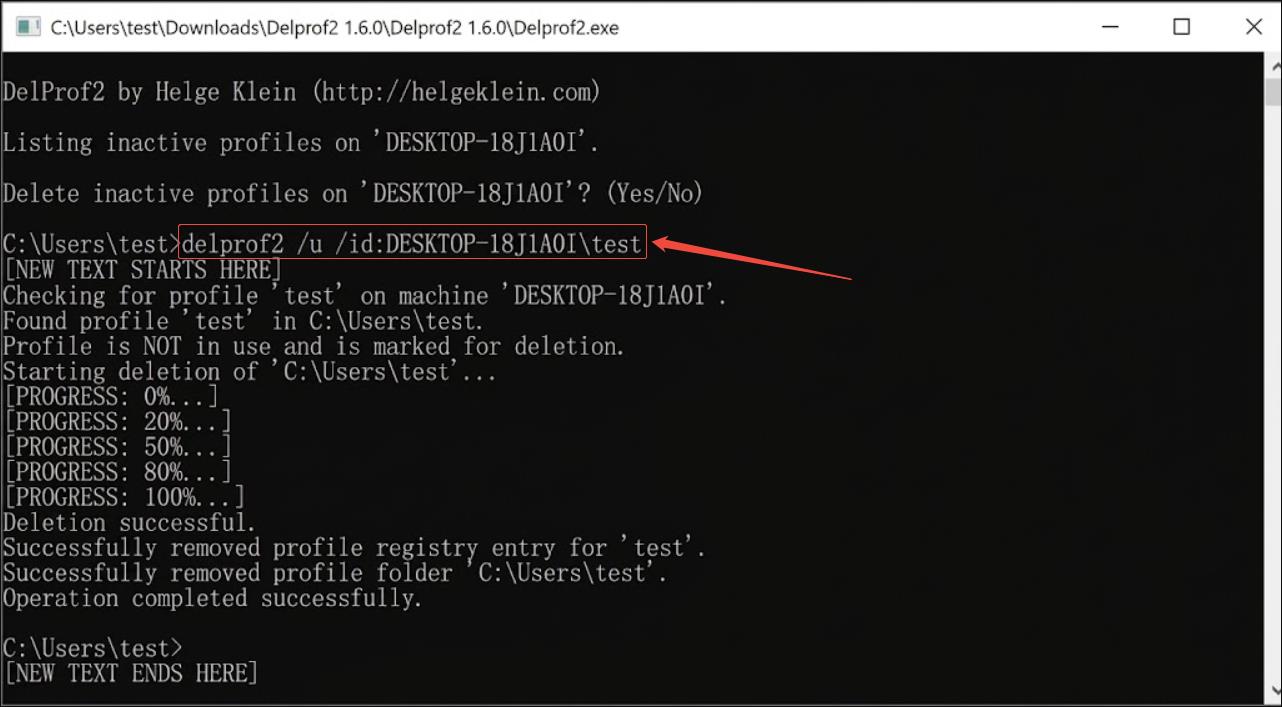
Step 2. Run DelProf2 as an administrator, type delprof2 /u /id:username, press Enter, and wait for the process to end. (Replace username with your target username)
⚠️ Windows native profile removal often leaves leftover folders and orphaned registry entries, which can be considered potential threats. To avoid repeated system issues, removing these leftovers is necessary.
Phase 3. Remove User Profile Leftovers with IObit Advanced SystemCare
Deleting Windows user profile removes the profile itself, but some residual data may still remain. These leftovers waste storage, trigger permission conflicts for new profiles and may bring back old corruption. To help clean up these leftovers completely, you can try IObit Advanced SystemCare. Let’s see what this PC cleaner can do for you.
Advanced SystemCare Free
- Clean: 420 billion traces removed & 85 EB junk files cleaned
- Protect: 80 million unauthorized access blocked & 20 million bugs fixed
- Speed Up: 6 million hours of startup time saved & Turbo boost
- Optimize: Auto clean and auto care your PC with AI mode

- What Makes Advanced SystemCare Ideal for Cleaning Profile Leftovers
Highlight 1: Automation with no extra operations
Advanced SystemCare is an all-in-one PC cleaner that scans for junk files, privacy traces, and invalid registry, and fixes them automatically in one click.
Highlight 2: Robust and wide-ranging cleaning functions
This hard disk cleaner targets many cleanup items, including app-related leftovers, duplicate files, temporary system files, log files, browser caches, registry, etc., for extra Windows 11 100 disk usage.
Highlight 3: Thorough and safe deep cleaning
This C drive cleaner delivers thorough cleaning to wipe your drive and digs deep to clear hidden files that manual cleanup often misses.
- How to Clean Leftovers Using Advanced SystemCare (Step-by-Step Guide)
Now you know this software is powerful and safe. Download it to your PC to delete user profile Windows 11 registry, and other junk files.
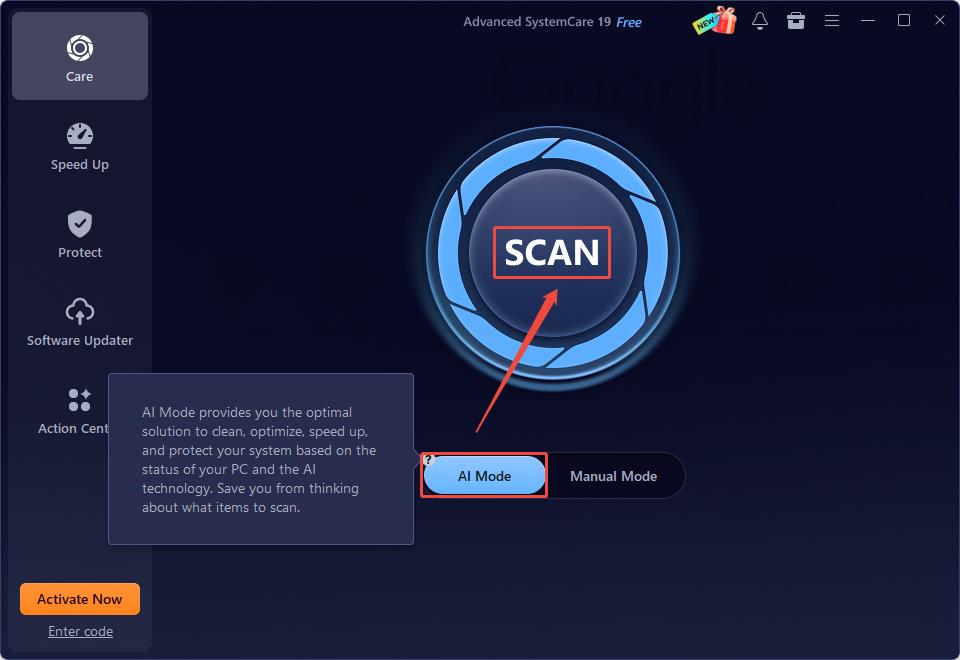
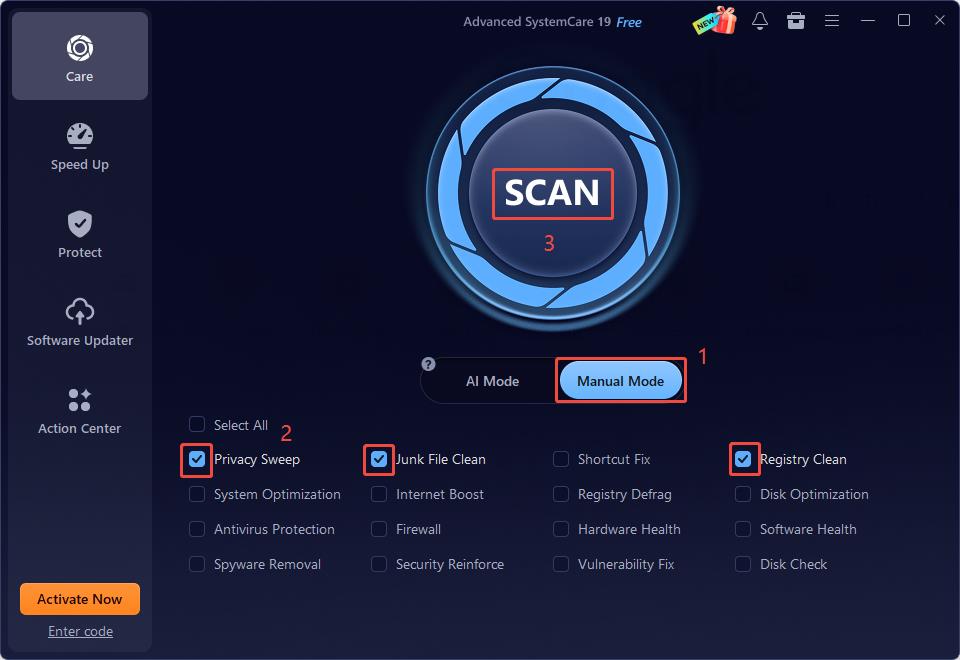
Step 1. Launch Advanced SystemCare, and it provides two scan modes in the Care tab: AI Mode and Manual Mode. Select one and begin scanning.
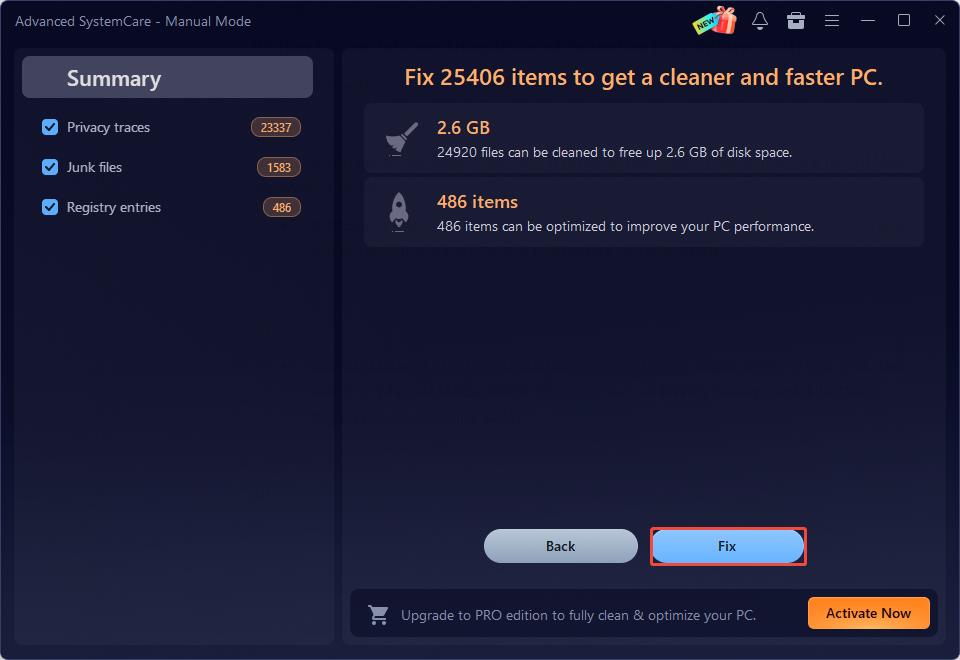
Step 2. When the scan ends, it shows how many files it finds and how much memory can be freed. Click the Fix button to start cleaning.
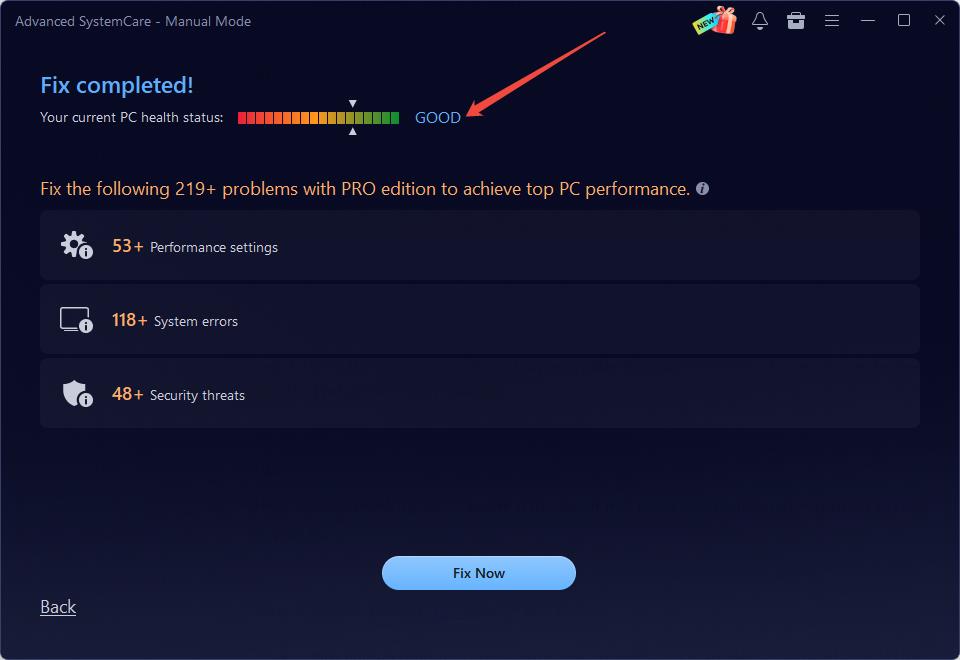
Step 3: After cleanup, a Fix completed window shows up, then restart your computer to check if leftovers are fully removed.
You can also check if your PC health is good in the window. If not, try this software’s other optimization features to tune up your PC.
Beyond cleanup, this best PC optimizer also packs:
Rich built-in tools: It comes with over 30 built-in tools to deliver all-round support for various needs.
Turbo Boost: As a RAM booster for Windows 11, it can free up RAM/CPU for gaming or heavy tasks.
Startup Optimizer: Disable startup programs and cut Windows boot time.
Real-time Tuneup: Adjust system resources continuously while your PC runs.
System Protection: Shield your PC from spyware and system vulnerabilities.
Privacy Protection: Secure private files and hide your online digital fingerprint.
Browser Protection: Stop browser hijacks and remove ads.
Software Updater: Check for outdated software and help install secure official releases.
With such a full set of features, it effortlessly resolves your computer issues. Download it to safeguard and maintain your PC’s overall health.
The Bottom Line
A complete procedure to delete Windows user profile consists of preparation, deletion, and thorough cleanup. Stick to this tutorial, and hope you can safely and efficiently delete profile Windows 11/10.