Some desktop programs and system utilities continue to running in the background on Windows. They silently performance various tasks from data sync to auto update. In fact, too many active background processes often lead to heavy resource consumption (especially high CPU/memory usage), even noticeable PC lag.
How to close background apps on PC? This article shows effective ways to stop apps from running in the background for better system performance and a smoother user experience.
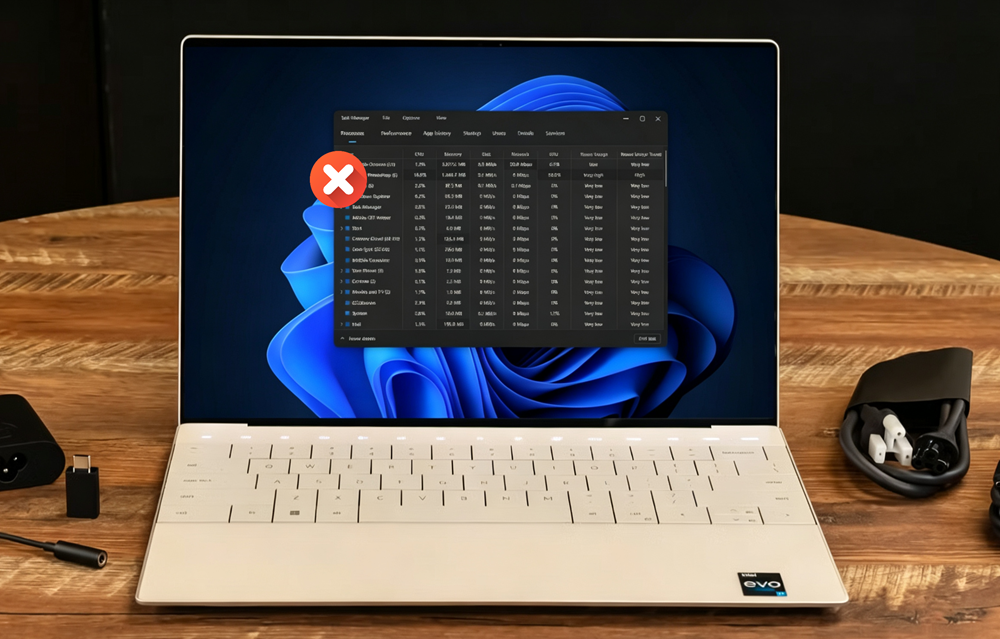
Should You Close Apps Running in Background on Windows
It depends. In most cases, you don't need to turn off background apps. Windows efficiently manages memory so that your PC can run well to handle multiple tasks. However, if you are facing the situations below, closing unnecessary apps may lead you out.
Your PC suddenly slows down: Background processes have been hogged system memory, causing sluggish window responsiveness.
-
High resource usage happens: Invisible utilities can secretly max out your disk or CPU capacity.
Run resource-intensive apps: Heavy tools like video games, 4K video editors, or 3D rendering software require every bit of available hardware power.
Reduce distraction for work/study: Suppressing background activity stops intrusive pop-ups and constant notification sounds.
Windows provides several built-in methods to manage background activity, while third-party tools like Advanced SystemCare offers a more centralized and automatic way to close background apps and unnecessary processes.
Advanced SystemCare Free
- Clean: 420 billion traces removed & 85 EB junk files cleaned
- Protect: 80 million unauthorized access blocked & 20 million bugs fixed
- Speed Up: 6 million hours of startup time saved & Turbo boost
- Optimize: Auto clean and auto care your PC with AI mode

How to Close Background Apps Temporarily via Task Manager
Task Manager is a built-in Windows diagnostic utility designed to monitor active system processes, resource allocation, and hardware performance metrics. It provides real-time control, making it ideal if you want to quickly close background apps that are frozen or consuming too much RAM.
Steps to Force-Stop Process Running in the Background:
1. Press Ctrl + Shift + Esc to open the Task Manager.
2. Select the Processes tab.
3. Check the CPU, Memory, and Disk columns to identify the resource-heavy app.
4. Select the app or background process, and then click End task.
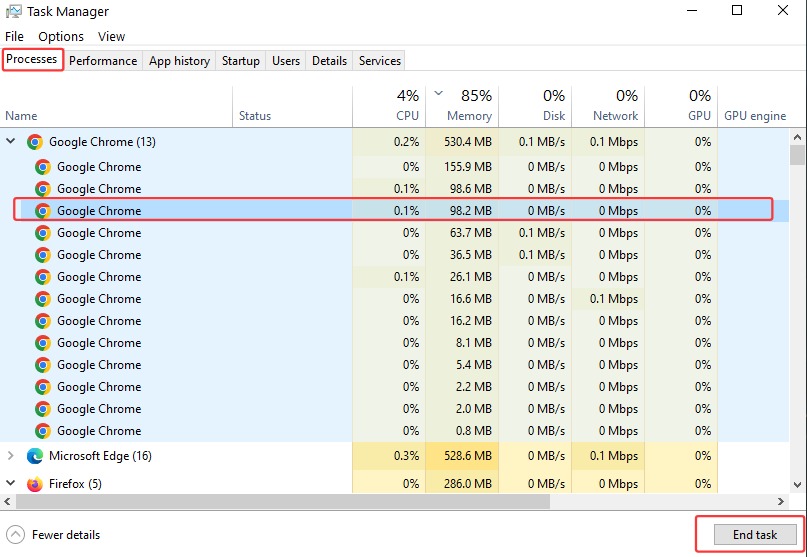
Verdict: This method is useful for immediately closing a resource-heavy app without permanently changing its settings. However, it only provides a temporary solution. Some apps may automatically restart after reboot or when their background services run again, meaning you may need to repeat the process manually.
How to Turn Off Background Apps on PC via Windows Settings
Windows Settings includes native functions to control background running permissions for supported apps. The steps to access this control vary slightly between Windows 11 and Windows 10.
On Windows 11:
1. Open Settings (Win + I)
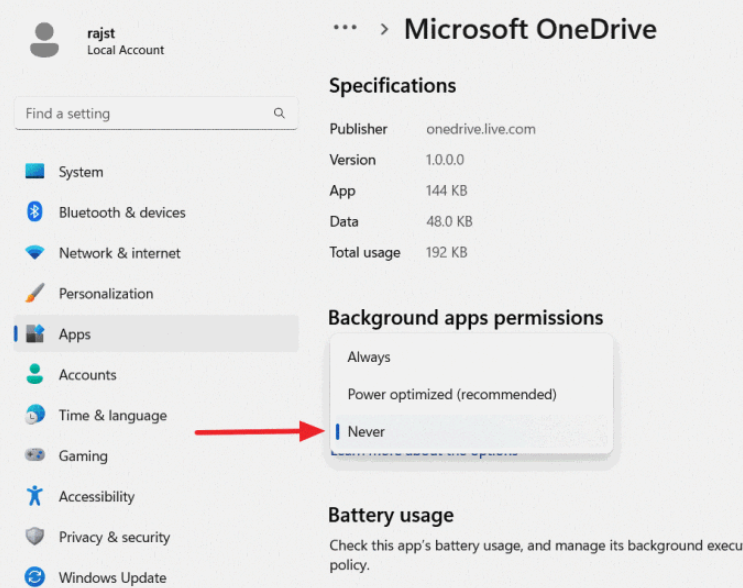
2. Navigate to Apps > Installed apps.
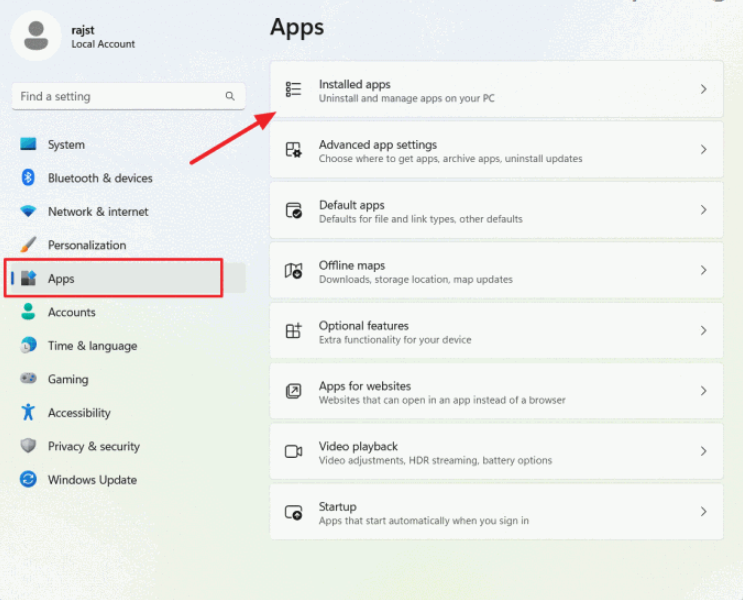
3. Scroll to the specific app, click the three dots, and select Advanced options.
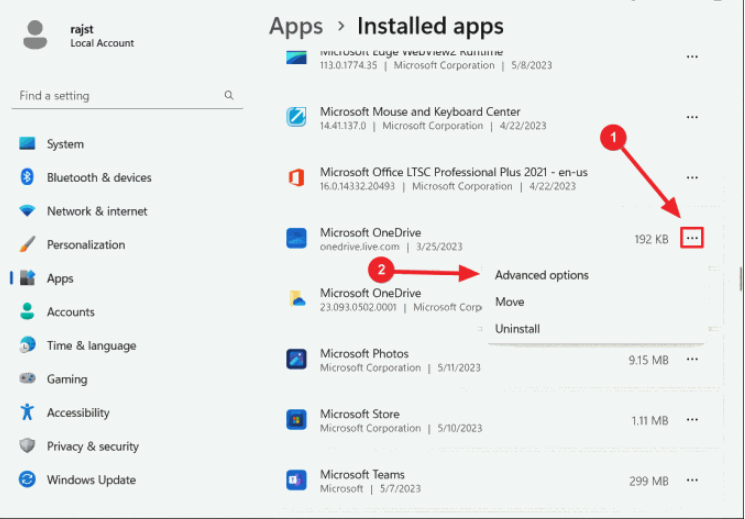
4. Under Background apps permissions, click the drop-down menu and choose Never.
On Windows 10:
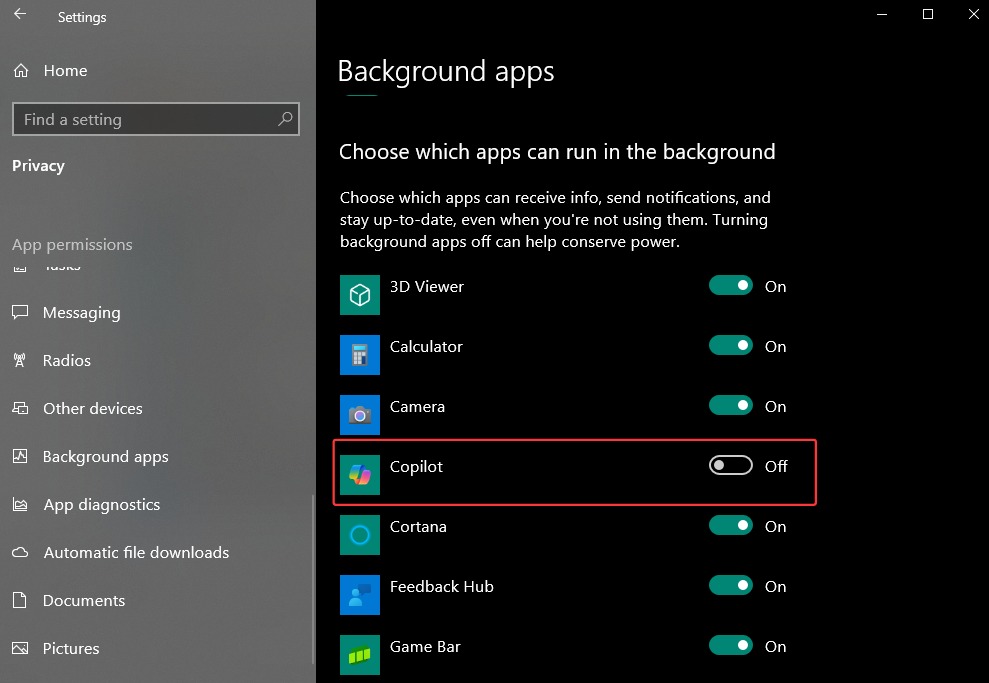
1. Open Settings and click on Privacy.
2. Scroll down the left sidebar menu and click on Background apps.
3. Find the background apps you want to close toggle them off.
Verdict: This method prevents supported apps from running in the background until the setting is changed, without ending critical Windows processes. However, many traditional desktop programs do not appear in the Background app permissions list and need to be managed through their own settings or the Task Manager.
How to Stop Background Apps on Laptop via Power & Battery Settings
Window connects energy consumption directly to app activity. An app actively consumes hardware resources and power/battery usage when it stays open in the background. Power & Battery features monitor resources draws and give you the ability to suspend or close background apps for power saving.
On Windows 11:
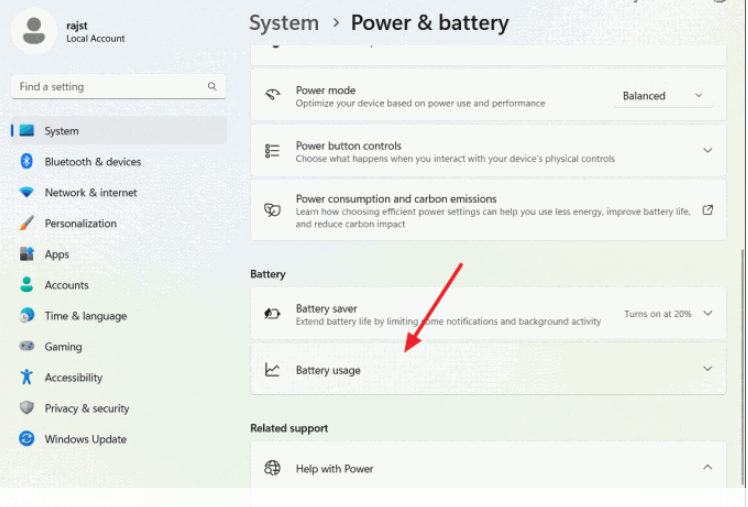
1. Open Settings and head to System > Power & battery.
2. Go to Battery > Battery Usage to view power consumption by app.
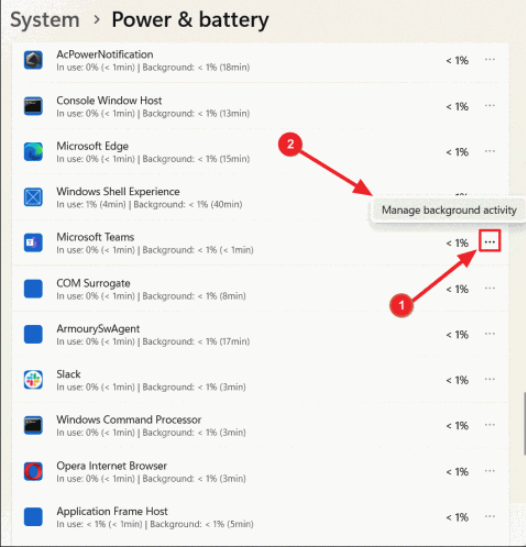
3. Identify an app that shows significant background battery usage.
4. Select the three-dot menu beside the app, then select Manage background activity.
On Windows 10:
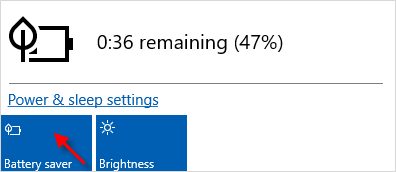
Option 1: Turn On Battery Saver via Action Center
Simply click the Battery Saver quick action toggle in the Action Center to enable or disable it.
When Battery Saver is active, most supported background app activity is blocked unless an app is set to Always allowed. Certain app categories may continue running.
Option 2: Configure Battery Saver in Settings
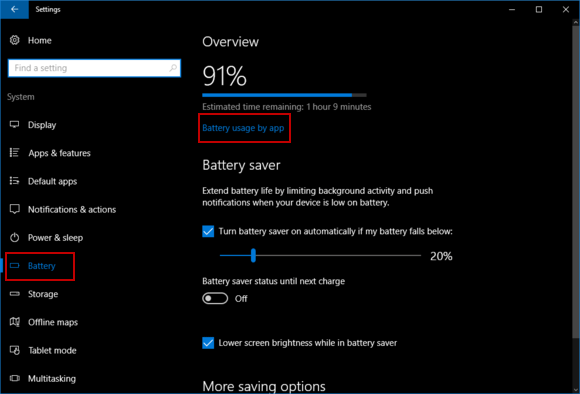
1. Open the Settings app and select System.
2. On the left panel, click Battery, then select the Battery usage by app link on the right. This shows a list of all apps with their battery consumption, helping you identify which apps to manage.
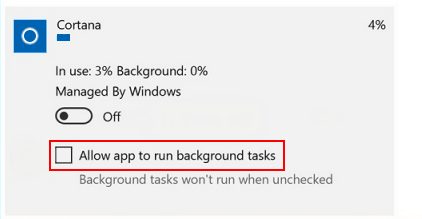
3. Choose an app, turn off Managed by Windows, then uncheck the Allow app to run background tasks option.
Verdict: This method can help extend battery life and reduce unnecessary background activity when the laptop is running on battery power. However, it may delay real-time email syncing, app updates, and live notifications.
How to Close All Background Apps by Editing Group Policy
The Local Group Policy Editor allows administrators to control system-wide Windows policies that are not available through regular Settings menus. For background apps, it provides a centralized policy called "Let Windows apps run in the background", which can force Windows apps to stop running background tasks across the computer. For users researching how to close all background apps through one Windows setting, this policy offers a centralized option, although it does not affect every desktop program or system process.
Steps to Apply the Master Restriction:
1. Press Win + R, type gpedit.msc, and press Enter.
2. Navigate to the following location in the left panel: Computer Configuration > Administrative Templates > Windows Components > App Privacy.
3. Double-click the Let Windows Apps run in the background policy.
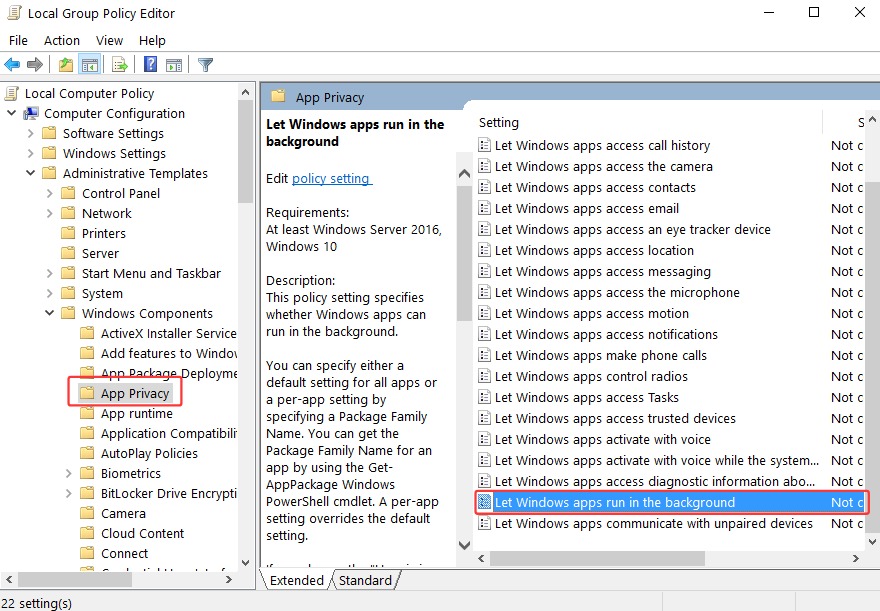
4. Select Enabled. Under Options, set Default for all apps to Force Deny.
6. Click Apply and OK.
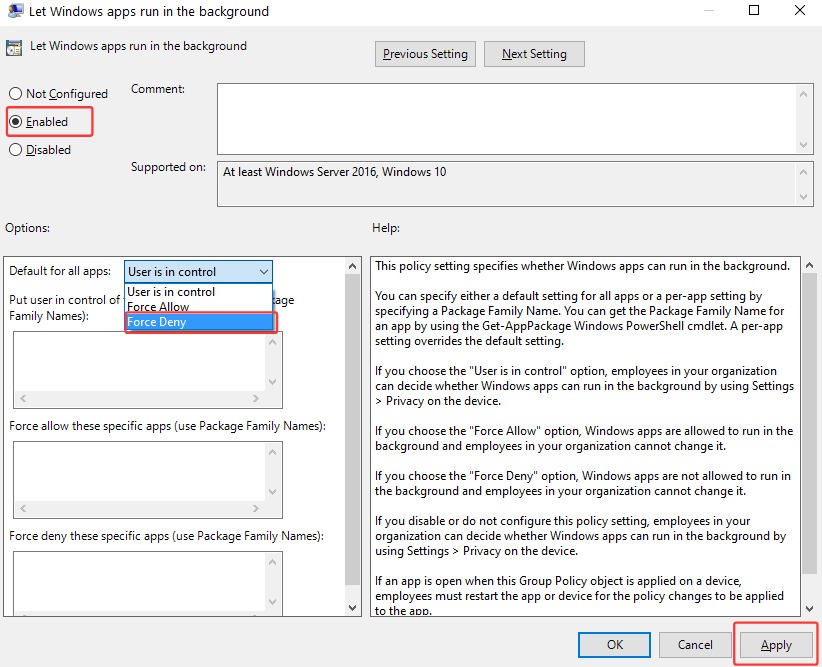
Verdict: The Group Policy Editor provides administrators with a centralized way to close apps running in the background. However, it does not terminate traditional desktop programs such as browsers, game launchers, or third-party background services. Also, applying the policy may affect notifications, Search, and other background-dependent features.
How to Close All Background Apps Automatically Using Advanced SystemCare
Advanced SystemCare is an innovative tool to optimize performance for your PC. Its Speed Up panel helps users manage background apps and startup programs, with the purposes of achieving better performance for special tasks.
This Windows optimizer builds in a “Turbo Boost” feature to close unnecessary and background apps in a single click. It designs three modes - Work, Game, Economy - that can automatically detect and stop unnecessary services, background apps to ensure smooth performance for different use cases. Customizably, you can configure which background apps you want to close according to your needs. Additionally, you can use the “Startup Optimizer” to stop apps from opening on startup for faster PC load times.
Advanced SystemCare has a straightforward interface. Even beginners can quickly get started with it, no technical skills needed. Now, let‘’s learn how to close background apps on Windows 11 using this PC optimizer.
1. Download install Advanced SystemCare on your PC or laptop.
2. Open Advanced SystemCare and select Speed Up from the left sidebar.
3. Find Turbo Boost and click Turn On to apply the current optimization settings.
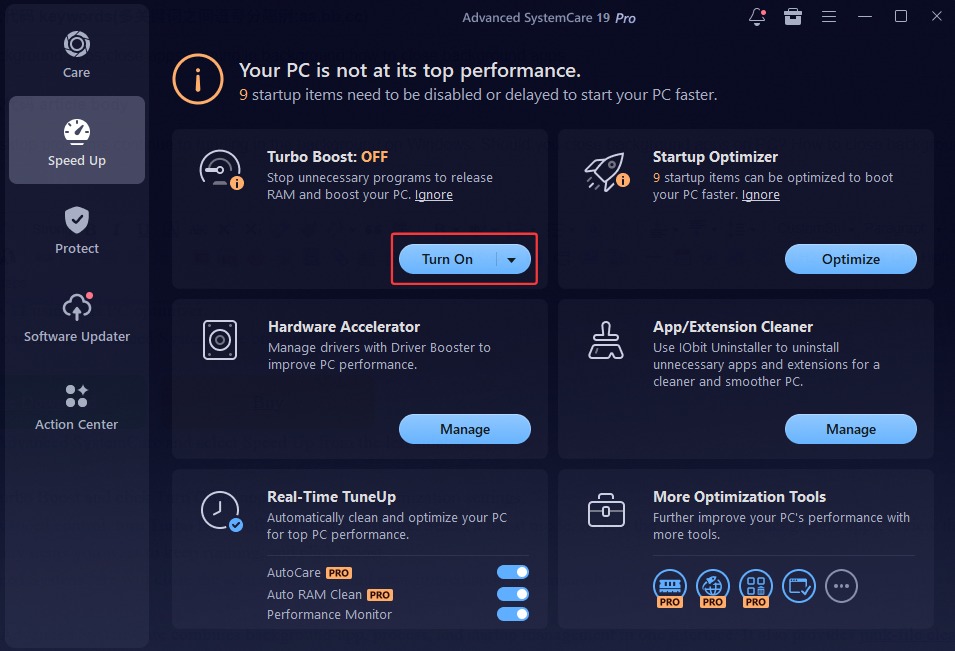
4. For advanced control, turn Turbo Boost off and click Configure. Select a boost mode, review the services and background apps, review the selected services and background apps, uncheck any items you want to keep running, and click Boost.
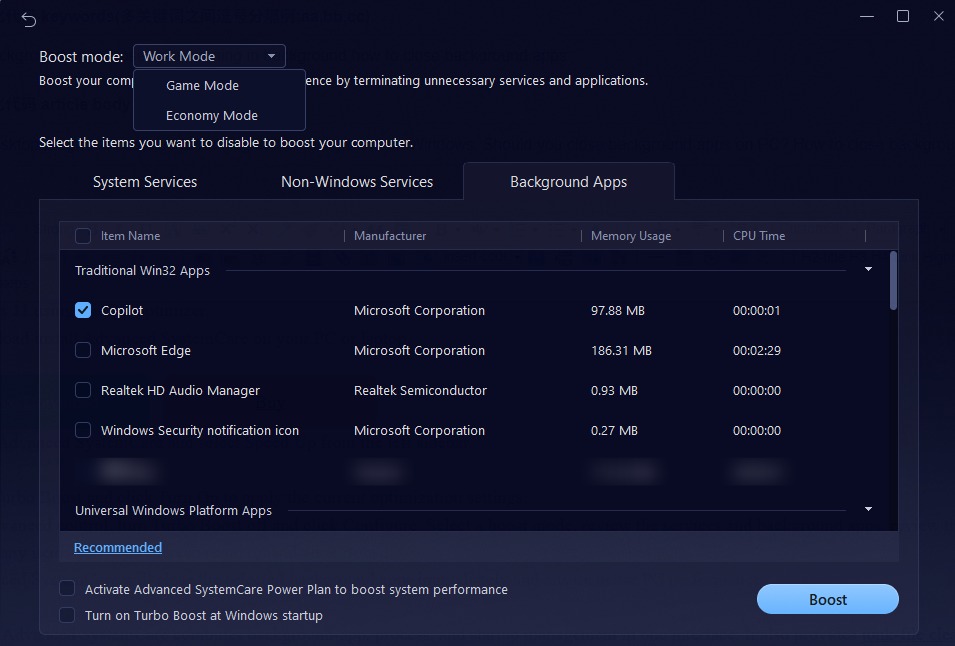
5. Advanced SystemCare will close the selected background apps immediately and ensure better PC performance.
Verdict: Advanced SystemCare combines background-app, process, and startup management in one interface. It also provides junk-file cleanup, privacy maintenance, performance monitoring, and PC protection tools, although feature availability varies between the Free and Pro editions. However, installation is required, some features are limited to the Pro edition, and performance improvements vary depending on the PC and selected settings.
Some Tips You Should Know Before Closing Background Apps
How to Know Which Apps are Running in the Background?
Open Task Manager (Ctrl+Shift+Esc) or check the Show hidden icons arrow in the bottom-right corner of the taskbar to spot active app icons.
Which Background Apps Do Not Need to Stop?
Avoid ending core Windows processes, security software, hardware-related services, or update and installation tasks unless you understand their purpose. Cloud-sync apps such as OneDrive can usually be closed temporarily, but syncing will pause.
What Happens if I Disable All Background Apps?
Most apps can still be opened manually, but you will miss out on live background email syncs, instant message notifications, and automated software updates.
The Bottom Line
How to close apps running in the background on a PC? Windows provides useful built-in controls, from Task Manager, Power & Battery settings Group Poliby Editor, but these options are spread across different menus and may not manage every desktop program. Advanced SystemCare, the all-in-one PC optimizer and cleaner, streamlines and automates the workflow to stop background apps and unnecessary processes. Whether you need an one-click way to stop distracting apps from running in the background or just want to close specific processes, it can perfectly handle the task.
Advanced SystemCare Free
- Clean: 420 billion traces removed & 85 EB junk files cleaned
- Protect: 80 million unauthorized access blocked & 20 million bugs fixed
- Speed Up: 6 million hours of startup time saved & Turbo boost
- Optimize: Auto clean and auto care your PC with AI mode