Have you ever encountered a situation where files were corrupted? If you have, what you need is a corrupted file cheacker. This article introduces what signs and causes of file corruption are, why you need a file checker, and what it is. Then, 4 best tools and their operating steps are listed to help you resolve your file issue.
Now, please continue reading to learn about file corruption and the guide on how to check for corrupted files Windows 11/10.
Issue: Files Get Damaged - Need a Corrupted File Checker
Many people have encountered file corruption. If you are one of them, don’t panic, check what signs the file is showing first.
Signs of File Corruption
Here are some symptoms that can help you quickly determine whether your files are corrupted.
File access issue: The software becomes unresponsive when double-clicking a file, or some error messages appear.
File property anomalies: A folder appears empty in File Explorer. However, its properties shows that it is occupying storage space.
I/O device errors: Error messages stating “The request could not be performed because of an I/O device error” appear during copy or paste operations.
System startup failure: Corruption of critical system files may lead to issues such as the Blue Screen of Death (BSOD) or system freezes.
If there is a sign mentioned above in your files, they may become corrupted. Next, let’s go over why they get corrupted.
What Causes File Corruption and Makes a Corrupted File Checker Necessary
Knowing causes not only allows for targeted solutions but also helps prevent file corruption. File corruption can be caused by many factors. The following are common ones.
Unexpected shutdowns: Sudden power loss or system crashes can interrupt file operations and damage files.
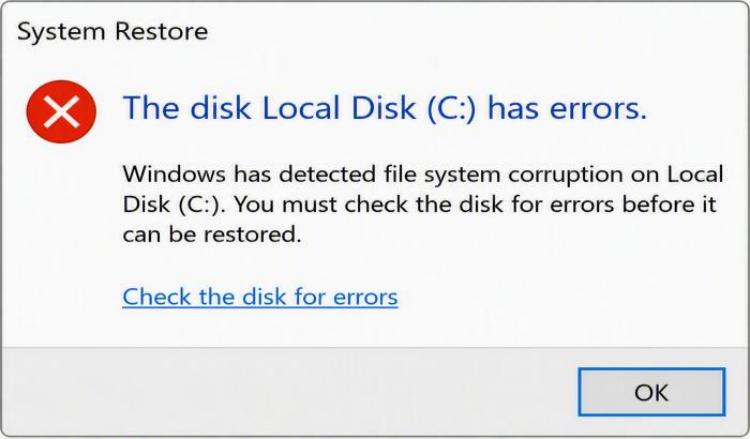
Disk errors: Disk errors such as bad sectors, file system errors, and hard drive aging can cause file damage.
Software compatibility and conflicts: Version incompatibilities or software crashes cause errors during file saving.
Malware attacks: Malware can modify, delete, or encrypt files, leading to corruption.
For these scenarios, a corrupted file checker is required. Read the following section to understand what this checker is.
What Is a Corrupted File Checker
The corrupted file checker is a tool designed to scan computer systems, identify damaged, missing, or tampered files, and try fixing them. It can not only detect corrupted files but also detect disk errors. Such tools ensure data integrity and maintain stable system operation.
Here are its specific functions:
Read internal file structure: Verify file headers and data integrity.
Mark corrupted files: Identify files that cannot be opened, contain garbled data, or are incomplete.
Detect disk errors: Scan drive structures to discover existing and potential disk errors.
Attempt repair: Try to reconstruct the file structure and recover usable content.
This checker is a great helper when dealing with corrupted files. However, with so many tools on the market, how do you choose one that suits your needs? Check the following section.
The 4 Best Corrupted File Checkers You can Use
This section teaches you how to check for corrupted files Windows 10/11 with 4 reliable corrupted file testers.
1. Backup File Recovery Tool
The first tool, backup file recovery, is a specialized corrupted file checker. Strictly speaking,it is not technically a file checker. It doesn’t diagnose file corruption or disk errors but is instead designed to recover your corrupted files.
Backups can generally be categorized into two types: local backups and cloud backups.
Local backup recovery: Local backups are stored on devices such as external hard drives or USB drives. To recover corrupted files, simply locate the backup copy and restore them to the original location.
Cloud backup recovery: Cloud backups are stored on services like OneDrive, Google Drive, or Dropbox. If files get corrupted, you can restore a previous version or download a intact copy from the cloud backup.
If you don’t have a backup, don’t worry, proceed with the next tool.
2. System File Repair Checker
Windows includes a dedicated tool for repairing system files called System File Checker (SFC). This tool scans for corrupted system files and automatically repairs them using built-in recovery resources.
SFC relies on the Windows component store. Run DISM first can ensure the integrity of the underlying component store. This allows SFC to successfully use it to repair corrupted system files.
Here is how to run DISM and SFC to check for corrupted files:
Step 1. Type Command Prompt in the Windows search box, right-click the best match, and choose Run as administrator.
Step 2. Type DISM /Online /Cleanup-Image /RestoreHealth in the window and press Enter.
Step 3. When DISM process ends, continue typing SFC /scannow and press Enter.
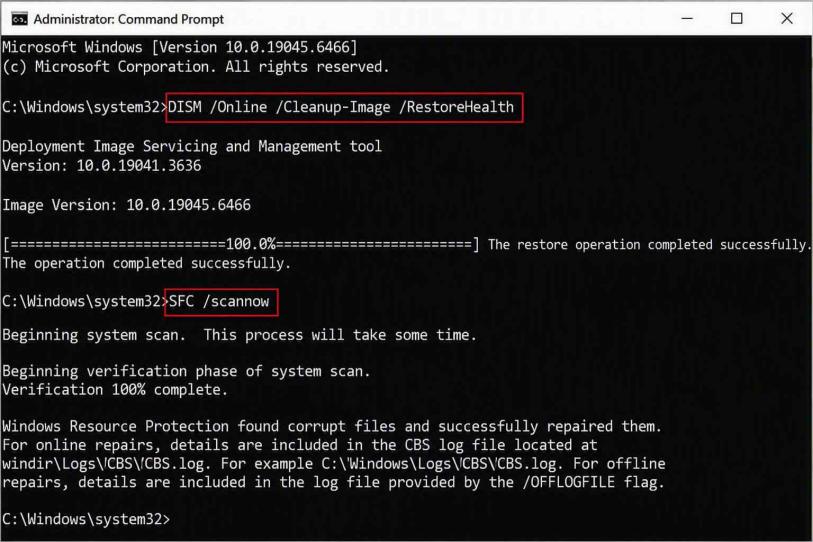
Once the scan is complete, the scan results will be shown. Perform relevant operations based on the results.
3. Disk Diagnostic Checker
While built-in tools like SFC are effective at diagnosing and repairing files, some users, recognizing that disk errors can also cause file corruption, may prefer comprehensive tools that combine disk monitoring, system repair, and performance optimization capabilities.
Advanced SystemCare is one such tool. As a reliable corrupted file checker, it provides a feature called Disk Doctor to help detect and fix hidden disk errors.
Advanced SystemCare Free
- Clean: 420 billion traces removed & 85 EB junk files cleaned
- Protect: 80 million unauthorized access blocked & 20 million bugs fixed
- Speed Up: 6 million hours of startup time saved & Turbo boost
- Optimize: Auto clean and auto care your PC with AI mode

This tool scans the disk to detect file system errors and hard drive S.M.A.R.T. health status, identifies potential sector anomalies, fixes common logical disk errors. By discovering these risks, your files may return to normal use, and it maintains stable disk performance to prevent file corruption again.
This software supports Win11/Win10/Win8/Win7. Click the following button to download it to check your disk now!
Step 1. Launch Advanced SystemCare on your computer.
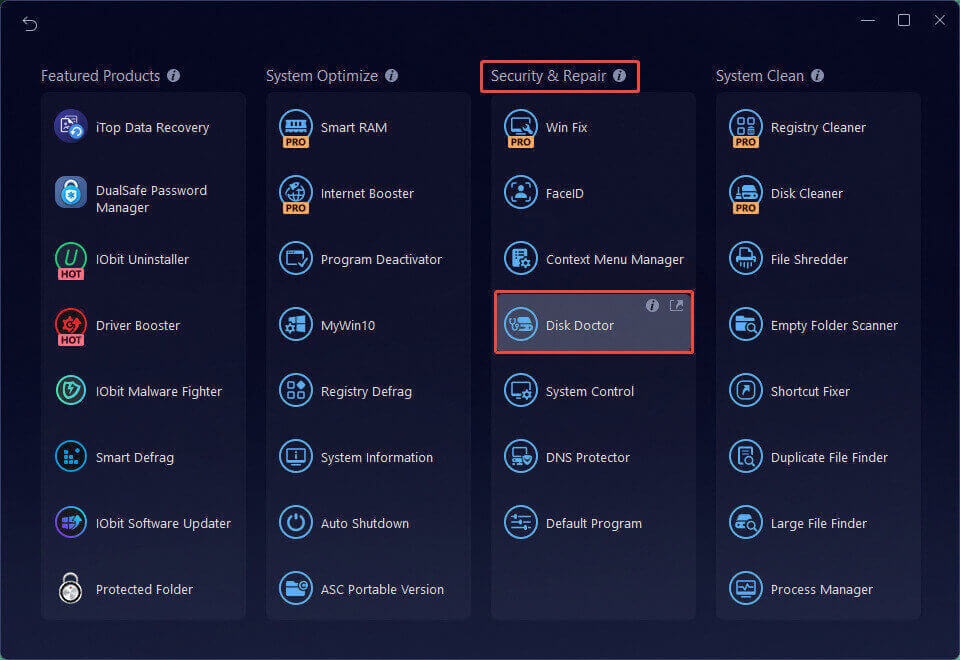
Step 2. In the main interface, click the Toolbox icon in the top-right corner.
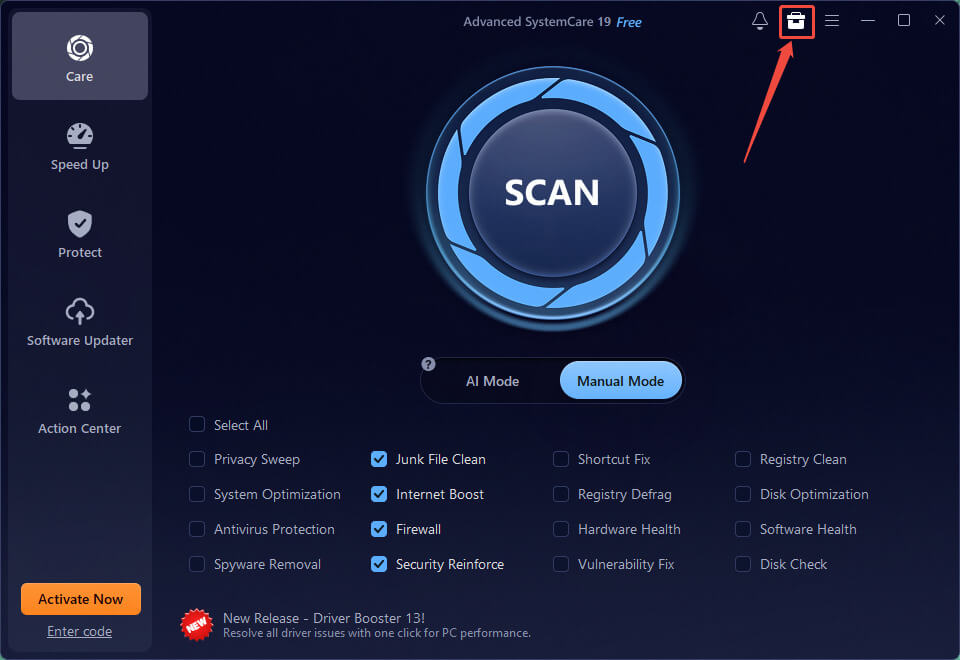
Step 3. In the Security & Repair section, click Disk Doctor > Download.
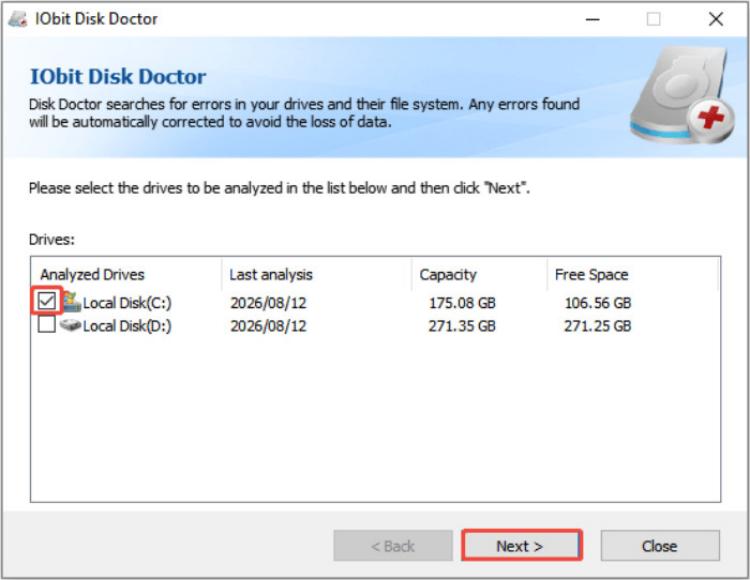
Step 4. Then, select the problematic disk and click Next to scan the disk.
When the scan ends, refer to the following results to complete the whole process:
If it lists some errors, click Fix to repair them.
If it shows “No errors found”, click Finish to exit.
This software is easy to download and use, offering a secure and efficient experience. Beyond disk diagnostics, it can be used for PC cleanup, system repair, and disk optimization to provide comprehensive PC maintenance, which also ensures the stable operation of your files.
In addition to the local client solution, you can also use online repair tools to resolve file issues.
4. Online File Repair Checker
Online repair tools don’t require downloading any software, which are the good choice for quickly fixing corrupted files. These cloud-based tools typically require just three simple steps: upload, repair, and download.
Here are some recommended online repair tools. Choose one based on your needs.
OfficeRecovery: It supports Word, Excel, PowerPoint, JPEG, PNG, PSD, RAW images, and more.
Online File Repair: It supports Office (Word, Excel, Access) and the Adobe suite (Illustrator, Photoshop, PDF), as well as AutoCAD, CorelDRAW, and ZIP/RAR archives.
Online Repair Service: It supports PDF, AutoCAD, CorelDraw, Office (Word, Excel, PowerPoint, Project), design and drafting software (Illustrator, Photoshop), as well as Outlook and FoxPro databases, among others.
The Bottom Line
This post fully introduces file corruption and 4 top corrupted file checkers for you. After reading it, you must know how to check for corrupted files on Windows 10/11. Don’t forget taking the necessary precautions to prevent the file from becoming damaged again.