How to password protect OneDrive folder? OneDrive has become one of the most widely used cloud storage services for Windows, allowing users to synchronize documents, photos, and other important files across multiple devices. However, cloud synchronization alone doesn't guarantee that your files remain inaccessible to anyone who can use your PC. That's why many people want to password protect OneDrive folder for an extra layer of privacy.
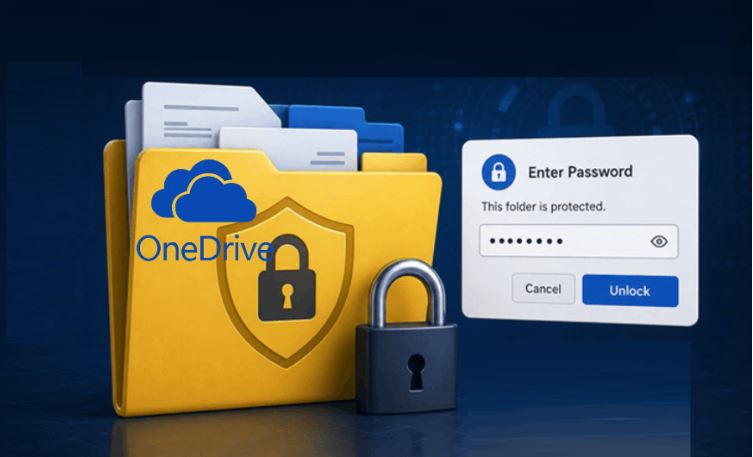
Although OneDrive secures your account with Microsoft authentication, it doesn't provide a built-in option to add a separate password to an individual folder. Fortunately, there are several reliable solutions available, whether it's for personal files or to password protect folder in OneDrive for business containing confidential company data.
Can You Password Protect a OneDrive Folder?
Answer first: you can.
However, OneDrive doesn't include a built-in feature to password protect OneDrive folder with a separate folder password. Your files are protected by your Microsoft account and Windows sign-in, but anyone with access to your PC can still open the local OneDrive folder.
Fortunately, you can add an extra layer of protection using folder-locking software, Windows encryption features, encrypted containers, or specialized password-protecting tools.
OneDrive Folder vs Other Windows Folders
Before exploring different solutions, it helps to understand why most Windows folder protection methods also work with OneDrive. Although OneDrive continuously synchronizes your files to the cloud, it remains a standard Windows folder stored on your local drive.
Feature |
OneDrive Folder |
Regular Windows Folder |
Stored locally |
Yes |
Yes |
Cloud synchronization |
Yes |
No |
Accessible offline |
Yes |
Yes |
Automatic backup |
Yes |
No |
Supports folder protection software |
Yes |
Yes |
Since OneDrive behaves like any other Windows folder, you can password protect OneDrive folder on PC using compatible security software or encryption tools. The only difference is that OneDrive synchronizes changes to your Microsoft account, so you should always choose a protection method that matches your synchronization habits.
If you also want to keep your computer running smoothly while protecting files, a reliable Windows optimizer can help improve overall system responsiveness alongside your security setup.
How to Password Protect OneDrive Folder on Windows 11 - 5 Methods
Windows does not include a dedicated feature to password protect OneDrive folder Windows 11, but several proven methods can effectively prevent unauthorized access. Some are designed for everyday users, while others focus on enterprise-grade encryption. Below are five of the most practical options.
Method 1. Protect OneDrive Folder with Advanced SystemCare Safe Folder
Why Choose the Advanced SystemCare Safe Folder?
For most users, the easiest way to password protect OneDrive folder is by using Advanced SystemCare. Besides being a comprehensive Windows optimization suite, it also includes a dedicated Privacy Protection module called Safe Folder, which allows you to lock sensitive folders with a custom password.
Advanced SystemCare Free
- Clean: 420 billion traces removed & 85 EB junk files cleaned
- Protect: 80 million unauthorized access blocked & 20 million bugs fixed
- Speed Up: 6 million hours of startup time saved & Turbo boost
- Optimize: Auto clean and auto care your PC with AI mode

Unlike compression tools or complex encryption software, Safe Folder is designed for everyday file protection. You don't need to move your OneDrive folder, reconfigure synchronization settings, or create encrypted virtual disks. Instead, you simply select the folder you want to protect, assign a password, and Safe Folder prevents unauthorized users from opening it.
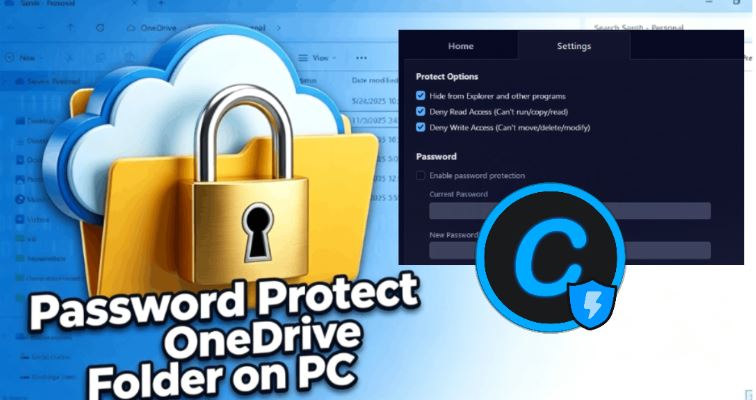 This approach is especially useful if your OneDrive folder stores confidential business documents, personal photos, tax records, legal files, or client information. Whether you share your computer with family members or work in a shared office, Safe Folder adds another security layer without making file management complicated.
Practical folder encryption features include:
Password-protect OneDrive folders with a custom password
Prevent unauthorized access to confidential files
Lock folders without changing OneDrive synchronization
Simple interface suitable for beginners
Quickly lock or unlock protected folders whenever needed
Compatible with Windows 11 and Windows 10
Ideal for protecting personal, business, and financial documents
Compared with many traditional encryption solutions, Safe Folder provides a much more user-friendly experience for people looking to password protect OneDrive folder on PC without technical knowledge.
Steps to Password Protect a OneDrive Folder with Advanced SystemCare:
Protecting your OneDrive folder only takes a few steps:
Step 1. Download and install Advanced SystemCare.
Step 2. Launch the software.
Step 3. Navigate to Protect > Privacy Protection > Safe Folder.
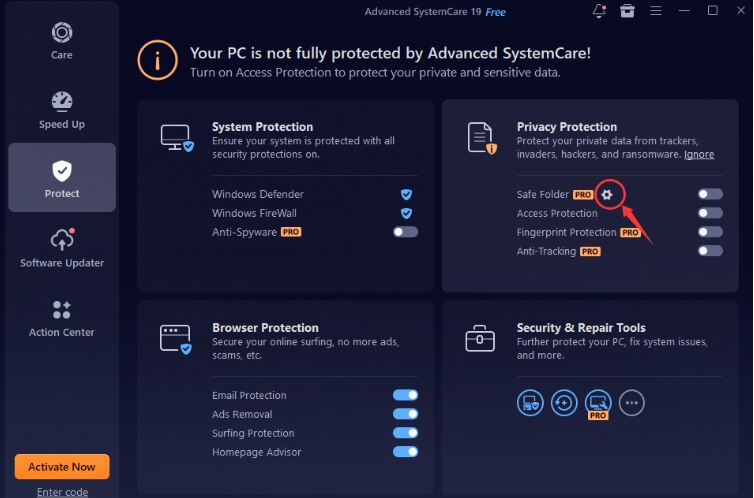
Step 4. Enable Safe Folder, add the OneDrive folder, and set a password.
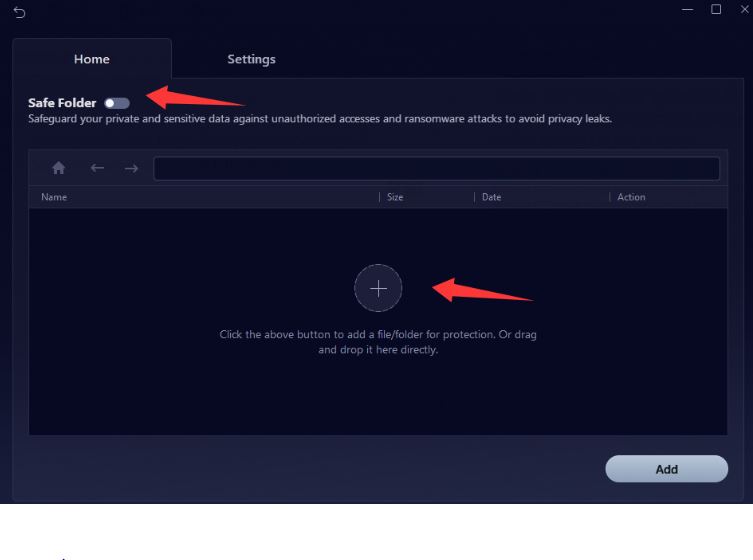
Tip: Please note that this is a paid feature; you need to upgrade before you can add it. Then, click "Settings" to configure the password. The price is very reasonable, and it comes with many other fantastic features, so you can give it a try with confidence.
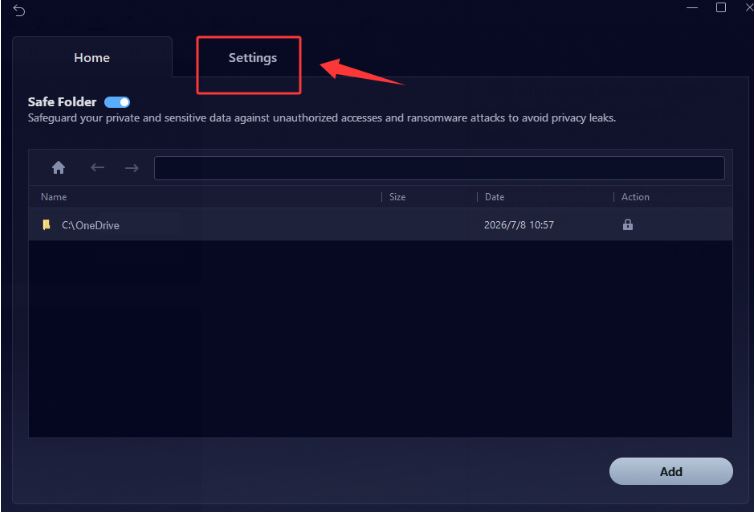
Step 5. Select the permissions to protect, set a password, and finally, apply the settings.
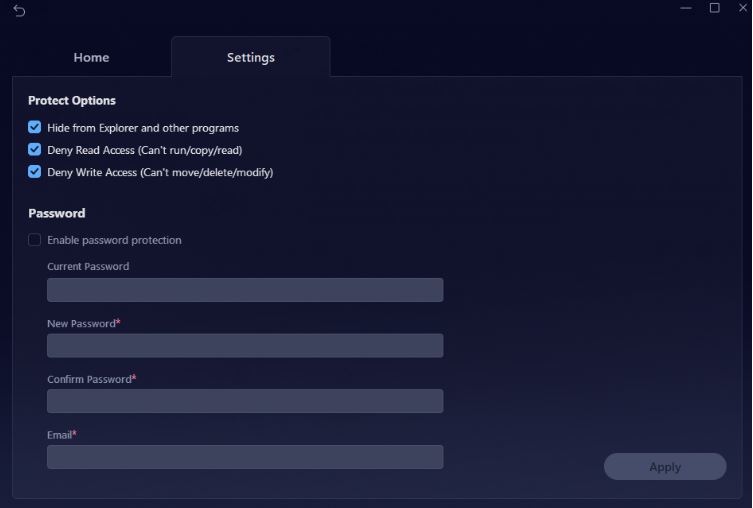
Once completed, anyone attempting to access the protected folder must enter the correct password. You can unlock it whenever necessary while continuing to manage your files normally. This makes Safe Folder one of the simplest answers to how to password protect OneDrive folder without disrupting daily workflows.
In addition to securing sensitive folders, Advanced SystemCare also helps keep your Windows in good condition. Performing a regular PC health check helps identify performance or security issues before they affect your system.
Method 2. Encrypt the Folder with BitLocker
BitLocker is Microsoft's built-in drive encryption feature for Windows Pro and Enterprise editions. Although it doesn't create a separate password for your OneDrive folder, it encrypts the entire drive where the folder is stored. This protects your files if your device is lost, stolen, or accessed without authorization, making it a practical choice for laptop users.
Steps:
Step 1. Open Control Panel > BitLocker Drive Encryption.
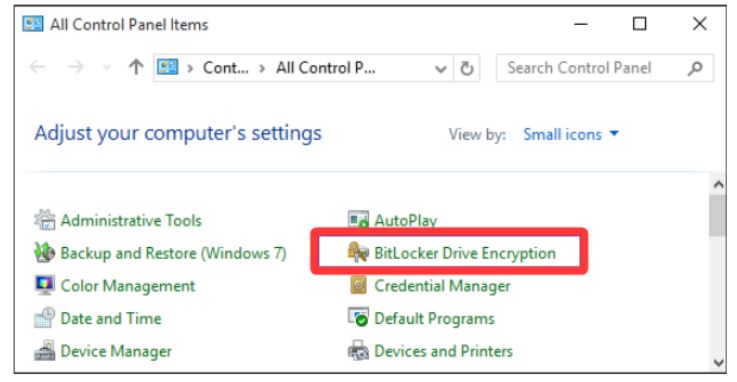
Step 2. Select the drive containing your OneDrive folder.
Step 3. Turn on BitLocker.
Step 4. Set a password or unlock method.
Step 5. Save the recovery key and complete the encryption.
Method 3. Use Windows EFS (Encrypting File System)
Another built-in Windows feature is Encrypting File System (EFS). Unlike BitLocker, EFS allows you to encrypt individual folders instead of the entire drive.
After encryption, only your Windows user account can access the folder. Even if someone copies the files to another account, they cannot open them without the appropriate encryption certificate.
To do it:
Step 1. Right-click the OneDrive folder.
Step 2. Select Properties > Advanced.
Step 3. Check Encrypt contents to secure data.
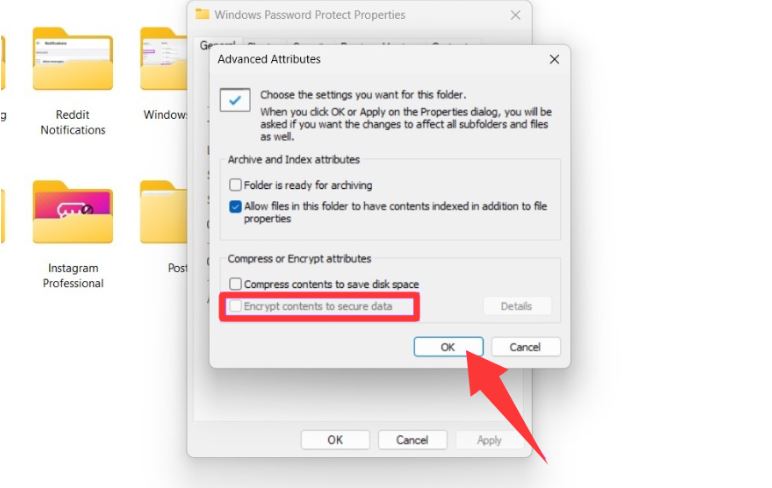
Step 4. Apply the changes.
Step 5. Back up the encryption certificate.
EFS is suitable for personal computers with a single user, although it is less convenient when files need to be shared among multiple accounts. If you frequently work with large files, combining proper security practices with a reliable hard drive cleaner software can also help maintain storage efficiency while keeping sensitive data organized.
Method 4. Store Sensitive Files in a Password-Protected Archive
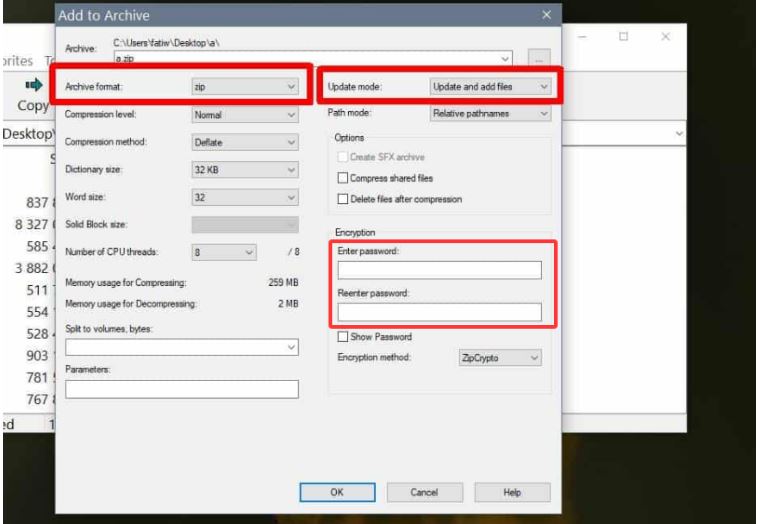
If you only need to secure selected documents rather than the entire OneDrive folder, creating a password-protected archive is a simple solution. Tools like 7-Zip and WinRAR support AES-256 encryption, allowing you to protect confidential files with a password before storing or sharing them through OneDrive.
Steps:
Step 1. Select the files to protect.
Step 2. Choose Add to archive.
Step 3. Enter a strong password.
Step 4. Enable AES-256 encryption.
Step 5. Save the archive to your OneDrive folder.
Method 5. Create an Encrypted Container for Sensitive OneDrive Files
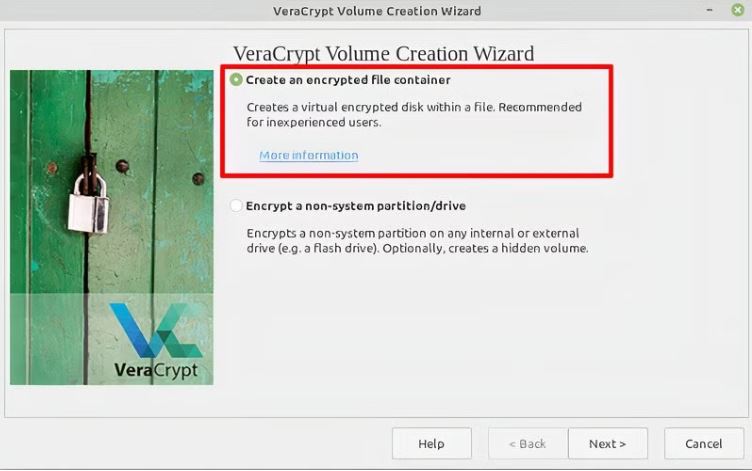
Instead of encrypting an entire folder, VeraCrypt creates a secure virtual container that behaves like a separate drive after entering the correct password. You can store this encrypted container inside your OneDrive folder, allowing it to synchronize safely across devices while keeping its contents inaccessible without authentication.
Although this method requires more setup, it provides one of the highest levels of protection for confidential business files, legal documents, or intellectual property.
Steps:
Step 1. Create a new encrypted container.
Step 2. Set a strong password.
Step 3. Mount the container as a virtual drive.
Step 4. Save sensitive files inside it.
Step 5. Store the container in your OneDrive folder for synchronization.
Which Method Is Best for Different Users?
Each solution offers different levels of security and convenience.
If you want to password protect OneDrive folder with minimal setup, Advanced SystemCare Safe Folder is the easiest choice. Users seeking device-level encryption may prefer BitLocker, while EFS works well for single-user PCs. Password-protected archives are suitable for backups, and encrypted containers provide the highest level of protection for confidential data.
Will Password Protection Stop OneDrive Syncing?
Usually not. Most protection methods allow OneDrive to continue synchronizing your files normally. However, password-protected archives and encrypted containers are synchronized as a single file, so any modification requires the entire encrypted file to be uploaded again.
The Bottom Line
Although Microsoft doesn't provide a built-in way to password protect OneDrive folder, several reliable alternatives are available. For most Windows users, Advanced SystemCare Safe Folder offers the easiest balance of security, convenience, and everyday usability, while BitLocker, EFS, archives, and encrypted containers are better suited for more specialized security needs. Choose the one based on your needs and budget, and enjoy a protected OneDrive now.