You click “Uninstall,” but nothing happens. The progress bar freezes halfway. Or the app simply refuses to disappear, no matter how many times you try. These frustrating situations are more common than you think. When standard removal methods fail, knowing how to force uninstall programs becomes essential for keeping your PC clean and running smoothly. Leftover software can take up space, slow down your system, and even cause conflicts with other applications. This guide presents 5 effective ways to remove stubborn software, from built-in Windows tools to powerful third-party solutions. Read on to find the method that works best for you.
Why Certain Programs Won’t Uninstall Manually?
Before diving into solutions, it helps to understand why some applications resist removal in the first place. Several factors can prevent a standard uninstall:
Corrupted or missing uninstaller files: The program’s dedicated removal script may be damaged or deleted, leaving Windows with no instructions to follow.
Active background processes: If the software is still running—even silently in the system tray—Windows may lock its files to prevent disruption.
Deep registry integration: Some applications embed themselves extensively into the Windows Registry, making them difficult to extract without specialized tools.
Permission or admin restrictions: Your user account may lack sufficient privileges, or the software might have been installed under a different profile.
When a program won’t uninstall properly, it can leave behind “ghost” files, corrupted registry entries, software conflicts, and lingering background processes that continue to drain system resources. Over time, these remnants accumulate and degrade your PC’s performance. That is precisely why learning how to force uninstall a program is a valuable skill for any Windows user.
Method 1: Easy Force Uninstallation with a Powerful Uninstaller
The most effective and user-friendly way to Windows force uninstall programs is by using a dedicated uninstaller tool. Among the available options, IObit Uninstaller stands out for its powerful force uninstall feature and comprehensive cleanup capabilities. Learning how to force uninstall programs with a specialized tool saves time and prevents system clutter. Unlike Windows’ built-in tools, IObit Uninstaller can target programs by their shortcuts or file paths directly, eliminating hidden files and lingering background processes for a truly clean removal.
IObit Uninstaller Free
- Complete forced uninstallation for stubborn programs.
- Uninstall a batch of programs at once.
- Scan and remove leftover files, folders, and registry entries.
- Support the management of Universal Windows Platform apps.

Why IObit Uninstaller is the Best Choice:
Free to force uninstall programs: The free version provides full access to the Force Uninstall+ feature, which supports the removal of over 4,000 known stubborn programs.
System restore point for safety: Before any forced removal, the tool automatically creates a system restore point and allows you to revert changes if anything goes wrong.
Easy uninstall with batch support: Select multiple programs at once and remove them in a single operation. This best uninstaller for Windows saves you significant time and effort.
Deep scan & remove leftovers: After the main uninstall, IObit Uninstaller scans for residual files, folders, and registry entries, ensuring nothing is left behind.
Additional features: The tool also includes a file shredder for sensitive data, browser extension management, real-time installation monitoring, and a software health checker that identifies outdated or vulnerable programs.
Step-by-Step Guide to Force Uninstall with IObit Uninstaller:
Step 1. Download and install this free uninstaller from the official website. The installation is straightforward and takes less than a minute.
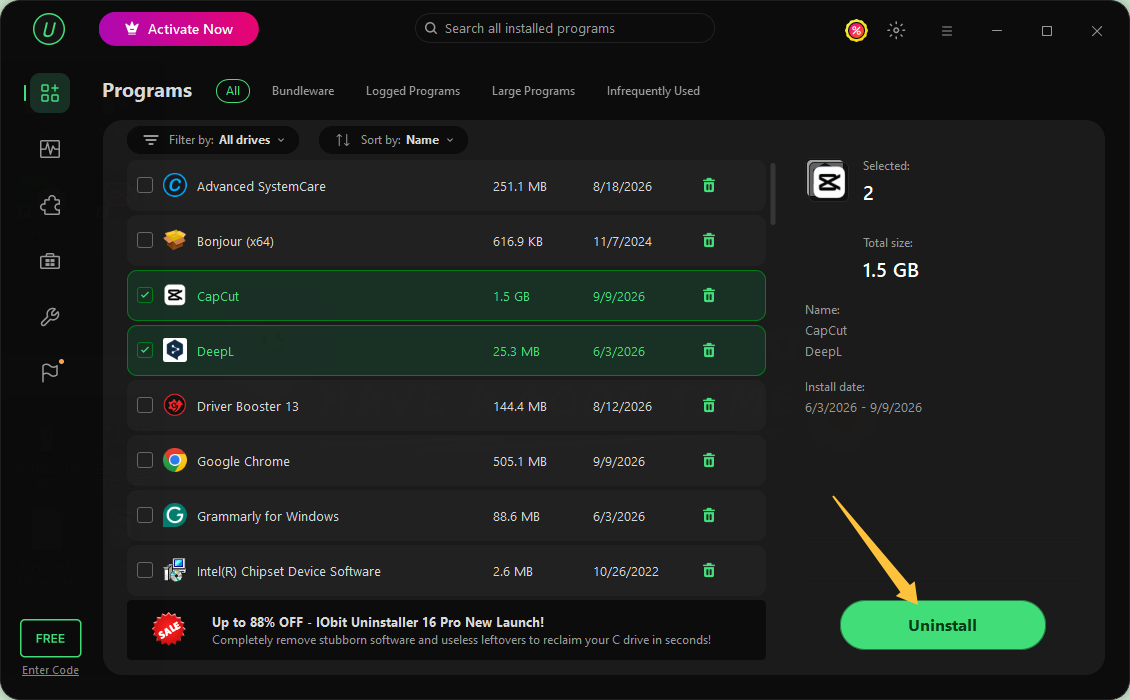
Step 2. Launch the software. On the main interface, you will see a list of all installed programs. Select the ones you want to remove and click the Uninstall button in the bottom-right corner.
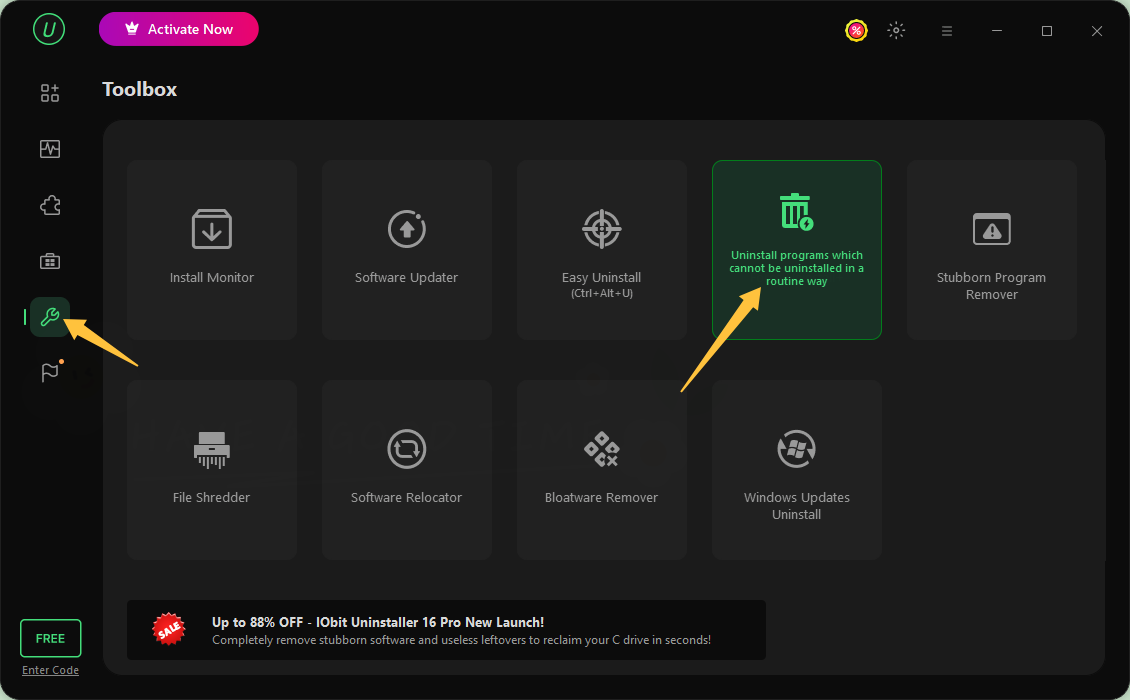
Step 3. For more stubborn software that standard removal cannot handle, navigate to the Toolbox tab and choose the Force Uninstall+ feature.
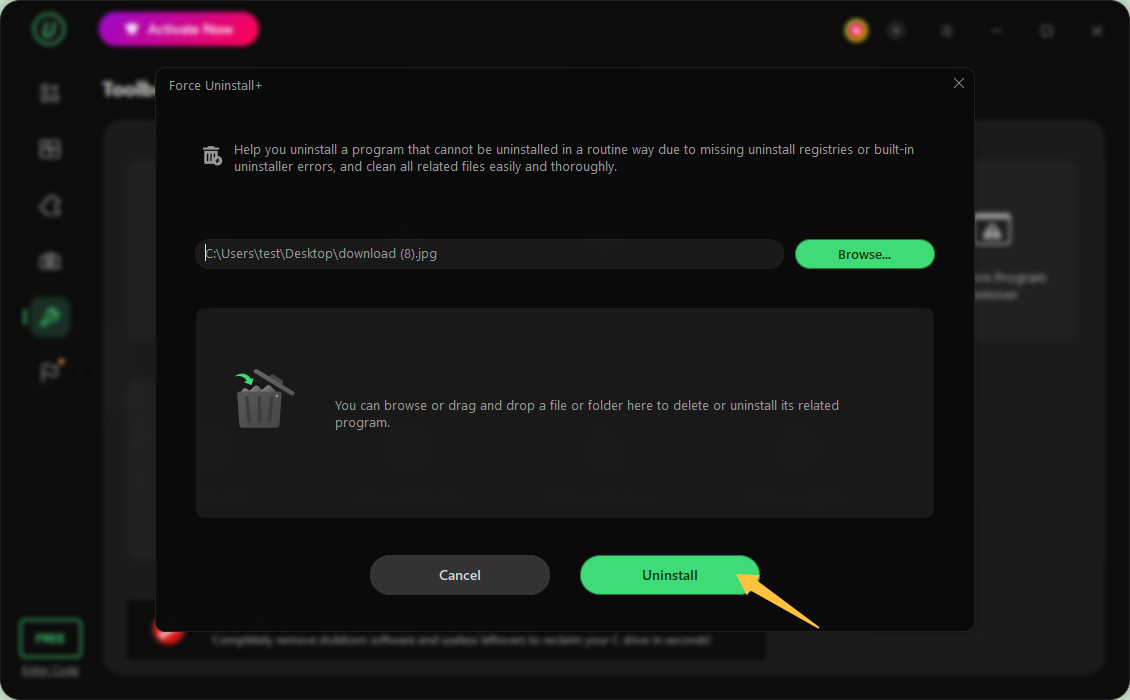
 Step 4. Browse for the program’s folder, executable file, or even a desktop shortcut. Click Uninstall to force removal. The tool will bypass the missing or broken uninstaller and delete the software completely.
If you haven't tried the standard methods yet, learn how to uninstall apps on Windows using Settings, Control Panel, Start Menu, and other built-in options.
Method 2: Standard Uninstall Programs with Windows Settings
Before attempting advanced methods, try the built-in Windows tools. However, when you need to force uninstall a program that won’t uninstall normally, an extra preparation step is required.
Tip: Before proceeding, use Task Manager to end any stubborn background processes associated with the target program. This prevents file locks that block removal.
Step 1. Press Ctrl + Shift + Esc to open Task Manager.
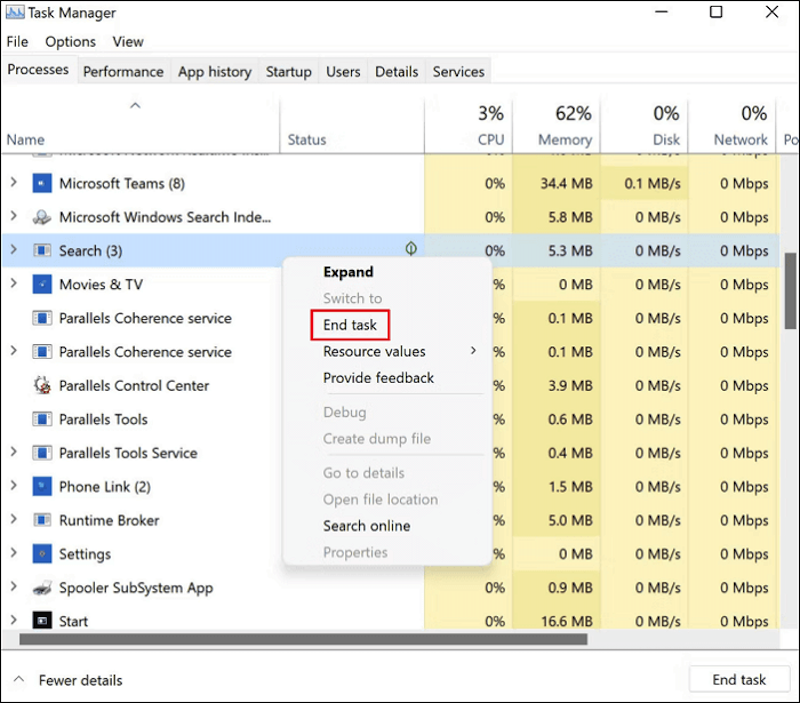
Step 2. Look for any processes related to the program you want to remove. Right-click each one and select End Task.
Step 3. Press Windows + I to open Settings. Go to Apps > Installed apps (Windows 11) or Apps & features (Windows 10).
Step 4. Find the problematic program in the list. Click the three dots (⁝) and select Uninstall.
Step 5. Follow any on-screen prompts to complete the removal.
This method works for most standard applications but may fail for deeply integrated or corrupted software.
Method 3: How to Force Uninstall a Program Using Command Prompt
For users comfortable with command-line tools, Command Prompt offers a direct way on how to force uninstall programs and a specific method for how to force uninstall a program Windows 11 and earlier versions.
This method bypasses graphical interface glitches and can remove software that the Settings app cannot handle.
Step 1. Type cmd in the Windows search bar. Right-click Command Prompt and select Run as administrator.
Step 2. To see a list of installed programs with their uninstall strings, type the following command and press Enter:
wmic product get name
Step 3. Once you identify the program’s exact name, run the uninstall command:
wmic product where name="Program Name" call uninstall
Step 4. Replace "Program Name" with the actual name of the software (keep the quotation marks). Press Enter to execute.
Step 5. Press "Y" to continue the process. After the process is finished, restart your PC.
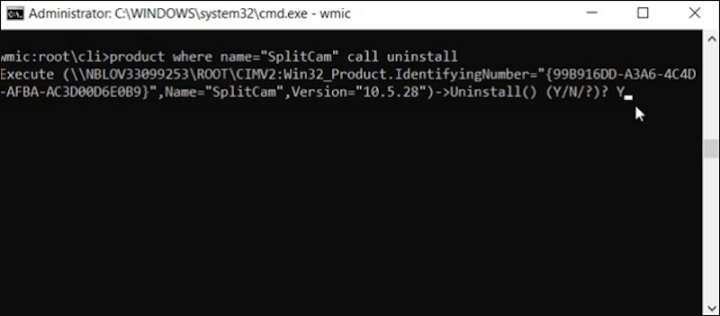 Note: This method works only for programs installed via Windows Installer (MSI). Applications installed with other methods may not appear in the WMIC list.
Method 4: Boot into Safe Mode to Force Uninstall Program Windows 11/10
Safe Mode starts Windows with only the essential drivers and services, making it an excellent environment for how to force uninstall program Windows 11/10. This minimal environment prevents many stubborn programs from running their background protection processes, making them vulnerable to removal.
This approach is particularly effective when you need to force remove software that reinstalls itself or blocks uninstall attempts.
How to access Safe Mode on Windows 10/11:
Step 1. Press Windows + I to open Settings, then go to System > Recovery.
Step 2. Under Advanced startup, click Restart now.
Step 3. After your PC restarts to the blue Choose an option screen, select Troubleshoot > Advanced options > Startup Settings > Restart.
Step 4. When your PC restarts again, press 4 or F4 to enable Safe Mode. Press 5 or F5 for Safe Mode with Networking (if you need internet access).
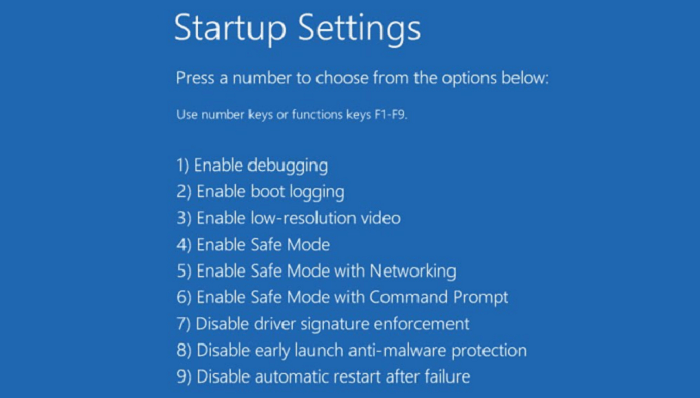
Step 5. Once in Safe Mode, use any standard uninstall method (Settings, Control Panel, or IObit Uninstaller) to remove the problematic program.
Also Read: How to Uninstall Applications on Windows [Complete Guide] >>
Method 5: Manually Removing Program Files and Registry Keys
This method is the most technical and should only be attempted by users who understand the risks. Manually deleting files and registry entries can help remove a program when all other methods fail, but incorrect changes to the Registry can cause system instability.
⚠Warning: Editing the Windows Registry incorrectly may damage your operating system. Only proceed if you are confident in your technical skills. Always back up the Registry before making changes.
Step 1. Open File Explorer and navigate to common installation folders:
Step 2. Delete the folder associated with the program you want to remove.
Step 3. Press Windows + R, type regedit, and press Enter to open the Registry Editor.
Step 4. Back up the Registry: Click File > Export > Save As RegistryBackup.reg.
Step 5. Navigate to these common uninstall entries and delete any keys related to the target program:
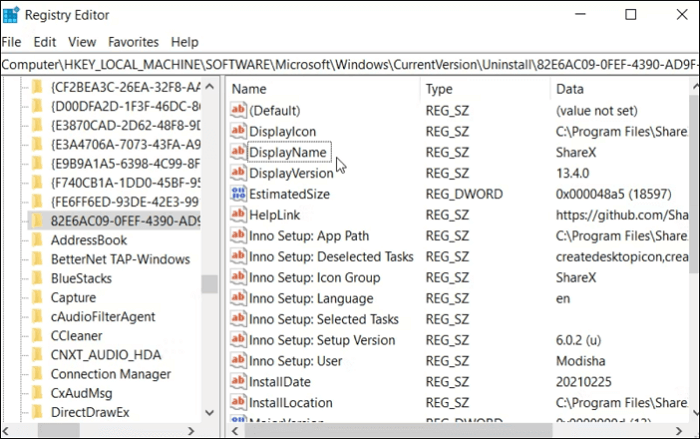
Step 6. Also, check and remove program-specific keys under:
Step 7. Close the Registry Editor and restart your computer.
FAQs About How to Force Uninstall a Program Windows 11/10
1. Is it safe to force uninstall a program?
When done correctly, yes. Using reputable tools like IObit Uninstaller, which creates system restore points before removal, is safe. Manually deleting files or registry entries carries a higher risk.
2. What should I do before force uninstalling software?
Close all running programs, end background processes related to the target software, create a system restore point, and back up important data.
3. How to force uninstall on Mac?
Mac users can use the Terminal with the sudo rm -rf command, but this is risky. Third-party tools like AppCleaner provide a safer alternative. This guide focuses on Windows, however.
Conclusion
Learning how to force uninstall programs is an essential skill for every Windows user. Whether you choose the quick convenience of IObit Uninstaller, the standard approach via Windows Settings, the precision of Command Prompt, the isolation of Safe Mode, or the hands-on control of manual removal, each method has its place. For most users, a dedicated uninstaller offers the best balance of safety, thoroughness, and ease of use—especially when dealing with leftover files and registry entries that built-in tools often miss. Forcing the uninstallation of a program becomes simple when you have the right tool. Try IObit Uninstaller today and experience a cleaner, faster PC.
IObit Uninstaller Free
- Complete forced uninstallation for stubborn programs.
- Uninstall a batch of programs at once.
- Scan and remove leftover files, folders, and registry entries.
- Support the management of Universal Windows Platform apps.