Many Windows users experience the same problem over time, that is, their computers become slower during startup and take much longer to boot. Why does this happen? One of the biggest reasons is that too many apps and background programs launch automatically when Windows starts. These startup apps increase boot time, consume RAM, and reduce overall system responsiveness. But worry not. This guide will introduce 7 efficient methods for Windows PC. Just read on to learn how to stop apps from opening on startup for improved speed!
How to Stop Apps from Opening on Startup Automatically (Easiest Way)
Locating and disabling each startup program can be time-consuming, especially for beginners. So, how to stop an application from opening at startup easily? All you need is IObit Advanced SystemCare. This powerful software can help you instantly disable unnecessary startup programs, optimize system resources, and improve boot speed with just one click!
Advanced SystemCare Free
- Clean: 420 billion traces removed & 85 EB junk files cleaned
- Protect: 80 million unauthorized access blocked & 20 million bugs fixed
- Speed Up: 6 million hours of startup time saved & Turbo boost
- Optimize: Auto clean and auto care your PC with AI mode

First things first, let’s see how to stop apps from opening on startup Windows 11/10 with simple steps.
Step 1. Free download and install the IObit Advanced SystemCare on your Windows PC.
Step 2. From the main interface, go to Speed up > Startup Optimizer panel.
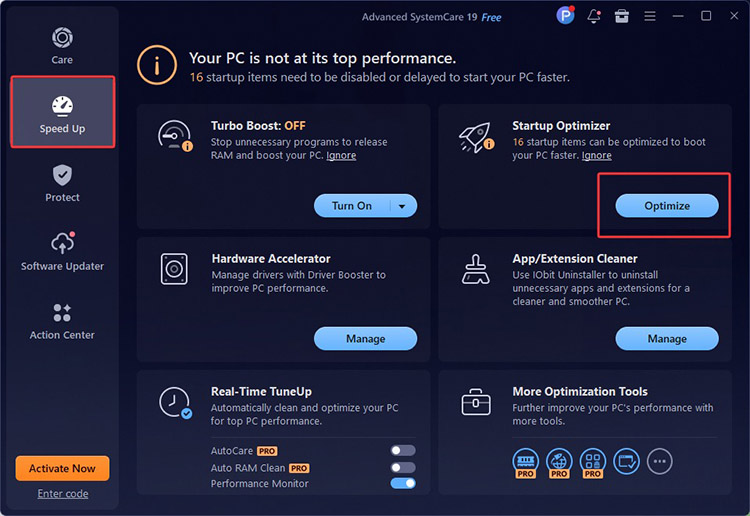
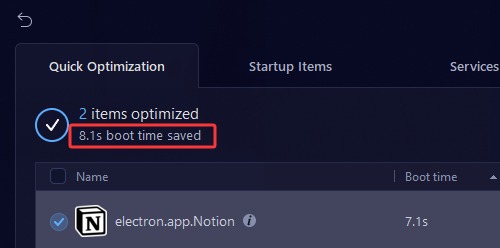
Step 3. Under the Quick Optimization tab, click on the Optimize button to improve your PC boot time in one click.
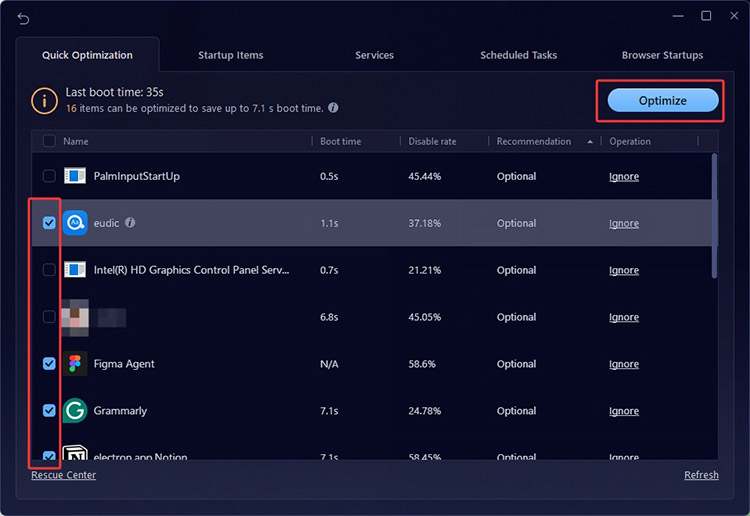
Step 4. After that, you can see your boot time greatly reduced.
More Options to Stop on Startup as You Demand
Meanwhile, IObit Advanced SystemCare allows you to customize the startup options. Here’s how to stop an application from opening at startup manually.
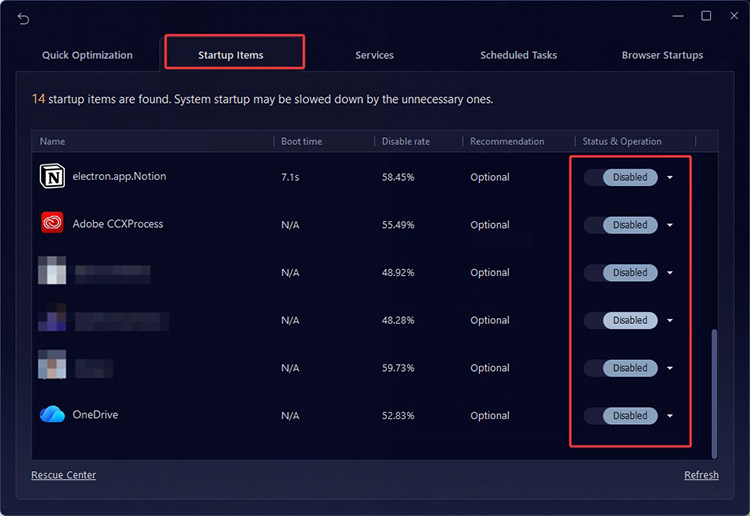
Step 1. Still in the same Speed up > Startup Optimizer feature.
Step 2. Go to the Startup items to see all the apps launching when booting.
Step 3. Choose unwanted items/services/scheduled tasks/browser startups and disable them.
Why Use IObit Advanced SystemCare to Stop Startup Apps?
IObit Advanced SystemCare automatically stops unnecessary startup apps and frees up system resources, reducing overall boot time. You can run a PC performance test before and after to instantly see the difference in speed and responsiveness!
How to stop programs from running at startup with customization? IObit Advanced SystemCare has got you covered. You can choose your unwanted items/services/scheduled tasks/browser startups from opening and disable them as per your needs.
The software also acts as a powerful PC cleaner that automatically scans your system to remove junk files, temporary data, and unnecessary clutter. By clearing up disk space, it optimizes system performance so your PC runs faster and more efficiently.
How to boost internet speed on PC based on your current activity? Try its Turbo Boost in various modes(Work, Game, Economy, etc.). It intelligently stops unnecessary background programs and reallocates system resources, ensuring your PC delivers maximum performance.
The software is also the RAM optimizer Windows 11/10. Its Real-Time Tune up feature continuously monitors and optimizes memory usage, which provides ongoing maintenance to keep the PC fast and responsive.
How to Stop Apps from Opening on Startup via Windows Settings
Windows Settings provides a simple built-in option quickly, without third-party software. Here’s how to stop apps from opening on startup Windows step by step.
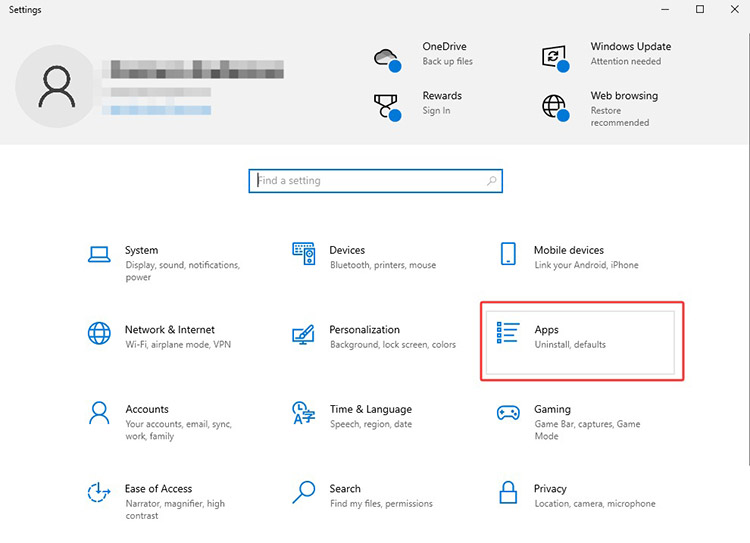
Step 1. Right-click on Start and select Settings > Apps.
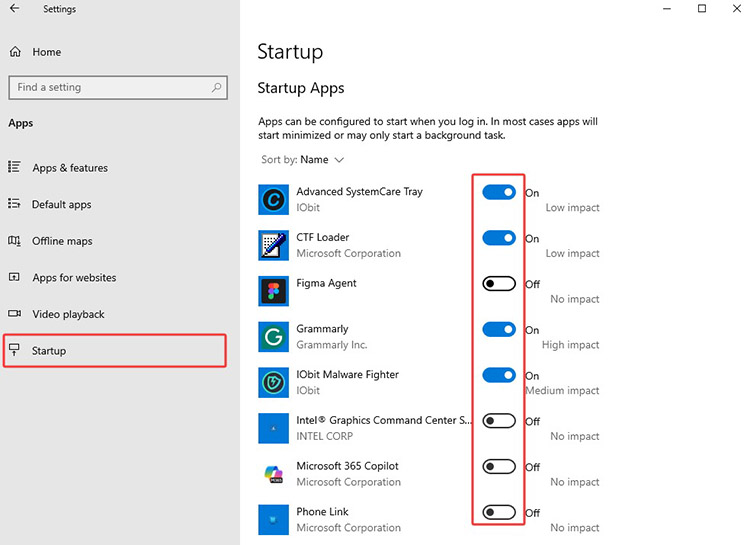
Step 2. Go to Startup on the left. Disable the apps to stop them from opening when launching.
 You May Like: [Solved] 9 Ways on How to Fix Windows 11 100 Disk Usage Easily in 2026 >>
How to Stop Apps from Opening on Startup via Task Manager
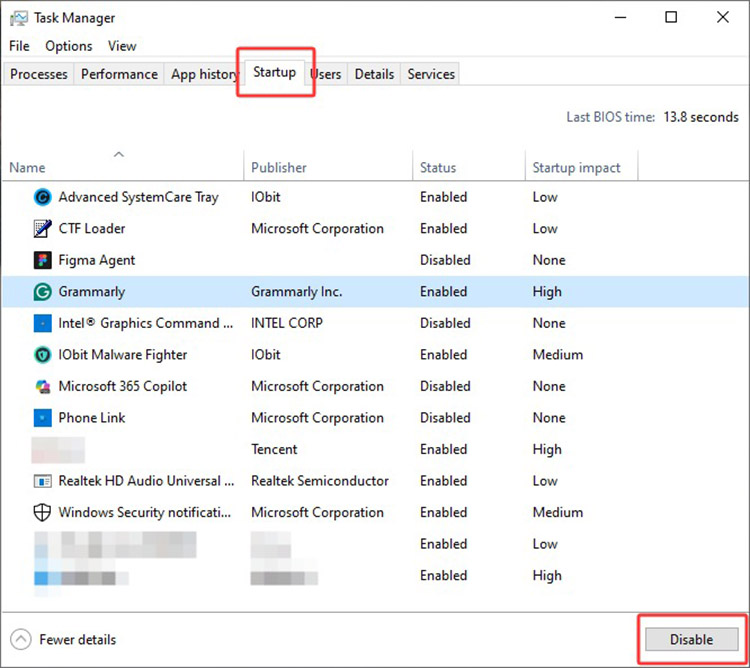
On Windows, Task Manager is where you can view all startup programs and their system impact. You can have more control over which apps launch automatically at Windows startup.
Step 1. Press Ctrl + Shift + Esc keys to open the Task Manager instantly.
Step 2. Choose the Startup tab. Click on the app you want to stop and select Disable.
How to Remove App from Startup with System Configuration
System Configuration (MSConfig) provides a classic Windows tool to manage startup items, including services and programs. Here’s how to stop programs from opening on startup with it in simple steps.
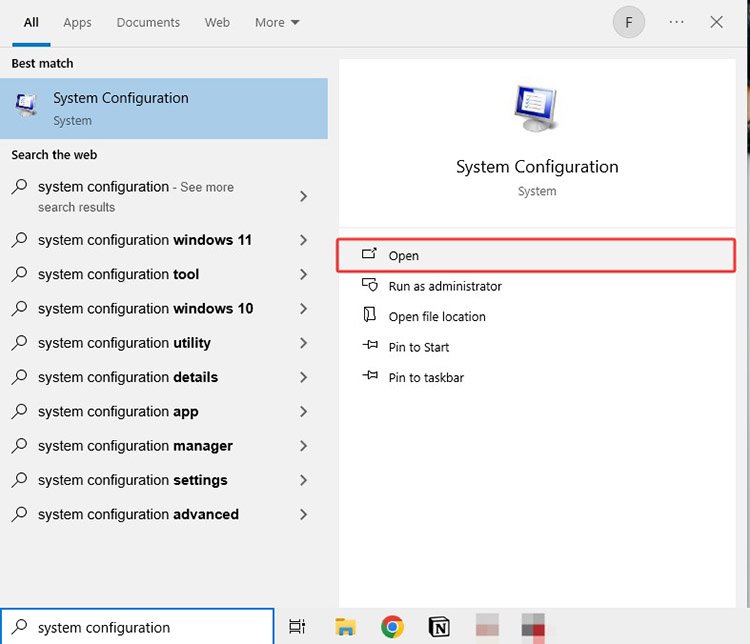
Step 1. Search for the “System Configuration” on Windows and open it.
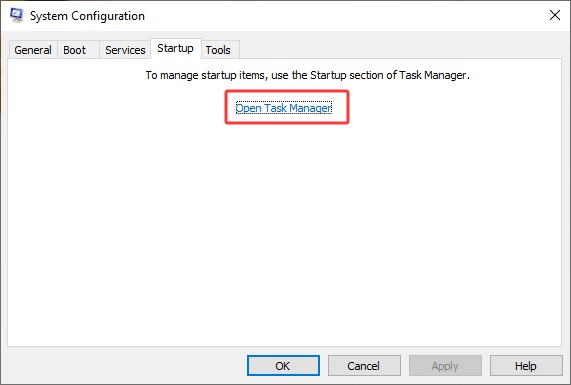
Step 2. You will be led to a panel. Choose Startup > Open Task Manager.
Step 3. Then, in the same Task Manager window as shown in the previous steps. Choose any app to disable it.
How to Stop Startup Programs Using Startup Folder
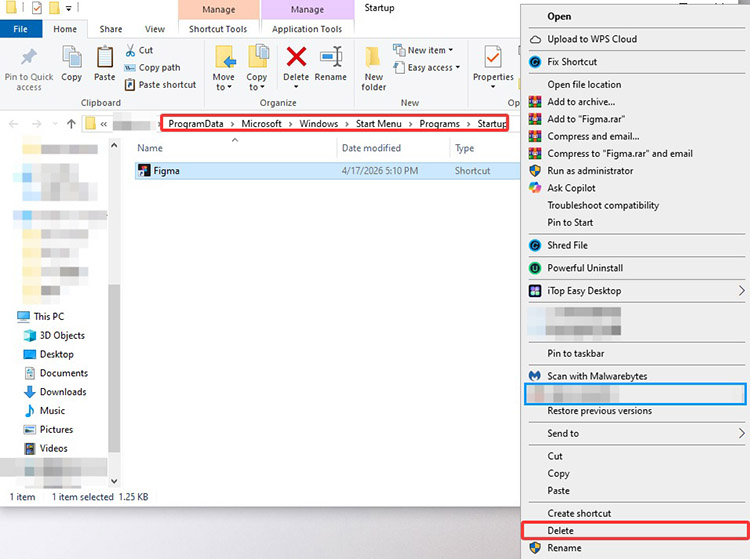
The Startup Folder stores shortcuts for applications that launch automatically when Windows boots. By removing unwanted shortcuts, you can easily control which programs start with your system.
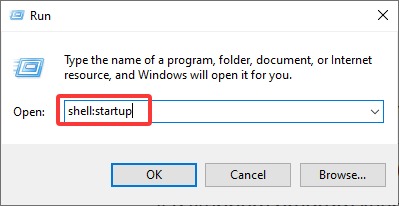
Step 1. Press Windows + R, type “shell:startup” and press Enter. You can use “shell:common startup” for all users.
Step 2. The Startup folder will open in File Explorer. You can find shortcuts for startup programs.
Step 3. Right-click on the shortcut to delete the application you do not want to launch automatically when Windows starts.
How to Stop Apps from Opening on Startup via Registry Editor
If you are a tech-savvy user who wants to have advanced control over startup programs, Registry Editor is a handy tool. However, it’s advised to edit it with caution to avoid affecting system stability.
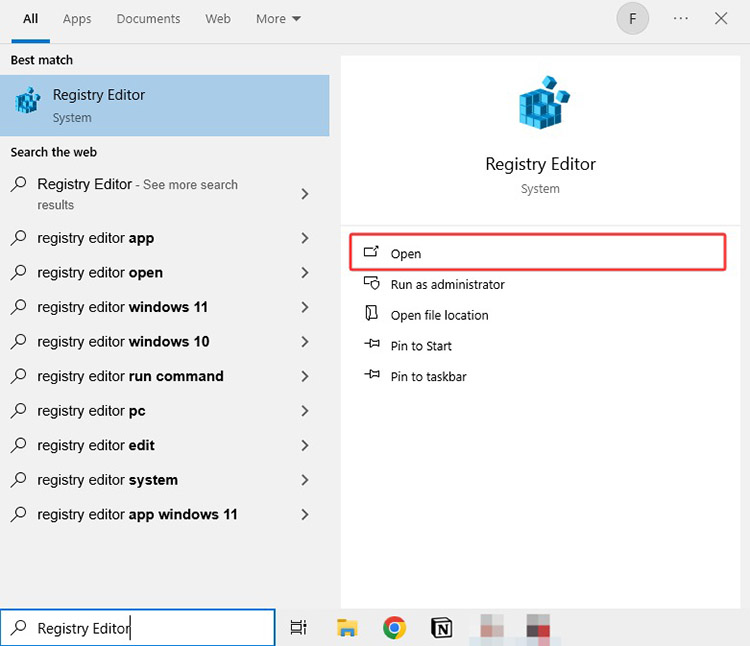
Step 1. Search for “Registry Editor” on your Windows and open it.
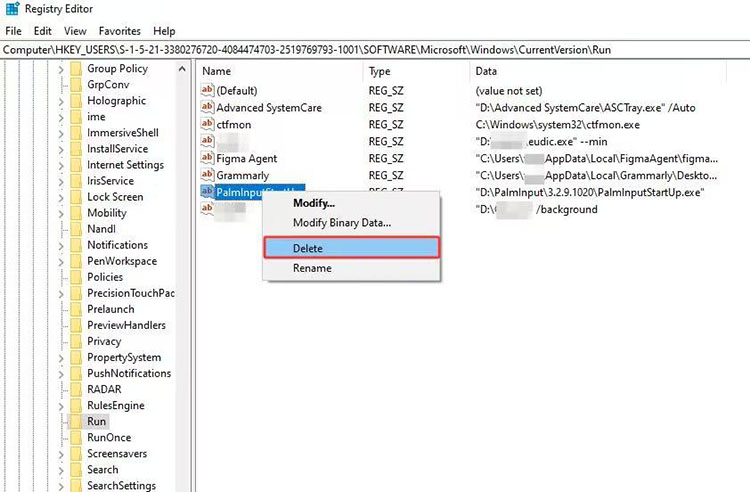
Step 2. Navigate to the following keys to locate startup entries:
HKEY_CURRENT_USER\Software\Microsoft\Windows\CurrentVersion\Run
HKEY_LOCAL_MACHINE\Software\Microsoft\Windows\CurrentVersion\Run
Step 3. Find any unwanted entry, right-click it, and select Delete to remove the application from startup.
How to Remove App from Startup Through Task Scheduler
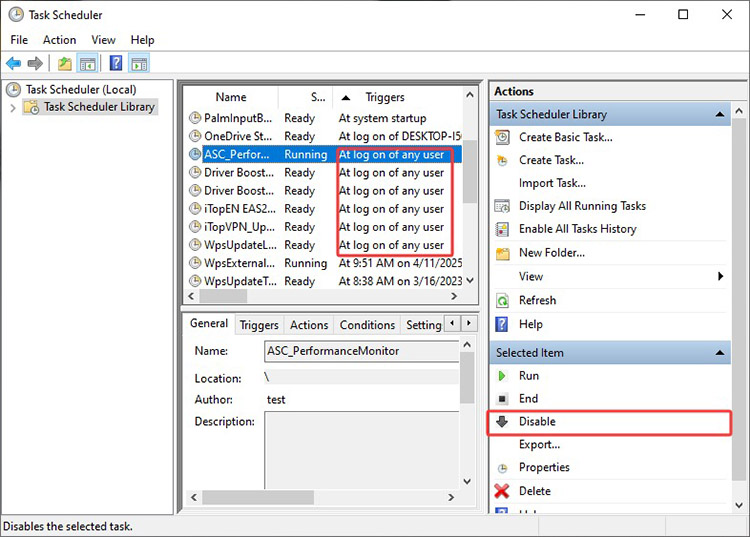
Some applications are set to launch automatically through scheduled tasks. You can use the Task Scheduler to disable these hidden startup triggers. Here's how to remove app from startup:
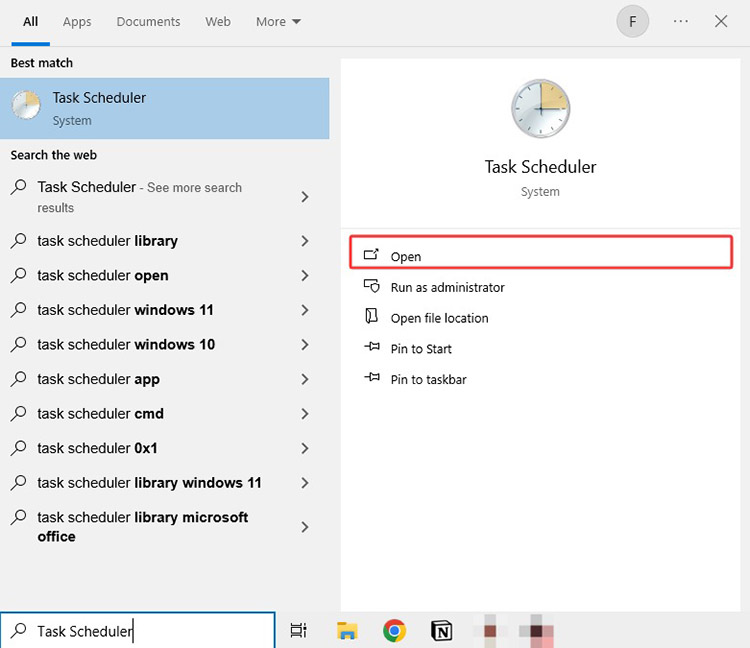
Step 1. Search for “Task Scheduler” to open the tool. In the left panel.
Step 2. Browse the Task Scheduler Library. Right-click any unwanted task and select Disable to prevent the application from launching automatically.
FAQs About How to Stop Startup Programs
1. Why Do You Stop Apps from Opening on Startup?
You should disable unnecessary startup apps to reduce boot time, free up RAM, and improve overall system responsiveness. It is also one of the easiest ways to speed up a PC efficiently.
2. Will Stopping a Startup App/Program Delete It?
No. Disabling a startup program only prevents it from launching automatically when Windows starts. The application remains installed on your computer and can still be opened manually anytime.
3. How Do I Stop Apps from Opening on macOS?
On macOS, open System Settings, go to General > Login Items > Open at Login section. You can delete any app here to stop it from opening when launching your macOS.
4. What If I Can’t Find the Application in the Startup Folder?
Some startup apps are hidden in Task Scheduler, Registry Editor, or background services. You can try the previous steps to manually disable them. Alternatively, IObit Advanced SystemCare is an excellent choice. You can use it to detect hidden startup items and disable unnecessary programs with just one click!
The Bottom Line
How to stop apps from opening on startup? This guide introduced 7 tested methods, from Windows built-in tools to powerful optimization software. Among them, IObit Advanced SystemCare stands out as the most effective solution, allowing you to disable startup apps and optimize system performance in one click. It is also an excellent Windows optimizer that helps keep your system running smoothly at all times. Try it to disable unwanted startup apps effortlessly and enjoy a more responsive PC experience from now on!
Advanced SystemCare Free
- Clean: 420 billion traces removed & 85 EB junk files cleaned
- Protect: 80 million unauthorized access blocked & 20 million bugs fixed
- Speed Up: 6 million hours of startup time saved & Turbo boost
- Optimize: Auto clean and auto care your PC with AI mode