Baldur's Gate 3 delivers an immersive RPG experience, but sudden FPS drops, stuttering, and long loading times can interrupt your adventure. Whether you're exploring the wilderness or navigating the busy streets of Act 3, performance problems can make gameplay frustrating.

Wondering how to make Baldur's Gate 3 run better on Windows 11/10? This guide introduces seven practical solutions. Follow these methods to enjoy smoother gameplay without unnecessarily sacrificing visual quality.
Why Is Baldur's Gate 3 Running Slowly?
Before applying performance fixes, understanding the causes of Baldur's Gate 3 performance issues can help you choose the most effective solution. Unlike many games, BG3 can place significant demands on both the CPU and GPU, especially in crowded areas.
Common causes include:
High Graphics Settings: Ultra-quality shadows, fog, and other demanding effects can overload older GPUs.
CPU Bottlenecks: Large crowds, NPC interactions, and complex environments can reduce frame rates.
Outdated Graphics Drivers: Older drivers may cause stuttering, graphical glitches, or compatibility problems.
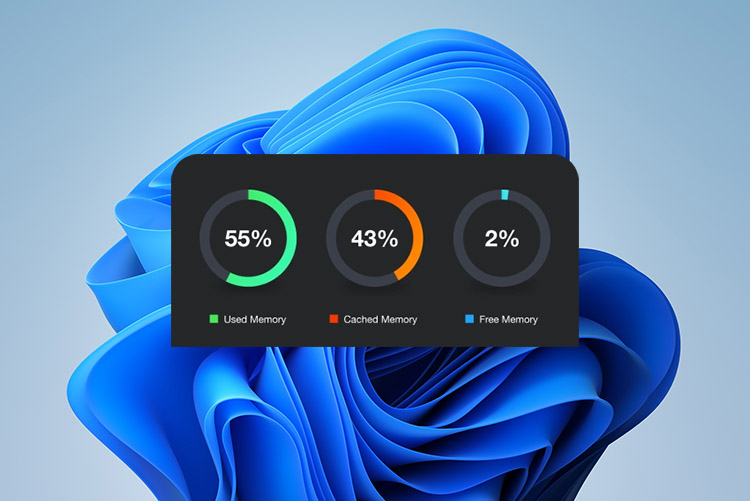
Background Applications: Browsers, launchers, and unnecessary processes compete for CPU and RAM.
Insufficient Memory: Limited available RAM can increase stuttering and loading delays.
Slow Storage: Running BG3 from an HDD instead of an SSD can negatively affect loading and asset streaming.
If you're experiencing Baldur's Gate 3 low FPS, start with the following methods.
Method 1. Optimize Baldur's Gate 3 Graphics Settings
Adjusting in-game graphics settings is often the fastest way to improve performance without installing additional software. Baldur's Gate 3 includes several options that influence GPU workload, visual quality, and frame stability. Rather than lowering everything immediately, focus on the most demanding settings first to find a balance between smoother gameplay and attractive visuals.
Recommended BG3 Graphics Settings for Better FPS
Graphics Setting |
Recommended Value |
Display Mode |
Fullscreen |
Resolution |
Native; lower if needed |
Overall Quality |
Medium |
Shadow Quality |
Low or Medium |
Cloud Quality |
Low |
Fog Quality |
Low |
Texture Quality |
Medium or High, depending on VRAM |
Model Quality |
Medium |
Ambient Occlusion |
Off for extra FPS |
Anti-Aliasing |
TAA or supported upscaling |
Steps to optimize graphics:
Step 1. Launch Baldur's Gate 3 and open the main menu.
Step 2. Navigate to Options > Video.
Step 3. Change the graphics preset from Ultra to Medium.
Step 4. Lower shadows, fog, and cloud quality individually.
Step 5. Apply the settings and test performance in a demanding area.
For a stronger Baldur's Gate 3 FPS boost, try DLSS on supported NVIDIA GPUs or an available FSR option. Upscaling can improve GPU-limited performance, although image quality varies by mode.
Method 2. Boost BG3 Performance with IObit Advanced SystemCare
Even with optimized graphics, unnecessary background programs and system clutter can contribute to inconsistent performance. If your computer has limited RAM or frequently runs multiple applications, improving Windows resource management may help. IObit Advanced SystemCare provides maintenance and optimization features designed to reduce unnecessary background activity and keep your PC running efficiently.
Advanced SystemCare Free
- Clean: 420 billion traces removed & 85 EB junk files cleaned
- Protect: 80 million unauthorized access blocked & 20 million bugs fixed
- Speed Up: 6 million hours of startup time saved & Turbo boost
- Optimize: Auto clean and auto care your PC with AI mode

Why Choose IObit Advanced SystemCare for BG3?
Advanced SystemCare is a Windows optimization utility that combines junk-file cleanup, startup management, system maintenance, and performance tools. It can complement in-game adjustments when troubleshooting BG3 slowdowns.
Its relevant features include:
Reduce Background CPU Usage for Smoother BG3 Gameplay
Turbo Boost temporarily disables selected unnecessary background services and processes, freeing up CPU resources that may help reduce stuttering in demanding areas of Baldur's Gate 3.
Free Up More RAM to Reduce BG3 Lag
RAM optimization tools help manage unnecessary memory consumption, leaving more available memory for Baldur's Gate 3 and potentially reducing slowdowns during exploration and combat.
Optimize System Resources to Improve BG3 FPS Stability
Performance optimization features help reduce unnecessary system activity, potentially improving frame-rate consistency when background resource usage contributes to slowdowns. You can also run a PC performance test to identify potential system bottlenecks affecting gameplay.
Clean Junk Files to Free Up BG3 Storage Space
Junk File Cleanup works as a hard disk cleaner, removing unnecessary temporary files and system clutter to help maintain sufficient free space for Baldur's Gate 3 updates and game-related data.
Disable Unnecessary Startup Apps Before Launching BG3
Startup optimization identifies programs that automatically launch with Windows, helping reduce background resource consumption and improve available system capacity for gaming.
Improve Network Stability for BG3 Multiplayer Sessions
Internet Boost optimizes supported network settings to potentially improve connection responsiveness and reduce network-related delays during online cooperative gameplay.
Check Disk Problems That May Affect BG3 Loading
Disk Doctor helps detect certain storage errors that could contribute to slow loading, game interruptions, or system instability.
How to Use Advanced SystemCare to Improve BG3 Performance?
Step 1. Download and install Advanced SystemCare on your computer.
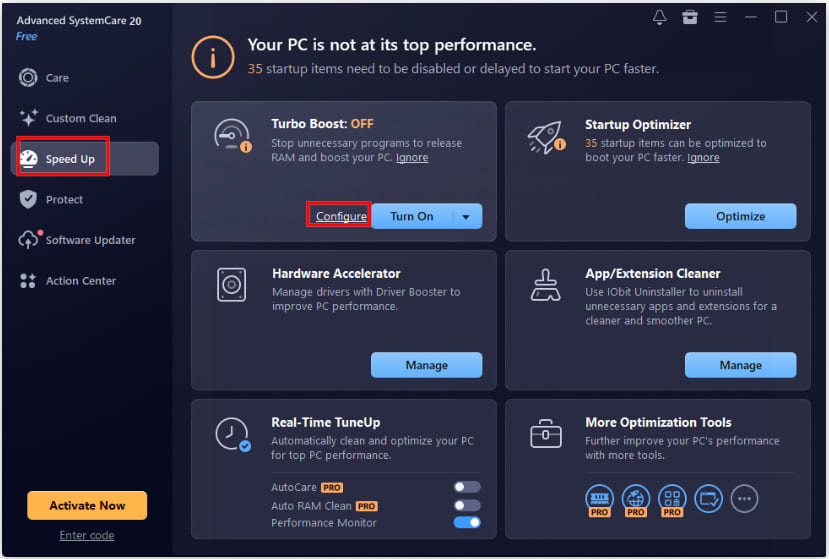
Step 2. Launch Advanced SystemCare. Select the Speed Up option and click Configure.
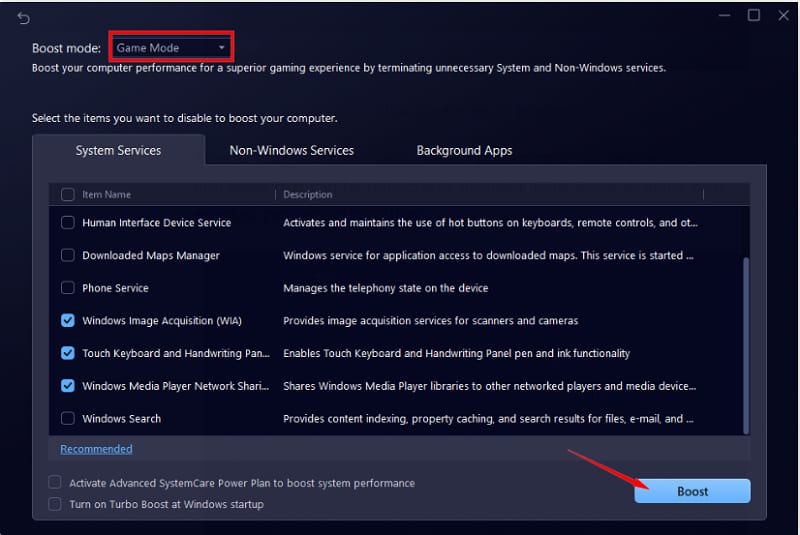
Step 3. Select Game Mode, then review the background services and processes that can be temporarily disabled. Click Boost to apply the selected optimizations and prepare your PC for gaming.
Step 5. Launch Baldur's Gate 3 and compare FPS and memory usage with your previous results.
Tip: Advanced SystemCare cannot directly increase your GPU's rendering power. Its potential benefits are mainly associated with reducing unnecessary system overhead, especially on resource-constrained PCs.
Method 3. Update Your GPU Drivers for Better BG3 FPS
Outdated graphics drivers can cause compatibility problems, unstable frame rates, and graphical glitches in demanding games. GPU manufacturers regularly release driver updates to fix bugs and improve gaming performance. If you recently updated Baldur's Gate 3 or Windows, checking your graphics driver is essential.
For a simpler solution, you can use IObit Driver Booster to automatically scan for outdated graphics drivers and install available updates, helping maintain smoother gameplay and more stable FPS.
Step 1. Press Windows + X and select Device Manager.
Step 2. Expand Display adapters.
Step 3. Right-click your NVIDIA, AMD, or Intel graphics card.
Step 4. Select Update driver > Search automatically for drivers.
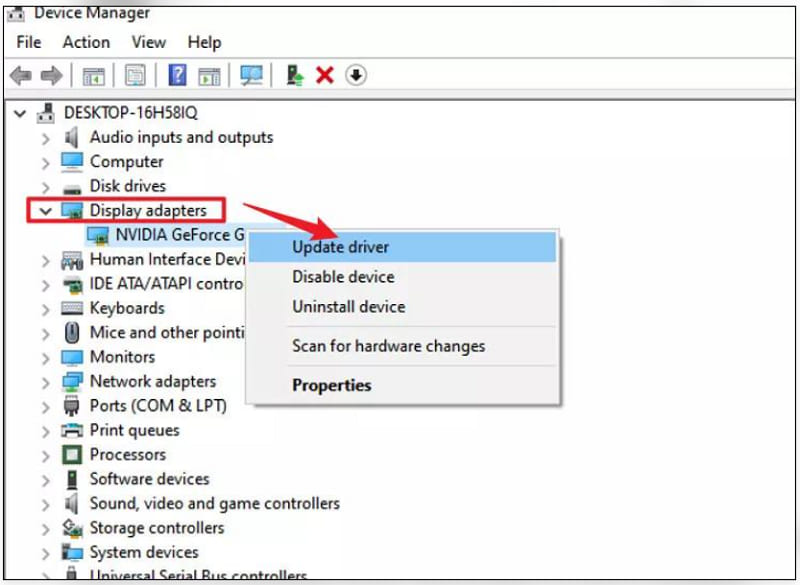
Step 5. Restart your computer after installing an update.
Method 4. Switch Between DirectX 11 and Vulkan
Baldur's Gate 3 supports DirectX 11 and Vulkan rendering APIs on Windows, and their performance can vary depending on your graphics hardware and driver version. Some systems achieve more stable frame rates with DirectX 11, while others perform better with Vulkan. Testing both options is a simple way to identify the best configuration for your PC.
Step 1. Close Baldur's Gate 3.
Step 2. Open Steam and launch the game through the Larian Launcher.
Step 3. Locate the DirectX 11 and Vulkan options in the launcher. Select the alternative API and start the game.
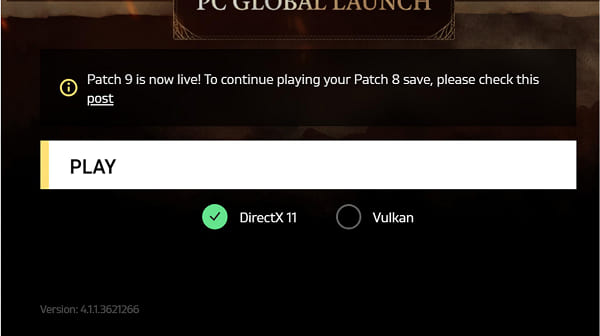
Step 4. Test gameplay in the same location and compare average FPS, stuttering, and stability.
Method 5. Enable Windows Gaming Performance Settings
Windows 11 and Windows 10 include built-in performance features that can help prioritize games and reduce unnecessary resource competition. These settings are especially useful for laptops and computers that automatically balance power consumption against performance. While they cannot overcome hardware limitations, configuring Windows correctly can help your system maintain more consistent gaming performance.
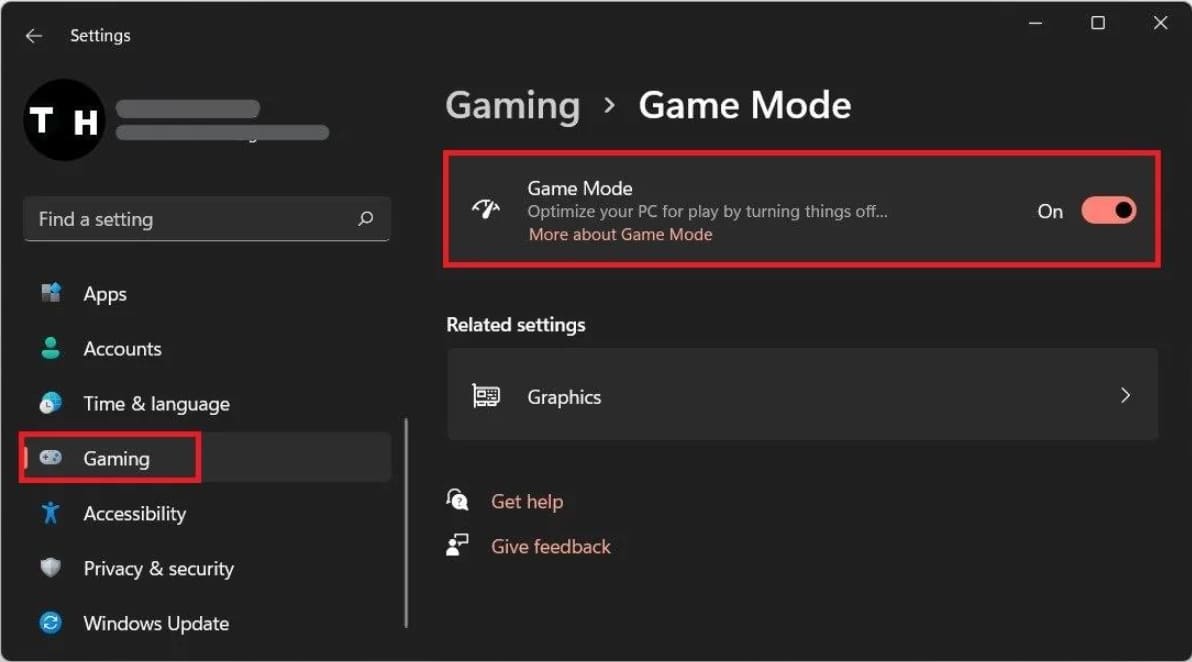
Enable Game Mode
Step 1. Press Windows + I to open Settings.
Step 2. Navigate to Gaming > Game Mode.
Step 3. Turn Game Mode on.
Set BG3 to High-Performance Graphics
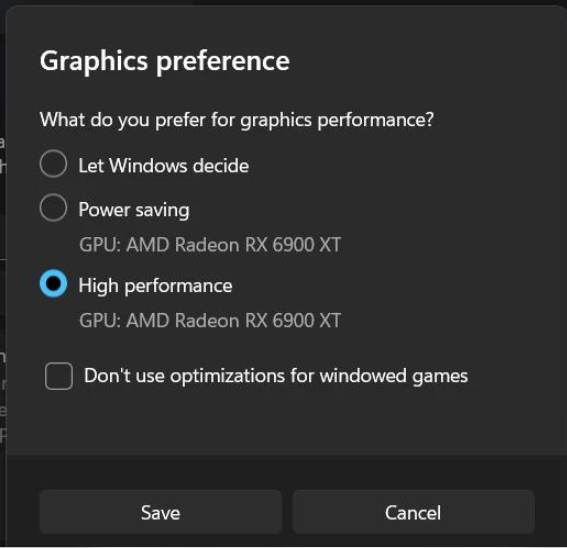
Step 1. Open Settings > System > Display > Graphics.
Step 2. Add the BG3 game executable if it is not listed.
Step 3. Select the game and open its graphics preferences.
Step 4. Choose High performance and save your changes.
Adjust Windows Power Mode
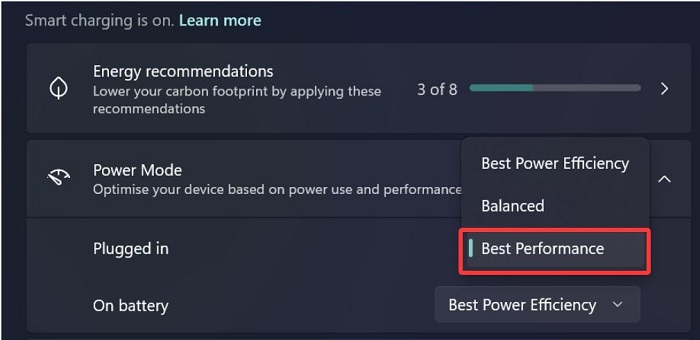
On Windows 11, go to Settings > System > Power & battery > Power mode and select Best performance, if available.
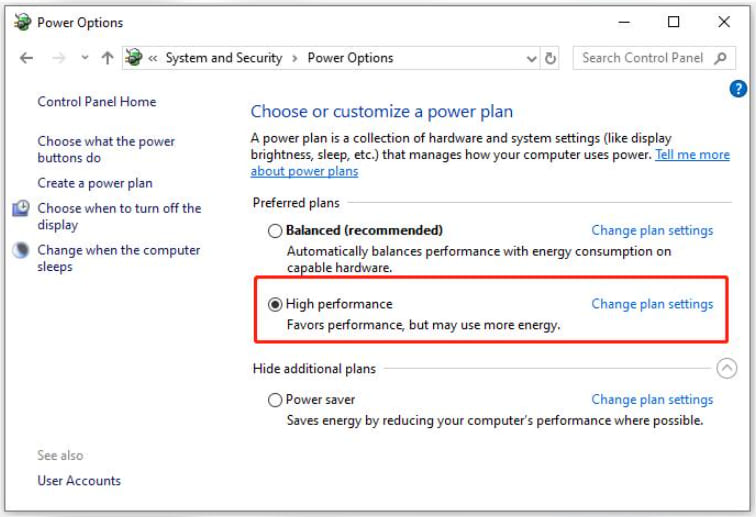
On Windows 10, open Settings > System > Power & sleep > Additional power settings and choose an available performance-focused plan.
These adjustments are particularly helpful when researching how to make Baldur's Gate 3 run better on laptop. Keep your laptop plugged in and ensure its cooling vents are unobstructed.
Method 6. Close Background Apps and Disable Overlays
Background applications can consume valuable CPU cycles, memory, and GPU resources while Baldur's Gate 3 is running. Browser tabs, recording utilities, and gaming overlays may also introduce performance overhead. Closing unnecessary programs before launching BG3 is a practical way to reduce resource competition, particularly on computers with 8 GB or 16 GB of RAM.
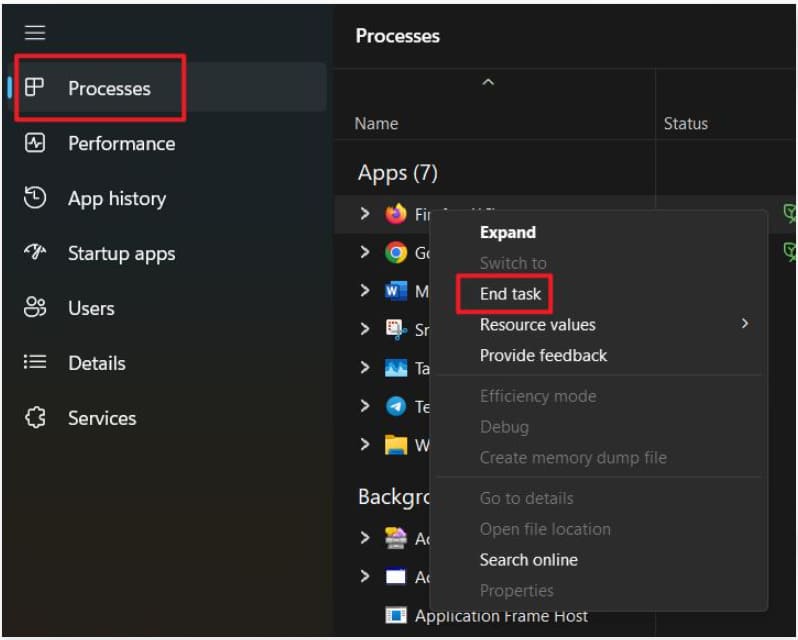
Step 1. Press Ctrl + Shift + Esc to open the Task Manager.
Step 2. Select the Processes tab.
Step 3. Sort applications by CPU or Memory usage.
Step 4. Right-click unnecessary applications and select End task. Avoid ending unfamiliar system processes.
Step 5. Disable unused overlays in Steam, Discord, or your GPU software.
Disable Steam Overlay: Open Steam > Library, right-click Baldur's Gate 3, select Properties > General, and turn off Enable the Steam Overlay while in-game.
Disable Discord Overlay: Open Discord > User Settings > Game Overlay and turn off Enable Overlay.
Disable NVIDIA Overlay: Open NVIDIA App > Settings > Features and turn off NVIDIA Overlay or In-Game Overlay, depending on your version.
For a more consistent BG3 FPS boost, restart your PC before a long gaming session and launch only essential applications.
Method 7. Verify Game Files and Move BG3 to an SSD
Corrupted game files, insufficient free disk space, and slow storage can contribute to loading problems and occasional stuttering. Baldur's Gate 3 is designed to run from an SSD, so using a traditional hard drive may create noticeable performance limitations. Verifying game files and checking storage conditions can help eliminate these problems without reinstalling the entire game.
Verify Baldur's Gate 3 Files on Steam
Step 1. Open Steam and go to the Library.
Step 2. Right-click Baldur's Gate 3 and select Properties.
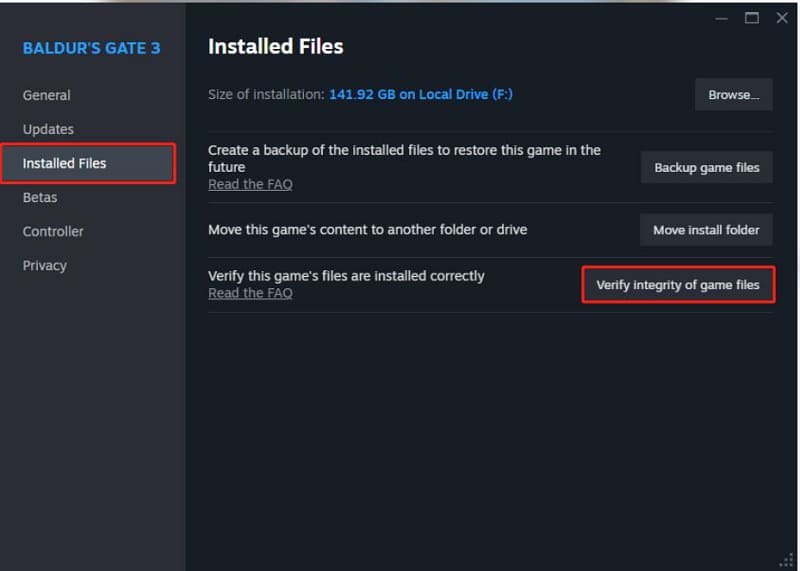
Step 3. Open Installed Files.
Step 4. Click Verify integrity of game files.
Step 5. Wait for Steam to finish checking and repairing any missing or corrupted files.
Move BG3 to an SSD
In Steam, open Settings > Storage, add an SSD library location if necessary, and use the game's Properties > Installed Files > Move install folder option when available.
Moving the game to an SSD primarily improves loading and asset streaming rather than guaranteeing higher average FPS.
Additional Tips for Boost Baldur's Gate 3 FPS
If you still experience Baldur's Gate 3 low FPS, consider these additional improvements:
Limit FPS for Consistency: Set a sustainable frame-rate cap, such as 30, 45, or 60 FPS, based on your hardware.
Check CPU and GPU Temperatures: Overheating can cause thermal throttling and sudden performance drops.
Reduce Crowded-Area Settings: Lowering crowd-related settings can help in CPU-heavy locations, especially Act 3.
Keep BG3 Updated: Install official patches that may address performance problems.
Check Steam Deck Settings: If you're researching how to make Baldur's Gate 3 run better on the Steam Deck, try lower graphics settings, supported upscaling, and a stable frame-rate cap.
For users wondering how to improve Baldur's Gate 3 performance, testing one change at a time makes it easier to identify which adjustment actually helps.
FAQs About Baldur's Gate 3 Performance
1. How Can I Get a Baldur's Gate 3 FPS Boost Without Upgrading Hardware?
Start by lowering shadows, fog, and crowd-related settings. Enable supported upscaling, close unnecessary background applications, and test DirectX 11 against Vulkan. These adjustments can provide a Baldur's Gate 3 FPS boost without purchasing new hardware.
2. Why Does Baldur's Gate 3 Lag More in Act 3?
Act 3 contains dense environments, numerous NPCs, and complex simulation workloads. These can create CPU bottlenecks, meaning reducing GPU-focused settings alone may not resolve every slowdown.
3. How to Improve Performance on Baldur's Gate 3 on a Low-End PC?
To boost Baldur's Gate 3 FPS, use low or medium graphics settings, enable supported upscaling, reduce background activity, and install the game on an SSD. If your PC is below the game's minimum requirements, these changes may not be sufficient.
Conclusion
Knowing how to make Baldur's Gate 3 run better starts with identifying whether your PC is limited by graphics, CPU performance, memory, or storage. Optimize BG3's video settings first, then update drivers, test rendering APIs, and adjust Windows performance options. IObit Advanced SystemCare can also help reduce unnecessary system overhead, making it a useful supplementary tool for smoother gameplay.