






Kevin Hart
Kevin is an experienced editor focused on tech blog writing. Familiar with all kinds of PC software on the market. All the topics he chooses are aimed at bringing more benefits to users.
Expert in
PC Health Solution

All-in-one PC health solution: clean, optimize and secure

Comprehensive PC cleaning, optimization and protection

Keep drivers always up-to-date

More stable performance with less system crashes

Protect millions of computers against malware

Top computer security with full-round protection

Protect against viruses & boost PC performance
Clean: 420 billion traces removed & 85 EB junk files cleaned
Protect: 80 million unauthorized access blocked & 20 million bugs fixed
Speed Up: 6 million hours of startup time saved & Turbo boost
Optimize: Auto clean and auto care your PC with AI mode

Find a reliable CPU GPU temperature monitor for Windows 10/11. Compare 5 tools for real-time temperatures, gaming overlays, alerts, and PC optimization.

Kevin Hart


When a PC begins to stutter, throttle, or run unusually loud, heat is one of the first things worth checking. A CPU GPU temperature monitor shows how hot the processor and graphics card get during everyday work, stress tests, or games, helping you spot abnormal heat before it affects stability. Many tools also report utilization, clock speeds, fan speeds, and power. This guide compares five practical options for Windows 10/11, from lightweight sensor utilities to gaming overlays and an all-in-one PC maintenance suite, so you can choose the right tool for your needs.
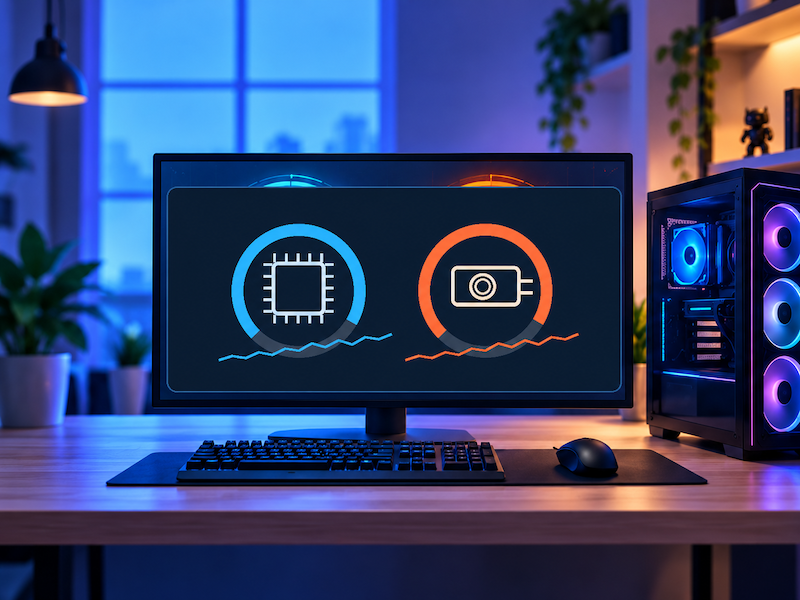
A CPU GPU temperature monitor reads thermal sensors built into supported processors, graphics cards, motherboards, and sometimes storage devices. Instead of guessing whether heat is behind a slowdown, you can watch temperatures change under load and compare them with fan speed, clocks, and utilization.
Definition: A CPU and GPU temperature monitor is software that displays real-time or near-real-time readings from hardware temperature sensors.
Core Functions: Most tools show CPU package or core temperature, GPU temperature, utilization, clock speed, fan speed, and power data. More advanced options may add graphs, logging, alerts, or an in-game overlay. A CPU GPU temp monitor Windows 11 setup is especially useful after installing a new cooler or GPU, changing fan curves, or troubleshooting unexpected thermal throttling.
If temperatures look normal but memory use remains high, this guide can help you investigate another possible bottleneck.
With the basics covered, the following five tools take different approaches to temperature monitoring.
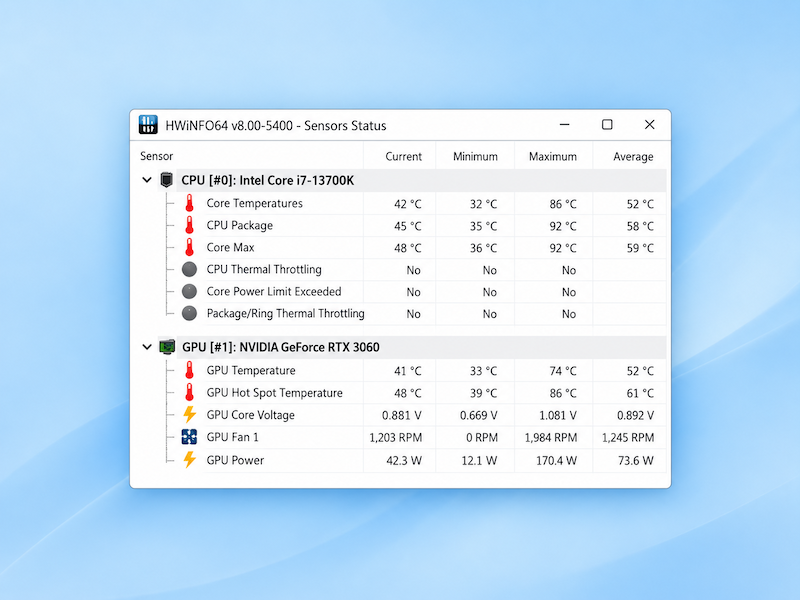
HWiNFO is a detailed hardware-information and sensor-monitoring utility for Windows. As a CPU GPU temperature monitor, it can expose CPU and GPU thermals alongside voltages, fan speeds, clocks, power, and utilization. Its sensor-focused view is useful when you want detailed telemetry without relying on a broader PC optimization suite. HWiNFO is free for personal, non-commercial use; commercial use of its 64-bit or ARM64 editions requires a Pro license.
Best For: Enthusiasts and troubleshooters who want extensive sensor detail.
Key Features: CPU/GPU temperatures, voltages, fan speeds, clocks, power data, sensor logging, graphs, and a fully integrated customizable OSD. HWiNFO's current releases continue to expand GPU temperature and sensor support.
Pros: Very detailed readings, frequent hardware-support updates, and strong diagnostic depth.
Cons: The large sensor list can feel overwhelming to beginners.
For users comparing GPU temperature monitor software, HWiNFO is one of the strongest choices when secondary sensors and detailed diagnostics matter.
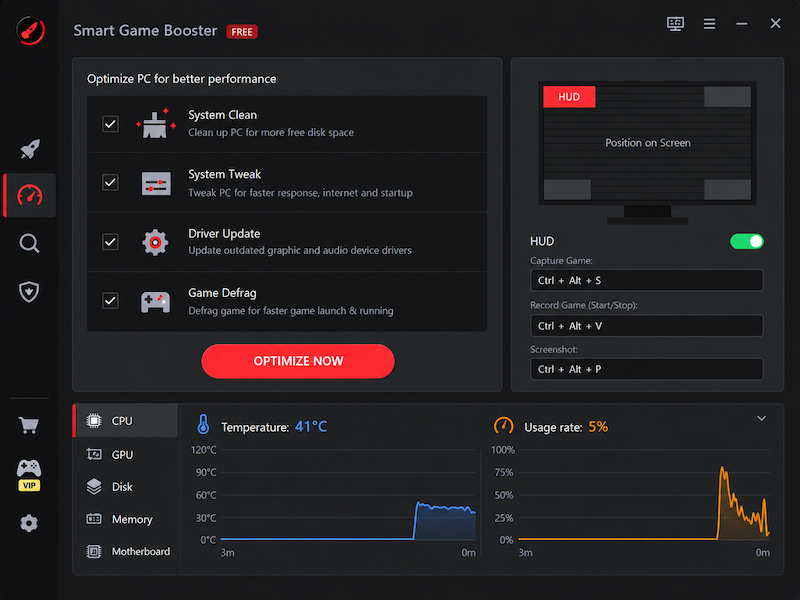
Smart Game Booster is built around gaming performance rather than monitoring alone. Its real-time monitor shows hardware temperatures and resource use, while the in-game HUD can display FPS and hardware temperatures during gameplay. That makes it practical GPU temp monitor software for gamers learning how to monitor GPU temp without constantly switching back to the desktop.
Best For: Gamers who want temperature monitoring together with game optimization.
Key Features: Real-time hardware monitoring, an in-game temperature and FPS HUD, overheating alarms, PC Boost, game optimization, and Network Acceleration. Smart Game Booster also promotes FPS improvement and lower ping, but the current user manual states that PC Boost is available to all users while Network Acceleration is reserved for SVIP.
Pros: Gaming-focused interface, temperature and FPS data in one place, and tools for reducing unnecessary background load.
Cons: Some advanced features require a paid tier, and temperature-only users may prefer a lighter utility.
For broader game-performance tuning, this PC optimizer for gaming guide covers additional ways to reduce background overhead.
CPUID HWMonitor is a focused utility that reads temperatures, voltages, powers, currents, fan speeds, utilization, and clock speeds. It supports CPU- and GPU-level monitoring as well as S.M.A.R.T. data from supported drives and thermal sensors on compatible memory modules. It is a straightforward CPU GPU temperature monitor for users who want a desktop sensor view without a larger optimization suite.
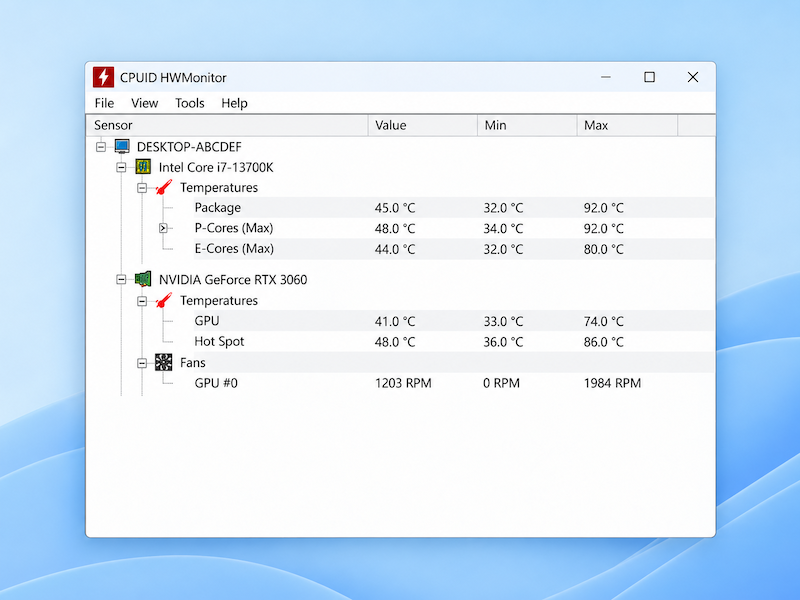
Best For: Users who want quick hardware readings with minimal setup.
Key Features: CPU/GPU temperatures, voltage and power monitoring, fan and clock data, S.M.A.R.T. storage sensors, real-time graphs, and CSV logging in current releases. CPUID added CSV logging in 2026 and later introduced real-time graphs in the classic HWMonitor version.
Pros: Lightweight, easy to launch, and broad enough for routine CPU, GPU, storage, and fan monitoring.
Cons: Its interface is relatively technical and less focused on in-game overlays.
If temperatures remain healthy but the PC still feels slow, a broader Windows optimizer may be more useful than focusing only on thermals.
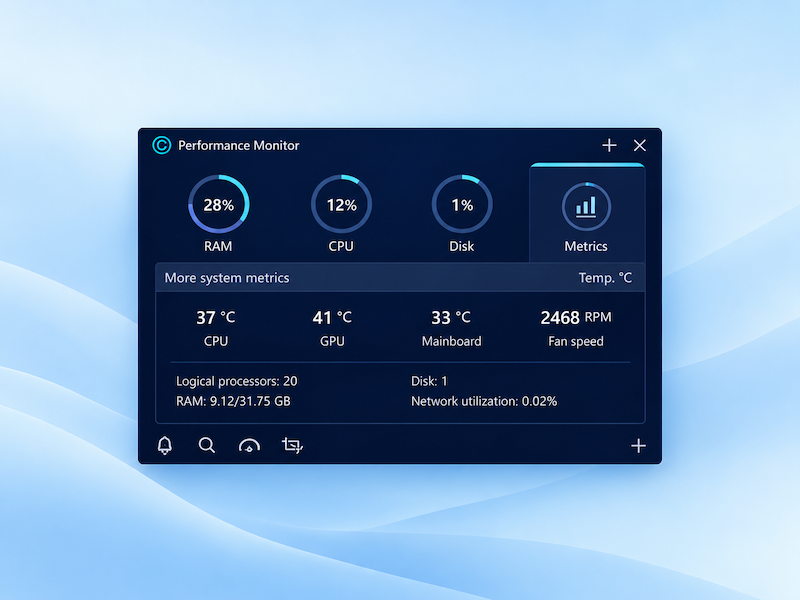
IObit's Advanced SystemCare combines hardware monitoring with broader Windows maintenance. Its Performance Monitor shows RAM, CPU, and disk activity, and the maximized Metrics tab can display CPU, GPU, and mainboard temperatures along with fan speed. For users who want a CPU GPU temperature monitor plus cleanup and optimization tools, this best CPU temp monitor offers a more all-in-one approach than dedicated sensor utilities.
Best For: Users who want temperature checks together with PC cleaning and optimization.
Key Features: Performance Monitor, CPU/GPU/mainboard temperatures in Metrics, RAM/CPU/disk usage, junk-file cleaning, startup optimization, Turbo Boost, and memory-management tools. Advanced SystemCare Free includes basic cleaning and optimization, while automatic RAM cleaning is listed as a Pro feature.
Pros: Combines monitoring, cleaning, and optimization in one interface and is approachable for beginners.
Cons: It offers less granular hardware telemetry than HWiNFO, and some advanced automation features require Pro.
If the problem is network-related rather than thermal, the steps in how to boost internet speed on PC are more relevant to connection troubleshooting.
How to Use Performance Monitor in Advanced SystemCare
Step 1. Download and install Advanced SystemCare from IObit's official website, then launch the program.
Step 2. Click Options in the upper-right corner, choose Quick Settings, find Performance Monitor, and turn it on. You can also enable it through Settings > General Settings.
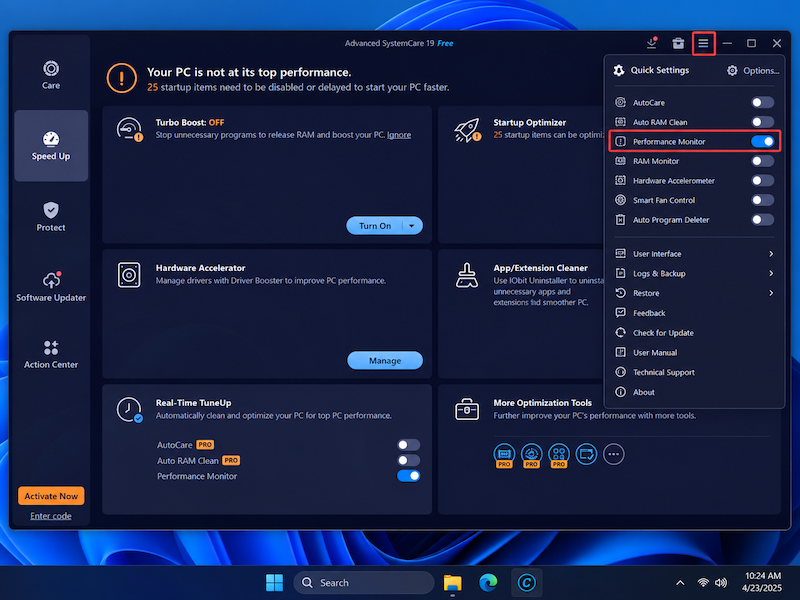
Step 3. Open Performance Monitor and maximize it. Select the Metrics tab to view supported readings, including CPU, GPU, and mainboard temperatures and fan speed. Keep the monitor visible while you run the workload you want to test.
MSI Afterburner is a strong CPU GPU temperature monitor while gaming because its hardware monitoring can place selected GPU and CPU statistics directly over gameplay. With RivaTuner Statistics Server installed, the On-Screen Display can show GPU temperature and usage, CPU temperature and usage, FPS, clocks, power, RAM usage, and other selected values.
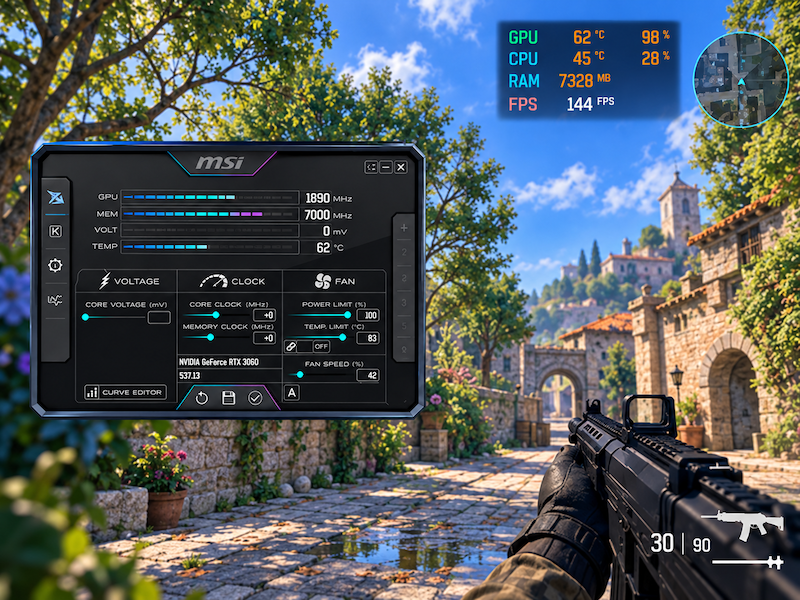
Best For: Gamers and overclockers who need live readings during gameplay.
Key Features: Hardware-monitoring graphs, a customizable OSD, GPU and CPU telemetry, FPS statistics, fan-curve controls, and GPU tuning tools. MSI states that Afterburner supports nearly all GPUs, including non-MSI graphics cards.
Pros: Excellent in-game visibility, highly configurable monitoring, and useful GPU tuning controls.
Cons: Initial setup takes more time than with a simple sensor utility, and the overclocking controls may be unnecessary for temperature-only users.
For anyone learning how to monitor GPU temp, open Settings > Monitoring, select GPU Temperature, enable Show in On-Screen Display, and click Apply. You can add CPU temperature, FPS, utilization, and other metrics to the same overlay.
Here is a table for you to have a better overview of the 5 CPU GPU temp monitors mentioned above. Choose the one that suits you the best now!
| Tool | Primary Use | Standout Feature | Best For |
| HWiNFO | Sensor & Diagnostics | Deep sensor data & logging | Hardware enthusiasts |
| Smart Game Booster | FPS & Game Tuning | In-game HUD & PC boost | Gamers wanting optimization |
| HWMonitor | Quick Sensor Checks | Lightweight & zero setup | Basic thermal checks |
| Advanced SystemCare | System Maintenance | Cleaning + basic metrics | All-in-one PC cleanup |
| MSI Afterburner | In-Game Overlay & Tuning | Live OSD & fan control | Gamers & overclockers |
A reliable CPU GPU temperature monitor can help you identify overheating and cooling problems before they affect stability or gaming performance. HWiNFO and HWMonitor suit detailed sensor checks, while Smart Game Booster and MSI Afterburner are strong gaming choices. Advanced SystemCare, as the best CPU temp monitor, is useful when you also want cleaning, boosting, and broader Windows maintenance in one toolkit.


All-in-one PC health solution.
Free Download