Outdated and unnecessary drivers can take up storage space, cause hardware conflicts, and sometimes lead to performance issues. When you upgrade hardware, switch graphics cards, or update drivers, previous versions may remain on your system. Knowing how to uninstall old drivers helps keep Windows cleaner and ensures your devices work properly.
Whether you want to remove old drivers Windows 11, clean outdated GPU files, or find a reliable old driver remover, this guide explains safe ways to remove unused drivers without affecting your current hardware.
Why Should You Uninstall Old Drivers?
Windows often keeps previous driver packages after updates or hardware changes. While this can help with driver rollbacks, too many outdated drivers may create unnecessary problems. Removing old drivers can help you:
Free up disk space occupied by unused driver packages.
Prevent conflicts between old and new driver versions.
Fix hardware problems caused by incorrect driver files.
Improve system stability after replacing hardware.
Keep your PC optimized for future driver updates.
For example, users who replace a graphics card may need to know how to uninstall old drivers NVIDIA or how to uninstall old drivers AMD to avoid compatibility issues. However, removing drivers incorrectly can cause hardware failures, so it is important to follow the right methods.
Method 1. How to Uninstall Old Drivers Using Device Manager
Device Manager is the built-in Windows tool for managing hardware drivers. It allows you to uninstall drivers for devices you no longer use, such as old graphics cards, network adapters, printers, or USB devices. Here are the steps to uninstall old drivers using Device Manager.
Step 1. Press Windows + X and select Device Manager.
Step 2. Expand the category containing the device whose old driver you want to remove.
Step 3. Right-click the device and choose Uninstall device.
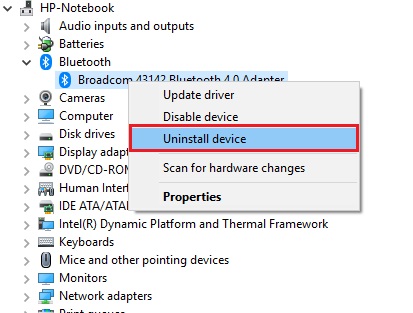
Step 4. If available, check Delete the driver software for this device.
Step 5. Click Uninstall and restart your computer.
This method works well when you know exactly which hardware driver needs to be removed. However, Device Manager does not always show hidden or unused driver packages stored on your system.
Method 2. How to Remove Old Driver Packages with Disk Cleanup
Windows stores driver installation files inside the Driver Store. Over time, these files can accumulate and occupy significant storage space. So, you can remove unused driver packages with Disk Cleanup.
To remove unnecessary driver files on Windows 10:
Step 1. Press Windows + R, type cleanmgr, and press Enter.
Step 2. Choose your Windows system drive.
Step 3. Click Clean up system files.
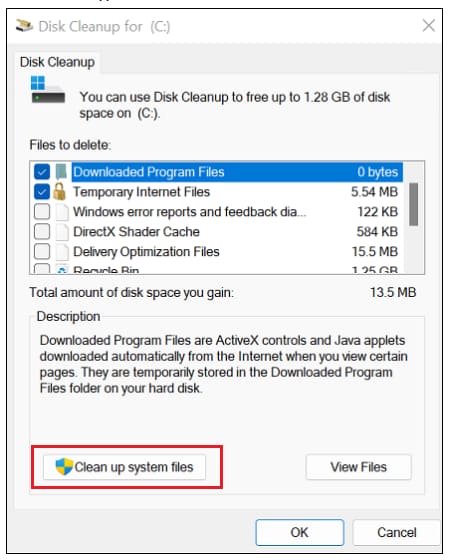
Step 4. Wait for Windows to scan removable files.
Step 5. Select available cleanup options related to old Windows or driver files.
Step 6. Click OK, then confirm the cleanup.
This method can help reduce clutter, but it may not completely remove every unused driver. If you want a more detailed cleanup, you may need a dedicated old driver remover.
Method 3. How to Use Driver Store Explorer to Remove Unused Drivers
Driver Store Explorer is a third-party utility that helps users view and manage installed driver packages. It is especially useful when Windows keeps multiple versions of the same driver.
Steps to remove unused drivers:
Step 1. Download and launch Driver Store Explorer.
Step 2. Click Enumerate to scan all driver packages.
Step 3. Review the driver list and look for outdated or duplicate drivers.
Step 4. Check the boxes next to the driver packages you want to remove. Then, click Delete Driver(s) to remove the selected driver packages.
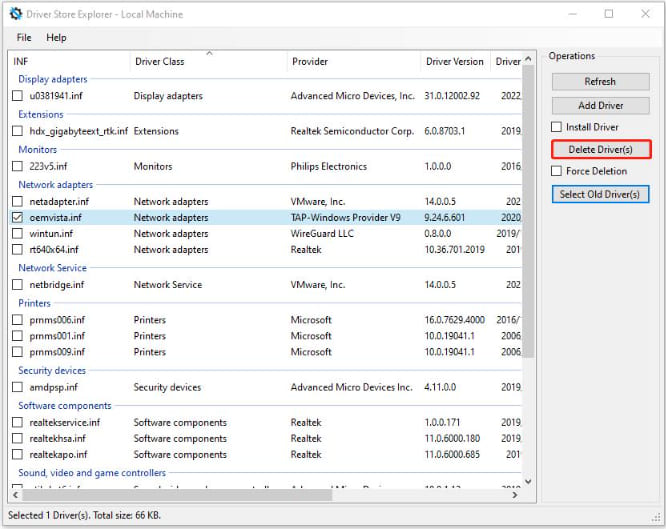
Attention:
① Pay particular attention to older versions of drivers that have been replaced by newer versions.
② Avoid selecting drivers for hardware that you are currently using unless you are certain they are no longer needed.
This driver updater tool is helpful for advanced users because it shows detailed driver information. However, you should avoid deleting drivers currently used by your system hardware.
Method 4. How to Uninstall Old NVIDIA and AMD Drivers
Graphics drivers are among the most common drivers users need to clean. When switching GPUs or reinstalling graphics drivers, leftover files can cause crashes, performance drops, or installation errors. So, you can uninstall Old NVIDIA and AMD drivers. Here are the steps.
Step 1. Press Windows + X and select Device Manager.
Step 2. Expand Display adapters.
Step 3. Right-click your NVIDIA or AMD graphics card and select Uninstall device.
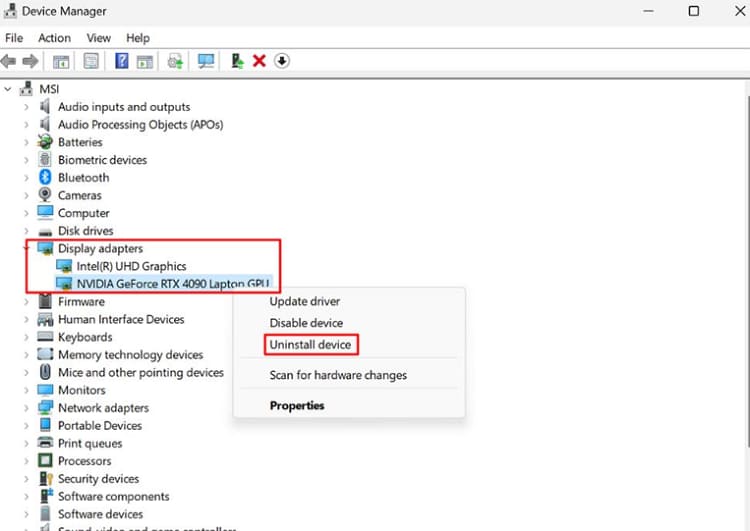
Step 4. If available, check Attempt to remove the driver for this device.
Step 5. Click Uninstall and restart your PC.
Step 6. After removing old GPU drivers, install the latest compatible driver version to maintain graphics performance.
AMD also provides an AMD Cleanup Utility that can remove leftover graphics driver components.
Method 5. Automatically Remove Old Drivers with Driver Booster
Manually checking every device for outdated drivers can be tedious, especially if your computer has accumulated years of driver updates. If you prefer a faster and more convenient solution, Driver Booster simplifies driver management by scanning your PC, identifying outdated drivers, and helping you maintain a cleaner and more stable system.
Driver Booster is an intelligent driver management tool designed for Windows users who want to keep their drivers up to date without searching manufacturer websites manually. With its extensive driver database and one-click scanning technology, it quickly identifies obsolete drivers and replaces them with the latest compatible versions. It also creates backups before updating, giving you an extra layer of safety during driver maintenance.
Driver Booster Free
- Automatically scan and update drivers.
- Update game ready drivers for peak gaming performance.
- Identify and fix various common of hardware issues.
- Boost 30% of system performance for fast & smooth running.

Why Choose Driver Booster as an Old Driver Remover?
Driver Booster supports millions of hardware drivers, helping detect outdated or incompatible versions across different devices. This makes it a practical choice for users comparing the best driver updater tools for maintaining their PCs.
It quickly scans your PC and identifies drivers that need updating, making driver management easier for beginners. For example, if your audio driver is not working on Windows 11, a scan can help identify an outdated or problematic audio driver.
Driver Booster simplifies driver management by helping you update outdated drivers and uninstall unnecessary or problematic drivers. This makes it easier to keep your system organized, resolve driver conflicts, and maintain better hardware compatibility and stability.
Before making driver changes, Driver Booster can back up existing drivers so you can restore them if unexpected issues occur.
Driver Booster is especially useful for users who frequently update hardware or want a simple way to maintain their drivers without manually searching for every manufacturer’s website.
Steps to Uninstall Old Drivers Using Driver Booster
Step 1. Download and launch Driver Booster on your Windows PC.
Step 2. Click the SCAN button to detect all installed drivers.
Step 3. In the results, find the driver you want to remove (e.g., an old GPU or chipset driver). It will be listed with its current version and status. Right-click it and select Uninstall to remove it.
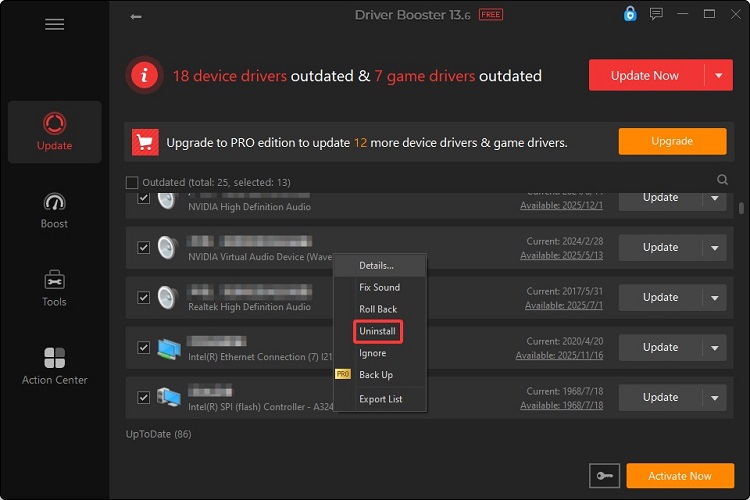
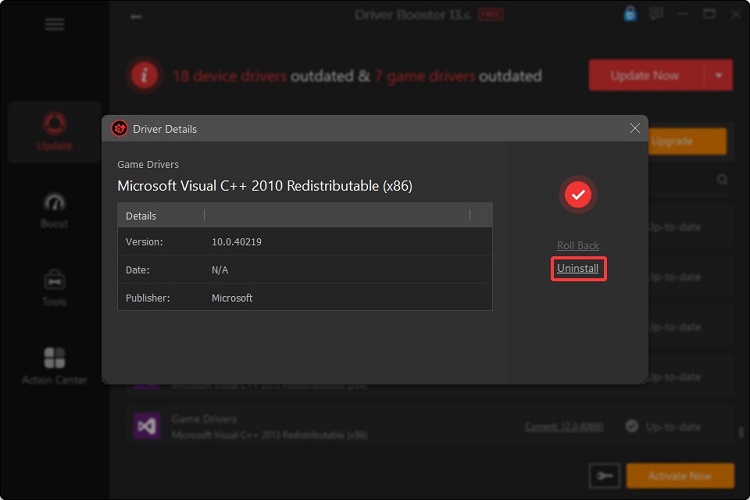
If a newly updated driver is causing problems, Driver Booster can also help you remove it. Simply locate the driver, right-click it, and select Uninstall. Alternatively, open the Current tab to view the driver’s details, then click Uninstall to remove it.
What Should You Check Before Removing Old Drivers?
Before deleting old drivers, keep these points in mind:
Do not remove drivers for hardware currently in use.
Create a system restore point before major driver cleanup.
Keep backup copies of important drivers.
Avoid deleting multiple drivers at once if you are unsure.
Restart your PC after uninstalling drivers.
Removing the wrong driver may cause devices such as Wi-Fi adapters, audio devices, or graphics cards to stop working properly.
Frequently Asked Questions About Removing Old Drivers
Can I safely remove old drivers?
Yes, you can remove old drivers if they belong to unused hardware or previous versions. However, avoid deleting drivers currently required by Windows or connected devices.
How do I remove old drivers Windows 11?
You can remove old drivers Windows 11 through Device Manager, Disk Cleanup, Driver Store Explorer, or a driver management tool like Driver Booster. The process is similar on Windows 10 and other versions.
Should I uninstall old GPU drivers before installing new ones?
Yes. Removing old NVIDIA or AMD drivers before installing new versions can prevent conflicts and improve installation success, especially when changing graphics cards.
What is the best old driver remover?
The best choice depends on your needs. Built-in Windows tools work for basic cleanup, while Driver Booster provides easier driver scanning, backup, updating, and maintenance features.
Final Words
Keeping your drivers clean helps maintain better system stability and prevents conflicts caused by outdated files. Whether you need to remove unused drivers, clean graphics drivers, or find an effective old driver remover, using the right method ensures a safer Windows experience. For users who want a simpler solution, Driver Booster provides an efficient way to manage drivers and keep hardware running smoothly.
Driver Booster Free
- Automatically scan and update drivers.
- Update game ready drivers for peak gaming performance.
- Identify and fix various common of hardware issues.
- Boost 30% of system performance for fast & smooth running.