Does your PC struggle to keep up with everyday tasks, boot slowly, or become unresponsive when running multiple programs? Choosing the right computer tune up software can help remove unnecessary files, manage startup programs, and improve system responsiveness without immediately upgrading your hardware.
However, different optimization tools offer different benefits. Some provide automatic PC maintenance, while others specialize in storage cleanup, privacy protection, or performance monitoring.

This guide introduces seven computer tune-up tools and compares their features, pros, cons, and practical steps to help you find the best option for your Windows PC.
What Is Computer Tune Up Software and How Does It Improve PC Performance?
A computer tune up tool helps keep your PC running smoothly by cleaning unnecessary files, optimizing system settings, and addressing common performance issues. Instead of upgrading your hardware, computer tune up software focuses on improving how your existing system uses its resources. Here are some key benefits of using computer tune up service:
Free up disk space
Speed up Windows startup
Improve system performance
Enhance privacy protection
Detect performance issues
Simplify PC maintenance
While computer tune up software can help improve everyday performance, it cannot fix damaged hardware or guarantee faster speeds. For the best results, choose a tool that addresses your PC's specific performance issues.
7 Best Computer Tune Up Software Tools Compared
Choosing the right tool depends on your computer's condition, your experience with Windows, and whether you prefer automatic or manual optimization. The following seven programs cover different needs, from comprehensive PC maintenance to lightweight cleanup.
Software |
Best for |
Free option |
IObit Advanced SystemCare |
All-in-one PC optimization |
Yes |
|
CCleaner
|
Junk file and privacy cleanup |
Yes |
Glary Utilities |
Multi-purpose system maintenance |
Yes |
Microsoft PC Manager |
Simple Windows maintenance |
Yes |
Wise Care 365 |
Cleanup and system monitoring |
Yes |
Ashampoo WinOptimizer |
Customizable system optimization |
Varies by edition |
BleachBit |
Open-source disk cleanup |
Yes |
1. IObit Advanced SystemCare - Best All-in-One Computer Tune Up Software
Best for: Users who want convenient all-in-one Windows maintenance with minimal manual configuration.
IObit Advanced SystemCare is a comprehensive PC optimization tool designed to help Windows users clean unnecessary files, manage startup programs, and perform routine system maintenance from one convenient interface.
Advanced SystemCare Free
- Clean: 420 billion traces removed & 85 EB junk files cleaned
- Protect: 80 million unauthorized access blocked & 20 million bugs fixed
- Speed Up: 6 million hours of startup time saved & Turbo boost
- Optimize: Auto clean and auto care your PC with AI mode

Unlike basic disk cleaners, Advanced SystemCare combines multiple maintenance functions, making it particularly useful for users who want to perform a complete PC tune-up without switching between different applications.
Key Features:
One-Click Computer Tune Up: Scans your PC for junk files, unnecessary startup items, and common system issues, making routine computer maintenance faster and easier.
Deep Hard Disk Cleanup: Functions as a hard disk cleaner to detect and remove unnecessary files, reclaim valuable storage space, and maintain a cleaner, more organized drive.
Faster Windows Startup: Detects unnecessary startup applications and helps manage them to reduce boot times and improve system responsiveness.
Comprehensive PC Performance Check: Complements a PC performance test by identifying selected system issues and resource-related problems that may affect everyday computer performance.
Smart System Resource Optimization: Functions as a PC optimizer to help reduce unnecessary background activity, manage system resources, and maintain smoother multitasking.
Automatic Computer Maintenance: Provides scheduled or background cleanup features in supported editions, helping keep your PC optimized with less manual effort.
Pros
Beginner-friendly interface with convenient scanning and cleanup.
Multiple maintenance utilities in one application.
Free edition available for basic optimization.
Useful for routine Windows performance maintenance.
Cons
Users should review cleanup recommendations before changing.
/
/
/
How to Tune Up Your PC with Advanced SystemCare?
Step 1. Download Advanced SystemCare and install it on your computer.
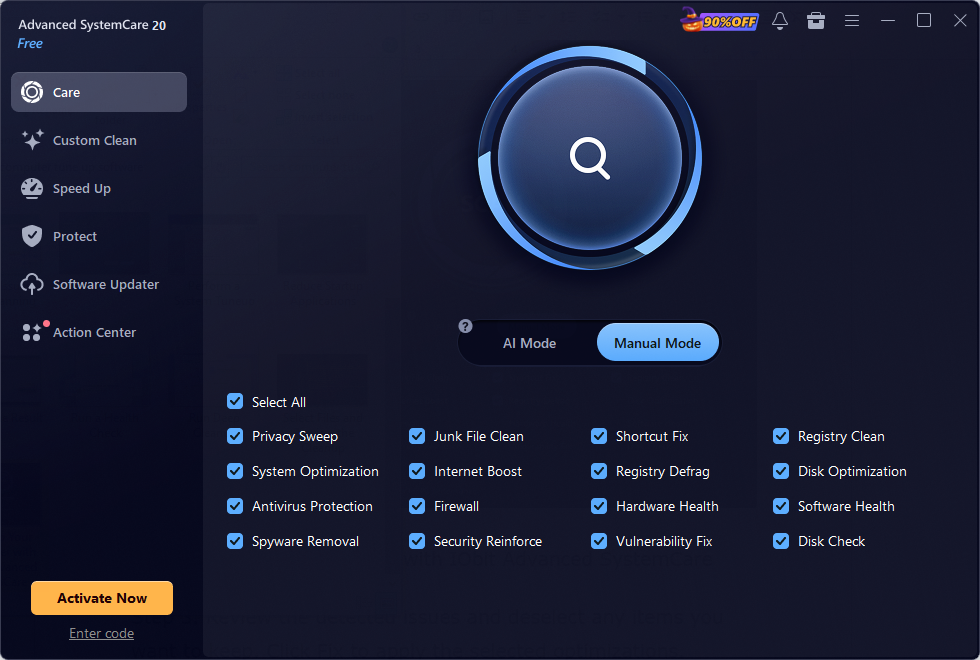
Step 2. Launch the software and navigate to the Care section. Select the cleanup and optimization categories you want to check, then click Scan.
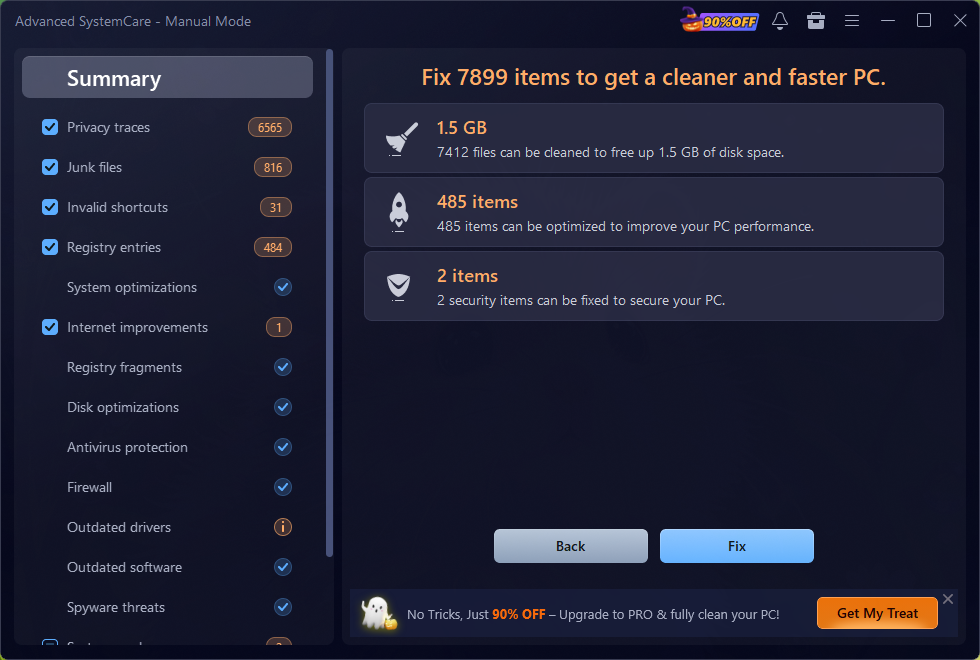
Step 3. Review the detected issues and deselect any items you want to keep. Click Fix to apply the selected optimizations.
2. CCleaner - Best for Removing Junk Files
Best for: Users who mainly want to remove unwanted files and manage browser-related clutter.
CCleaner is a popular PC maintenance tool designed to clear temporary files, browser caches, and accumulated system clutter. Beyond basic cleanup, it offers features for managing startup programs and installed applications. With its user-friendly interface, CCleaner is a convenient option for users looking to reclaim disk space and keep their computers running efficiently.
Key Features:
Temporary file and browser cache cleanup.
Health Check for guided maintenance.
Startup program management.
Performance Optimizer in supported paid editions.
Pros
Simple and accessible interface.
Effective for routine disk cleanup.
Free edition available.
Cons
Several optimization features require payment.
/
/
Here are the computer tune up steps with CCleaner.
Step 1. Install CCleaner and open the application.
Step 2. Select Health Check from the left sidebar.
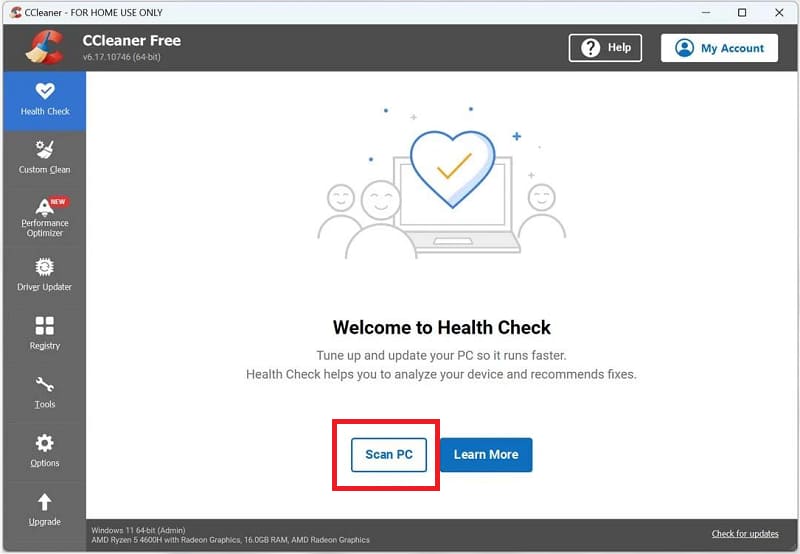
Step 3. Select Start or Scan PC to check your computer for unnecessary files and potential system issues.
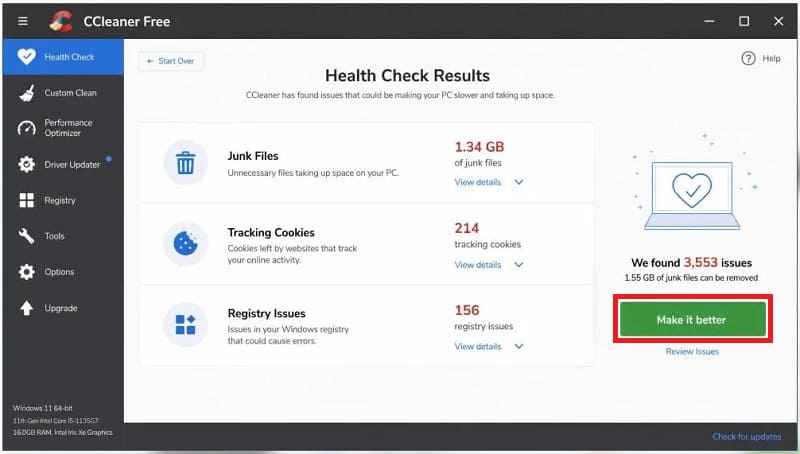
Step 4. Review the results and click Make it better to clean selected items.
3. Glary Utilities - Best for Multiple Maintenance
Best for: Users who prefer several individual Windows maintenance tools in one program.
Glary Utilities is a comprehensive Windows optimization tool designed to simplify PC maintenance and improve system efficiency. It combines automated cleanup with dedicated features for disk management, startup optimization, and system maintenance, making it a practical choice for users who prefer to customize their PC tune-up process.
Key Features:
One-click maintenance scanning.
Temporary file and disk cleanup.
Startup program management.
Additional Windows system utilities.
Pros
Wide range of maintenance features.
Convenient one-click maintenance option.
Free version available.
Cons
Numerous tools may confuse beginners.
Advanced system and registry features require caution.
/
How to Use Glary Utilities?
Step 1. Download and install Glary Utilities.
Step 2. Open the 1-Click Maintenance section.
Step 3. Select the maintenance categories you need.
Step 4. Run the scan, review its findings, and apply appropriate repairs.
4. Microsoft PC Manager — Best Free Computer Tune Up Tool
Best for: Windows 10/11 users who want a lightweight, free optimization utility.
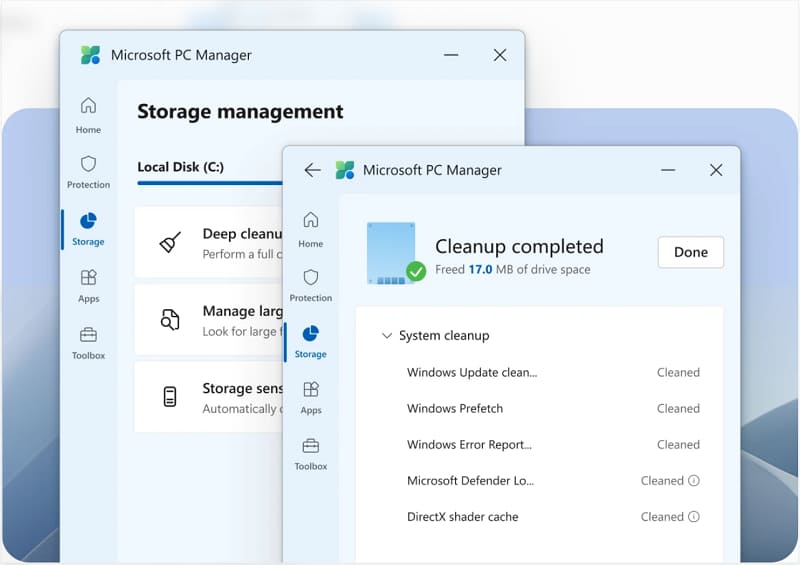
Microsoft PC Manager is a free maintenance utility developed by Microsoft for Windows 10 and Windows 11. It provides simple features for cleaning unnecessary files, checking system health, and managing storage. For users searching for a computer tune up free solution, Microsoft PC Manager is a convenient choice that does not require a paid subscription.
Key Features:
Basic memory and temporary-file cleanup.
Manage large files and unnecessary data.
Identifies selected maintenance opportunities.
Reduce certain unwanted application interruptions.
Pros
Completely free to use.
Simple, beginner-friendly interface.
Convenient integration with Windows.
Cons
Limited advanced optimization capabilities.
Does not support Windows 7.
/
How to Use Microsoft PC Manager?
Step 1. Download Microsoft PC Manager from the official Microsoft website or Microsoft Store.
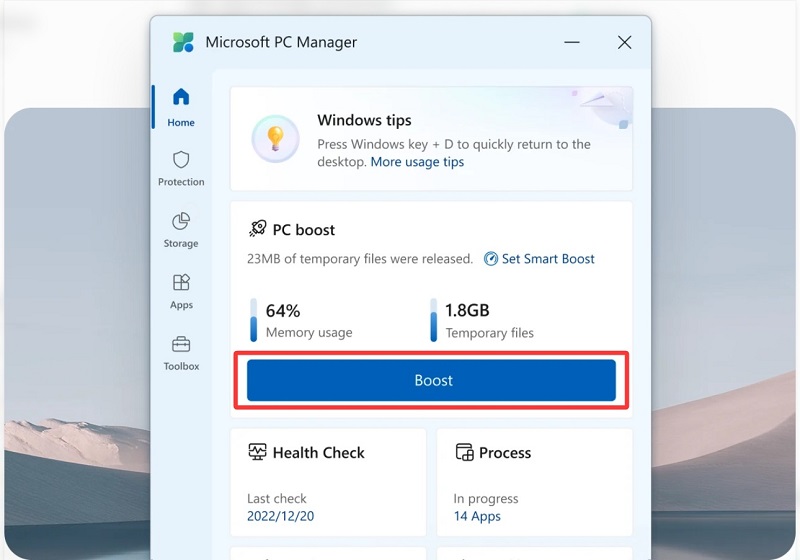
Step 2. On the Home screen, click Boost to clear temporary files and release memory.
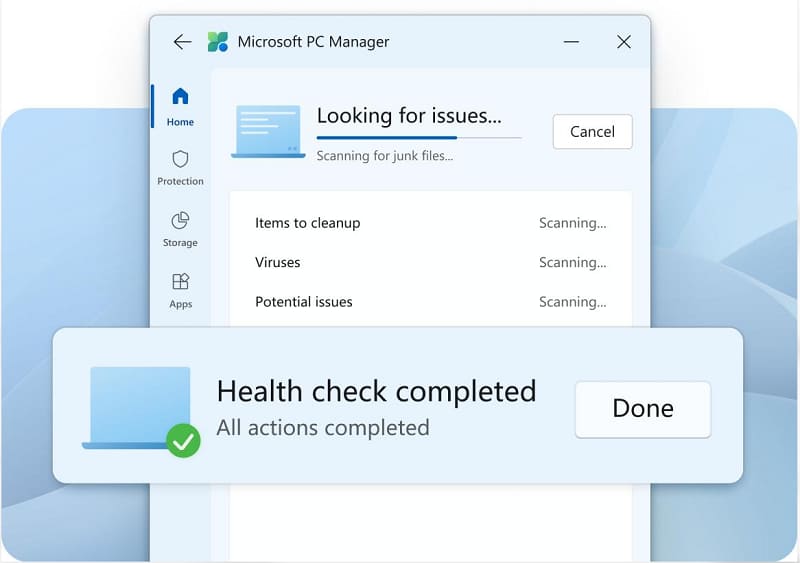
Step 3. Click Health check and review the detected issues and suggested changes, then apply only the recommendations you want.
Step 4. Select Storage, then run Deep cleanup. Review the results, select unwanted files, and confirm the cleanup. Check personal files and Recycle Bin contents before deleting them.
5. Wise Care 365 — Best for System Monitoring
Best for: Users who want to combine routine cleanup with system monitoring.
Wise Care 365 combines cleanup, system monitoring, and Windows maintenance utilities. Its organized interface allows users to perform routine optimization while reviewing information about their computer's hardware and running processes.
Key Features:
PC Checkup for routine system maintenance.
System Cleaner for removing unnecessary files.
System Tuneup for selected optimization tasks.
System Monitor for checking hardware and process information.
Pros
Combines cleanup and system monitoring.
Clearly organized feature categories.
Offers free and paid editions.
Cons
Some advanced functions require the Pro version.
Certain system optimization settings require technical knowledge.
/
How to Use Wise Care 365?
Step 1. Download and install Wise Care 365.
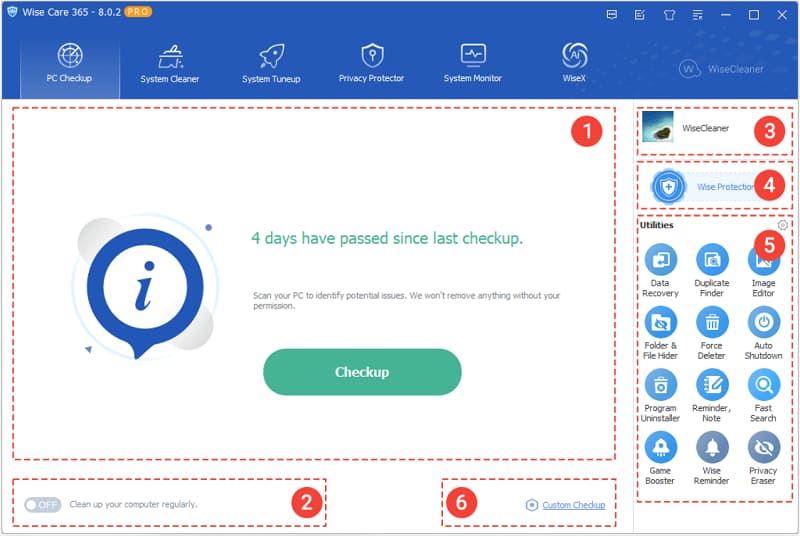
Step 2. Open PC Checkup and click Checkup to scan for cleanup and optimization items.
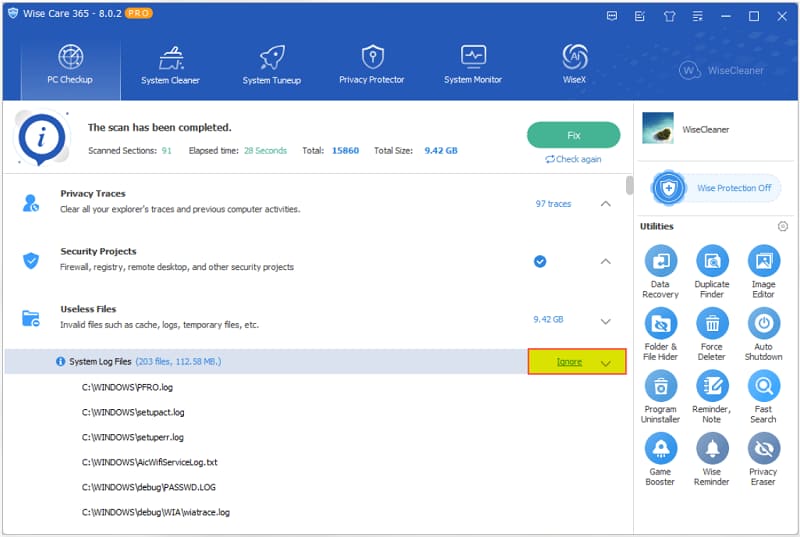
Step 3. Review the detected maintenance issues. Exclude items you want to keep, then click Fix to process the remaining items.
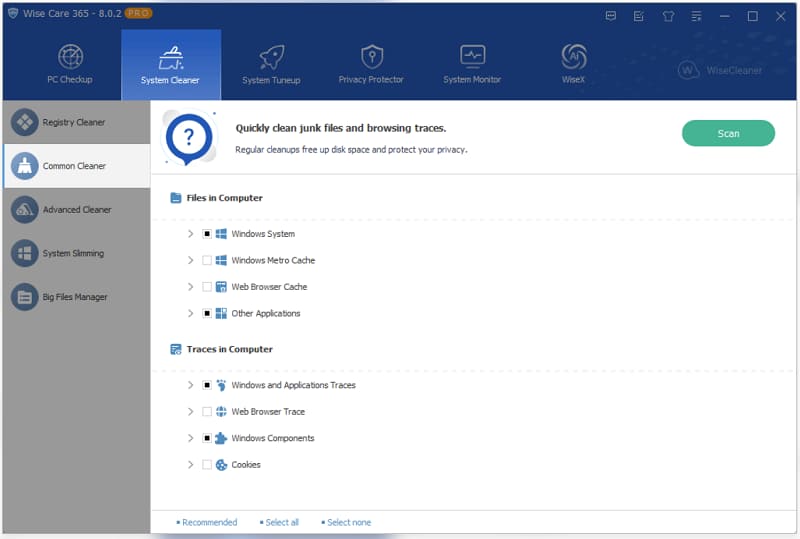
Step 4. Go to System Cleaner > Common Cleaner, close your browsers, and click Scan. Review the results, use Recommended selections, and click Clean. Leave saved passwords unchecked.
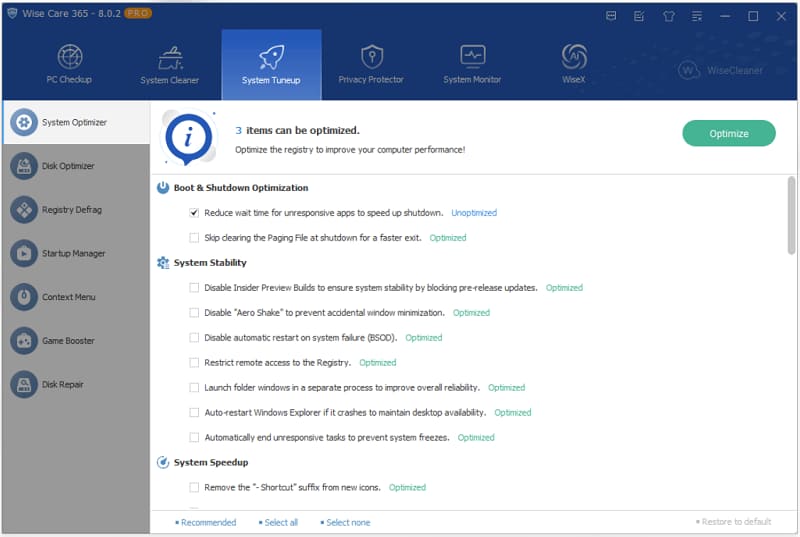
Step 5. Open System Tuneup > System Optimizer. Review the suggested changes, select those you understand and want, then click Optimize. Restart your computer if prompted.
6. Ashampoo WinOptimizer — Best for Customizable Optimization
Best for: Experienced users who want more control over their PC maintenance.
Ashampoo WinOptimizer provides detailed Windows maintenance and optimization modules. It is particularly useful for users who prefer to review individual settings and customize their maintenance routine.
Key Features:
System analysis and maintenance reports.
Temporary file and disk cleanup.
Startup and process optimization utilities.
Hardware and software information tools.
Pros
Customizable maintenance settings.
Detailed system information.
Multiple optimization modules.
Cons
Available features vary between editions.
More complex than basic cleaning tools.
/
How to Use Ashampoo WinOptimizer?
Step 1. Download and install Ashampoo WinOptimizer from its official websites.
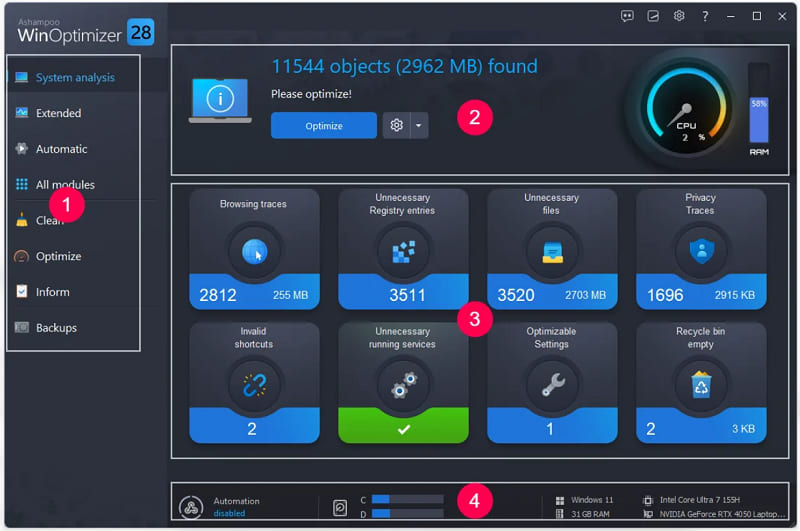
Step 2. Open System analysis and run a scan. Click the result tiles to review detected files and suggested changes before applying them.
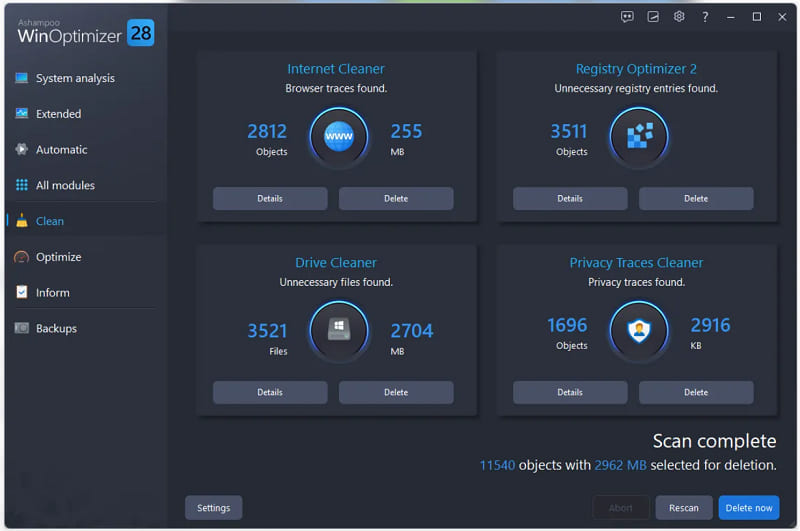
 Step 3. Select Clean and click Details under Drive Cleaner. Review the files, deselect anything you want to keep, then delete the selected items.
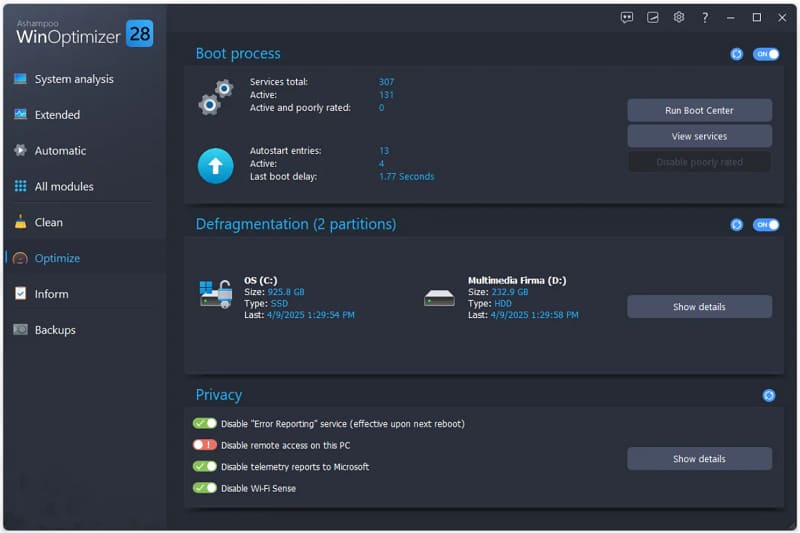
Step 4. Select Optimize > Run Boot Center, then open Autorun. Disable applications you do not need when Windows starts. Keep security software and essential hardware utilities enabled.
7. BleachBit — Best Open-Source Computer Cleaner
Best for: Users who prioritize free disk cleanup and privacy maintenance.
BleachBit is a free, open-source utility specializing in disk cleanup and privacy-related file removal. Unlike comprehensive optimization suites, BleachBit focuses primarily on eliminating unwanted files rather than changing Windows performance settings.
Key Features:
Removes temporary files and application caches.
Cleans selected browsing history and cookies.
Previews files before deletion.
Provides optional advanced file-cleaning functions.
Pros
Completely free and open-source.
No paid upgrade required.
Detailed control over cleanup categories.
Cons
Limited startup and performance optimization tools.
Incorrect cleanup selections may remove useful data.
/
How to Use BleachBit?
Step 1. Download BleachBit from its official website.
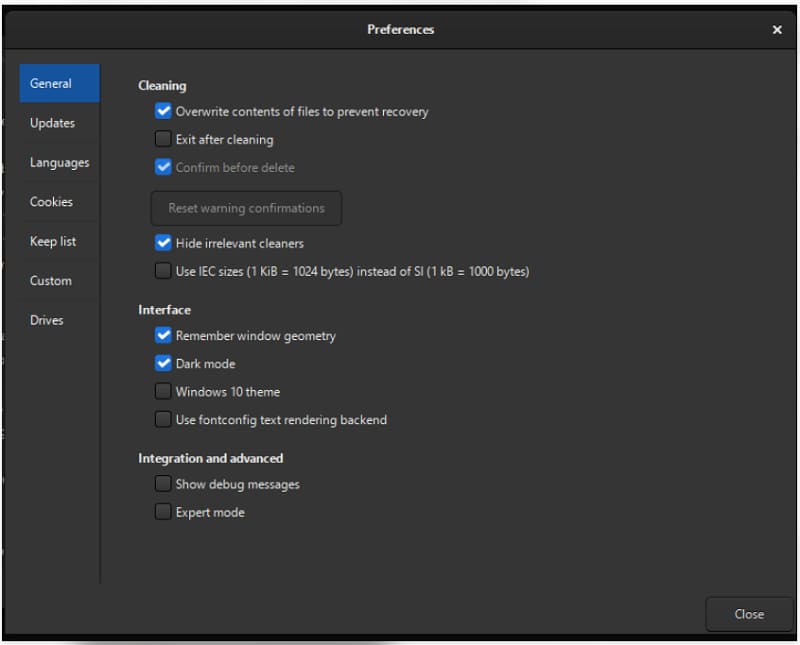
Step 2. Open BleachBit’s application menu and select Preferences. Keep Confirm before delete enabled and Expert mode unchecked, then close Preferences.
Step 3. Close the applications you want to clean. In the left panel, select unwanted items such as browser Cache and system Temporary files. Read each option’s description, then click Preview to review what will be removed without deleting anything.
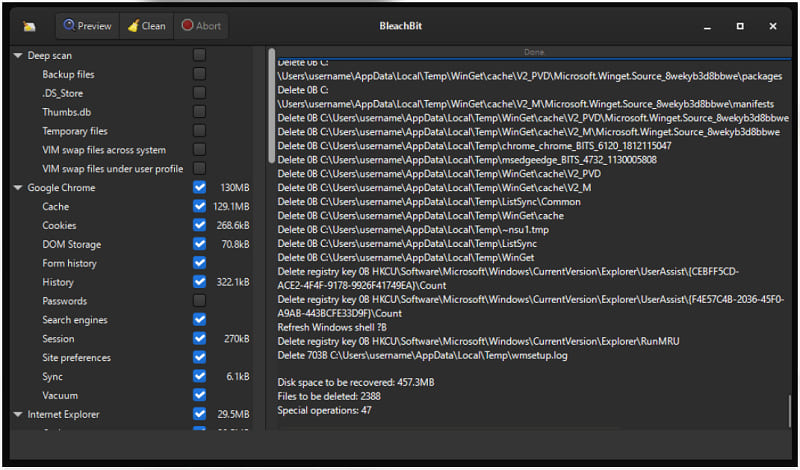
Step 4. Deselect anything you want to keep, then click Clean beside Preview and confirm the deletion when prompted. Wait for the cleanup to finish.
How to Choose the Right Computer Tune Up Software Windows 10/11
Different computer problems require different maintenance tools. Instead of choosing software based only on advertised performance improvements, identify the issue affecting your computer.
Computer problem |
Recommended tool |
Slow startup and general clutter |
IObit Advanced SystemCare |
Excessive temporary files |
CCleaner |
Need multiple maintenance utilities |
Glary Utilities |
Want basic free optimization |
Microsoft PC Manager |
Need performance monitoring |
Wise Care 365 |
Prefer customized optimization |
Ashampoo WinOptimizer |
Want open-source cleaning |
BleachBit |
For everyday PC maintenance, IObit Advanced SystemCare offers a convenient combination of cleanup and optimization tools.
FAQs About Computer Tune Up Software
Does computer tune up software 7/10/11 really work?
Yes, it can help remove unnecessary files, manage startup applications, and reduce certain software-related performance issues. However, improvements depend on your computer's condition and the underlying cause of slow performance.
How often should I tune up my computer?
For most home users, checking storage and startup programs once a month is a reasonable starting point. Additional maintenance is useful when performance problems appear.
Can computer tune up software improve gaming performance?
It may help reduce unnecessary background resource usage, but it cannot compensate for insufficient hardware or guarantee higher FPS.
Is registry cleaning necessary for PC optimization?
Routine registry cleaning is generally unnecessary. It rarely produces measurable speed improvements and can create stability problems if important entries are modified.
Conclusion
Choosing the best computer tune up software depends on whether you need automatic PC maintenance, disk cleanup, startup optimization, or detailed system monitoring.
IObit Advanced SystemCare is a practical all-in-one option for Windows users who want to manage several maintenance tasks in one place. Meanwhile, Microsoft PC Manager and BleachBit provide useful free alternatives for simpler cleanup needs.