Are you suffering from no sound issues or terrible audio sounds on Windows? Don’t worry. You’re not alone. Many users have encountered the same problem after upgrading audio drivers or due to other causes. How to fix audio drivers on Windows 11? This post will show you 7 effective solutions to repair audio drivers on Windows easily and quickly!
How to Fix Audio Drivers on Windows 11
So how to fix audio drivers on Windows? It depends on how it fails, whether due to corrupted files, version incompatibility, or Windows Update conflicts. How to update audio drivers Windows 11? Fixing audio drivers on Windows 11 usually involves a progression from simple software refreshes to a full clean install of the driver. If your system sound is crackling, missing, or cut off, check the following 7 proven fixes to audio drivers Windows 11 issues efficiently.
Fix 1. No Sound? Adjust Your Sound Control Panel
Can’t hear the sound in your system? Sometimes the driver is working perfectly, but the specific output device (like your speakers) has been disabled in the system’s "master" list. Here’s how to fix sound drivers Windows 11:
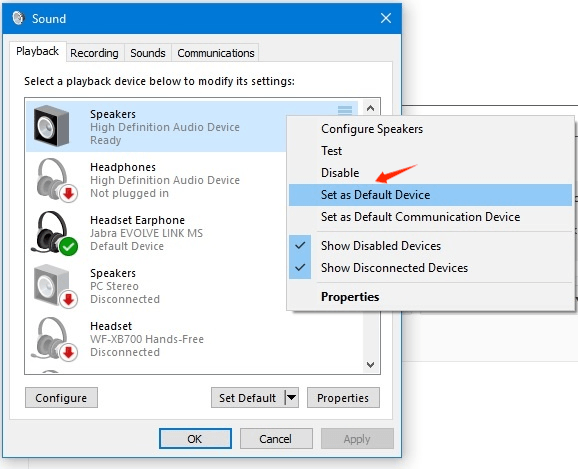
Step 1. Press Win + R, type mmsys.cpl, and hit Enter.
Step 2. In the Playback tab, look for your device.
Step 3. If it is grayed out, like Speakers, right-click it and select Enable.
Step 4. Right-click it again and select Set as Default Device.
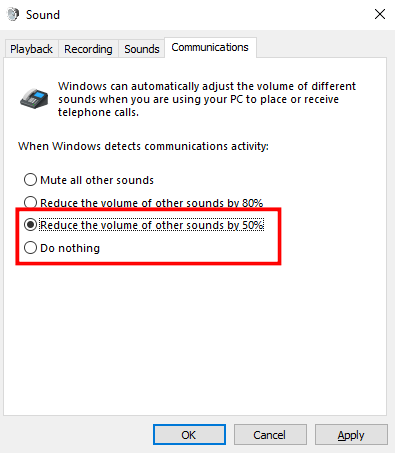
Step 5. Also, go to “Communications”, switch the settings to Reduce the volume of other sounds by 50% or Do nothing, to check if it helps.
Fix 2. Enable Enhance audio in Windows Settings
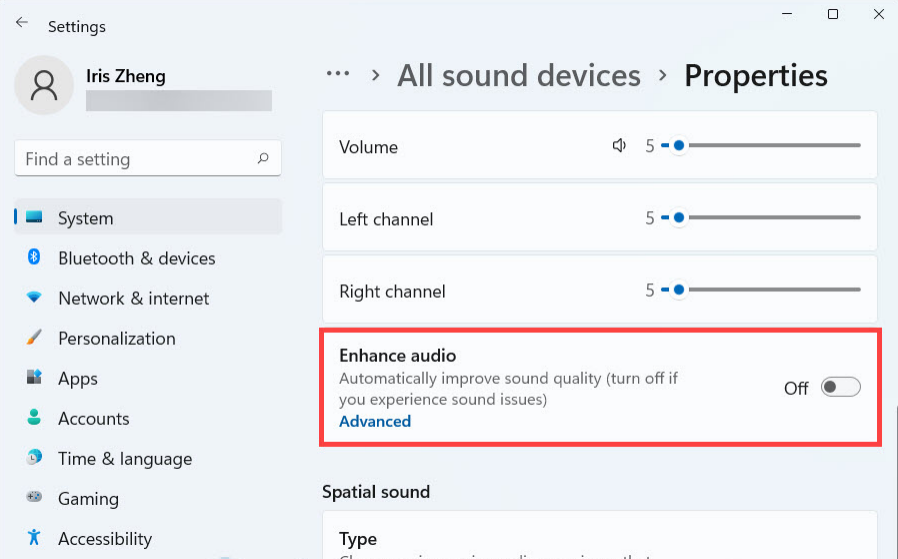
How to fix audio drivers? You can also rely on Windows built-in features to optimize audio settings. Windows 11 features a software-based enhancement toggle. Turning this on (or off and back on) can force the driver to re-initialize and boost low volume levels.
Step 1. Go to Settings > System > Sound > All Sound Devices.
Step 2. Select your active output device (e.g., Speakers).
Step 3. Under Output settings, scroll down to toggle Enhance audio to On.
Fix 3. Update Your Audio Driver to Fix Audio Drivers Instantly
What if the above tricks not working? An outdated driver is the most common culprit for audio bugs. Updating ensures your hardware is compatible with the latest Windows 11 security and performance patches. Here comes a professional and trusted driver booster, IObit Driver Booster, the best free driver updater to fix any audio driver effortlessly!
Driver Booster Free
- Automatically scan and update drivers.
- Update game ready drivers for peak gaming performance.
- Identify and fix various common of hardware issues.
- Boost 30% of system performance for fast & smooth running.

How to fix Realtek audio drivers not working (Or any other audio driver)?
Check how to update audio drivers Windows 11:
Step 1. Free Download IObit Driver Booster & install it on your Windows.
Step 2. Launch the software, go to “Scan” and click on “SCAN” to get a full scan of Windows drivers.
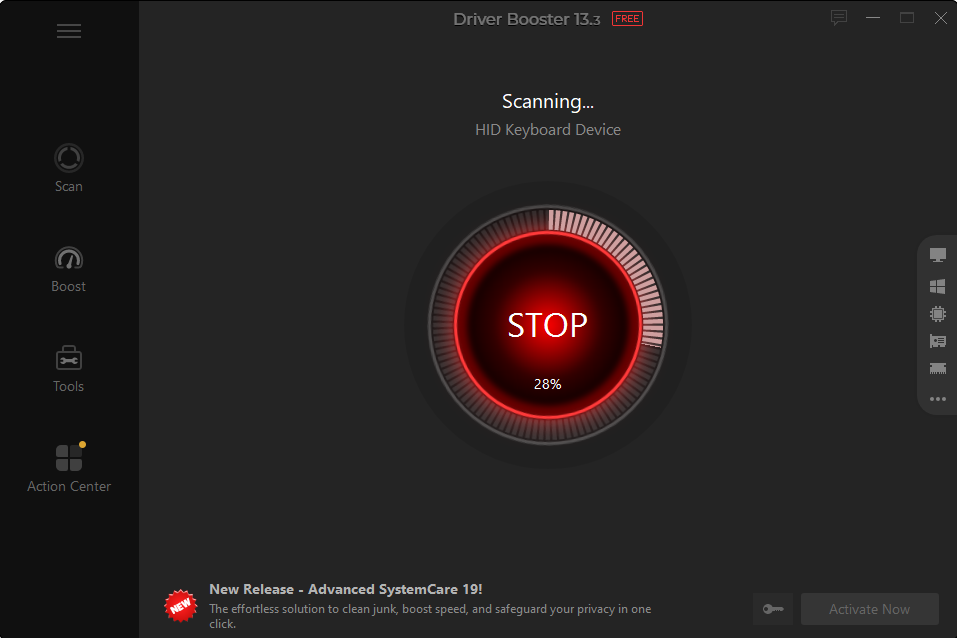
Step 3. After a few seconds, the powerful free driver updater will automatically update all updatable drivers for you, including audio drivers.
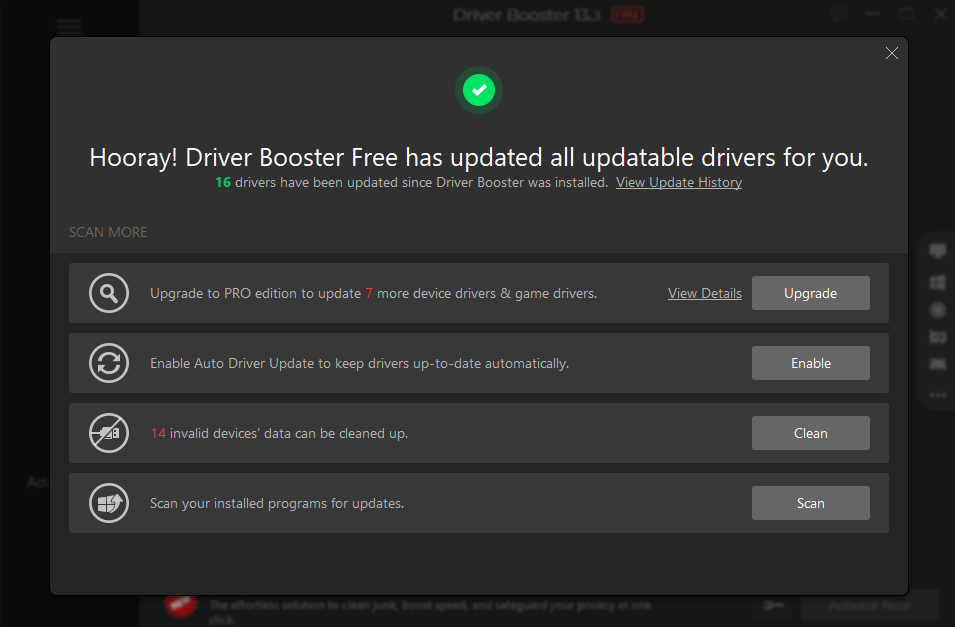
That's how to update sound drivers Windows 11 with Driver Booster.
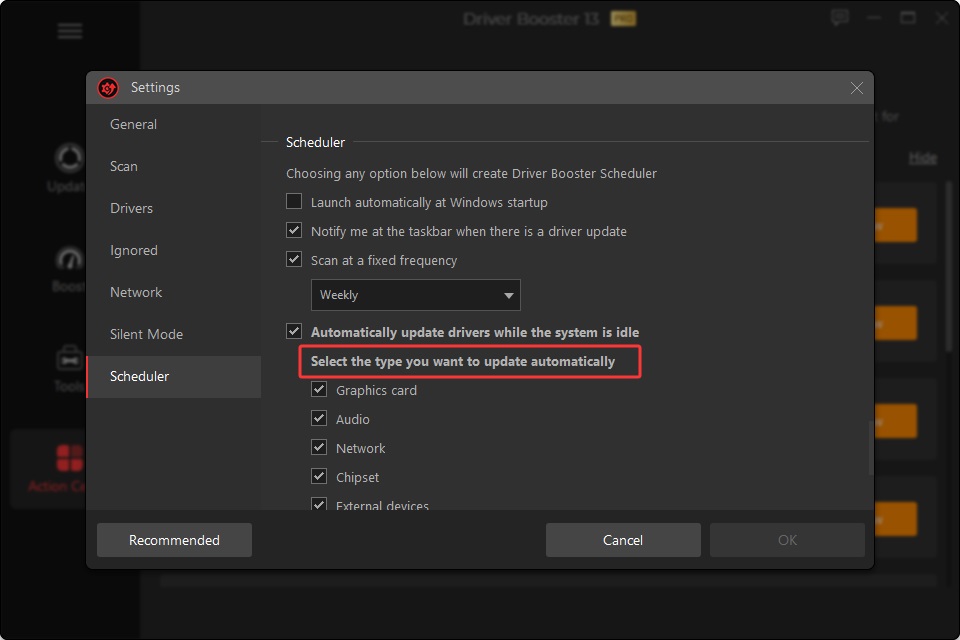
Optional: For more outdated device drivers and game drivers, you can upgrade to the PRO edition and customize the updates as you need. You can enjoy more advanced features with 18 million+ verified drivers and automatic driver fixes, efficient and cost-effective.
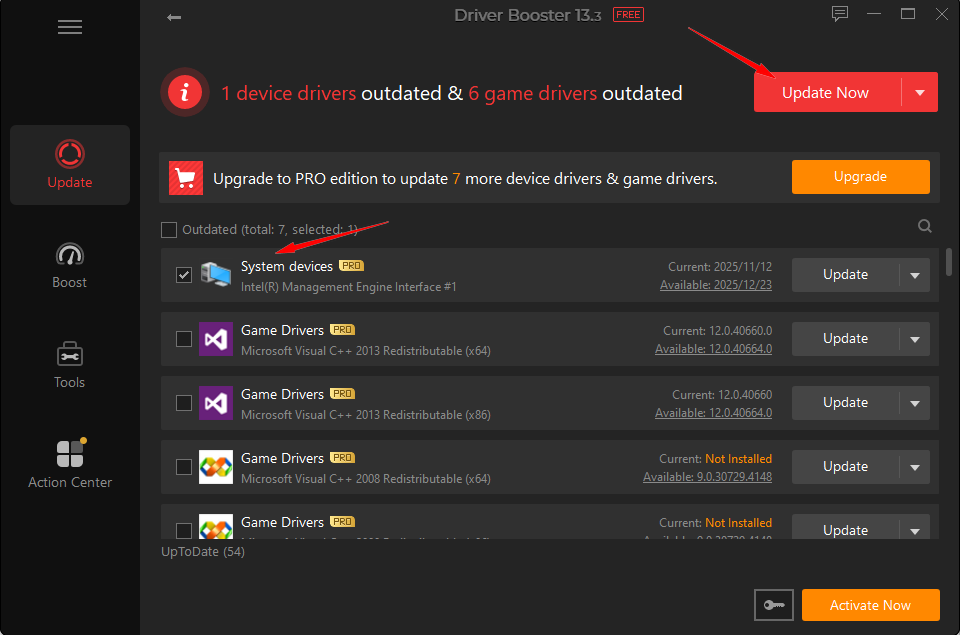
How to Fix No Sound Issues Easily
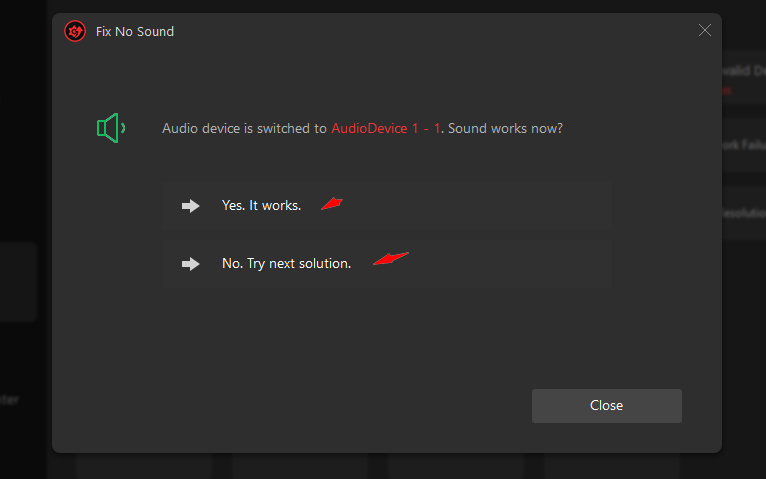
Step 1. If it still does not work after updating, go to “Tools”, select “Fix No Sound”.
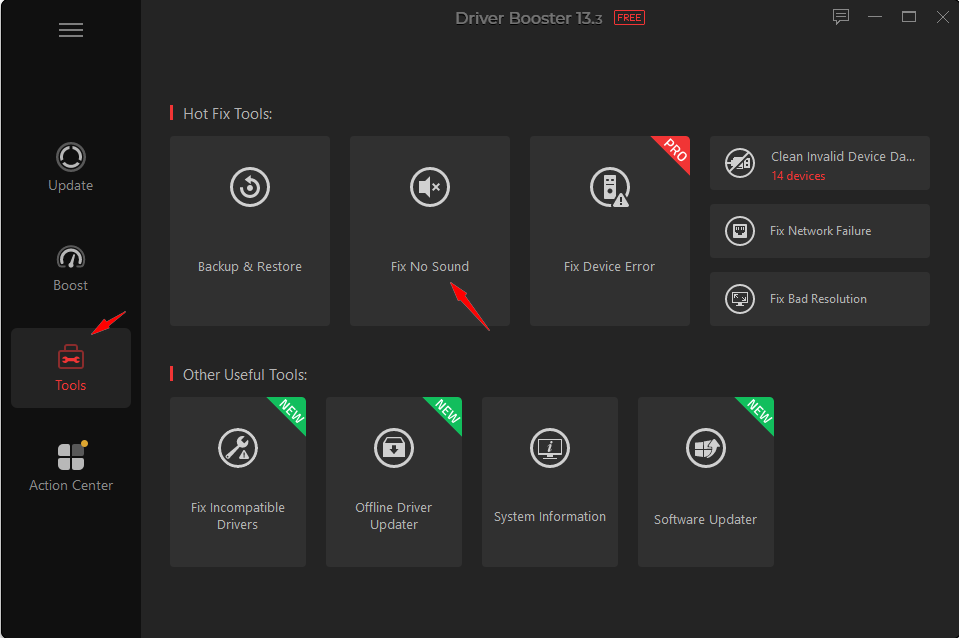
Step 2. Click on “Fix” in the prompt window to fix the no-sound issue.
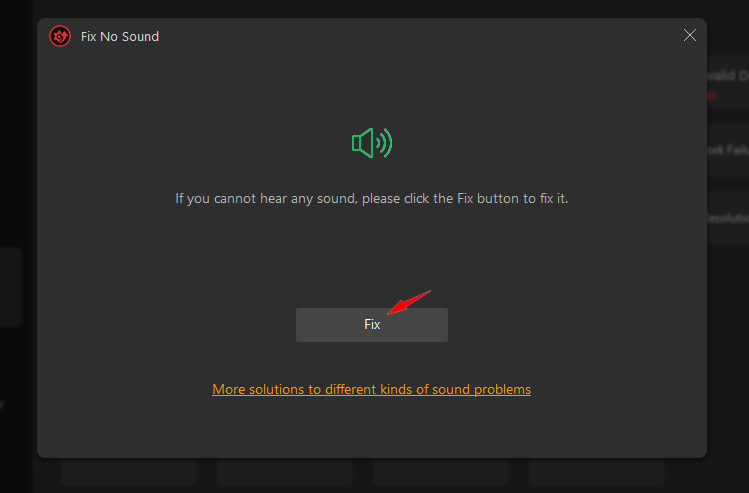
Step 3. The fix tool will switch your audio device to another one to test if it works, providing various solutions until you can hear the sound.
Highlights of IObit Driver Booster
Fast Scan to Update Audio Drivers: It quickly scans your Windows system and helps update all outdated audio drivers to fix your audio driver issues instantly.
Fix No Sound Issue by 1 Click for Free: IObit Driver Booster provides a free Fix No Sound tool to repair common audio device issues effortlessly.
Automatic Device & Game Drivers Update: Not just your audio drivers, but all your Windows drivers and game drivers can be auto-updated if you upgrade to PRO.
Speed up System with Game Boost: It can boost your system speed for a better gaming experience with basic Game Boost, & a perfect performance with Super Boost.
Other Useful Fix & Optimization Tools: Back up & Restore, Fix Device Error, Fix Incompatible Drivers, Offline Drivers Updater, System Optimize, etc.
You May Like: How to Update Drivers on PC [5 Proven Methods] >>
Fix 4. Run the Windows Audio Troubleshooter
How to fix audio drivers Windows 11 if audio driver updates don't work? Let Windows diagnose the background services. The troubleshooter can automatically restart the "Windows Audio" service if it has crashed. Here’s how to fix my audio drivers:
Step 1. Go to Settings > System > Troubleshoot > Other troubleshooters.
Step 2. Find Playing Audio and click Run the troubleshooter.
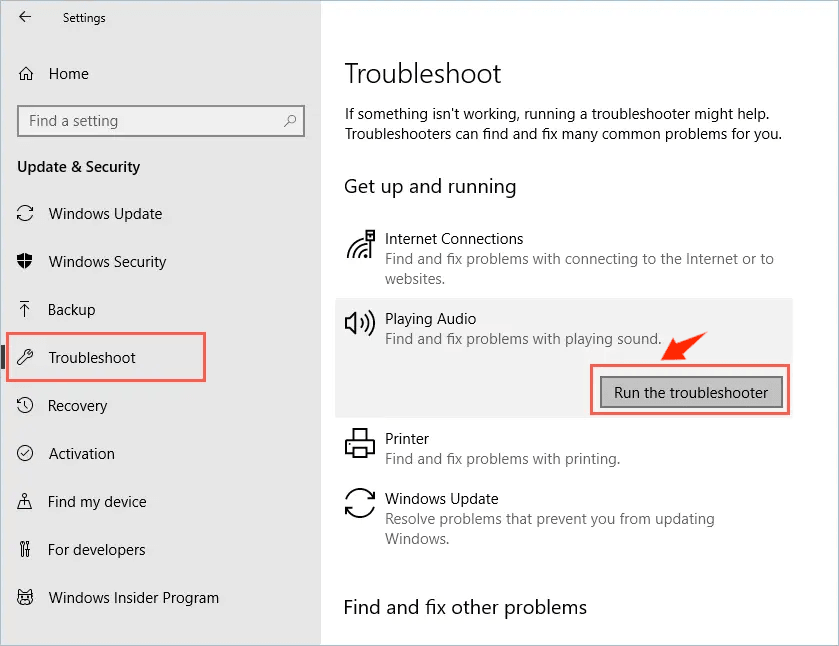
Step 3. Follow the on-screen prompts to apply any suggested fixes.
Fix 5. Check Audio Output Settings
How to fix audio drivers on Windows 10/11? A Windows PC can sometimes get confused if you have multiple devices connected (like a monitor with built-in speakers and a headset). Check your audio Output settings to ensure they work properly:
Step 1. Click the Speaker icon on the Taskbar (near the clock).
Step 2. Click the Manage audio devices icon (the small arrow next to the volume slider).
Step 3. Ensure the checkmark is next to the device you are actually trying to hear sound from.
Fix 6. Update Your Windows to Fix Audio Drivers
Still getting a terrible sound from your device? Maybe you need to update your Windows. Microsoft often releases "optional updates" specifically for hardware drivers. If a generic driver isn't working, an official system update might contain the fix you need. How to fix audio driver problem Windows 11:
Step 1. Go to Settings > Windows Update > Click Check for updates.
Step 2. Go to Advanced options > Optional updates. If you see an audio-related driver listed there, check the box and install it.
Fix 7. Roll Back or Reinstall the Audio driver
If your Windows 11 audio driver not working or the sound broke immediately after an update, you may need to go back to a previous version. If it has been broken for a while, a total "reinstall" is the best path. Here’s how to do it:
Step 1. In Device Manager, expand the category Sound, video and game controllers, right-click your device and select Uninstall device.
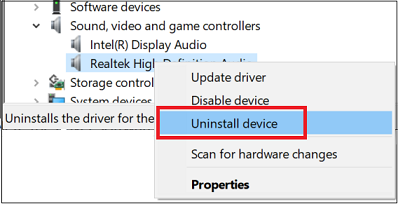
Step 2. Check the box to "Attempt to remove the driver" if prompted. Restart your PC. Windows will automatically detect the hardware and install a fresh copy of the driver during the reboot.
Final Thoughts
That’s all about how to fix audio drivers on Windows 11. Follow the detailed guide to fix your audio drivers and enjoy high-quality sounds while streaming a video, playing a game, or listening to music. How to update audio drivers Windows 11 easily? Don’t hesitate to free download IObit Driver Booster to automatically repair any PC audio drivers Windows 11 for free!
Driver Booster Free
- Automatically scan and update drivers.
- Update game ready drivers for peak gaming performance.
- Identify and fix various common of hardware issues.
- Boost 30% of system performance for fast & smooth running.