Keeping your Lenovo PC running smoothly requires more than routine maintenance—it starts with a timely Lenovo driver update. Outdated drivers can cause system slowdowns, crashes, and hardware issues, affecting performance and security. If you are unfamiliar with the process, this guide on how to update driver explains the basics of safely updating PC drivers. Fortunately, Lenovo provides official tools like Lenovo System Update and Lenovo Vantage to safely update drivers, BIOS, and applications.
For users seeking a faster, automated approach, third-party tools such as IObit Driver Booster can simplify the process, scanning your PC and updating all outdated drivers with just a few clicks. In this guide, we’ll explore both official and smart methods to keep your Lenovo drivers current and your system optimized.
What is a Lenovo Driver Update?
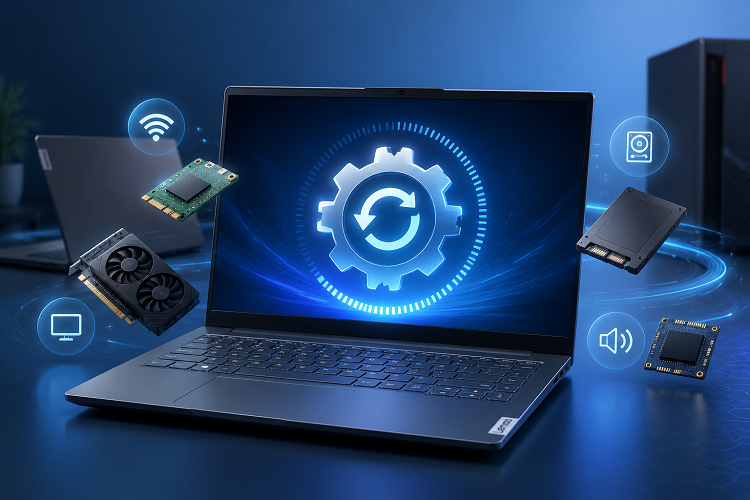
A Lenovo driver update refers to the process of installing the latest software that allows your PC hardware components—such as graphics cards, audio devices, and network adapters—to communicate effectively with the operating system. Drivers are critical for system stability, performance, and security.
Outdated drivers can cause various issues: frequent crashes, slow performance, or incompatibility with new software. This is why using a driver updater Lenovo or the official Lenovo tools to keep your drivers current is essential for every Lenovo user.
Official Lenovo Method for Driver Update
Before diving into third-party tools, it’s important to understand how Lenovo itself recommends updating drivers. Using the official Lenovo method ensures that all hardware components remain fully compatible and secure. If you want a broader overview of managing Windows drivers, check this guide on how to update drivers on Windows before starting your Lenovo driver update.
Open Lenovo System Update: You can download it from the official Lenovo support page if it’s not installed.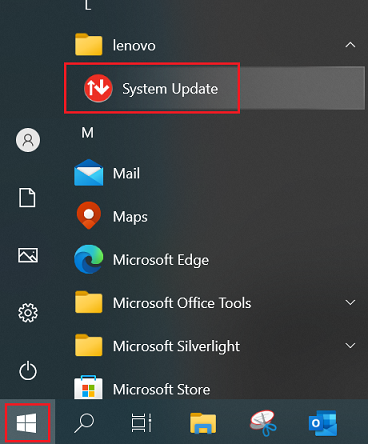
Scan for Updates: Click Get new updates on the left tab. The tool will automatically detect your ThinkPad model and identify available updates for drivers, BIOS, and pre-installed applications.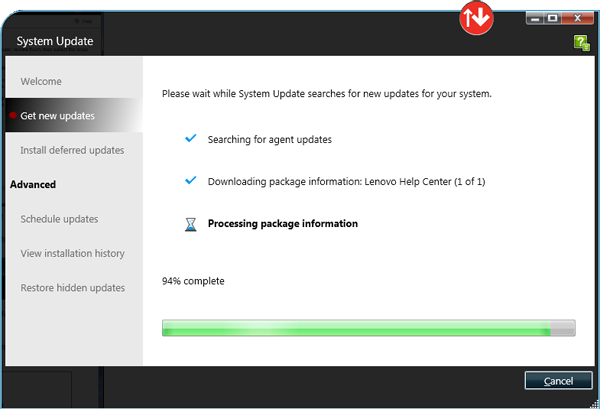
Review Available Updates: A list of updates will appear. You can see details about each update, including the type, version, and size. Select the updates you want to install. For most users, installing all recommended updates is best for system stability.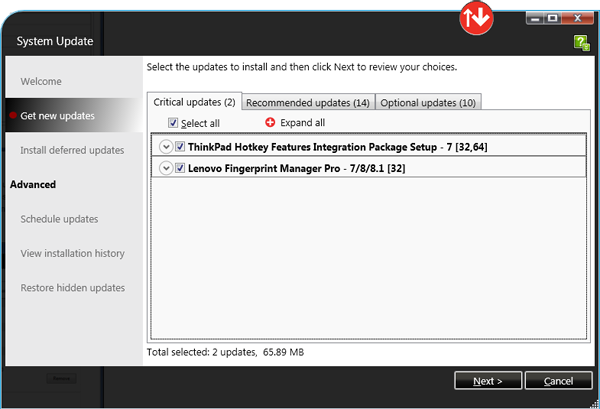
Install Updates: Once the download is complete, click the Install deferred updates link on the menu located on the left of the window.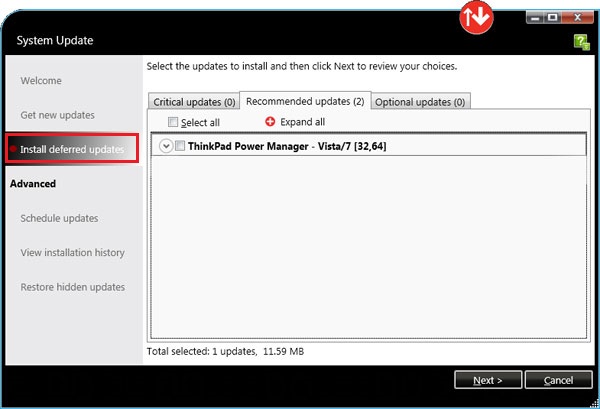
Restart Your PC: Many updates require a system reboot to apply changes effectively.
Once you’ve selected the updates, Lenovo System Update will download and install them automatically. This ensures your PC runs on the latest drivers, maintaining optimal performance and system stability.
Pros
Official and fully secure
Regularly updated database of drivers
Compatible with all Lenovo hardware
Cons
Can be time-consuming to update multiple drivers
May require manual intervention for some driver types
Tip: For users specifically looking to improve graphics performance, don’t forget the Lenovo graphics driver update section in Lenovo System Update for your GPU drivers.
Using IObit Driver Booster for Lenovo Driver Update
While Lenovo’s official method is safe, it can be slower and require multiple steps. A third-party tool like IObit Driver Booster can simplify the process significantly.
Driver Booster Free
- Automatically scan and update drivers.
- Update game ready drivers for peak gaming performance.
- Identify and fix various common of hardware issues.
- Boost 30% of system performance for fast & smooth running.

Why Use IObit Driver Booster?
Automates driver scans and updates
IObit Driver Booster automatically detects all outdated drivers on your Lenovo PC and updates them without manual effort, saving you time and reducing the risk of errors.
Backs up drivers before installing new versions
The software creates a secure backup of your existing drivers before updating, allowing you to restore previous versions if any issues occur after installation.
Offers a wider driver database for rare or legacy Lenovo hardware
Unlike some tools that only support common drivers, Driver Booster includes drivers for older Lenovo models and less common devices, ensuring comprehensive system coverage.
Optimizes PC performance alongside driver updates
Beyond updating drivers, the tool improves overall system stability, reduces crashes, and enhances hardware efficiency, helping your Lenovo PC run faster and smoother.
How to Use IObit Driver Booster to Update Lenovo Drivers
Step 1. Download and Install IObit Driver Booster from the official site.
Step 2. Run a Scan: The tool automatically detects outdated drivers on your Lenovo PC.
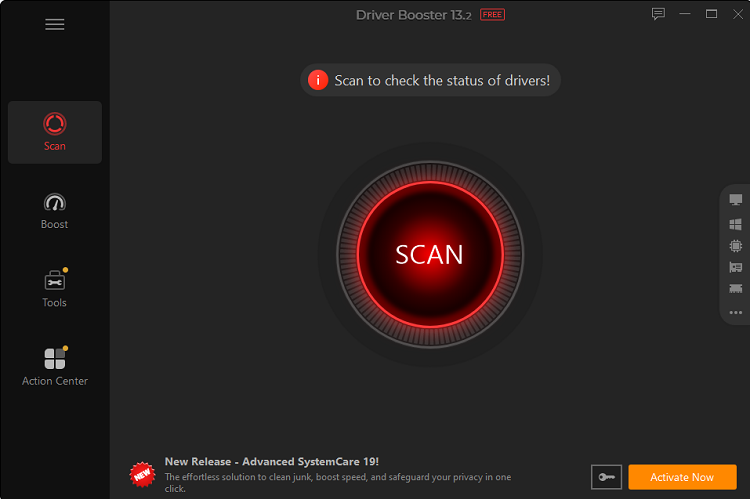
Step 3. Update Drivers: Click to update all outdated drivers at once or select specific drivers to update.
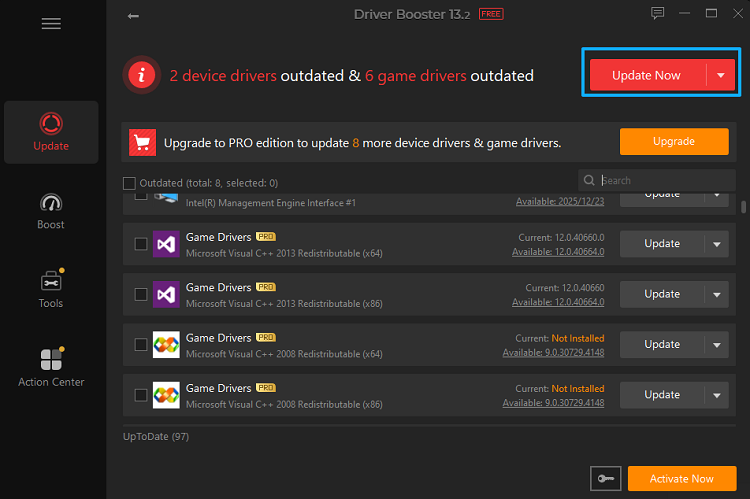
Step 4. Restart Your PC to apply all updates safely.
Using a tool like this provides a hassle-free experience, especially for users who want a driver update tool Lenovo that works quickly and reliably.
Lenovo Driver Update Best Practices
To keep your Lenovo PC running at its best, follow these best practices:
Update Regularly: Schedule driver updates monthly to avoid performance issues.
Backup Drivers: Use system restore or built-in backup options before installing new drivers.
Combine Methods: Use Lenovo System Update for critical official updates and a trusted tool like IObit Driver Booster for convenience.
A proper combination ensures your system stays stable, secure, and optimized.
Common Issues & How to Fix Them
Even with the best tools, driver updates can occasionally cause issues. Here are some common problems and solutions:
Driver Installation Fails: Run the update as an administrator or reinstall the tool.
Compatibility Issues: Use the rollback feature in Device Manager to revert to a previous driver version.
System Slow After Update: Optimize your PC using performance tools to resolve residual lag.
Properly managing updates prevents most driver-related issues and ensures a smooth Lenovo experience.
FAQs About Lenovo Driver Update
Q1: How do I perform a Lenovo graphics driver update?
A: Use Lenovo System Update or IObit Driver Booster to detect and install the latest GPU drivers for your Lenovo PC.
Q2: What is the best driver updater Lenovo for my PC?
A: Lenovo System Update is official, while IObit Driver Booster offers automation and faster updates. Using both together ensures full coverage.
Q3: Can I update Lenovo drivers without Lenovo Vantage?
A: Yes, you can use Lenovo System Update or third-party tools like IObit Driver Booster to update drivers directly.
Q4: Is it safe to use third-party driver update tools like IObit Driver Booster?
A: Yes, IObit Driver Booster is a reputable tool. It backs up your drivers before updating and ensures compatibility.
Q5: How often should I do a Lenovo driver update?
A: Ideally, every 1–2 months, or immediately after noticing performance issues or installing new hardware.
Conclusion
A timely Lenovo driver update is essential to maintain system performance, stability, and security. While the official Lenovo method ensures safety, using a tool like IObit Driver Booster makes updates faster and more convenient. Don’t let outdated drivers slow your Lenovo down. Update your drivers today with Lenovo System Update or automate the process with IObit Driver Booster to keep your PC running at peak performance!