Running out of disk space often has less to do with the number of files you have and more to do with a handful of oversized files taking up valuable storage. Old videos, installation packages, backups, and forgotten downloads can quickly consume tens or even hundreds of gigabytes.
If you're looking for a reliable large file finder, this guide covers the most effective methods to locate oversized files on Windows. You'll learn how to find large file Windows with built-in tools and third-party solutions.
Why You Should Find Large Files on Windows and Delete
Before deleting large files, it's important to know what's actually occupying your storage. A large files finder Windows helps you identify the biggest space consumers instead of wasting time browsing countless folders manually.
Finding large files can help you:
Free up disk space without deleting important documents
Remove duplicate backups and outdated installers
Delete forgotten ISO images and ZIP archives
Locate oversized videos and recordings
Improve system organization
Prepare your drive for Windows updates or new applications
Instead of uninstalling software or upgrading your storage immediately, checking your largest files is often the fastest solution.
Best Large Files Finder for Windows from Advanced SystemCare
Windows provides several ways to search for large files, but most built-in options require manual filtering and checking. If you frequently run out of storage or want a faster way to manage your files, a professional large files finder can save time and effort.
Advanced SystemCare provides a convenient Large Files Finder feature designed to help users quickly locate files consuming excessive disk space. Instead of browsing through countless folders manually, you can scan your drive and view large files in an organized list.
Advanced SystemCare Free
- Clean: 420 billion traces removed & 85 EB junk files cleaned
- Protect: 80 million unauthorized access blocked & 20 million bugs fixed
- Speed Up: 6 million hours of startup time saved & Turbo boost
- Optimize: Auto clean and auto care your PC with AI mode

Why Choose Advanced SystemCare Large File Finder?
Advanced SystemCare simplifies storage cleanup by focusing specifically on oversized files that have the biggest impact on available disk space.
This hard disk cleaner can quickly scan multiple drives for large files in seconds and automatically detect files that exceed your specified size.
Organize scan results by file type or file size, making it easier to identify what's taking up the most storage.
Search only for files larger than a selected size, such as 100 MB, 500 MB, or 1 GB, to speed up cleanup.
Remove unnecessary videos, archives, installers, and other oversized files directly from the scan results. Using a file shredder can also delete files safely with no traces left behind.
Large files aren't always the only reason your drive is full. Advanced SystemCare, as an RAM optimizer for Windows 11, can also remove temp files, junk files, browser cache, invalid shortcuts, etc.
How to find large files on Windows with IObit large file finder:
Step 1. Download and install Advanced SystemCare on your Windows PC. Launch it.
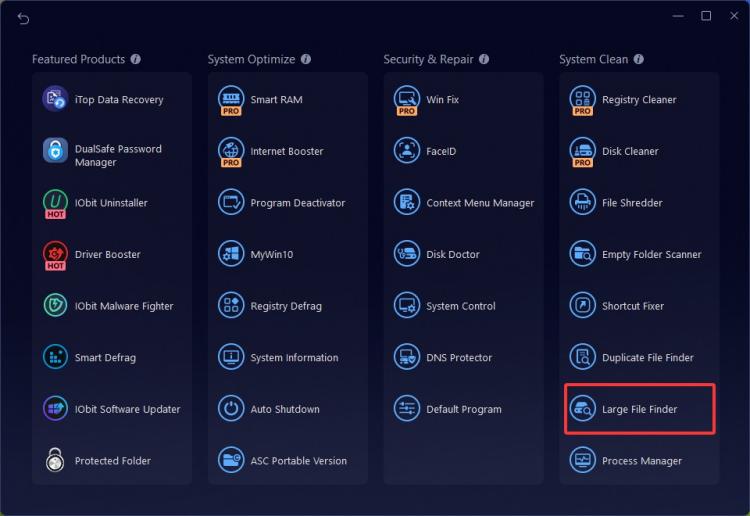
Step 2. Open the Toolbox on the top-right corner and select Large File Finder. This requires a quick installation.
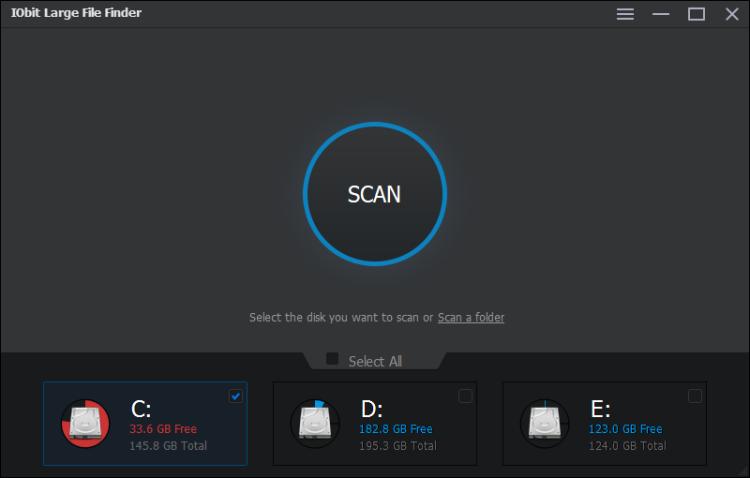
Step 3. Choose the drive(s) you want to scan and set the file size you want to search. Then start the scan process.
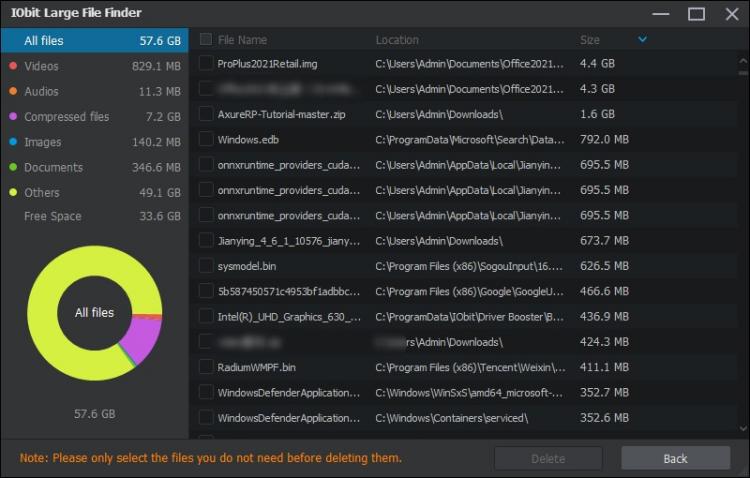
Step 4. Review the largest files found, select unnecessary items, and delete them to recover storage.
How to Find Large Files on Windows with Built-in Tools
If you do not want to install additional software, Windows also includes several built-in options to locate and clean large files. These methods are free and work well for occasional cleanup. However, they usually require more manual steps compared with a dedicated large file finder.
Method 1: Use File Explorer to Find Large Files
File Explorer is the simplest built-in option when you want to find large file Windows users have stored on their computers.
Follow these steps:
Step 1. Press Windows + E to open File Explorer.
Step 2. Select This PC or the drive you want to scan.
Step 3. Click the search box in the top-right corner. Enter a size filter, for example: size: >1GB. Windows will search for files larger than 1GB.
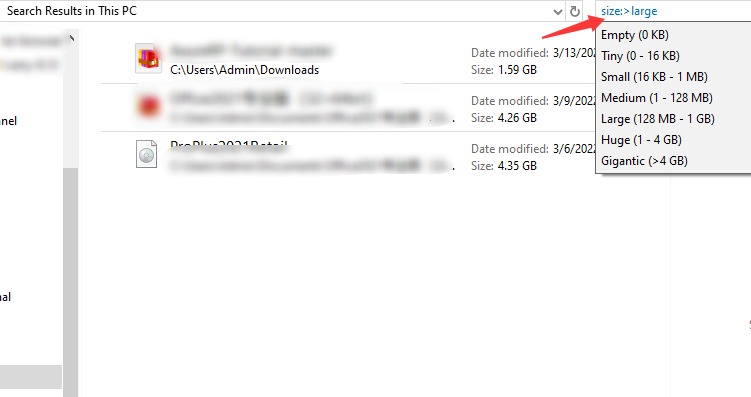
After the search finishes, switch to the Details view and sort files by size to identify the biggest items.
Advantages of File Explorer
Limitations
No visual storage analysis
Limited filtering options
Requires manual review
Cannot automatically clean other unnecessary files
For users with large hard drives, searching manually can take considerable time.
Method 2: Use Windows Storage Settings
Windows Storage Settings provides another built-in way to understand what is using your disk space. To access it:
Step 1. Open Settings > System > Storage.
Step 2. Select your drive. Review storage categories. Windows will display space usage from categories such as:
Installed apps
Temporary files
Documents
Pictures
Videos
Downloads
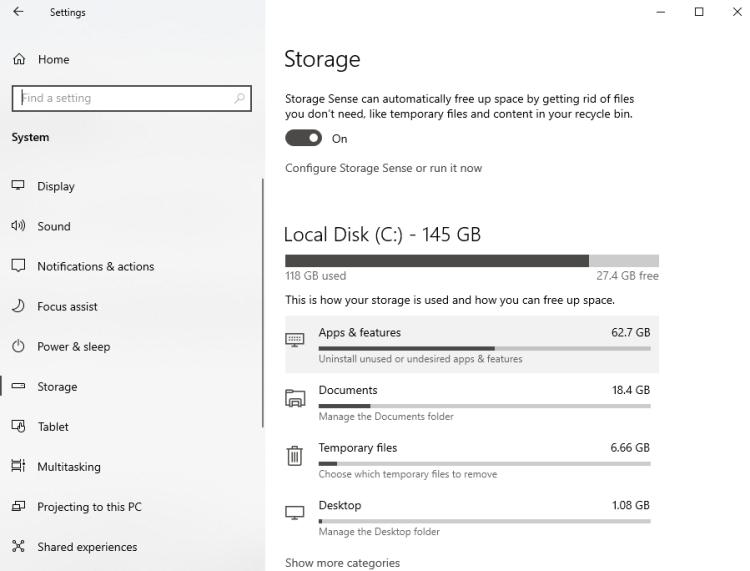 Step 3. Click into the category you want to clean, check the boxes, and click Remove files.
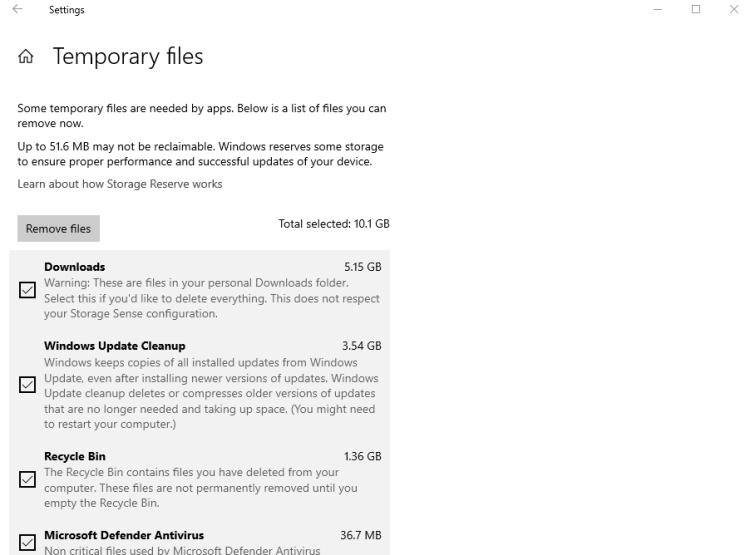
This method is useful for checking general storage usage, but it is not designed specifically as a large file finder. It groups files by category rather than showing a detailed list of the biggest individual files.
Method 3: Use PowerShell to Find the Largest Files on Windows
For advanced users, PowerShell provides another way to find largest files Windows users may want to review. Unlike File Explorer, PowerShell allows you to run specific commands to search, sort, and display files based on their size.
To find the largest files on your C drive, follow these steps:
Step 1. Press Windows + X and select Terminal (Admin) or PowerShell (Admin).
Step 2. Enter the following command:
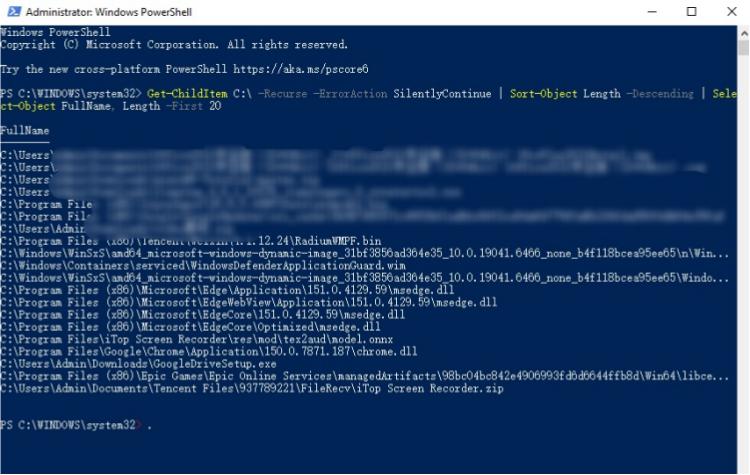
Get-ChildItem -Path "C:\" -Recurse -File -ErrorAction SilentlyContinue | Sort-Object Length -Descending | Select-Object -First 20 Name, Length, FullName.
Step 3. Press Enter and wait for Windows to complete the scan. The command will scan your drive, sort files from largest to smallest, and display the top 20 largest files.
However, PowerShell is not suitable for everyone.
It requires command-line knowledge
Can take a long time on large drives
Results are not beginner-friendly
Does not provide cleanup recommendations
For users who simply want to quickly find large files on Windows and manage them easily, a dedicated tool is usually a more convenient choice.
Also Read: [Solved] 9 Ways on How to Fix Windows 11 100 Disk Usage Easily in 2026 >>
Advanced SystemCare Large Files Finder vs. Windows Built-in Tools
Windows tools are useful for occasional searches, while a professional large file finder provides faster scanning, better organization, and a more convenient cleanup experience. Here is a quick comparison.
| Feature |
Advanced SystemCare Large File Finder |
File Explorer |
Storage Settings |
PowerShell |
| Easy to Use |
⭐⭐⭐⭐⭐ |
⭐⭐⭐⭐ |
⭐⭐⭐⭐ |
⭐⭐⭐ |
| Fast Scan |
✅ |
❌ |
✅ |
❌ |
| Custom Size Filters |
✅ |
Limited |
❌ |
✅ |
| Sort Largest Files |
✅ |
✅ |
Limited |
✅ |
| Delete Files Directly |
✅ |
✅ |
✅ |
Manual |
For most users, Advanced SystemCare PC optimizer offers the quickest and easiest experience because it focuses specifically on locating oversized files rather than requiring manual searches or command-line tools.
What Large Files Can You Safely Delete?
Finding large files is only the first step. Before deleting anything, you should understand which files are safe to remove and which ones should be kept.
Large Files You Can Usually Remove
The following files are often safe to delete if you no longer need them:
Old Downloads
Large Video Files
Old Backup Files
Installation Packages
Files You Should Avoid Deleting
Not every large file is unnecessary. Avoid removing files from locations such as:
Windows folder
System32 folder
Program Files
Driver folders
Recovery partitions
Deleting system-related files may cause Windows errors or prevent applications from working properly. When unsure, always check the file location and purpose before deletion.
FAQs about Large Files Finder
Can I find large files on an external hard drive?
Yes. Most large files finder tools, including Advanced SystemCare Large File Finder, allow you to scan external HDDs, SSDs, USB flash drives, and other connected storage devices.
What file size is considered "large"?
There's no universal definition, but files larger than 100 MB are often worth reviewing. If you're trying to recover significant disk space, it's more efficient to scan for files over 500 MB or 1 GB.
Is it safe to delete all large files?
No. A large file isn't necessarily unnecessary. Before deleting anything, check the file type and location to make sure it isn't a Windows system file, application data, or an important personal file.
Why can't I delete some large files?
Some large files may be in use by running programs, protected by Windows, or require administrator permissions. Close any applications using the file, restart your PC if necessary, or use a trusted cleanup tool that can safely remove unnecessary files after confirming they're not system-critical.
Conclusion
Finding oversized files doesn't have to be difficult. Whether you use File Explorer, Storage Settings, PowerShell, or Command Prompt, Windows offers several ways to locate storage-consuming files.
However, if you regularly need to organize storage, Advanced SystemCare large file finder provides the fastest and most convenient solution. With customizable scan sizes, quick sorting, and one-click deletion, it makes identifying and removing unnecessary large files much easier than manual searching, helping you recover valuable disk space in just a few minutes.