In the middle of an exciting Roblox game, everything suddenly slows to a crawl. The character stutters with every step, jumps feel delayed, and scenes refuse to load smoothly. It's frustrating and can quickly take the fun out of the experience. Lag like this doesn't just affect performance—it interrupts gameplay, breaks immersion, and makes even simple actions feel difficult.
The good news is that these issues are common, and they can be fixed with the right approach. This guide is here to help, offering a complete breakdown of how to fix Roblox laggy problems in a simple and effective way. With a few smart adjustments, a smoother, faster, and far more enjoyable Roblox experience is well within reach.
Why Is My Roblox So Laggy? Roblox Lagging for No Reason
Lag in Roblox refers to stuttering or delays during gameplay. Players may experience choppy animations, delayed controls, desynchronization between character actions and visuals or other players, as well as screen distortion or glitches. Some users may assume this is due to insufficient device performance, but that's not always directly the case.
It's important to note that laggy isn't just one single issue. Based on research, this guide summarizes the following main types:
• Network Latency
This occurs when your device is connected to a slow or unstable network. It typically appears as other players suddenly teleporting or your actions taking a long time to register.
• Graphics Lag
This type of lag shows up as stuttering visuals, choppy animations, or frame drops. It often happens when using high graphics settings and your device is under heavy load.
• System Lag
If your situation doesn't match the above, you may be experiencing system lag. This happens when your device is running other resource-intensive applications alongside the game. If the lag persists even after closing other apps, you may need to consider updating your system or whether your device performance is insufficient.
10 Applicable Ways for Fixing Roblox Laggy Issue
So, after breaking down the different types of laggy, do you now have a clearer idea of why is my Roblox so laggy and how to reduce lag on Roblox?
Now it's time to move into the core part. Based on different scenarios, this guide has prepared a variety of solutions for you—you just need to identify your situation and follow the steps.
1. Check Your Network Connection
Since Roblox is an online game, it has certain requirements for network quality. When you notice lag, the first thing you should do is check whether your internet connection is stable and working properly.
You can also try disconnecting and reconnecting to the network. Alternatively, unplug your router, wait a few minutes, and then plug it back in to reset the connection.
2. Restart Roblox or Your Computer
Both programs and devices can occasionally run into unknown errors, which may cause lag. In many cases, a simple restart can fix the issue. So when looking for ways on how to fix Roblox laggy, try closing Roblox first and then reopening it. If the problem persists, restart your computer and see if that resolves it.
3. Close Unnecessary Programs
Running too many resource-intensive programs at the same time can also cause lag. Try closing all unnecessary applications while playing Roblox and see if performance improves.
If you're not sure which programs to close, follow these steps:
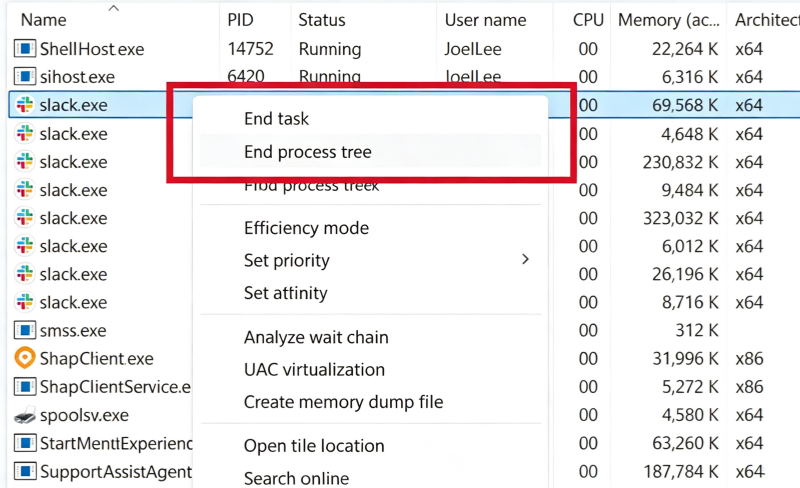
Step 1. Press Windows + X and select Task Manager from the menu.
Step 2. In the new window, check which applications are using system resources. Select the ones you don't need and click End task.
4. Uninstall and Reinstall Roblox
If restarting and closing other programs doesn't fix the issue, try uninstalling your current version of Roblox and downloading it again from the official website.
It's simple to do - just right-click the app icon and select Uninstall from the menu.
5. Update Graphics or Network Drivers
My internet connection is good, but why is my Roblox so laggy on PC?
A stable network doesn't always mean network-related lag is completely ruled out. Another common reason is that the network or other drivers on your computer are outdated - in which case, you'll need to update all old drivers to make Roblox run smoothly.
If you want to update drivers manually, you'll need to open Device Manager, locate the specific device (such as your graphics card or network adapter), and right-click to check for updates. To make sure you don't miss the latest version, you may also need to visit the official website to download the correct driver and install it yourself. It may sound simple, but in reality, the process can be time-consuming and it's easy to install the wrong version.
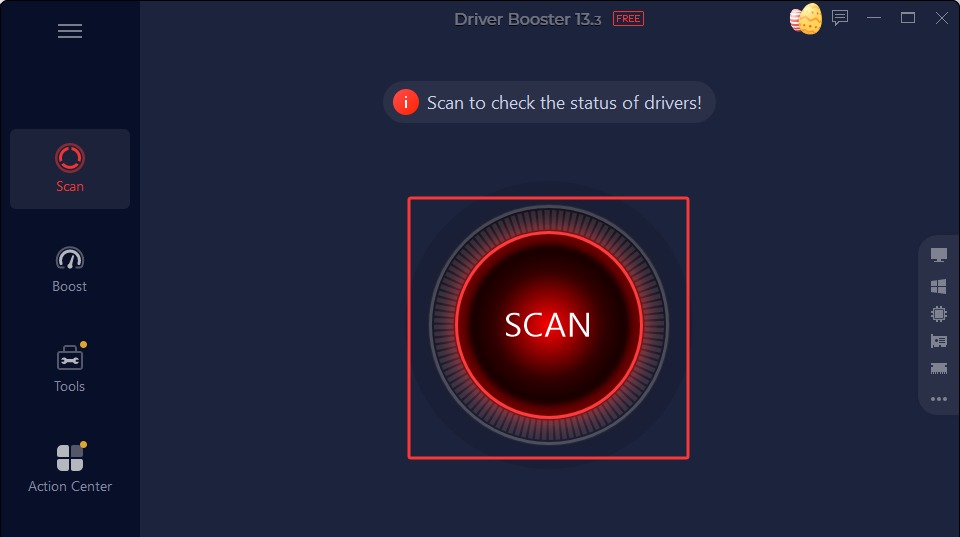
If you just want to fix lag quickly, this method can feel pretty inefficient. Instead, you might want to try an easier solution - Driver Booster. It can automatically detect all driver-related issues, whether they are outdated, missing, or incompatible, and fix them with just one click. It's especially effective for resolving game lag, with dedicated features designed to optimize gaming performance, including built-in game acceleration tools.
Driver Booster Free
- Automatically scan and update drivers.
- Update game ready drivers for peak gaming performance.
- Identify and fix various common of hardware issues.
- Boost 30% of system performance for fast & smooth running.

Key Features
· Automatically scan and update drivers:
With just one click, it scans your entire system and updates all necessary drivers—no need to check devices one by one.
· Update Game Ready drivers:
Supports driver updates for 1,200+ major brands, including NVIDIA, AMD, and Intel, helping your games run smoother with fewer lags and frame drops.
· One-click system optimization:
The System Optimize feature frees up system resources and streamlines background processes, while Game Boost tunes your PC for optimal gaming performance.
· Fix device-related issues (network, audio, etc.):
Whether it's unstable internet, no sound, or device recognition problems, it quickly identifies and fixes them, with a toolbox full of useful repair features.
How to Use Driver Booster for Fixing Laggy
Step 1. Download and install the application.
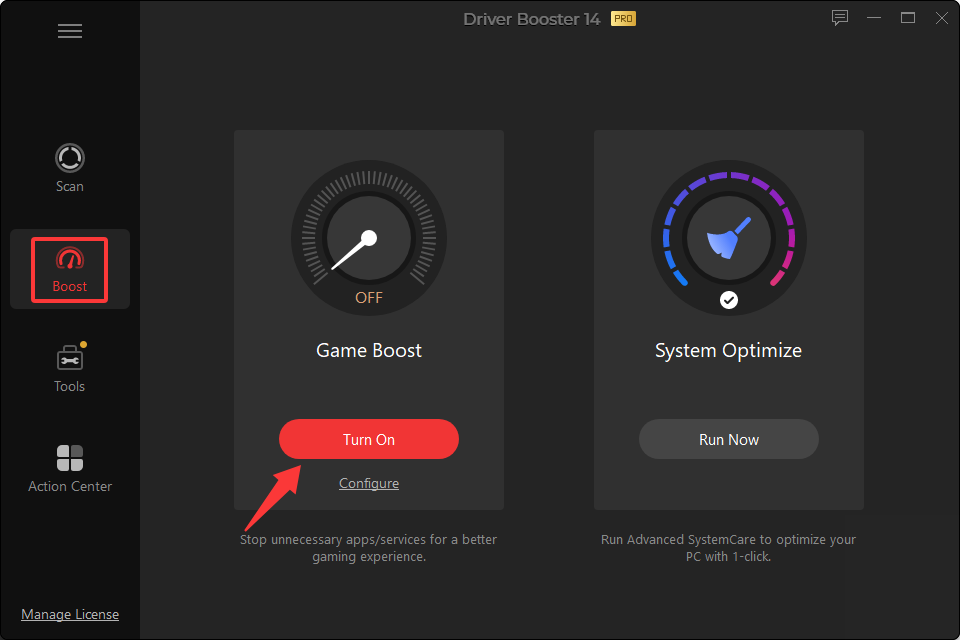
Step 2. Open the program, go to the Boost tab, find Game Boost on the left, and click Turn On.
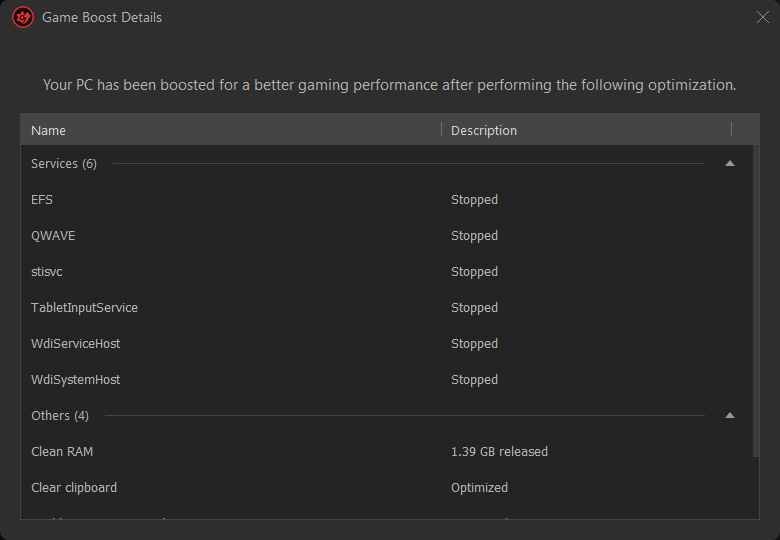
Step 3. Wait for the process to complete. Programs that may affect game performance will be automatically closed. You can click Details to check them.
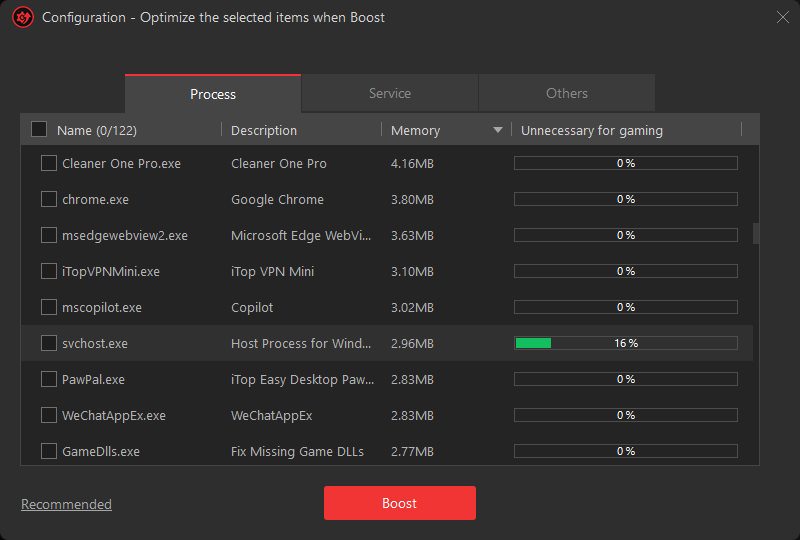
Step 4. You can also customize it manually. Click Configure, select the running processes you want to optimize, and click Boost.
6. Try Using a Wired Connection
If you’re using Wi-Fi while playing Roblox, lag is pretty common because wireless connections are less stable and more easily affected by interference, which can increase latency.
A wired connection (Ethernet) is much more reliable to reduce lag on Roblox. If possible, plug your device directly into the router with an Ethernet cable and restart the game - you’ll often notice the lag improves immediately.
7. Adjust Roblox Graphics Quality Settings
Roblox allows players to customize their in-game graphics settings to make the gameplay less laggy. However, if you choose a high graphics quality, it may cause lag when your network or device is unable to handle the load properly.
If you want to learn how to fix Roblox laggy caused by graphics quality, please follow the steps below. This guide will walk you through how to lower the visual settings and reduce the resolution to address Roblox lagging.
Step 1. Launch Roblox and start any game experience.
Step 2. Press the Esc key to open the in-experience menu.
Step 3. Click on Settings from the menu options.
Step 4. Scroll down to the Graphics section. You can view your current graphics level and performance settings here.
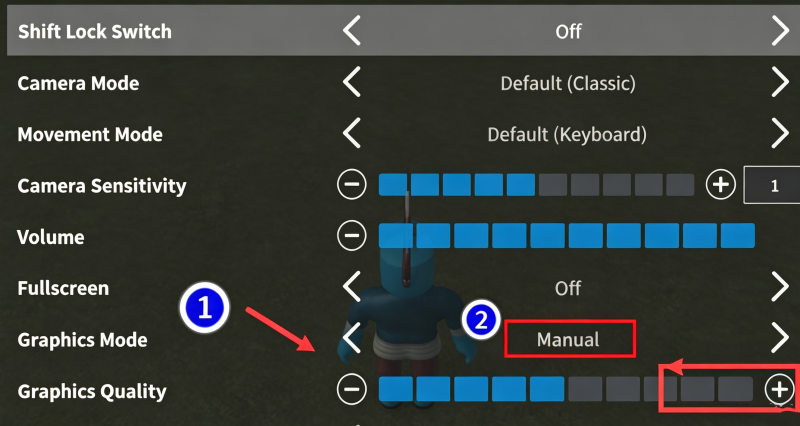
Step 5. Turn off Graphics Quality – Auto. Now you can manually control the graphics level.
Step 6. Adjust the graphics level slider to a lower setting according to your preference.
8. Set the Power Mode to High Performance
If you still find yourself wondering why is Roblox so laggy all of a sudden, the issue may come down to how your system allocates graphics performance. By default, Windows may not prioritize Roblox, which can lead to unnecessary lag and unstable frame rates. Manually assign it to use high-performance graphics.
Step 1. Open the Start menu and type Graphics Settings, then click to enter the settings page.
Step 2. Scroll down to find Graphics performance preference. If Roblox is not listed, click Browse and locate the Roblox application manually.
Step 3. Once Roblox appears in the list, click on it and select Options.
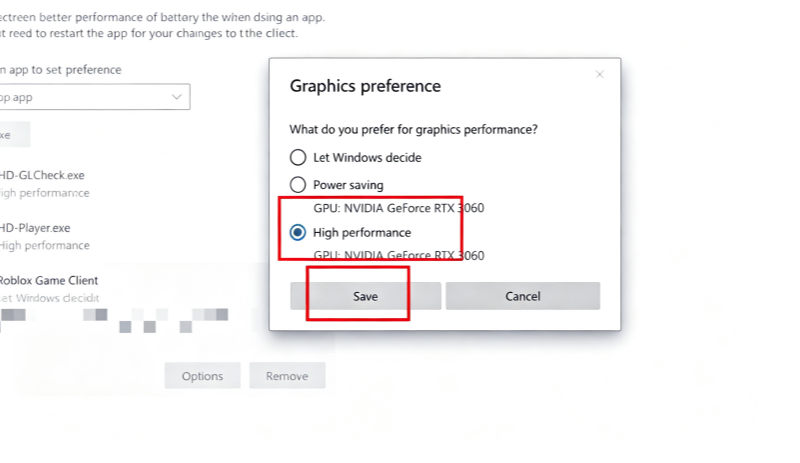
Step 4. Choose High performance to let your system prioritize better gaming performance.
Step 5. Click Save to apply the changes.
Step 6. Launch Roblox and try a game.
9. Delete Temporary Files
A lot of people don’t realize that their computer quietly builds up temporary files over time. These invisible junk files can eventually slow things down and even affect how smoothly Roblox runs. If you’ve been wondering how to reduce lag on Roblox, clearing out these files is a simple fix that’s definitely worth trying.
Step 1. Press Win + R to open the Run dialog, type %temp%, and hit Enter.
Step 2. In the folder that opens, press Ctrl + A to select all files.
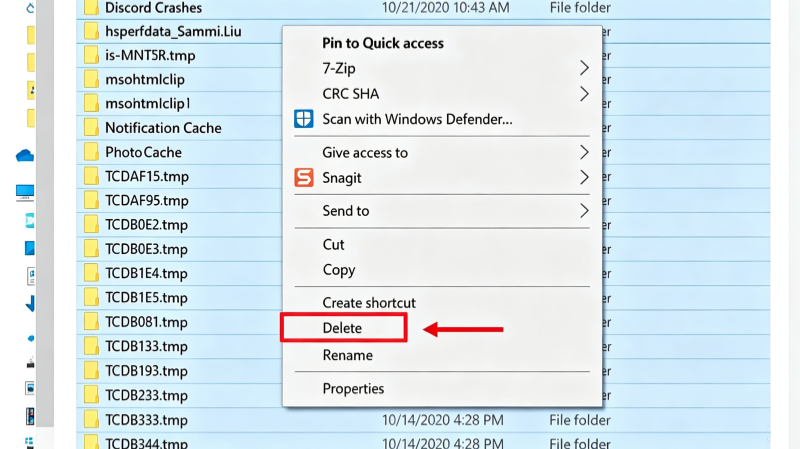
Step 3. Press Delete to remove them (skip any files that can’t be deleted).
Step 4. Open the Run dialog again, type temp, and repeat the same steps.
Step 5. Restart your computer to help everything run more smoothly.
10. Contact Roblox Support
If you’ve tried multiple fixes and Roblox is still lagging, the issue might go beyond local settings. At that point, it’s a good idea to reach out to the official support team - they can explain why is my Roblox so laggy all of a sudden and provide more tailored solutions based on your specific situation.
FAQs for Solving Roblox Lagging
1. Will uninstalling Roblox cause me to lose anything?
No. Your account progress, items, and purchases are saved online, not on your device.
2. Why is Roblox so laggy on my computer?
Lag is usually caused by low system performance, outdated drivers, poor internet connection, or high graphics settings.
3. Can using a VPN solve Roblox latency issues?
Sometimes, but not always. A VPN may improve routing in rare cases, but it can also increase latency.
4. For Roblox, which is better: a wired connection or a wireless connection?
A wired (Ethernet) connection is generally more stable and faster than Wi-Fi, making it better for gaming.
The Bottom Line
If you’re wondering how to fix Roblox laggy, the key is to combine several simple optimizations - adjust graphics settings, improve your network connection, clear unnecessary files, and make sure your system runs efficiently. Among these, updating your drivers can have a significant impact on performance. To save time and effort, you can use Driver Booster to automatically update outdated drivers and keep your PC in top shape. Try it now for a smoother, more responsive Roblox experience.