Updates bring security patches, bug fixes, new features, and improvements to your devices. All your PC apps should receive regular updates to keep their functionality. Those apps you downloaded from your web browsers generally pop up notice windows to remind you of an update, but how about those Windows apps? This blog gathers helpful info about how to update Windows apps. Stay tuned if you are interested.
What Are Windows Apps?
Later, we will learn the specific steps of how to update Windows apps. Prior to that, let’s take a closer look at the Windows apps. What do Windows apps generally refer to and consist of?
Generally, when it comes to a Windows application, we are talking about a built-in app that was pre-installed with the Windows system, usually including security software, media players, classic text editors, productivity tools, etc.
Common list:
Internet: Internet Explorer, Microsoft Edge, Bing, Mail
Media: Photos, Media Player, Clipchamp, Snip & Sketch, Paint 3D
Security/System: File Explorer, Task Manager, Windows Security
Productivity: Notepad, Calculator, Sticky Notes, Microsoft Outlook
Plus, the apps you downloaded from the Microsoft Store are also considered Windows apps; the Microsoft Store is the official platform to distribute them.
How to Update Windows Apps from Microsoft Store
With Windows apps’ “ingredients” clear, let’s figure out how to update apps on Windows 11 & 10. As aforementioned, Microsoft Store is the official and recommended platform for accessing apps (by Microsoft itself); it provides apps and helps users manage these applications. For example, you can update, open, write a review, share the app, and check its update version notes.
Steps to Update Windows Apps on Microsoft Store
For Windows 11/10 Users:
Step 1. Access the Microsoft Store from the Windows Menu: it should be on the right side of the panel, or the search bar: input Microsoft Store.
Step 2. Navigate to the Downloads tab on the sidebar, click Check for Updates.
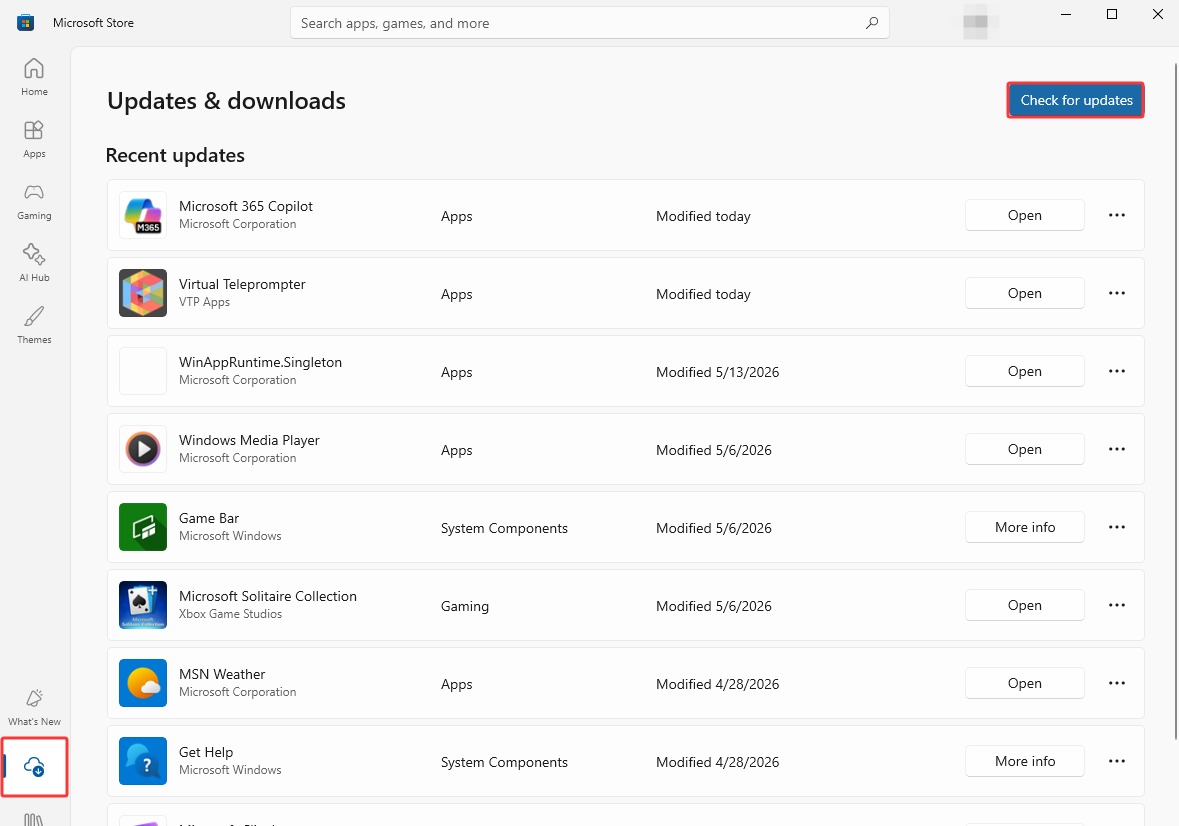
Step 3. When it lists the updateable apps, click Update all, or choose any one you need to update.
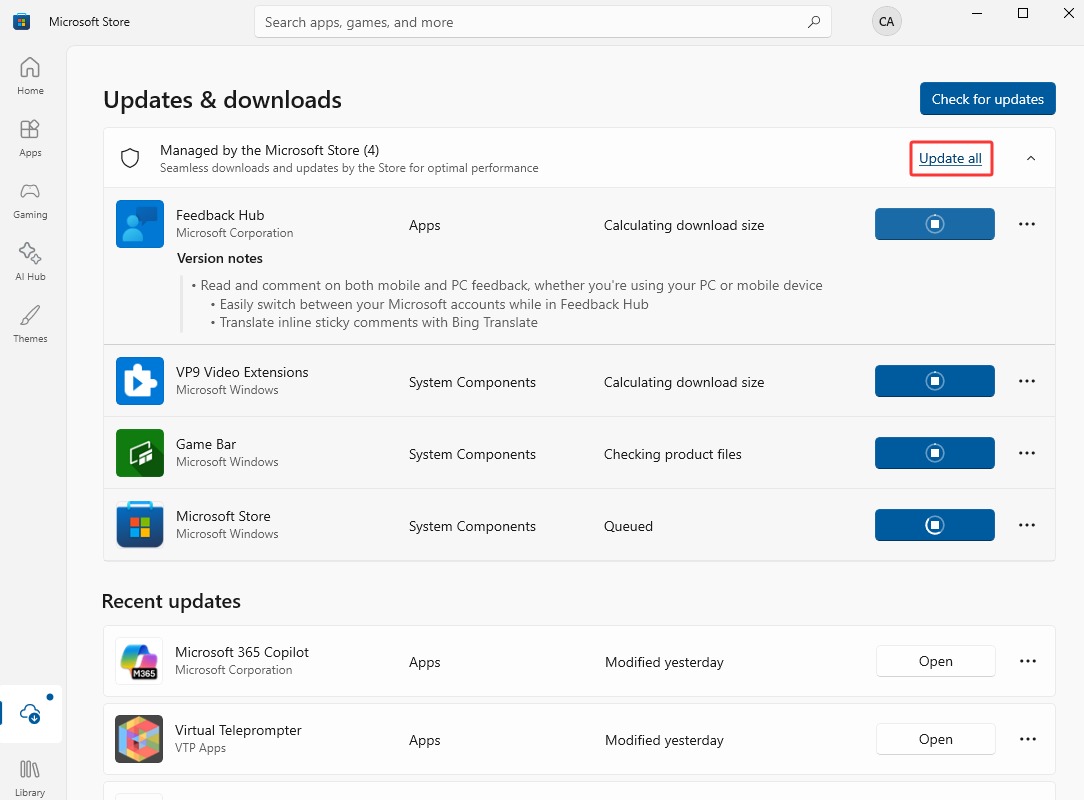
This is how you update Microsoft Store apps. With apps updated, it not only fixes current issues, but it also frees up disk usage with optimized code.
How to Update Windows Apps with CMD
Command Prompt is also a go-to if you want to update Windows apps, yet it will be a bit challenging, since it does not provide an intuitive interface like the Microsoft Store does. So, this one is for the pro users who are familiar with Command Prompt, or at least know what to do if the command goes wrong.
Windows 11 and 10 share almost the same steps in using CMD, but differ in the steps to access it. Please check:
For Windows 11 users:
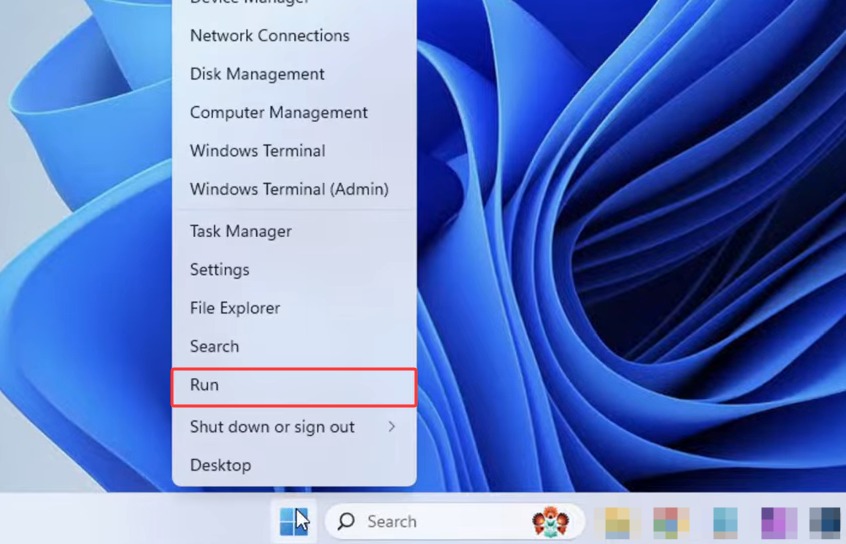
Step 1. Right-click on the Start button > Run > input CMD > press Ctrl+Shift+Enter for administrative access.
For Windows 10 users:
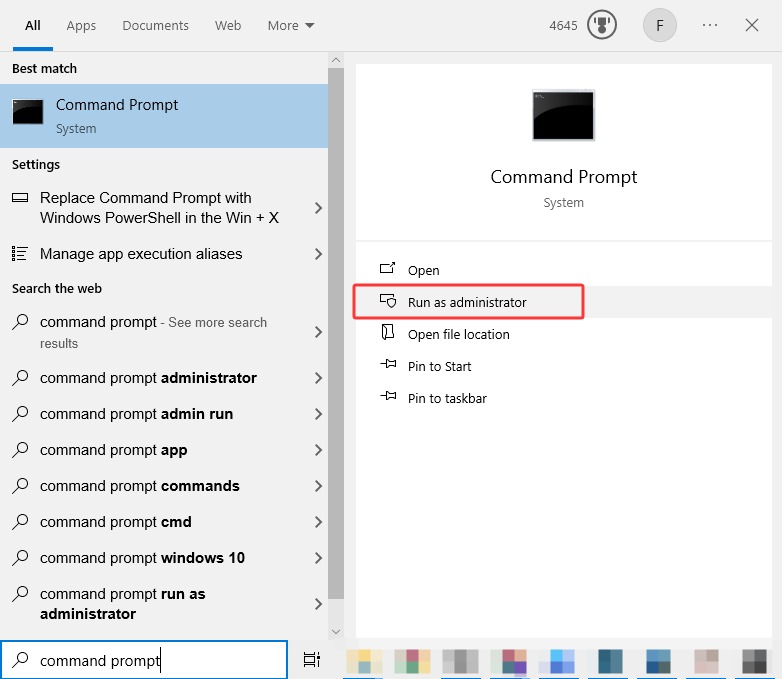
Step 1. Search Command Prompt in your Windows search bar > click Run as administrator
Step 2. Input “winget upgrade” and press Enter. The CMD will list all apps and available versions on your devices.
Step 3. Input “winget upgrade --all” > press Enter. Then the updating process will start.
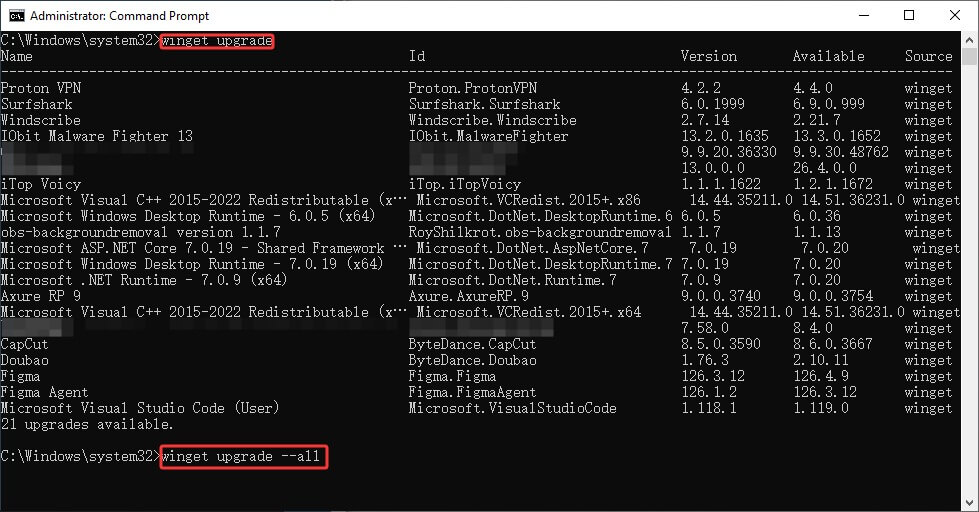
This is how to update apps on Windows 11 and 10 via commands.
*Tips: If you found 100 disk usage in Task Manager while updating, it is normal due to the rapid read/write process. Usually, it drops when the updates finish.
How to Update Windows Apps Without Store | Non-Windows Apps As Well
Updating Windows apps is not the end of managing and maintaining your device: you still have those non-Windows apps to be updated.
Yet, being prudent, you might think updating apps via commands is too risky, since there is no “Undo” button when a command is mistyped. Moreover, the Microsoft Store updates come with no non-Windows apps. That is where a professional software updater comes to help. Advanced SystemCare from IObit is one of the best system performance optimization tools, which also helps update apps to solve existing issues and avoid potential problems.
Advanced SystemCare Free
- Clean: 420 billion traces removed & 85 EB junk files cleaned
- Protect: 80 million unauthorized access blocked & 20 million bugs fixed
- Speed Up: 6 million hours of startup time saved & Turbo boost
- Optimize: Auto clean and auto care your PC with AI mode

Check how it can help you update Windows apps + non-Windows apps and optimize your device:
Update Windows apps & third parties from your web browsers easily in 1 click without any difficult operations.
Provide full control in software update: you can either let it download updates automatically & silently, notify you when updates are available, or completely manually.
Optimize RAM, disk usage, startups, running environment for different usage, and way more, improving system performance in an all-around manner.
Protect your system privacy from hackers or invaders with anti-tracking, email protection, ad removal, and more features.
Now check how to update Windows apps & third-party apps easily.
Step 1. Download and install Advanced SystemCare on your device by clicking the button here. This software is compatible with Win11/10/8/7/Vista/XP devices.
Step 2. Run the app > directly go to Software Updater from the left panel > it will list the possible updates of Windows apps that you can acquire. Click Update All to update them in 1 go with a Pro license. Free users can update 2 in 1 go per day.
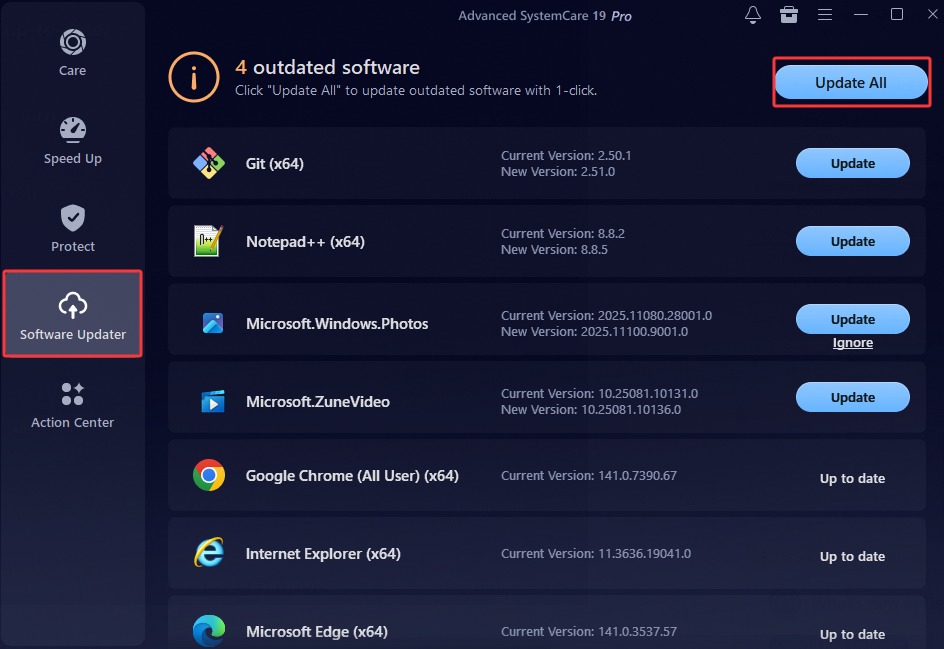
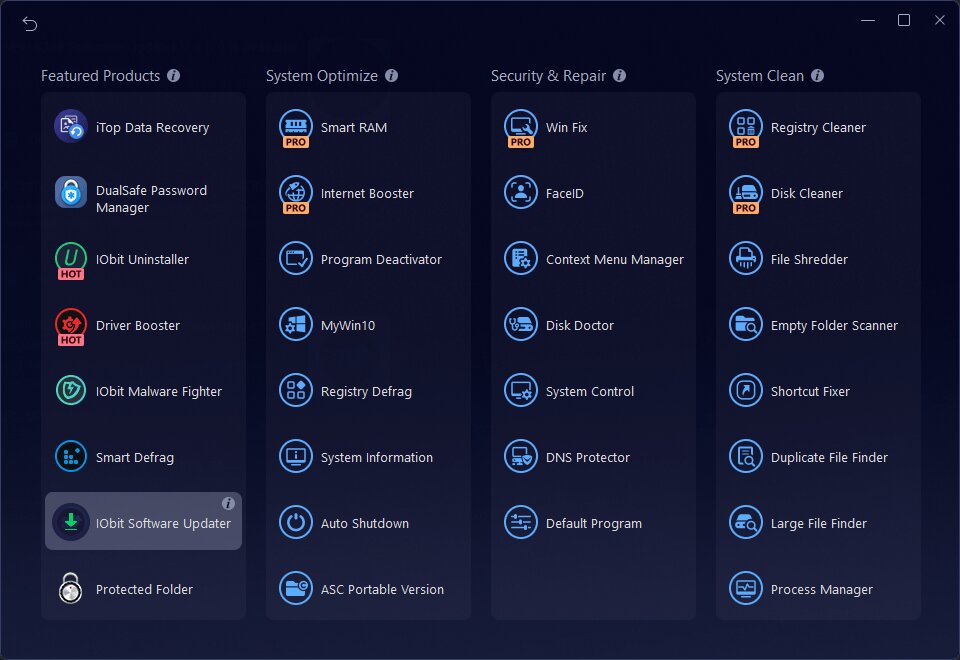
Step 3. Windows apps are updated now. If you want to update non-Windows apps as well, click the Toolbox button on the top-right corner > find IObit Software Updater in the list > download.
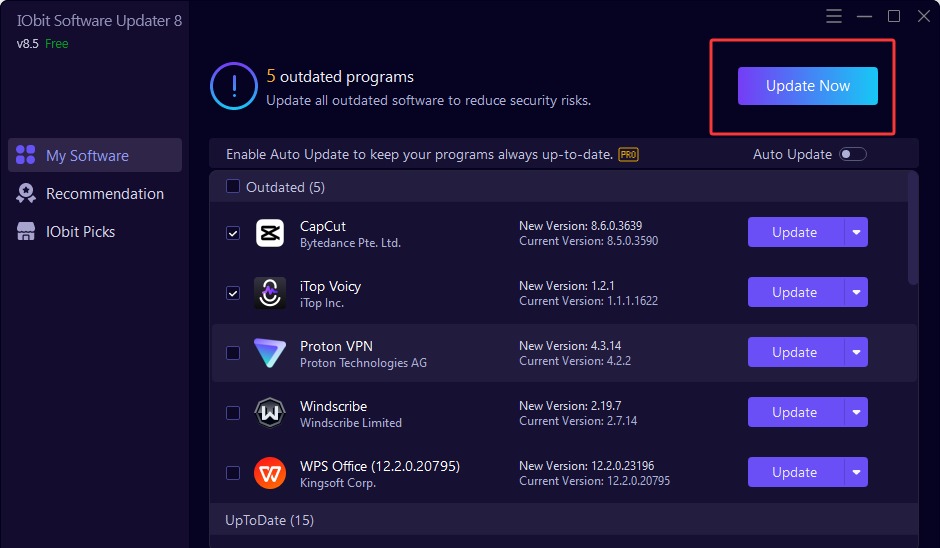
Step 4. It detects all apps on your device. Choose the apps you want and click Update Now to get them up-to-date.
How to Get an Auto Update for Future Care
Manually updating apps can be repetitive and such a hassle, so scheduling an auto update will be a lifesaver, no matter what the field is. Try using the 2 apps below to help you get all applications up-to-date.
1. Update All Apps Automatically with Software
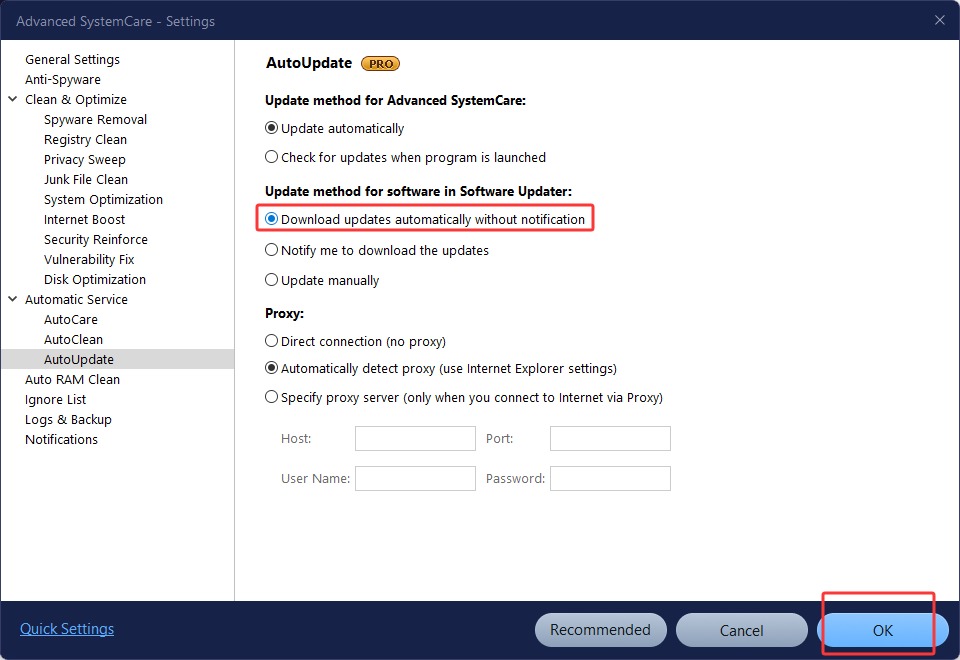
Advanced SystemCare outshines due to its AutoCare and AutoClean features, and here you get the Auto Update as well. It offers 3 options: mute auto app updates, new update reminder, and manual update.
>> Launch Advanced SystemCare > click the Settings button > find AutoUpdate > choose “Download updates automatically without notification”, and then you can rest with ease. All applications will be updated silently.
2. Update Windows Apps Automatically with Microsoft Store
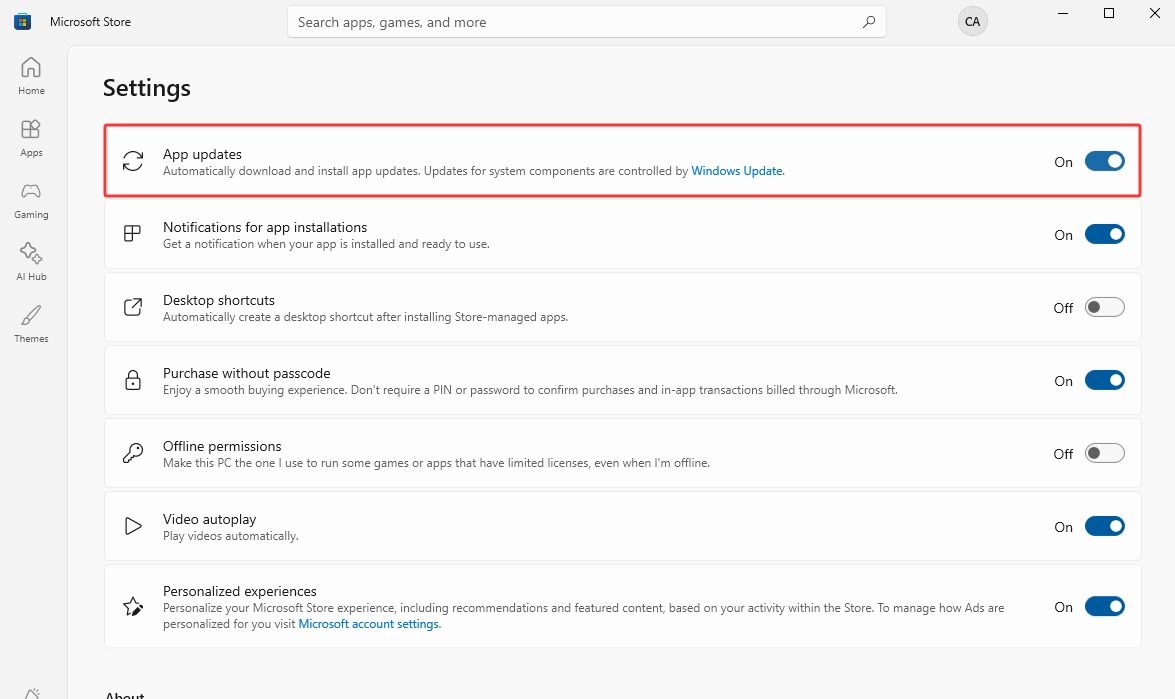
For Windows apps, without downloading extra software, you might also use the Microsoft Store to get automatic Windows app updates.
>> Run Microsoft Store > click your avatar > choose Store settings in the drop-down menu > activate App updates. Click again to pause it, in case you need to.
The Bottom Line
To update Windows apps, the built-in tools Microsoft Store and Command Prompt can both be of help with different features and edges. Keep in mind that the CMD tool should be used with special care. To avoid that hassle, users might as well try the professional PC optimization tool IObit Advanced SystemCare, which comes with an easy app updater feature; no challenging commands, no delay. Try now and get all your apps up-to-date!