




Kevin Hart
Kevin is an experienced editor focused on tech blog writing. Familiar with all kinds of PC software on the market. All the topics he chooses are aimed at bringing more benefits to users.
Expert in
PC Health Solution

All-in-one PC health solution: clean, optimize and secure

Comprehensive PC cleaning, optimization and protection

Keep drivers always up-to-date

More stable performance with less system crashes

Protect millions of computers against malware

Top computer security with full-round protection

Protect against viruses & boost PC performance
Clean: 420 billion traces removed & 85 EB junk files cleaned
Protect: 80 million unauthorized access blocked & 20 million bugs fixed
Speed Up: 6 million hours of startup time saved & Turbo boost
Optimize: Auto clean and auto care your PC with AI mode

Learn how to find large files on Windows 11 using File Explorer, Storage Sense, WizTree, and IObit Advanced System Care. Free up disk space today.

Kevin Hart


Is your C drive constantly showing red? Over time, Windows accumulates massive amounts of data from software updates, cached files, and forgotten downloads. These hidden storage hogs degrade PC performance and can cause system stability errors. Without knowing how to find large files on windows 11, you might be wasting gigabytes of precious SSD space. This comprehensive guide covers 5 professional methods to locate and remove oversized files. Learning how to find large files on windows 11 is easier than you think. Keep reading to reclaim your storage and restore your PC's speed.
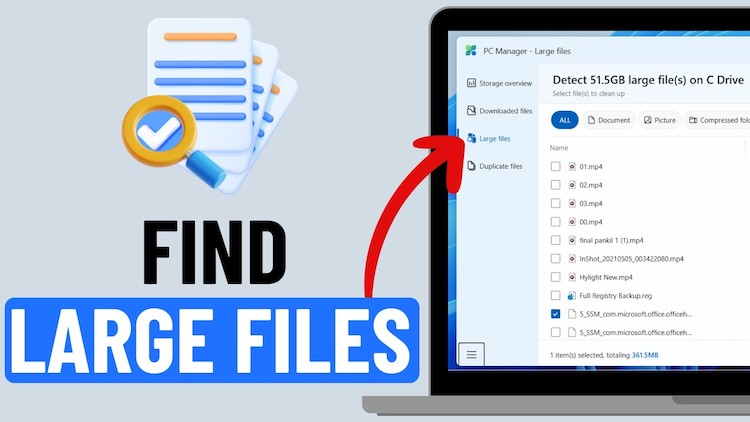
Your computer constantly creates data. Knowing how to find large files on windows 11 helps you target common sources:
Software Updates – Windows and apps leave old installers behind, consuming gigabytes.
Localized Cache – Browsers and games save temporary files that grow endlessly. A proper Windows find large files routine can identify these hidden caches.
Application Logs – Crash reports and error logs can balloon to hundreds of megabytes.
Temp Files – The %temp% folder collects leftovers from installations for years. Mastering how to find large files on windows 10 and Windows 11 is essential for any PC user.
When your drive exceeds 85% capacity, Windows struggles with read/write operations, leading to slower boot times and the dreaded 100 disk usage windows 11 issue.
File Explorer includes hidden search filters that let you find large files windows. This built-in windows large file finder works without extra software.
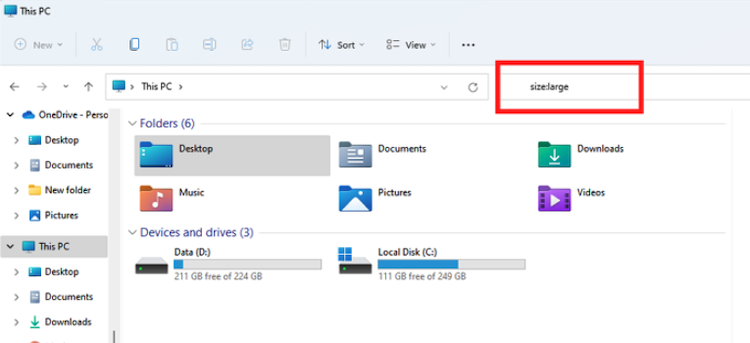
How to Use It:
1.Press Windows + E to open File Explorer.
2.Select your C: drive.
3.Type size:>1GB in the search bar and press Enter.
4.Click the "Size" column to sort files from largest to smallest.
Best Feature: No installation required.
Pros: Free, works on any drive, supports custom size filters.
Cons: Slow on drives with millions of files, no visualization.
When you need a quick way to find large files windows 11, File Explorer gets the job done.
Manual methods work, but they're time-consuming and often miss hidden cache files. Advanced SystemCare offers a comprehensive PC optimization suite that includes a dedicated Large File Finder module. Unlike basic search tools that only scan file names, Advanced SystemCare's AI-powered engine analyzes your entire drive to identify storage hogs that you might otherwise overlook.
The software has been recognized as the most comprehensive cleaning tool in independent tests, removing the largest number of temporary files compared to competitors. One user review noted that after switching to AI-powered cleaning with Advanced SystemCare, "the difference was instantly noticeable" – the software automatically analyzes storage patterns, system performance, and usage habits to provide personalized cleaning recommendations.
Step 1: Download and install IObit Advanced SystemCare Free from the official website.
Step 2: Launch the software. The redesigned dashboard features a clean, modern interface with intuitive navigation. Click "Toolbox" in the top menu, then launch "Large File Finder" from the tools list.
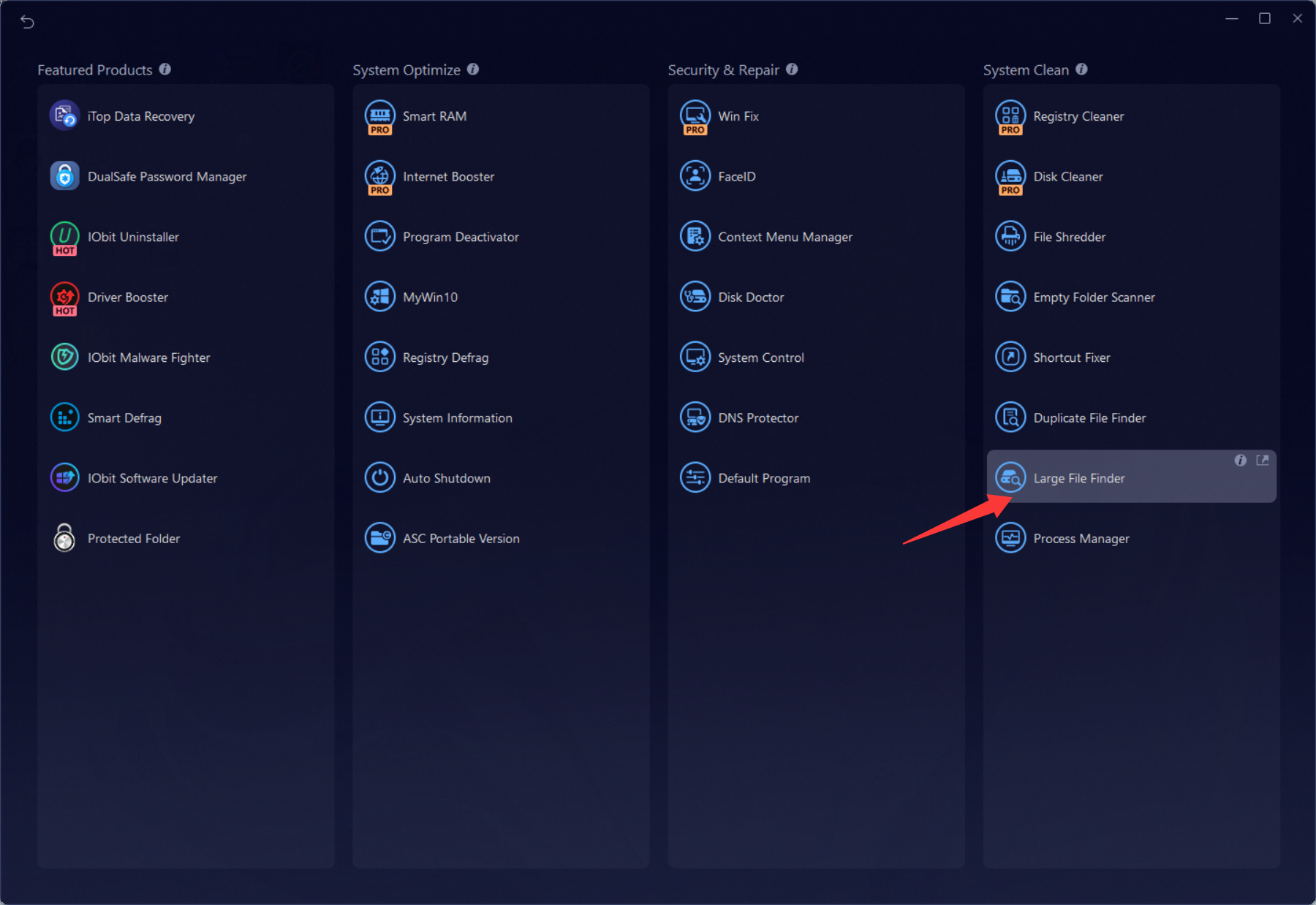
Step 3: Select the disk you want to scan (C: drive recommended) and click "SCAN".
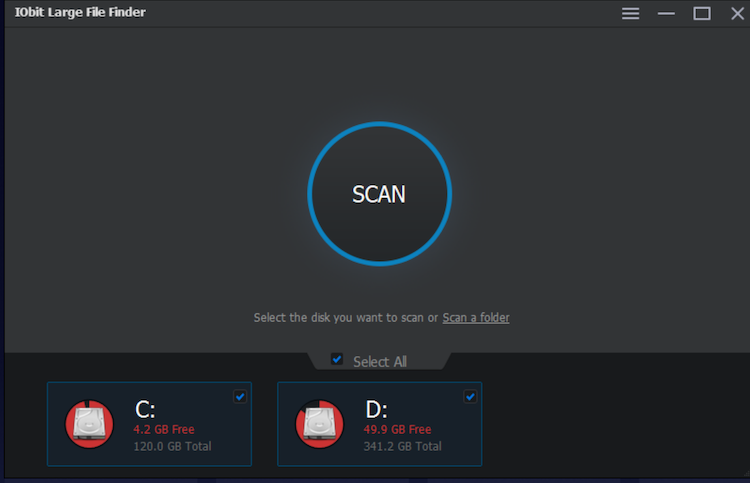
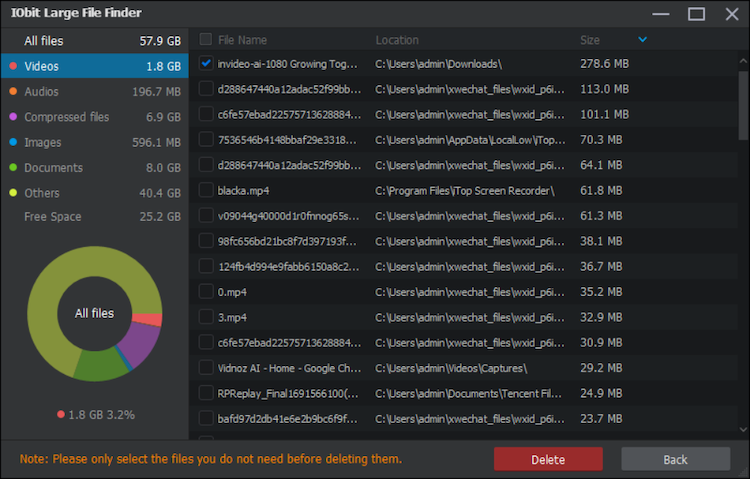
Step 4: Review the scan results – files are sorted by size. Check the boxes next to files you want to delete, then click "Delete" to free up space.
For ongoing maintenance, Advanced SystemCare includes AutoCare – a feature that runs scheduled health checks automatically, preventing slowdowns before they escalate. The Smart RAM feature releases memory in real-time, while Turbo Boost temporarily suspends non-essential services when you need maximum performance for gaming or intensive tasks.
Best Features:
AI-Powered Scanning – The software adapts to your computer's usage patterns, learning what files are safe to clean versus what should be preserved.
One-Click Fix – No need to manually hunt through folders; the AI identifies and resolves issues automatically.
Comprehensive Toolkit – Beyond Large File Finder, includes over 20 utilities: Disk Cleaner, Registry Cleaner, Privacy Sweep, Startup Optimizer, File Shredder, and more.
Pros:
Awarded "most comprehensive cleaning tool" in comparative tests, freeing up the most disk space among competitors.
Beginner-friendly interface with safe defaults – no technical knowledge required.
ActiveBoost technology runs silently in the background, optimizing resources without interrupting your work.
Free version includes core cleaning and optimization features.
Cons:
Free edition shows occasional upgrade prompts.
Some advanced features require Pro version.
If you're also struggling with how to free up disk space beyond large file deletion, Advanced SystemCare functions as an excellent c drive cleaner and helps how to clean junk file in pc with its automated AI scans.

WizTree reads the Master File Table directly from NTFS drives, scanning an entire 1TB SSD in seconds. It's an excellent windows large file finder for power users.
How to Use WizTree:
1.Download the portable version.
2.Run as administrator and select your C: drive.
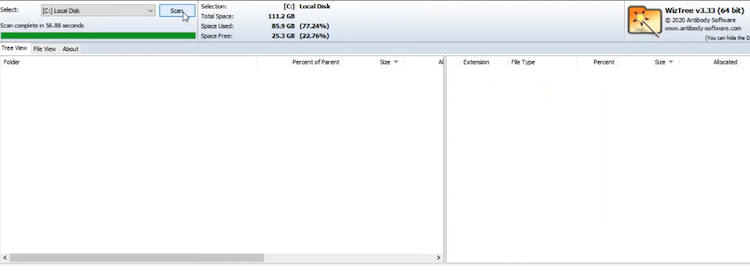
3.Click "Scan" to view the treemap visualization.
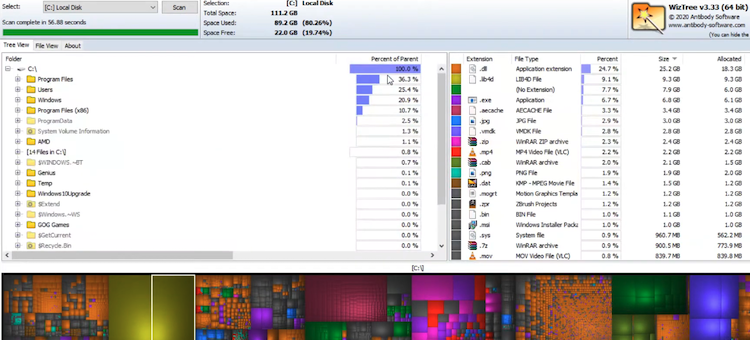
4.Right-click any file to open its location or delete it.
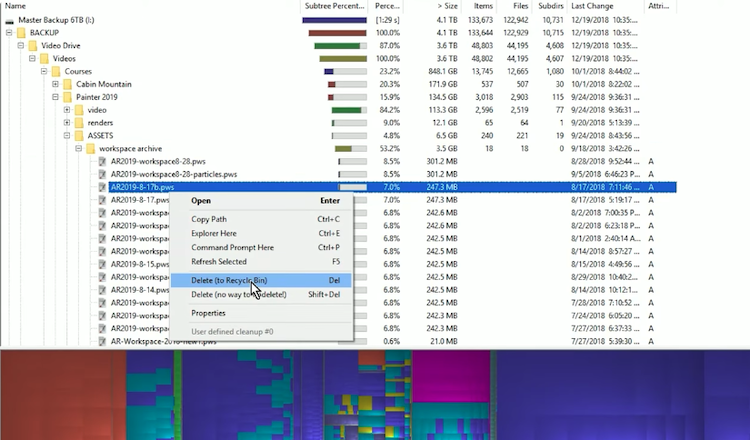
Best Features: Blazing speed, treemap visualization, portable version.
Pros: Completely free, export to CSV, shows file allocation sizes.
Cons: Windows-only, treemap can overwhelm beginners.
Windows 11 includes Storage Sense for automatic cleanup. It also helps how to find large files in windows 10 and Windows 11.
How to Use Storage Sense:
1. Open Settings > System > Storage.
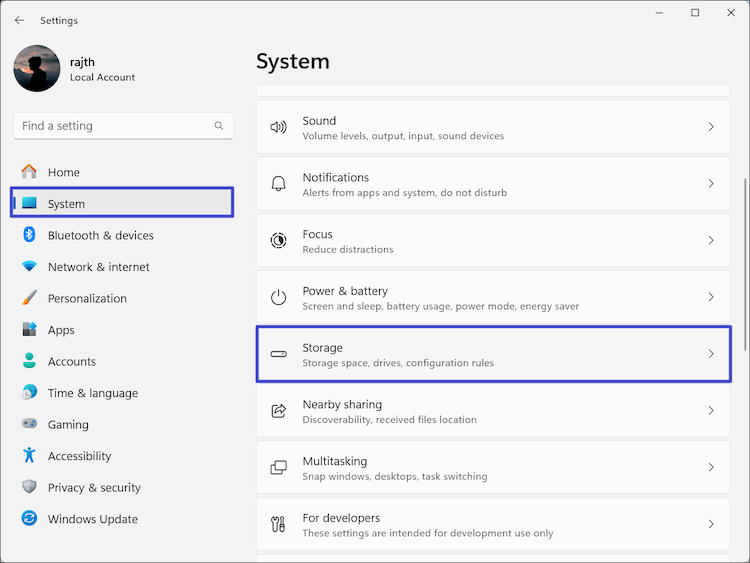
2.Under the Storage management section, turn on the “Storage Sense” toggle.
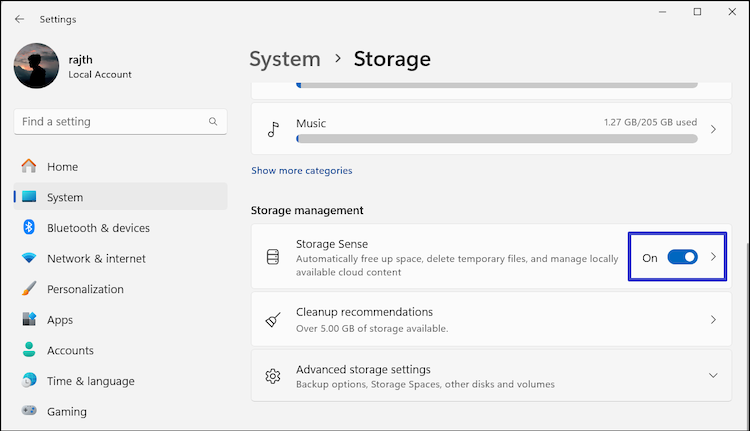
3.Scroll to storage breakdown to see what consumes space.
Best Feature: Automatic scheduled cleanup.
Pros: Fully integrated, deletes temporary files automatically.
Cons: Limited search capabilities, no custom size filters.
Storage Sense helps you how to find large files on windows 10 systems as well, but dedicated tools work better for deep cleaning.
TreeSize Free displays folder hierarchy with size information, making it easy to spot bloated directories.
How to Use TreeSize Free:
1.Download and run TreeSize Free.
2.Select your C: drive.
3.Scan runs automatically, showing folder sizes.
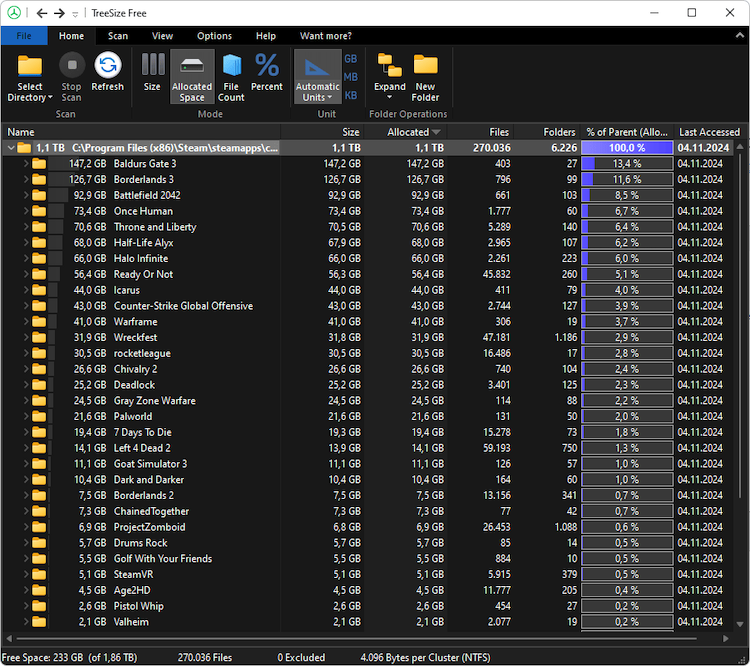
4.Click any folder to drill down.
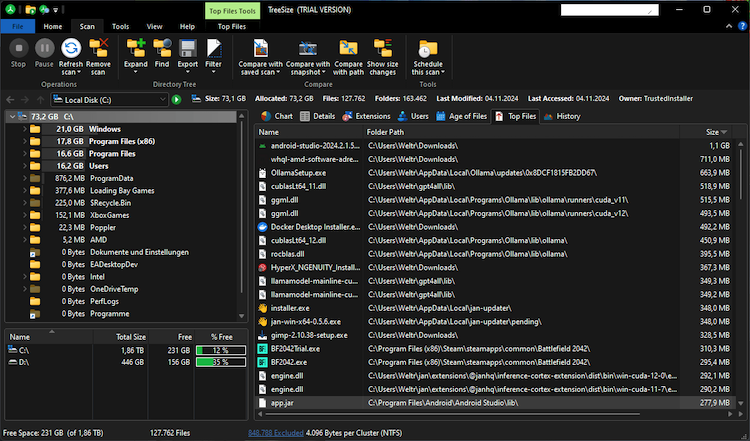
Best Features: Familiar Explorer-like interface, export to CSV.
Pros: Free version includes core features, scans network drives.
Cons: Slower than WizTree, dated interface.
Whether you use TreeSize or other tools, the ultimate goal remains mastering how to find large files on windows 11 efficiently without wasting time on manual folder browsing.
Understanding how to find large files on windows 11 at the folder level helps you clean entire directories at once.
You now have a complete toolkit to master how to find large files on windows 11. From built-in File Explorer and Storage Sense to powerful tools like WizTree and TreeSize, each method serves different needs. For those wanting to master how to find large files in windows 10 alongside Windows 11, these same principles apply. A consistent windows find large files routine every few months prevents unexpected storage shortages and keeps your drive healthy.
However, if you want a solution that not only finds large files windows but also cleans system junk and optimizes your PC automatically, Advanced SystemCare is the best choice. It also functions as an excellent ram optimizer windows 11 and helps with how to free up disk space.
Download IObit Advanced SystemCare today and experience a cleaner, faster computer.

All-in-one PC health solution.
Free Download