Your PC may be storing more clutter than you realize. Temporary files from apps you removed months ago, browser caches, setup leftovers, logs, and old update data can quietly consume valuable storage. A junk files cleaner can help identify this unnecessary data and remove it more efficiently than searching folders by hand. But do you really need one, and which tools are worth using? This guide explains what junk files are, how to remove them with Windows 11/10 tools, and which free cleaners are worth considering in 2026.
What Are Junk Files and Why Should You Clean Them?
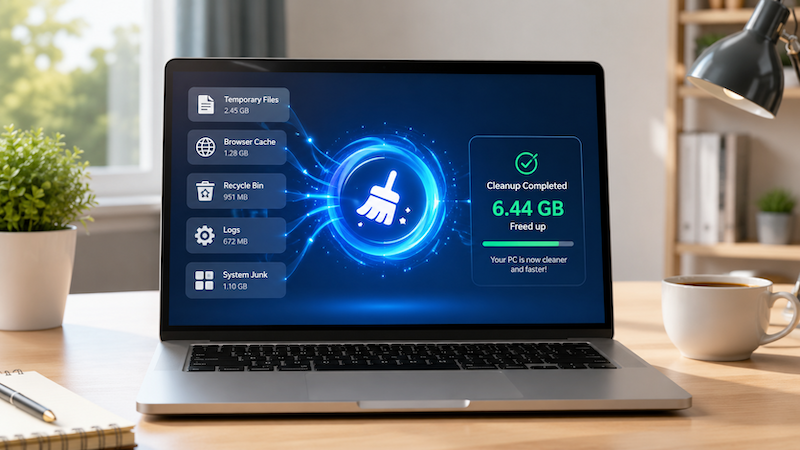
Before choosing a cleanup method, it helps to understand what junk files actually are. They are files that Windows or applications no longer need for normal use, including temporary installation data, browser cache, crash logs, thumbnails, old update remnants, and Recycle Bin contents. These files are usually harmless individually, but they can accumulate over time.
Regular cleanup can recover storage, reduce digital clutter, and make routine PC maintenance easier. It is especially useful on smaller SSDs, where free capacity can disappear quickly. If you are researching how to free up disk space, temporary and cached data are sensible places to start before deleting personal files.
How to Clean Junk Files on Windows 11/10 Using Built-in Tools
Now that you know what can accumulate, you can start with Windows itself. If you have searched for how to clean junk files in PC, start with the following built-in methods, which cover the most common sources of disposable data.
Clean Junk Files via Disk Cleanup
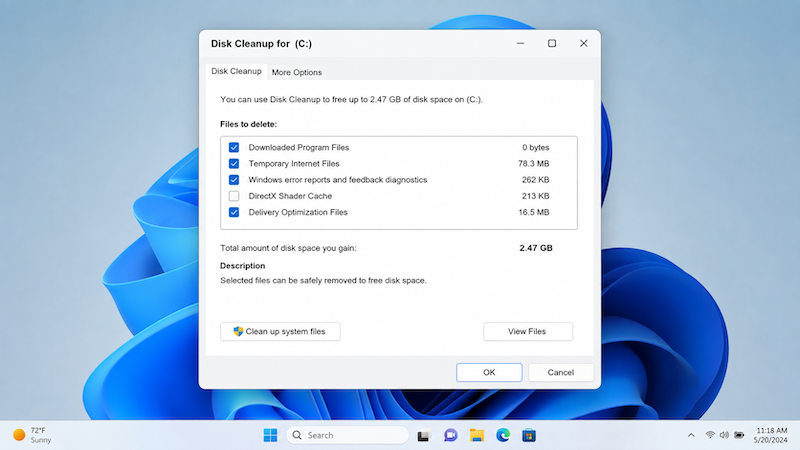
Disk Cleanup can remove selected temporary and system files from Windows.
Step 1. Type Disk Cleanup in the Windows search box and open it.
Step 2. Select the drive you want to clean, usually C:, and click OK.
Step 3. Check the file categories you want to remove. Select a category to read its description first.
Step 4. Click Clean up system files if you want Windows to rescan for additional removable system data.
Step 5. Review your selections, click OK, and confirm Delete Files.
Clean Junk Files via Storage Sense
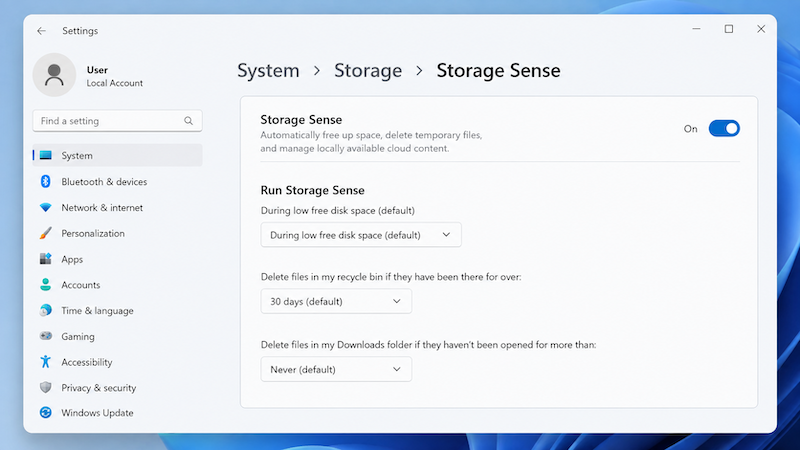
For ongoing maintenance, the Storage Sense feature offers greater convenience. It can automatically remove unnecessary temporary files and older Recycle Bin items. By default, it does not remove items from Downloads or cloud storage unless you configure those options.
Step 1. Open Settings > System > Storage.
Step 2. Select Storage Sense and turn it on.
Step 3. Choose when it should run and how long Recycle Bin items should be kept. Review the Downloads option carefully before changing it.
Step 4. Run Storage Sense manually whenever you want an immediate cleanup.
Clean Junk Files via the %temp% Folder
You can also clear temporary application data manually through the %temp% folder.
Step 1. Press Win + R, type %temp%, and press Enter.
Step 2. Press Ctrl + A to select the folder contents.
Step 3. Press Delete. If Windows says a file is currently in use, choose Skip rather than forcing its deletion.
Step 4. Empty the Recycle Bin afterward if you want to reclaim the space immediately.
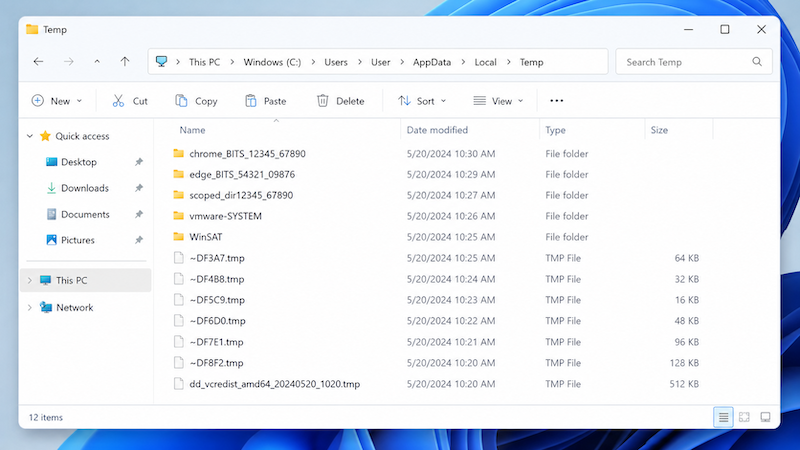
This is a useful approach when learning how to clean up temp files, but it covers only one source of clutter. A PC junk files cleaner can scan more Windows and application locations in one pass.
Editor's Picks: Best Free Junk File Cleaners for PC in 2026
Built-in Windows tools are sufficient for routine cleanup, but a junk files cleaner for PC can be more convenient when you want broader scanning or several maintenance functions in one interface.
IObit Advanced SystemCare
IObit Advanced SystemCare is an all-in-one Windows maintenance utility with a free junk files cleaner that can remove temporary files, caches, logs, and other unnecessary data. Its simple scan, easy workflow, and intuitive interface make routine cleanup easy for beginners without requiring an upfront purchase.
Beyond junk cleanup, Advanced SystemCare also provides tools for startup optimization, memory management, and overall system maintenance. This makes it a comprehensive PC cleaner option for users who want both file cleanup and broader PC optimization.
Advanced SystemCare Free
- Clean: 420 billion traces removed & 85 EB junk files cleaned
- Protect: 80 million unauthorized access blocked & 20 million bugs fixed
- Speed Up: 6 million hours of startup time saved & Turbo boost
- Optimize: Auto clean and auto care your PC with AI mode

Key features:
Free junk file cleaning: The free registry cleaner can scan for and remove common unnecessary data, including temporary files, caches, and logs, without an upfront purchase.
Simple one-click workflow: Its Scan and Fix process reduces the number of manual steps, making routine cleanup easier for beginners.
Easy-to-navigate interface: Major cleaning and optimization functions are grouped clearly, so users can quickly find the tools they need without navigating complicated menus.
Broader PC maintenance: In addition to junk cleanup, Advanced SystemCare includes tools for areas such as startup management and general system maintenance for PC daily use.
Step 1. Download and install Advanced SystemCare on your Windows PC.
Step 2. Open Care > Manual Mode and select Junk File Clean. If you also want to check invalid or obsolete registry entries, select Registry Clean separately; registry cleaning is not the same as file cleanup.
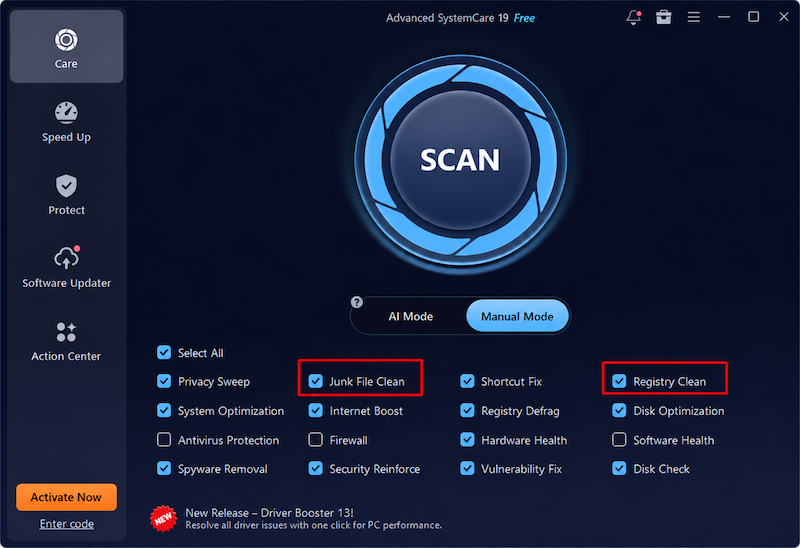
Step 3. Click Scan and wait for the selected modules to finish.
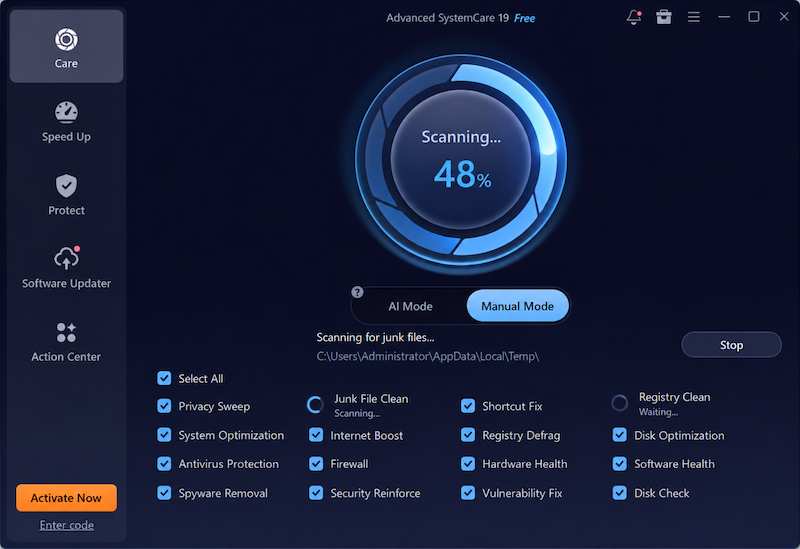
Step 4. Review the detected items and categories before making changes.
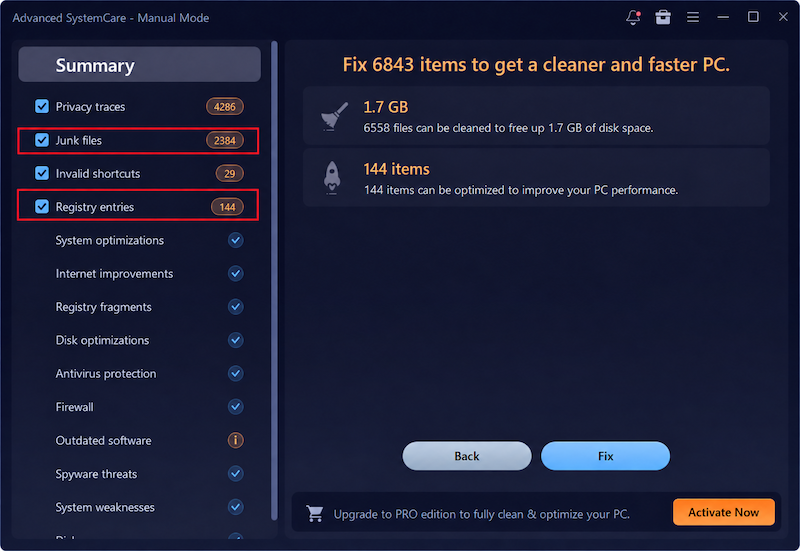
Step 5. Click Fix, then review the cleanup summary. If cleanup does not solve a broader slowdown, a computer performance test may help identify other bottlenecks.
BleachBit
BleachBit is free and open source for Windows and Linux. It removes caches, cookies, logs, recent-file history, and temporary files, and Preview mode lets you inspect what will be deleted first. Portable use, custom cleaners, command-line operation, and file shredding are also supported.
Key features: Preview mode, portable use, custom cleaners, and secure deletion.
CCleaner
CCleaner Free includes Health Check and Custom Clean. It can remove temporary system and application files, Recycle Bin contents, browser history, cached images, cookies, and other junk.
Key features: Health Check, Custom Clean, browser cleanup, and temporary-file removal.
Avira
Avira Free System Speedup combines junk cleanup with broader optimization and can scan for temporary files, browser cache and cookies, and other unnecessary data.
Key features: temporary-file cleanup, browser-data cleanup, junk scanning, and system-maintenance tools.
Are Junk File Cleaner Apps Safe to Use?
Whichever tool you choose, download it from the developer's official site. Most reputable cleanup utilities are generally safe when used with clearly understood settings, but an unverified junk files cleaner app promoted through alarming pop-ups or bundled installers deserves caution. Before a deep cleanup or system-level change, review the detected items and consider creating a Windows restore point. Do not delete unfamiliar files simply because a utility labels them unnecessary.
FAQs About Cleaning Junk Files
Q1. What Is the Best Free Junk File Cleaner?
There is no single best choice for everyone. Storage Sense is convenient for basic Windows maintenance, while a free junk files cleaner such as Advanced SystemCare or BleachBit offers broader cleanup options.
Q2. How Often Should You Clean Junk Files for a Faster PC?
For many users, every few weeks is sufficient. Clean more often if storage is limited or you frequently install and remove programs.
Q3. What Happens When You Clear Junk Files?
You remove expendable data such as caches, logs, and temporary files, which can free up storage. Cleanup will not automatically fix every performance problem.
Q4. What Should You Delete to Free Up Space?
Start with temporary files, Recycle Bin contents, unused installers, unnecessary apps, and large downloads you no longer need. Review personal folders before deleting anything.
Q5. How Do You Clear Junk Files on Android and iPhone?
On Android, use built-in storage controls or trusted cleaning features. On iPhone, check Settings > General > iPhone Storage, offload unused apps, and clear browser data when appropriate.
Conclusion
Windows already provides effective cleanup tools, but a junk files cleaner for PC can make broader maintenance quicker and easier. If you want a beginner-friendly option with additional PC-care features, Advanced SystemCare is worth considering. It scans for junk files and unnecessary data while offering one-click tools to help keep your PC clean and running smoothly. Try Advanced SystemCare today and give your PC a cleaner, smoother start.
Advanced SystemCare Free
- Clean: 420 billion traces removed & 85 EB junk files cleaned
- Protect: 80 million unauthorized access blocked & 20 million bugs fixed
- Speed Up: 6 million hours of startup time saved & Turbo boost
- Optimize: Auto clean and auto care your PC with AI mode