You launch your favorite game, settle into your chair, and grab your controller, but your PC refuses to recognize it. When Bluetooth not working Windows 11 causes this problem, the controller may not be broken at all. A charging-only USB cable, pairing issue, outdated driver, USB conflict, or interference from an old paired device can cause the problem. This guide explains practical ways to fix controller and no Bluetooth connection problems, starting with quick checks and moving to advanced fixes. Keep reading and try the method that matches your setup.
Why Is Bluetooth Not Working on Windows 11?
Several Windows settings and driver problems can cause Bluetooth not working Windows 11 errors. Before changing advanced settings, identify the likely cause.
Bluetooth is turned off: Windows may have Bluetooth disabled, or Airplane Mode may have turned off wireless connections.
Bluetooth service malfunction: Windows uses background services to manage Bluetooth devices. A stopped or faulty service can prevent connections.
Outdated or corrupted driver: An old, damaged, or incompatible Bluetooth driver can cause Bluetooth not working problems.
Windows Update issue: A recent update may change driver behavior or create compatibility problems with an existing Bluetooth adapter.
Adapter detection problem: Windows may fail to detect the Bluetooth hardware correctly. This can result in Windows Bluetooth not working or Bluetooth disappearing from Windows settings.
Finding the cause first can save time and help you choose the right fix.
Quick Fixes for Bluetooth Not Working on Windows 11
Before you make driver or system changes, try these basic checks. They often solve Bluetooth not working on Windows 11 problems within a few minutes.
Check Airplane Mode: Press Windows + A and make sure Airplane Mode is off. Then check whether the Bluetooth tile appears and stays enabled.
Toggle Bluetooth Off and On: Open Settings > Bluetooth & devices. Turn Bluetooth off, wait a few seconds, and turn it back on.
Restart Your PC and Bluetooth Device: Restart Windows and also power off your headphones, controller, mouse, or keyboard. Turn the device back on after Windows loads.
Remove and Re-Pair the Device: Go to Settings > Bluetooth & devices, select the device, choose Remove device, and pair it again using Add device.
Move the Device Closer: Keep the Bluetooth device near the PC during pairing. Walls, other wireless devices, and USB equipment can sometimes interfere with the signal.
If these checks do not solve Bluetooth not working, move to the driver and Windows troubleshooting methods below.
Update Your Bluetooth Driver to Fix Bluetooth Problems
A driver allows Windows to communicate correctly with your Bluetooth hardware. If the driver becomes outdated, corrupted, or incompatible, you may experience connection failures, missing Bluetooth settings, or devices that repeatedly disconnect. You can first try updating the driver manually through Windows Device Manager. Right-click the Start button, select Device Manager, expand Bluetooth, right-click your Bluetooth adapter, and choose Update driver. Then select Search automatically for drivers and allow Windows to look for an available update. For users who prefer a quicker automated option, Driver Booster can scan the system for outdated, missing, or problematic drivers and show available updates in one place.
Driver Booster Free
- Automatically scan and update drivers.
- Update game ready drivers for peak gaming performance.
- Identify and fix various common of hardware issues.
- Boost 30% of system performance for fast & smooth running.
It may also be useful for people searching for a best driver updater instead of manually checking each device through Device Manager.
Key Driver Booster Features
One-click scan and update for Bluetooth drivers: Driver Booster can scan the computer for outdated, missing, or problematic drivers with one click. If a supported Bluetooth driver needs attention, the program lists the available update so users can review and install it without manually searching different manufacturer websites.
Extensive compatible driver database: The software checks a large driver database covering many hardware manufacturers and device models. This can make it easier to locate compatible Bluetooth, audio, Wi-Fi, chipset, and other supported driver updates for Windows systems.
Automatic, hassle-free driver installation: After an available driver update is selected, Driver Booster can handle much of the installation process automatically. This reduces the need to download individual driver packages, locate installation files, or manually work through several setup screens.
Safe updates backed by system restore points: Driver changes can sometimes create compatibility problems. Driver Booster supports creating restore points before certain driver updates, giving users an option to return to an earlier system state if an installation causes unexpected issues.
How to Update Bluetooth Drivers With Driver Booster
Step 1. Download Driver Booster from the official IObit website and install it on your Windows 11 computer. Follow the installation instructions and open the program when the setup finishes.
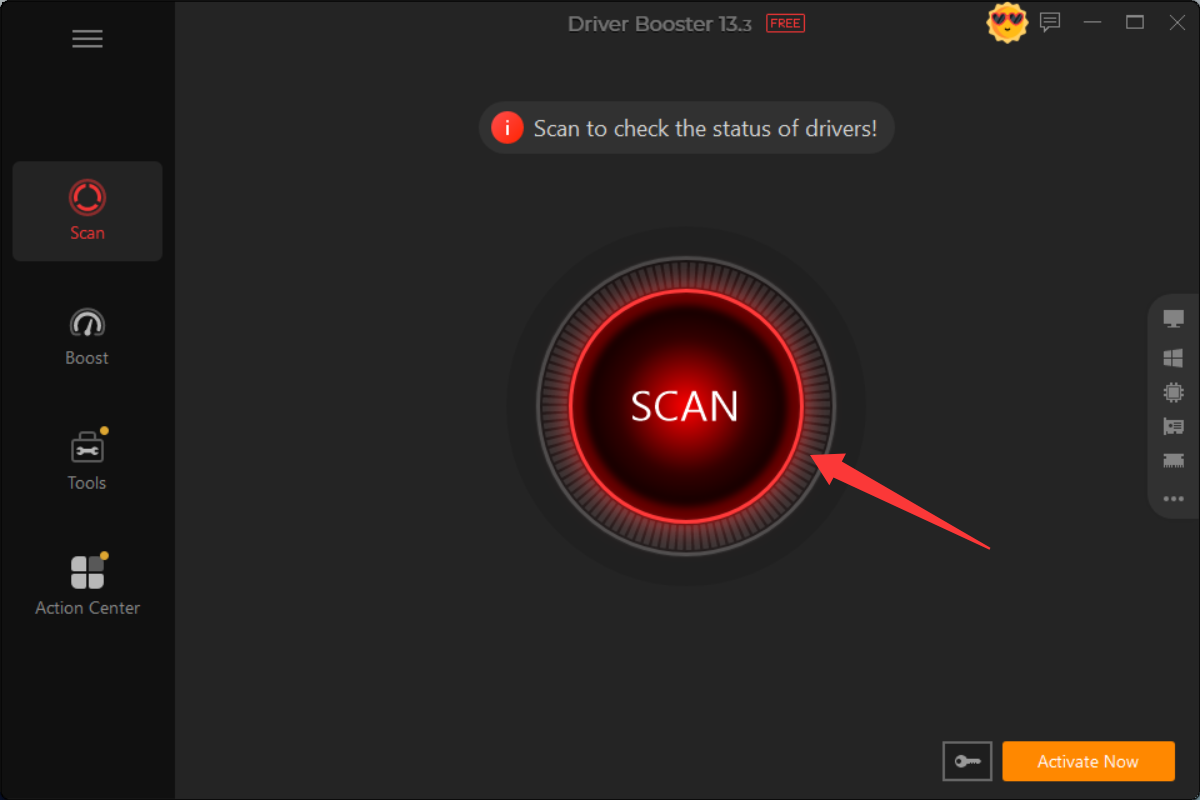
Step 2. Open Driver Booster and click Scan. The program checks your system for outdated or missing drivers. Wait until the scan finishes before selecting any updates.
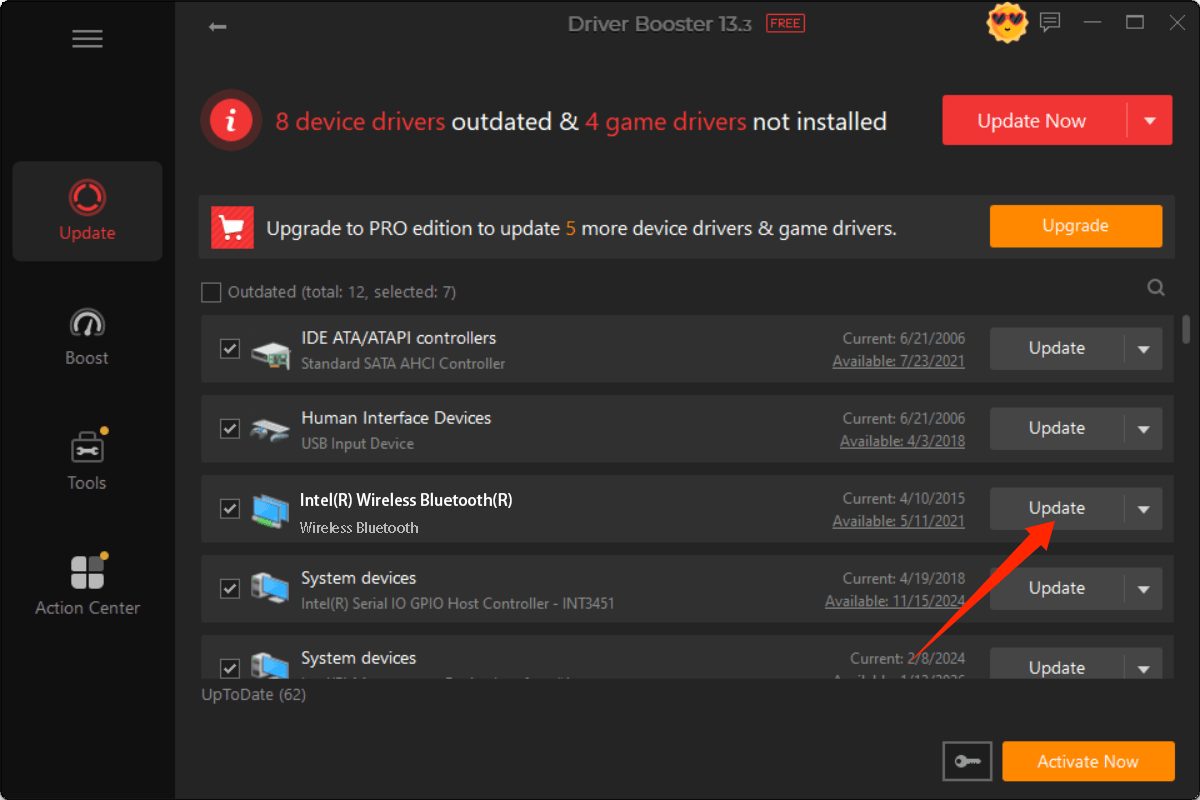
Step 3. Look through the scan results for your Bluetooth adapter or Bluetooth-related driver. If Driver Booster lists an available Bluetooth update, review the driver information before installing it.
Step 4. Click Update beside the Bluetooth driver and let the program complete the installation. Do not shut down the computer while Windows installs the driver. Restart the PC afterward and test your Bluetooth device again.
 After the update finishes, restart your computer and reconnect the Bluetooth device. If Bluetooth starts working normally, an outdated or damaged driver likely contributed to the problem.
Users who prefer manual control can continue updating drivers through Device Manager or the PC manufacturer's support page. However, an automatic driver updater can reduce manual searching when several device drivers need attention at the same time.
Fix Bluetooth Not Showing or Working After a Windows Update
A Windows update can sometimes change driver files, system settings, or hardware compatibility. If Bluetooth not working Windows 11 started immediately after an update, check the following options.
Check Whether Bluetooth Appears in Device Manager
Device Manager can show whether Windows detects your Bluetooth adapter.
Press Windows + X.
Select Device Manager.
Look for the Bluetooth category.
Expand it and check for your Bluetooth adapter.
If you see a warning icon, right-click the device and select Properties.
Check the Device status section for an error message.
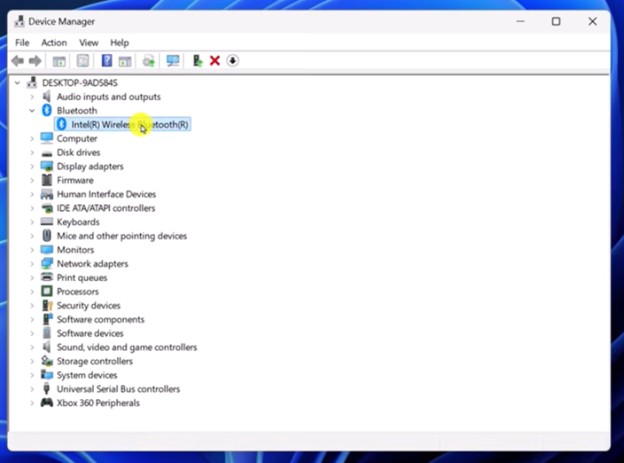
If there is no Bluetooth on device manager, Windows may not be detecting the adapter correctly. Check for an Unknown device or a wireless adapter with a warning symbol as well.
Run the Bluetooth Troubleshooter
Windows includes built-in troubleshooters that can check common Bluetooth problems.
Open Settings.
Select System.
Click Troubleshoot.
Select Other troubleshooters.
Find Bluetooth.
Click Run.
Follow the instructions shown by Windows.
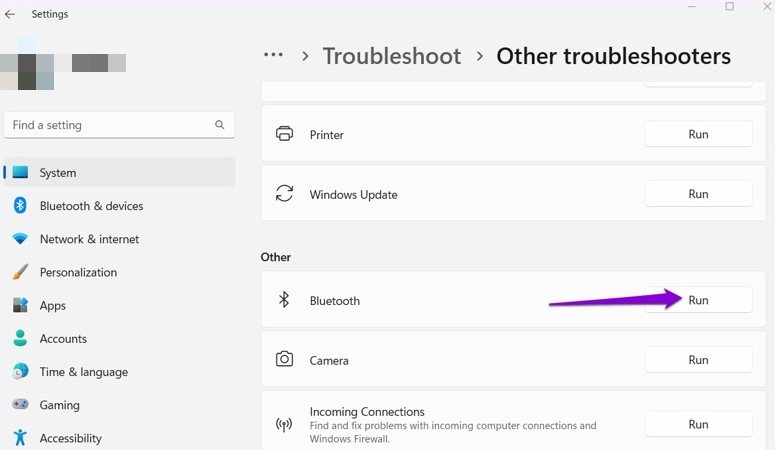
The troubleshooter may identify a disabled service, driver problem, or system setting that prevents Bluetooth from working.
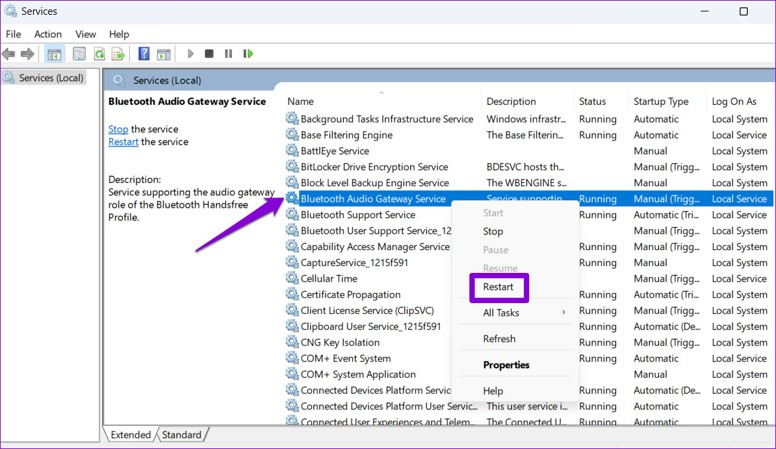
Restart Bluetooth Support Services
The Bluetooth Support Service helps Windows manage Bluetooth devices. Restarting it can resolve some connection problems.
Press Windows + R.
Type services.msc and press Enter.
Find Bluetooth Support Service.
Right-click it and select Restart.
Open its Properties if needed.
Set Startup type to Automatic.
Click Apply and then OK.
Restart Windows and test the Bluetooth device again.
Roll Back a Problematic Driver or Update
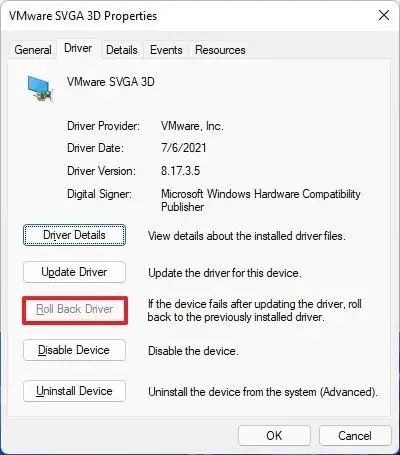
If Bluetooth not working started after a driver update, try rolling the driver back.
Open Device Manager.
Expand Bluetooth.
Right-click the Bluetooth adapter.
Select Properties.
Open the Driver tab.
Select Roll Back Driver if the option is available.
Restart your computer.
If a recent Windows update caused the issue, open Settings > Windows Update > Update history and review recently installed updates. If Windows provides an option to remove a problematic update, follow Microsoft's instructions carefully.
If you often manage several hardware problems, learning how to fix drivers can also help you troubleshoot Wi-Fi, audio, USB, and Bluetooth devices more effectively.
Fix Bluetooth Connected but Not Working
Sometimes Windows connects your Bluetooth device successfully, but the device still does not work. This problem often affects headphones, speakers, and other Bluetooth audio devices. If Bluetooth not working continues after pairing, check the selected audio output and related drivers before trying advanced fixes.
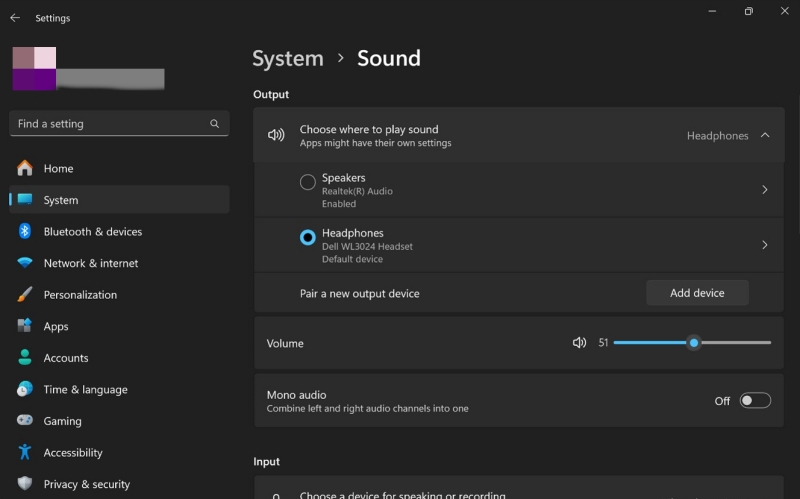
Set Your Bluetooth Device as the Audio Output
Windows may connect your headphones or speaker but continue sending sound through the built-in speakers.
Open Settings > System > Sound.
Under Output, find your connected Bluetooth device.
Select your headphones or speaker.
Play some audio to test the connection.
Update Audio Drivers Alongside Bluetooth Drivers
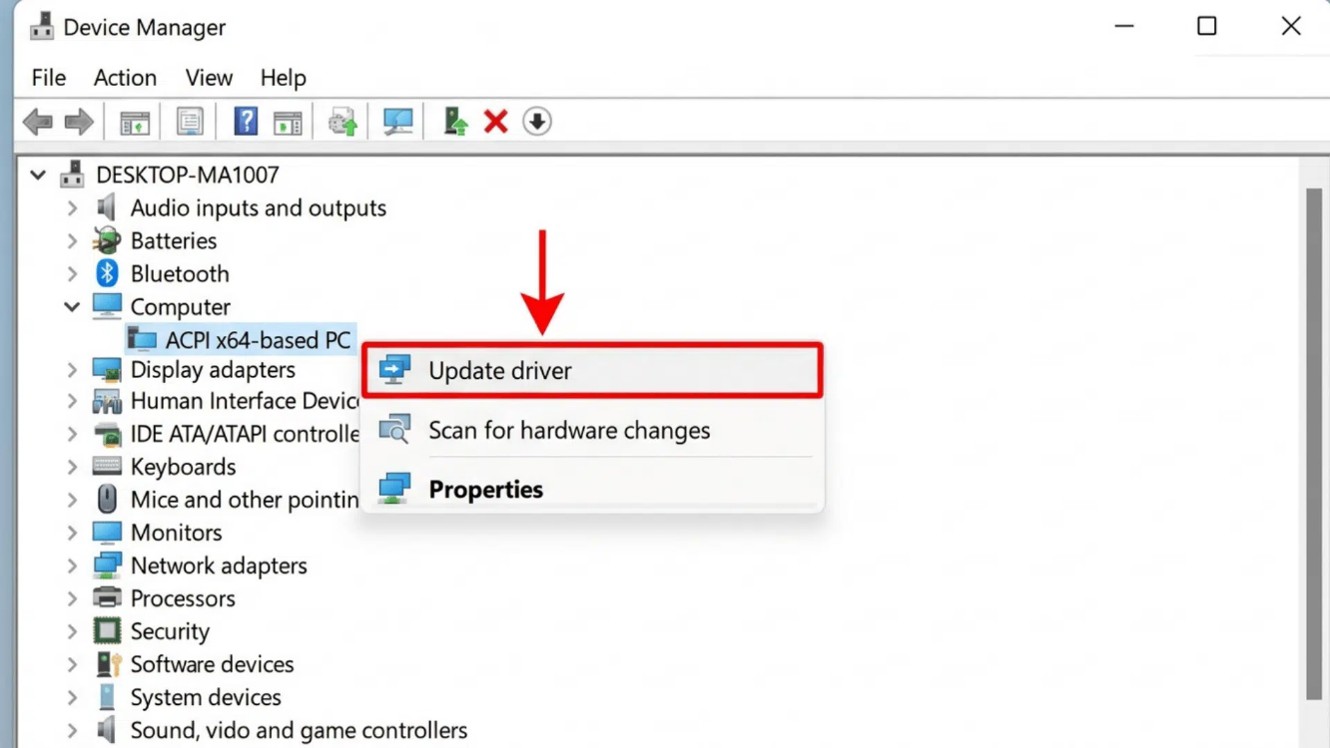
Bluetooth may connect correctly while an outdated or corrupted audio driver prevents sound from reaching your headphones or speakers. If you are dealing with audio driver not working problems, open Device Manager and expand Sound, video and game controllers.
Right-click your main audio device, select Update driver, and choose Search automatically for drivers. Restart Windows after the installation and test your Bluetooth audio device again.
If the problem continues, it may require reinstalling the audio driver or downloading the correct version from your PC, motherboard, or audio-device manufacturer's support page. Also confirm that the Bluetooth headphones or speaker are selected under Settings > System > Sound > Output.
Still Not Working? Try These Advanced Fixes
If Bluetooth not working continues after the earlier methods, check the hardware and power settings.
Check Bluetooth Power Management Settings
Windows may turn off some hardware to save power.
Open Device Manager.
Expand Bluetooth.
Open your adapter's Properties.
Select Power Management.
If available, clear Allow the computer to turn off this device to save power.
Click OK and restart Windows.
Check for Hardware or Adapter Problems
If Bluetooth does not appear anywhere in Windows, check whether your PC actually includes Bluetooth. For a desktop PC, verify that the Bluetooth adapter is connected correctly. If you use a USB Bluetooth adapter, try another USB port. You may also need to update wifi drivers if your PC uses a combined wireless adapter.
Get Manufacturer-Specific Support
Visit your computer or adapter manufacturer's support page and search for your exact model. Download the Windows 11 Bluetooth driver listed for that model. Avoid installing a driver made for a different device, even if the name looks similar.
How to Prevent Bluetooth Problems on Windows 11?
Once you fix Bluetooth not working windows 11, a few simple habits can reduce future problems.
Keep Windows updated, but check Bluetooth after major Windows updates. Install drivers from reliable sources and avoid random driver-download websites. If you frequently connect headphones, controllers, keyboards, and mice, remove old devices that you no longer use.
You can also check other hardware drivers when troubleshooting. For example, users may search for how to update wifi drivers, USB drivers, chipset drivers, or audio drivers when wireless hardware behaves unexpectedly.
Driver maintenance can also matter when troubleshooting other PC performance problems. For example, outdated graphics, chipset, network, or audio drivers may affect games as well as connected devices. If gaming performance is another concern, you can also read our guide on how to fix Roblox lag for common causes of stuttering, high ping, and poor game performance.
FAQs about Bluetooth Not Working Windows 11
Q1. Why is Bluetooth not showing in Windows 11?
A missing Bluetooth option can result from a disabled adapter, missing driver, stopped service, Windows update problem, or hardware issue. Check Device Manager first.
Q2. How do I fix Bluetooth not working?
Start by checking Airplane Mode, restarting Bluetooth, restarting both devices, and pairing the device again. Then update or reinstall the Bluetooth driver.
Q3. Why does Windows connect to Bluetooth but produce no sound?
Windows may connect the device but select another audio output. Open Settings > System > Sound and choose your Bluetooth headphones or speaker as the output device.
Q4. What should I do if Device Manager does not show Bluetooth?
Check for an Unknown device or wireless adapter with a warning icon. If Windows cannot detect the hardware, install the manufacturer's Bluetooth driver or check the physical adapter.
Q5. Can outdated drivers cause Bluetooth problems?
Yes. An outdated, corrupted, or incompatible driver can stop Windows from detecting or communicating correctly with a Bluetooth adapter.
Conclusion
When Bluetooth not working Windows 11 prevents your controller, headphones, mouse, or keyboard from connecting, the hardware may not be the real problem. Start with quick Bluetooth checks, then inspect Device Manager, services, Windows updates, and drivers. If driver problems continue, try Driver Booster to scan for available driver updates and simplify the update process. Work through the fixes above until your Bluetooth device connects and works normally again.
Driver Booster Free
- Automatically scan and update drivers.
- Update game ready drivers for peak gaming performance.
- Identify and fix various common of hardware issues.
- Boost 30% of system performance for fast & smooth running.