HP Omen gaming PCs are built for performance, but software optimization features can sometimes raise questions about resource usage and gaming speed. One feature you may encounter is HP Omen System Optimizer, which is designed to help manage system resources for gaming.
This guide explains what is HP Omen System Optimizer, how it works, how to disable it, and what you can do when your HP Omen is running slow.
What Is HP Omen System Optimizer?
HP Omen System Optimizer is a feature in OMEN Gaming Hub that helps improve gaming performance on supported HP Omen PCs. It manages background processes and gives games more system resources, such as CPU and memory. This can help reduce interruptions and make games run more smoothly. Its main functions include:
Managing background processes.
Freeing resources for games.
Reducing unnecessary system activity.
Supporting smoother gaming performance.
Results may vary depending on your PC hardware, Windows settings, installed programs, and the game you play.
Is HP Omen System Optimizer Good for Gaming?
For users who want an easy way to improve gaming performance, HP Omen System Optimizer can be helpful. It manages system resources without requiring you to close apps or change Windows settings manually. However, it cannot fix problems caused by low RAM, overheating, outdated drivers, or weak hardware.
If your computer already runs well, you may not notice much improvement. You can also manage performance yourself if you want more control over background apps and startup programs.
Whether you should use it depends on your PC and gaming needs.
How to Turn Off HP Omen System Optimizer
If you want more direct control over Windows resources or meet problems like HP Omen System Optimizer keeps popping up, you can disable its optimization features. The exact interface may differ between OMEN Gaming Hub versions, so check the available settings on your PC before making changes.
How to turn off HP Omen System Optimizer:
Step 1. Press Windows + S, search for OMEN Gaming Hub, and open it.
Step 2. Select Optimizer from OMEN Gaming Hub.
Step 3. Locate the Booster/Game Booster option and switch it off.
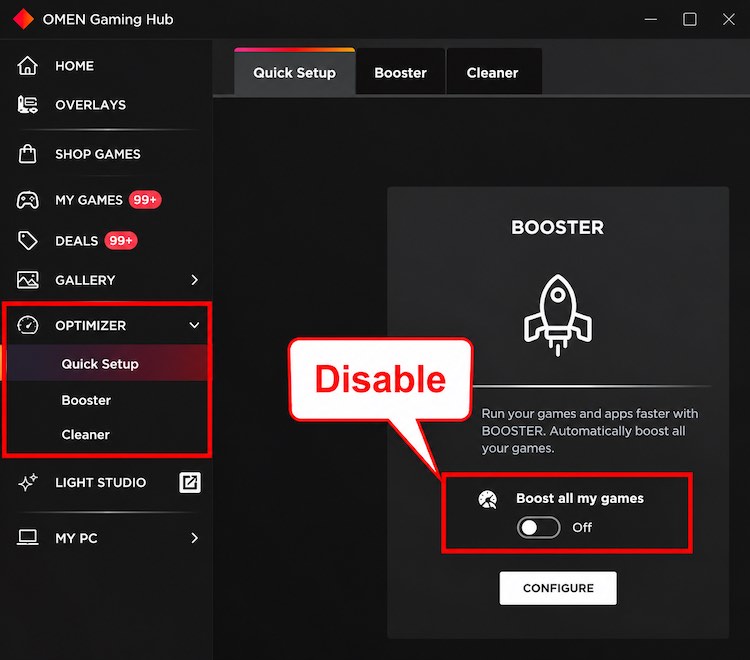
Step 4. Open My Games and select your installed games. Check that the Booster option for each game is also turned off.
If your version offers individual controls rather than one master switch, disable only the features you do not need first. This approach makes it easier to determine whether a particular optimization option is affecting performance.
HP Omen Running Slow? Optimize It with Advanced SystemCare
When an HP Omen is running slow or an HP Omen system optimizer pops up, disabling one gaming feature may not solve the underlying problem. Accumulated junk files, unnecessary startup programs, background processes, and inefficient Windows settings can all consume resources. A broader PC optimization utility can therefore be useful when the slowdown affects both games and everyday Windows performance.
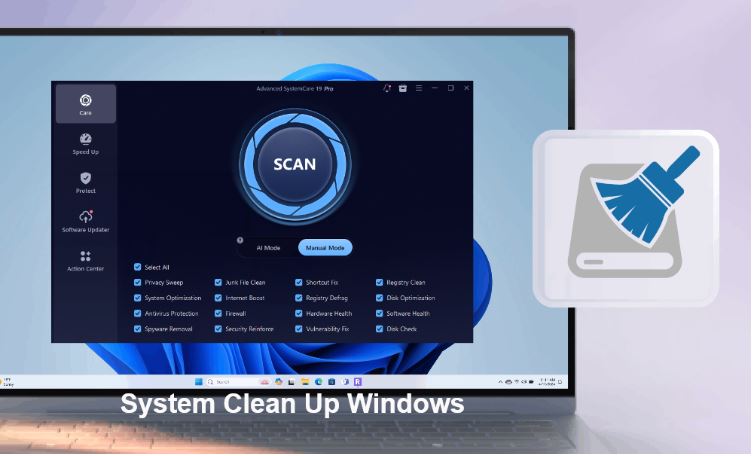
IObit Advanced SystemCare provides an all-in-one approach to cleaning and optimizing Windows PCs. Instead of focusing only on launching games, it can help maintain the overall Windows environment, making it especially relevant when your HP Omen feels sluggish even outside gaming.
Advanced SystemCare Free
- Clean: 420 billion traces removed & 85 EB junk files cleaned
- Protect: 80 million unauthorized access blocked & 20 million bugs fixed
- Speed Up: 6 million hours of startup time saved & Turbo boost
- Optimize: Auto clean and auto care your PC with AI mode

Key features related to HP Omen performance include:
Free Up RAM for HP OMEN: As a PC optimizer, it stops unnecessary background processes to free more memory for games, helping reduce slowdowns when HP OMEN System Optimizer is disabled.
Manage Startup Programs: Identifies unnecessary startup items that can slow down your HP OMEN during boot and continue using resources while you play.
Clean Junk Files: Removes temporary files, caches, and unnecessary data that can accumulate on an HP OMEN PC and contribute to slow performance.
Check and Optimize PC Performance: Runs a PC performance check to identify system, startup, and resource issues that may cause an HP OMEN PC to run slowly.
Manage Startup and Background Programs: Helps reduce unnecessary apps and services running in the background, providing another way to optimize HP OMEN performance without relying solely on OMEN System Optimizer.
How to Optimize an HP Omen with Advanced SystemCare
If your PC has gradually become slower, a system scan can help address several common performance problems at once. This is particularly useful when you cannot identify one specific cause behind the slowdown. Before changing hardware or resetting Windows, you can check for unnecessary files, processes, and startup items first.
Step 1. Download and install IObit Advanced SystemCare on your HP Omen PC.
Step 2. Launch the program, open the main optimization interface, and select the relevant scan options for junk files, system optimization, startup items, and other performance issues. Click Scan to Proceed.
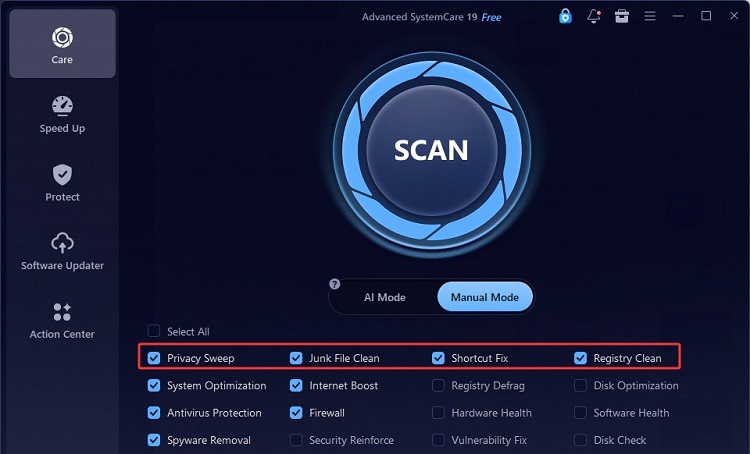
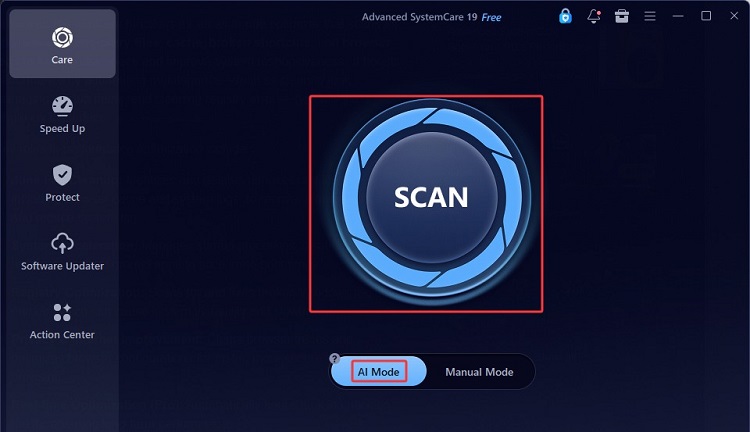
Or you can directly use the AI Scan for an intelligent analysis and cleaning solution.
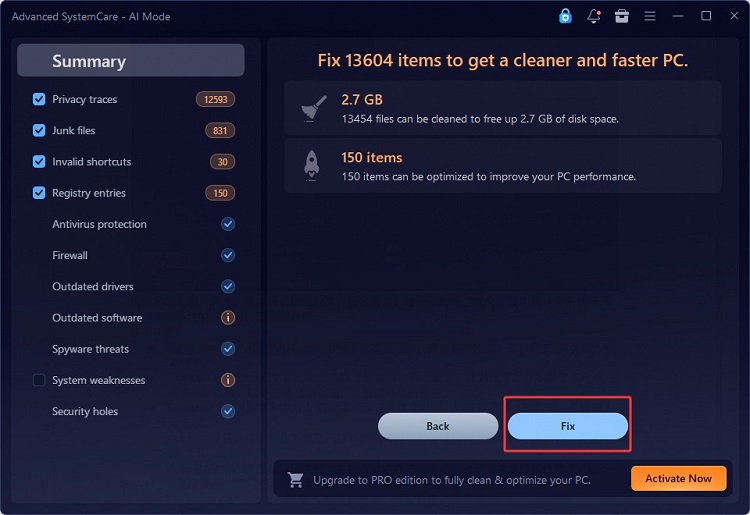
Step 3. Review the detected issues, then click Fix to apply the selected optimizations.
For ongoing maintenance, you can periodically check startup programs and background processes instead of waiting until performance becomes noticeably worse.
Other Ways to Fix an HP Omen Running Slow
If optimization software does not fully solve the issue, several Windows and hardware-related fixes are worth checking. Gaming laptops and desktops depend on multiple components working correctly, so slow performance may come from the graphics driver, Windows power configuration, storage, background applications, or even thermal throttling.
Try the following methods:
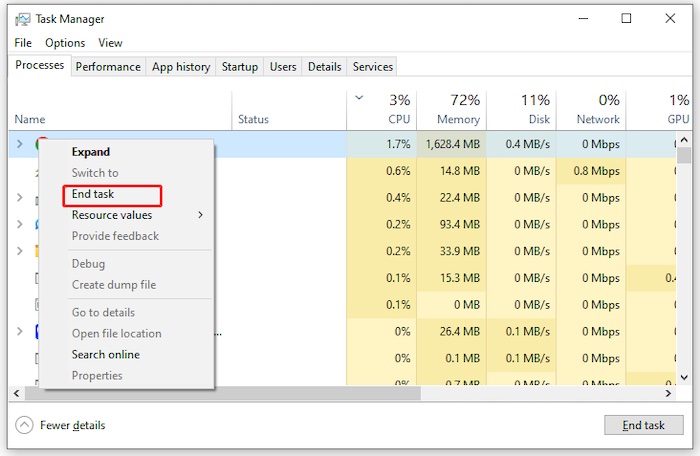
1. Close Unnecessary Background Apps
Press Ctrl + Shift + Esc to open Task Manager. Under Processes, check which applications are consuming significant CPU, memory, disk, or network resources. Close programs you do not need while gaming.
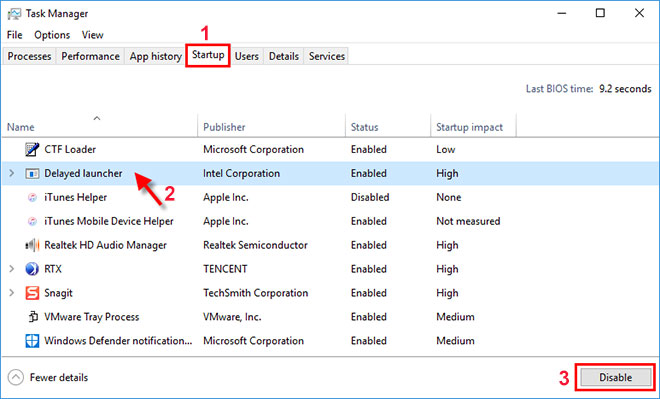
2. Disable Unnecessary Startup Apps
In Task Manager, open Startup apps. Disable nonessential programs that automatically launch with Windows. Fewer startup applications can help reduce boot time and background resource usage.
3. Update Your Graphics Driver
An outdated or problematic graphics driver can cause low FPS, stuttering, crashes, or other gaming issues. Check for an appropriate NVIDIA, AMD, or Intel graphics driver for your HP Omen hardware.
4. Check Windows Power Settings
Make sure Windows is not unnecessarily restricting performance through an aggressive power-saving mode. When gaming on a laptop, connecting the charger may also be necessary to achieve full performance.
5. Free Up Storage Space
A nearly full system drive can affect Windows updates, temporary files, and general system responsiveness. Remove unnecessary files and applications or move large personal files to another drive.
6. Check Temperatures
Excessive CPU or GPU temperatures may result in thermal throttling, which reduces clock speeds to control heat. Keep vents unobstructed and make sure the cooling system can operate properly.
HP Omen System Optimizer vs. Advanced SystemCare
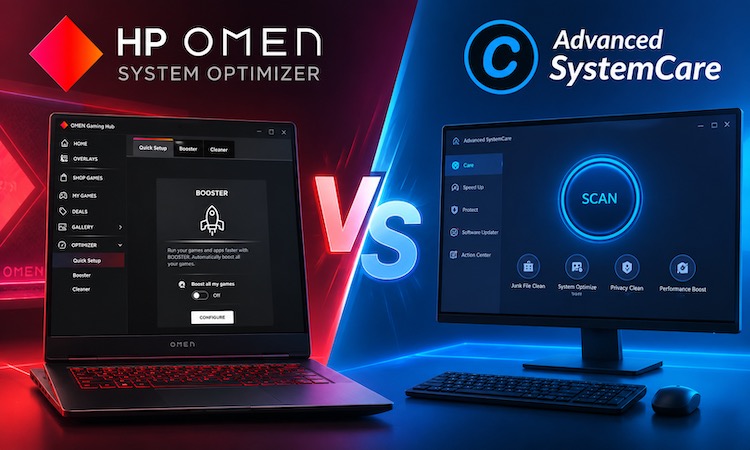
HP Omen System Optimizer and Advanced SystemCare have overlapping performance goals but different focuses.
HP Omen System Optimizer is primarily connected to the Omen gaming environment and is more suitable for users who want gaming-oriented resource optimization integrated with their HP system.
Advanced SystemCare free takes a broader Windows maintenance approach. It can help clean junk files, control startup items, release system resources, and optimize Windows settings. This makes it more appropriate when an HP Omen is running slow, not only during games but also during startup, browsing, multitasking, and normal PC use.
You do not necessarily need to run every optimization feature simultaneously. Choose the tools and settings that address your specific performance bottleneck and avoid enabling overlapping functions unnecessarily.
FAQ About HP Omen System Optimizer
1. Does HP Omen System Optimizer increase FPS?
It may help reduce background resource competition, which can improve performance consistency in some situations. However, FPS gains depend heavily on your CPU, GPU, RAM, game settings, temperatures, and other factors.
2. Should I turn off HP Omen System Optimizer?
You can turn it off if you prefer manual optimization, experience compatibility problems, or find that it provides no noticeable performance benefit. Compare gaming performance before and after disabling it.
3. Why is my HP Omen running slow?
High background resource usage, outdated drivers, low storage space, overheating, startup programs, Windows updates, or power settings can all contribute to slow performance.
4. Can Advanced SystemCare replace HP Omen System Optimizer?
They serve somewhat different purposes. HP's optimizer focuses more on the Omen gaming environment, while Advanced SystemCare provides broader Windows cleanup, startup management, and system optimization.
Final Words
HP Omen System Optimizer can be convenient for gaming-focused resource management, but it is not the solution to every performance issue. If your HP Omen is running slow, check background programs, drivers, storage, temperatures, and Windows settings. For broader PC maintenance, IObit Advanced SystemCare can help clean unnecessary files, manage startup programs, and optimize Windows performance from one interface. If the problem still exists, just search for HP Omen system optimizer Reddit to find an answer.