We all must be honest—Escape from Tarkov is a massive game. Tarkov’s core files, its launcher, and frequent updates can quickly devour over 50GB of SSD space. Maybe you just need that room for a new version or a new game, or perhaps you’re wrestling with persistent crashes. Whatever your reason, you’ve probably realized that figuring out how to uninstall Tarkov isn’t as easy as you think. That’s why this guide introduces you to every reliable method to completely solve the problem: how to uninstall Escape from Tarkov.
How to Fully Uninstall Escape from Tarkov Automatically?
As you may already know, manually hunting down game files and registry entries could be tedious. If you’d rather skip this step, the most efficient approach is to use a dedicated uninstaller tool. IObit Uninstaller would be a good one. It is a free uninstaller for Windows that’s built specifically to remove stubborn programs completely. Unlike Windows’ built-in tool, it doesn’t stop at deleting the main application - it scans for and wipes out leftover folders, registry keys, and cached files that normally get left behind.
IObit Uninstaller Free
- Complete forced uninstallation for stubborn programs.
- Uninstall a batch of programs at once.
- Scan and remove leftover files, folders, and registry entries.
- Support the management of Universal Windows Platform apps.

Here’s how to uninstall Tarkov using IObit Uninstaller.
Step 1. Download and install IObit Uninstaller.
Step 2. Launch it, then you will see a list of all installed applications on your PC. Locate “Escape from Tarkov” in the list.
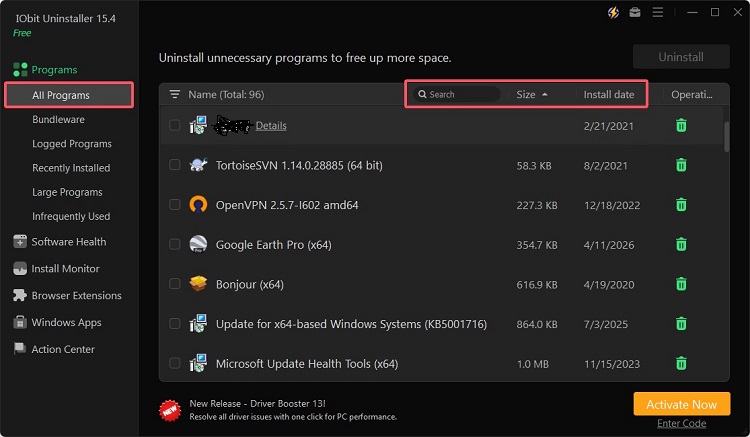
Step 3. Click the green trash bin icon next to the game entry. In the pop-up window, make sure to check the option “Automatically remove residual files”.
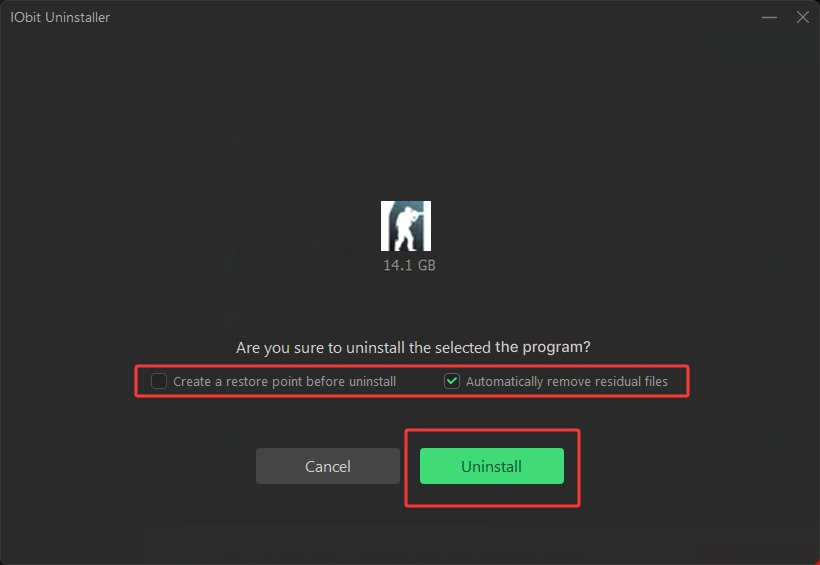
Beyond simplicity, here’s why IObit Uninstaller stands out when you are wondering how to uninstall an app completely.
Uninstall Escape from Tarkov and Tarkov Arena at once – Batch uninstallation lets you remove multiple games in a single operation, saving you the hassle of running separate uninstallers and waiting through repeated processes when clearing out both titles.
Remove residual files automatically – Regarded as one of the best uninstallers, the tool performs a deep scan after removal to wipe out leftover folders and registry entries, ensuring no trace is left behind.
Fix uninstall issues to uninstall games easily – When the game's own uninstaller is broken or missing, the tool bypasses corrupted entries and faulty scripts to initiate removal directly, getting the job done without error messages.
Force uninstall stubborn programs – For games that refuse to uninstall through normal methods due to missing files or permission errors, the force removal feature steps in to override these obstacles and clean them out completely.
How to Uninstall Escape from Tarkov with Windows Features?
Not everyone wants to install third-party software just to remove a game. If you want to know how to uninstall Escape from Tarkov with Windows’ built-in tools, here's your favorite part. However, there are a couple of important things to keep in mind before you start.
First, Escape from Tarkov often does not appear in the Windows “Apps & Features” list. Many users open Settings, search for Tarkov, and find nothing—or only the Battlestate Games Launcher shows up. If that happens, you’re better off using IObit Uninstaller or the game folder method covered later in this guide.
Second—and this is crucial—do not uninstall the Launcher before uninstalling the game itself. If you remove the BSG Launcher first, the game files become “orphaned” on your hard drive with no proper uninstaller to remove them. The correct order is always: uninstall the game first, then uninstall the Launcher.
With that out of the way, here’s how to uninstall Tarkov using Windows’ native features.
Way 1. Uninstall Escape from Tarkov with Control Panel
Step 1. Press Windows + R, type control, and hit Enter to open the classic Control Panel.
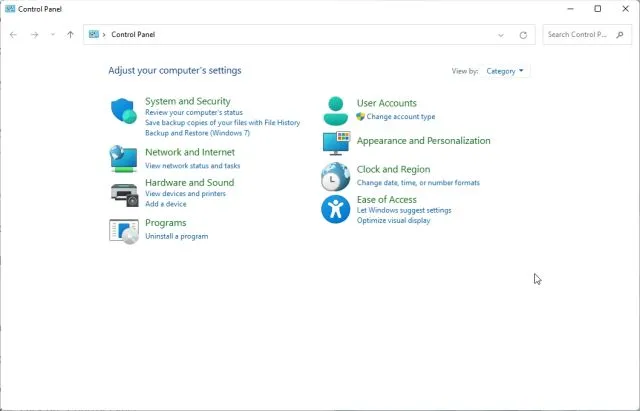
Step 2. Click on “Programs and Features” (or “Uninstall a program” under Programs).
Step 3. Scroll through the list and look for “Escape from Tarkov” or “Battlestate Games Launcher”. If you see the game entry, select it and click “Uninstall” at the top.
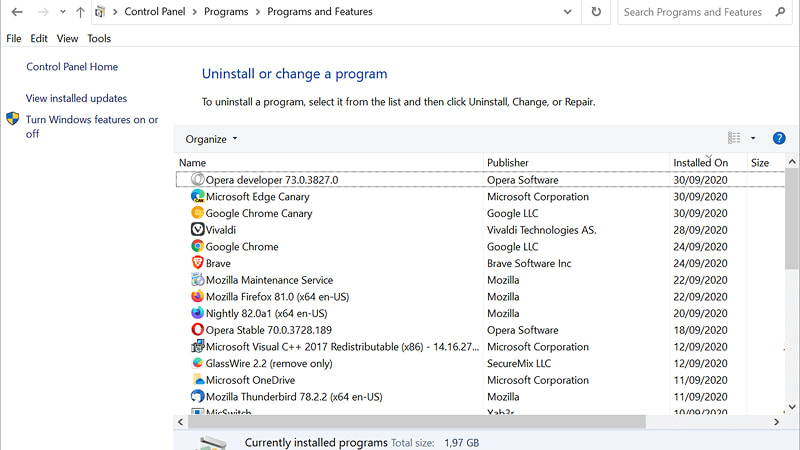
Step 4. Follow the on-screen prompts to complete the removal.
If the game doesn’t appear here—which is common—don’t worry. Move on to way 2 to check how to uninstall Tarkov.
Way 2. Uninstall Escape from Tarkov with Windows Settings
Step 1. Open Windows Settings by pressing Windows + I.
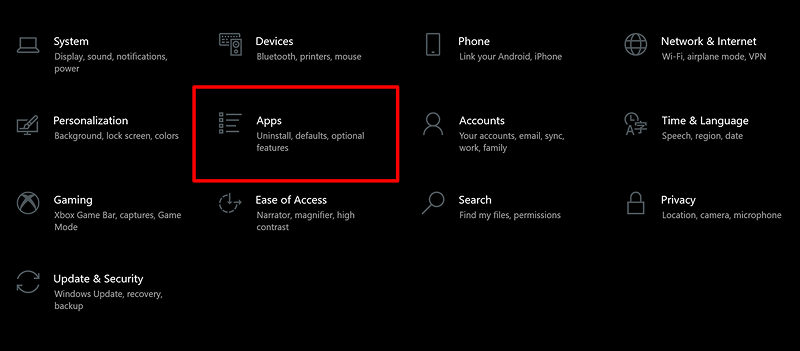
Step 2. Find the app from the list of all installed apps.
Step 3. Use the search bar to type “Escape from Tarkov” or “Battlestate”. If the game appears, click the three dots (or the entry) and select “Uninstall”.
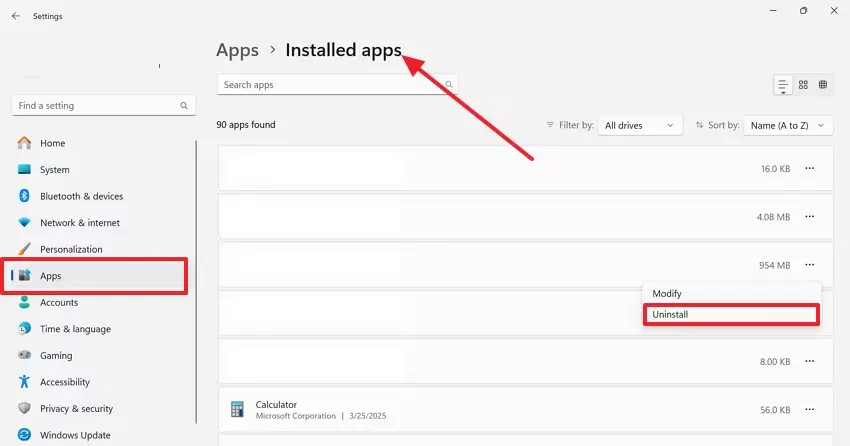
Step 4. Confirm your choice, then wait for Windows to complete.
Again, if Tarkov doesn’t show up in this list, you’re not alone—many players report the same issue. That’s a sign that the game’s registry entry is missing or corrupted, and you’ll need to use one of the alternative methods below.
Additional Part: How to Delete Leftovers Manually
Here’s the catch with manual uninstallation: Windows does not automatically remove leftover files. Even after a successful uninstall through Control Panel or Settings, Tarkov tends to leave behind configuration files, logs, and cache folders. To get a truly clean system, you need to delete these manually:
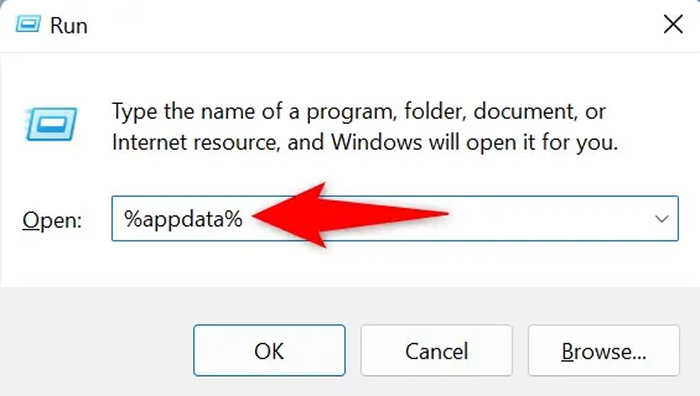
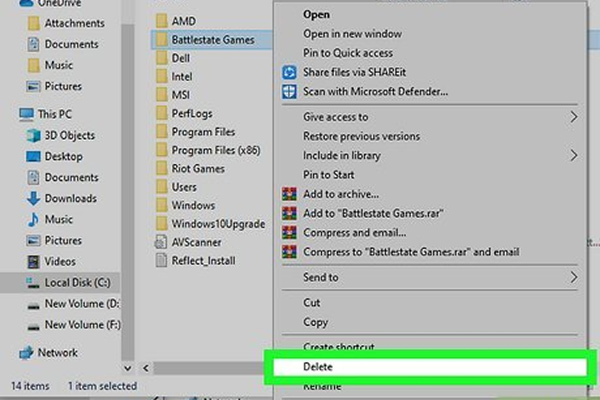
Navigate to your game installation directory (usually C:\Battlestate Games\EFT or a custom drive) and delete any remaining folders.
Optional but recommended: Open Registry Editor (regedit), navigate to HKEY_LOCAL_MACHINE\SOFTWARE\Microsoft\Windows\CurrentVersion\Uninstall, and look for any “EscapeFromTarkov” entries to remove. Be careful—editing the Registry can affect other programs if you delete the wrong keys.
How to Uninstall Tarkov via Game Folder Uninstaller
What if you’d rather use the official uninstaller? Then how to uninstall Tarkov? The safest and most reliable way is to use the uninstaller packaged inside the Battlestate Games Launcher folder.
Step 1. Close the Escape from Tarkov Launcher completely. Check your system tray and Task Manager to make sure no Battlestate Games processes are still running in the background.
Step 2. Open File Explorer and navigate to the Battlestate Games installation folder. If you installed the game on a different drive during setup, go there instead.
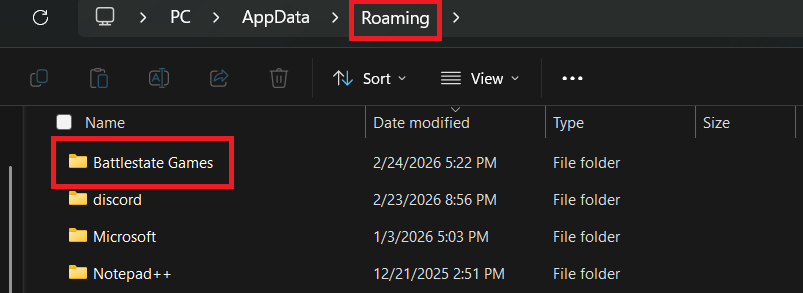
Step 3. Inside the BsgLauncher folder, look for the uninstaller executable. It’s typically named uninstall.exe or unins000.exe.
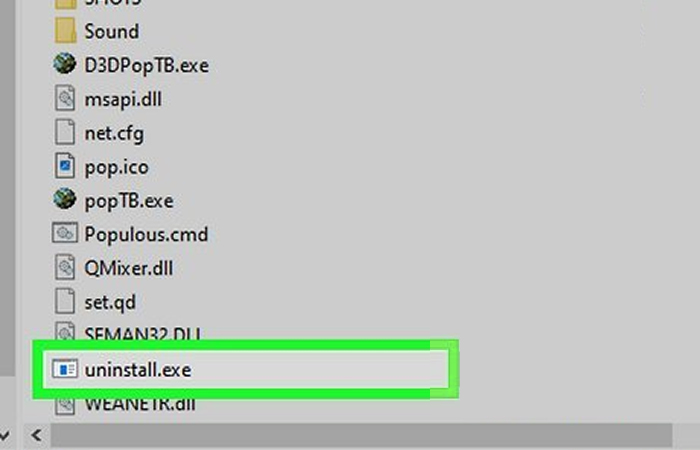
Step 4. Right-click the uninstaller file and select “Run as administrator”. Follow the on-screen prompts to confirm the removal.
Step 5. Once the process finishes, restart your PC to release any locked files.
Note: To facilitate reinstallation, the official uninstaller does not automatically remove logs, temporary installation packages, or personal settings files located in %appdata% and %localappdata%. If you plan to reinstall Tarkov later and want a completely fresh setup, you’ll need to manually clear those folders using the steps outlined in the “Delete Leftovers Manually” section above.
Escape from Tarkov uninstall.exe Not Found: Reasons and Fixes
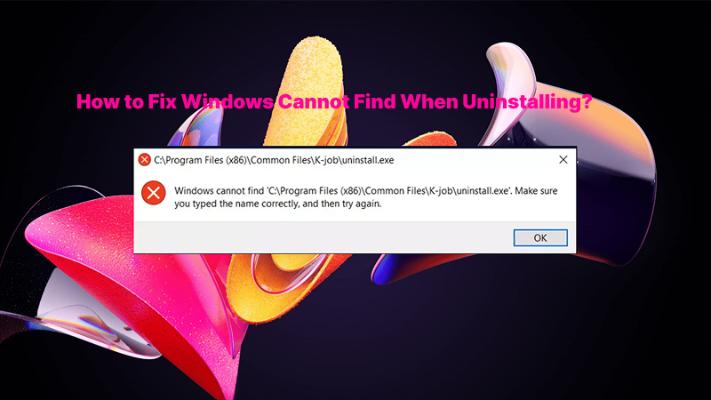
So you opened the BsgLauncher folder, ready to run the official uninstaller—but you are facing the “Escape from Tarkov uninstall.exe not found” issue. How to uninstall Tarkov now? This is actually a pretty common issue. It usually happens for one of three reasons: the file was accidentally deleted, the game was installed in a different location than you expected, or the registry entry pointing to the uninstaller got corrupted. Here’s what to do when you can’t uninstall Tarkov because the uninstaller is missing:
Try searching for unins000.exe instead of uninstall.exe. Some versions of the game use this alternative filename for the uninstaller. Look for it in the same BsgLauncher folder.
Search the file in the Launcher Folder rather than the Game Folder. Remember, the uninstaller lives inside BsgLauncher, not the EFT game folder. If you’ve been looking in the wrong directory, that’s why you can’t find it.
Uninstall the game via BSG Launcher Settings. Open the Battlestate Games Launcher, click “Settings” from the top menu, scroll down to the “Game directory” section, and click to open the file directory. From there, you can locate the uninstaller or manually delete the game folder (though this won’t clean up registry entries). But If you prefer to figure out how to uninstall Escape from Tarkov without launcher, just skip this step and use the game folder's standalone uninstaller or IObit Uninstaller instead.
Force uninstall the game with IObit Uninstaller directly. This is often the quickest fix. Since IObit Uninstaller doesn’t rely on the game’s own uninstall.exe to remove programs, it can bypass the missing file issue entirely and clean out the game along with its leftovers in one go.
How to Uninstall Tarkov Arena?
If you’re wondering how to uninstall Tarkov Arena now, the good news is that every method covered in this guide works for Tarkov Arena as well. Whether you use Windows Settings, the game folder uninstaller, or a third-party tool, the process is essentially the same. That said, IObit Uninstaller is the fastest and easiest way to remove Tarkov Arena. Here’s a step-by-step guide on how to uninstall Tarkov Arena:
Step 1. Download and launch IObit Uninstaller and wait for the program list to load.
Step 2. Find “Tarkov Arena” in the list of installed applications.
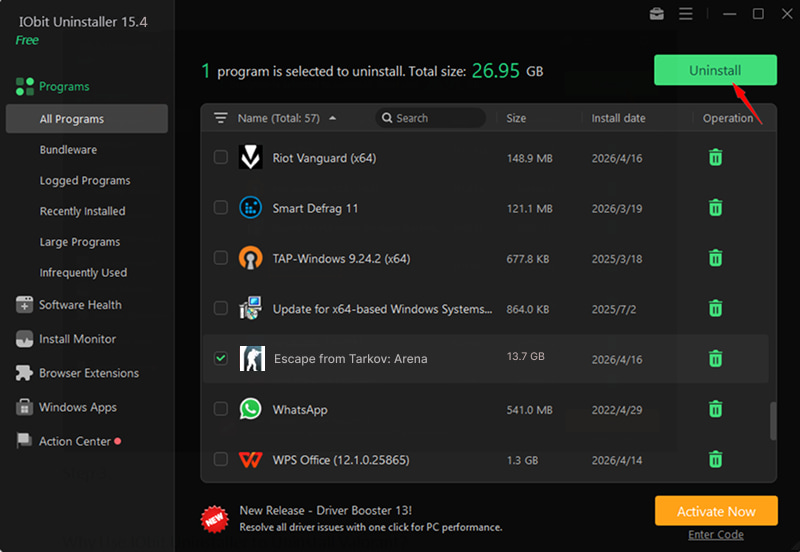
Step 3. Click the uninstall button (the green trash bin icon), check “Automatically remove residual files” and confirm.
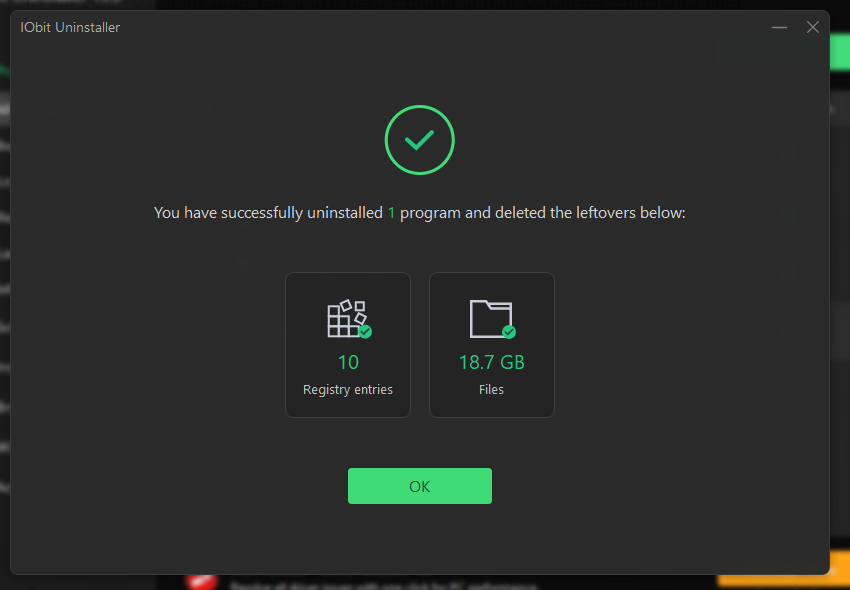
Step 4. Let the tool complete the uninstallation and residual scan. In just a few clicks, Tarkov Arena is gone—no leftover clutter, no registry mess.
Conclusion
Now you know exactly how to uninstall Tarkov the right way. Whether you choose the official game folder uninstaller, Windows’ built-in tools, or a dedicated utility, the key is making sure you clean up the leftovers that tend to linger behind. For the most thorough and hassle-free experience, IObit Uninstaller remains the best free uninstaller software for the job—it handles stubborn programs, batch removals, and automatic residual cleanup in one streamlined workflow.