If you want to remove software you no longer use, Windows gives you several built-in options. This guide shows how to uninstall apps on Windows 11 and Windows 10 using Settings, the Start menu, Control Panel, and PowerShell. For stubborn apps or programs that leave residual files behind, you can also use IObit Uninstaller for a more complete cleanup.
Why You May Need to Uninstall Windows Apps?
There are several reasons you might want to remove software from your PC. Understanding them makes learning how to uninstall Windows apps more meaningful. Common reasons include:
Free up storage space – Unused apps take up gigabytes over time.
Improve system performance – Background processes consume CPU and memory.
Remove unwanted pre-installed apps (bloatware) – Many PCs come with trial software you never use.
Fix app conflicts or errors – A faulty program can cause crashes.
Enhance security – Old or suspicious apps can become vulnerabilities.
Prepare a computer for resale – Removing personal software protects privacy.
Whatever your reason, knowing how to uninstall Windows apps the right way saves you trouble later. Next, let’s go through the step-by-step methods.
5 Ways to Uninstall Apps on Windows 11/10
Windows 10 and 11 provide several built-in ways to remove software. You can also use third-party tools for a deeper clean. Below are five reliable methods, from the simplest to the most advanced.
Method 1: Uninstall Apps via Settings
Settings is the easiest way to uninstall most apps on Windows 11/10, including many Microsoft Store apps. Follow these steps:
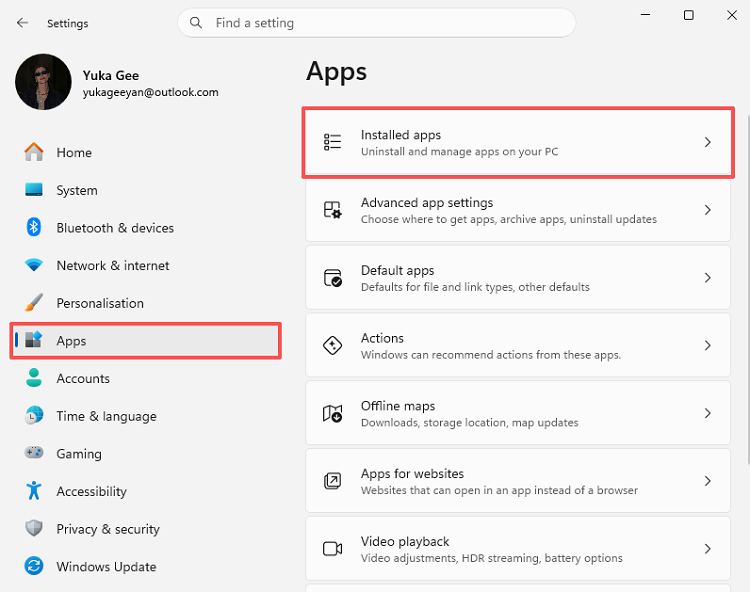
Step 1. Press Windows + I to open Settings, then go to Apps > Installed apps (Windows 11) or Apps & features (Windows 10).
Step 2. Locate the target app, click the three dots (⁝) next to it, and select Uninstall.
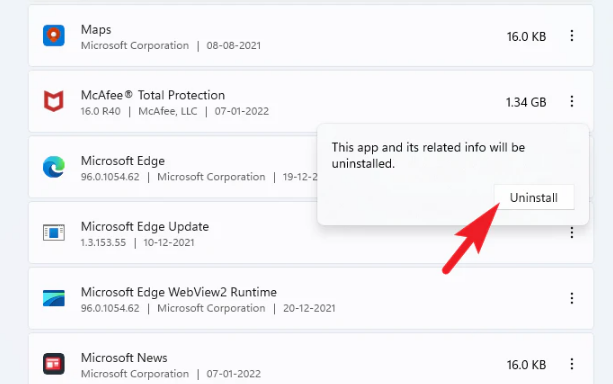
Step 3. Confirm the pop-up prompt – the app will be removed immediately.
Method 2: Uninstall Apps via Control Panel
Control Panel works best for traditional desktop programs, although some Microsoft Store apps may not appear there. Follow these steps:
Step 1. Search for Control Panel in the taskbar and open it, then go to Programs > Programs and Features.
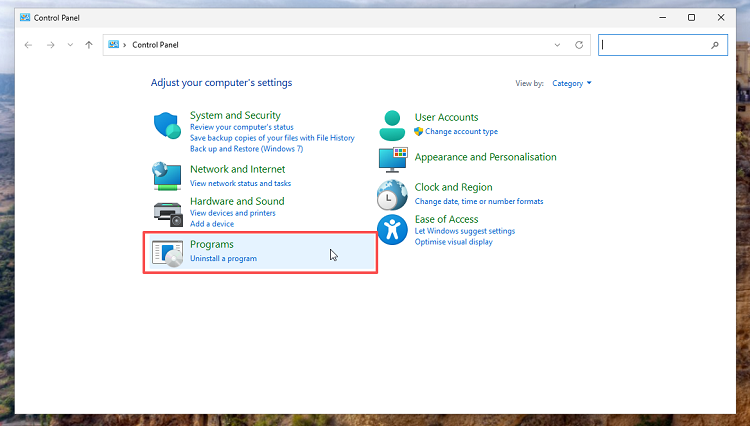
Step 2. Right-click the program you wish to remove and choose Uninstall/Change.
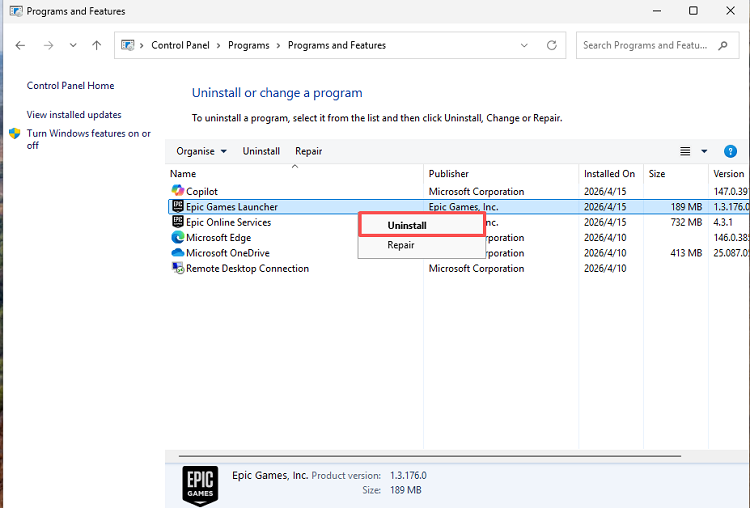
Step 3. Confirm the action and follow the simple uninstall wizard that appears.
Method 3: Uninstall Apps from Start Menu
If you already know which app you want to remove, the Start menu is usually the fastest option. Some apps may redirect you to Settings to complete the uninstall.
Step 1. Open the Start menu, then locate the app (scroll or type its name).
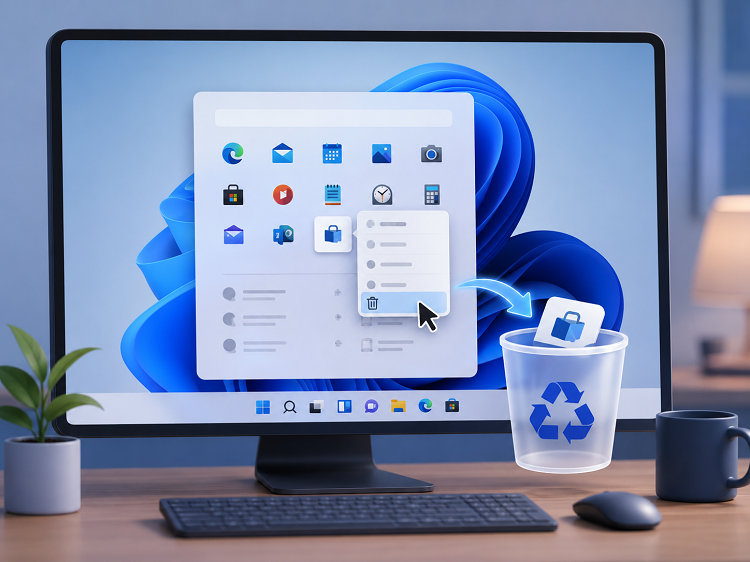
Step 2. Right-click the app’s icon and select Uninstall.
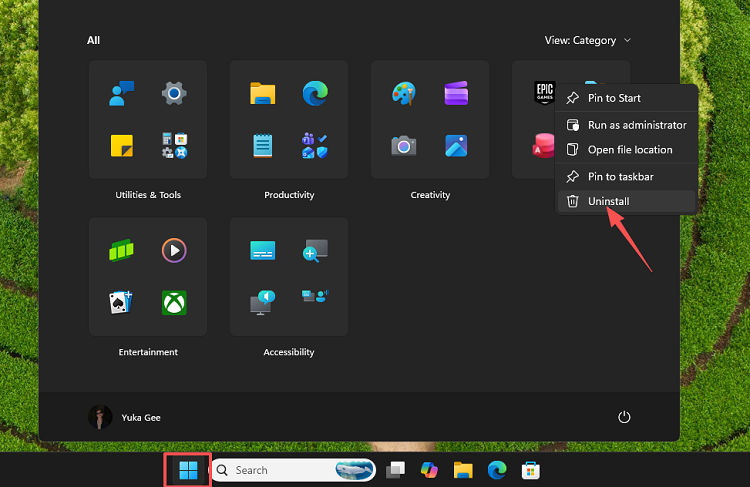
Step 3. Confirm if prompted – Windows will either remove it directly or open Settings for completion.
Method 4: Use PowerShell to Remove Built-in Apps
PowerShell can remove some built-in Windows apps that do not provide a standard Uninstall option. This method is better suited to advanced users, so avoid removing critical Windows components.
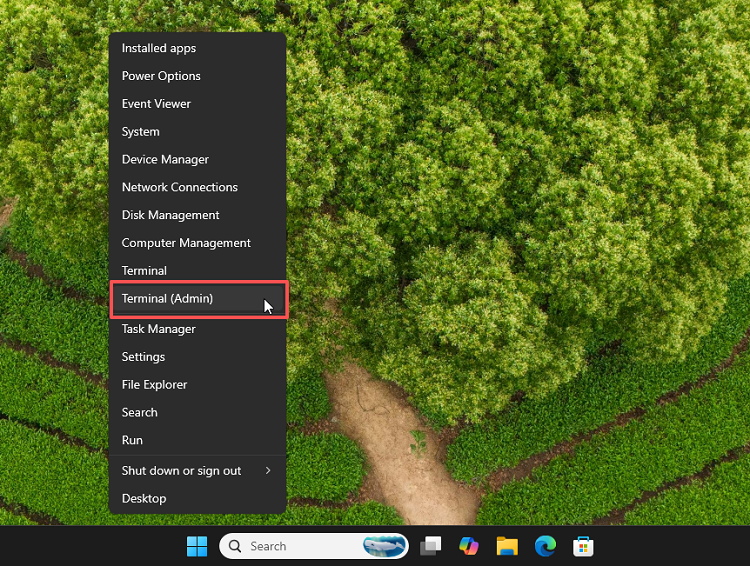
Step 1. Right click Start > Terminal (Admin) or Windows PowerShell (Admin).
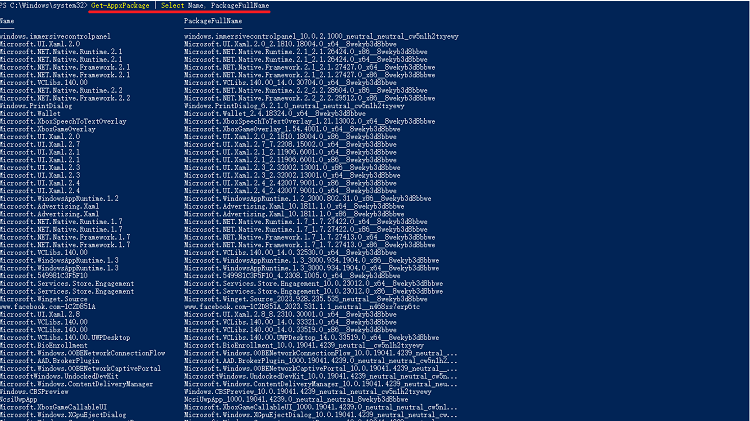
Step 2. Type Get-AppxPackage | Select Name, PackageFullName to see all packages.
Step 3. To remove an app, use: Get-AppxPackage *appname* | Remove-AppxPackage (replace *appname* with the actual name).
Method 5: Use Third-Party Software to Uninstall Windows Apps
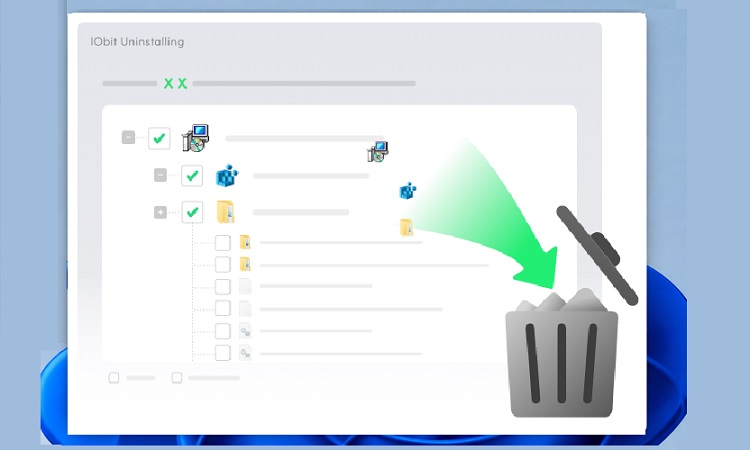
Built in tools often leave leftovers. For a thorough removal, IObit Uninstaller is a powerful solution. It automates learning how to uninstall Windows apps and cleans residual files. It also helps free up disk space and can remove chrome extensions easily.
IObit Uninstaller Free
- Complete forced uninstallation for stubborn programs.
- Uninstall a batch of programs at once.
- Scan and remove leftover files, folders, and registry entries.
- Support the management of Universal Windows Platform apps.

Step 1. Download and install IObit Uninstaller from the official website.
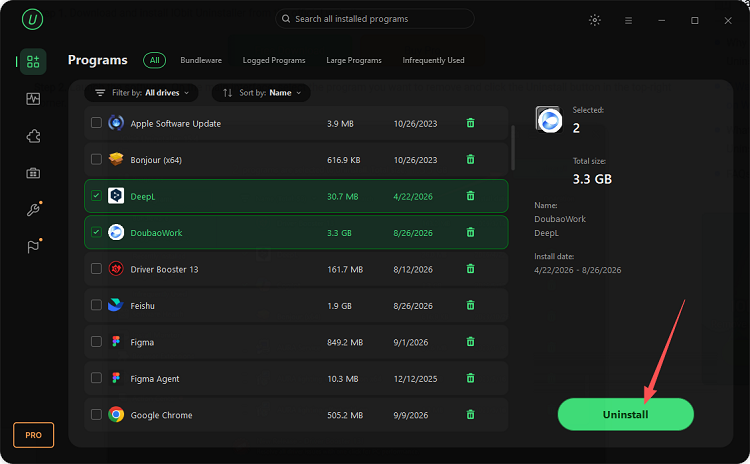
Step 2. Launch the software. On the main interface, select the program you want to remove and click the Uninstall button in the top-right corner.
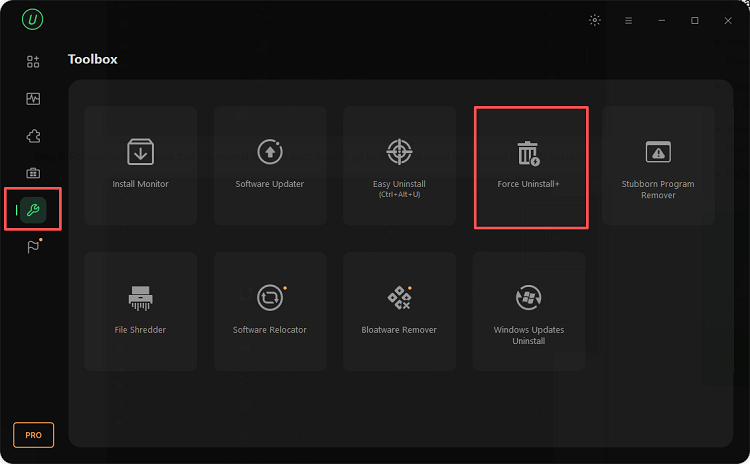
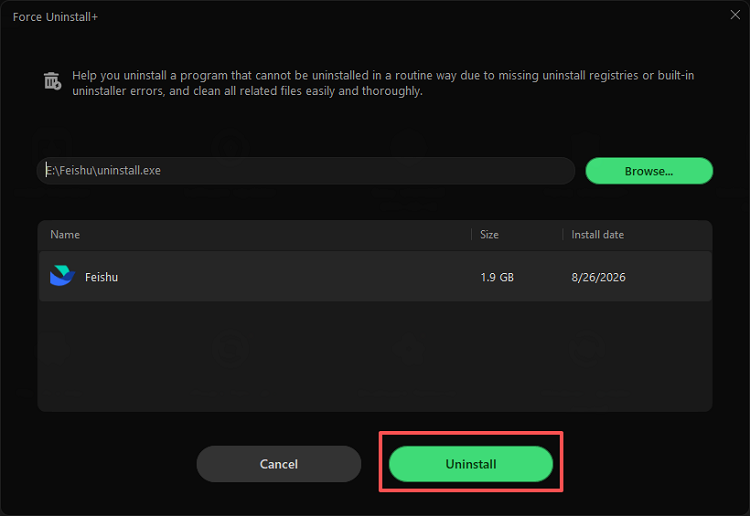
Step 3. For stubborn software that the normal method can't handle, go to the Tools panel and choose Force Uninstall+.
Step 4. Browse for the program's folder, executable file, or desktop shortcut, then click Uninstall to remove it completely. The tool will automatically scan and clean any leftovers.
Key features include:
Batch uninstall multiple apps – Select several programs at once and remove them in one go.
Remove stubborn programs – Force uninstall applications that won’t go away normally.
Clean leftover files and registry entries – Automatically delete remnants that standard uninstallers miss.
Uninstall browser extensions – Also remove Chrome extensions, Edge, and Firefox add ons to stop pop ups.
What Happens After You Uninstall an App?
When you uninstall an app, Windows typically removes its main folder and executables. However, many apps leave behind user data, cache files, and registry entries. This “digital clutter” can accumulate over time and take up unnecessary space.
Tips to Completely Remove Leftover Files
Here are practical ways to perform a deeper cleanup:
Manually check common folders – Look in C:\Program Files, C:\Program Files (x86), and C:\Users\[YourUserName]\AppData for leftover folders.
Use Disk Cleanup – Search for “Disk Cleanup” in Windows and run it to delete temporary files.
Run a dedicated uninstaller – Tools like IObit Uninstaller automatically find and remove leftovers, including registry entries.
FAQs About Uninstalling Windows Apps
Why can’t I uninstall some Windows apps?
Some are protected system components. For those, you can use a forced uninstall feature in tools like IObit Uninstaller.
How do I uninstall pre installed apps on Windows?
Try Settings > Apps first. If the option is greyed out, use PowerShell or a third party uninstaller.
Does uninstalling apps free up space?
Yes. That is one of the main reasons to learn how to uninstall Windows apps. Removing large or unused programs directly helps free up disk space.
How to uninstall multiple apps at once?
Windows does not support batch uninstall natively. However, IObit Uninstaller includes a “Batch Uninstall” feature that lets you select and remove many apps together.
What is the easiest way to uninstall Windows apps?
For one or two apps, the Start Menu method is fastest. For complete and thorough removal, using a dedicated uninstaller is the easiest in the long run.
How do I uninstall apps on Windows 10?
Go to Start > Settings > Apps > Apps & features. Select the app you want to remove, click Uninstall, and follow the on-screen instructions. Traditional desktop programs can also be removed through Control Panel > Programs and Features.
Final Words
Knowing how to uninstall Windows apps is a fundamental skill for keeping your PC fast and organized. You have multiple options: the user friendly Settings, the classic Control Panel, the quick Start Menu, the powerful PowerShell, and professional tools like IObit Uninstaller. Each method has its place. For everyday programs, built in tools work fine. But for stubborn bloatware, incomplete removals, or when you want to clean multiple apps at once, a dedicated uninstaller saves time and ensures a deeper clean. Choose the method that fits your comfort level and needs. If built in tools fall short, try a specialized solution to take full control of your software.