Modern PC games can occupy tens or even hundreds of gigabytes, especially when they include downloadable content, high-resolution textures, regular updates, and saved recordings. Learning how to delete games from computer correctly can help you recover disk space, remove damaged installations, and keep your system organized.
However, deleting a desktop shortcut or moving a game folder to the Recycle Bin does not completely uninstall the game. Saved files, configuration data, launcher records, registry entries, and installation leftovers may remain on your PC.
This guide explains how to delete games from computer using IObit Uninstaller, Windows Settings, Control Panel, gaming launchers, and manual cleanup methods.
Before You Delete Games from Your Computer
Before starting the removal process, check whether the game contains local saves, mods, screenshots, or other files you may want to keep. A few simple preparations can prevent accidental data loss and common uninstall errors.
Back Up Your Saved Progress
Some games automatically synchronize progress with Steam Cloud, Xbox Cloud Saves, Epic Games Cloud Saves, or another online service. Others store saved progress locally in folders such as:
If you are unsure whether your progress is stored online, copy the relevant save folder to another location before uninstalling the game.
Close the Game and Its Launcher
A game may fail to uninstall if its files are still being used. Close the game and exit Steam, Epic Games Launcher, EA app, Ubisoft Connect, Xbox, or any other related platform.
If the program continues running in the background, press Ctrl + Shift + Esc to open Task Manager. Select the game or launcher process and click End task.
Check for Mods and Custom Files
Mods, custom maps, screenshots, recordings, and configuration files may be stored outside the main game folder. Back up anything important before beginning the uninstall process.
Method 1: How to Delete Games from Computer with IObit Uninstaller
Built-in Windows uninstallers can remove the main game program, but they may leave related folders and residual files behind. For users learning how to delete games from computer more thoroughly, a dedicated uninstallation tool can simplify the process.
IObit Uninstaller displays installed software in one interface and helps remove unwanted games, Windows apps, and associated leftovers. It is also a practical option for users looking for the best uninstaller to manage large, stubborn, or unnecessary programs.
IObit Uninstaller Free
- Complete forced uninstallation for stubborn programs.
- Uninstall a batch of programs at once.
- Scan and remove leftover files, folders, and registry entries.
- Support the management of Universal Windows Platform apps.

Key Features of IObit Uninstaller
Complete Program List: Displays installed games and applications together, making unwanted titles easier to locate, compare, and remove.
Uninstallation Leftovers: Scans for residual files after removal, helping recover storage space and prevent unnecessary game data from remaining.
Install Monitor: Records system changes during installation, helping identify related files and entries when the monitored game is removed.
Software Health Scan: Detects uninstallation leftovers and redundant software files that may continue occupying valuable disk space after game removal.
Windows Apps Removal: Lists Windows and third-party apps together, allowing supported game applications to be selected and uninstalled quickly.
Multiple Program Selection: Lets users choose several unwanted programs from the software list and start their removal process together.
These features make IObit Uninstaller useful for large games, damaged installations, and titles that leave unnecessary data after standard uninstallation.
How to Uninstall Games on PC with IObit Uninstaller
Follow these steps to remove an unwanted game:
Step 1. Download and install IObit Uninstaller from its official website.
Step 2. Open the program and select Programs. Go to All Programs.
Step 3. Search for the game by name or locate it in the software list. Select the checkbox beside the game. Click Uninstall.
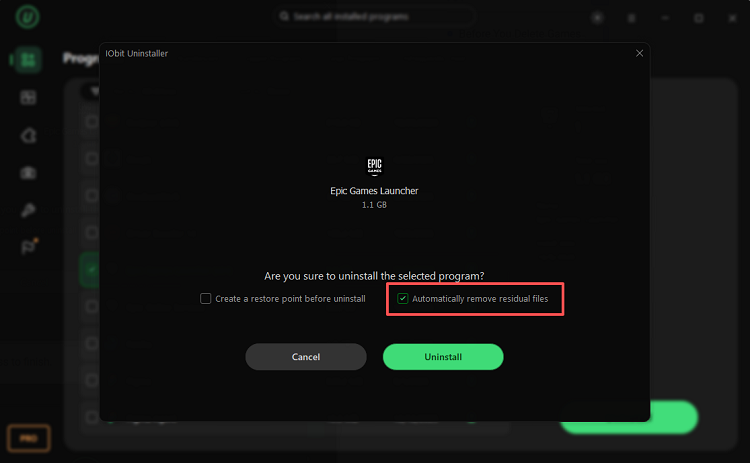
Step 4. Choose whether to create a system restore point. Enable the option to remove residual files automatically.
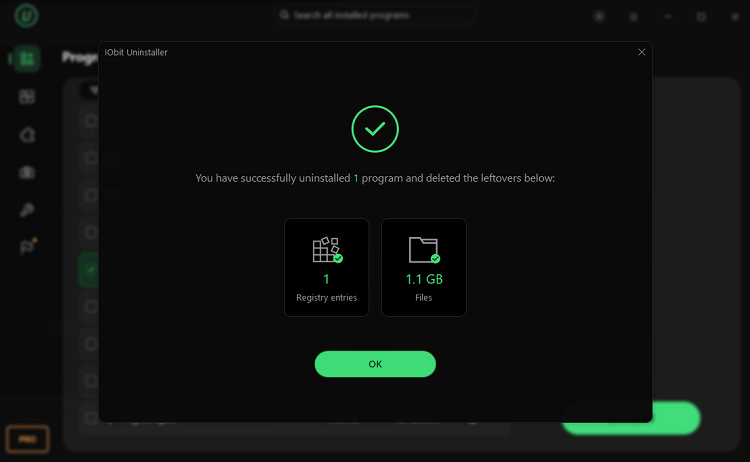
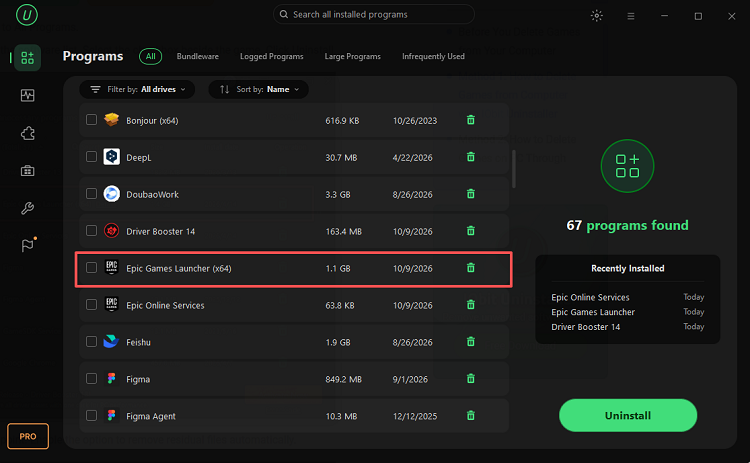 Step 5. Confirm the removal and wait for the process to finish.
After uninstalling the game, you can also open Software Health and run a scan to check for uninstallation leftovers and redundant software files.
What If the Game Is Not Listed?
A damaged or incomplete game installation may not appear correctly in the normal program list. In this situation, locate the game’s installation folder or executable file and use IObit Uninstaller’s forced removal function.
This method is practical for users researching how to uninstall games on PC when the original uninstaller is missing, corrupted, or no longer works.
Also Read: How to Force Uninstall Windows 11 Programs >>
Method 2: How to Delete Games on PC Through Windows Settings
Windows Settings is the main built-in removal method for most Windows 11 and Windows 10 applications. It is suitable for Microsoft Store games and many traditional desktop titles.
How to Delete Games on PC Windows 11
To learn how to delete games on PC Windows 11, follow these instructions:
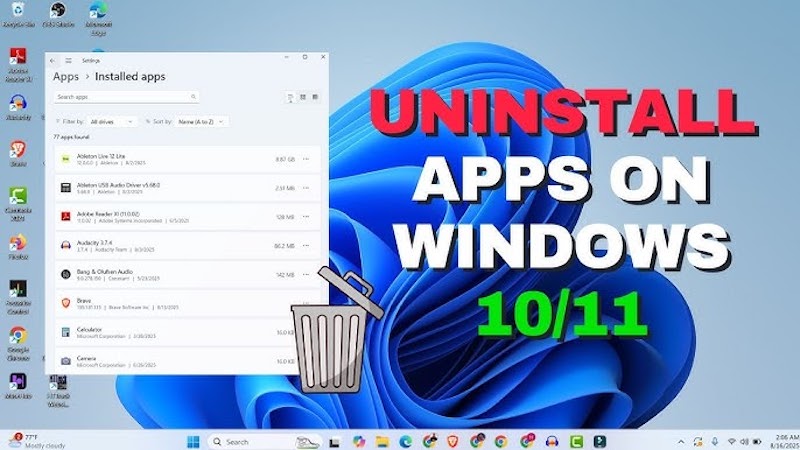
Step 1. Press Windows + I to open Settings. Select Apps from the left menu.
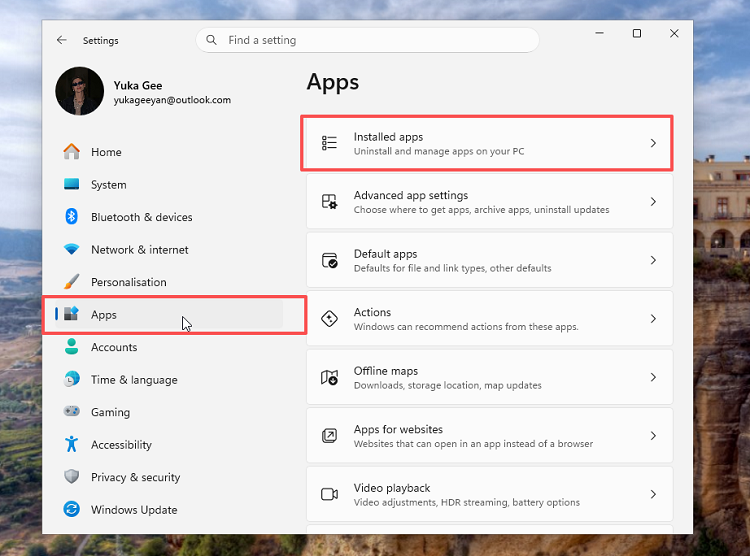
Step 2. Click Installed apps. Search for the game you want to remove. Click the three-dot button beside it. Select Uninstall.
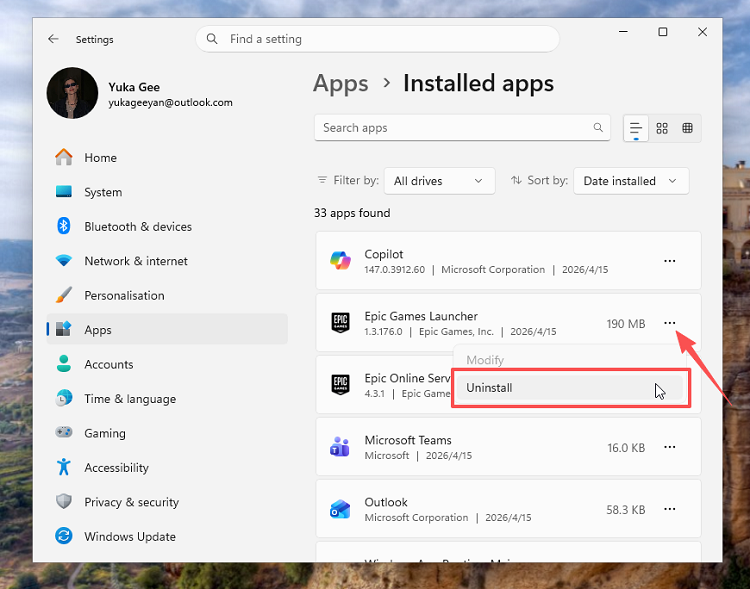
Step 3. Confirm the action. Follow any additional instructions displayed by the game’s uninstall wizard.
Some games may automatically open their original launcher or a separate uninstall window. Users who want to remove associated files as well can follow a more detailed guide on how to deep uninstall apps on Windows 11.
Windows Settings is a straightforward answer for users asking how to delete games on PC without installing another program. However, it may not remove locally stored saves, mods, caches, screenshots, or configuration files.
Method 3: How to Uninstall Games on Windows Using Control Panel
Control Panel remains useful for older PC games, standalone installers, and disc-based software. It can also help when a title does not appear correctly in the Windows Settings app.
To remove a game through Control Panel:
Step 1. Type Control Panel into the Windows search bar. Open Control Panel. Select Programs.
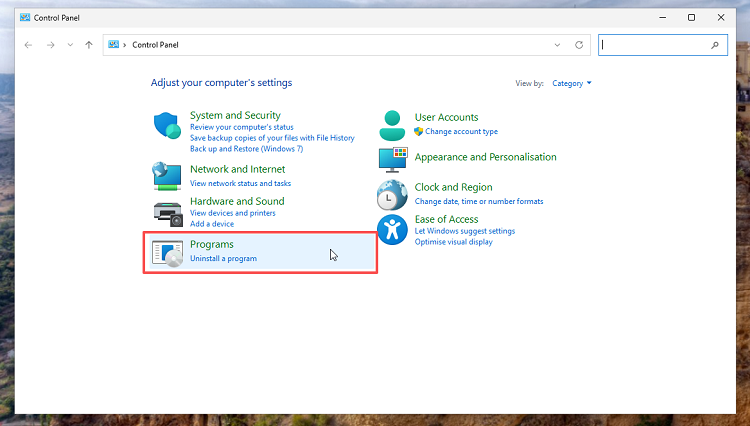
Step 2. Click Programs and Features. Locate the unwanted game. Right-click the game. Select Uninstall or Uninstall/Change. Follow the uninstall wizard.
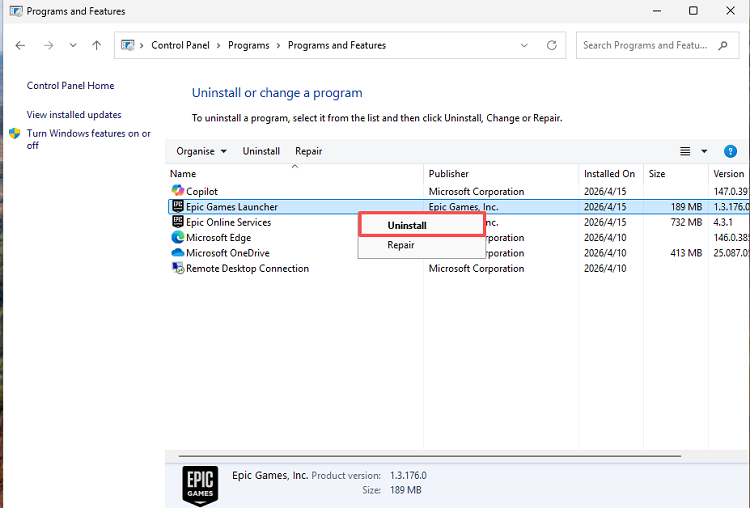 This method mainly launches the original removal program provided by the game developer. Therefore, users learning how to uninstall games on Windows may still need to check the computer for leftover files afterward.
Method 4: Delete a Game Through the Start Menu
The Start menu provides a faster way to begin the uninstall process when the game already appears in your application list. Windows may then redirect you to Settings, Control Panel, or the game’s original launcher.
Follow these steps:
Step 1. Open the Start menu. Select All apps. Find the game you want to remove.
Step 2. Right-click its name or icon. Select Uninstall.
Step 3. Follow the on-screen instructions.
This method is convenient for quickly removing supported games. However, it may not be enough when you need to know how to delete games from computer together with all related files and folders.
The same Windows app-management options can also be used for other software. However, protected system components may require additional instructions—for example, users trying to uninstall Microsoft Edge may need a different removal process.
Method 5: How to Uninstall Games on PC from a Game Launcher
Games installed through a digital gaming platform should normally be removed through the same launcher. This helps the platform update its installed-game records correctly while keeping the purchased title available in your account library.
Uninstall a Game from Steam
Step 1. Open Steam. Select Library.
Step 2. Find the installed game.
Step 3. Right-click the game title. Select Manage.
Step 4. Click Uninstall. Confirm the removal.
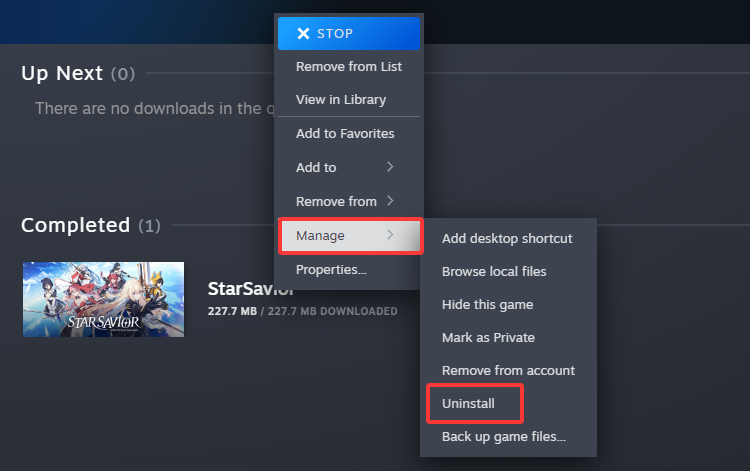
The title will remain in your Steam library, allowing you to download it again later.
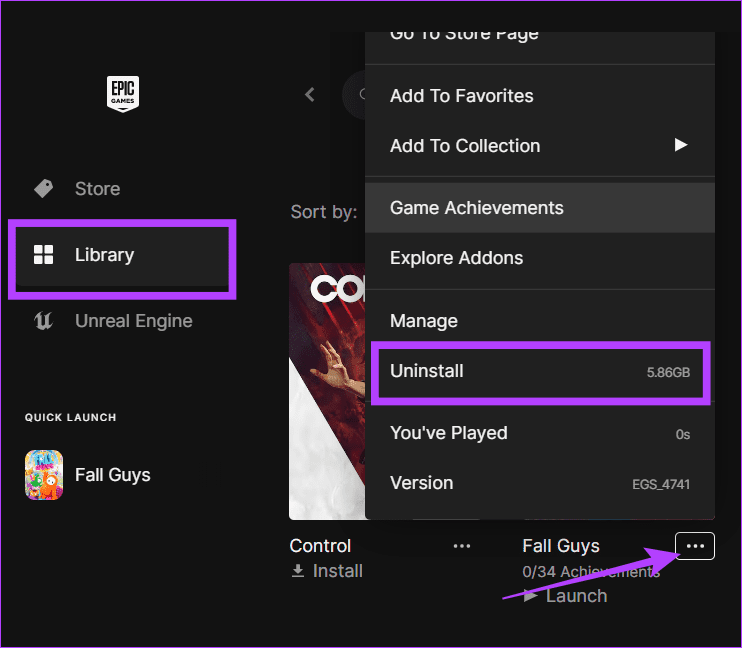
Uninstall a Game from Epic Games Launcher
Step 1. Open Epic Games Launcher.
Step 2. Select Library. Locate the game.
Step 3. Click the three-dot menu beside it.
Step 4. Select Uninstall. Confirm the removal.
Remove Games from Xbox, EA App, or Ubisoft Connect
Although the menus may look different, the basic procedure is similar:
Step 1. Open the launcher. Go to the installed-game library.
Step 2. Select the unwanted game. Open its management or options menu.
Step 3. Choose Uninstall. Confirm the action.
This is usually the recommended solution for how to uninstall games on PC when the title was downloaded through a specific gaming platform.
If the game still appears in Windows after removal, check Installed apps or use IObit Uninstaller to identify the remaining program entry.
Method 6: Delete Remaining Game Files Manually
Even after a successful uninstall, saved progress, mods, screenshots, download caches, and configuration files may remain. Manual cleanup can recover additional space, but it should be performed carefully after removing the main program.
This extra step is particularly important when learning how to delete games from computer without leaving large local folders behind.
Check the Installation Folder
Look for recognizable game folders in locations such as:
Delete only folders that clearly belong to the removed game. Avoid deleting an entire publisher folder if it also contains files for other installed titles.
Check AppData and Documents
Press Windows + R, enter %AppData%, and click OK. Look for a folder associated with the removed game or its developer.
You can also check:
%LocalAppData%
Documents
Saved Games
ProgramData
Be careful when deleting these folders. Shared configuration files may be used by multiple games from the same publisher.
Empty the Recycle Bin
Files moved to the Recycle Bin continue occupying storage space until they are permanently removed. Review the deleted files, right-click the Recycle Bin, and select Empty Recycle Bin.
These steps are useful for users searching how to permanently delete games on PC, especially when large game folders remain after uninstallation.
Conclusion
Knowing how to delete games from computer correctly helps recover storage space and prevents unnecessary files from accumulating. Depending on how the game was installed, you can use Windows Settings, Control Panel, the Start menu, or its original launcher.
However, built-in methods may leave caches, configuration folders, damaged entries, and other residual data. For a simpler and more complete cleanup, use IObit Uninstaller to locate installed games, remove stubborn programs, and scan for associated leftovers.
Now that you understand how to delete games from computer, remove the titles you no longer play, free up valuable disk space, and prepare your PC for your next gaming experience.