Uninstalling applications on Windows is important for freeing up storage space, improving system performance, and removing unwanted programs that may cause conflicts. Windows 11 offers multiple ways to uninstall apps, from simple built-in options to more advanced methods for stubborn software. In this guide, you’ll learn the most effective ways on how to uninstall applications on Windows 11. While the steps focus on Windows 11, they also apply to Windows 10, so you can follow along regardless of your system version.
4 Methods to Uninstall Applications on Windows 11 and 10
Now that you understand why it’s important to remove unwanted programs and keep your system clean, let’s explore the different ways on how to remove application from computer.
Method 1. How to Uninstall Applications on Windows 11 and 10 via Settings
Let’s start with the most straightforward and user-friendly approach. The Settings in Windows 11 and 10 provides a centralized place to manage all installed applications, so you can directly remove apps from there without a problem.
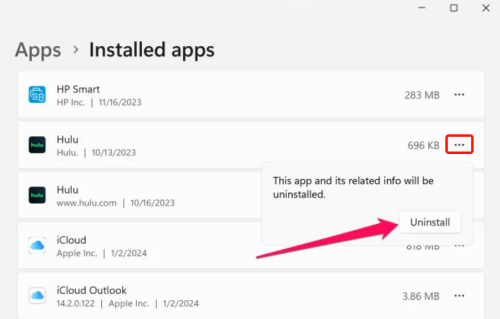
On Windows 11:
Step 1. Press Windows + I to open Settings. Or you can click the Start menu and select Settings.
Step 2. Go to Apps > Installed apps. Find the app you want to remove.
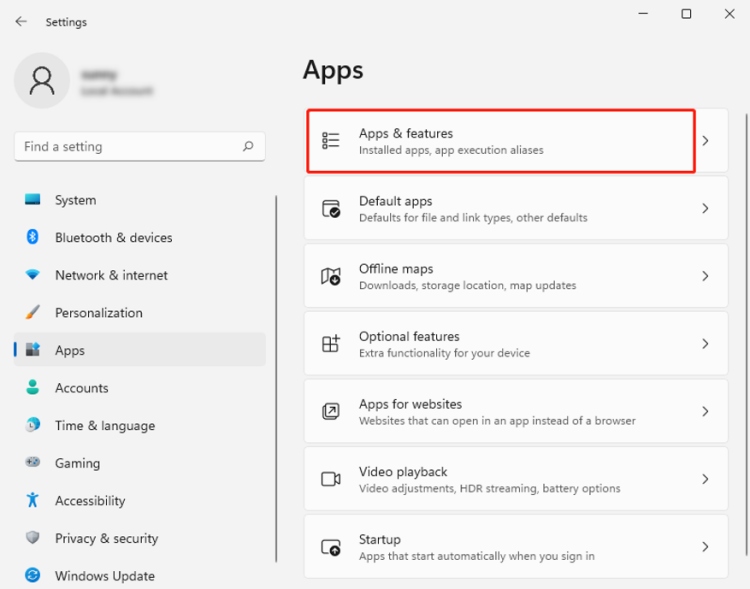
Step 3. Click the three-dots menu next to the app and select Uninstall.
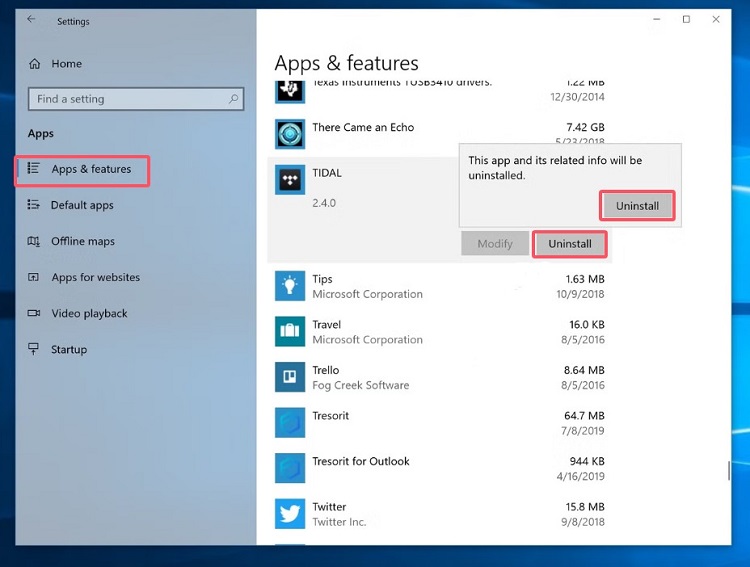
On Windows 10:
Step 1. Click the Start menu and select Settings.
Step 2. Go to Apps > Apps & features.
Step 3. Scroll to find the app you want to uninstall.
Step 4. Click the app and then select Uninstall.
Method 2. How to Uninstall Programs on Windows from the Control Panel
If you want to remove traditional desktop software, using the classic Control Panel method is a reliable option. It offers more control and is especially useful for older or more complex programs. Here are the steps.
Step 1. Find Control Panel in the Search bar and open it.
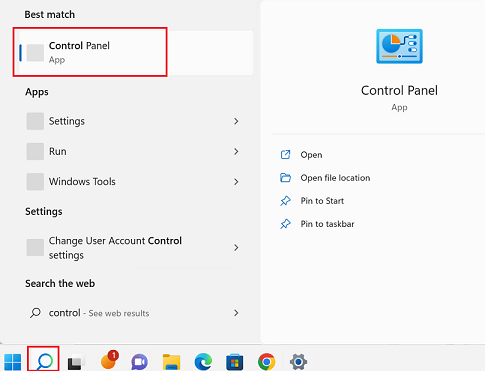
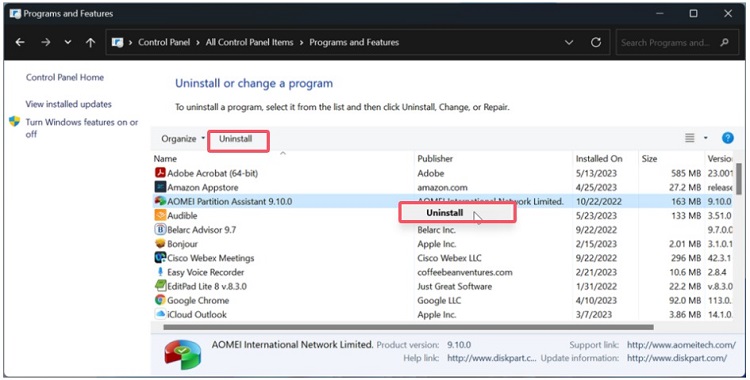
Step 2. Click Programs > Programs and Features, then select the program you want to uninstall.
Step 3. Click Uninstall at the top of the list.
Method 3. How to Uninstall Programs on a PC from the Start Menu
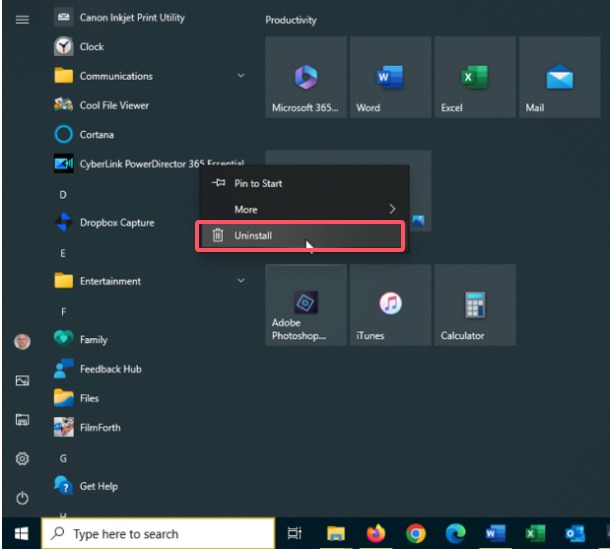
How to uninstall programs on a PC? For a quicker way to remove apps, you can uninstall programs directly from the Start Menu. This method is perfect when you want to delete apps without navigating through multiple settings.
Step 1. Click the Start Menu and find the wanted app in the list.
Step 2. Right-click the app and click Uninstall.
Step 3. Confirm your uninstallation option.
Method 4. How to Uninstall Applications on Windows 11 and 10 Completely
While the methods above can help you remove most applications, they don’t always delete everything. Leftover files, registry entries, and hidden data can still take up space and even slow down your system over time. That’s why you’ll need a more advanced solution if you want a truly clean and complete removal.
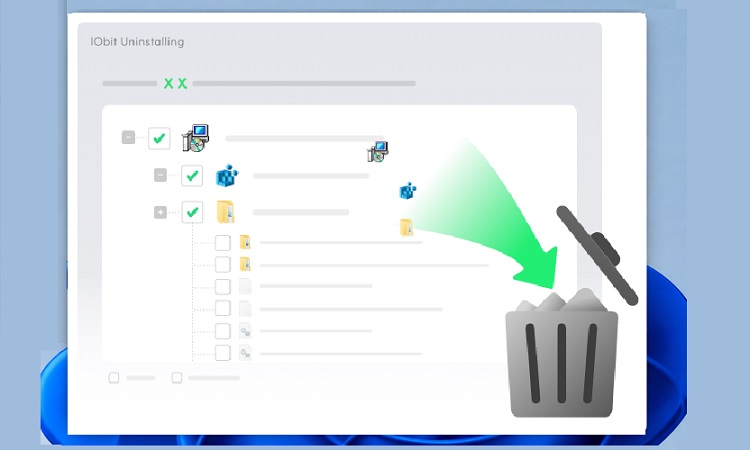
One of the best options is IObit Uninstaller 15 Free. It goes beyond basic uninstalling by removing stubborn programs and cleaning up all residual files automatically, making it an ideal choice for users who want a hassle-free and thorough uninstall process.
Why choose IObit Uninstaller 15 free?
Complete removal of leftovers
Force uninstall for stubborn apps
Batch uninstall unwanted apps
Real-time installation monitor
Remove Chrome extensions and plugins with one click
Software health check
Here’s how to uninstall programs on PC running Windows 11 and 10 using IObit Uninstaller.
Step 1. Download and install IObit Installer on your computer.
IObit Uninstaller Free
- Complete forced uninstallation for stubborn programs.
- Uninstall a batch of programs at once.
- Scan and remove leftover files, folders, and registry entries.
- Support the management of Universal Windows Platform apps.

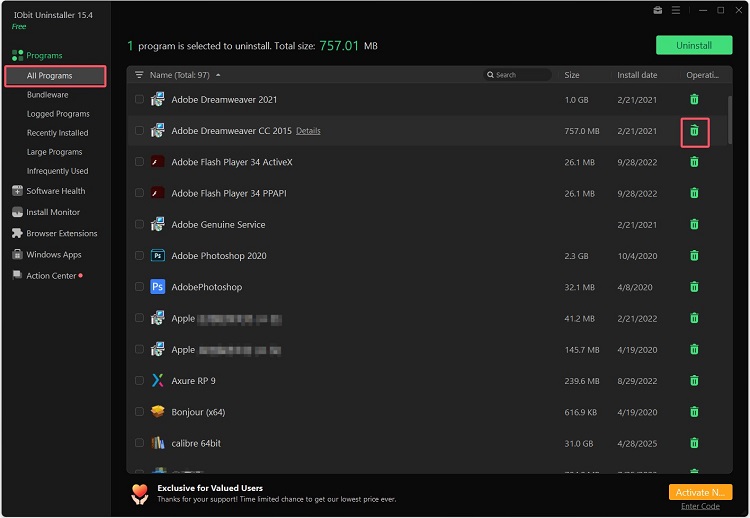
Step 2. Launch this program and find the application you wish to remove in the software list. Then, click the trash icon next to the app you want to delete.
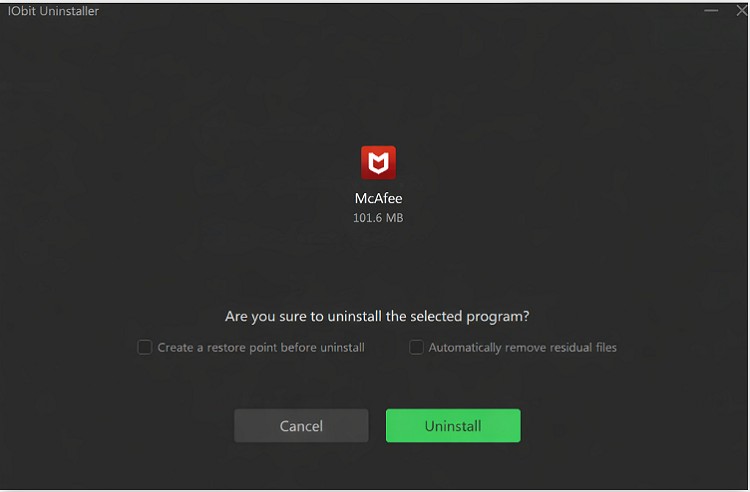
Step 3. Next, a notification page will appear to let you confirm your uninstallation. Click Uninstall to proceed.
Beyond its powerful uninstall capabilities, IObit Uninstaller 15 Free offers a range of additional tools designed to optimize your system and improve overall performance. It’s not just about removing programs—it’s about giving you full control over what stays on your PC and ensuring everything runs smoothly.
Update outdated programs
Disable unnecessary startup items
Tracks changes made during software installations
Detects and removes bundled programs
Uninstall pre-installed Windows apps and hidden software
Common Problems When Uninstalling Apps (and Fixes)
Even with multiple uninstall methods available, things don’t always go as planned. You might run into apps that refuse to uninstall, error messages, or leftover files that clutter your system. These issues are quite common on both Windows 11 and Windows 10—but the good news is they’re usually easy to fix. Below are some of the most frequent problems users face when uninstalling applications, along with practical solutions to resolve them.
Problems:
Apps won’t uninstall
“Uninstall” Option Is Missing
Error Messages During Uninstall
Leftover Files and Folders Remain
Program Still Appears in App List After Uninstall
Fixes:
Restart your computer and try again
Close all running instances of the program
Disable antivirus temporarily
Update Windows and try again
Try a third-party tool with deep-clean feature like IObit Uninstaller 15 Free
Tips to Manage Apps and Free Up Spaces
Once you’ve successfully uninstalled unwanted programs and resolved any issues, the next step is to keep your system organized and prevent storage from filling up again. Managing your apps properly not only frees up disk space but also helps improve overall performance and system stability. Here are some practical tips to help you stay in control of your applications and storage on Windows 11 and 10:
Regularly remove rarely used programs
Delete the programs that take up the most space
Turn on Storage Sense to automatically delete temporary files
Move files to external or cloud storage
Use a professional uninstaller tool like IObit Uninstaller
Also Read: How to Safely Cleanup Windows Installer Folder and Free Disk Space?
Conclusion
How to uninstall applications on Windows 11 and 10? Or how to uninstall applications on Windows 11 laptop? As you’ve seen in this guide, there are multiple methods available. By choosing the right approach for your needs and following best practices, you can easily remove unwanted programs and keep your system running smoothly.
However, if you want a faster, more thorough, and hassle-free way to uninstall applications—especially stubborn ones—IObit Uninstaller 15 Free is the ideal choice. Download IObit Uninstaller today and enjoy a cleaner, faster, and more efficient Windows experience.
IObit Uninstaller Free
- Complete forced uninstallation for stubborn programs.
- Uninstall a batch of programs at once.
- Scan and remove leftover files, folders, and registry entries.
- Support the management of Universal Windows Platform apps.