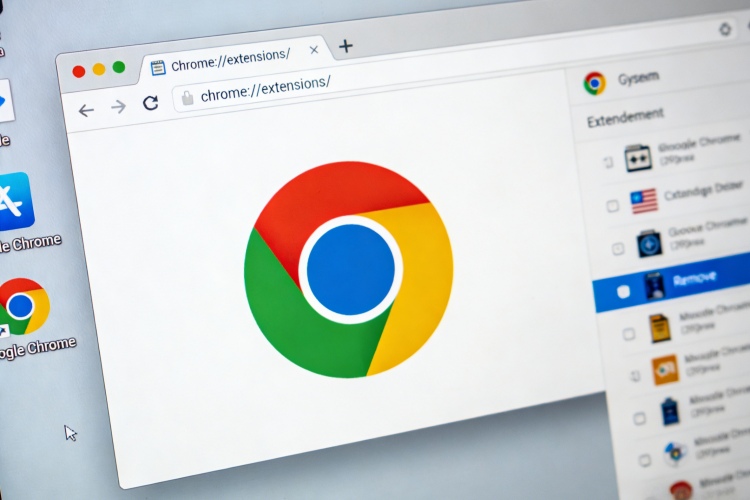
Browser extensions are small add-ons designed to customize your web browser’s functionality. While they can be powerful tools for productivity and personalization, not all extensions are created equal.
Over time, unused or unnecessary extensions can quietly consume memory and slow down your browser. More alarmingly, certain malicious add-ons pose serious security risks by stealing login credentials, displaying intrusive ads, or tracking your activity across every website you visit.
That’s why mastering how to remove browser extensions is essential for keeping your browsing fast, secure, and clutter-free. This guide will walk you through simple, effective steps to uninstall extensions across major browsers and regain full control of your online environment.

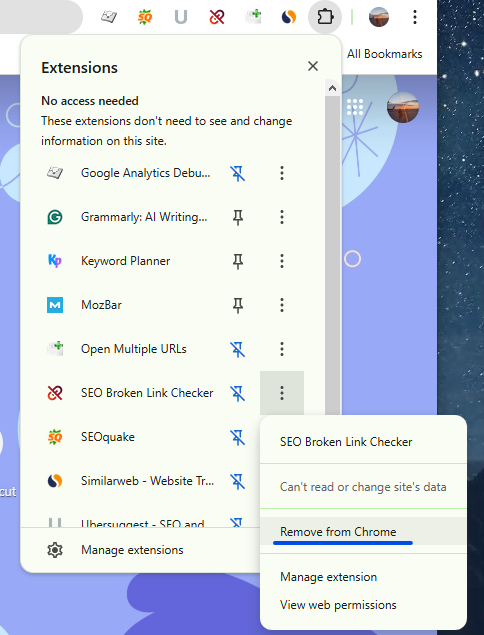
Fastest: How to Remove Browser Extensions via the Toolbar (Chrome/Edge)
If you are looking for the absolute quickest way to clean up your browser without digging through settings menus, the Toolbar Method is your best friend. It works almost the same in both Google Chrome and Microsoft Edge.
Locate the extension icon you want to remove in the top-right corner.
Right-click on it, and select “Remove from Chrome” or “Remove from Microsoft Edge.”
Confirm the action when prompted.
If the icon isn’t visible, click the puzzle-shaped Extensions menu. From there, find the extension you want to remove, click the three-dot menu next to it, and choose Remove from Chrome/Edge.
Step-by-Step: Managing and Uninstalling Extensions in Google Chrome
If you prefer more control over your extensions, the Extensions Management dashboard lets you view, manage, and remove add-ons in one place.
Click the three-dot menu in the top-right corner of your browser and go to Extensions > Manage Extensions. Alternatively, type chrome://extensions/ into the address bar and press Enter.
Scroll through the installed add-on list and find the one you want to remove. Click the Remove button on the extension card.
Click Remove again to instantly uninstall it.
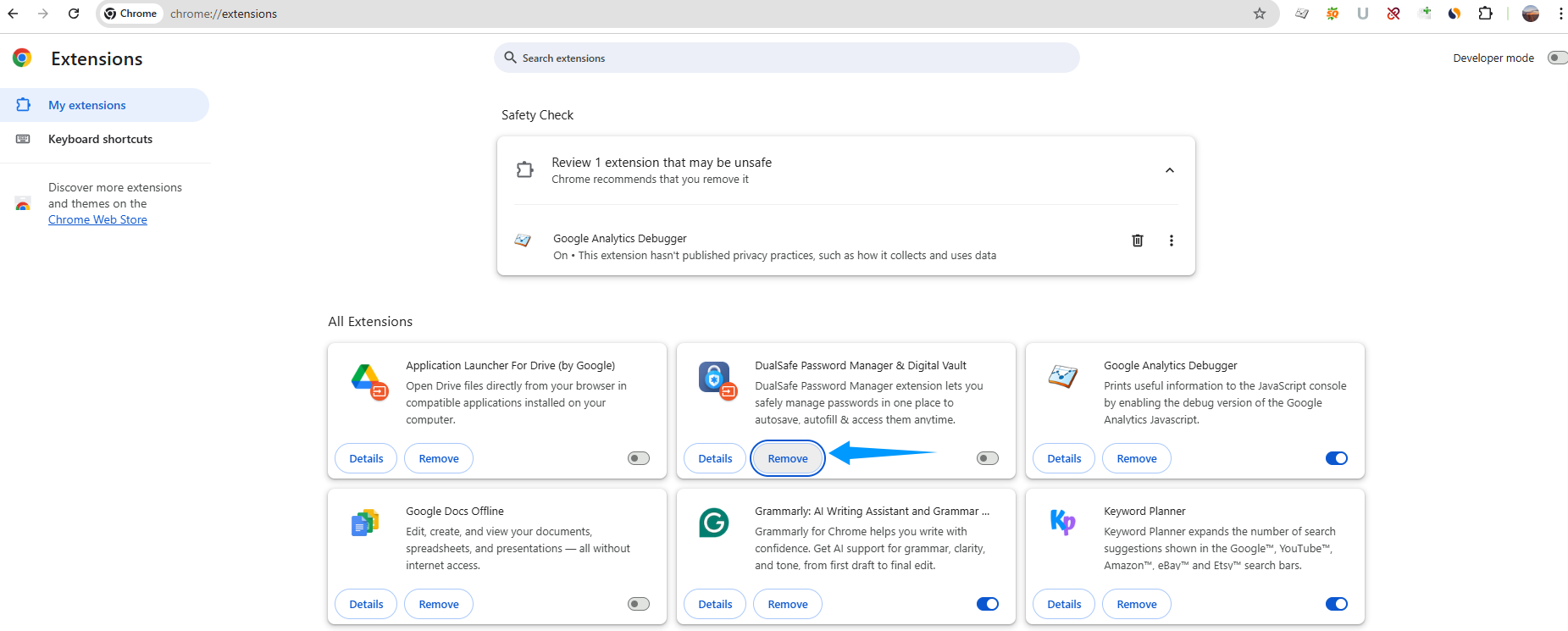
Click here for a detailed guide on removing extensions from Chrome.
Removing Add-ons in Microsoft Edge, Firefox, and Brave
Managing and removing extensions in other popular browsers, such as Edge, Firefox, and Brave, is just as straightforward, with each offering a dedicated extensions or add-ons page.
Microsoft Edge
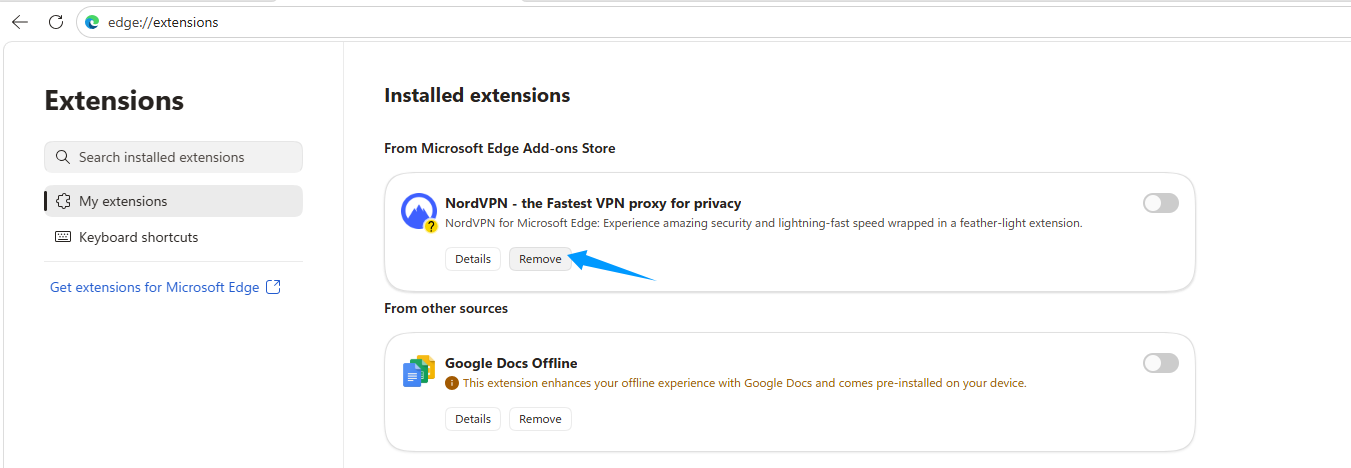
Click the three-dot menu in the top right corner (Or type edge://extensions/ into the address bar and press Enter).
From there, navigate to Extensions > Manage Extensions.
Find the add-on and click Remove.
Mozilla Firefox
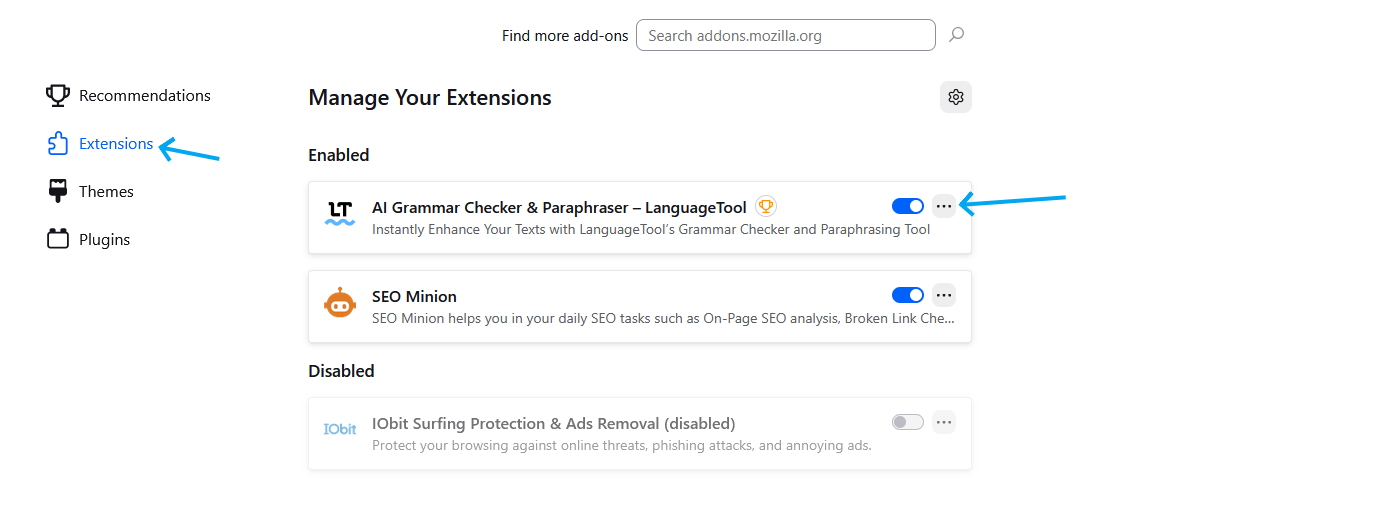
Click the Application Menu (three horizontal lines) in the top right. Alternatively, type about:addons into the address bar and press Enter.
Choose Add-ons and themes.
Go to the Extensions tab and find the add-on.
Click the three-dot menu next to it and select Remove.
Brave
Click the Brave Menu (three horizontal lines) in the top-right. Or type brave://extensions/ in the address bar.
Select Extensions.
Locate the extension you want to uninstall and click Remove.
Troubleshooting: What to Do if an Extension Won't Delete?
Sometimes, browser extensions refuse to uninstall through normal methods. It could happen if the add-on is corrupted, bundled with other software, or designed to resist removal. In such cases, a dedicated tool like IObit Uninstaller can be highly effective. It provides a powerful solution, deep-cleaning registry leftovers to fully reclaim your browser’s performance and security.
IObit Uninstaller Free
- Complete forced uninstallation for stubborn programs.
- Uninstall a batch of programs at once.
- Scan and remove leftover files, folders, and registry entries.
- Support the management of Universal Windows Platform apps.

What IObit Uninstaller can help to uninstall browser extensions:
Centralized extension management: IObit Uninstaller features a dedicated Browser Extension tab that displays all extensions, toolbars, and plugins from major browsers, including Chrome, Edge, Firefox, Opera, etc., in one unified dashboard. You can easily remove extensions in batches, saving more time than manual uninstallation.
Free stubborn plugin removal: With its Force Uninstall feature, it can eliminate hidden or hard-to-remove extensions that standard browser tools often fail to delete. The best part? It is completely free to remove.
Deep leftover cleanup: IObit Uninstaller performs a comprehensive system scan post-uninstallation. It can remove residual registry entries, cache files, and leftover data that typical browser removal methods leave behind.
So, how to remove browser extensions in one click? Check the guide below:
Step 1. Download and install this free uninstaller, then launch it on your device.
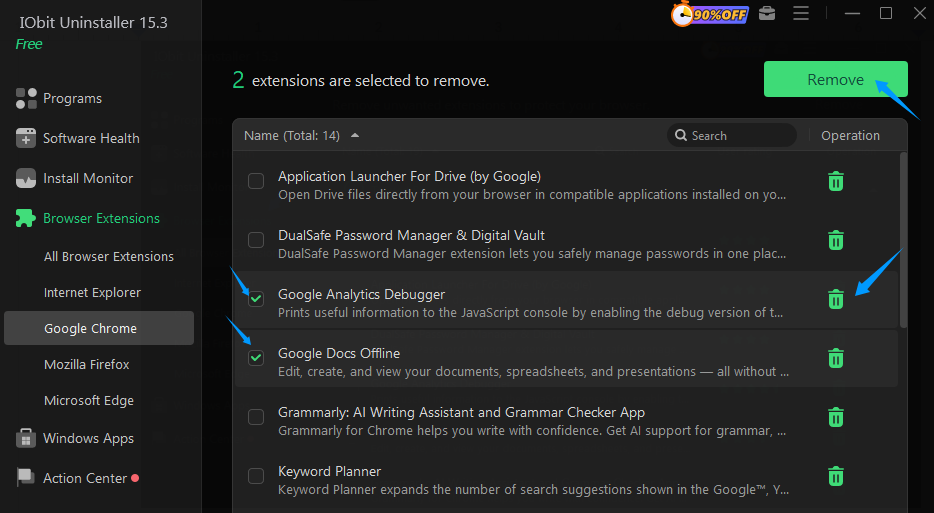
Step 2. Go to the Browser Extension tab, where all detected extensions are listed. You can also choose a specific browser to review its add-ons.
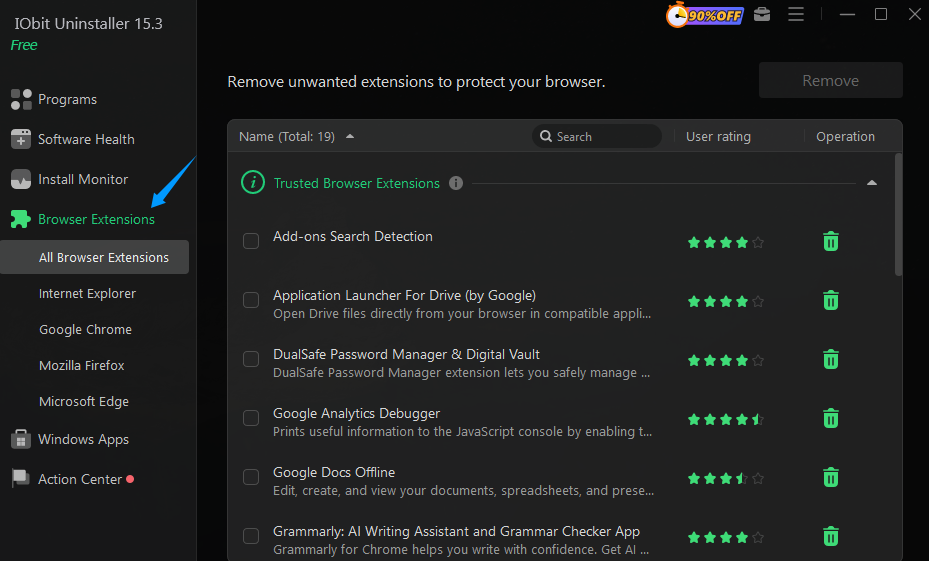
Step 3. Select and tick the extensions you want to remove, then click Remove in the top-right corner for batch uninstall, or use the trash icon to delete them individually.
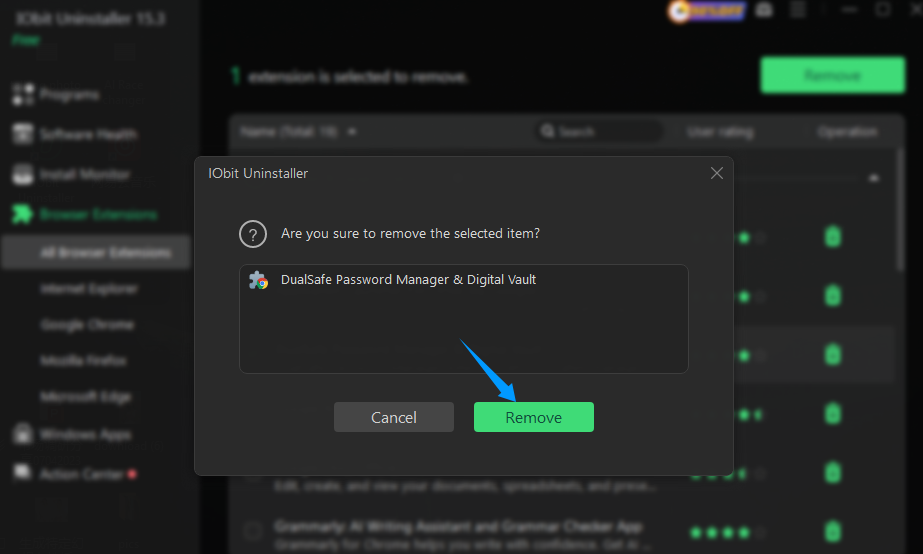
Step 4. Confirm your action by clicking Remove again when prompted.
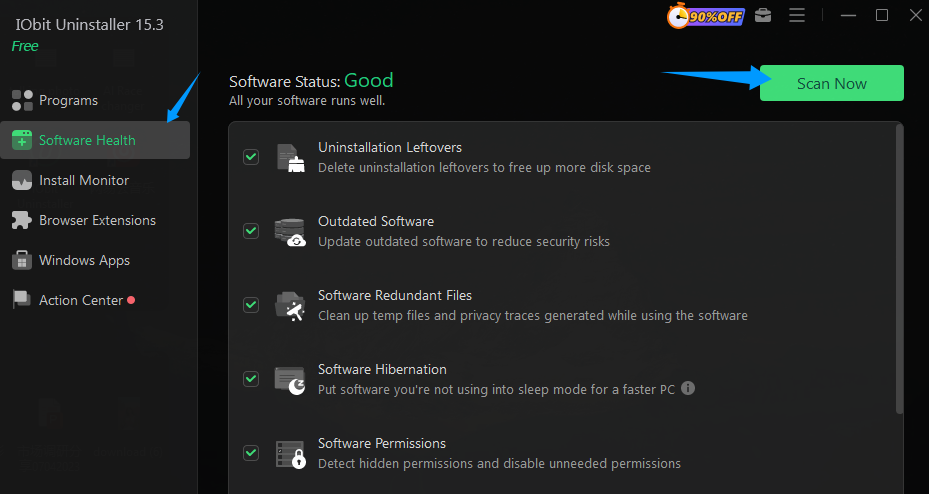
Step 5. After uninstalling, switch to Software Health and click Scan Now to perform a deep cleanup and remove leftover files.
How to Delete Extensions on Safari for Mac and iPhone?
Removing extensions in Safari is a bit different from other browsers, as it’s deeply integrated into the Apple ecosystem. However, the process is simple once you know where to go.
On Mac, open Safari, click Safari in the top menu, and select Settings (or Preferences). Navigate to the Extensions tab, choose the extension you want to remove, and click Uninstall. In some cases, you may need to delete the associated app from your Applications folder.
On iPhone or iPad, open the Settings app, scroll down to Safari, and tap Extensions under the General section. From there, you can toggle off an extension to disable it or remove the associated app to uninstall it completely.
Disable vs. Remove: When Should You Keep Your Extensions?
Not every extension needs a permanent exit. In many cases, disabling an add-on is a better option, especially if you use it occasionally or need to troubleshoot performance issues. So, how to disable browser extensions? It’s simple: open your browser’s Extensions or Add-ons page and toggle off the extension you want.
Refer to the table below for a detailed breakdown of when to toggle versus when to delete.
| Feature |
Disable (Toggle Off) |
Remove (Uninstall) |
| System Resources |
Stops consuming RAM/CPU |
Frees up disk space & resources |
| Privacy |
Extension cannot track active browsing |
All access to your data is revoked |
| Availability |
Stays in your list; one click to restart |
Must be re-downloaded from the store |
| Security |
Minimal risk, but code remains on disk |
Maximum security; removes all code |
A good rule of thumb: disable first if you’re uncertain. If problems persist or the extension you no longer need, consider removing it entirely to keep your browser clean and secure.
Conclusion
Knowing how to remove browser extensions is vital for a fast, secure, and clutter-free browsing experience. For day-to-day management, the built‑in tools in your browser are basically all you need. However, when you run into stubborn or hidden add‑ons, a dedicated tool like IObit Uninstaller provides a deeper cleanup and fully restores your browser’s performance and security. By combining regular manual checks with advanced tools, you will enjoy a faster, safer, and truly personalized journey across the web.
IObit Uninstaller Free
- Complete forced uninstallation for stubborn programs.
- Uninstall a batch of programs at once.
- Scan and remove leftover files, folders, and registry entries.
- Support the management of Universal Windows Platform apps.