Uninstalling software on Windows 11 isn’t always as clean as it should be. Many programs leave behind residual files, registry entries, and hidden folders that can slow down your system over time. That’s why finding the best uninstaller for Windows 11 is essential for maintaining performance and freeing up storage space.
In this guide, we’ll explore the best uninstaller 2026 that goes beyond the default Windows uninstaller, helping you completely remove stubborn apps and leftovers. Whether you’re dealing with corrupted programs or simply want a cleaner PC, these tools provide powerful solutions.
Why You Need a Third-Party Uninstaller on Windows 11
While Windows 11 includes a built-in uninstaller, it often falls short when it comes to fully removing programs and their hidden components. If you want a cleaner, more efficient system, understanding the benefits of using a third-party tool can help you make a smarter choice. Aside from removing apps completely, there are many reasons why you need a third-party uninstaller on Windows 11.
Built-in uninstaller leaves residual files
Registry clutter affects system performance
Some apps can’t be removed normally
Helps avoid software conflicts
What to Consider to Choose the Best Uninstaller for Windows 11?
Before jumping into the best uninstaller software for Windows 11, it’s important to understand what actually makes one uninstaller better than another. Not every tool offers the same level of performance, safety, or convenience, so knowing the key criteria will help you choose the best uninstaller for Windows 11 based on your specific needs.
Deep Scan Capability - It can ensure all leftover files, folders, and registry entries are completely removed after uninstalling a program.
Force Uninstall Feature - Allows you to remove stubborn or corrupted programs that won’t uninstall through normal methods.
Batch Uninstall Support - Lets you uninstall multiple applications at once, saving time and effort.
User-Friendly Interface - A clean and intuitive design makes it easier for both beginners and advanced users to navigate.
Safety and Reliability - The tool should avoid deleting critical system files and offer restore points or backups.
Additional Features - Extras like browser extension removal, startup manager, and software updater can add more value.
By keeping these factors in mind, you’ll be able to select the best uninstaller app for Windows 11 that not only removes programs effectively but also helps maintain your system’s overall performance and stability.
Best Uninstaller for Windows 11 (5 Top Picks)
Now that you understand what to consider to choose the best uninstaller Windows 11, the next step is choosing the right tool for the job. Not all uninstallers offer the same level of performance, so picking the best free uninstaller for Windows 11 can make a big difference in how cleanly and efficiently programs are removed from your system. Let’s explore the top options available.
1. IObit Uninstaller - Best Overall
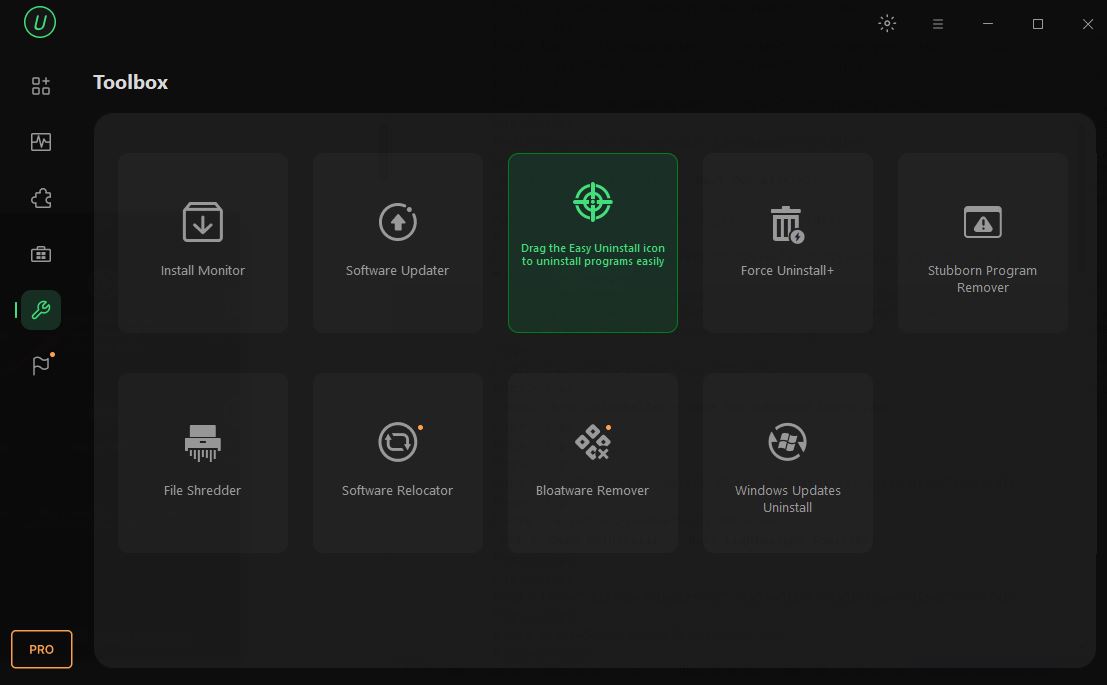
IObit Uninstaller is widely considered one of the best Windows uninstaller tools, mainly because it goes far beyond the basic removal process offered by the default system utility. Instead of simply running an app’s built-in uninstaller, it performs deep scans, tracks system changes, and removes leftover files that typically cause clutter or conflicts. Overall, it is an all-in-one toolkit that combines uninstalling, updating, and cleanup tools in one interface, making it more versatile than simpler alternatives.
IObit Uninstaller Free
- Complete forced uninstallation for stubborn programs.
- Uninstall a batch of programs at once.
- Scan and remove leftover files, folders, and registry entries.
- Support the management of Universal Windows Platform apps.

Key Features:
Force uninstall for stubborn apps
Deep scan to remove residual files and registry entries
Batch uninstall programs at once
Tracks changes made during software installation
Removes unwanted plugins across browsers
Delete junk files to help maintain the system's health
Unique Hunter Mode for easy uninstall or real-time monitoring
Automatic restore point creation before uninstall
Pros
Easy to use
Thorough cleanup
Free version available
Cons
Ads in the free version
Some features require the Pro version
Best Uninstaller for Windows - IObit Uninstaller
2. Revo Uninstaller – Best for Advanced Users
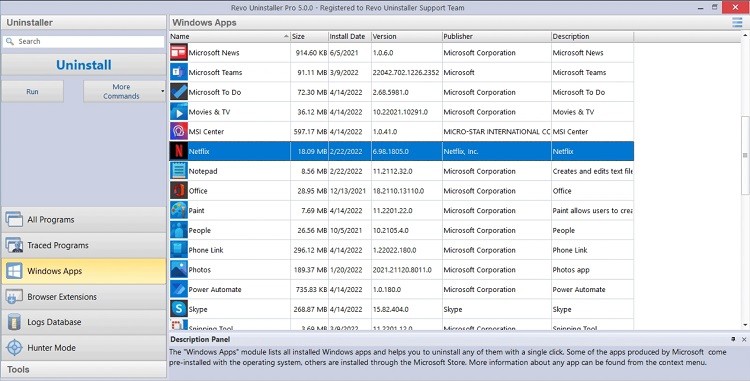
Revo Uninstaller is a popular and best free uninstaller for Windows 11 designed to remove programs more thoroughly than the default Windows uninstall feature. It stands out for its deep scanning, flexible uninstall modes, and unique features like Hunter Mode. These features make it especially useful if you need to frequently deal with stubborn programs or want tighter control over system cleanup.
However, beginners may find some features slightly complex, and the best capabilities are reserved for the paid version. To compare with Revo Uninstaller Pro, you can check this review.
Key Features:
Scan and delete leftovers after uninstalling
Offer multiple uninstall modes(Safe, Moderate, Advanced)
Force-uninstall stubborn programs
Tracks system changes during software installation
Unique hunter mode that lets you uninstall programs by dragging a target icon onto their window or shortcut
Clean your system junk
Pros
User-friendly interface despite advanced features
Portable version available for convenience
Cons
Free version lacks some advanced features
Full scans can be time-consuming
Some features may require manual selection of leftovers
Best Uninstaller for Windows - Revo Uninstaller
3. Geek Uninstaller – Best Lightweight Tool
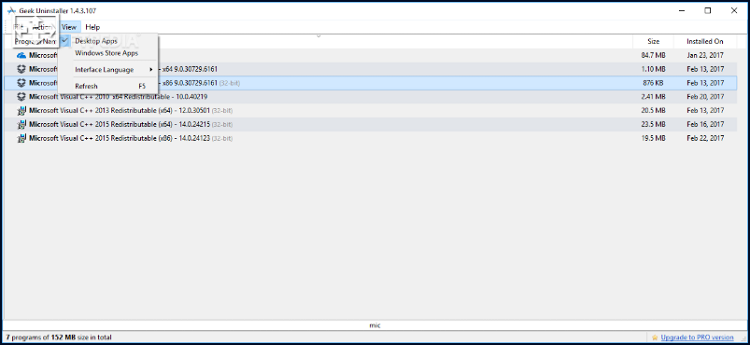
Geek Uninstaller is a lightweight yet powerful program uninstaller Windows 11 designed to remove programs quickly and completely. Unlike bulkier tools, it focuses on simplicity and speed while still delivering deep cleanup capabilities - making it especially popular among users who want an efficient, portable solution without installing extra software.
Key Features:
Deep scan and completely remove leftover files
Force uninstall for stubborn apps
Remove multiple programs at once
Displays app details like version, size, and install date
Manage startup items and improve boot performance
Pros
Lightweight and fast compared to competitors
No installation required
Simple and easy-to-use interface
Cons
Free version lacks advanced features
No real-time installation monitoring
Fewer advanced tools compared to competitors
No automatic restore point creation before uninstall
Best Uninstaller for Windows - Geek Uninstaller
4. Ashampoo UnInstaller – Best for System Monitoring
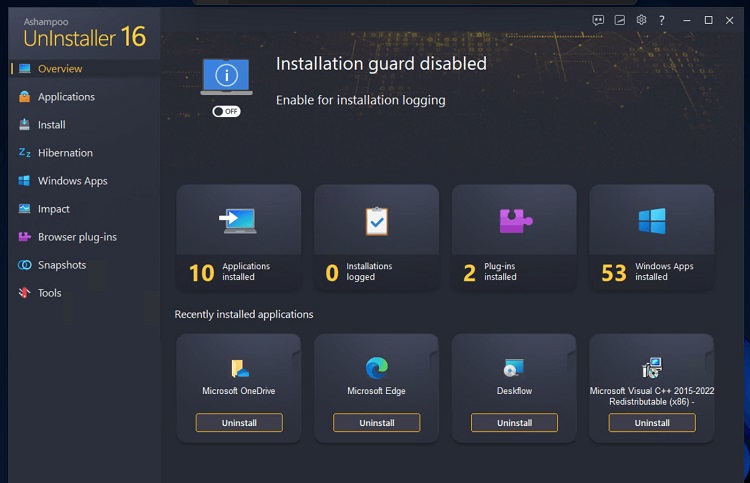
Ashampoo UnInstaller is a comprehensive and one of the best app uninstallers for Windows 11, designed to completely remove programs and keep your system clean over time. Unlike basic uninstallers, it tracks installation changes for more accurate removal and also works as a disk cleanup software that removes lingering app files and junk folders after uninstalling applications like IObit Uninstaller Windows 11. This makes it a strong choice for advanced users or anyone who frequently installs and removes software.
Key Features:
Tracks every file, registry entry, and system change during software installation
Scans for leftover files and registry entries
Provides both automatic monitoring and manual snapshot
Allows multiple programs to be removed at once
Remove unwanted add-ons and toolbars from browsers
Includes extra utilities like disk cleaners, startup manager, and file wiper
Pros
User-friendly interface with clear monitoring features
Effective at preventing leftover clutter over time
Strong privacy and cleanup capabilities
Cons
User-friendly interface with clear monitoring features
Effective at preventing leftover clutter over time
Strong privacy and cleanup capabilities
5. Wise Program Uninstaller - Best for Management and Fixes
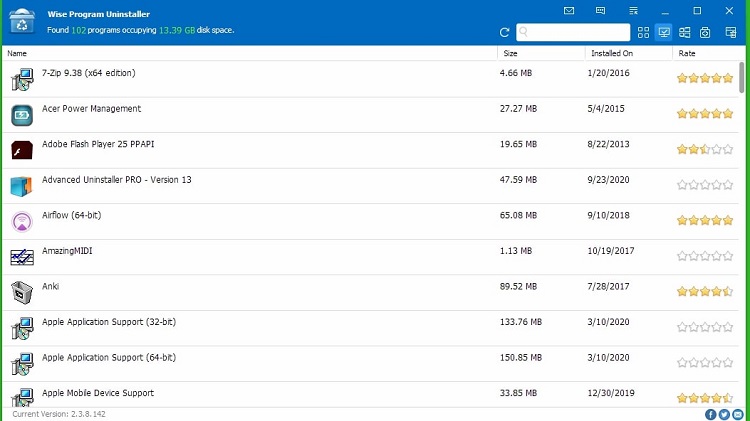
Wise Program Uninstaller is a free, lightweight uninstaller designed to completely remove unwanted programs and clean up leftover files that the default Windows uninstaller often misses. It focuses on simplicity and safety, making it a great option for everyday users who want an effective yet easy-to-use tool without paying for advanced software. However, if you need advanced automation or installation tracking, more feature-rich tools like IObit or Ashampoo may be a better fit.
Key Features:
Performs deep scans to delete leftover files
Removes stubborn, corrupted, or partially uninstalled programs
Remove hidden or unlisted programs
Batch removal of browser add-ons
Creates a restore point before uninstalling
Pros
Completely free to use with no major restrictions
Lightweight and fast performance
A portable version is available for flexibility
Cons
Lacks advanced features
May not detect every leftover file in some cases
Limited customization compared to premium tools
Best Uninstaller for Windows - Wise Program Uninstaller
How to Use an Uninstaller to Remove Programs Completely
Now that you know the best uninstaller for Windows 11, the next step is understanding how to actually use one to remove programs completely. While most uninstallers follow a similar process, tools like IObit Uninstaller make it especially simple with guided steps and deep scanning - so you can ensure no leftover files or registry entries are left behind. Let’s take IObit Uninstaller as an example and see how it works.
Step 1. Download IObit Uninstaller from the official website.
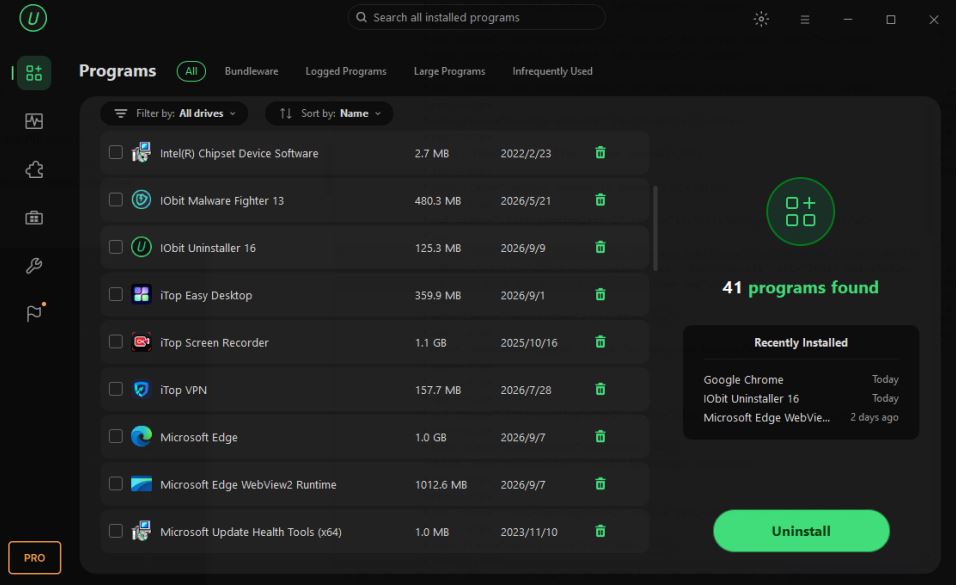
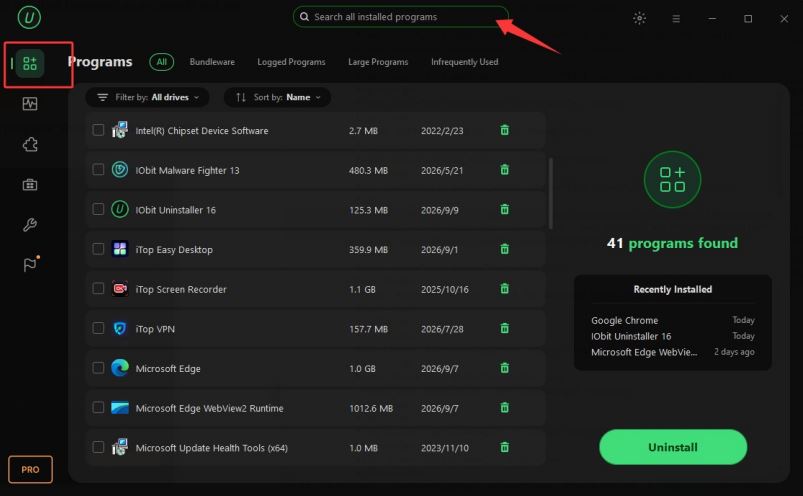
Step 2. Launch IObit and go to the Program section. It will show you a list of all installed programs. You can sort wanted programs by size, usage frequency, and installation date.
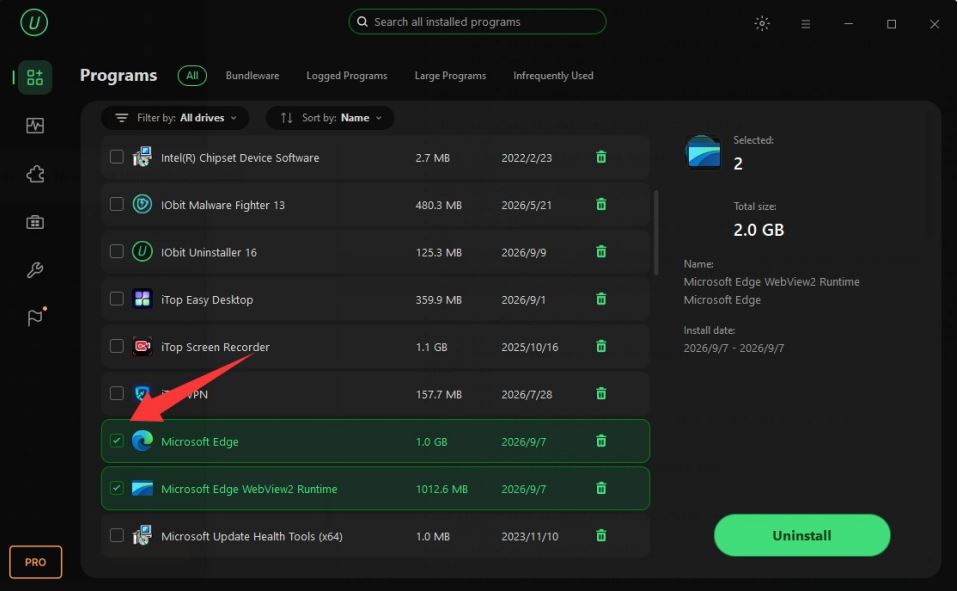
Check the box next to the programs you want to remove. You can select one or multiple at once. Next, click Uninstall to proceed.
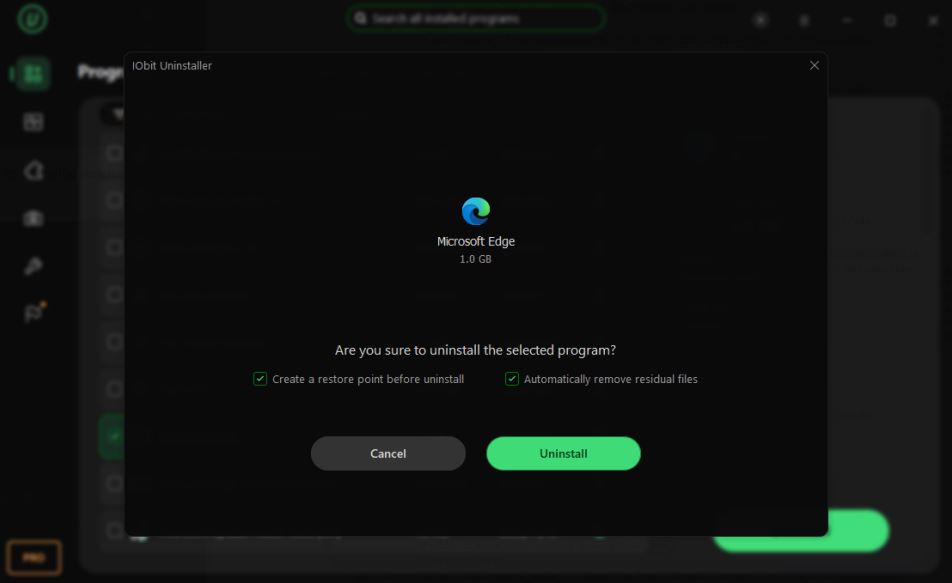
Step 3. A Window will pop up to let you choose to create a restore point before installing or removing residual files. Just check the box next to your desired option and click Uninstall to start the uninstallation process.
Common Mistakes to Avoid While Uninstalling Programs
Before you remove any software, it’s worth knowing that uninstalling programs isn’t always as simple as clicking “Delete.” Many users unknowingly make small mistakes that can leave behind junk files, cause system errors, or even affect other applications. To avoid these issues and ensure a clean removal, let’s look at the most common mistakes to avoid while uninstalling programs.
Deleting registry entries without backup
Using unreliable uninstall tools
Skipping leftover scans
Not restarting after uninstall
FAQ about Best Uninstaller for Windows 11
1. What is the best uninstaller for Windows 11?
When choosing the best uninstaller for Windows 11, the most important factors are how thoroughly it removes leftover files, ease of use, and ability to handle stubborn programs. Based on current comparisons and widely recommended tools, you can choose the one that suits your needs best.
2. Does Windows 11 need a third-party uninstaller?
Not always - but sometimes yes. For basic use, Windows’ built-in uninstaller is usually enough. However, it often leaves residual files and folders behind after uninstalling apps, so a third-party uninstaller is required. Whether to use the best uninstaller for Windows depends on your specific requirements.
3. Is it safe to use the uninstaller?
Generally, yes - if you use a reputable tool and review what it removes. When it comes to choosing the best uninstaller for Windows 11, you can select a trusted uninstaller that is widely used and designed to be safe, and allows you to create restore points before making changes. Additionally, you should avoid deleting items you don’t recognize.
4. Can Uninstaller remove leftover files?
Yes - that’s their main advantage. Advanced uninstallers run the app’s default uninstaller first, and then they scan for leftover files, folders, and registry entries and remove them.
Conclusion
Finding the best uninstaller for Windows 11 can significantly improve your system’s performance and stability. Tools like IObit Uninstaller and Revo Uninstaller offer powerful features that go beyond basic removal, ensuring no leftover files are left behind. Choose the one that fits your needs and keep your PC running smoothly.