“I think Opera is no longer the browser I want, so I need to remove it and get a new one.” That naturally leads to another question: how to uninstall Opera? It's not simply a matter of pressing the Delete button—but also making sure nothing unnecessary is left behind after uninstalling.
This article will introduce several effective ways for Windows users to uninstall Opera, along with a solution to completely clear Opera cache. Read on to quickly learn how to make a cleaner space for your new browser!
Things to Do Before Uninstalling Opera
Before uninstalling Opera, take a moment to protect any data you may want to keep. A few quick preparations can help prevent lost bookmarks, passwords, or browsing information.
-
Back Up Your Bookmarks
If you have important bookmarks saved in Opera, export them before uninstalling.
Step 1. Open Opera and click the Heart icon on the left.
Step 2. On the bookmarks page, click Import/Export > Export bookmarks and save the HTML file to your computer.
-
Export Saved Passwords
If Opera stores passwords for your online accounts, back them up first.
Step 1. Go to Settings > Autofill > Passwords.
Step 2. Click the three-dot button next to Saved Passwords, select Export passwords, and save the file.
-
Sync Your Opera Account
If you use an Opera account, sync your important browser data before uninstalling.
Go to Settings > Browser > Synchronization > Advanced Configuration, then select the data you want to sync.
-
Close Opera Completely
Opera may continue running in the background and interfere with uninstallation.
Close all Opera windows, then press Ctrl + Shift + Esc to open Task Manager. If you see any Opera-related processes, select them and click End task.
-
Decide Whether to Delete Browsing Data
Finally, decide whether you want to keep your browsing data. If you no longer plan to use Opera, you can also clear your cache, cookies, and browsing history before uninstalling it.
[Easiest] How to Uninstall Opera Completely in 1 Click?
You're here to learn how to uninstall Opera, but the process actually involves more than how to uninstall Opera browser. You may also need to deal with how to delete Opera cache, history, and other leftover data, so it's important to check whether anything remains after uninstallation.
It's not as simple as pressing a Delete button and calling it a day, and that's where IObit Uninstaller comes in. As a faster, more automated uninstallation assistant, it's your go-to option for uninstalling the Opera solution introduced in this guide. It can automatically and thoroughly remove everything, including leftover files, folders, cache, and registry entries.
IObit Uninstaller Free
- Complete forced uninstallation for stubborn programs.
- Uninstall a batch of programs at once.
- Scan and remove leftover files, folders, and registry entries.
- Support the management of Universal Windows Platform apps.

Here's how it performs in different areas:
One-click uninstall for Opera and Opera GX: With just one click, Opera and its related Opera GX components can be completely removed. It's so simple that you don't need to worry about those stubborn leftovers that can otherwise become a headache.
Free Opera removal without manual cleanup: To avoid leaving unnecessary data behind, you would normally have to check and clean everything manually. By leaving the job to this free uninstaller software, you can skip all that tedious work.
Force-uninstall stubborn Opera installations: Sometimes, Opera's standard uninstallation method may get stuck. Let IObit Uninstaller handle stubborn, damaged, or otherwise unresponsive installations and force the uninstallation when necessary.
Automatically clean up leftover Opera files: Leftover files may still be hiding on your computer. Instead of searching for them one by one, let IObit Uninstaller automatically scan for and clean up these leftovers.
Erase residual registry entries completely: This best uninstaller can automatically detect and clean up residual registry entries, saving you from having to search through the Registry and remove them manually.
Here is how to uninstall Opera web browser using IObit Uninstaller.
Step 1. Download and install this software on the PC.
Step 2. Click on All Programs in the left sidebar and find Opera/Opera GX in the list.
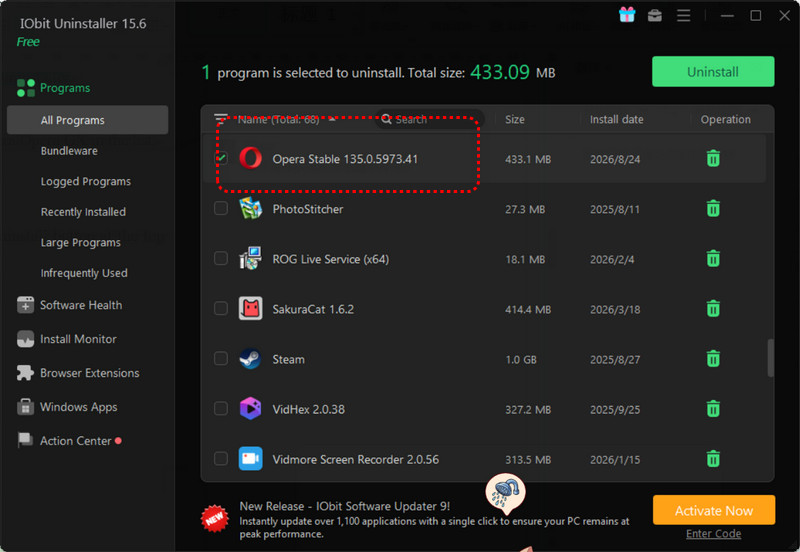
Step 3. Check the box next to Opera and click the green Uninstall button at the top right.
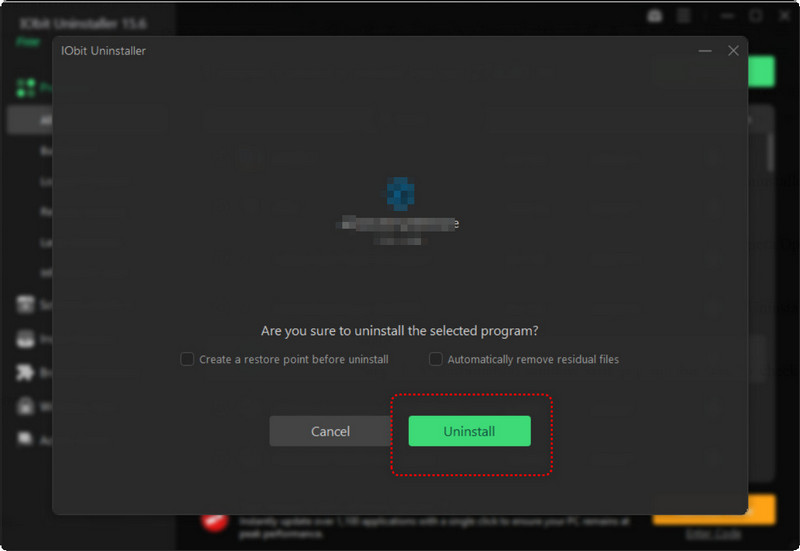
Step 4. A confirmation window will pop up. Be sure to check the box that says Automatically remove residual files.
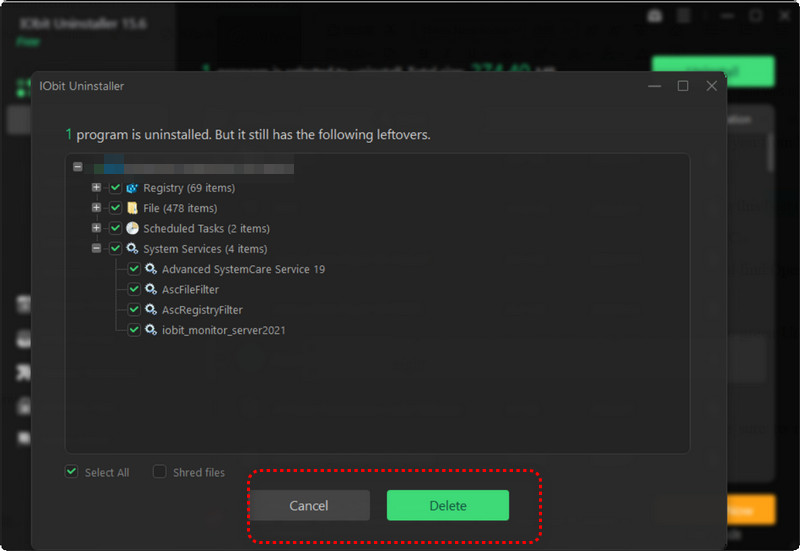
How to Uninstall Opera Browser Manually on Windows 11/10?
If you don't want to use third-party software, how do I uninstall an app? Windows has built-in manual options to help you do it. However, you may need to go through a few more steps and check for any leftover data after the uninstallation.
Below are 3 manual how to uninstall Opera methods for Windows 11/10. Simply follow the steps in order.
Method 1. Uninstall Opera from Windows Settings
With Windows Settings, you can directly manage and uninstall apps on your computer. This method is ideal for users who want to get the job done quickly.
Note: The steps are slightly different on Windows 11 and Windows 10, so the specific paths are marked separately below.
Step 1. Press Windows + I on your keyboard to quickly open Settings.
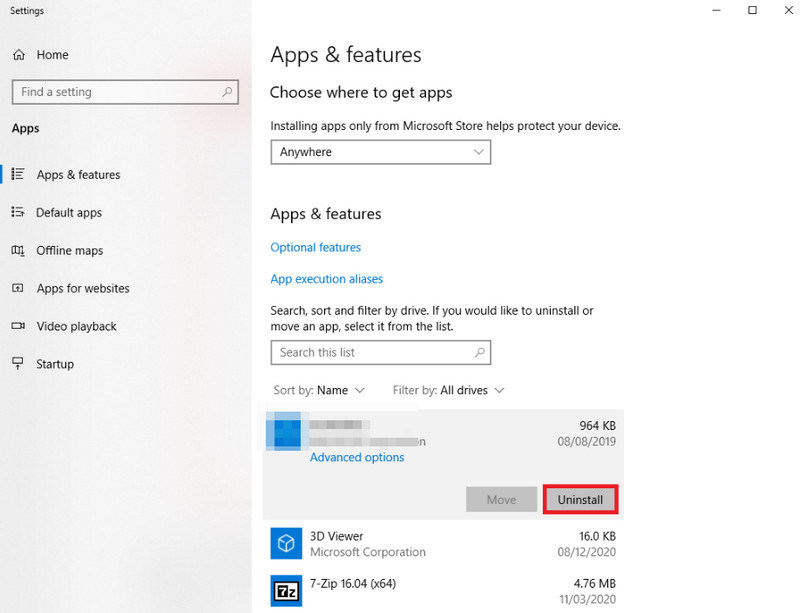
Step 2. Click Apps > Installed apps on the left sidebar. (On Windows 10, select Apps > Apps & features instead.)
Step 3. Type Opera in the search box to find the Opera browser you want to uninstall.
Step 4. Click the three-dot button next to Opera and select Uninstall. Follow the on-screen instructions to complete the process. (On Windows 10, click Opera directly, then select Uninstall.)
Method 2. Remove Opera via Control Panel
There's another straightforward option: use the Control Panel to locate Opera and uninstall it. The steps are almost identical on Windows 11 and Windows 10, making this method easy to follow:
Step 1. Press Windows + S, search for Control Panel, and open it.
Step 2. Click Programs > Programs and Features.
Step 3. Find Opera in the list of installed programs.
Step 4. Right-click Opera, or select it and click Uninstall at the top.
Method 3. Remove Opera Leftover Files and Profile Data
As mentioned earlier in this guide, the two forced uninstall program Windows 11/10 methods above do not include clearing cache, cookies, or user profile data.
If you want to learn how to delete Opera cache manually, check out this section:
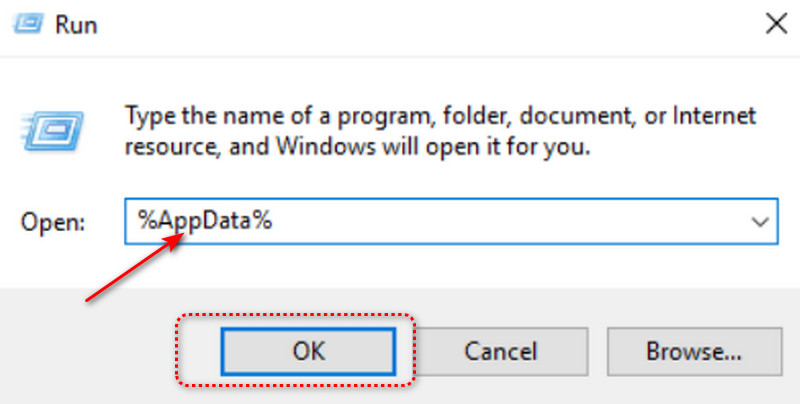
Step 1. Press Windows + R to open the Run dialog box.
Step 2. Enter %AppData%, then press Enter.
Step 3. In the folder that opens, find the folder related to Opera, such as Opera Software, and delete it.
Step 4. Press Windows + R again, enter %LocalAppData%, and press Enter.
Step 5. Find Opera Software or any other remaining folders related to Opera, then delete them.
Notice: This browser cache removal method will permanently remove cookies, site cache, personal profiles, and other related data stored by Opera. If you may use Opera again in the future, make sure your important data has been backed up or synced first.
How to Uninstall Opera GX (If Installed)
By now, you should have solved the problems of how to uninstall Opera and how to delete Opera cache.
However, you may notice an app called Opera GX in your list of installed applications. This is Opera's version specifically designed for gamers. The good news is that uninstalling Opera GX is almost the same as uninstalling the standard version, meaning you can simply follow the methods above, including the steps for how to delete Opera cache.
Here is a simple how to uninstall Opera GX guide for reference:
Open Settings > Apps > Installed apps (Windows 11) or Apps > Apps & features (Windows 10), find Opera GX, click the app name, and select Uninstall.
Open Control Panel > Programs > Programs and Features, find Opera GX in the list of installed programs, and click Uninstall.
You can use the same steps as a template when you uninstall Microsoft Edge, Firefox, Chrome, or any other app on your computer.
FAQs about How to Uninstall Opera Web Browser
1. Why won't Opera uninstall?
Opera may still be running in the background, or its uninstaller may be damaged. Try ending all Opera-related processes in Task Manager and then uninstall it again.
2. Does uninstalling Opera delete bookmarks and passwords?
Not necessarily. It depends on the uninstall options and whether your data is synced. It's best to back up important bookmarks and passwords before uninstalling.
3. How do I uninstall Opera if it's not listed in Installed Apps?
Try Control Panel > Programs and Features to find and uninstall Opera. If it still doesn't appear, a dedicated uninstaller may help remove it.
4. How to delete Opera cache?
Open Opera and go to Settings > Privacy & security > Delete browsing data. Select Cached images and files, then click Delete data.
5. Can I reinstall Opera after uninstalling it?
Yes. You can download and reinstall Opera anytime after uninstalling it.
6. How to remove Opera on Mac?
Quit Opera, open the Applications folder, and drag Opera to the Trash. To remove it completely, you may also need to manually delete its cache and profile files.
Conclusion
Here is a complete guide on how to uninstall Opera manually, including step-by-step instructions for removing both the standard Opera browser and Opera GX, as well as clearing cache and other leftover data. While this approach gives you more control over what gets removed, it can take extra time and requires careful checking to avoid leaving unwanted files behind.
If you're looking for a faster and easier way, IObit Uninstaller is worth trying. It can remove Opera and its related leftovers in just a few clicks, saving you the hassle of tracking down files and cleaning them up manually.
IObit Uninstaller Free
- Complete forced uninstallation for stubborn programs.
- Uninstall a batch of programs at once.
- Scan and remove leftover files, folders, and registry entries.
- Support the management of Universal Windows Platform apps.