Python is a high-level programming language with dynamic semantics, which powers web applications, data science, scripting, and more. While it is widely adopted, some users choose to uninstall Python for specific needs. How to uninstall Python on Windows? Here, we will walk you through all possible methods to remove Python from your PC.
Why Do Users Uninstall Python
Although Python is an essential tool for developers and data professionals, there are various reasons you might want to uninstall it. Here are the major ones:
Free Up Disk Space: Python installations with multiple versions and packages can take up a considerable amount of storage over time.
Remove Old Python Versions: Outdated versions may cause compatibility issues. Many users want to uninstall old Python versions before installing the latest one.
Fix Software Issues or Version Conflicts: Sometimes, there are conflicts between different versions or corrupted installations. This can cause scripts and applications to malfunction.
-
Clean Up Development Environment: Some developers prefer to reset their environment to ensure a fresh and stable setup.
No Longer Need Python: Some users simply want to uninstall Python because they don't need it anymore.
Today, both third-party uninstallers and built-in Windows tools can help you remove Python efficiently. Just read on to find all the practical methods to uninstall Python completely.
How to Uninstall Python with IObit Uninstaller
IObit Uninstaller is a powerful tool that can help you remove programs completely from Windows. It can not only uninstall Python but also automatically clean up leftover files, folders, and registry entries for a thorough cleanup. If you are looking for the simplest solution to remove Python, IObit Uninstaller is a great choice to make it hassle-free.
First off, let's see how to completely uninstall Python with it easily.
Step 1. Free download and install IObit Uninstaller on your Windows PC.
Step 2. Launch it. Go to Programs > All Programs. Search for Python to locate the software and its launcher. Select them and click the Uninstall button in the top right.
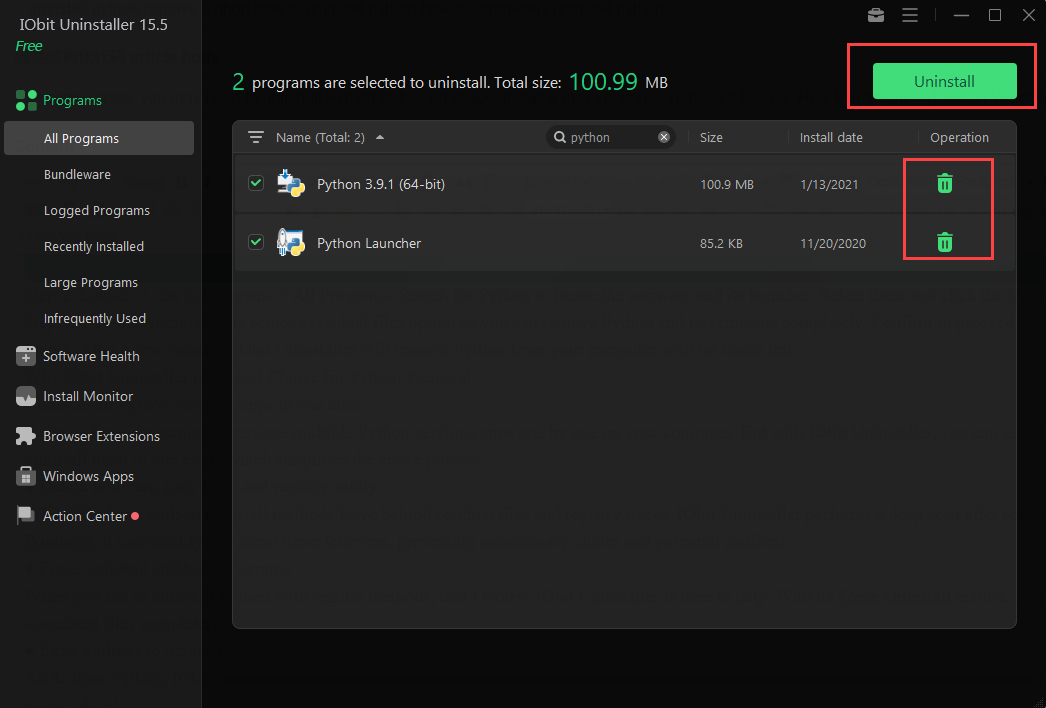
Step 3. Tick the Automatically remove residual files option so you can remove Python and its remnants completely. Confirm to proceed.
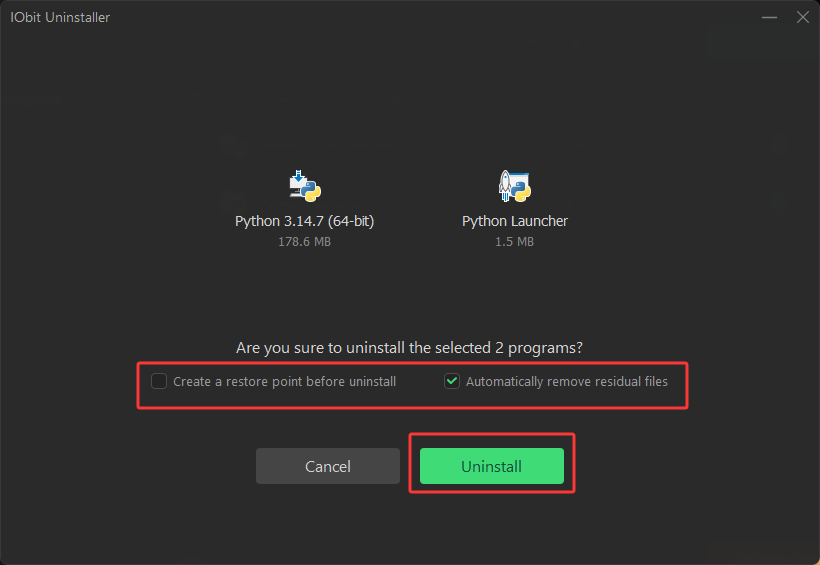
Step 4. After a few minutes, IObit Uninstaller will remove Python from your computer with no traces left.
Why IObit Uninstaller is a Good Choice for Python Removal
Uninstall all Python versions/apps in one click
It can be time-consuming to remove multiple Python versions/apps one by one on your computer. But with IObit Uninstaller, you can select multiple Python-related programs and uninstall them in one click, which simplifies the entire process.
Delete leftovers, junk files, and registry safely
While Windows built-in uninstall methods leave behind residual files and registry traces, IObit Uninstaller performs a deep scan after removal. As one of the best uninstallers for Windows, it can identify and clean these leftovers, preventing unnecessary clutter and potential conflicts.
Force uninstall stubborn programs
When you fail to uninstall Python with regular methods, don’t worry; IObit Uninstaller is here to help. With its Force Uninstall feature, you can remove stubborn programs and their associated files completely.
Extra abilities to uninstall Windows apps and browser extensions
Aside from Python, IObit Uninstaller supports uninstallation for Windows apps and even browser extensions. There is no need to switch tools; you can uninstall software of all kinds in one place!
IObit Uninstaller Free
- Complete forced uninstallation for stubborn programs.
- Uninstall a batch of programs at once.
- Scan and remove leftover files, folders, and registry entries.
- Support the management of Universal Windows Platform apps.

If you prefer not to install a third-party application, Windows also provides built-in tools (Control Panel, Windows Settings, and Command Prompt) that help.
How to Uninstall Python with Control Panel
The Control Panel is the classic Windows tool that allows you to manage installed programs intuitively. You can locate, review all the apps installed on Windows here (with details like installed date, size, etc.) and choose any one for one-click removal.
Now let’s see how to uninstall Python with it in simple steps.
Step 1. Search for the Control Panel and open it.
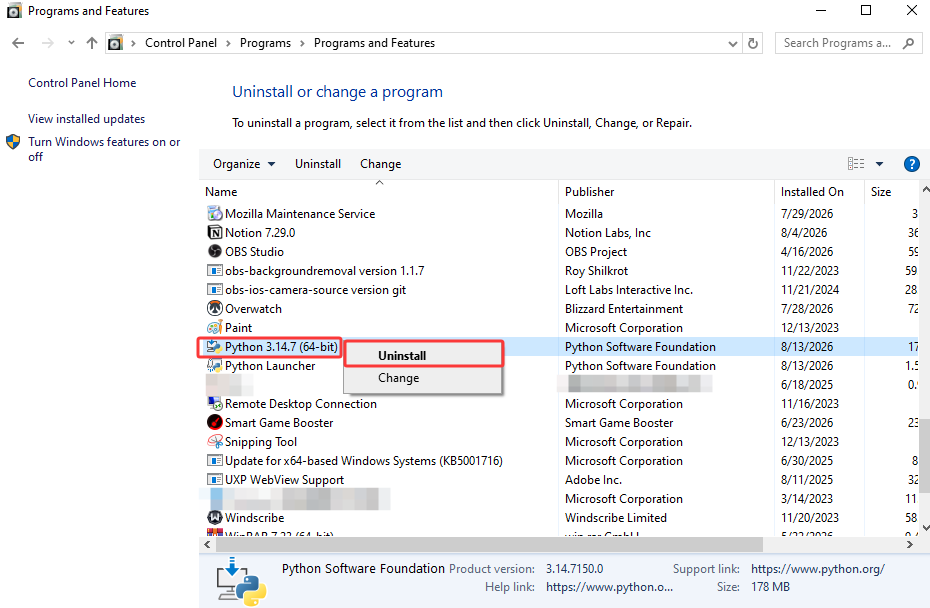
Step 2. Go to Programs > Programs and Features.
Step 3. Locate Python and its launcher from the list. Right-click on a Python entry and select Uninstall to remove it from your PC.
How to Uninstall Python with Windows Settings
Windows Settings is another built-in method that allows you to uninstall apps on Windows easily. Similar to the Control Panel, Windows Settings lets you access all the installed apps, and you can remove any you want in one click.
Step 1. Press Windows + I to open Settings, or search for “Settings” from the Start menu.
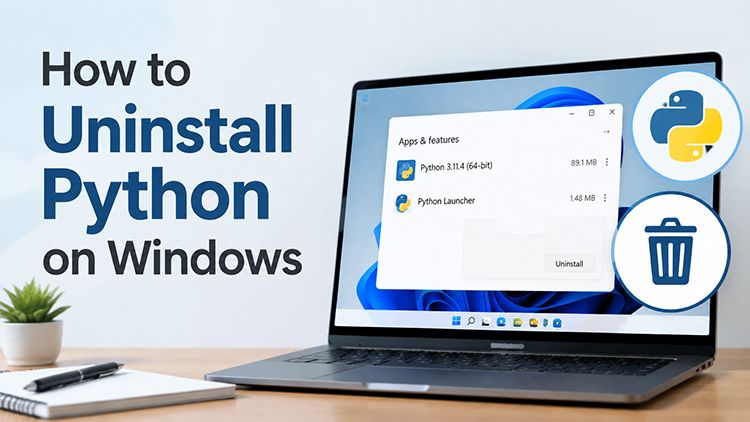
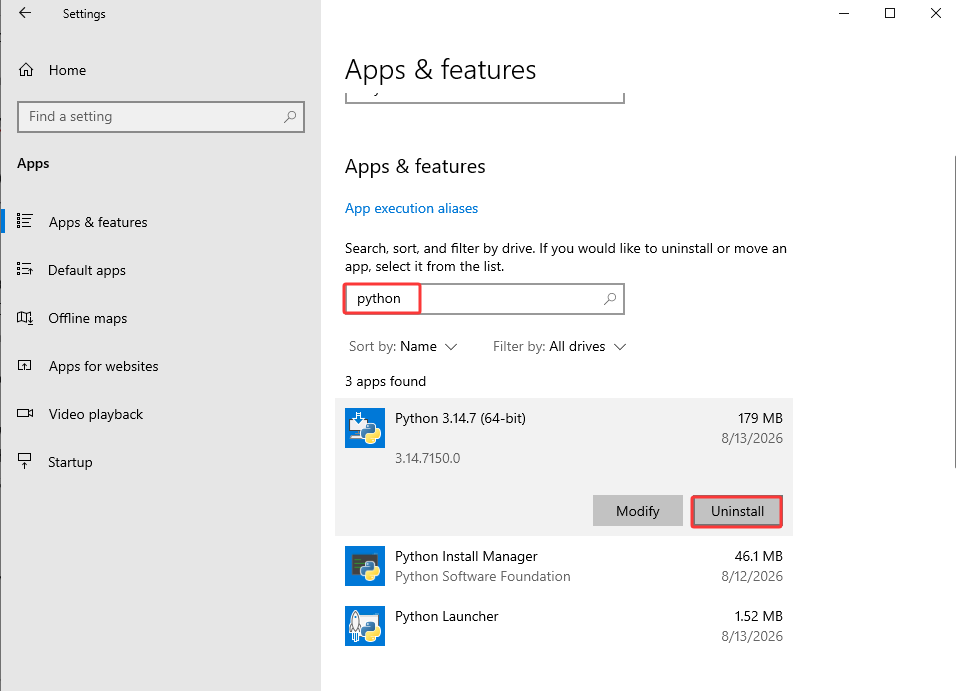
Step 2. Navigate to Apps > Apps & features on Windows 10, or Apps > Installed apps on Windows 11.
Step 3. Search for "Python" or scroll through the application list to find installed versions, then click the Uninstall button. Confirm the action when prompted.
How to Uninstall Python with Command Prompt
If you are an advanced user who looks for better control of uninstallation, Command Prompt is another native option to remove Python. This method can also be useful when you can not delete Python via traditional Windows menus.
However, incorrect commands might remove the wrong Python installation, which can cause failed applications or conflicts with development environments that rely on that specific Python version. Make sure to identify and input the correct Python version and installation ID before proceeding.
Here's how to uninstall Python via Command Prompt step by step.
Step 1. Open the Start menu, type cmd, right-click Command Prompt, and select Run as administrator.
Step 2. Type the following command and press Enter to view all installed Python-related programs: winget list python.
Step 3. Review the results and locate the Python installation you want to remove. Check the Id column to find the exact package identifier.
Step 4. Use the following command to uninstall Python. Replace the ID with the one shown on your computer:
winget uninstall --id Python.Python.3.14.7
Step 5. Confirm the uninstall request if prompted. Windows will then remove the selected Python version and its associated files.
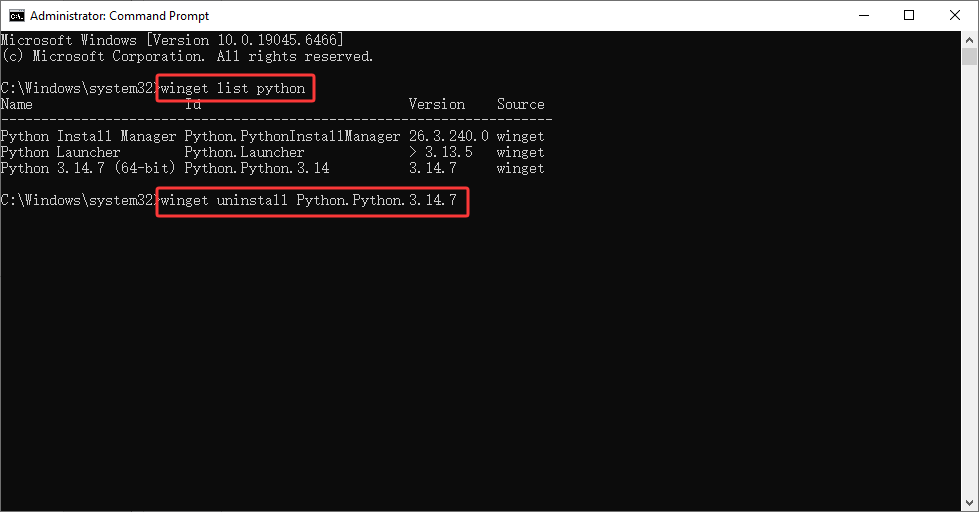
You can also follow the same steps above to uninstall an old Python version. Just make sure to enter the correct version number in the command!
Optional Steps to Remove Python from Windows
Commonly, Windows built-in tools can not remove Python completely. You might find folders, PATH entries, or package files that are left behind. If you want to completely clean Python from your system, follow the additional steps below.
How to Verify Whether Python Is Completely Uninstalled
First off, you can use Command Prompt to check if Python is fully removed from your PC.
Step 1. Open Command Prompt. Type: python --version or python -V, and press Enter.
Step 2. If Python has been removed successfully, Windows should display a message indicating that Python can not be found.
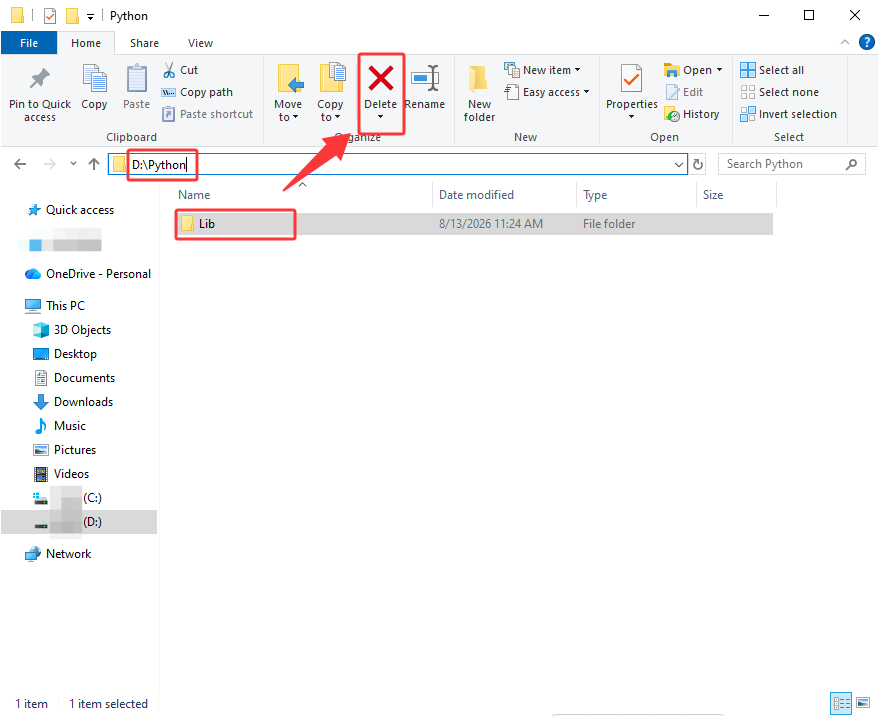
If there are any files left after uninstallation, you can delete them manually. Here are some of the common locations to look for the leftover Python files.
C:\Users\YourUsername\AppData\Local\Programs\Python
C:\Users\YourUsername\AppData\Local\Python
C:\Users\YourUsername\AppData\Roaming\Python
C:\Program Files\Python or C:\Program Files (x86)\Python
You can also press Windows + R, type %temp%, and remove temporary files associated with Python.
How to Remove Python from PATH Environment Variable
You might not be noticing this: Python adds installation paths to the Windows environment variables, which allows commands like python and pip to run from Command Prompt. After you uninstall Python, it's crucial to remove outdated PATH entries to prevent command conflicts when installing Python again.
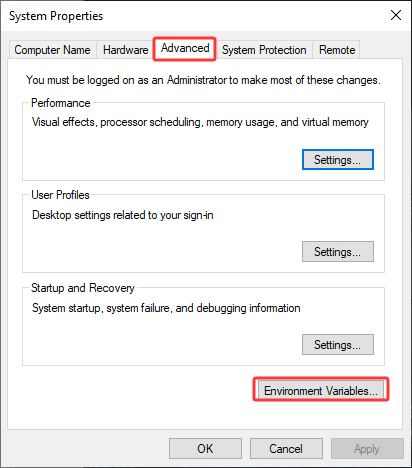
Step 1. On Windows, search for Environment Variables and select Edit the system environment variables. In the System Properties window, go to Advanced > Environment Variables at the bottom.
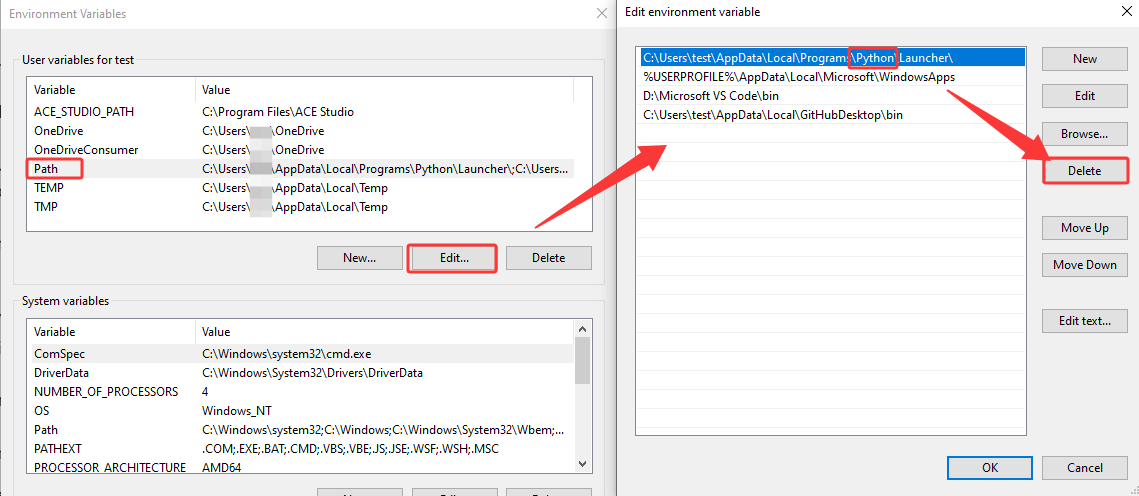
Step 2. In the User variables, click on Path to highlight it. Then click the Edit button to look for the line that contains Python. Click the Delete button to remove Python from the environment variable.
Step 3. For the bottom box (System variables), repeat the same process to delete Python from the path.
How to Uninstall Python Package
A Python package is a reusable module/library (e.g., NumPy, requests, pandas) installed with tools like pip. You might also want to uninstall a Python package you don’t need to free up space and reduce potential conflicts. It also helps keep your environment tidy.
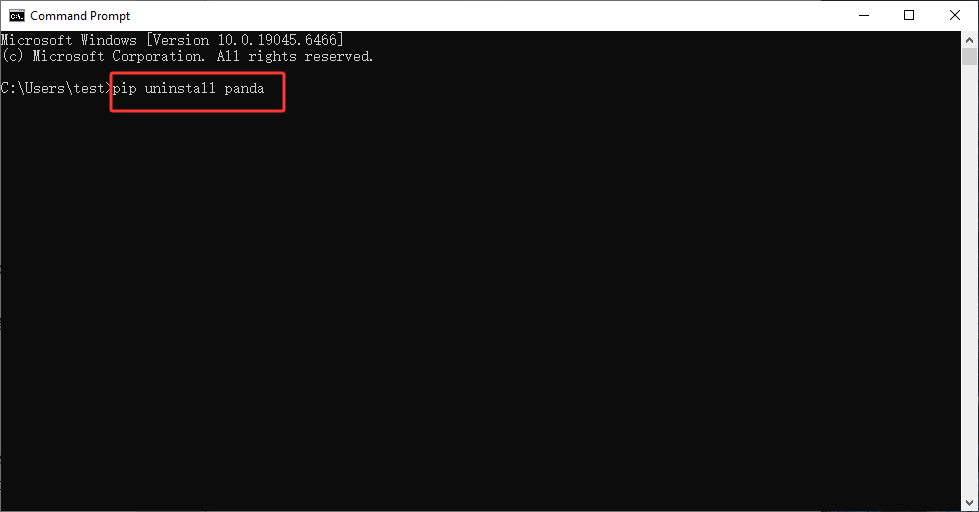
Step 1. Search for Command Prompt on your Windows to open the interface.
Step 2. Run this command: pip uninstall [package name]. Replace package name with the actual library name, like numpy or pandas.
Step 3. Type y and press Enter to confirm the removal.
The Bottom Line
How to uninstall Python on Windows? As you can see, it can be done via System Settings, Control Panel, or Command Prompt. However, these methods often leave residual files and PATH entries behind. If you want to uninstall Python thoroughly, IObit Uninstaller is definitely the most convenient solution. It can remove multiple Python versions, leftovers, and registry traces in one go. Its automated residual cleaning and batch uninstall capability also make it a comprehensive uninstaller for Windows PC. Try IObit Uninstaller and keep your system clean hassle-free now!
IObit Uninstaller Free
- Complete forced uninstallation for stubborn programs.
- Uninstall a batch of programs at once.
- Scan and remove leftover files, folders, and registry entries.
- Support the management of Universal Windows Platform apps.