


Lane Maxwell
With extensive experience in the tech industry, Lane is a trusted editor who delivers actionable insights and solution-driven content. His articles have guided millions of readers toward effective and efficient problem-solving.
Expert in
PC Health Solution

All-in-one PC health solution: clean, optimize and secure

Comprehensive PC cleaning, optimization and protection

Keep drivers always up-to-date

More stable performance with less system crashes

Protect millions of computers against malware

Top computer security with full-round protection

Protect against viruses & boost PC performance
Complete forced uninstallation for stubborn programs.
Uninstall a batch of programs at once.
Scan and remove leftover files, folders, and registry entries.
Support the management of Universal Windows Platform apps.

Learn how to uninstall Norton completely on Windows 11 and 10. Follow step-by-step methods to remove Norton Antivirus, delete leftover files, and more.

Lane Maxwell


Norton Antivirus is a widely used security program designed to protect your computer from viruses, malware, and online threats. However, some users choose to uninstall it for various reasons, such as switching to another antivirus solution, experiencing performance slowdowns, or dealing with an expired subscription. In some cases, leftover files can also cause conflicts with new software. That’s why it’s important to remove it properly. In this guide, we’ll show you how to uninstall Norton completely and ensure no traces are left behind.
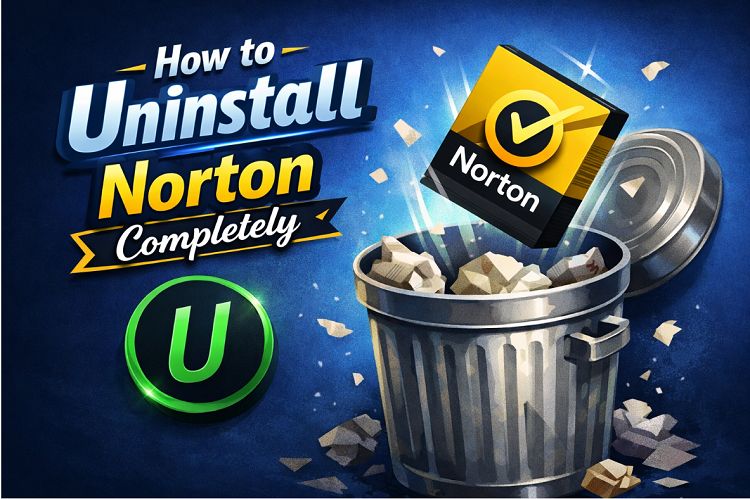
Before jumping straight into the removal process, it’s important to understand that uninstalling Norton is not easy cause it is integrated into the Windows operating system, and often leaves behind many residual files that prevent a complete uninstallation. The regular uninstallation method might not be enough, so you’ll need an advanced tool to do a deep uninstallation. But before that, it’s needed to go over what you should know before uninstalling Norton.
Ensure you have another antivirus installed (for protection)
Save the product key if you plan to reinstall Norton
Close all Norton-related processes before uninstalling
How to uninstall Norton completely? Generally speaking, you can uninstall Norton via the Settings, Control Panel, and other regular ways, but sometimes the usual methods alone often aren’t enough, as Norton is known for leaving behind services, drivers, and registry entries. Therefore, you’ll need a more thorough approach, such as using the official Norton Removal tool or a third-party uninstaller - IObit Uninstaller. Each way has its pros and cons, as shown below.
Using the official Norton removal tool is one of the most reliable ways to uninstall Norton products from your computer completely. This tool—commonly known as the Norton Remove and Reinstall Tool (NRnR)—is designed to remove all Norton files, leftover registry entries, and hidden components that standard uninstall methods often miss. But one thing to note is that you can’t selectively uninstall one component. Moreover, using this tool will also delete saved preferences and configurations. If you don’t mind, here’s how to uninstall Norton completely.
Step 1. Download the Norton Remove and Reinstall tool from the official site to your computer.
Step 2. Open the tool and accept the license agreement.
Step 3. Click Advanced Options and select “Remove Only” to uninstall Norton without reinstalling it.
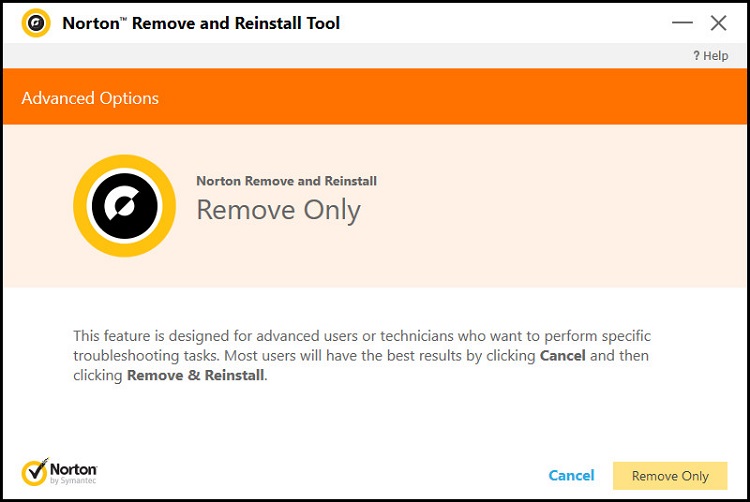
Step 4. Click on the Remove button and restart your computer when prompted.
Remove all Norton-related files completely
Developed by Norton, minimizing risk to other programs
It is efficient even if Norton won’t uninstall normally
Limited to Norton products only
A system reboot is needed to finish the removal
Some related apps (like VPN or Family tools) may need separate removal
No extra cleanup features
If the official removal tool still leaves behind stubborn files or you want a more flexible, all-in-one solution, turning to a professional uninstaller can make the process much smoother. Tools like IObit Uninstaller are designed to go beyond standard removal methods, scanning for hidden leftovers and ensuring a cleaner, more complete uninstall of Norton and other programs. Let’s take a look at more features of this powerful Norton remover.

Key Features:
Powerful force uninstall - Remove stubborn or partially uninstalled programs, including broken Norton installations.
Deep scan for leftovers - Automatically detects and deletes residual files, folders, and registry entries after uninstalling.
Batch uninstall programs - Allows you to remove multiple programs at once.
Real-Time install monitor - Tracks changes made during software installation, making future removal more thorough.
Software health check - Identifies leftover files, invalid registry entries, and unnecessary plugins to keep your system clean.
Browser Extension removal - Easily removes unwanted or malicious extensions from browsers.
If you’re interested in this powerful uninstaller, here’s how to uninstall Norton on PC.
Step 1. Download and install IObit Uninstaller on your computer.
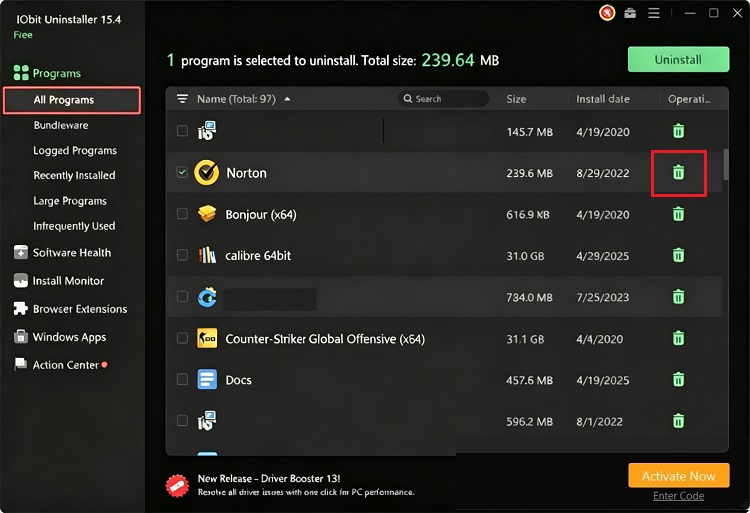
Step 2. Launch this program and go to Program > All Programs. Find Norton in the list and click the Uninstall button next to it.
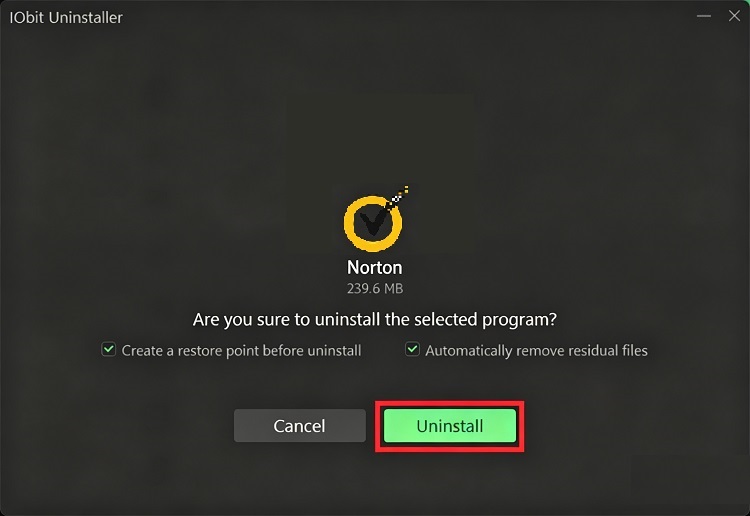
Step 3. Check the box next to “Create a restore point before uninstall” or “Automatically remove residual files” based on your needs. Then, click Uninstall to remove Norton from your computer.
Thorough leftover cleanup
Force uninstall for stubborn programs
Batch uninstall & time-saving features
More advanced features
Solid functionality without requiring payment
The free version may display pop-ups encouraging upgrades
May occasionally flag safe files as leftovers
Deep scans can sometimes interfere with antivirus tools
If you’re using a Mac, uninstalling Norton completely requires a slightly different approach than on Windows. Simply dragging the app to the Trash isn’t always enough, as some hidden files and background services may remain. To ensure a clean, complete removal, you’ll need to delete the application and its associated system files. Here are the steps.
Step 1. Quit Norton by clicking the Norton icon in the menu bar and selecting Quit.
Step 2. Open Finder > Applications, find Norton, and right-click it to select Move to Trash.
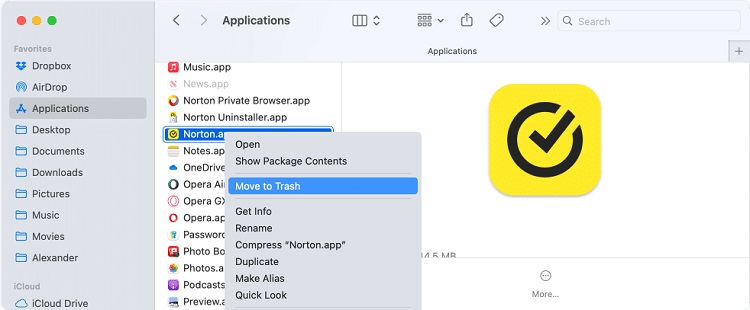
Step 3. In Finder, click Go > Go to Folder, enter the following paths one by one, and delete Norton-related files from the following folders:
~/Library/Caches/
~/Library/Containers/
~/Library/Group Containers/
~/Library/HTTPStorages/
~/Library/Application Support/
~/Library/Application Scripts/
~/Library/Preferences/
~/Library/Cookies/
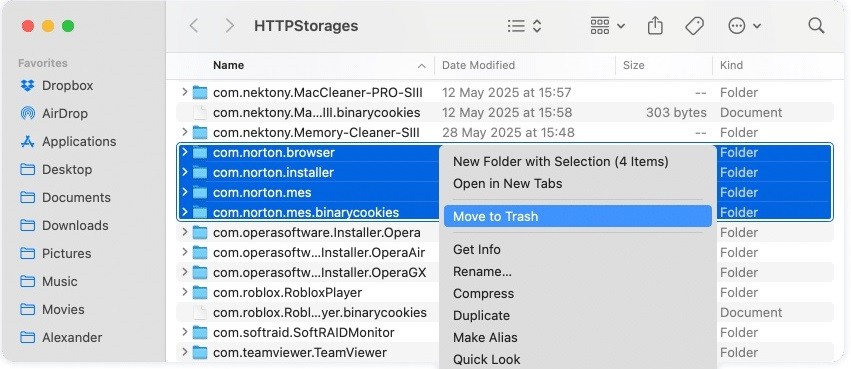
Step 4. Right-click the Trash icon and select Empty Trash.
Step 5. Restart your Mac to ensure that all background services and cache files are fully cleared.
For a simpler process, you can use the dedicated uninstaller Norton software for Mac to uninstall Norton 360. Plus, the above-introduced steps also apply to how to uninstall Norton completely from my computer.
Even after uninstalling the program, traces of Norton can still linger on your system. These leftover files—such as registry entries, temporary data, and hidden folders—may cause conflicts with new software or take up unnecessary space. To ensure a truly clean removal, the next step is to manually locate and delete any remaining Norton files from your computer.
1. Uninstall the Norton app
Go to Start and open Settings > Apps > Installed apps (or Apps & features), find Norton in the list, click it, and select Uninstall.
2. Delete the remaining Norton folder
Open File Explorer and check these locations, and go to delete any folder named Norton or Symantec:
C:\Program Files\
C:\Program Files (x86)\
C:\ProgramData\ (hidden folder — enable “Show hidden items”)
C:\Users\YourUsername\AppData\Local\
C:\Users\YourUsername\AppData\Roaming\
3. Remove temporary files
Press Windows + R, type %temp%, and press Enter. Delete all files inside the folder.
4. Clean Norton registry entries
Press Windows + R, type regedit, and hit Enter. Navigate to and delete Norton/Symantec keys in:
HKEY_CURRENT_USER\Software\
HKEY_LOCAL_MACHINE\SOFTWARE\
HKEY_LOCAL_MACHINE\SOFTWARE\WOW6432Node\
Use Edit > Find and search “Norton” or “Symantec” to remove remaining entries. Be careful when editing registry entries, as any incorrect changes may affect your system.
5. Check startup items
Press Ctrl + Shift + Esc to launch the Task Manager, then click the Startup (or "Startup apps" in Win 11) tab, and disable any Norton-related entries.
6. Restart your computer
Reboot to ensure all services and remnants are fully cleared.
Even when you follow the correct steps, uninstalling Norton doesn’t always go smoothly. You might run into error messages, incomplete removals, or files that refuse to delete. Understanding these common problems can help you troubleshoot issues quickly and ensure Norton is fully removed without leaving anything behind.
Problems:
Norton Won’t Uninstall
Error Messages During Uninstall
Leftover Files Still Remain
Norton Keeps Reinstalling Itself
Conflicts with Other Antivirus Software
System Performance Issues After Uninstall
Fixes:
Restart your PC and try a different method
Close all running Norton processes via Task Manager
Temporarily disable other security tools
Manually delete folders in Program Files, ProgramData, and AppData, and clean the registry
Check Task Scheduler for Norton-related tasks and delete them
Restart your system to stabilize performance
Also Read: How to Uninstall OneDrive on Windows 11 and 10 Efficiently
Once you’ve worked through the uninstall methods and resolved any issues, it’s important to take a few extra steps to make sure Norton is completely gone from your system. These final checks can help you catch any hidden leftovers and ensure your device is clean, optimized, and ready for new software.
1. Restart your computer
Check the program installation folder by opening File Explorer and inspecting “C:\Program Files\” or “C:\Program Files (x86)\” and delete leftover Norton.
2. Search for leftover files by using Windows Search and type “Norton” or Symantec.”
3. Clean the Windows registry by using the Norton Remove and Reinstall Tool or IObit Uninstaller.
4. Verify in Startup programs by pressing Ctrl + Shift + Esc to go to the Startup tab and disable any Norton-related entries.
5. Use a professional uninstaller to scan for hidden files, registry entries, and leftover services, ensuring a complete cleanup.
Conclusion
How to uninstall Norton completely? By following the right methods introduced in this guide, you can ensure your system is fully cleared and ready for a fresh start. Whether you want to know how to uninstall Norton 369 for gamers or other groups, these methods get you covered. If you want to save time and avoid missing hidden files or registry entries, a dedicated tool can make the process much easier. IObit Uninstaller offers a powerful scan that removes stubborn leftovers and keeps your PC clean with minimal effort. Download it to streamline the entire uninstall process and make sure Norton is gone for good.

Remove unwanted software easily.
Free Download