Let’s be honest—nobody enjoys setting up a brand-new Windows 11 PC only to find it packed with apps they never asked for. You know the ones: trial versions of antivirus software, games you’ll never play, manufacturer-branded utilities, and random apps that seem to multiply overnight. These unwanted programs don’t just sit there taking up space—they run background processes, slow down your startup, eat up your RAM, and spam you with notifications you never wanted in the first place. But it won’t happen again! In this guide, we’ll show you how to remove bloatware using five different methods.
What Is Bloatware and Is It Safe to Remove?
Before we start learning how to get rid of bloatware Windows 11, let’s clarify what we’re dealing with. Bloatware refers to software that comes pre-installed on your device—usually by the manufacturer or Microsoft itself—that you didn’t ask for and likely don’t need. It falls into a few categories:

Junkware – Utility apps like music, gaming, or weather apps that duplicate functionality you already have.
Trialware – Software that gives you a free trial then nags you to buy a subscription once it expires.
Adware – Programs that bombard you with pop-up ads and can even mess with your browser settings.
Unwanted toolbars – Browser add-ons that slow down your web experience and pose security risks.
Now, is it safe to remove bloatware? Generally speaking, yes—most of these apps are completely safe to uninstall when you know how to remove bloatware Windows 11 properly. However, you should be careful with system-critical components. For example, don’t remove things like the Microsoft Store, Calculator, or other core system apps unless you’re absolutely sure you don’t need them.
How to Remove Bloatware from Windows 11: 5 Methods
There’s no one-size-fits-all answer when it comes to how to remove bloatware. The best approach depends on what you’re dealing with and how comfortable you are with technology. Windows’ built-in tools work fine for basic removals, but if you’re dealing with stubborn programs, multiple apps, or want to clean up leftover files, a third-party uninstaller is your best bet. Here are five methods to choose from.
Method 1: How to Remove Bloatware Completely with IObit Uninstaller
Want to figure out how to remove bloatware? Try IObit Uninstaller! It offers so much more than Windows' default uninstaller. Whether you’re dealing with desktop programs, Windows Store apps, bundled software, or stubborn programs that refuse to budge, IObit Uninstaller handles it all with ease. It can scan for and clean up leftover files and registry entries after the standard uninstall process. Windows’ built-in uninstaller often leaves behind traces that accumulate over time and slow down your system. As the best uninstaller, IObit Uninstaller makes sure nothing is left behind. Here’s how to remove bloatware with it:
Step 1. Download IObit Uninstaller from the official website, then you need to install it.
Step 2. Once you launch the program, all your installed applications are listed right there.
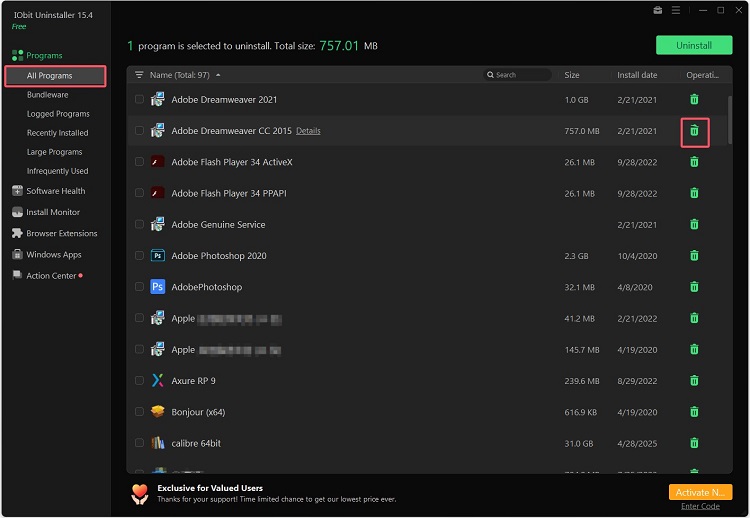
Step 3. Spot the program you want to remove, click the green trash can on the right, and you're done.
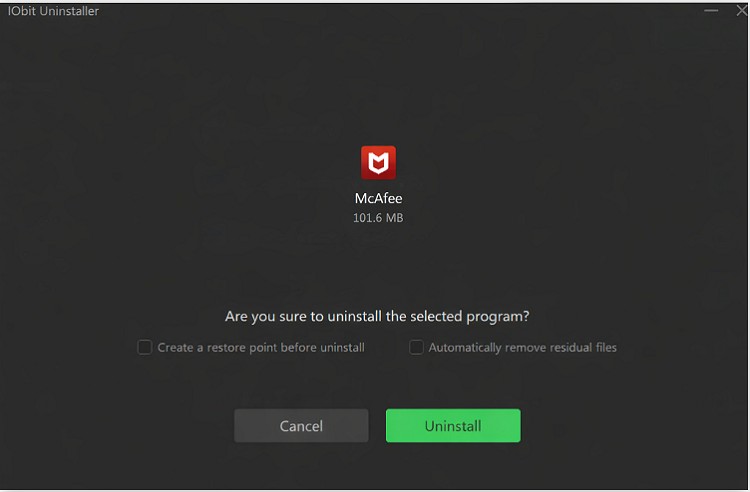
Step 4. Review the leftovers that were found, click Clean Up to remove them completely, and you’re done. For multiple apps, simply repeat the process or use the Batch Uninstall feature to remove several at once.
Key Features of IObit Uninstaller
Batch Uninstall – Remove multiple unwanted programs in one go instead of uninstalling them one by one. Perfect when you’re dealing with a long list of bloatware.
Leftover Cleanup – Automatically scans for and removes leftover files, folders, and registry entries that standard uninstallation leaves behind.
Bundleware Detection – Identifies and removes bundled software that gets installed alongside other programs without your explicit consent.
Stubborn Program Removal – Forces uninstallation of programs that are broken, corrupted, or refuse to uninstall through normal methods.
Windows App Management – Manages and removes both traditional desktop programs and Windows Store apps from a single interface.
IObit Uninstaller Free
- Complete forced uninstallation for stubborn programs.
- Uninstall a batch of programs at once.
- Scan and remove leftover files, folders, and registry entries.
- Support the management of Universal Windows Platform apps.

Method 2: How to Get Rid of Bloatware Windows 11 Through Settings
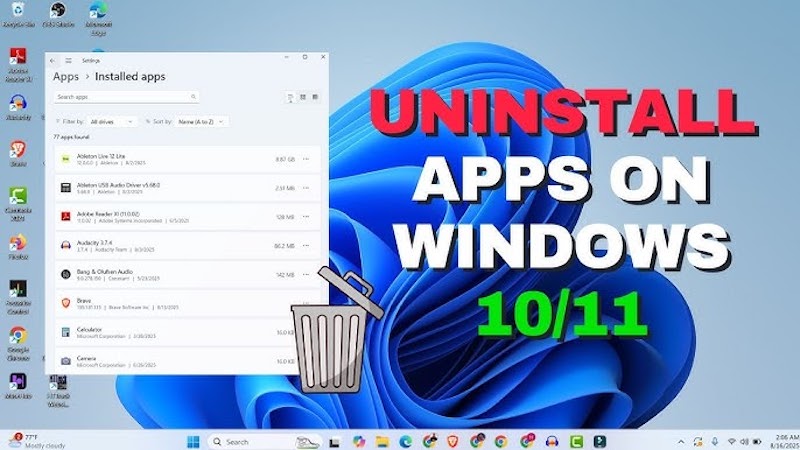
Speaking of how to get rid of bloatware Windows 11, the Settings app is your go-to. It’s user-friendly, requires no technical know-how, and works well for removing normal desktop programs and removable Windows apps.
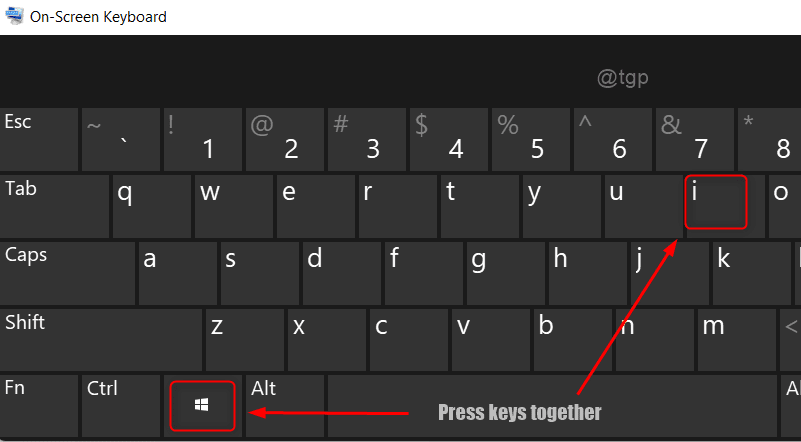
Step 1. Press Win + I to open Windows Settings.
Step 2. In the left sidebar, find the Apps section, and then switch over to the Installed apps view.
Step 3. Scroll through the list or type the app's name into the search box at the top to quickly zero in on what you want to get rid of.
Step 4. Click the three dots next to the app, then select Uninstall from the drop-down menu.
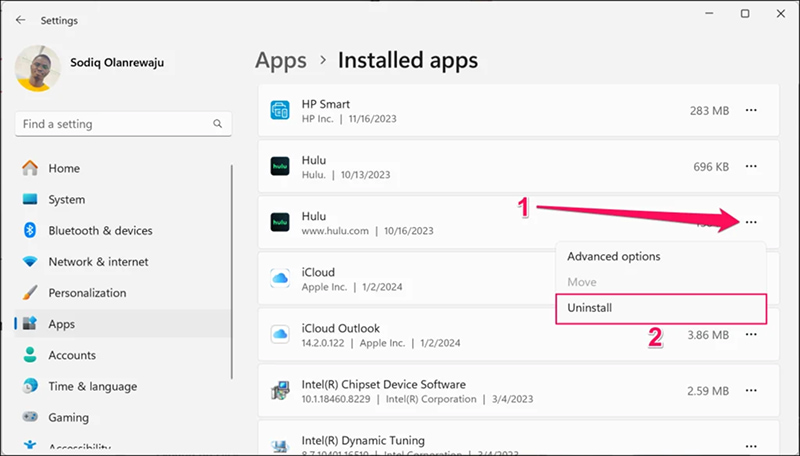
Step 5. Confirm the uninstallation when prompted.
While this is the easiest way to solve the problem “how to remove bloatware”, it works great for basic cleanup, but it won't catch all built-in Windows apps, and it doesn't clean up leftover files.
Also Read: How to Uninstall Applications on Windows 11 [Complete Guide] >>
Method 3: How to Uninstall Bloatware from the Start Menu
The Start menu offers a good answer if you want to know how to uninstall bloatware when you already know the name of the program you want to remove. It’s ideal for spontaneous cleanup sessions.
Step 1. Click the Start button.
Step 2. Find the app you want to uninstall—either in the pinned section or by clicking All apps and scrolling through the list.
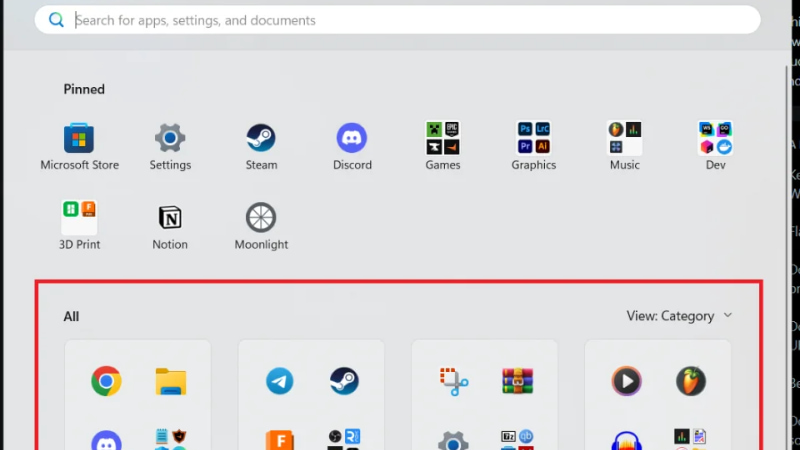
Step 3. Simply right-click the app—you'll see a small menu, just click Uninstall from there.
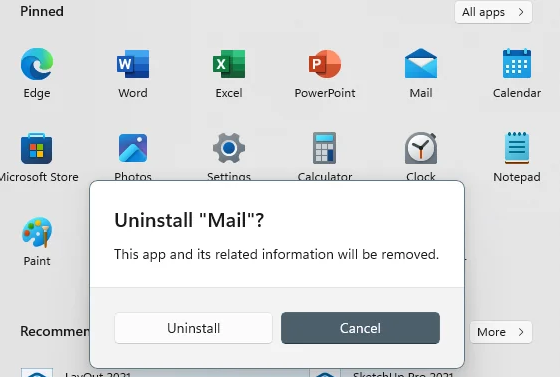
Step 4. Confirm the uninstallation if prompted.
This method is fast and straightforward, but like Settings, it doesn't handle all apps and leaves leftovers behind—so it's not the most complete answer for users wondering how to remove bloatware.
Method 4: Remove Traditional Bloatware Through Control Panel
Wondering how to remove Windows bloatware? Come on and try to remove traditional bloatware through Control Panel. Here are the detailed guides:
Step 1. Hit the Win + R keys together to pop open the Run box.
Step 2. Enter control in the Run dialog and press Enter to open the Control Panel. Find programs, then select Programs and Features.
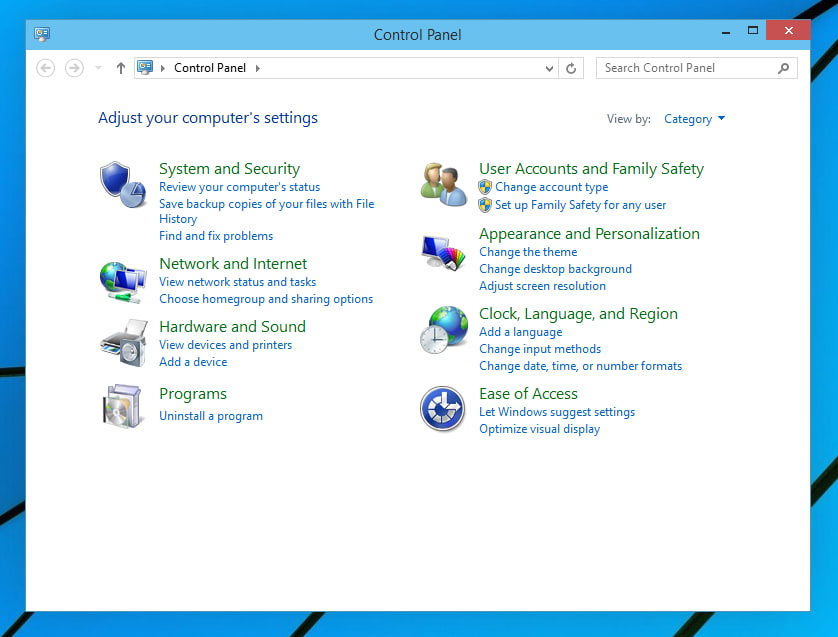
Step 3. Find the program you want to remove in the list, follow the on-screen prompts to complete the uninstallation.
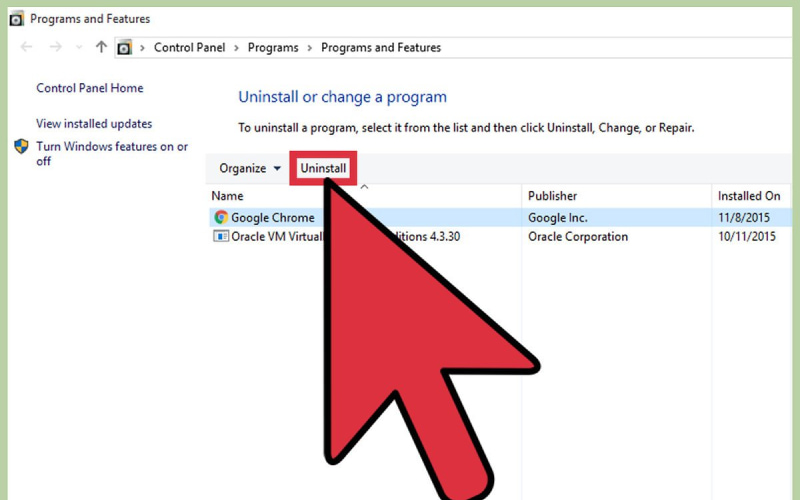
Although this method is reliable for traditional software, it’s not effective for removing modern Windows Store apps or built-in Windows components.
Method 5: How to Remove Windows Bloatware Using PowerShell
For advanced users who want to how to remove bloatware from Windows 11 that doesn’t have a normal Uninstall button, PowerShell is the most powerful built-in option. It can remove certain built-in Windows apps that other methods can’t touch.
Important warning: Double-check the package name carefully before running any removal command, and avoid using unknown debloating scripts from the internet unless you trust the source.
Step 1. Find the Start button and select Windows Terminal (Admin) or PowerShell (Admin)
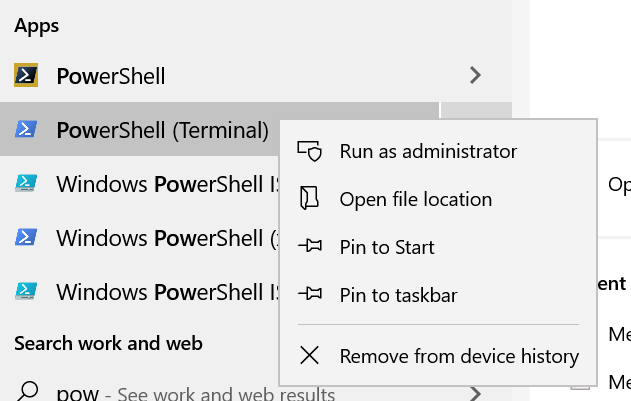
Step 2. Click Yes to confirm the elevation prompt.
Step 3. To see a list of all installed apps, type: Get-AppxPackage and press Enter.
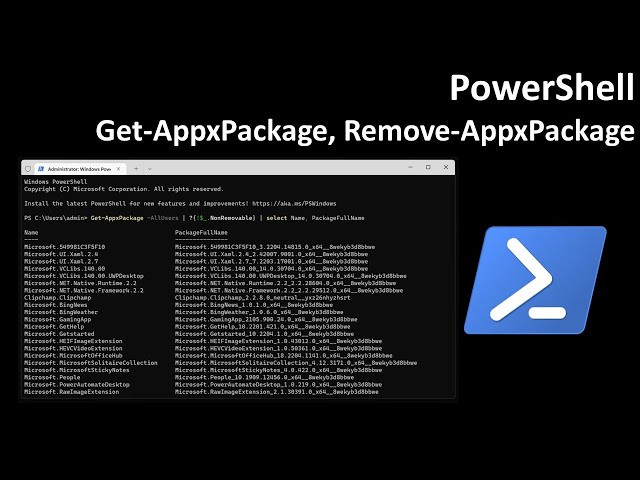
Step 4. Find which app you want to remove.
Step 5. To uninstall it, type: Remove-AppxPackage <PackageFullName> and press Enter (replace <PackageFullName> with the actual package name).
Which Bloatware Removal Method Should You Choose?
With so many options available, choosing the right way to how to remove bloatware depends on your comfort level and what you’re trying to clean up. Here’s a quick comparison to help you decide.
Method |
Best For |
Difficulty |
Batch Removal |
Leftover Cleanup |
IObit Uninstaller |
Complete removal, stubborn programs, batch cleanup, and leftover scanning |
Easy |
✅ |
✅ |
Windows Settings |
Basic removal of standard apps |
Very Easy |
❌ |
❌ |
Start Menu |
Quick removal of known apps |
Very Easy |
❌ |
❌
|
Control Panel |
Traditional desktop programs |
Easy |
❌ |
❌ |
PowerShell |
Built-in Windows apps without Uninstall buttons |
Advanced |
✅ |
❌
|
If you're a casual user who only needs to remove a few standard apps, the Settings app or the Start menu should be sufficient. If you are looking for a force uninstall program Windows 11 solution for stubborn apps, or if you’re tired of leftover files cluttering your system, IObit Uninstaller is the clear winner for how to uninstall bloatware. It’s also the only method that combines batch removal with thorough leftover cleanup in a user-friendly interface.
Conclusion
For most users, I’d recommend starting with IObit Uninstaller—it’s a good choice for handling batch removal, tackling stubborn programs, and ensuring nothing is left behind. Plus, it can help you remove Chrome extensions and shows you how to remove bloatware on Windows 11 with just a few clicks. Stop letting bloatware slow you down—give your PC the cleanup it deserves. Ready to clean up your system? Download IObit Uninstaller today and experience the difference a truly complete uninstaller can make.