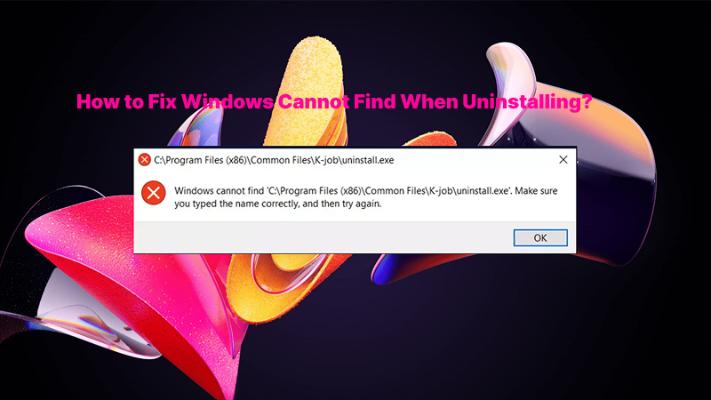
How to uninstall AVG antivirus software? In one Reddit discussion, a user asked how to completely remove AVG antivirus because the standard uninstall process did not fully clean the system. This is actually a common issue among Windows users, especially when switching to another antivirus solution. AVG sometimes leaves behind residual files, registry entries, or background services after removal.
If you are wondering how to uninstall AVG antivirus, or specifically how to uninstall AVG antivirus Windows 11 or Windows 10, this guide covers several working methods. Whether you want a basic uninstall, a deep cleanup, or a fix for uninstall errors, the steps below can help you completely remove AVG antivirus from your PC.
Why Users Want to Remove AVG Antivirus Software
Before learning how to remove AVG antivirus software, it helps to understand why many users decide to remove AVG in the first place. While AVG offers real-time protection and malware scanning, some users experience system conflicts or performance issues over time.
Common issues include:
High CPU or memory usage
Frequent pop-up notifications
Conflicts with other security tools
Slow startup performance
Leftover files after uninstalling
Problems upgrading to Windows 11
Many users who have not updated to Windows 11 also search for how to uninstall AVG antivirus software Windows 10 or how to uninstall AVG antivirus software Windows 7, because uninstall problems can happen across different Windows versions. In many cases, a standard uninstall is not enough, which is why deeper cleanup methods are important.
Method 1 - How to Uninstall AVG antivirus from Windows 11 Settings
For how to uninstall AVG antivirus software, the easiest method is to use the built-in Windows uninstall feature. This method works well for basic removal and is usually the first step most users try.
However, it is important to note that this method may not remove all AVG-related files, services, or registry entries. If you later install another antivirus tool, leftover AVG components could still cause conflicts. In that case, you can move to Method 3.
Steps to Remove AVG Antivirus via Apps & Features:
Step 1. Open Settings on Windows 11 or Windows 10 > Go to Apps > Installed Apps
Step 2. Locate AVG antivirus in the software list
Step 3. Click the three-dot menu next to AVG
Step 4. Select Uninstall
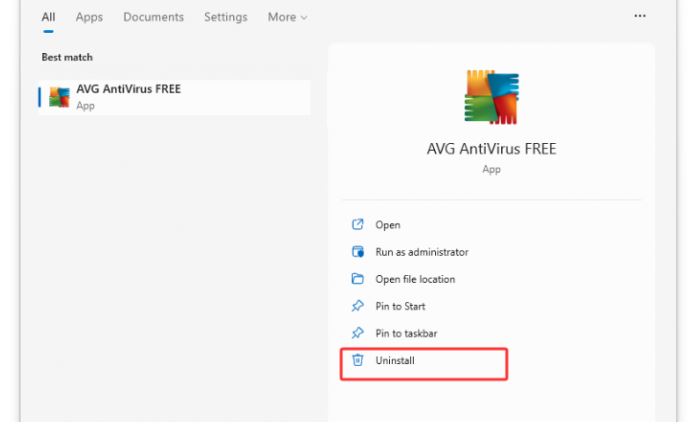
Step 5. Follow the on-screen instructions
Step 6. Restart your PC after removal
This process works for users searching for how to remove AVG antivirus quickly. Still, if you want to completely clean your system and free up disk space, additional cleanup steps may be necessary.
Method 2 - How to Completely Remove AVG Antivirus Using AVG Clear
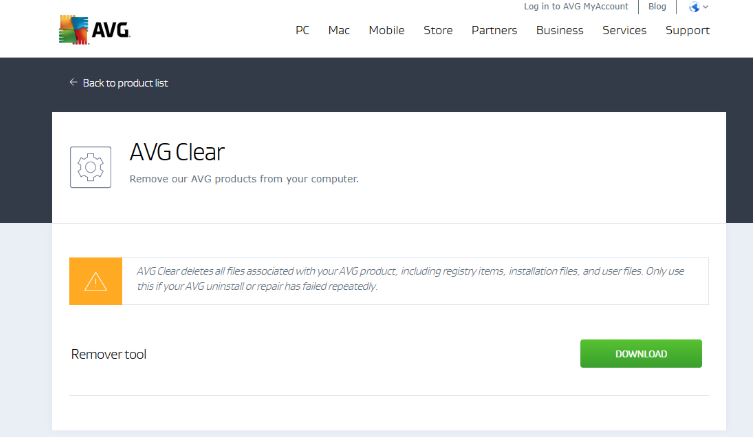
If the standard uninstall method fails, AVG provides an official cleanup utility called AVG Clear. This tool is designed specifically for users searching for how to completely remove AVG antivirus from Windows systems.
What Is AVG Clear?
AVG Clear is the official AVG removal utility. AVG Clear is especially useful when AVG cannot be removed normally due to damaged installation files, locked services, or uninstall errors. It can also remove protected AVG components that Windows cannot delete automatically. It helps:
Remove stubborn AVG files
Delete hidden services
Fix uninstall failures
Clean protected installation folders
Improve compatibility with other antivirus software
Steps to Use AVG Clear Remove AVG Antivirus:
Step 1. Download AVG Clear from the official AVG website
Step 2. Restart your computer in Safe Mode
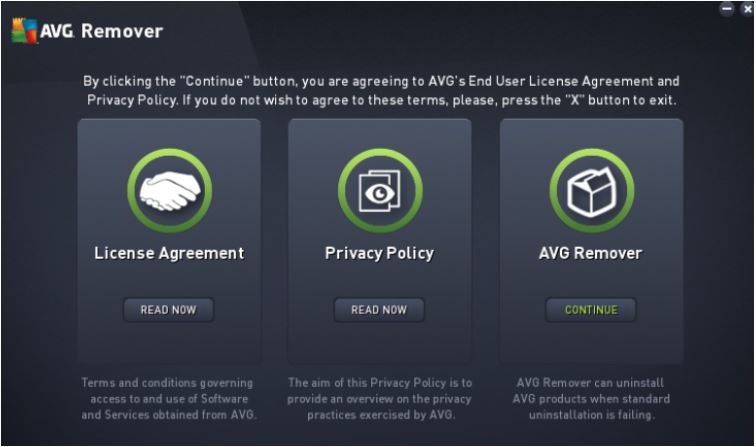
Step 3. Launch AVG Clear
Step 4. Click CONTINUE to proceed
Step 5. Start the removal process
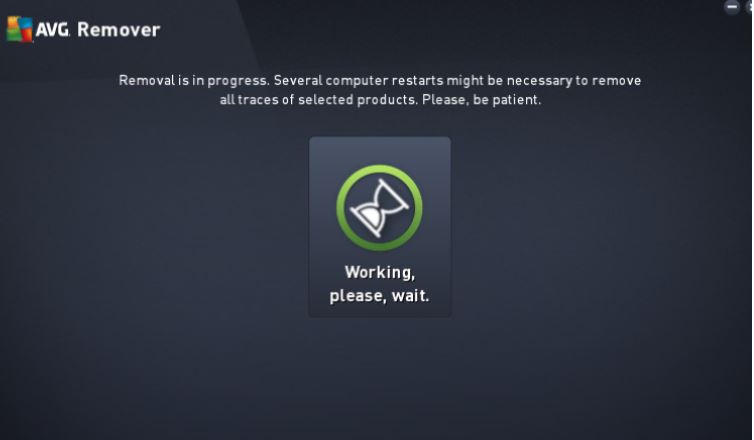
Step 6. Restart your PC after the cleanup
This method is effective for users searching for how to uninstall AVG antivirus on Windows 11 or other versions when the normal uninstall process no longer works.
Method 3 - How to Uninstall AVG antivirus with IObit Uninstaller
While AVG Clear works well, many users prefer third-party uninstallers because they provide deeper cleanup and more automation. One popular option is IObit Uninstaller, which is widely used to remove stubborn Windows programs completely.
IObit Uninstaller Free
- Complete forced uninstallation for stubborn programs.
- Uninstall a batch of programs at once.
- Scan and remove leftover files, folders, and registry entries.
- Support the management of Universal Windows Platform apps.

Why Use IObit Uninstaller for AVG Removal?
For users researching how to uninstall AVG antivirus software, IObit Uninstaller, as one of the best uninstallers for Windows 11, 10, and more, has a beginner-friendly interface and simplifies the entire process by removing leftover files, registry entries, browser extensions, and startup services automatically.
Compared with the default Windows uninstaller, it offers a more thorough uninstall experience:
Deep scan for leftover AVG files
Registry cleanup after uninstall
Force Uninstall for broken installations
Removal of hidden startup entries
Automatic residual file cleanup
Browser extension removal
Batch uninstall
Windows app removal
Steps to Remove AVG Completely with IObit Uninstaller
Step 1. Download and install IObit Uninstaller
Step 2. Open it. Locate AVG antivirus in the program list
Step 3. Click Uninstall
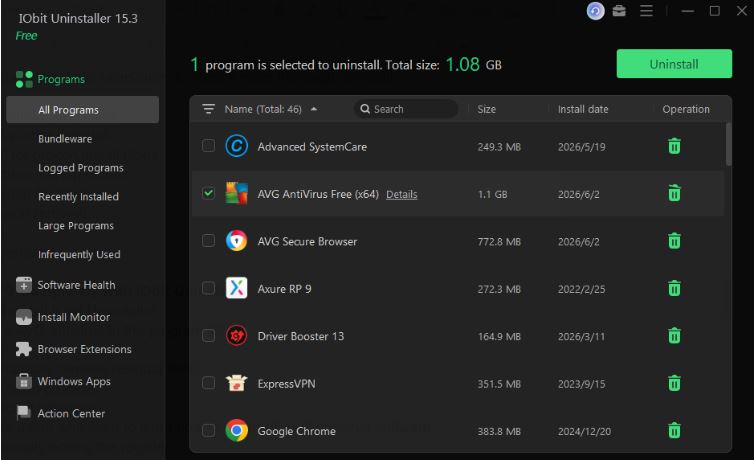
Step 4. Enable “Automatically remove residual files.”
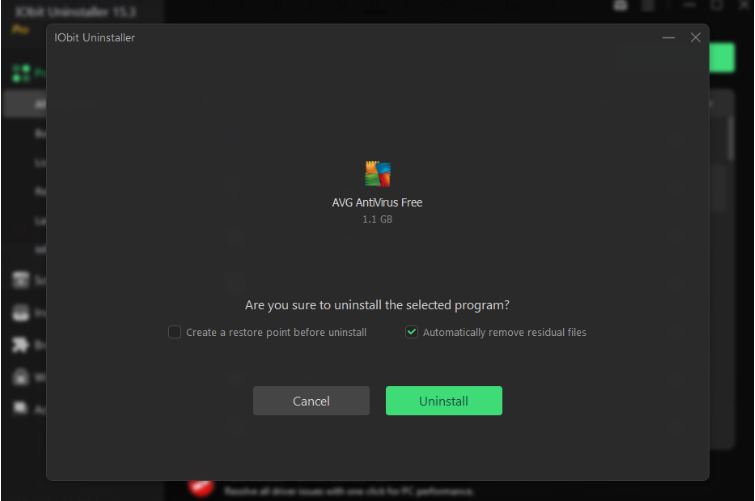
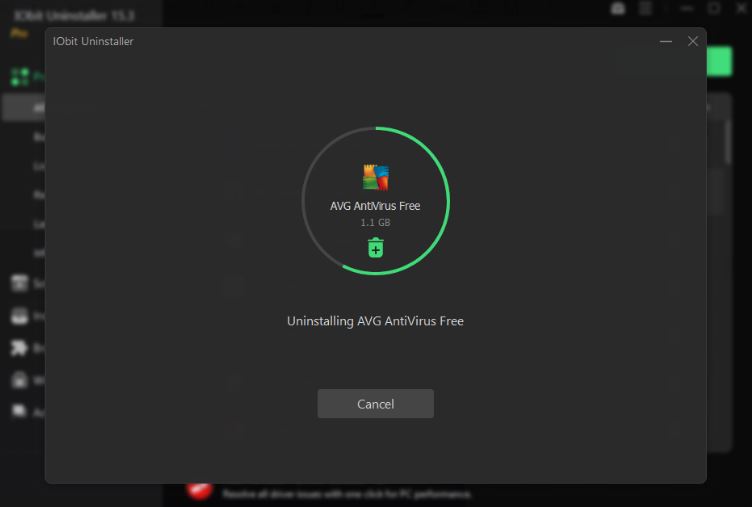
Step 5. It will start uninstalling.
Step 6. Then an AVG pop-up window will appear; select Uninstall.
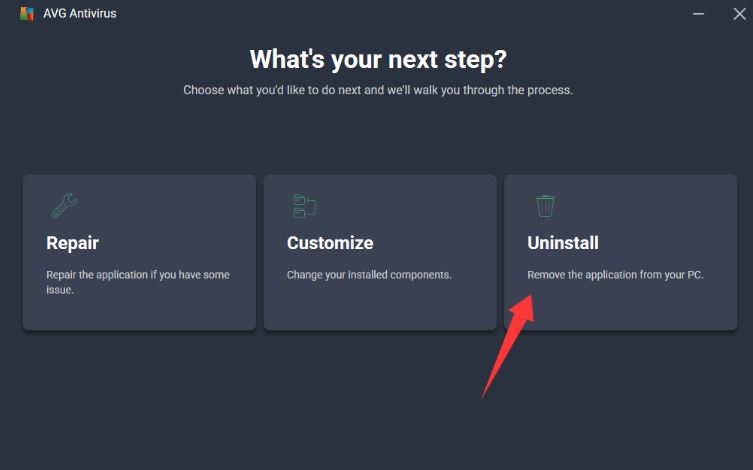
Step 7. Skip the prompts and firmly select uninstall, then wait for the uninstallation to complete. Select Restart your computer later.
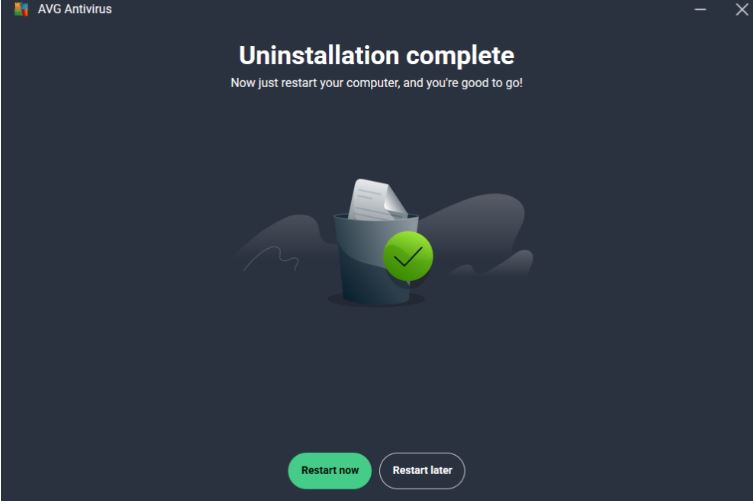
Step 8. With the "Automatically clean up residual files" option checked, after clicking "Restart later," IObit Uninstaller will automatically begin scanning and cleaning all detected leftovers.
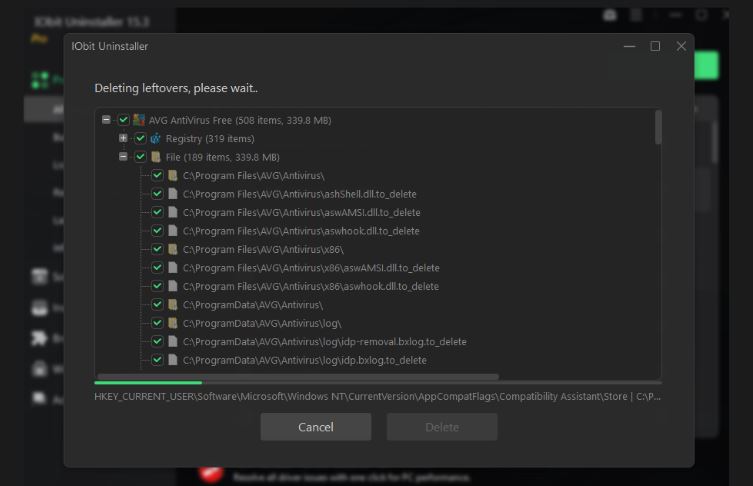
Step 9. After the cleanup is complete, you will see the detailed information. Click OK to complete the uninstallation.
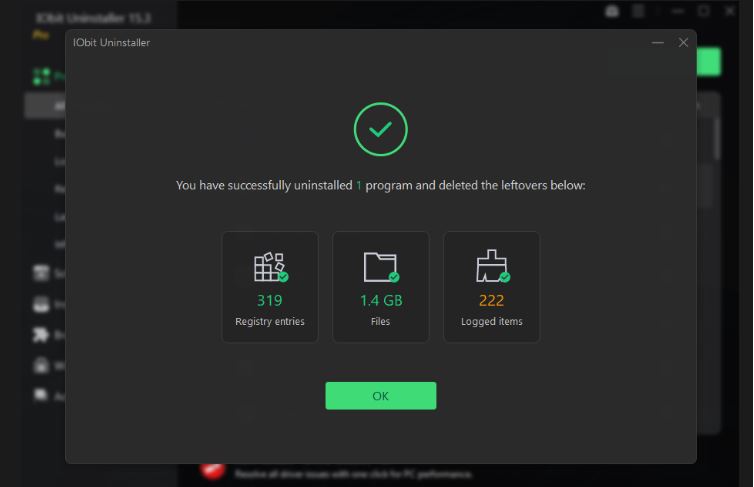
This method is ideal for users who want to learn how to uninstall AVG antivirus software completely without manually editing the registry.
How to Delete Leftover AVG Files and Registry Entries
Even after uninstalling AVG, some residual files may remain hidden inside Windows folders or the registry. These leftovers can consume storage space, create software conflicts, or prevent another antivirus from installing correctly.
For this reason, users searching for how to completely remove AVG antivirus often perform an additional cleanup step after uninstalling the main application.
Manually Remove AVG Leftover Files and Registry Entries
Advanced users can manually delete AVG leftovers from their systems.
Steps to Delete AVG Leftovers Manually
1. Open File Explorer
2. Delete AVG folders from:
- Program Files
- Program Data
- AppData
3. Open Registry Editor
4. Search for AVG-related entries
5. Delete detected AVG registry items
6. Restart the computer
You can manually remove AVG leftovers, but this method has several drawbacks. It can be difficult to identify every related file, registry entry, and background service, and deleting the wrong item may affect Windows stability. The process is also time-consuming and requires technical knowledge, which is why many users prefer automated cleanup tools that can safely scan for and remove AVG residual files, such as using IObit Uninstaller.
Use IObit Uninstaller to Remove AVG Leftovers Automatically
IObit Uninstaller can automatically scan for leftover AVG files after uninstalling the main program. This saves time and reduces the risks associated with manual registry editing.
Its cleanup features include:
Deep leftover scanning
Automatic registry cleanup
Removal of stubborn services
Startup item cleanup
Ability to remove Chrome extensions
One-click residual deletion
Steps to Clean AVG Residual Files with IObit Uninstaller
Step 1. Open IObit Uninstaller
Step 2. Select AVG antivirus > Click Uninstall
Step 3. Tick automatic residual cleanup
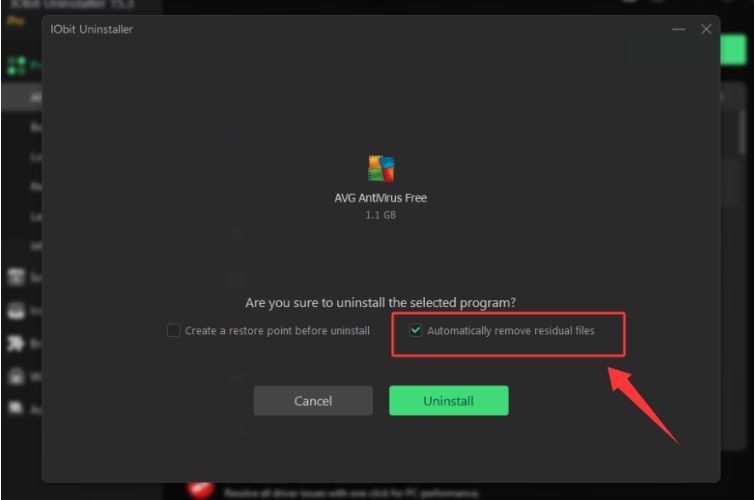
Step 4. Click Uninstall and then complete the remaining steps. Once uninstallation is complete, IObit Uninstaller will automatically clean up leftover items.
This approach is safer and faster for most Windows users.
What to Do If AVG Antivirus Cannot Be Uninstalled
Sometimes AVG refuses to uninstall because of corrupted files, running services, or permission errors. This situation is more common than many users realize, especially after failed updates or incomplete installations. Fortunately, there are several effective solutions available for users searching for how to uninstall AVG antivirus software when the uninstall button no longer works.
Common AVG Uninstall Problems Include:
AVG processes are still running
Missing uninstall files
Corrupted installation packages
Access denied errors
Self-protection blocking removal
Windows uninstall failures
6 Ways to Fix AVG Uninstall Problems
1. Restart Your Computer
Restarting Windows can close hidden AVG processes and unlock files that are preventing removal.
2. Disable AVG Self-Protection
1. Open AVG antivirus
2. Go to Settings
3. Disable Self-Protection
4. Try uninstalling AVG again
3. Run the Uninstaller as Administrator
Administrator permissions can help bypass access-related errors during uninstall.
4. Use AVG Clear in Safe Mode
AVG Clear can remove damaged installations and protected AVG components that normal uninstall tools cannot access.
5. Use IObit Uninstaller for Force Removal
IObit Uninstaller includes a Force Uninstall feature that can remove broken AVG installations.
Basic steps:
1. Open IObit Uninstaller
2. Select Force Uninstall
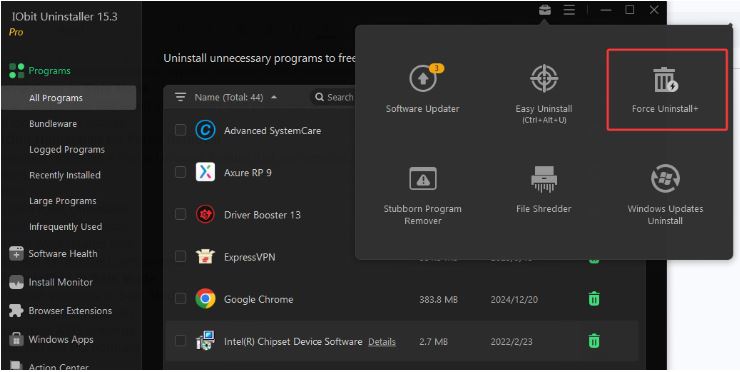
3. Select AVG-related files
4. Delete all detected components
6. Try Uninstalling in Safe Mode
1. Restart Windows in Safe Mode
2. Open Apps & Features
3. Uninstall AVG antivirus
4. Restart the PC normally
Best Alternative Antivirus Software After Removing AVG
After learning how to uninstall AVG antivirus software, many users immediately look for a replacement antivirus solution. The right alternative depends on your budget, system performance needs, and security preferences.
Popular AVG alternatives include:
Microsoft Defender
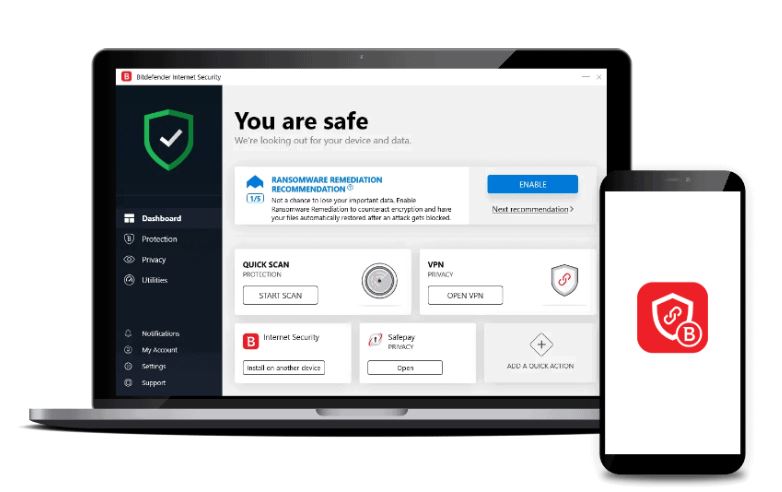
Bitdefender
Malwarebytes
IObit Malware Fighter 13
Norton
Avast
When comparing antivirus software, consider factors such as:
Choosing lightweight antivirus software can also help improve system speed after removing AVG.
Conclusion
Knowing how to uninstall AVG antivirus software completely can help prevent leftover files, uninstall errors, and software conflicts on Windows PCs. Whether you use Windows Settings, AVG Clear, or IObit Uninstaller, choosing the right removal method can make your system cleaner and more stable.