Windows updates are essential for security and performance, but sometimes they can cause more harm than good. From system crashes to software incompatibility, a faulty update can disrupt your entire workflow. If you’re facing these issues, knowing how to remove Windows updates can help restore your system quickly.
In this guide, you’ll learn multiple proven methods to uninstall updates on Windows 11 and Windows 10, along with troubleshooting tips to fix common problems.
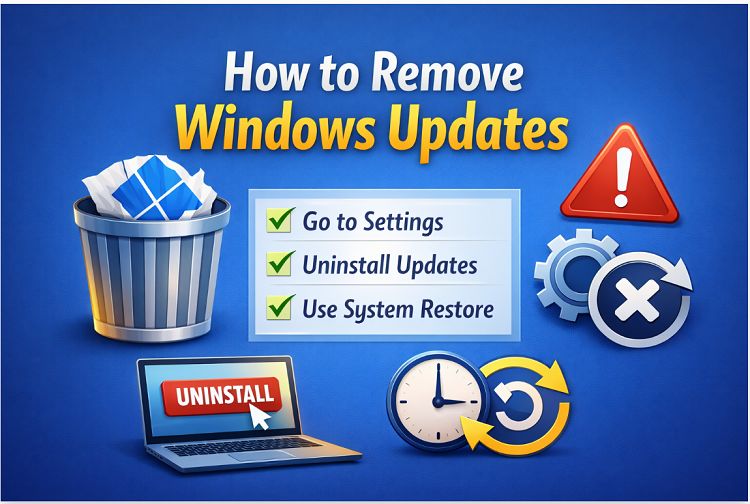
Why You Might Need to Remove Windows Updates
Before knowing how to remove Windows update files or how to remove Windows updates that won’t install, it’s helpful to understand why you might want to uninstall an update in the first place. While updates are meant to improve your system, they don’t always work as expected. Here are some common reasons why users choose to remove Windows updates.
System slowdown after an update
Software or driver incompatibility
Frequent crashes or blue screen errors
Bugs introduced by recent updates
Storage space concerns
How to Uninstall Windows Updates via Settings
Now that you know why removing an update might be necessary, the simplest place to start is the Windows Settings app. This built-in method is quick, beginner-friendly, and doesn’t require any advanced tools. Before you begin, keep these helpful tips in mind to avoid issues during the process:
Restart your PC first to ensure no update processes are still running
Check the update history so you can remove the correct update
Create a restore point in case something goes wrong
Close all running apps to prevent conflicts during uninstallation
With these precautions in place, you can safely proceed to remove Windows updates via Settings. Now, let’s see how to uninstall Windows updates.
Step 1. Click the Start button, then select Settings, a gear icon.
Step 2. Click Update & Security (on Windows 10) or Windows Update (on Windows 11).
Step 3. Scroll down to check the View update history.
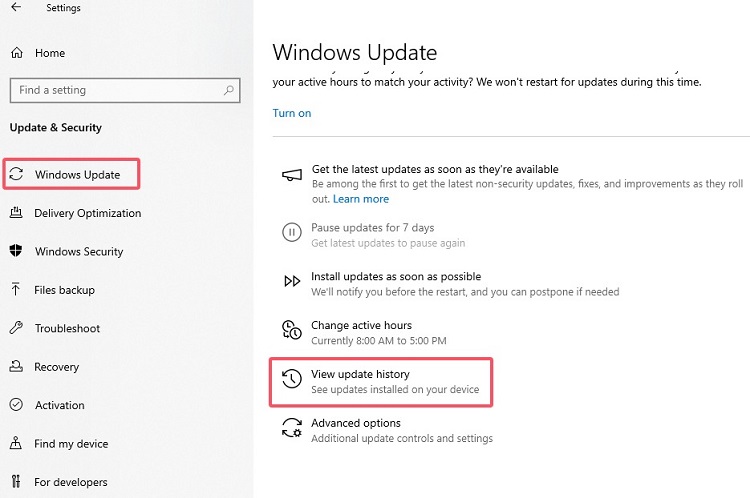
Step 4. In the list, find the update you want to remove. Select it and click Uninstall. Confirm your action if prompted.
Step 5. Restart your computer to complete the process.
Tips: How to remove Windows updates in safe mode? The steps are the same as the steps introduced above. The only difference is that you’ll need to enter Safe Mode first:
Click the Start menu, select the Power icon, and choose Restart.
After restarting, the Choose an option screen appears; just select Troubleshoot > Advanced options > Startup Settings > Restart.
After restarting, press 4 to enter Safe Mode. Then, you can follow the above-mentioned methods to remove Windows updates.
How to Remove Windows Updates Files from the Control Panel
If the Settings method doesn’t give you enough control or you prefer a more detailed view of installed updates, the Control Panel offers a reliable alternative. It allows you to see a full list of updates and remove specific ones more precisely.
Step 1. Click the search icon in the taskbar, type "Control Panel," and click the top result.
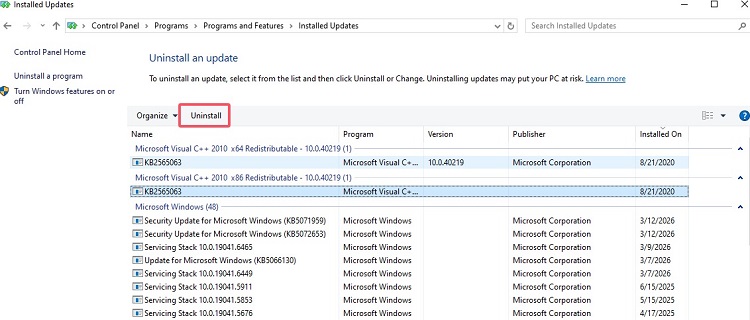
Step 2. Click Programs > Programs and Features. On the left panel, select View installed updates.
Step 3. Find the update you want to remove (look for “KB” numbers).
Step 4. Right-click the update and click Uninstall. Or alternatively, you can click the version you want to remove and click “Uninstall” in the top menu to delete it.
Tips:
How to Remove Windows Updates Using Command Prompt
If the previous methods don’t work or you need a faster, more precise way to remove a specific update, using Command Prompt is a powerful alternative. This method is especially useful for advanced users who want direct control over the uninstallation process.
Step 1. Press Windows Key + R, type cmd, and press Enter.
Step 2. Right-click Command Prompt and choose Run as administrator.
Step 3. Type the following command to view installed updates:
wmic qfe list brief /format:table
Step 4. Find the update you want to remove and note its KB number (e.g., KB5001330)
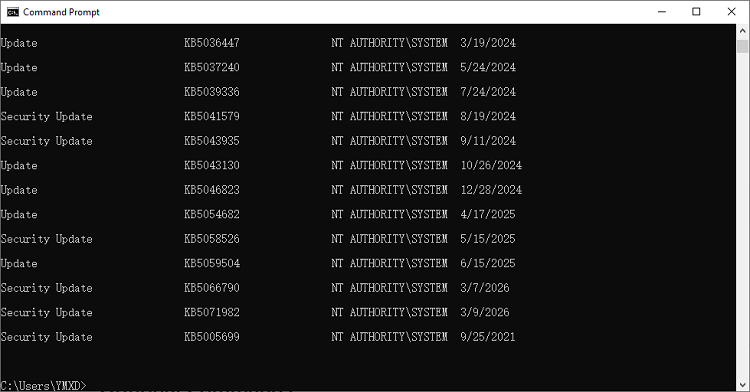
Step 5. Run this command to uninstall the update:
wusa /uninstall /kb:XXXXXXX
Step 6. Confirm your action if prompted.
Step 7. Restart your computer.
How to Remove Windows Updates with IObit Uninstaller
If built-in methods don’t fully remove an update or you’re dealing with stubborn update components, using a dedicated tool can make the process easier and more thorough. There are many tools available for use, and IObit Uninstaller is the best one you can have. It provides deeper scanning and cleanup features, helping you remove Windows updates along with any leftover files that might still affect your system.
IObit Uninstaller Free
- Complete forced uninstallation for stubborn programs.
- Uninstall a batch of programs at once.
- Scan and remove leftover files, folders, and registry entries.
- Support the management of Universal Windows Platform apps.

If you’re interested in this Windows update remover, here’s how to remove Windows updates with it.
Step 1. Download IObit Uninstaller by clicking the button below.
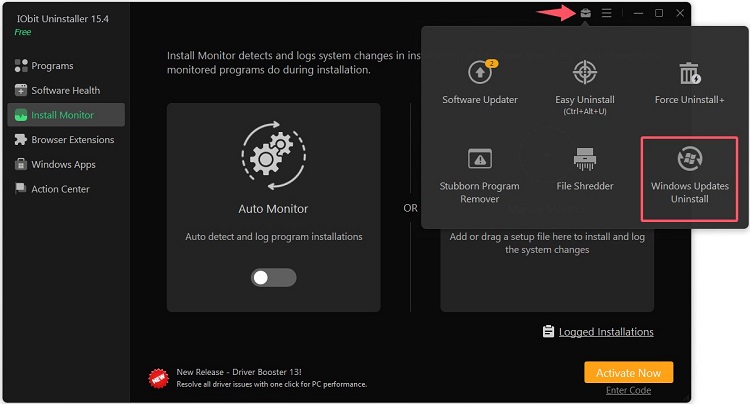
Step 2. Launch IObit Uninstaller and click the tools icon, which is an icon that looks like a bag in the upper right corner. Then, choose Windows Updates Uninstall.
Step 3. Select the Windows version you wish to uninstall. You can select one or multiple ones by checking the box next to the desired versions. Then, click Uninstall to proceed.
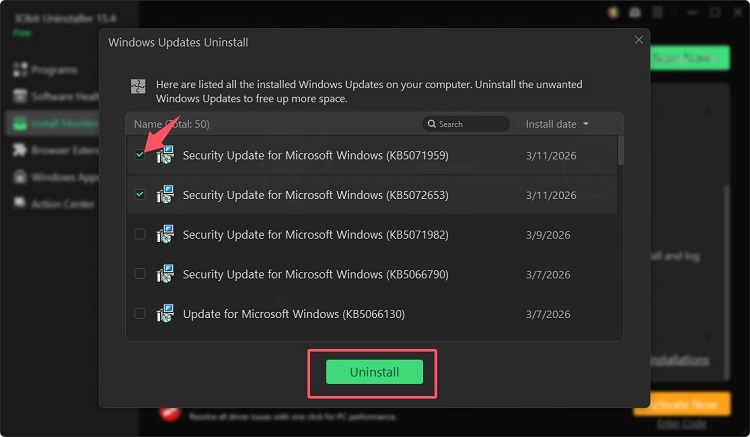
A new window will pop up to let you create a restore point during the uninstallation process and automatically remove residual files. Check the box for both options and click Uninstall. IObit will start the uninstallation process.
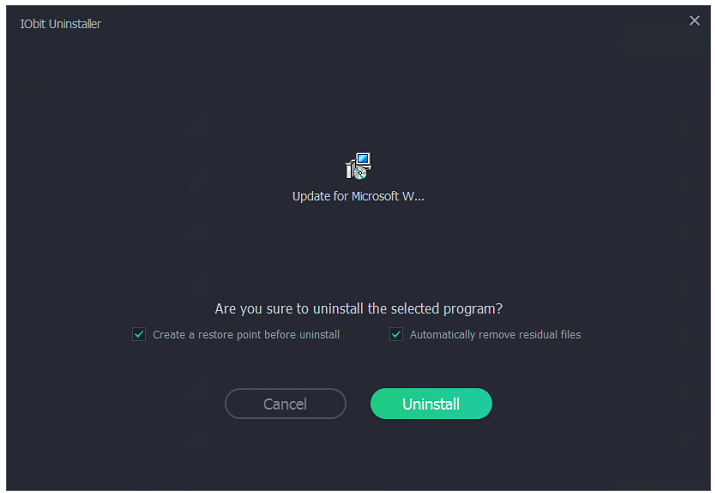
Step 4. Wait for IObit Uninstaller to remove Windows updates. Once it completes, restart your computer to apply the changes.
Reasons to choose the uninstall app:
-
Windows Update Management
View and uninstall installed Windows updates directly from a dedicated section within the tool.
-
Force Uninstall for Stubborn Updates
Removes updates that fail to uninstall through standard Windows methods.
-
Deep Scan for Leftovers
Detects and deletes residual files, folders, and registry entries left behind after uninstalling updates to free up disk space.
-
Batch Uninstall Support
Allows you to remove multiple apps and extensions at once, saving time and effort.
-
Real-Time Install Monitor
Tracks system changes during updates, making future removal more complete.
-
Automatic Restore Point Creation
Creates a system restore point before uninstalling updates for added safety.
Tips Before Removing Updates
Before you go ahead and uninstall any updates, it’s important to take a few precautions to avoid unexpected issues. Removing updates can affect system stability, so a little preparation can save you time and prevent potential problems. Here are some essential tips to keep in mind before removing Windows updates.
Always back up your system before uninstalling updates
Note the KB number to help identify problematic updates
Restart after uninstalling to ensure changes take effect
Avoid removing security updates
Use Cleanup Tools like IObit Uninstaller to remove stubborn components
How to Roll Back Windows Updates (System Restore)
If uninstalling a single update doesn’t resolve the issue, rolling back your system to a previous state can be a more effective solution. This method restores your PC to a point before the update was installed, helping undo deeper system changes. Before you proceed, keep these important tips in mind:
Choose the correct restore point created before the problematic update
Back up important files to avoid potential data loss
Ensure System Restore is enabled on your PC
Close all running programs to prevent interruptions
To roll back Windows updates:
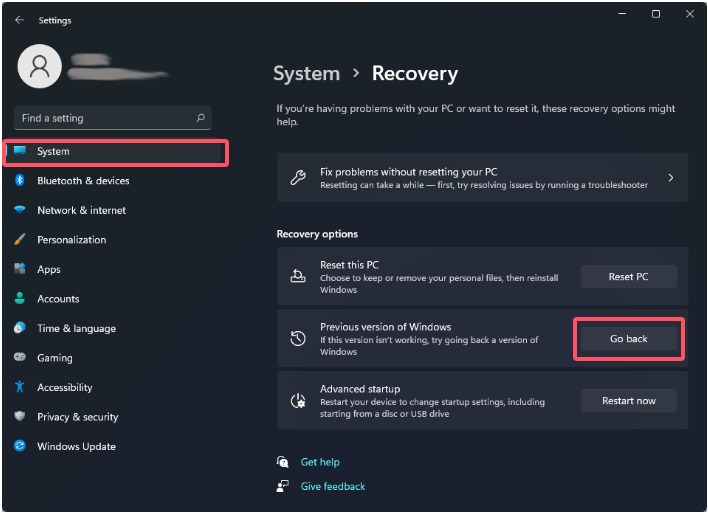
Step 1. Press Windows + I to open Settings. Alternatively, click the Start button, then select the gear icon.
Step 2. Go to System and select Recovery.
Step 3. Under the Recovery Options section, click Go back next to “Previous version of Windows.”
FAQ about Windows Updates
Can I remove Windows updates safely?
Yes, but only remove updates that are causing problems. Avoid uninstalling critical security updates unless necessary.
Why can’t I uninstall a Windows update?
It may be protected, in use, or corrupted. Try using Command Prompt or System Restore.
Do Windows updates reinstall automatically?
Yes, unless you pause updates or block specific ones.
Will removing updates improve performance?
It can, especially if the update causes system slowdowns or compatibility issues.
Conclusion
Knowing how to remove Windows updates is essential when dealing with system issues caused by faulty patches. Whether you use the Settings app, Control Panel, Command Prompt, or System Restore, each method offers a reliable way to regain control of your system.
If standard methods don’t work, consider using advanced tools like IObit Uninstaller or restore options to fully resolve the issue. Always proceed carefully and back up your data to avoid unexpected problems.