Many Xbox users become frustrated when game or update downloads crawl at just a few Mbps, especially with a fast internet plan. Slow downloads can delay game installs, updates, and online play for hours. If you're searching for how to speed up downloads on Xbox, this guide covers 8 tested methods that actually help, including a reliable PC booster and optimizer to improve download performance for Xbox apps and games on Windows.

How to Speed up Downloads on Xbox (Quick Solutions)
In many cases, a few simple adjustments can significantly boost Xbox download speeds. Here's a quick overview of the 8 proven methods covered in this guide:
Solution 1. Switch to a Wired Ethernet Cable
Solution 2. Stop All Background Games & Apps (Turbo Boost)
Solution 3. Restart Your Router
Solution 4. Restart the Xbox Console
Solution 5. Change Your DNS Settings
Solution 6. Download One Xbox Game One Time
Solution 7. Prioritize Xbox Traffic with QoS (Quality of Service)
Solution 8. Avoid Download Peak Hours
Solution 1. Switch to a Wired Ethernet Cable
When you've been looking for how to speed up downloads on Xbox, switching from wireless to Ethernet is a great place to start. And it's one of the first recommendations for anyone wondering how to speed up a download on Xbox without changing their internet plan.
Step 1. Connect one end of an Ethernet cable to your router or modem and plug the other end into the Ethernet port on your Xbox console.

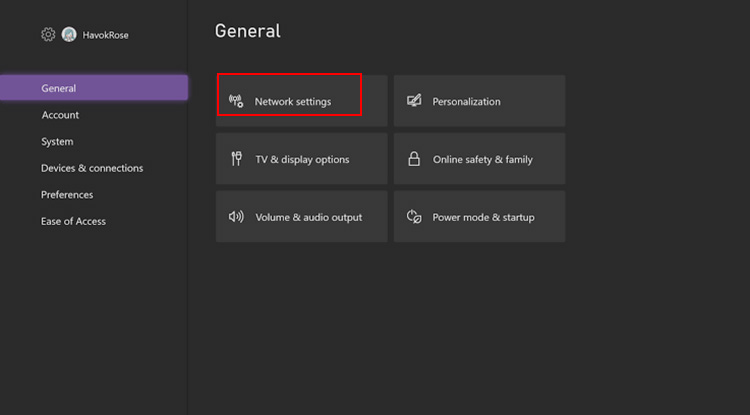
Step 2. Go to Settings > General > Network settings. Your Xbox should automatically switch from Wi-Fi to the wired network.
Step 3. Restart the download or pause and resume it to establish a new network session.
Solution 2. Stop All Background Games & Apps (Turbo Boost)
For those who download Xbox games through a Windows PC, IObit Advanced SystemCare offers several features that increase download efficiency. The Windows optimizer’s Turbo Boost Internet Booster and system cleanup tools improve overall download speed on Xbox.
Advanced SystemCare Free
- Clean: 420 billion traces removed & 85 EB junk files cleaned
- Protect: 80 million unauthorized access blocked & 20 million bugs fixed
- Speed Up: 6 million hours of startup time saved & Turbo boost
- Optimize: Auto clean and auto care your PC with AI mode

Step 1. Download and install Advanced SystemCare for Xbox download speed boost.
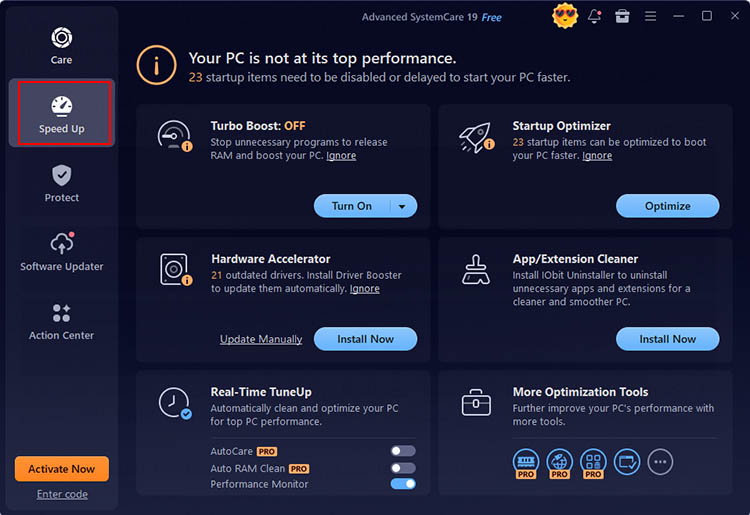
Step 2. Launch Advanced SystemCare and select the Speed Up tab from the main interface.
Step 3. Locate Turbo Boost, Real-Time TuneUp, and click Turn On.
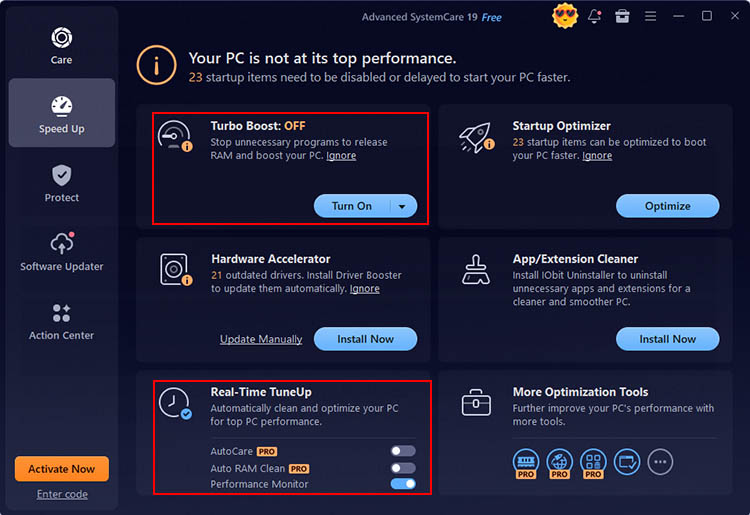
Turbo Boost: Work Mode, Game Mode, Economy Mode for better computer performance.
Real-Time TuneUp: Performance Monitor, AutoCare, Auto RAM Clean features.
Recommended: For better results, upgrade to access the Internet Booster feature.
What Can You Benefit from Advanced SystemCare?
Turbo Boost to Speed up Xbox Downloads Free – Stops unnecessary programs and background processes, releases RAM, and dedicates more resources to downloading tasks.
Real-Time TuneUp for Auto Download Speedup – Uses AutoCare, automatic RAM cleaning, and Performance Monitor to maintain better system performance.
Internet Booster for Faster Xbox Game Downloads – Optimizes browser and network-related settings for smoother internet performance.
Startup PC Optimizer For Gaming – Manages unnecessary startup items to reduce boot time and maximize overall responsiveness.
All-in-One PC Cleaner & Optimizer – Applies AI-driven system RAM optimizer Windows 11 tools to detect and remove junk files while optimizing PC performance through a simple one-click process.
Solution 3. Restart Your Router
A simple restart often refreshes the connection and restores normal download performance. For how to speed up downloads on Xbox, rebooting your router is a quick troubleshooting step that takes only a few minutes.
Step 1. Pause any active downloads on your Xbox, then turn off your router or modem by pressing the power button or unplugging it from the power outlet.
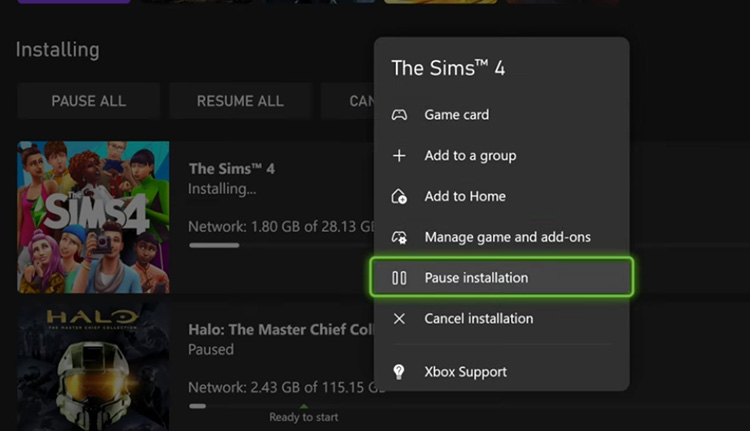 Step 2. Wait for 30–60 seconds to allow the router to fully clear its temporary memory and disconnect from your ISP.

Step 3. Power the router back on and wait until the Internet and Wi-Fi indicators become stable. It's worth trying if you want to know how to speed up a download on Xbox and how to improve Steam download speed before changing advanced network settings.
Solution 4. Restart the Xbox Console
Restarting the console clears certain temporary issues and establishes a fresh network connection. Need to know how to speed up downloads on Xbox? A full restart is worth trying.
Step 1. Hold down the Xbox button on your controller, then choose Restart console from the power menu. Alternatively, press and hold the Power button on the console for about 10 seconds to perform a complete shutdown.

Step 2. Wait 30–60 seconds, then turn the Xbox back on. Allow the console to reconnect to your network and sign in to your account.
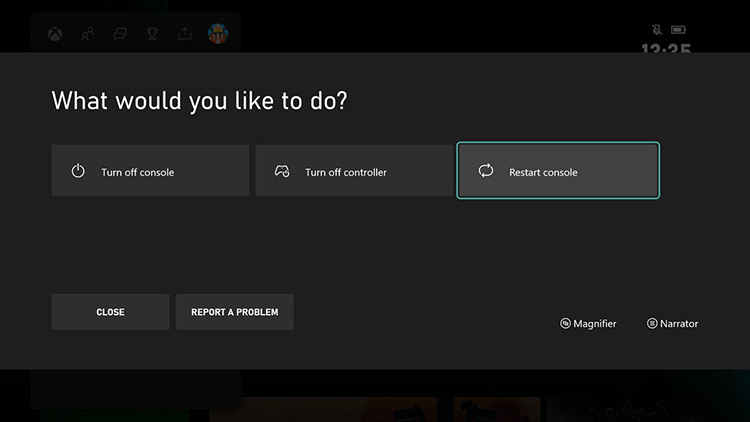
Step 3. Resume or restart the download. It's also one of the easiest ways to learn how to make Xbox One games download faster when downloads suddenly become slower than usual.
Solution 5. Change Your DNS Settings
How to speed up downloads on Xbox? Switching to a public DNS such as Google DNS or Cloudflare DNS is a worthwhile tweak to try. It's also a common recommendation for players asking how to make Xbox One games download faster without upgrading their internet service or computer performance test.
Step 1. Open Settings > General > Network settings > Advanced settings > DNS settings, then select Manual.
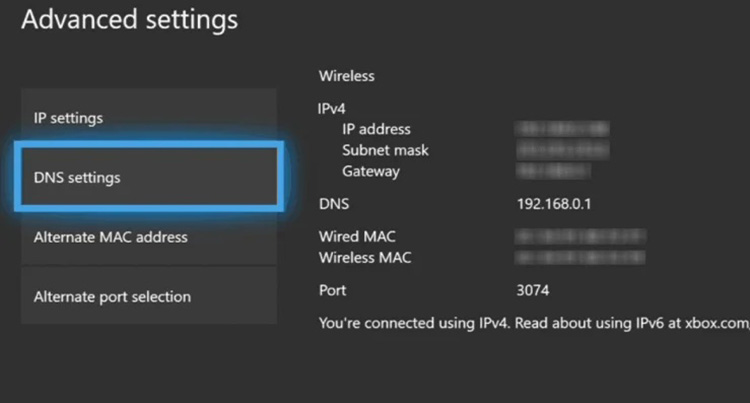
Step 2. Enter the Primary DNS number and press B to save the changes. Then enter the Secondary DNS number and press B to proceed.
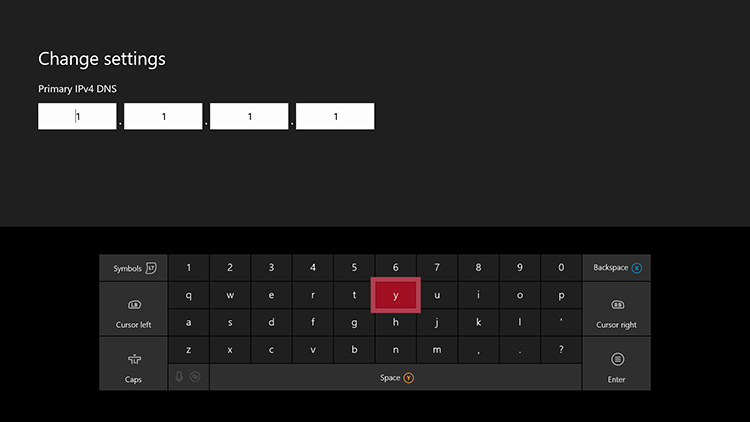
Step 3. Reboot your Xbox console or refresh the network connection, then restart the download process.
Solution 6. Download One Xbox Game One Time
Before exploring how to speed up downloads on Xbox, try limiting active downloads that often works immediately. It's also an easy answer to how to improve download speeds on Xbox without changing your network hardware or internet plan.
Step 1. To view everything currently downloading, press the Xbox button and open My games & apps > See all > Manage >Queue.
Step 2. Pause or cancel every download except the game or app you want to finish first. This lets Xbox dedicate the available bandwidth to a single task.
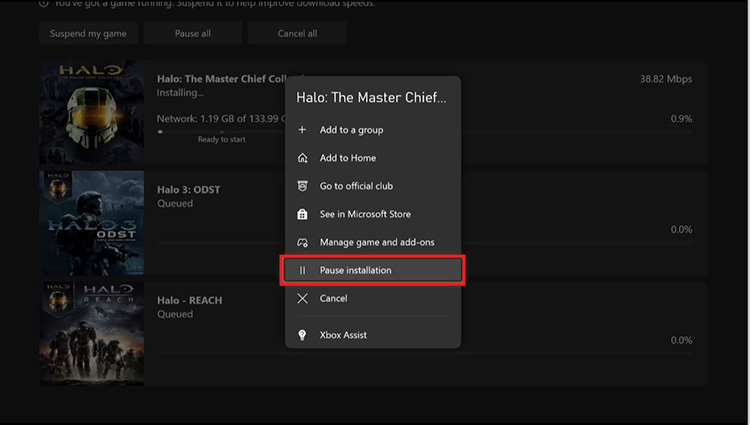
Step 3. Wait until the download completes before starting another game or update. If needed, reorder the queue so your highest-priority download stays at the top.
Check More: TCP Optimizer Guide: Optimize TCP/IP Settings for Faster Xbox App Downloads on Windows
Solution 7. Prioritize Xbox Traffic with QoS (Quality of Service)
Many modern routers include Quality of Service (QoS), a feature that gives selected devices or applications higher network priority. Looking for how to speed up downloads on Xbox? Enabling QoS can maintain faster and more consistent download speeds during busy network usage.
It's also useful when you want to know how to increase Xbox download speed PC when downloading Xbox games through the Xbox app on Windows.
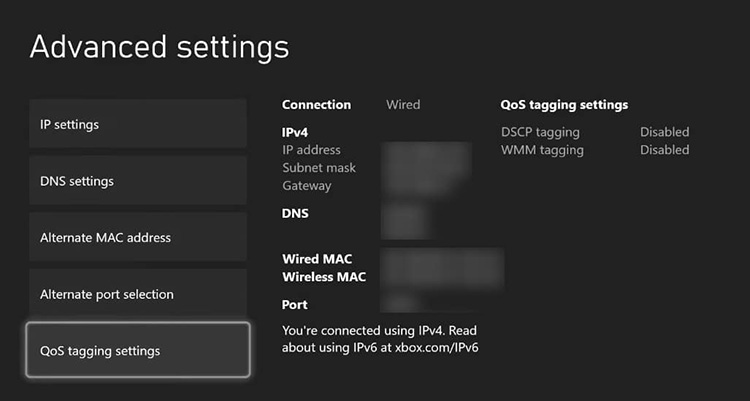
Step 1. From the Xbox menu, open Settings, then head to General > Network settings > Advanced settings. Select QoS tagging settings.
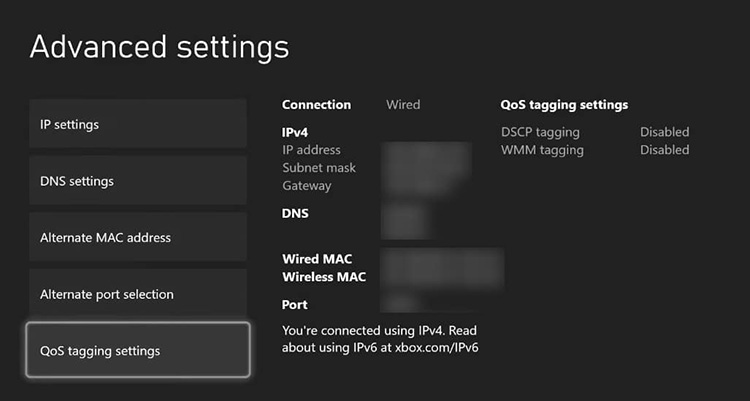
Step 2. Enable DSCP tagging to prioritize your console's network traffic.

Step 3. Confirm the QoS changes, then restart your Xbox for the settings to take effect.
Solution 8. Avoid Download Peak Hours
Download speeds can drop during evenings, weekends, or major game releases when your ISP and Xbox servers experience heavier traffic. If you're wondering how to speed up download speed on Xbox, simply choosing a quieter time to download can make a noticeable difference.
Step 1. Start large game downloads early in the morning, late at night, or during weekday hours.
Step 2. Avoid downloading games while other devices on your home network are streaming 4K videos or downloading large files.
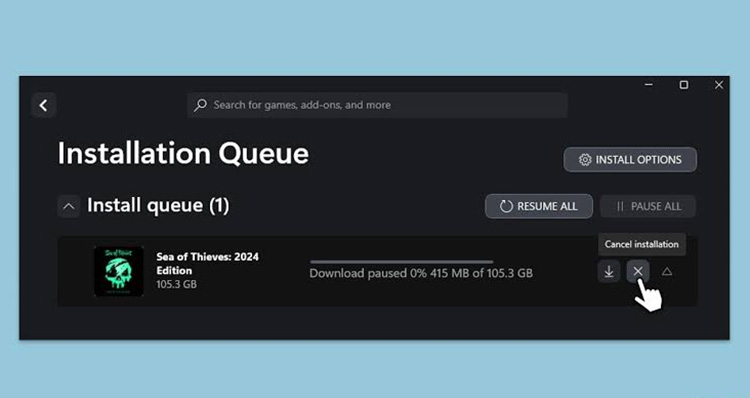
Step 3. Enable automatic updates or leave your Xbox in Sleep mode so downloads can continue during off-peak hours. The same approach helps users looking for how to speed up Xbox downloads on PC through the Xbox app or Microsoft Store.
Why is My Xbox Download Speed So Slow?
Download speed can be affected by your home network, console settings, router performance, or Xbox services. Before figuring out how to speed up downloads on Xbox, check these common reasons first:
Weak Wi-Fi connection and network congestion. A weak signal, long distance from the router, and other devices using bandwidth can reduce download stability and speed.
Multiple downloads. Running several game or update downloads simultaneously shares your available bandwidth and may reduce the speed of each download.
Router or modem issues. Temporary glitches, overheating, or outdated firmware can affect network performance.
ISP or Xbox server limits. Internet provider congestion or busy Xbox servers can reduce download speeds during peak periods.
Incorrect network settings. DNS problems or misconfigured network options may impact the connection between your Xbox and download servers.
FAQs About How to Speed up Downloads on Xbox
1. Why is My Xbox Series S Download Speed Slow?
Common causes of slow Xbox Series S downloads include limited wireless performance, bandwidth competition, unnecessary background tasks, network hardware issues, and server-side limitations.
2. Does Turning off Your Xbox Make Downloads Faster?
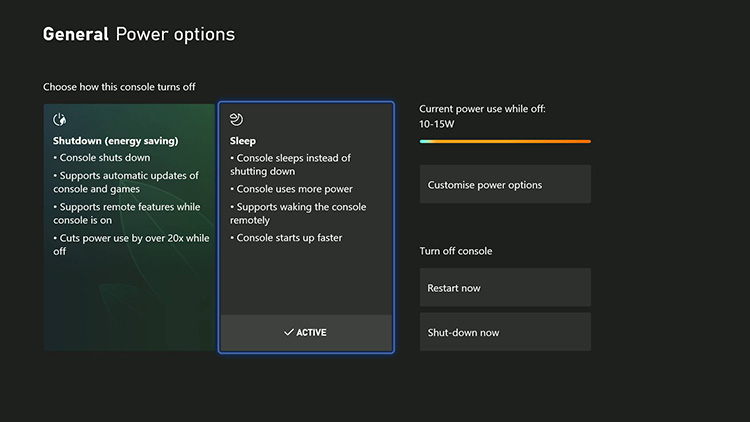
Yes, turning off your Xbox or using Sleep mode can sometimes optimize download speed because fewer system resources are being used. However, network conditions still have the biggest impact.
3. How Can I Make My Xbox Download Speed Faster?
Use a wired Ethernet connection, restart your router, stop background apps, change DNS settings, and avoid downloading during peak hours. These methods can increase overall download performance.
4. Does Xbox Download Faster in Instant-on Mode?
Yes. When your Xbox enters Sleep (Instant-on) mode, it suspends active applications and minimizes background workloads. With fewer tasks competing for CPU time and internet bandwidth, game and update downloads can proceed more efficiently.
The Bottom Line
Slow Xbox downloads can often be fixed with simple adjustments, including using Ethernet, closing background apps, optimizing network settings, and avoiding busy hours. For PC users exploring how to speed up downloads on Xbox, IObit Advanced SystemCare provides an easier way to boost performance with Turbo Boost, system optimization, and Internet Booster. Download it now to optimize your system and enjoy smoother Xbox game downloads.
Advanced SystemCare Free
- Clean: 420 billion traces removed & 85 EB junk files cleaned
- Protect: 80 million unauthorized access blocked & 20 million bugs fixed
- Speed Up: 6 million hours of startup time saved & Turbo boost
- Optimize: Auto clean and auto care your PC with AI mode