Is your PC booting slower than ever? Do apps lag or freeze at the worst moments? Over time, junk files, startup clutter, and registry errors can drag PC performance to a halt. So, how to speed up a PC? The good news is—you don’t need to be a tech expert to fix it. Just follow these simple steps below to bring your system back up to speed.

Why Is My Computer So Slow?
In most cases, PC slowdowns aren’t caused by a single issue but a mix of factors. Pinpointing these underlying causes is the first step; here are some common ones:
Too many startup programs launch automatically when your PC starts.
Temporary files, cache, and leftover data accumulate and take up valuable disk space.
Too many applications continue running in the background.
Outdated software and drivers lacking important updates lead to slower operation.
A nearly full system drive can limit Windows’ ability to run efficiently.
Excessive visual effects look nice, but consume system resources.
Power-saving modes may limit CPU performance and reduce overall speed.
Potentially malicious programs run silently and drain system resources.
Advanced SystemCare Free
- Clean: 420 billion traces removed & 85 EB junk files cleaned
- Protect: 80 million unauthorized access blocked & 20 million bugs fixed
- Speed Up: 6 million hours of startup time saved & Turbo boost
- Optimize: Auto clean and auto care your PC with AI mode
10 Quick Ways to Speed Up Your PC in Minutes
Based on these common causes, here are some quick, built-in fixes you can use to speed up PC effortlessly:
Way 1. Disable Unnecessary Startup Programs
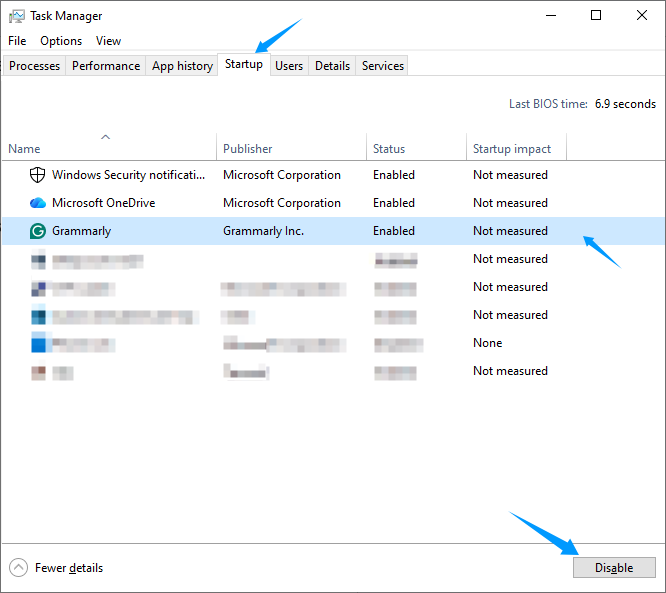
Step 1. Press Ctrl + Shift + Esc to launch Task Manager.
Step 2. Navigate to the Startup tab.
Step 3. Select the programs you don’t need at startup and click Disable in the bottom-right corner. You can still launch them manually anytime.
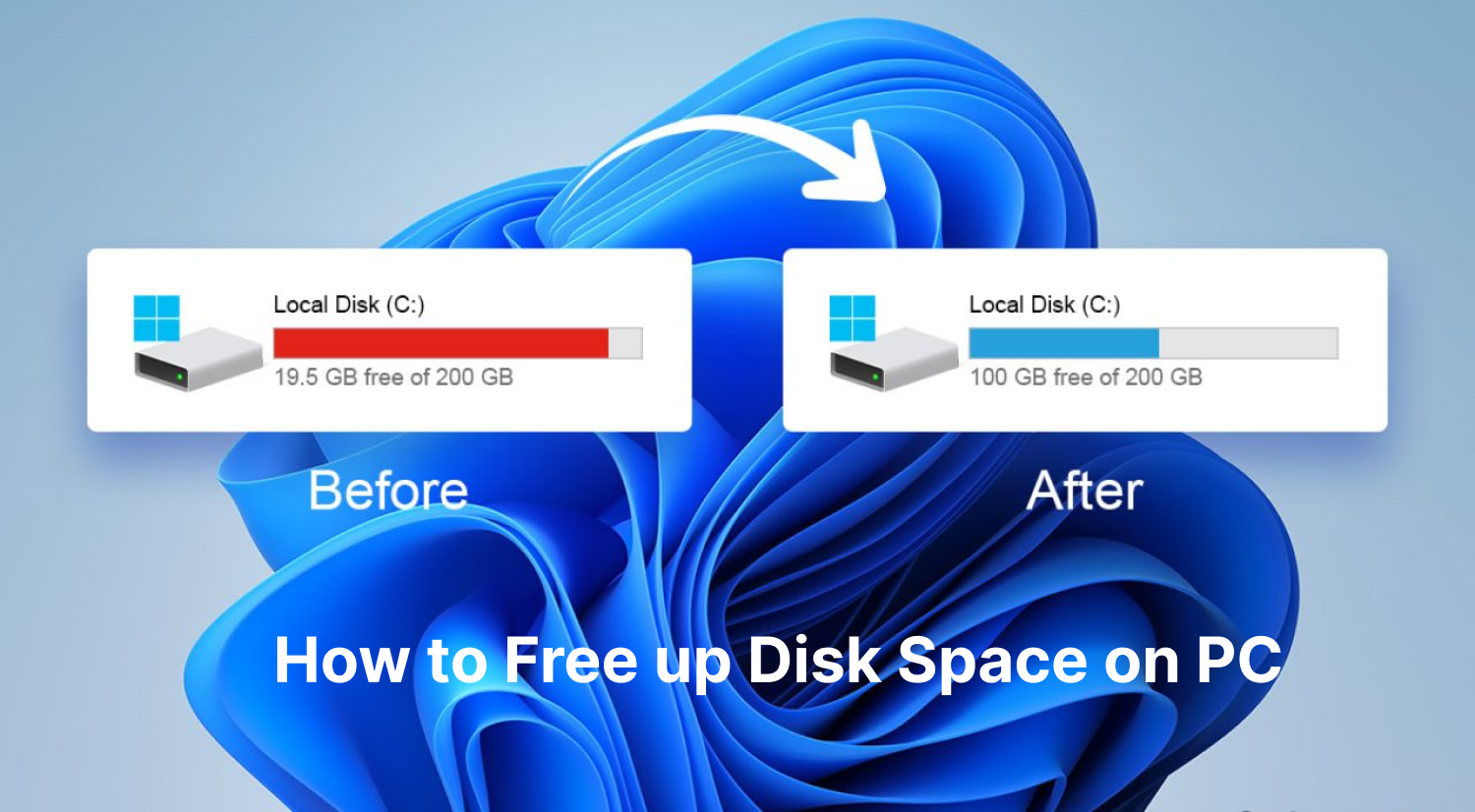
Way 2. Free Up Disk Space
If your Windows PC is running low on storage, it can lead to slower performance. Here are a few simple ways to speed up PC for free:
Via Disk Cleanup (built‑in Windows tool)
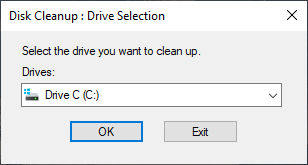
Step 1. Search for Disk Cleanup from the Start menu and open it.
Step 2. Select the main drive you want to clean up (usually C:), then click OK.
Step 3. Check and tick the files you want to delete.
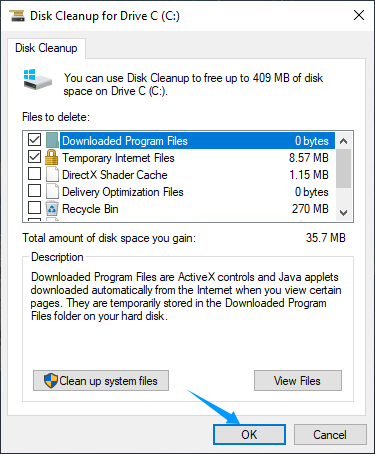
Step 4. Click OK, then click Delete Files to confirm.
Via Windows Settings
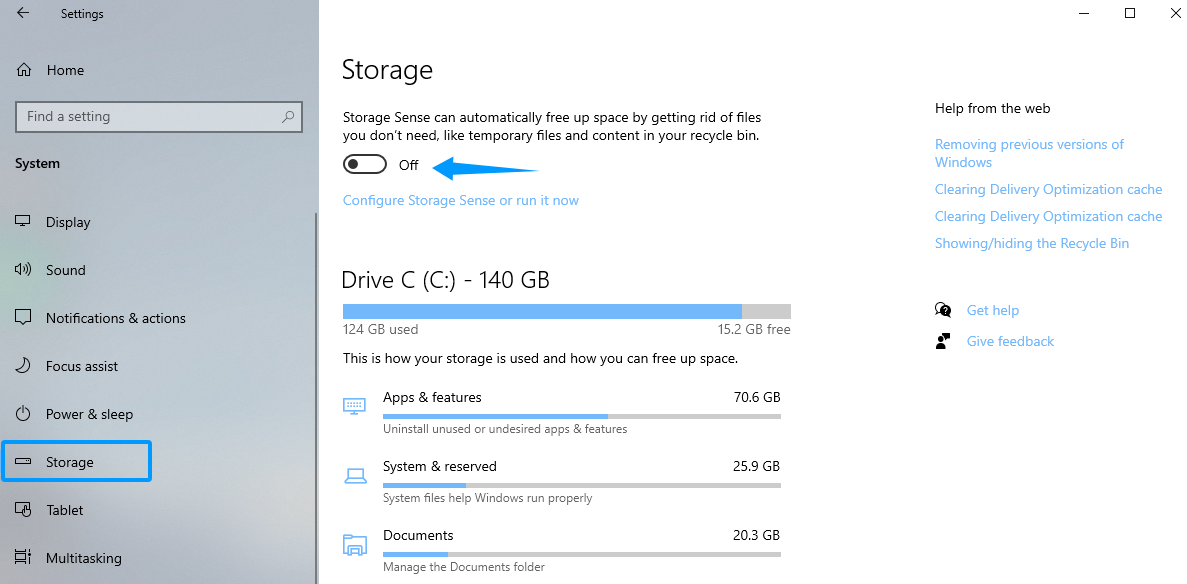
Step 1. Go to Start menu > Settings > System > Storage.
Step 2. Turn on the Storage Sense feature to let Windows auto-delete unnecessary files.
Way 3. Uninstall Unnecessary Programs
Overinstalling programs can consume storage space and run background processes that slow down your PC. Here’s how to remove unused ones:
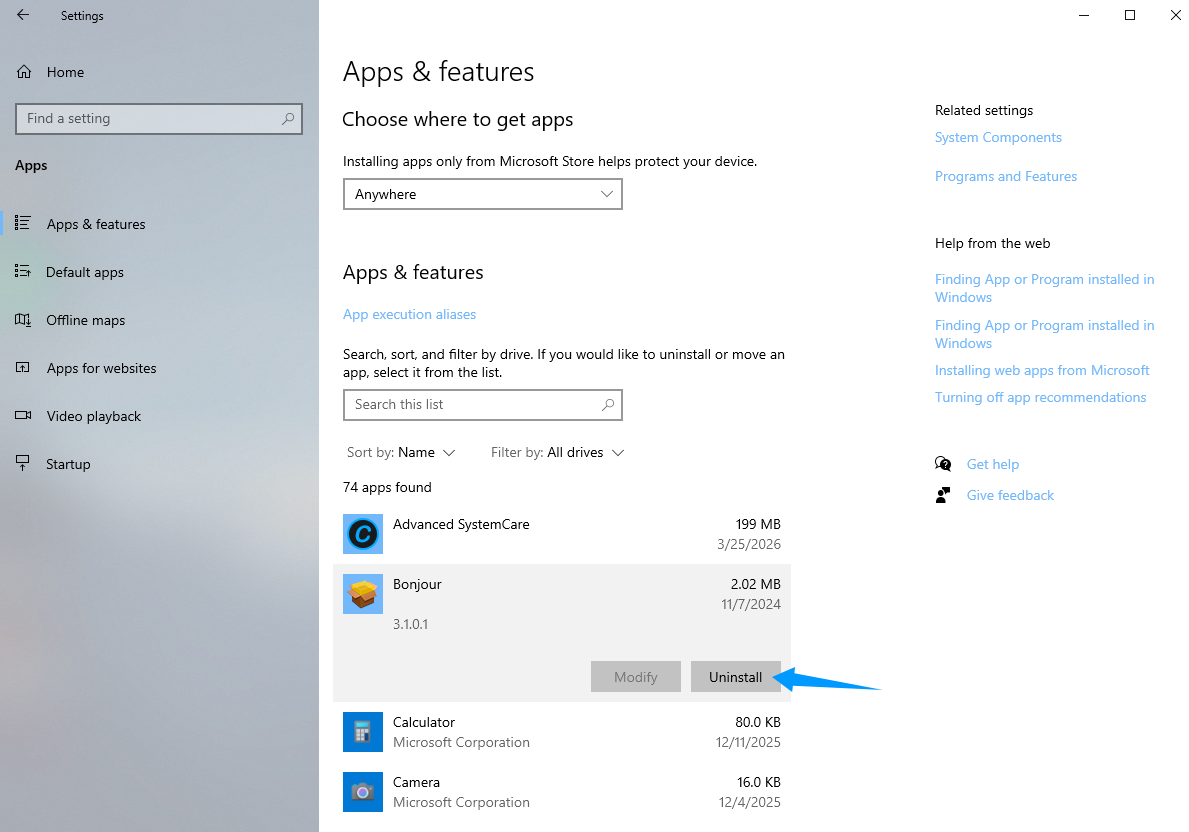
Step 1. Go to Start > Settings > Apps > Apps & features.
Step 2. Scroll through the list, select the unnecessary program, and click Uninstall.
Way 4. Limit Background Apps
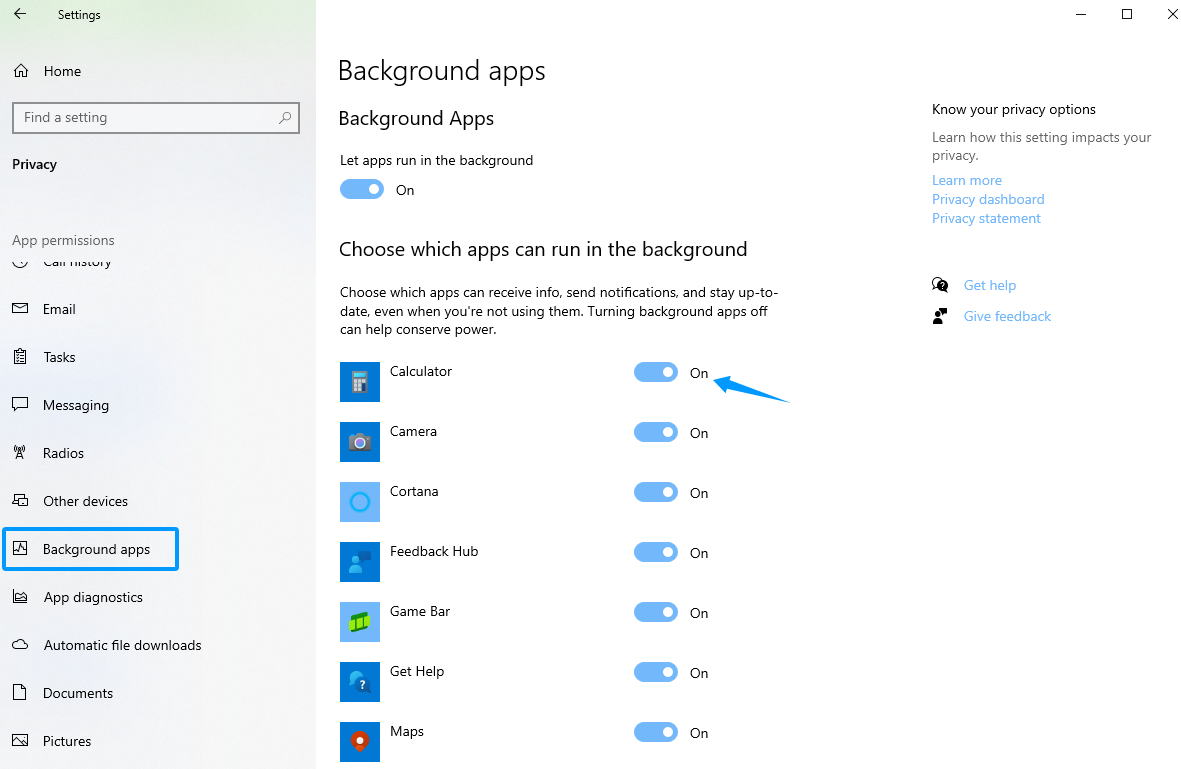
Step 1. Go to Settings > Privacy > Background apps.
Step 2. Disable apps you don’t need running in the background. The fewer background processes, the better your CPU and memory performance will be.
Way 5. Adjust Visual Effects
Step 1. Type Adjust the appearance and performance of Windows in the Start menu.
Step 2. Open it to access Performance Options.
Step 3. Select Adjust for best performance to disable all visual effects. Or, select Custom to choose your preferred settings.
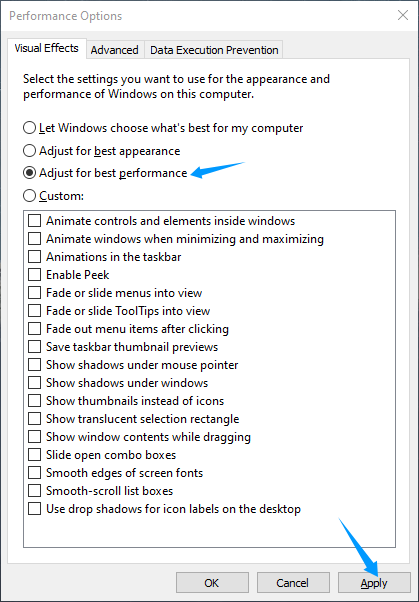
Step 4. Click Apply.
Way 6. Optimize Your Storage Drive
If you’re using a traditional hard drive (HDD), fragmentation can slow it down. If you have a solid‑state drive (SSD), fragmentation isn’t needed, but optimization still helps.
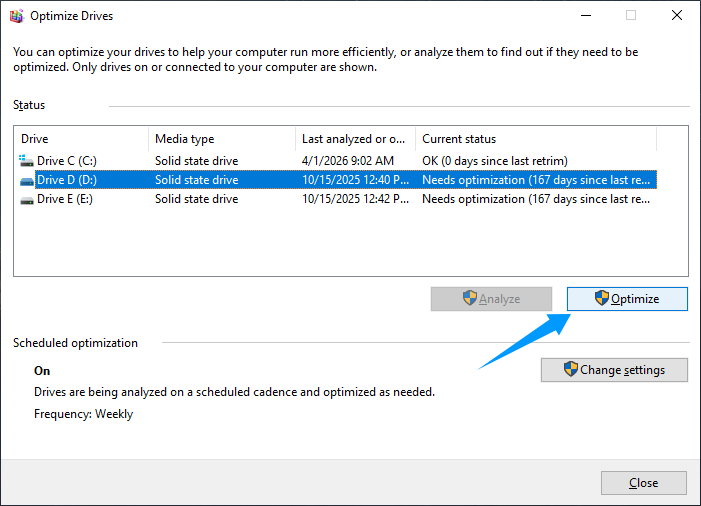
Step 1. Still, type Defragment and Optimize Drives in the Start menu.
Step 2. Select the drive and click Optimize.
Way 7. Update Windows and Drivers
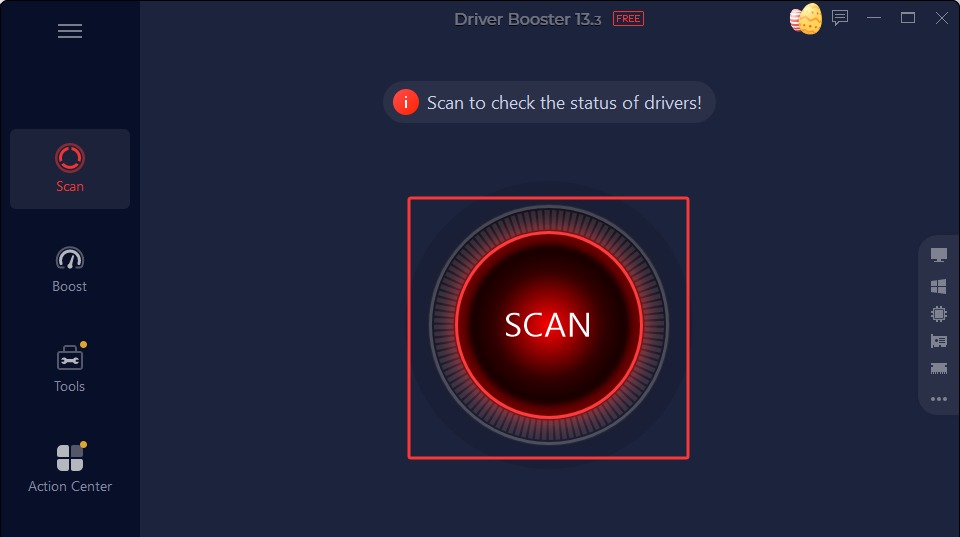
How to speed up the PC? Keeping your programs and software up to date is also an important step. The process is easy: go to Settings > Update & Security > Windows Update, and install the latest updates for improved performance and stability. For a faster approach, try IObit Driver Booster. It scans your system for outdated, missing, or corrupted drivers and lets you update them all with one click—saving you the hassle of manual searching and installation.
Driver Booster Free
- Automatically scan and update drivers.
- Update game ready drivers for peak gaming performance.
- Identify and fix various common of hardware issues.
- Boost 30% of system performance for fast & smooth running.

Way 8. Scan for Malware and Threats
Step 1. Go to Settings > Update & Security > Windows Security > Open Windows Security.
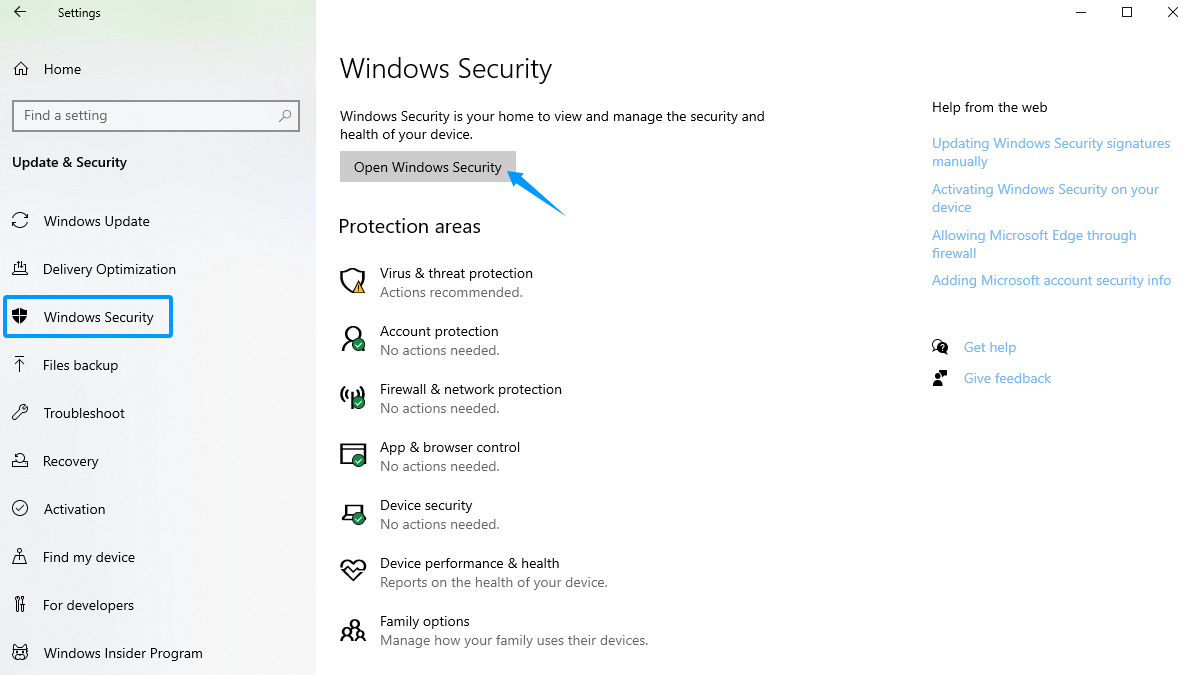
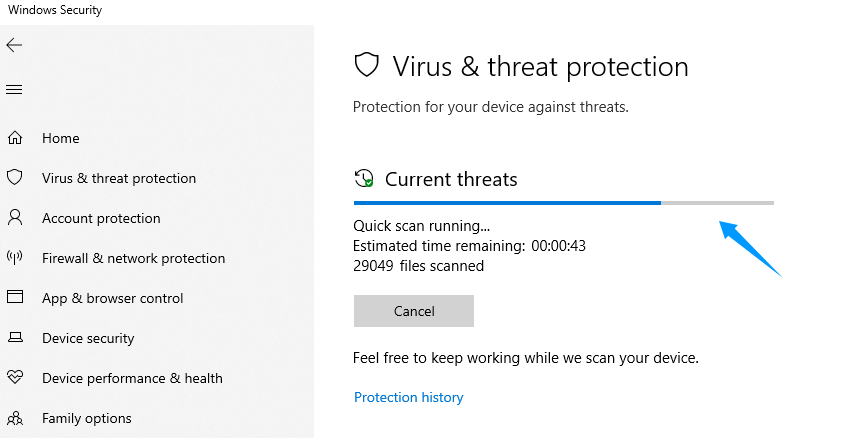
Step 2. A new window will pop up. Click Scan now under Virus & threat protection.
Step 3. Click Quick scan to check for common threats.
Way 9. Change Power Settings
Step 1. Press Windows + S, search for Control Panel, and open it.
Step 2. Click Hardware and Sound > Power Options, and select Power Saver.
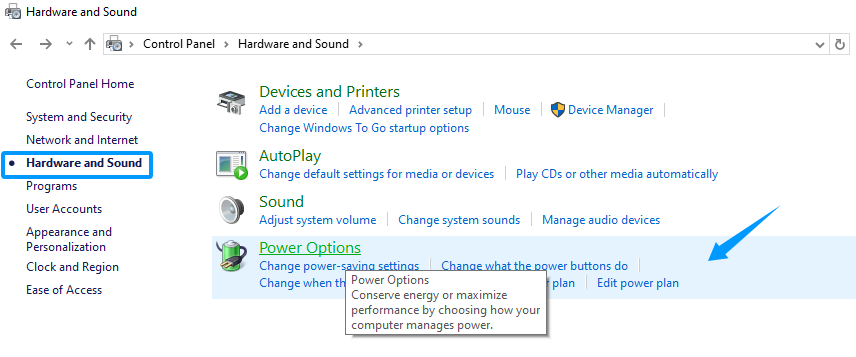
Step 3. Alternatively, click Change plan settings next to the selected plan to customize settings, such as sleep time and screen timeout.
Way 10. Restart Your PC Regularly
A simple restart can effectively resolve temporary system slowdowns. It refreshes system resources, clears temporary files from memory, and closes unnecessary background applications.
Speed Up Your PC with an All-in-One PC Optimization Tool
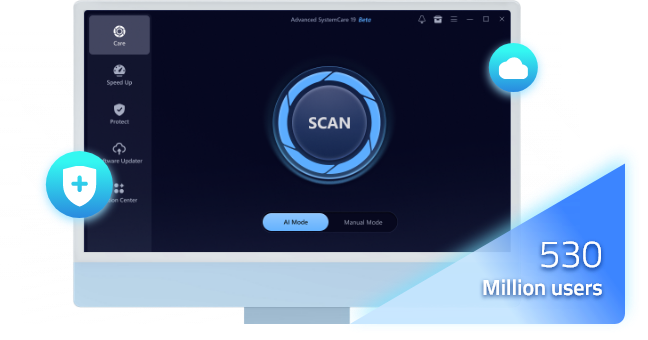
Although Windows includes built‑in performance tools, they often require manual effort and technical know‑how. For a more convenient and advanced solution, IObit Advanced SystemCare is the go‑to choice for everyday users. This all‑in‑one software cleans, optimizes, and speeds up your PC with just one click, eliminating tedious manual tasks.
Advanced SystemCare Free
- Clean: 420 billion traces removed & 85 EB junk files cleaned
- Protect: 80 million unauthorized access blocked & 20 million bugs fixed
- Speed Up: 6 million hours of startup time saved & Turbo boost
- Optimize: Auto clean and auto care your PC with AI mode
How AdvancedSystemCare helps you speed up a PC:
One-click deep system cleanup. As one of the best speed up PC software, Advanced SystemCare lets you scan and remove junk files, invalid shortcuts, and other unnecessary data with a single click—easily freeing up disk space and improving performance in minutes.
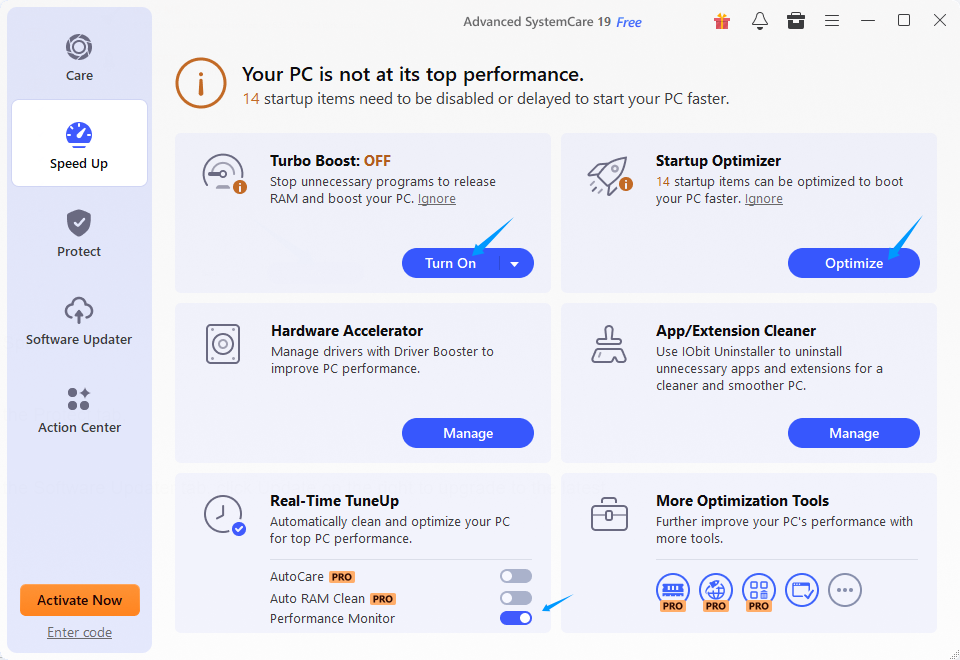
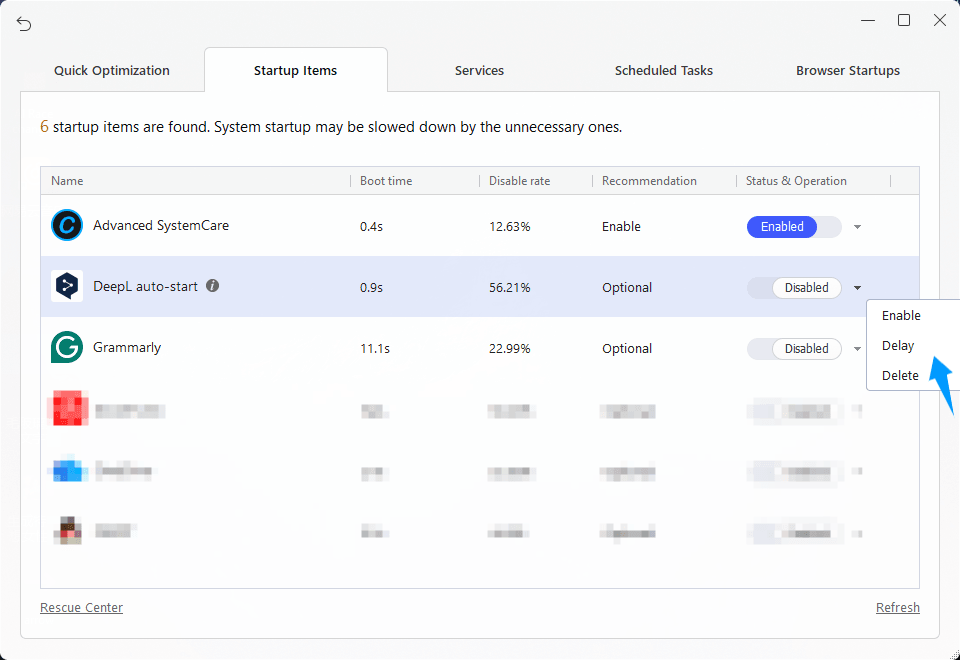
Turbo Boost and Startup Optimizer. Advanced SystemCare features Turbo Boost, which shuts down unused background apps while you're gaming for smoother performance, along with a Startup Optimizer that safely delays or disables unneeded startup items to speed up boot times.
Real-time PC performance monitoring. Advanced SystemCare helps you develop good housekeeping habits to keep your system continuously clean. Plus, a small widget in the top-right corner monitors CPU and memory usage in real time and automatically optimizes system resources in the background.
Other tools for speeding up your PC. With this comprehensive tool, you can update drivers and uninstall unnecessary apps hassle-free. It also strengthens desktop security by clearing browsing traces, blocking tracking, and protecting sensitive data from unauthorized access.
How to speed up a PC? Follow these steps regularly to keep your system running fast and efficiently.
Step 1. Click the Free Download button above, and follow the on-screen instructions to install Advanced SystemCare on your PC.
Step 2. Launch the program and click the big blue icon for a quick system scan. Or, switch to Manual Mode to customize scan options before starting.
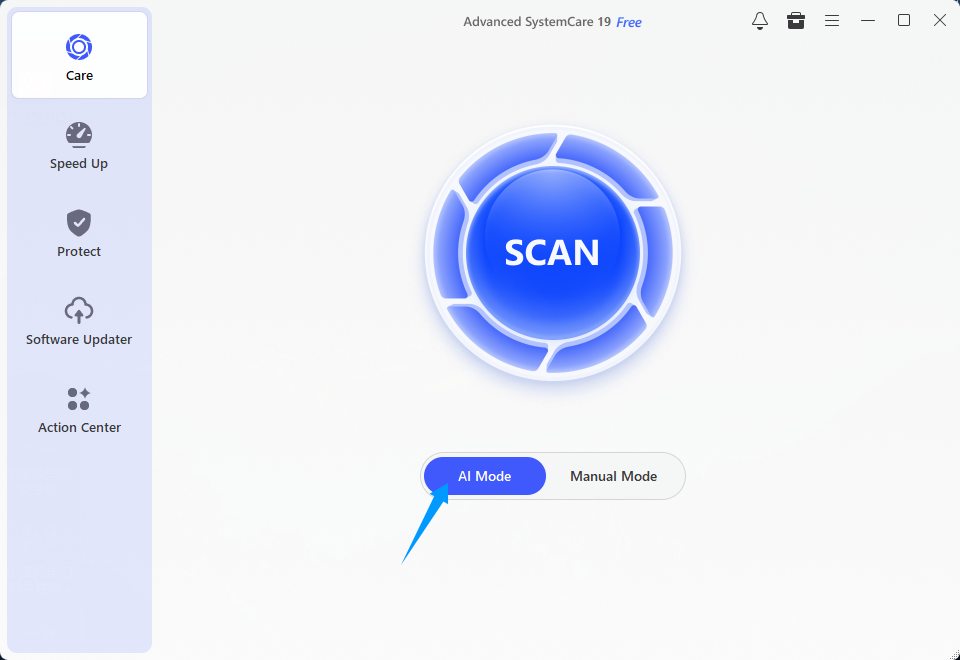
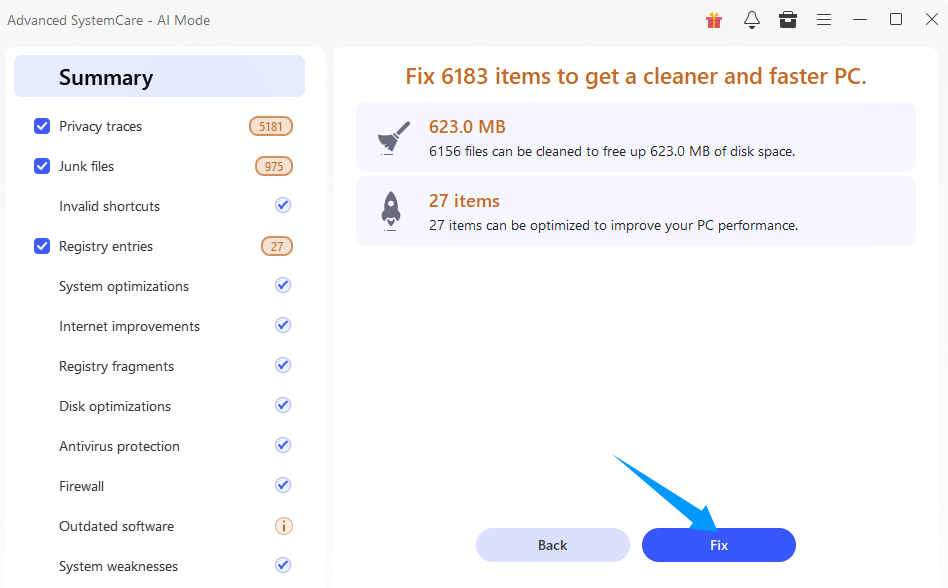
Step 3. Once the scan is complete, click Fix to clean junk files, privacy traces, registry entries, etc.
Step 4. Go to the Speed Up tab and turn on Turbo Boost to stop unnecessary background apps and services, instantly freeing up RAM and CPU resources.
Step 5. Click Optimize on Startup Optimizer to view all startup programs, services, and scheduled tasks; you can Disable unnecessary items or Delay them to speed up boot time.
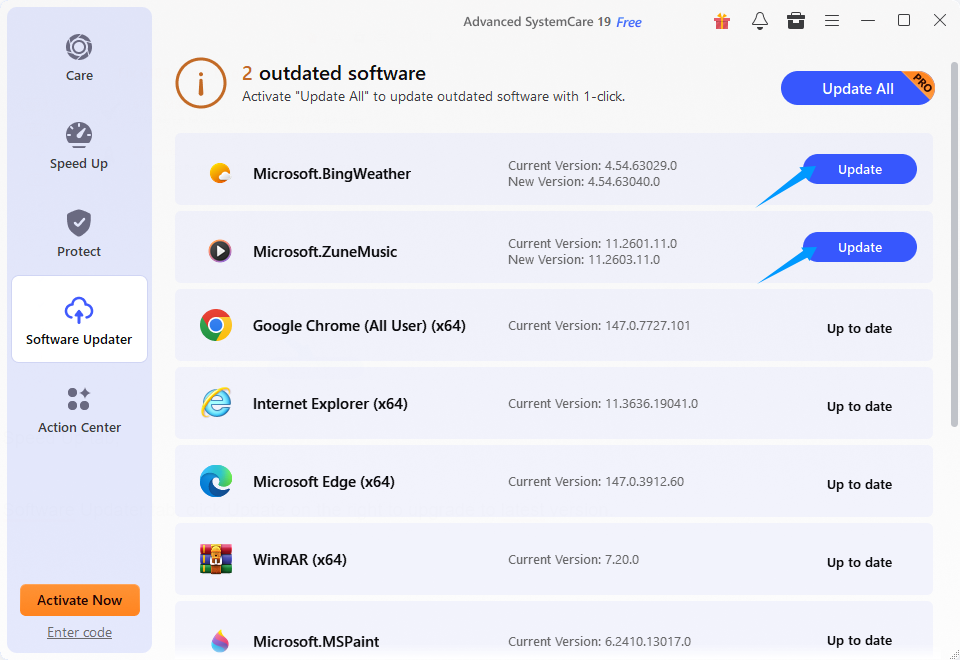
Step 6. Switch to the Software Updater tab and click Update to keep your programs up to date for improved performance and security.
After applying the manual steps above, running Advanced SystemCare once or twice a week ensures your PC stays in peak condition with minimal effort.
Conclusion
How to speed up a PC? It doesn't have to be complicated. By identifying what's slowing down your system and applying simple built‑in fixes, you can noticeably improve performance. However, manually following all the steps above takes time and technical know‑how. This is where a tool like Advanced SystemCare comes in handy—automating the entire process to clean, optimize, and boost your PC in just a few clicks.
With regular maintenance and the right approach, your computer will continue to run smoothly and efficiently for years to come, just like new.