- Support Center
- Multiple Languages
- Language
- Help Us Translate
Expert in
PC Health Solution

All-in-one PC health solution: clean, optimize and secure

Comprehensive PC cleaning, optimization and protection

Keep drivers always up-to-date

More stable performance with less system crashes

Protect millions of computers against malware

Top computer security with full-round protection

Protect against viruses & boost PC performance
Clean: 420 billion traces removed & 85 EB junk files cleaned
Protect: 80 million unauthorized access blocked & 20 million bugs fixed
Speed Up: 6 million hours of startup time saved & Turbo boost
Optimize: Auto clean and auto care your PC with AI mode

How to improve Steam download speed? Check how to make Steam download faster in 12 ways: Check Internet Connection, Switch Steam Download Server Region…



Check Your Internet Connection
Switch Steam Download Server Region
Adjust Steam Download Priority
Clean up Disk Space & Improve System Speed
Turn off Any Download Limit on Steam
Disable Download Throttling on Steam
Close Bandwidth Consuming Programs
5 More Tips to Speed up Steam Downloads
How to improve Steam download speed? This guide will walk you through 7 effective steps and 5 more useful tips to improve Steam download speed. You can check your internet connection, change Steam download server region, adjust Steam download priority, turn off download limit on Steam, disable download throttling on Steam, close bandwidth consuming progress, or use an Ethernet connection to get faster downloads on Steam.
Check how to increase download speed on Steam with detailed steps below!
A stable network is essential to fast Steam downloads. If you find your download speed on Steam is slow, run a speed test to check your internet connection first. And you can restart the modem/router to speed up your internet. If the issue persists, contact your ISP for assistance.
Here's how to make Steam download faster:
1. Open Steam and go to Settings > Downloads.
2. Under Download Region, select a different city.
3. Restart Stream and start your download.
Tip: Try a region that is currently in its "off-peak" hours (early morning) to access servers with more available bandwidth.
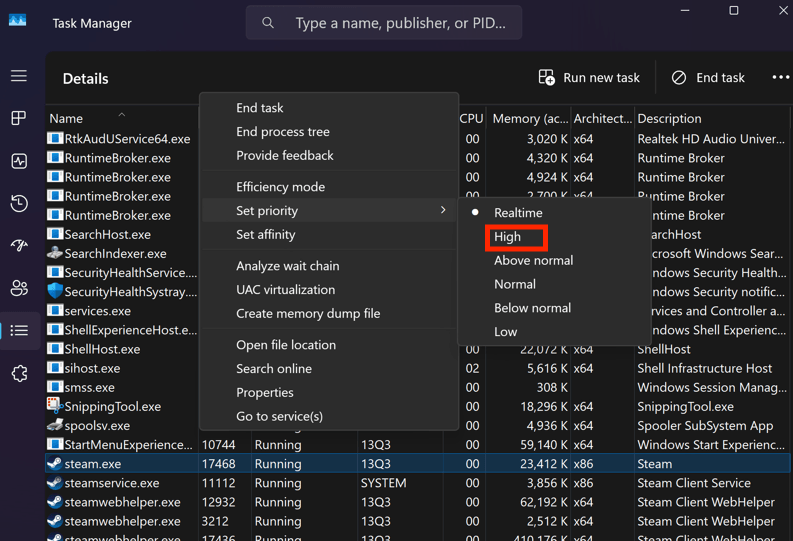
1. Press Ctrl + Shift + Esc to open Task Manager.
2. Go to the Details tab.
3. Find steam.exe, right-click it, and set Priority to High.
This ensures your CPU focuses on decompressing game files as fast as they are downloaded.
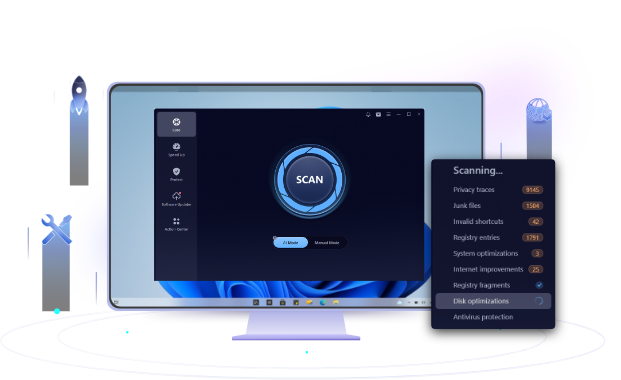
Insufficient disk space may also cause Steam slow download speeds. Use a powerful free PC cleaner to clean up your Windows and optimize system speed effortlessly, which helps boost download speeds on Steam significantly. Free download to speed up Steam downloads now!
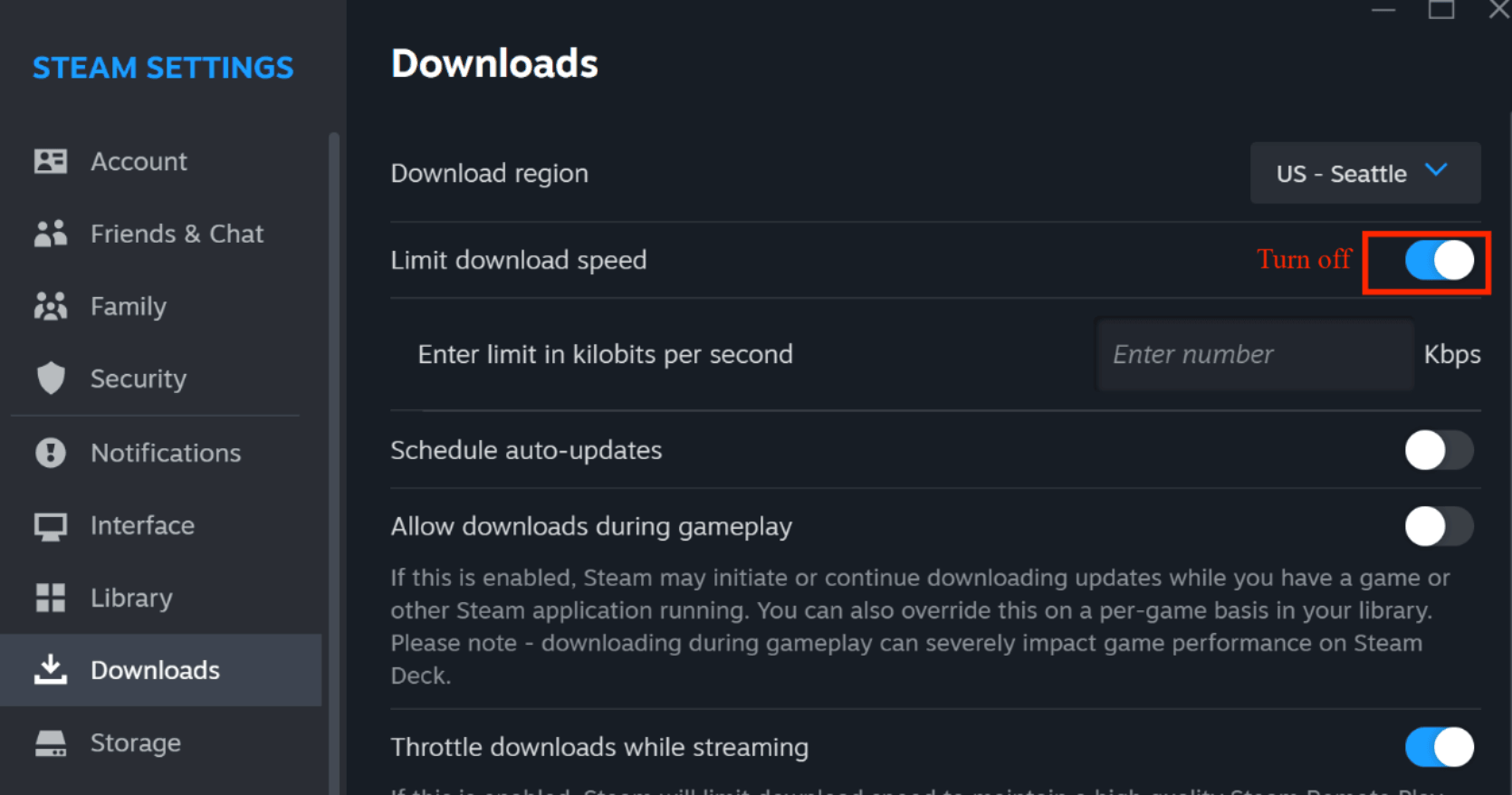
Check how to speed up Steam downloads:
1. Go to Steam > Settings > Downloads.
2. Find the toggle for Limit bandwidth to.
3. Ensure this is Unchecked. Even if the limit is set high, the capping mechanism can sometimes cause speed fluctuations.
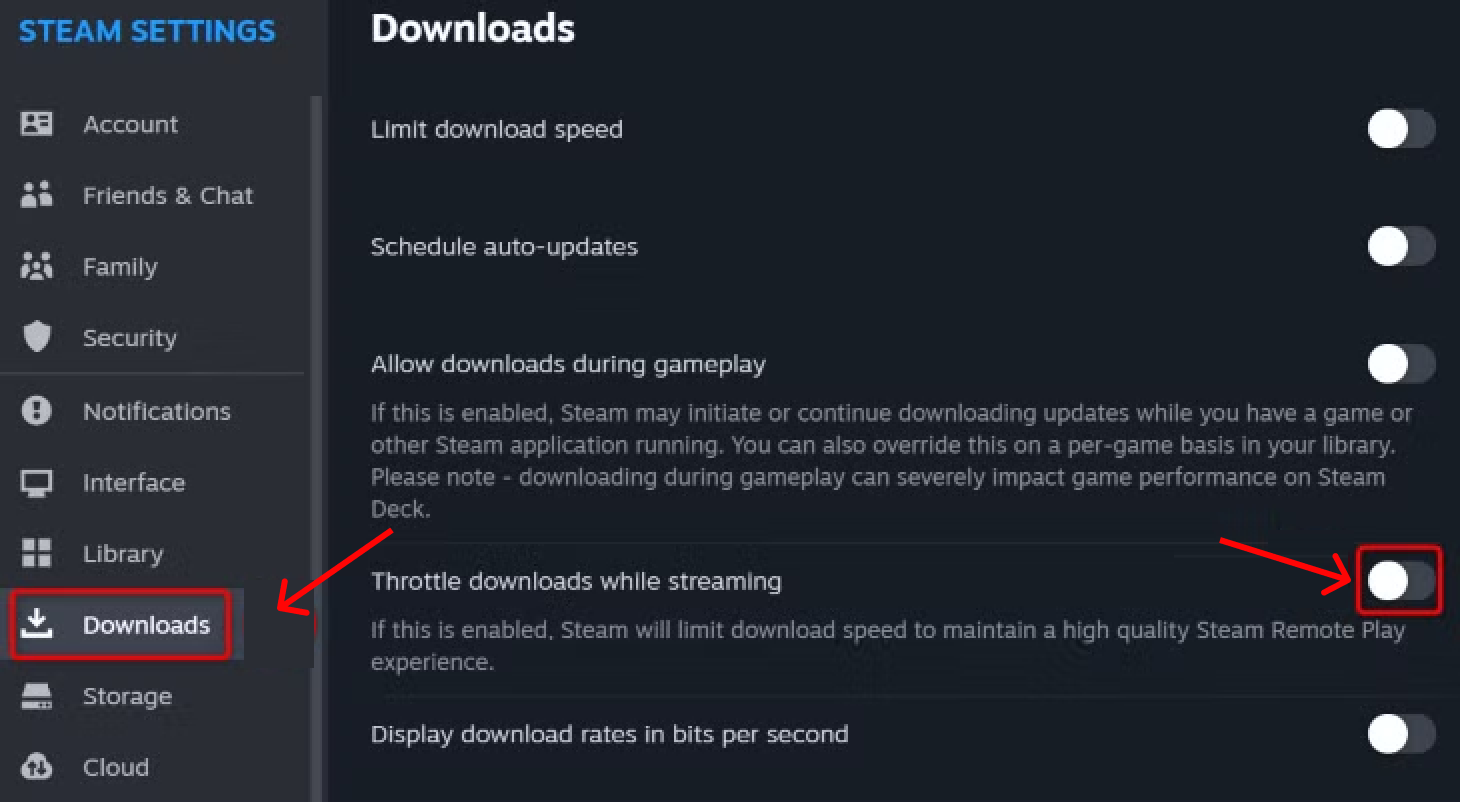
Steam has a feature designed to save bandwidth for other tasks, which can accidentally slow you down.
1. In the same Downloads menu, look for Throttle downloads while streaming.
2. Turn this OFF. This prevents Steam from cutting your speed if it detects video streaming or remote play activity.
1. Open Task Manager and look at the Network column.
2. Close browsers, like Chrome/Edge, other game launchers, such as Epic, EA, Ubisoft, and cloud syncing apps, say OneDrive/Dropbox, while your Steam download is running.
>> Also check, If I Uninstall Steam What Happens to My Games?
Your Steam downloads can be slow due to multiple causes, including incorrect download regions, server overload, corrupted cache, limited bandwidth settings, or background processes hogging internet traffic. How to improve download speed on Steam in other ways?
>> This free FPS calculator can help you test FPS in 100+ games.
How to increase Steam download speed? Check more advanced tips on how to improve download speed on Steam:
Clearing the Steam download cache (temporary files and metadata) can help increase download speeds: Go to Steam > Settings > Downloads and click Clear Download Cache.
Stream gamers are recommended to use an Ethernet cable connection instead of Wi-Fi. A wired connection provides a more stable and faster internet for downloads.
Go to Settings > Windows Update > Advanced Options > Delivery Optimization. Turn off "Allow downloads from other PCs" to prevent your computer from acting as a background server for others.
Ensure the Steam client is up to date by clicking Steam > Check for Steam Client Updates.
Run Windows Update to ensure your network adapter drivers are updated.
Disable your VPN and pause your third-party firewall temporarily to see if download speeds jump.
How to speed up Steam downloads on PC? That’s all the recommended methods of how to increase download speed on Steam.
 People Also Ask
Free up disk space by safe Windows Installer folder cleanup. This guide shows how to use Settings, Disk Cleanup, etc., to remove unwanted installer files.
How to defrag hard disk Windows 11/10? Check this step-by-step guide inside.
How to fix corrupted files in Windows 11 to enhance system stability? This guide covers the most effective methods to repair damaged files on your PC.