Are you tired of slow download speeds on your PC? Sluggish speeds can be incredibly frustrating and time-consuming, especially when you are downloading large files, games, or important software updates. So, how to boost download speed on your PC? This blog is here to help. We will introduce common causes for this annoying issue and all effective ways to fix it. Just read on and find practical methods that can help you enjoy a smoother, faster downloading experience!
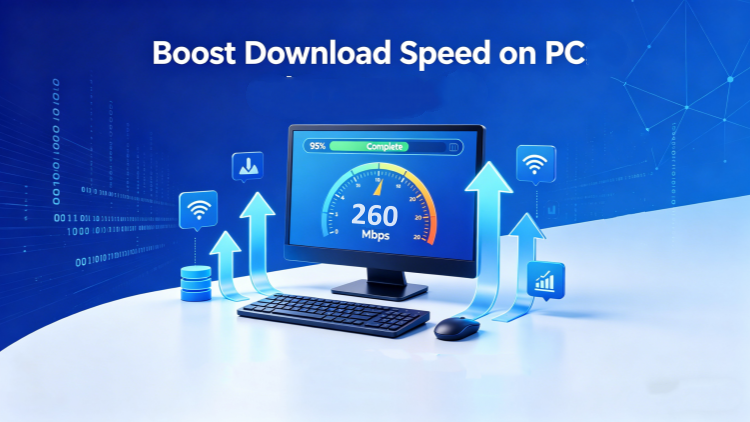
Why is My Download Speed So Slow?
How to increase download speed on PC? Before diving into the methods, it’s crucial to understand the causes. Here are the factors that explain why is my download speed so slow on PC.
Weak or unstable Wi-Fi signals
Outdated or faulty network drivers
Background applications are consuming bandwidth
Excessive browser cache and temporary files
Malware or spyware uses internet resources
ISP throttling or server limitations
Too many devices are connected to the same network
Poor PC performance due to low RAM or system clutter
Sometimes, it might be one or a combination of factors that lead to slow download speeds. So, how to boost download speed on PC effectively? Don’t worry. Just check out the full troubleshooting guide in the next section!
How to Speed Up Download Speed on PC - 8 Effective Ways
Now that you have understood the root causes, it’s time to apply the solutions. In this part, let’s see how to speed up download speed on PC with effective methods.
1. Run a Speed Test
Before you apply methods to boost download speed on PC, it’s essential to measure your current speed with tools like Speedtest or Fast. So you know whether the issue is with your internet connection or your PC. Try to perform multiple tests at different times of the day for accurate results.
2. Clear Browser Cache
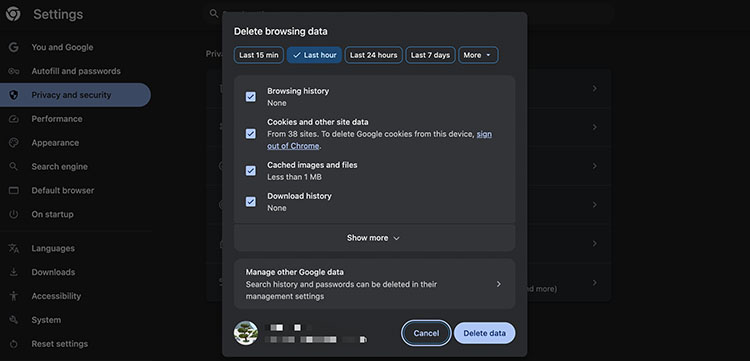
Over time, there might be tons of cached files accumulating in your browser, which largely slows down performance. This is the time you need to clear the cache for faster responsiveness. Here’s how to make download speed faster on PC by clearing your browser cache.
Step 1. Open your Chrome browser. Go to the three-dot menu in the top right and choose Settings.
Step 2. Choose Privacy and security > Delete browsing data.
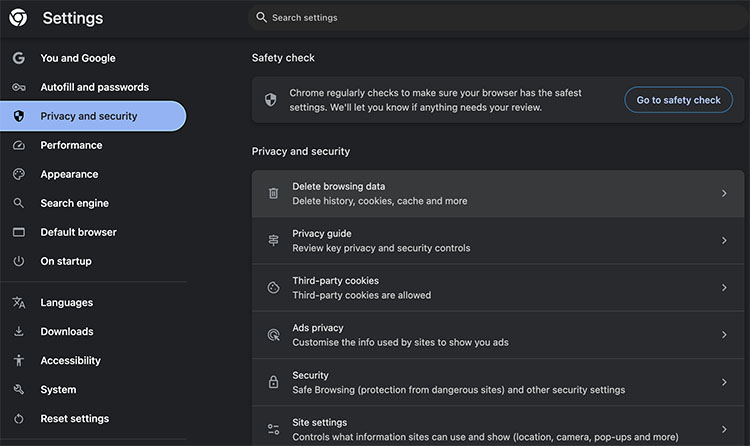
Step 3. Pick the time range and items in the pop-up window to clear all the accumulated cache.
3. Use a Wired Connection Instead of a Wi-Fi Connection
While Wi-Fi is convenient, the connection is often unstable due to interference from walls, devices, or other networks. Therefore, you might consider switching to an Ethernet connection, which provides a more stable and faster connection. So, how to boost download speed then? Simply connect your PC directly to your router using a LAN cable, and that’s it!
4. Optimize Your PC Performance with Advanced SystemCare
Sometimes, a sluggish PC can bottleneck downloads even with a strong internet connection. Those background processes, limited RAM, startup programs, and accumulated junk files can consume your PC's valuable resources, leaving less bandwidth for your downloads. So, how to increase download speed on PC in this case? Advanced SystemCare is the simplest solution here. This powerful all-in-one tool can clean and optimize your computer, improving overall performance.
Advanced SystemCare Free
- Clean: 420 billion traces removed & 85 EB junk files cleaned
- Protect: 80 million unauthorized access blocked & 20 million bugs fixed
- Speed Up: 6 million hours of startup time saved & Turbo boost
- Optimize: Auto clean and auto care your PC with AI mode

Advanced SystemCare’s features to boost download speed on PC
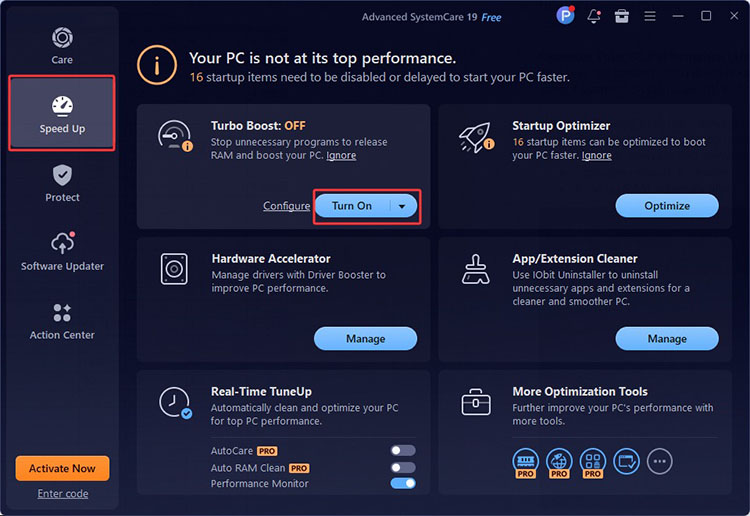
Turbo Boost mode to stop unnecessary programs in one click
How to increase download speed on PC? Its Turbo Boost mode can stop unnecessary services and background applications to release RAM, allocating more system resources to specific tasks and improving your network speed instantly.
Remove malware and spyware for more available bandwidth
Advanced SystemCare detects and removes these threats efficiently, ensuring that your bandwidth is used only for your intended (download) tasks. This not only improves download speed but also enhances system security.
Optimize network & system
How to speed up download speed when both your network and system are running slowly? Advanced SystemCare can intelligently optimize your network settings for better connection stability and data transfer efficiency. Meanwhile, the software fine-tunes system performance to reduce lag and delays, which makes downloads much faster.
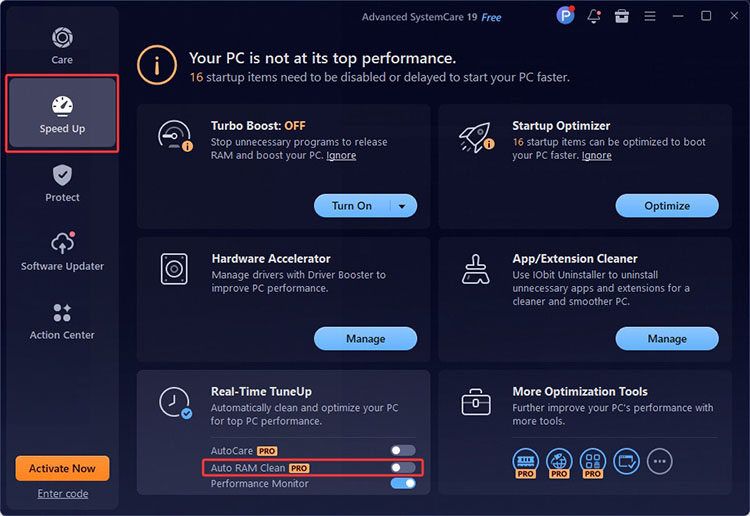
Free up RAM automatically
Advanced SystemCare also includes an automatic RAM cleaning feature, which releases unused memory in real time. This prevents slowdowns due to low memory, ensuring your PC can be more responsive during downloads.
How to Increase Download Speed on PC with Advanced SystemCare
Here are the steps to follow for you to increase download speed:
Step 1. Download Advanced SystemCare and install it for free.
Step 2. Open it and click the Speed Up tab as shown above.
Step 3. Find Turbo Boost and click Turn On.
That's all you need to do with this one-click solution. Download Advanced SystemCare to boost download speed to 1000mps right away!
5. Minimize the Distance Between Your Router and Device
How to boost download speed if you don’t have Ethernet? Then it’s crucial to adjust your device position. Please note that the farther your device is from the router, the weaker the signal becomes. Place your PC closer to the router and remove physical obstacles like walls or furniture. It’s also recommended to switch to a 5GHz network for faster speeds.
6. Update Network Drivers
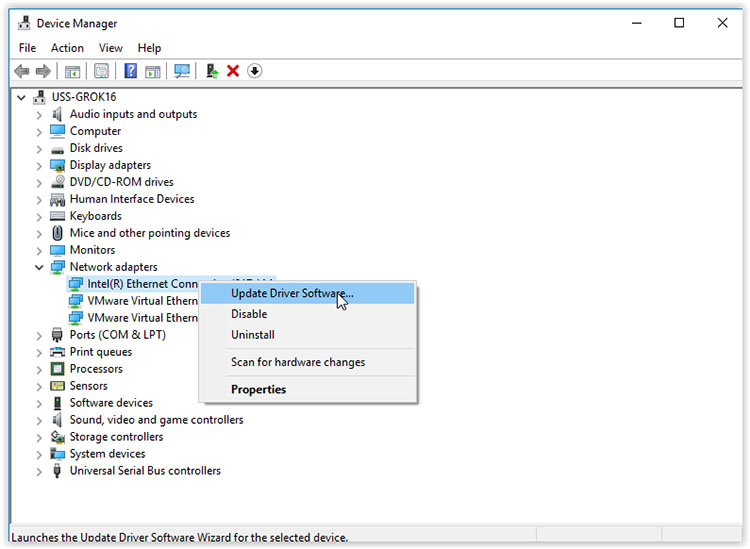
Outdated network drivers can limit your network performance. It’s best to keep them updated to ensure optimal communication between your hardware and system. Here’s how to make download speed faster by updating network drivers.
Step 1. Right-click the Start button and select Device Manager.
Step 2. Right-click your Wi-Fi or Ethernet adapter and choose "Update driver software."
7. Scan for Malware and Virus
For a Windows PC, running a full system scan is an essential step to eliminate threats like malware and viruses that may be slowing down your downloads. But how to download faster by scanning your system? It’s simple; just head to Virus & Threat Protection in Windows Security, then perform a Full or Offline scan for deeper detection.
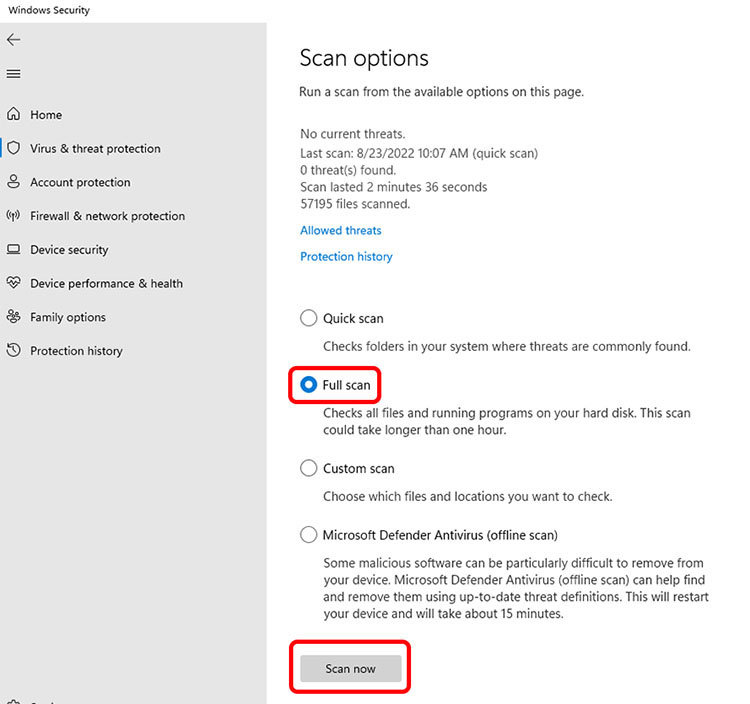
Meanwhile, Advanced SystemCare offers a faster and more convenient solution. It can detect and remove malware quickly with just a few clicks, which helps restore your internet speed and enhance overall system security at the same time. For professional malware and virus scanner and remover, also try IObit Malware Fighter.
8. Use a Download Manager
How to improve download speed on PC? A download manager is a useful tool that comes in handy. It can significantly improve speed by splitting files into multiple segments. There are plenty of internet download managers for Windows PC, which can increase download speeds by up to 10 times and resume interrupted downloads. They are highly effective for users looking to boost download speed consistently.
FAQs about How to Increase Download Speed on PC
1. What is the best download speed?
It depends on your usage. For casual browsing and HD streaming, 50-100 Mbps is usually enough. Gamers and heavy downloaders might require 200+ Mbps. For competitive gaming or 4K streaming, it’s best above 300 Mbps.
2. Why is my download speed slow but the Internet fast?
Speed tests measure your connection to nearby servers, but real downloads depend on your PC performance, background apps, storage speed, and server limits. Issues like outdated drivers, malware, or browser problems can also cause slower downloads.
3. Is Ethernet always better than Wi-Fi?
In most cases, yes. Ethernet offers a direct, stable connection with lower latency and fewer interruptions. Wi-Fi is convenient, but it can be affected by interference and signal loss. For large downloads and consistent performance, wired connections are always better.
4. How do I know if my ISP is throttling me?
You may be experiencing ISP throttling if your speeds consistently drop at certain times or if specific apps run slower than usual. If a VPN improves performance, it’s another strong clue. Run speed tests at different times and compare results across networks. If the slowdown is consistent on your main connection but not on other networks or through a VPN, it strongly suggests ISP throttling.
Conclusion
How to boost download speed? In most cases, the causes are simple and easy to fix. By following the troubleshooting guide above, you can effectively improve your download performance and enjoy a smoother, faster experience. For the simplest method and fastest results, Advanced SystemCare is your best bet. It can clean junk files, stop unnecessary background processes, remove malware, and optimize your system and network in one click. Download it to maximize your PC performance and speed up your downloads effortlessly!
Advanced SystemCare Free
- Clean: 420 billion traces removed & 85 EB junk files cleaned
- Protect: 80 million unauthorized access blocked & 20 million bugs fixed
- Speed Up: 6 million hours of startup time saved & Turbo boost
- Optimize: Auto clean and auto care your PC with AI mode