Sluggish PC after years of use? Or computer becomes freezing and lagging all of a sudden? A simple restart may have some help in a short term, but it won’t bring noticeable improvements in the long run.
If you are also wondering how to speed up computer system, then this blog is what you need now. Here, we’ve gathered a series of proven quick fixes and an all-inclusive computer optimizer to help you speed up your PC in the long run.
Diagnose First: Why Is My Computer Getting Slower?
You can't defeat what you don't detect. Let’s diagnose what on earth is slowing down your PC before making any changes.
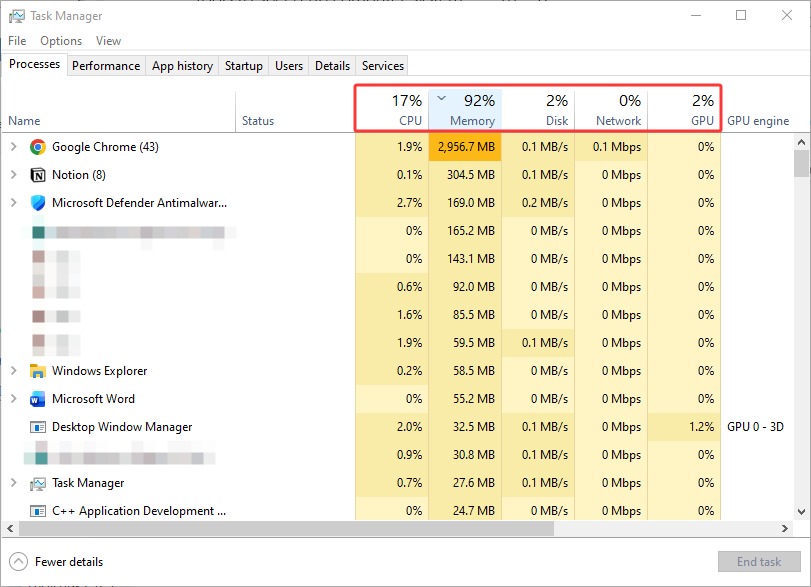
1. Check Resource Usage
Press Ctrl+Shift+Esc to access Task Manager, check the CPU, Memory, Disk, etc., and see if there are abnormal activities and extremely high resource usage.
2. Diagnose Possible Problems
| Resource |
Abnormal Usage |
Possible Causes |
Fixes |
| CPU |
Constantly high; 95%+ |
Heavy apps, malware, driver issues, etc. |
Close background/unnecessary apps; disable startup apps; run antivirus |
| Memory (RAM) |
Above 85% for a long time |
Multitasking; insufficient RAM |
Close running apps, add more RAM |
| Disk |
Hitting 100% |
Slow HDD, low storage space, background scanning/heavy app running |
PC cleanup, upgrade to SSD |
| GPU |
High usage while idle |
Background rendering, graphics card driver issues |
Stop background syncing/rendering, update drivers |
Manually fixing issues can take time, especially when there isn’t only 1 factor slowing down your PC. For a more convenient and consistent approach, an all-inclusive PC optimization tool can help address slowdowns & maintain PC performance in the long run.
Move on and check how to speed up a Windows computer with the comprehensive PC speedup tool.
Speed Up Your PC in the Long Run with an All-in-One PC Optimization Solution
No manual repeated work, no jumps to expensive hardware upgrades; simply turn to a professional PC optimization tool for a faster PC. IObit Advanced SystemCare is a reliable choice worth trying. It comes with deep PC cleanup, auto care, and comprehensive optimization features, speeding up your computer automatically and easily.
Advanced SystemCare Free
- Clean: 420 billion traces removed & 85 EB junk files cleaned
- Protect: 80 million unauthorized access blocked & 20 million bugs fixed
- Speed Up: 6 million hours of startup time saved & Turbo boost
- Optimize: Auto clean and auto care your PC with AI mode

Key features:
Scan and clean up hard drive junk files automatically: duplicate files, large files, privacy traces, invalid shortcuts, registry keys, etc., freeing up disk storage for a faster PC.
Check and disable all unnecessary startup programs, browser extensions, and scheduled tasks to reduce boot time.
Monitor CPU, RAM, Disk, and GPU usage and temperature in real time, preventing thermal throttling and hardware damage.
Optimize PC gaming and work by releasing RAM in dedicated game/work modes.
Versatile and diverse optimization and repair tools for different situations.
How to speed up computer system efficiently?
Step 1. Access this Windows optimizer via the button below to make your computer run faster.
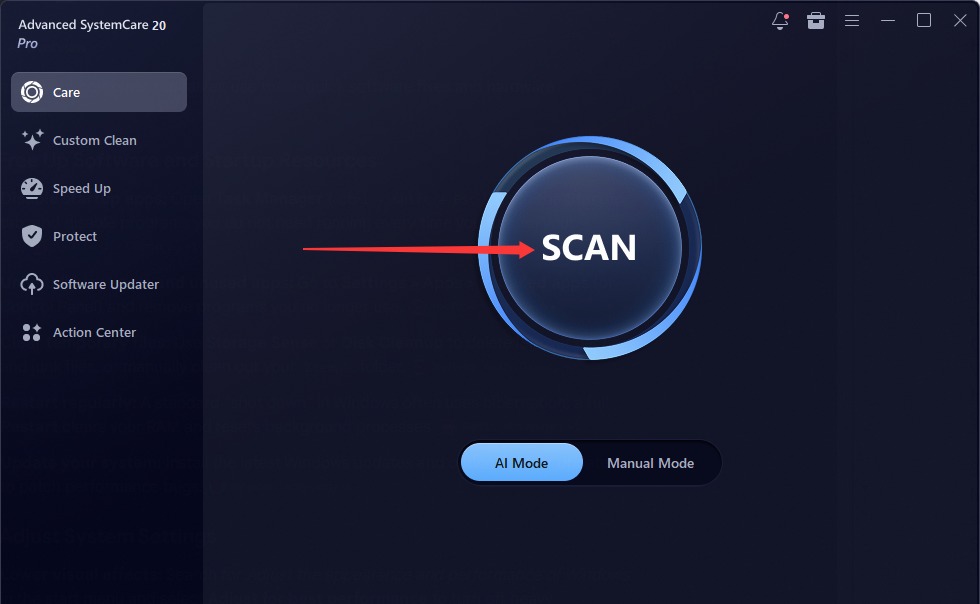
Step 2. Scan to clean up the disk and carry out overall optimization first. Use AI Mode or Manual Mode to customize the scanning options.
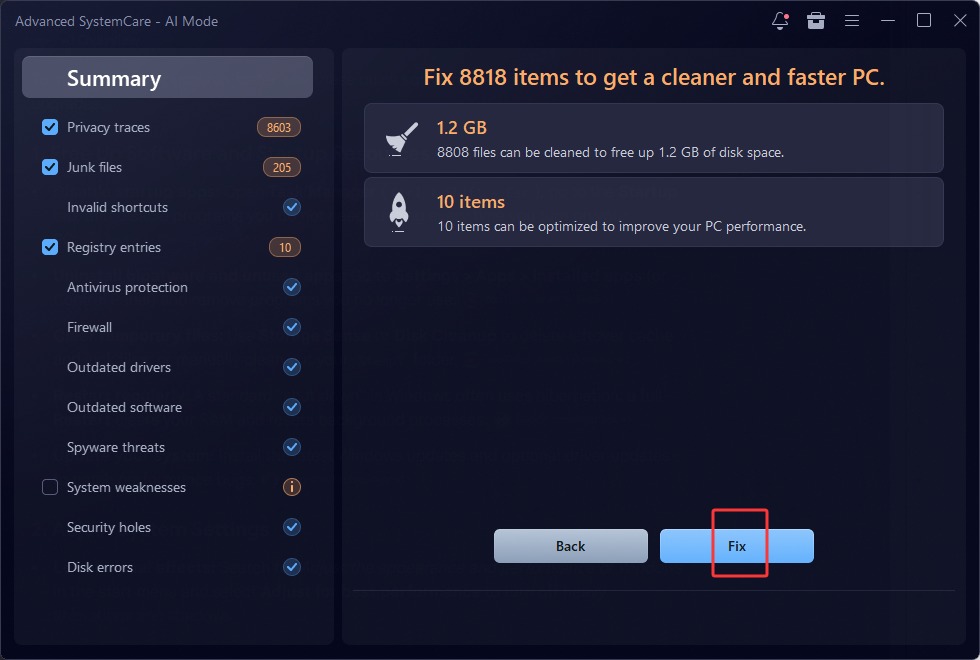
Step 3. A few minutes, the scanned issues will be listed. Check the details and click Fix to make your PC run faster.
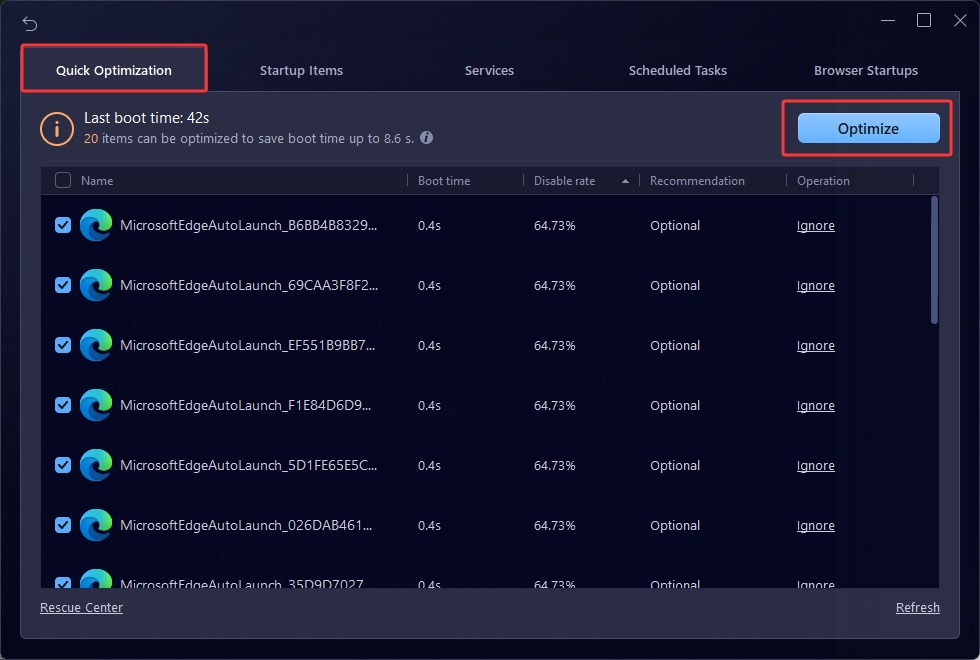
Step 4. Don’t forget to manage your startup apps. Go to Speed Up > Startup Optimizer.
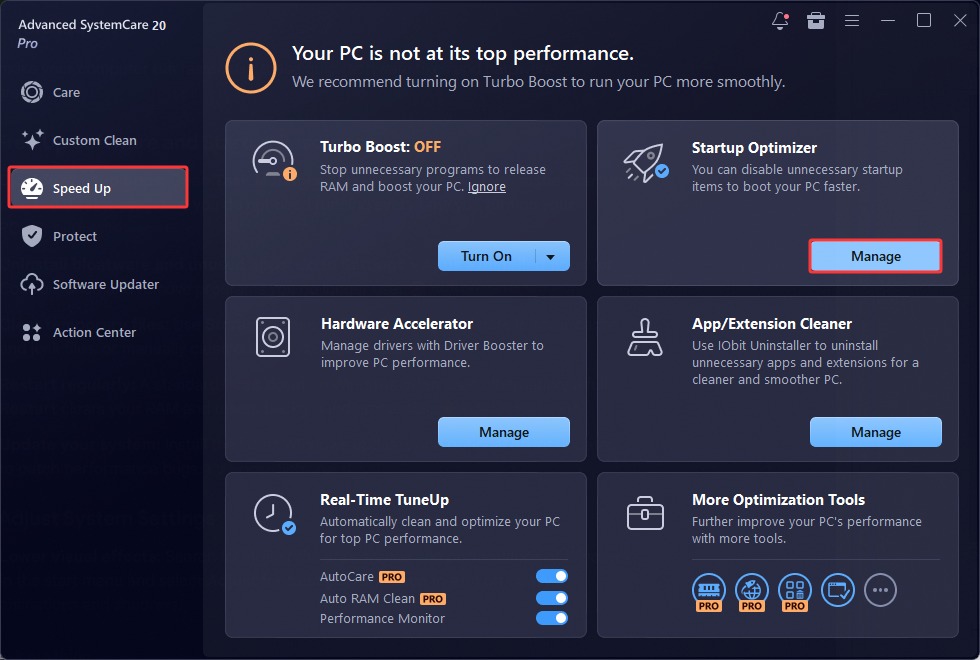
Check Quick Optimization or the specific Startup Items/Services/scheduled Tasks. Choose and optimize.
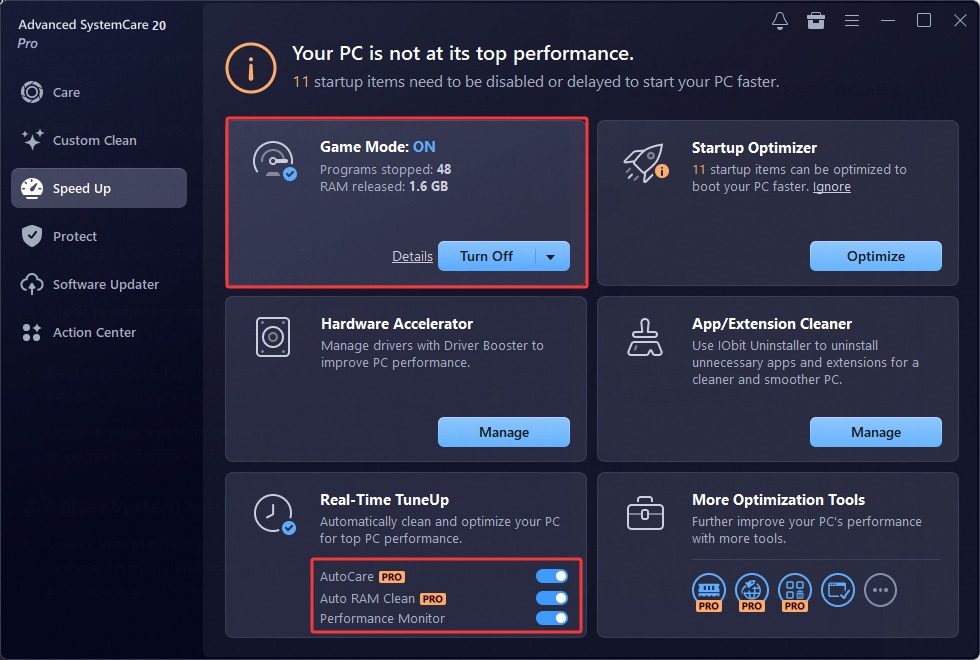
Step 5. Also, activate Turbo Boost Game/Work mode and utilize auto features for a smoother PC.
1. How to Speed Up Computer System via PC Cleanup
Above is how to speed up Windows computer with an efficient tool. Without downloading any software, you can also do Windows disk cleanup using the built-in features and tools. Check the following aspects.
#1 Close Unnecessary Apps to Release RAM
Too many apps running at the same time devour your RAM and other resources. Try closing some unnecessary ones to reduce the burden.
Go to Task Manager > click Memory to sort by RAM usage, find what is eating up your RAM > choose and click End task.
For automatic and convenient running app management, use a RAM optimizer instead.
#2 Use Disk Cleanup to Make Your Computer Run Faster
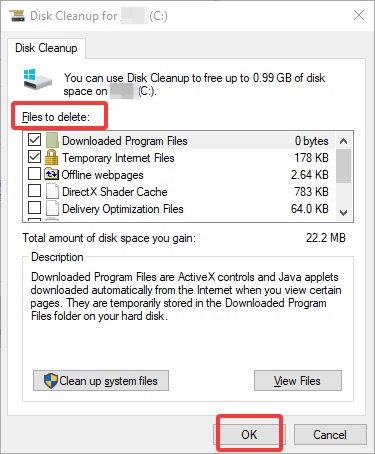
As mentioned above, low disk space also slows down your PC. Try using Disk Cleanup, the pre-installed Windows feature for junk file removal.
Search Disk Cleanup in the search box > Run.
Choose which disk drive to clean > OK.
Choose files to delete > OK. E.g., you can clear DirectX Shader cache if you feel your game is freezing.
#3 Uninstall Unwanted Apps
Old programs take up considerable disk space with app files and redundant files. Try uninstalling them to speed up your computer system.
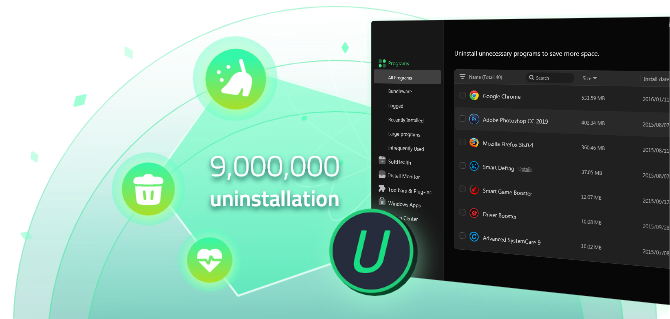
Go to Settings > Apps > Apps & features > search, and choose apps to uninstall 1 by 1. For easier bulk uninstallation, turn to professional app uninstallers like IObit Uninstaller for help.
IObit Uninstaller Free
- Complete forced uninstallation for stubborn programs.
- Uninstall a batch of programs at once.
- Scan and remove leftover files, folders, and registry entries.
- Support the management of Universal Windows Platform apps.
#4 Malware Removal
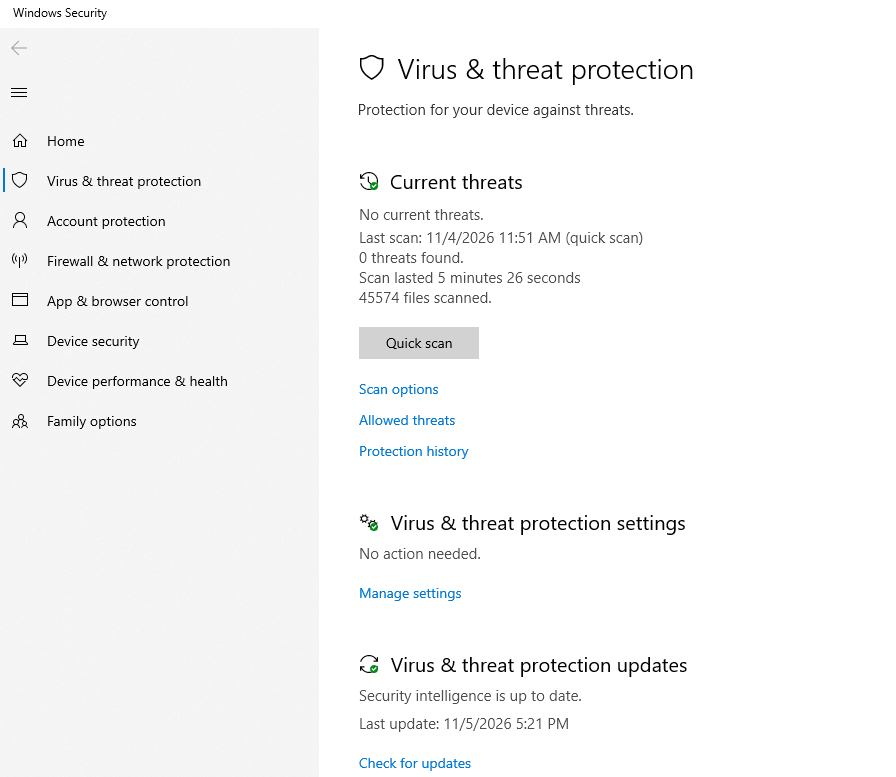
Viruses and malware can also lead to a sluggish PC. For security and a smoother computer, scan for threats regularly, please. You may use the Windows built-in Virus & threat protection feature, or a third-party antivirus with strong engines.
2. How to Speed Up Windows Computer via Settings Tweaks
Fine-tuning your settings can also be of some help to make your PC run faster. Check how to make your computer run faster via settings tweaks.
#5 Adjust Power Mode
If you use a balanced or power-saving plan, your system sets power-throttling restrictions for apps, which may limit speed.
Step 1. Run Control Panel > Hardware and Sound.
Step 2. Power Options.
Step 3. Choose High Performance.
*Please note that it consumes more power than other modes.
#6 Startup Management
Without using Advanced SystemCare, you can also manage startup items manually, less conveniently.
Right-click on the taskbar> choose Task Manager > Startup > sort by impact and choose the unwanted items > Disable.
The only fly in the ointment is that you have to disable them one after another, but not in batches.
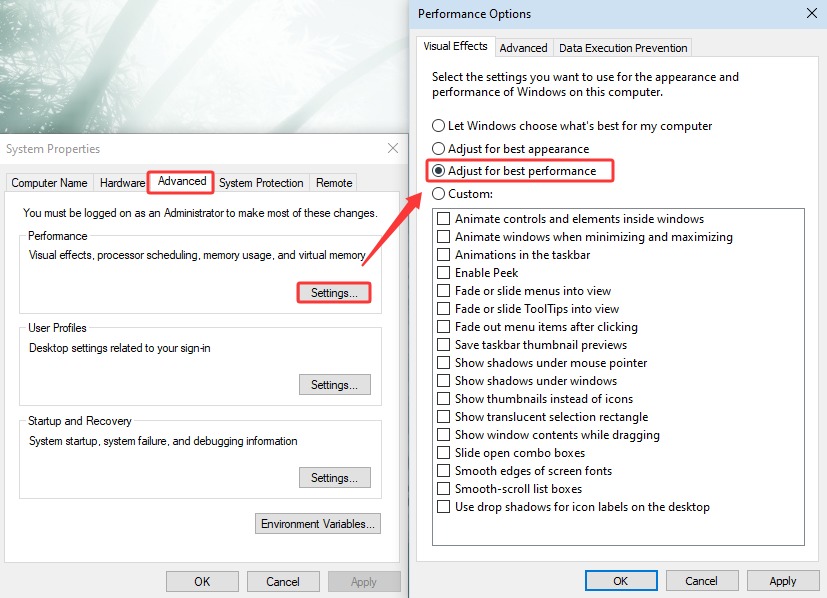
#7 Disable Special Visual Effects
Special effects, like shadows, transparency, animations, etc., will use more resources for the visual experience. Windows lets you prioritize appearance or performance in settings.
Step 1. Press Win+R > input “sysdm.cpl” > OK.
Step 2. Go to Advanced > Settings.
Step 3. Toggle Adjust for best performance, or customize what to disable.
3. How to Speed Up a Windows Computer via Updates
Don’t forget, outdated systems and drivers can also make a computer sluggish due to a lack of bug fixes and system enhancements.
#8 Update Drivers to Speed Up PC
If you ask, “What will make my computer run faster?” then we will tell you that an up-to-date, working driver is one of the answers. Driver updates help improve how the OS communicates with physical hardware, improve efficiency, and fix software bottlenecks, bringing stability and bug fixes.
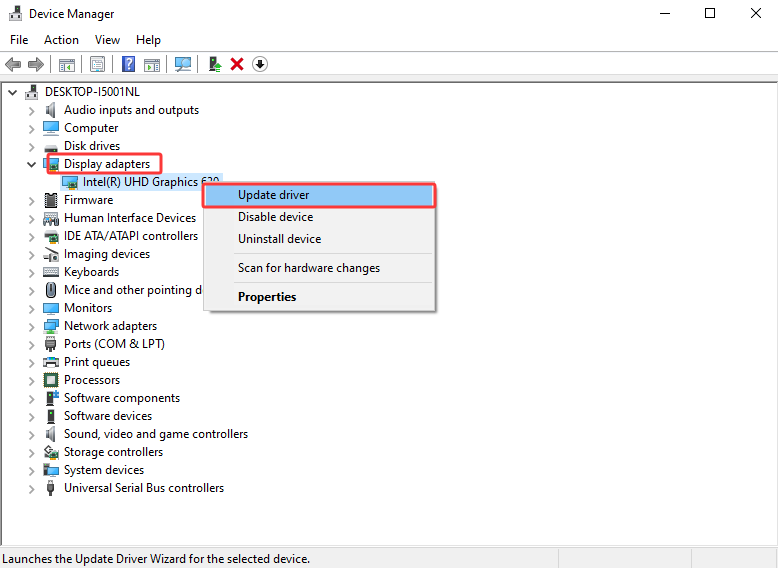
Try updating your drivers in Device Manager.
Step 1. Press Win+X > choose Device Manager.
Step 2. Choose Display adapters > right-click the graphics card.
Step 3. Click Update. Updating the graphics card driver brings the biggest performance boost, especially for gaming, rendering, etc.
#9 Install Windows Updates
Similarly, Windows updates fix software bugs, patch memory leaks, and bring new performance enhancement features. They also bring chipset/graphics/system driver updates to enhance system components.
Step 1. Press Win+I to access Windows Settings.
Step 2. Find Windows Update (in Windows 11). For Windows 10, go to Update & Security.
Step 3. Check for updates.
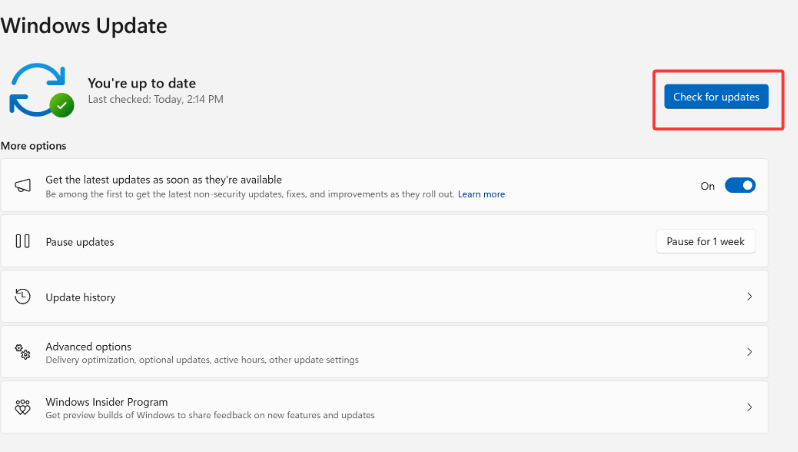 Click Download & install to get the available updates.
Also Read: How to Clear Windows Update Cache >>
4. Consider Hardware Upgrades to Make Your Computer Run Faster
As aforementioned, if your devices run constantly at abnormally high usage, errors occur, and performance lowers, then it might be time to consider build upgrades.
Upgrade from an HDD to an SSD to lower boot time.
Add more RAM; e.g., up to 16GB or 32 GB if the PC stutters during multitasking.
Upgrade the GPU to get high FPS in games. But remember to check the PSU and CPU for bottlenecks.
Also Read: 9 Ways on How to Fix Windows 11 100 Disk Usage Easily in 2026 >>
Final Thoughts
This is all about how to speed up computer system in Windows. You might first try restarting, PC cleanup, installing updates, adjusting system settings, and don’t forget to try Advanced SystemCare, the best Windows optimizer, if you prefer a more convenient, efficient, and long-term system boost and care solution.