Low FPS can turn a competitive match into a slideshow, especially when your laptop heats up or struggles with demanding graphics. If you are looking for how to increase frame rate on a laptop, several adjustments can make gameplay smoother without upgrading your hardware. This post covers Windows 11 settings, in-game tweaks, driver updates, and PC optimization.
What Is Frame Rate
Frame rate, measured in frames per second (FPS), describes how many individual images your laptop displays each second. Higher FPS generally produces smoother motion.
24 FPS: Often used in movies, but fast in-game action may look less smooth at this frame rate.
30 FPS: Playable for many casual and story-driven games, but less responsive than higher frame rates.
60 FPS: A solid target for smooth gameplay across many game genres.
120 FPS: Offers more responsive motion, particularly on a 120Hz or faster display.
Why Is My Laptop Frame Rate So Low
Start by figuring out why your game isn't running as expected. Brief stutters or unexpected frame-rate dips can point to different issues than a game that struggles to maintain smooth gameplay from the start.
Limited GPU/CPU power: Entry-level graphics and older processors struggle with demanding games, high resolutions, or complex scenes.
Thermal throttling: When the laptop gets too hot, its processor or GPU may reduce clock speeds to control temperature, lowering FPS.
Excessive settings: High-resolution textures, ray tracing, shadows, and reflections overwhelm available resources.
Background applications: Browsers, launchers, recording software, and other processes also compete for CPU time and RAM.
Driver or game issues: Outdated graphics drivers, buggy updates, and poorly optimized game versions can cause stuttering.
Quick Checklist: How to Increase Frame Rate on a Laptop
Check the quick list for how to get more FPS on a laptop.
Connect to power & adjust power settings.
Close resource-heavy applications.
Lower demanding in-game options.
Update/ repair the graphics driver.
Use Advanced SystemCare to clean unnecessary files and manage background processes.
Advanced SystemCare Free
- Clean: 420 billion traces removed & 85 EB junk files cleaned
- Protect: 80 million unauthorized access blocked & 20 million bugs fixed
- Speed Up: 6 million hours of startup time saved & Turbo boost
- Optimize: Auto clean and auto care your PC with AI mode

How to Increase FPS on Laptop Windows 11 [Built-In Tips]
Before it’s too late, let’s move on to the details of the solutions. The following fixes, including easy settings and powerful PC optimization apps, are worth trying if you want to learn how to increase FPS on laptop Windows 11.
#1 Boost Laptop FPS via Power Settings
When running on battery, a laptop may scale back computing and graphics resources to reduce power consumption.
The points below are how to get better FPS on laptop via power settings before using any dedicated tools like Windows optimizer.
Plug in the laptop: Use the original or manufacturer-recommended power adapter when gaming. Some laptops cannot sustain their highest performance on battery alone.
Change power mode: Open Settings > System > Power & battery. Under Power mode, select Best performance when available.
Power plan tweaks: Disable Battery Saver and select a performance-focused power plan, if available, to prevent Windows from prioritizing energy savings over gaming performance.
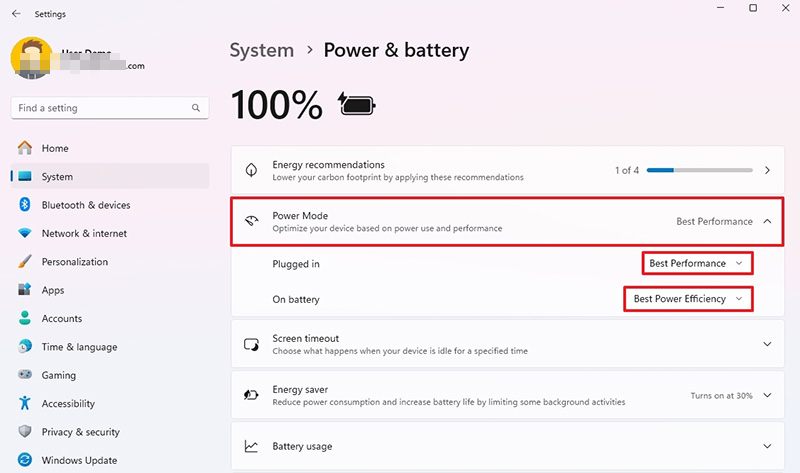
This is how to boost laptop FPS via setting adjustments.
#2 Close Unnecessary Apps to Make More RAM Available
Multiple applications running alongside a game consume memory and processor time. Closing applications you do not need reduces resource contention, particularly on laptops with limited RAM, boosting laptop performance.
How to fix low FPS on laptop by releasing RAM?
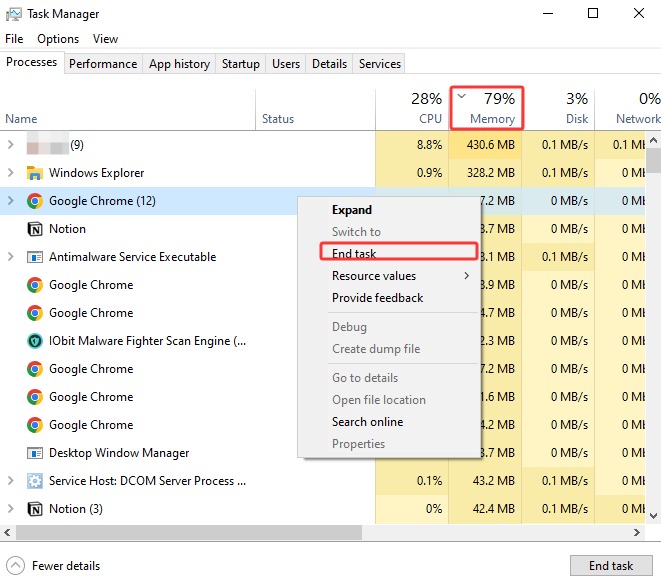
Step 1. Press Ctrl + Shift + Esc to open Task Manager on your laptop.
Step 2. Under Processes, review applications using substantial CPU, Memory, or Disk resources.
Step 3. Select an application you recognize and do not need, then click End task. Avoid terminating unfamiliar Windows processes or essential security software.
For gamers looking to reduce background lag and how to increase FPS on laptop Windows 11, Advanced SystemCare offers Turbo Boost, similar to Windows Game Mode, to free up RAM by closing unnecessary applications and temporarily disabling selected background services.
You can also customize which processes are stopped, helping direct more CPU and GPU resources toward your game. Download Advanced SystemCare to explore its cleanup tools and game optimization features.
#3 Increase Laptop Gaming Performance with In-Game Adjustments
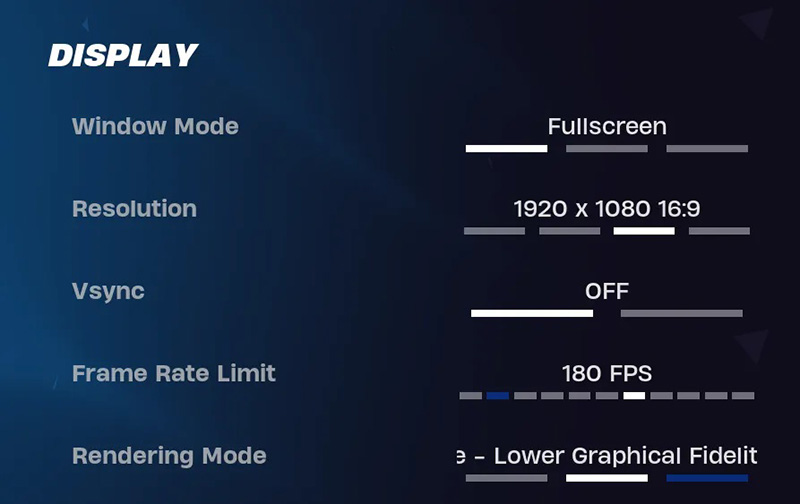
Adjusting in-game visual options may deliver a more noticeable FPS boost than routine Windows maintenance. Lowering demanding visual effects can reduce the work required from the GPU, although the best balance between image quality and speed varies by game. For example, if Fortnite runs poorly, try the following tips for how to get better FPS on laptop.
Display Settings:
Resolution: Start with native resolution. Lower it if FPS remains low.
VSync: Turn it off to potentially reduce input lag, or enable it to reduce screen tearing.
Window Mode: Try Fullscreen and compare performance with Windowed or Windowed Fullscreen.
Frame Rate Limit: Set an FPS cap your laptop can maintain consistently.
Graphics Settings:
Rendering Mode: Test Performance mode, DirectX 11, or DirectX 12 where available.
Overall Quality: Choose a lower preset to improve performance.
Effects and Post Processing: Reduce both to ease rendering demands during combat.
View Distance: Lower it if you need more FPS, keeping in mind that distant objects may be less visible.
#4 Update Your Graphics Driver
Graphics drivers make Windows and games communicate with the GPU. An outdated, corrupted, or incompatible driver may cause crashes, visual glitches, or poor performance. Updating it is worth trying when searching for how to get more FPS on a laptop after a system or game update.
Step 1. Open the Start menu, type Device Manager, and launch it. Expand Display adapters to see your installed graphics hardware.
Step 2. Right-click the relevant GPU and choose Update driver.
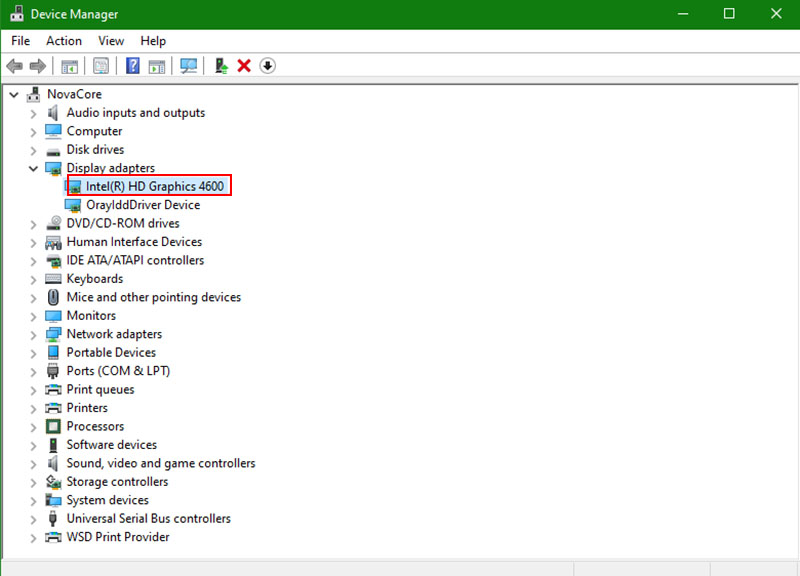
Step 3. Select Search automatically for updated driver software and follow the instructions. Restart the laptop if required, then test the game again.
This is how to increase the FPS on a laptop by updating your outdated graphics card driver.
#5 Update Games and Install Mods
For those gamers who want to increase FPS while gaming, there are still approaches to smoother gameplay.
Check if your game needs an update, which brings performance enhancements, bug fixes, and security patches. Update your game manually, or simply enable auto-update in Steam or other platforms.
Plus, developers and talented community members upload mods to boost FPS for specific games. For instance, you can boost FPS in Minecraft using community mods easily.
#6 Consider a Hardware Upgrade
If your computer starts to struggle with heavy games, then perhaps it is time to consider a build upgrade. Check and monitor the CPU and GPU usage while gaming: see if it hits 100% or stays constantly above 95%.
To play newer, heavier games, you may need a faster GPU and more RAM. E.g., if you are using 8GB of RAM, upgrading to 16GB of RAM, or adding 1 will be preferable.
For instance, to play competitive games like Valorant or Apex Legends, check NVIDIA RTX 3060 or 4060 for 144+ FPS.
Go Beyond FPS with Full PC Optimization
Windows settings and game-specific adjustments should come first, but system maintenance also addresses unnecessary resource use. IObit Advanced SystemCare integrates cleanup, startup management, and performance optimization tools in one interface. It automatically reduces avoidable system overhead when that overhead is affecting gameplay.
Advanced SystemCare Free
- Clean: 420 billion traces removed & 85 EB junk files cleaned
- Protect: 80 million unauthorized access blocked & 20 million bugs fixed
- Speed Up: 6 million hours of startup time saved & Turbo boost
- Optimize: Auto clean and auto care your PC with AI mode
• Deep Computer Cleanup to Free Up System Resources
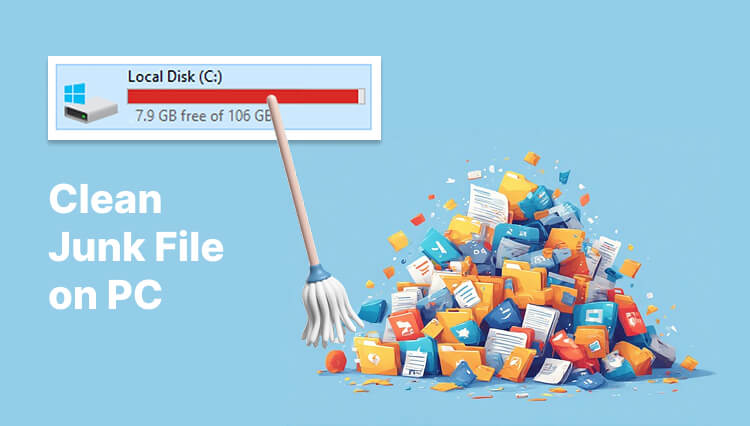
Its cleanup functions scan for junk files, caches, logs, and other unnecessary data. Removing suitable items with the PC optimizer for gaming recovers storage space and makes routine maintenance easier.
• PC Speedup for Faster Responsiveness in Games
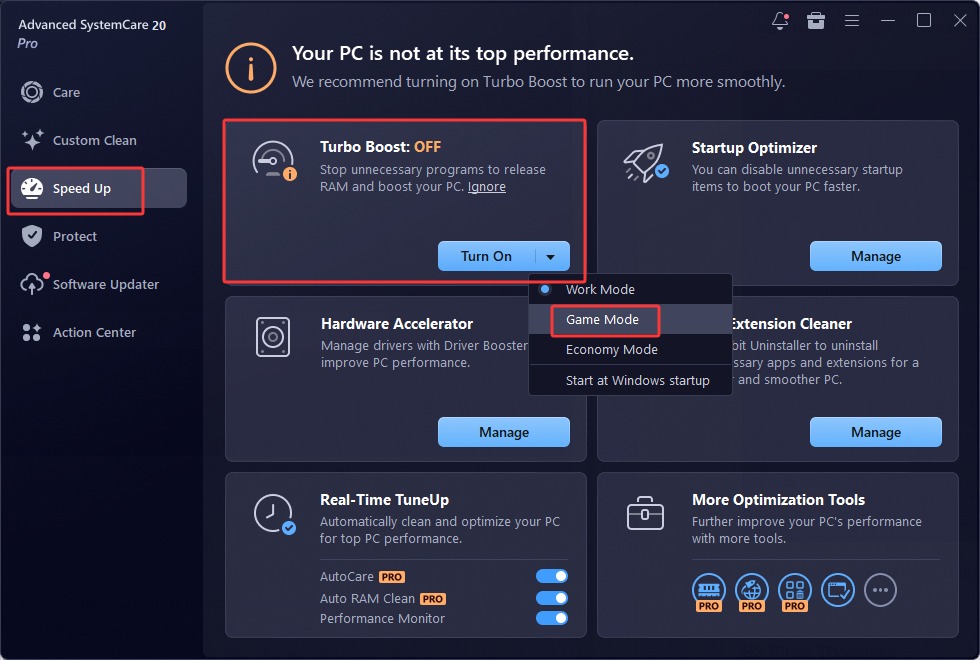
Startup optimizer manages applications that launch with Windows, while Turbo Boost temporarily suspends selected background services and apps. The Game Mode is designed to reserve more resources for gaming.
• Overall PC Optimization & Maintenance for Better Environment
This tool, as one of the best RAM optimizers for Windows 11, also provides system optimization and maintenance tools. These can identify resource-heavy processes and address general system clutter, giving games a cleaner environment.
How to Increase Frame Rate on a Laptop with PC Optimizer?
Step 1. Download the Advanced SystemCare installer and follow the on-screen instructions.
Step 2. Launch the application and open the Care section. Choose AI Mode for an automated scan or Manual Mode to select the checks yourself. Review the available options before clicking SCAN.
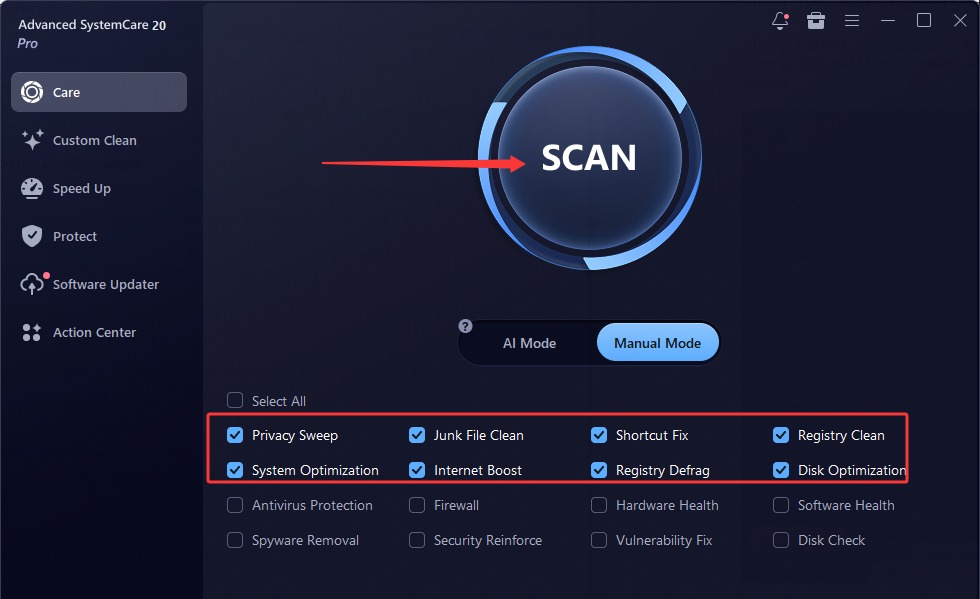
In the Pro edition, open Options > Settings > AutoClean to configure automatic cleaning according to your preferences.
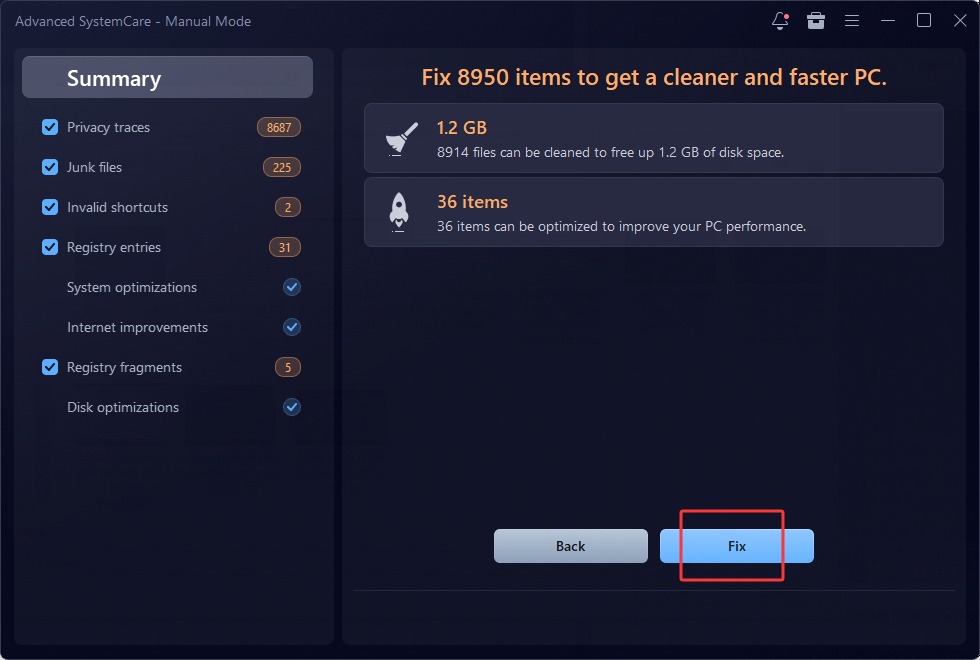
Step 3. When the scan finishes, inspect the results before clicking Fix. Check any browser data, downloads, or other personal files carefully, and avoid removing items you still need.
 Step 4. Click the Speed Up tab, locate Turbo Boost, and select Configure. Choose Game Mode, review which services or applications will be disabled, and click Boost to activate laptop optimization for gaming.
Final Thoughts
Knowing how to increase frame rate on a laptop starts with identifying the real bottleneck. Adjust power settings, reduce demanding graphics options, update drivers, and close unnecessary apps before trying hardware upgrades. Advanced SystemCare offers additional cleanup, PC optimization, and background-process management for systems weighed down by avoidable activity. Download it from the official site and test each change against your usual gaming workload.