Deleting a folder is usually as simple as pressing the Delete key. However, sometimes Windows refuses to cooperate, leaving you with a frustrating can't delete folder error. Fortunately, there are several ways to solve this problem.

In this guide, you'll learn how to force remove a folder. Whether you're dealing with locked files, corrupted folders, or permission issues, these solutions will help you force delete folder Windows successfully.
Why Can't You Delete a Folder
Before learning how to force remove a folder, it's helpful to understand why Windows refuses to delete it. Once you know the cause, it’s easy to choose the right solution. Here are some common causes:
The folder is currently open or being used by another program.
You don't have administrator permission.
The folder contains corrupted files.
Malware is locking the folder.
File system errors prevent deletion.
Windows Explorer hasn't released the folder.
Long file paths exceed Windows limits.
Method 1. How to Force Remove a Folder with IObit Uninstaller (Recommended)
Sometimes a folder refuses to delete because it belongs to an application that wasn't completely removed. Simply deleting the folder manually often leaves behind registry entries, hidden files, scheduled tasks, and other leftovers.
If you're looking for the easiest way to force remove a folder, especially after uninstalling software, IObit Uninstaller provides an all-in-one solution. Its Force Uninstall and Powerful Scan features can locate stubborn folders, remove associated files, and clean your PC more thoroughly than Windows' built-in uninstall tools.
IObit Uninstaller Free
- Complete forced uninstallation for stubborn programs.
- Uninstall a batch of programs at once.
- Scan and remove leftover files, folders, and registry entries.
- Support the management of Universal Windows Platform apps.

Besides, its File Shredder helps permanently remove stubborn folders and their contents when normal deletion fails. It securely overwrites selected data, reducing the chance of recovery and making it useful for removing unwanted or sensitive files completely.
Steps to force-remove a folder using IObit Uninstaller
Step 1. Download and install IObit Uninstaller on your computer.
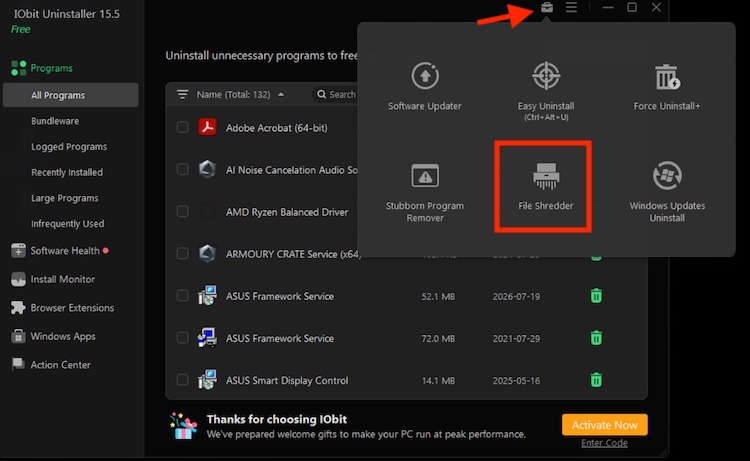
Step 2. Click the toolbox icon in the upper right corner and select File Shredder to continue.
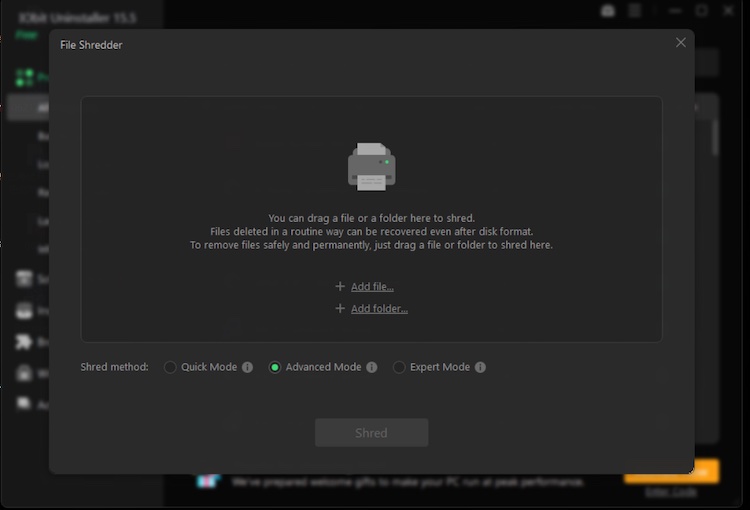
Step 3. Click Add files or Add folder to add the Folder you want to remove to the File Shredder. Then, click Shred to start deleting.
Besides Force Delete a folder, IObit Uninstaller offers many practical features for uninstalling programs, removing leftovers, and optimizing your PC with just a few clicks.
More Features of IObit Uninstaller:
Removes broken or stubborn programs by locating their installation folders, even when the original uninstaller is missing. If you’re curious about how do I uninstall an app, this software will give you the answer.
Scans for leftover folders, registry entries, shortcuts, cache files, and other remnants after uninstalling software.
Automatically deletes hidden folders and files that Windows often leaves behind after uninstalling applications.
Remove multiple applications at once, saving time when cleaning your computer.
Detects invalid installation leftovers, broken registry entries, and unnecessary files for easier system maintenance.
Tracks software installations so future removals become cleaner and more complete. Also, it helps a lot when force uninstall programs Windows 11.
Method 2. How to Take Ownership of the Folder and Then Delete It
Permission restrictions are one of the main reasons users may be unable to delete a folder on Windows. Even administrator accounts may lack ownership of certain directories created by another user or application. By taking ownership and granting yourself full control, Windows allows you to delete folders that previously displayed "Access Denied" or similar permission-related errors. Here are the steps.
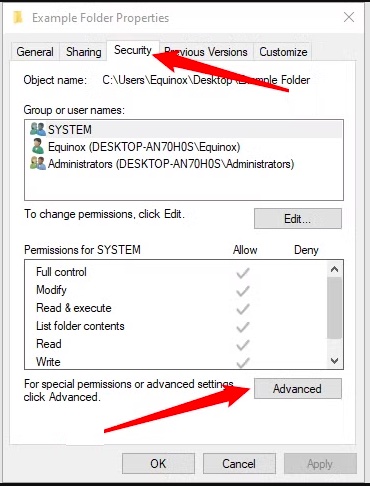
Step 1. Right-click the folder you wish to remove and select Properties.
Step 2. Click Security > Advanced.
Step 3. Click the "Change" link next to the Owner.
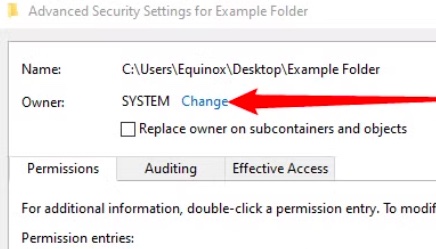
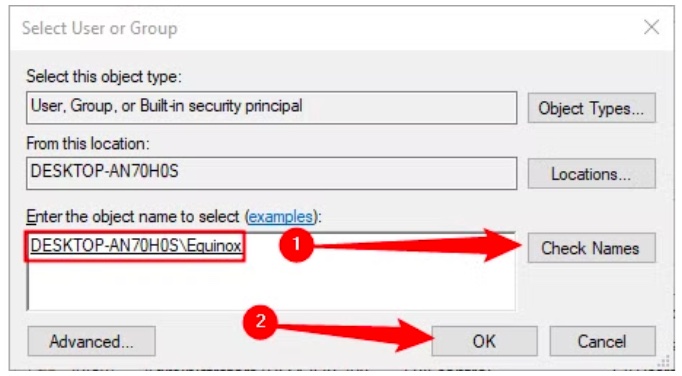
Step 4. Enter your Windows username and click Check Names. Click OK.
Step 5. Back in Advanced Security Settings, enable Replace owner on subcontainers and objects.
Step 6. Click Apply, confirm any Windows security prompts, and click OK.
Step 7. Right-click the folder and choose Delete, or press Shift + Delete if you intend to bypass the Recycle Bin.
Method 3. How to Delete the Folder in Safe Mode
Background services, startup applications, antivirus programs, and Windows processes sometimes continue using a folder even after you've closed every visible application. Booting into Safe Mode starts Windows with only essential drivers and services, preventing most third-party software from locking the folder. This greatly increases your chances of deleting stubborn directories successfully.
Step 1. Open the Windows Recovery Environment.
In Windows 11, press Windows + I to open Settings, then go to System > Recovery. In Recovery options, locate Advanced startup, then select Restart now.
For Windows 10, go to Settings > Update & Security > Recovery > Advanced startup > Restart now.
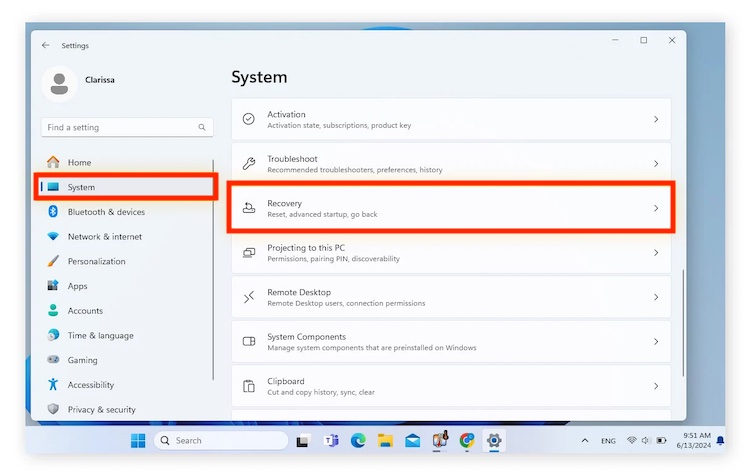
Step 2. After your PC restarts, click Troubleshoot > Advanced Options > Startup Settings > Restart.
Step 3. When the list of startup options appears, press 4 or F4 to select Enable Safe Mode.
Step 4. Once you are logged into Safe Mode, open File Explorer, navigate to the folder, right-click it, and select Delete. Or press Shift + Delete to permanently delete it without sending it to the Recycle Bin.
Step 5. Once the folder is removed, click Start > Power > Restart.
Note: If the folder still cannot be deleted in Safe Mode, the issue may involve permissions or ownership rather than a running process. In that case, take ownership and grant Full Control first, or use an elevated Command Prompt to remove the folder.
Method 4. How to Force Delete a Folder Using Command Prompt
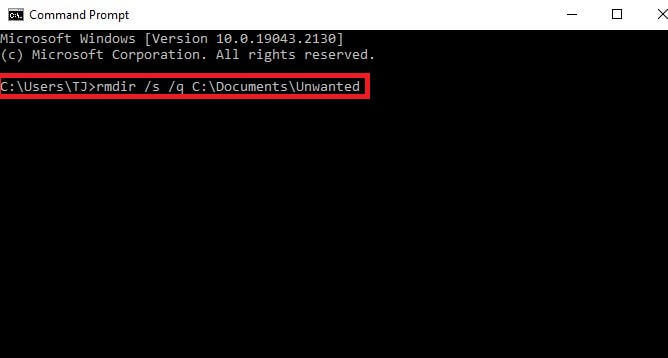
If the folder isn't related to installed software, Command Prompt provides one of the quickest ways to force delete folder on Windows. It bypasses File Explorer and directly removes directories using administrative privileges. This method is especially useful if you're searching for how to force remove a folder in CMD, as it works even when File Explorer reports permission or access errors.
Step 1. Press Windows + S and search for Command Prompt.
Step 2. Select Run as administrator.
Step 3. Type: rmdir /s /q "C:\Path\To\Folder" (/s removes the selected folder along with all files and subfolders inside it, while /q uses quiet mode so you are not prompted to confirm each deletion.) Press Enter.
Step 4. Check the original location of your folder. Press F5 to refresh if the folder still appears.
Method 5. How to Force Remove a Folder Using PowerShell
PowerShell is another built-in utility that can remove protected or read-only folders. Compared with File Explorer, it offers more advanced deletion options and can ignore certain restrictions using the -Force parameter. It's a great alternative when Command Prompt doesn't solve the problem or when you need additional scripting capabilities.
Step 1. Press Windows + S, search for PowerShell, and select Run as administrator. On newer Windows 11 versions, you can also open Windows Terminal (Admin) and use a PowerShell tab.
Step 2. Type the following command, replacing the example with your actual folder path:
Remove-Item -LiteralPath "C:\Path\To\Folder" -Recurse -Force
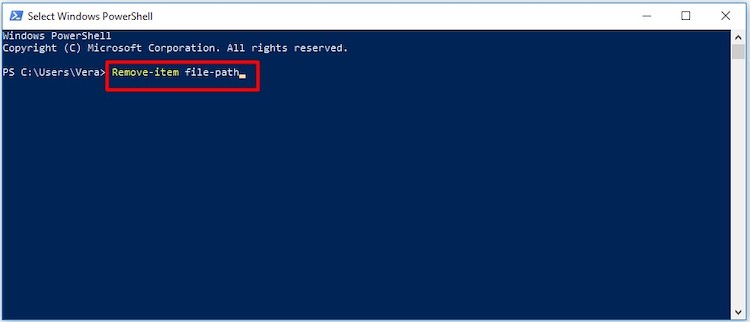
Step 3. Press Enter. Then, PowerShell will attempt to delete the selected folder and everything inside it.
Step 4. Confirm the folder has been deleted.
Method 6. How to Force Remove a Folder in Linux
Linux users typically rely on Terminal commands to remove locked or protected directories. If you're looking for how to force remove a folder in Linux, the built-in rm command is the most commonly used solution. Because it permanently deletes folders without moving them to the Recycle Bin, always double-check the directory path before executing the command.
Step 1. Press Ctrl + Alt + T on many Linux desktop distributions. Alternatively, search for Terminal from the application menu.
Step 2. Type the following command and press Enter.
rm -rf "/home/username/example-folder"
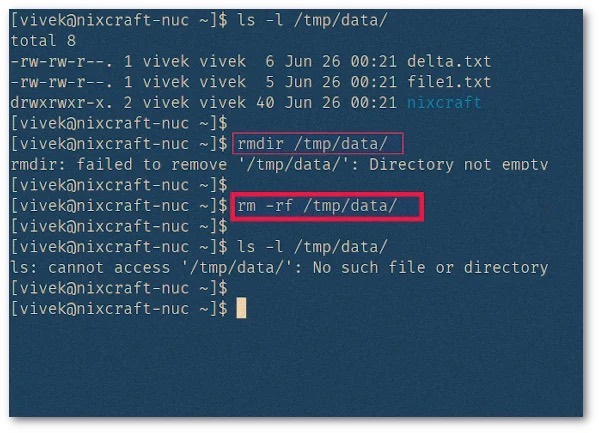
Step 3. If the folder requires elevated permissions and you are authorized to remove it, run:
sudo rm -rf "/path/to/folder"
Step 4. Verify that the folder was removed. Check the parent directory:
ls -la "/home/username"
Step 5. If the target folder no longer appears, the removal was successful.
Step 6. Verify the folder has been removed.
Note: Be extremely careful with rm -rf, particularly when combined with sudo. A mistyped path can recursively and permanently delete unintended data or damage the operating system. Avoid commands with broad paths or wildcards, and always verify the exact target first.
How to Prevent Folder Deletion Problems
Now that you know how to force remove a folder, these tips can help avoid similar issues in the future:
Close applications before deleting folders.
Keep Windows updated.
Run antivirus scans regularly.
Avoid interrupting software installations.
Use administrator accounts when needed.
Repair disk errors periodically.
Remove software using a trusted uninstaller instead of manually deleting installation folders.
FAQ about Force Removing a Folder
1. Why can't I delete a folder even as Administrator?
The folder may still be in use by another process, protected by system permissions, corrupted, or locked by antivirus software. Safe Mode or Command Prompt usually resolves the issue.
2. Is force deleting a folder safe?
Yes, provided you know the folder isn't required by Windows or an installed application. Avoid deleting system folders unless you're certain they're unnecessary.
3. Why does Windows keep saying "Folder is in use"?
Another application or background process still has an open handle to the folder. Close the application, restart Explorer, or boot into Safe Mode before deleting it.
Conclusion
Learning how to force remove a folder isn't difficult once you know the right tools. Whether you're using File Explorer, Command Prompt, PowerShell, Safe Mode, or Linux Terminal, each method can solve different folder deletion problems. If the folder belongs to a broken application, using the best uninstaller is often the fastest way to remove both the software and every leftover file, helping keep your system clean and organized.