If you no longer play VALORANT or you are experiencing startup problems, high CPU usage, or compatibility issues, you may want to uninstall Riot Vanguard from your computer. Riot Vanguard is Riot Games’ anti-cheat system that runs at the kernel level to protect games from cheating. While it is important for VALORANT, some users prefer removing it when they are not gaming.
In this guide, you will learn how to uninstall Riot Vanguard Windows 11 and 10 using several methods. We will also show you how to completely remove leftover files and fix common uninstall problems.
What Is Riot Vanguard? Is It Safe to Remove Riot Vanguard?
Riot Games created Riot Vanguard as an anti-cheat system designed to protect competitive games from hackers and cheating software. It is mainly used for VALORANT and works by monitoring your system in depth to detect suspicious behavior before the game even launches.
Is it safe to uninstall Riot Vanguard? Yes, it is generally safe to uninstall Riot Vanguard if you no longer need it. Removing Vanguard will not damage Windows or your computer. However, there are a few important things to know before uninstalling it.
Things to Do Before You Uninstall Riot Vanguard
Before you uninstall Riot Vanguard, there are a few important steps you should take to avoid uninstall errors or leftover background processes. Since Riot Vanguard operates at the system level and launches automatically when Windows starts, the standard uninstall process may not always complete successfully. Preparing your PC beforehand can make the removal process smoother and help ensure Vanguard is completely removed from your system.
1. Close Riot Games and Vanguard Processes
Close Riot Vanguard from the System Tray.
Look at the bottom-right corner of your screen.
Click the upward arrow to expand hidden icons.
Find the Riot Vanguard icon.
Right-click the icon and select Exit Vanguard.
Confirm the prompt.
2. Save Your Work and Restart if Necessary
Open the Task Manager by pressing Ctrl + Shift + Esc.
Locate Riot-related tasks such as: Riot Client, Riot Vanguard, VALORANT.
Right-click each process and choose End Task.
Restart your computer.
How to Uninstall Riot Vanguard on Windows 11
Now that you’ve properly prepared your PC, you can begin removing Riot Vanguard from your system. Windows 11 offers a quick and convenient way to uninstall apps directly through the Settings menu, making it one of the easiest methods for users who want to uninstall Riot Vanguard safely without using additional software.
Step 1. Press Win + I on your keyboard to open Settings. Or click Start and open Settings.
Step 2. In the left-hand menu, click Apps.
Step 3. Then select Apps & features on the right.
Step 4. Scroll through the list of installed apps or use the search bar at the top. Type Riot Vanguard to locate it quickly.
Step 5. Click the three-dot menu (...) next to Riot Vanguard and select Uninstall.
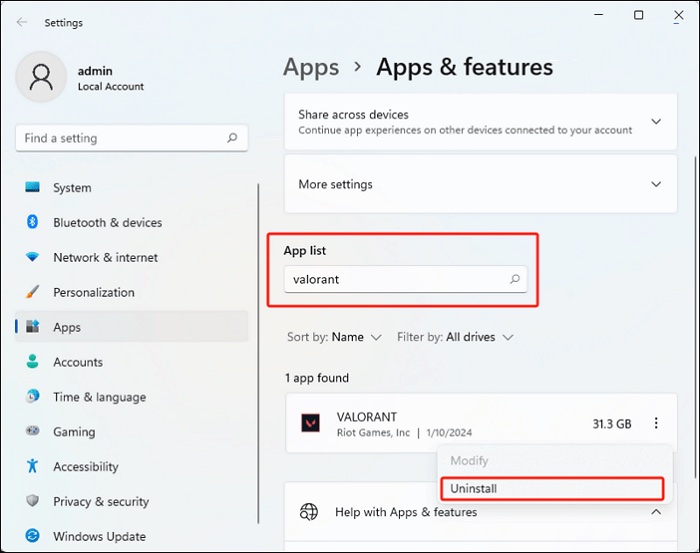
Step 6. A confirmation prompt will appear; click Uninstall again.
Step 7. Confirm and restart your computer.
How to Uninstall Riot Vanguard on Windows 10
If you are using Windows 10, the uninstall process is slightly different but still very straightforward. You can remove Riot Vanguard through the traditional Control Panel, which remains one of the most reliable ways to uninstall desktop programs and gaming-related software on older Windows systems. Here’s how to uninstall Riot Vanguard control panel.
Step 1. Press Windows + R, type control, and press Enter to open Control Panel.
Step 2. Click Programs > Programs and Features (or Uninstall a program).
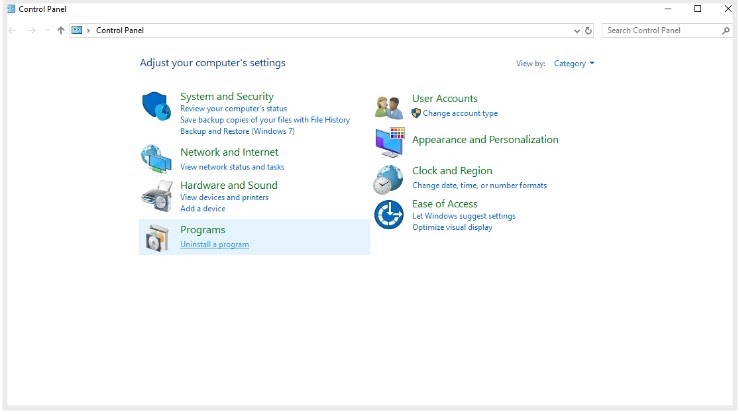
Step 3. Find Riot Vanguard from the listed programs.
Step 4. Select it and click Uninstall at the top of the window.
Step 5. Approve any User Account Control (UAC) prompts and confirm the uninstall when asked.
Step 6. Restart your computer after the uninstall completes.
Tips: If Riot Vanguard doesn't appear in the list or the uninstall fails, you can try to:
1. Right-click the Vanguard icon in the system tray and choose Exit Vanguard, then try again.
2. If that still doesn't work, Riot recommends a manual removal process using an elevated Command Prompt:
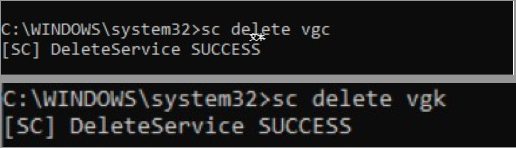
sc delete vgc
sc delete vgk
That’s all about how to uninstall Riot Vanguard command prompt. Then, restart the PC, and then delete the C:\Program Files\Riot Vanguard folder.
How to Completely Uninstall Riot Vanguard
Even after uninstalling Riot Vanguard through Windows, some leftover files, services, or registry entries may still remain on your computer. If you want to fully clean your system and prevent Vanguard from running in the background, you should perform a complete uninstall by manually removing any remaining components.
Delete Remaining Riot Vanguard Files
1. Check the Riot Vanguard installation folder
Step 1. Open File Explorer (Windows + E).
Step 2. Navigate to: C:\Program Files\ and look for a folder named Riot Vanguard.

Step 3. If it exists, right-click the folder and select Delete.
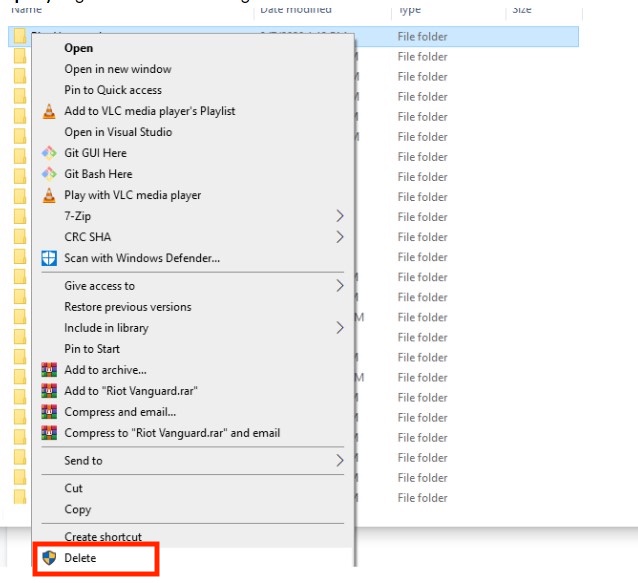
Step 4. Approve any administrator prompts.
2. Empty the Recycle Bin
Step 1. Right-click the Recycle Bin on the desktop.
Step 2. Select Empty Recycle Bin.
Remove Riot Vanguard Services
1. Check if the services still exist
Step 1. Press Windows + R. Type services.msc and press Enter.
Step 2. Look for: vgc and vgk.
Step 3. If either service exists, continue with the following steps.
2. Delete the services
Step 1. Press Start > Type cmd > Right-click Command Prompt > Select Run as administrator.
Step 2. Run: sc delete vgc.
Step 3. Then, you’ll see: [SC] DeleteService SUCCESS.
Step 4. Restart your computer.
Check Startup Programs
Step 1. Open Settings (Windows + I).
Step 2. Go to: Apps > Startup and search for Riot- or Vanguard-related entries.
Step 3. Turn them off.
How to Uninstall Valorant Riot Client Using IObit Uninstaller
While the built-in Windows uninstall methods work for most users, they may sometimes leave behind leftover files, registry entries, or background services. If you want a cleaner and more complete removal process, using a dedicated uninstall tool like IObit Uninstaller can help remove Riot Vanguard more thoroughly and even force uninstall stubborn files that refuse to delete normally.
IObit Uninstaller Free
- Complete forced uninstallation for stubborn programs.
- Uninstall a batch of programs at once.
- Scan and remove leftover files, folders, and registry entries.
- Support the management of Universal Windows Platform apps.

Why Use IObit Uninstaller?
IObit Uninstaller can detect and remove Chrome extensions and other components that may remain after a standard uninstall, helping ensure the software is fully removed.
Many programs leave behind folders, logs, configuration files, and Windows Registry entries after uninstallation. IObit Uninstaller scans for and removes these leftovers to help keep the system cleaner and reduce clutter.
Instead of manually searching through Control Panel, Settings, and the Registry Editor, IObit Uninstaller provides a centralized interface to help you view installed programs in one place, search for specific apps, and uninstall them with a few clicks.
If you're removing multiple applications at once - for example, Riot Vanguard, Valorant, and other unused software - IObit Uninstaller can process several uninstallations in a single session. Thus, you can free up disk space to store new applications.
How to Uninstall Riot Vanguard with IObit Uninstaller?
Here are the steps.
Step 1. Free download and install IObit Uninstaller on your computer.
Step 2. Launch IObit Uninstaller, find “Riot Vanguard” under the “All Programs” tab (or you can search it directly in the search bar), and then click on “Uninstall.”
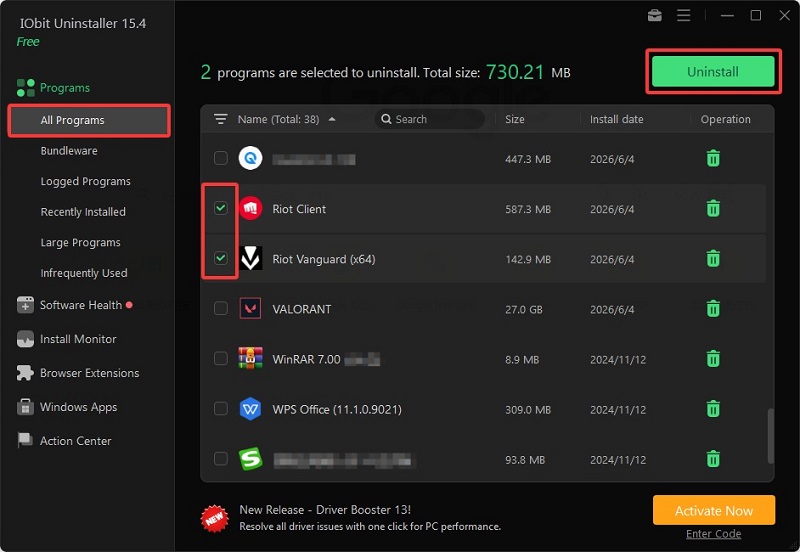
Step 3. Next, a confirmation screen will appear prompting you to make additional choices, such as creating a system restore point and deleting leftover files. Select the options you want, then click Uninstall to proceed.
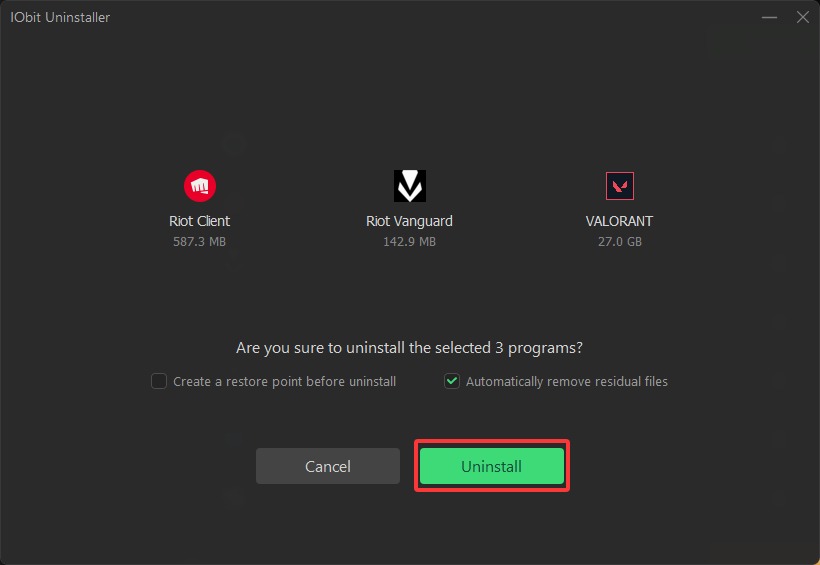
Step 4. Then let IObit Uninstaller scan the leftovers. When finished, click Delete.
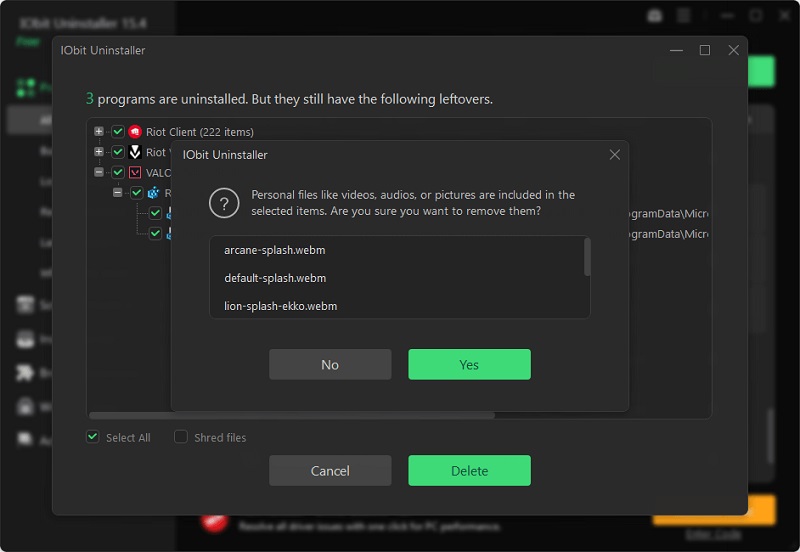
Step 5. Wait for IObit Uninstaller to remove everything related to Riot Vanguard for you.
Riot Vanguard Won’t Uninstall? Try These Fixes
In some cases, Riot Vanguard may refuse to uninstall properly due to active background services, corrupted files, or permission issues. If you encounter errors during the removal process, don’t worry. There are several effective troubleshooting methods that can help you force uninstall Riot Vanguard and remove any stubborn components from your system.
Problem 1: Riot Vanguard won't uninstall because Windows denies access or requires elevated permissions.
Fix: Launch the uninstall process with administrator privileges. This grants access to protected files, services, and registry entries that standard user accounts cannot modify.
Problem 2: Riot Vanguard services or background processes are still running, preventing removal.
Fix: Restart Windows in Safe Mode and uninstall Vanguard there. Safe Mode loads only essential system services, making it easier to remove files that are locked during normal startup.
Problem 3: The uninstall process fails with errors, Vanguard is missing from the installed apps list, or Windows reports that the program cannot be removed.
Fix: Run the Windows Program Install and Uninstall Troubleshooter. It can repair corrupted uninstall information, fix registry issues, and resolve problems that prevent software from being uninstalled.
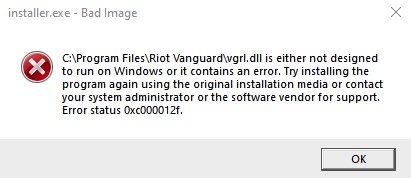
Problem 4: Vanguard's installation is damaged, incomplete, or missing critical uninstall files.
Fix: Reinstall Riot Vanguard through the Riot Client, then attempt the uninstall again. Restoring the missing components often repairs the uninstall routine and allows the program to be removed normally.
FAQs About Uninstalling Riot Vanguard
1. Does uninstalling Riot Vanguard improve performance?
It depends on your system. Riot Vanguard runs background services and loads a kernel-level anti-cheat driver, which consumes a small amount of system resources. On most modern PCs, the performance impact is minimal.
2. Can I use IObit Uninstaller to remove Riot Vanguard?
Yes. IObit Uninstaller can remove Riot Vanguard just like other Windows programs. It can also perform a deep scan after the uninstall to find and delete leftover files, folders, registry entries, and other remnants that the standard Windows uninstaller may leave behind.
3. How do I force uninstall Riot Vanguard on Windows?
If the normal uninstall process fails, you can force-remove Riot Vanguard by following these steps:
Close VALORANT, the Riot Client, and any Riot-related processes.
Open IObit Uninstaller and locate Riot Vanguard in the installed programs list.
Select Riot Vanguard and choose Uninstall.
If the standard uninstall fails, use Force Uninstall in IObit Uninstaller.
Allow the program to scan for leftover files, folders, and registry entries.
Delete all detected remnants to complete the removal.
Restart your computer.
If Riot Vanguard still cannot be removed, boot Windows into Safe Mode and run the force uninstall again. This prevents Vanguard services from loading and can make stubborn files easier to delete.
The Bottom Line
How to uninstall Riot Vanguard? You can remove Riot Vanguard through Windows Settings, the Riot Client, or a trusted uninstall tool. For a faster and more complete removal, try IObit Uninstaller. It can uninstall Riot Vanguard, remove leftover files and registry entries, and help keep your PC clean. Download it today for an easier way to remove Riot Vanguard and other stubborn programs.