Deleting a file is easy, but deleting it permanently is another story. When you press the Delete key, Windows usually moves the file to the Recycle Bin instead of removing it from your storage device. Even after you empty the Recycle Bin, the file may still be recoverable with professional data recovery software until its storage space is overwritten.
If you're wondering how to completely delete a file, this guide has you covered. We'll show you seven practical ways to permanently erase files and remove unnecessary files from Windows 10 and Windows 11. You'll also learn how to permanently delete a file, how to clear unnecessary files on PC, and the best tools for cleaning your computer safely and efficiently.
Why Isn't Deleting a File Enough?
Before trying different deletion methods, understand what happens when you delete a file. Standard deletion doesn’t erase data; it only marks space as available while the file remains recoverable. Pressing Delete sends files to the Recycle Bin, and even emptying it may not fully remove them. Secure deletion overwrites data, making recovery difficult. Permanently deleting files brings you a lot of benefits, such as:
Helps protect sensitive information
Free up disk space
Improve system performance
Prepare a PC for resale
Keeps your system organized
Knowing this ensures you choose the right method to safely and completely remove files from your computer.
Method 1. How to Permanently Delete a File with Shift + Delete
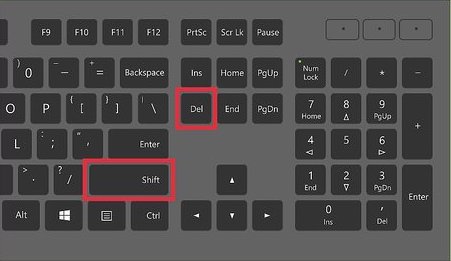
If you want the quickest way to permanently delete a file, Windows provides a built-in keyboard shortcut. Unlike pressing the Delete key, which moves files to the Recycle Bin, Shift + Delete skips the Recycle Bin and removes the file immediately. While this method doesn't securely overwrite the file, it's a convenient way to remove unwanted files that you no longer need.
Step 1. Locate the file or folder you want to delete.
Step 2. Click the file to select it.
Step 3. Press Shift + Delete on your keyboard.
Step 4. Click Yes when Windows asks for confirmation.
Step 5. Verify that the file no longer appears in its original location.
Tip: If the file contains sensitive information, use Method 5 later in this guide to overwrite the free space and reduce the chance of file recovery.
Method 2. Empty the Recycle Bin
Files deleted with the Delete key remain in the Recycle Bin until you remove them. Emptying the Recycle Bin is another simple way to remove unnecessary files and recover storage space. Although the files are no longer accessible through Windows, they may still be recoverable with specialized software.
Step 1. Double-click the Recycle Bin icon on your desktop.
Step 2. Review the files to ensure you don't need to restore any of them.
Step 3. Click Empty Recycle Bin on the toolbar.
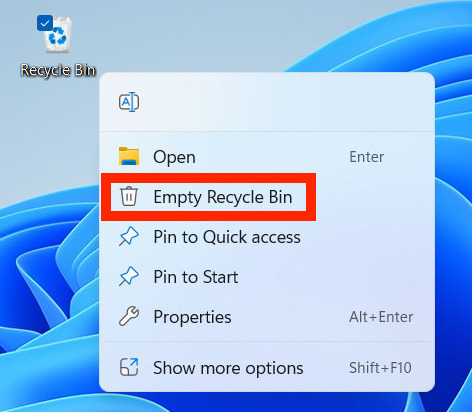
Step 4. Click Yes to permanently remove all files.
Tip: Make a habit of emptying the Recycle Bin regularly to prevent deleted files from occupying valuable disk space.
Method 3. Completely Delete Files Using IObit Uninstaller (Featured Method)
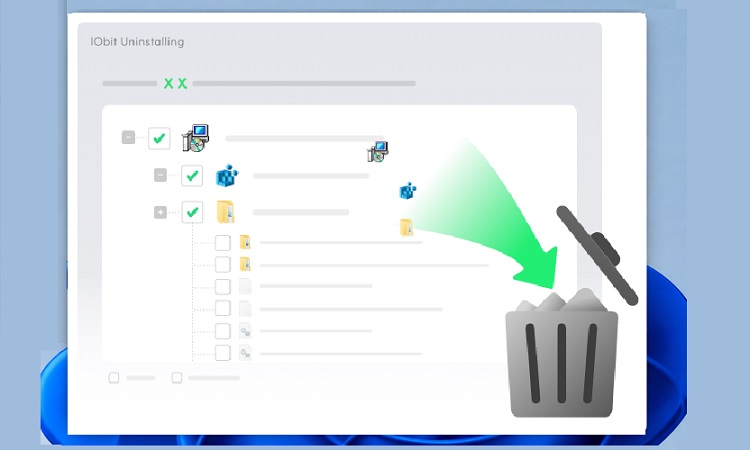
If your goal is not only to completely delete a file but also to remove unwanted files, remove unnecessary files, and uninstall programs along with their leftover data, IObit Uninstaller is one of the most effective solutions. Unlike basic uninstall methods, it removes stubborn programs and cleans up residual files, folders, and registry entries that are often left behind. It's especially useful for users who want to clear unnecessary files on PC and ensure no traces remain after uninstalling software.
IObit Uninstaller Free
- Complete forced uninstallation for stubborn programs.
- Uninstall a batch of programs at once.
- Scan and remove leftover files, folders, and registry entries.
- Support the management of Universal Windows Platform apps.

Key Features of IObit Uninstaller
Force Delete Locked and Stubborn Files Safely
Deletes files that cannot be removed because they are locked, in use, or protected by system restrictions.
Remove Leftover Files After Standard Deletion Completely
Scans for and removes residual files, folders, and related data left behind after normal deletion.
Delete Large Unwanted Files to Free Storage Space
Helps identify and permanently remove large unnecessary files or force uninstall programs Windows 11 to recover valuable disk space.
Erase File Traces for Cleaner System Organization Permanently
Removes associated file traces and residual data to keep your system clean and organized.
One-Click File Cleanup with Simple User-Friendly Interface
Allows you to quickly delete unwanted files and their leftovers without complicated manual steps.
Deep Scan for Hidden Leftover Files Automatically
Performs a thorough scan to find hidden files and remnants that ordinary deletion methods may miss.
How to Completely Delete a File with IObit Uninstaller
Step 1. Download IObit Uninstaller from its official site and install it on your Windows computer.
Step 2. Click the tool icon in the upper right corner of your software and select File Shredder.
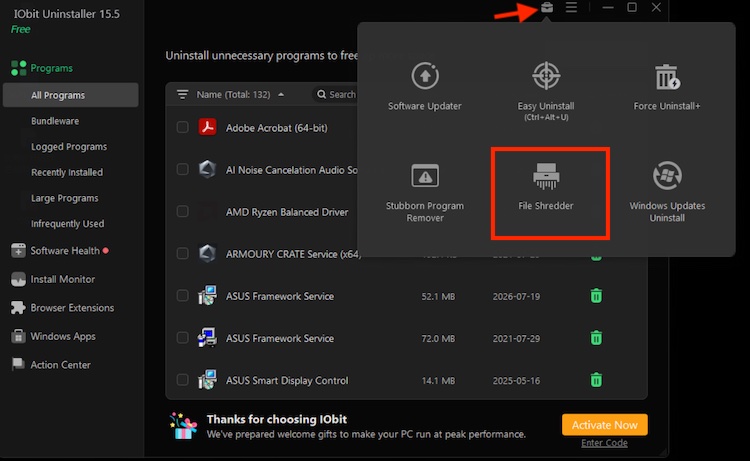
Step 3. Add files you want to delete to the File Shredder and click Shred to start removing your files or folder. Wait for IObit Uninstaller to remove your file and close it.
Why we recommend it: Unlike Windows' built-in uninstall feature, IObit Uninstaller ensures complete removal of programs and leftover files, making it easier to keep your PC clean and free of unnecessary data.
Method 4. Delete Files Permanently with Command Prompt
If you prefer using built-in Windows tools, Command Prompt lets you permanently delete files without sending them to the Recycle Bin. This method is ideal for advanced users who want to know how to completely delete a file from a computer using commands. Be careful, though—once the file is deleted, it can't be restored through the Recycle Bin.
Step 1. Press Win + S, type Command Prompt, and select Run as administrator.
Step 2. Navigate to the folder containing the file by entering the cd command. For example:
cd C:\Users\YourName\Documents
Step 3. Type the following command and replace filename.ext with the actual file name:
del filename.ext
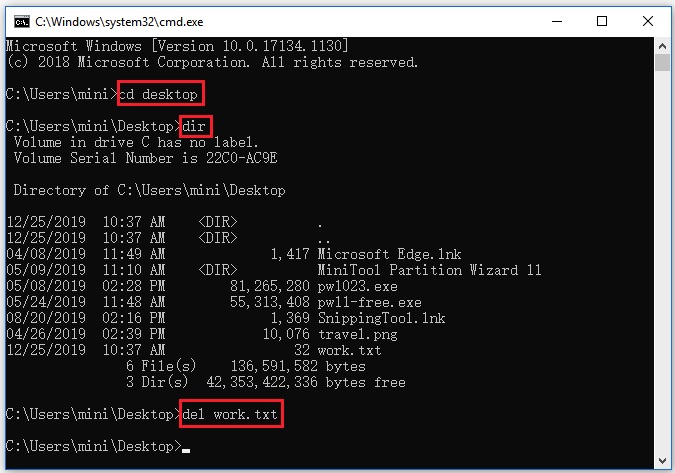
Step 4. Press Enter to permanently delete the file.
Step 5. Open File Explorer and confirm that the file has been removed.
Tip: To delete an entire folder and its contents, use the rmdir /s command instead of del.
Method 5. Securely Delete Files with the Windows Cipher Command
The methods above remove files from Windows, but the deleted data may still be recoverable until it's overwritten. If you need to permanently erase sensitive information, the built-in Cipher utility overwrites the free space on your drive, making deleted files much more difficult to recover. This is one of the best methods if you're wondering how to completely delete a file on Windows 11 before selling or recycling your PC.
Step 1. Delete the files you no longer need using Shift + Delete or by emptying the Recycle Bin.
Step 2. Open Command Prompt as an administrator.
Step 3. Type the following command and replace C: with the target drive if necessary:
cipher /w:C:
Step 4. Press Enter to start overwriting the free space.
Step 5. Wait for the process to finish. Depending on the drive size, this may take several minutes or longer.
Tip: The Cipher command doesn't delete existing files. Instead, it securely overwrites the free space left by previously deleted files.
Method 6. Clear Unnecessary Files with Windows Storage Sense
If your goal is to learn how to delete unnecessary files without manually searching through folders, Storage Sense is an excellent built-in Windows feature. It automatically removes temporary files, empties the Recycle Bin, and deletes unnecessary system data, helping you remove unnecessary files and free up storage with minimal effort.
Step 1. Press Win + I to open Settings.
Step 2. Go to System > Storage.
Step 3. Turn on Storage Sense.
Step 4. Click Storage Sense to configure how often Windows cleans temporary files and the Recycle Bin.
Step 5. Click Run Storage Sense now to start cleaning immediately.
Tip: Configure Storage Sense to run automatically every week or month so Windows can continuously remove unnecessary files without manual cleanup.
Method 7. Remove Unwanted Files Using Disk Cleanup
If you prefer another built-in Windows utility, Disk Cleanup is a reliable choice. It scans your drive for temporary files, system caches, Recycle Bin contents, and other unnecessary data, making it a simple way to remove unwanted files and reclaim storage without installing additional software.
Step 1. Press Win + S and search for Disk Cleanup.
Step 2. Open the utility and select the drive you want to clean (usually C:).
Step 3. Click OK and wait while Windows scans the drive.
Step 4. Check the file categories you want to delete, such as Temporary Files, Recycle Bin, and Thumbnails.
Step 5. Click OK > Delete Files to begin the cleanup.
Step 6. For a deeper cleanup, click Clean up system files, select additional items, and click OK again.
Tip: Running Disk Cleanup once a month helps keep Windows tidy and prevents unnecessary files from accumulating.
Tips Before Permanently Deleting Files
Before you completely delete a file, take a few precautions to avoid accidentally losing important data.
Back up important files before deleting them permanently.
Double-check the selected files to ensure they're no longer needed.
Avoid deleting Windows system files, as doing so may cause system instability.
Verify the correct drive or folder before using Command Prompt or Cipher.
Use secure deletion methods when disposing of confidential documents or preparing a computer for sale.
Create a restore point before performing large-scale system cleanup.
These simple practices help ensure your cleanup process is both safe and effective.
Conclusion
Now you know how to completely delete a file using both Windows' built-in utilities and dedicated cleanup software. Whether you choose Shift + Delete, Command Prompt, Cipher, Storage Sense, or Disk Cleanup, each method helps you remove unwanted files and free up valuable storage space. If you frequently uninstall applications, IObit Uninstaller offers an even more convenient way to remove programs together with their leftover files, folders, and registry entries, keeping your Windows PC cleaner, more organized, and running efficiently. Now, download this best uninstaller to remove unwanted files.