Is your hard drive showing errors or suddenly becoming inaccessible? Looking for reliable hard disk repair software to fix the problem without losing important files?
The right disk repair tools can help check file system errors, recover lost partitions, and diagnose drive problems. This guide will show you five hard drive disk repair software options for different situations.
What Can Hard Disk Repair Software Do?
Hard drive disk repair software is a type of utility designed to diagnose and fix hard drive problems, such as file system errors, bad sectors, and partition issues. Before choosing hard disk repair software, it's important to understand that different tools handle different types of drive problems.
Common functions include:
Disk Error Checking: Scans drives for file system and logical errors.
File System Repair: Fixes certain file system problems and restores drive access.
Partition Recovery: Finds lost partitions and repairs damaged partition tables.
Data Recovery: Attempts to recover deleted or inaccessible files.
Drive Diagnostics: Checks drive health, SMART information, and potential bad sectors.
Not every tool supports all these functions. Software can fix some logical problems but cannot guarantee a repair for physical hardware damage.
Overview of 5 Best Windows Hard Disk Repair Software
Each tool has its own strengths; here is a quick overview:
Windows CHKDSK – Best for Free Disk Error Checking and Repair
Advanced SystemCare – Best for Easy Disk Repair and PC Optimization
Disk Drill – Best for Recovering Lost Files
TestDisk – Best for Recovering Lost Partitions
Victoria HDD/SSD – Best for Checking Drive Health and Detecting Bad Sectors
Details of the 5 Best Hard Disk Repair Software for Windows
Different repair disk tools address different disk problems. Here are five options with details to help you find the right solution for your needs.
1. Windows CHKDSK – Best Free Tool for Fixing Disk Errors
Windows CHKDSK (Check Disk) is a built-in utility for checking and repairing file system errors. It is useful for users who want to fix common disk problems without installing additional hard drive disk repair software.
Its main functions include:
File System Checking: Examines file system structures and disk metadata for errors.
Logical Error Repair: Uses the /f parameter to fix detected file system errors.
Bad Sector Detection: Uses the /r parameter to locate bad sectors and attempt to recover readable information.
Online Scanning: Supports /scan for online scanning of NTFS volumes.
Disk Status Checking: Identifies file system problems that may affect normal drive access.
How to Repair Disk Errors with CHKDSK
Step 1: Search for Command Prompt in Windows and select Run as administrator.
Step 2: Enter chkdsk C: /f, replacing C with the drive letter you want to check.
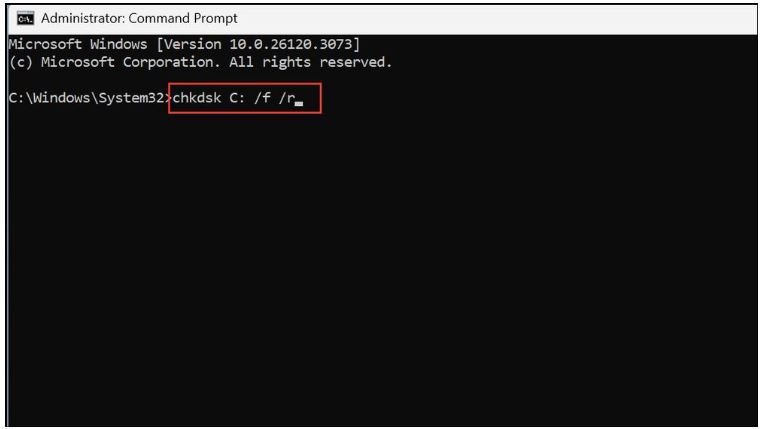
Step 3: Press Enter and follow the prompts. If required, schedule the scan and restart your PC.
2. Advanced SystemCare – Best for Easy Disk Error Repair and PC Optimization
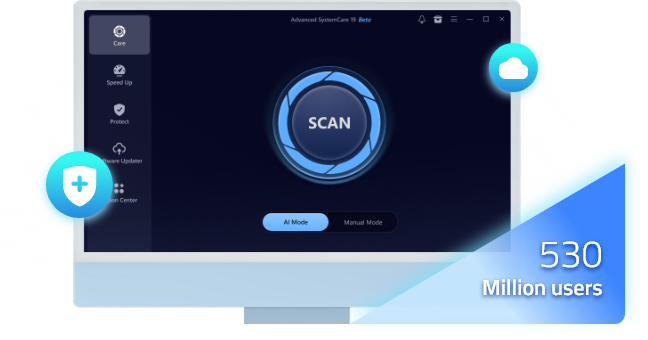
Advanced SystemCare is primarily a Windows optimization program that also provides a built-in Disk Doctor tool. It helps users scan drives for logical errors and automatically correct detected problems through a graphical interface.
Advanced SystemCare Free
- Clean: 420 billion traces removed & 85 EB junk files cleaned
- Protect: 80 million unauthorized access blocked & 20 million bugs fixed
- Speed Up: 6 million hours of startup time saved & Turbo boost
- Optimize: Auto clean and auto care your PC with AI mode
Its key features include:
Disk Doctor: Scans drives and file systems for errors and automatically corrects detected logical issues. Its mechanism is similar to Windows CHKDSK /f.
Junk File Clean: Removes temporary files, system junk, and unnecessary data to free up disk space.
Registry Clean: Detects and cleans invalid registry entries that may affect system performance.
PC Optimize: As a Windows optimizer, it provides system optimization features to improve overall computer performance.
Startup Optimization: Helps manage unnecessary startup programs and reduce boot time.
Privacy Protection: Includes tools for cleaning browsing traces and protecting personal information.
How to Repair Disk Errors with Advanced SystemCare:
Step 1: Download and install Advanced SystemCare, then launch the program.
Step 2: Open the Toolbox section, find Disk Doctor, and select the drive you want to scan.
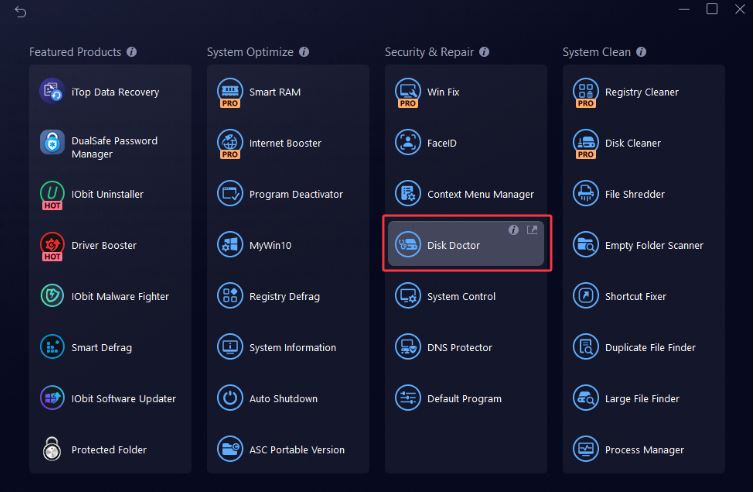
Step 3: Start the scan and let Disk Doctor automatically correct detected disk and file system errors.
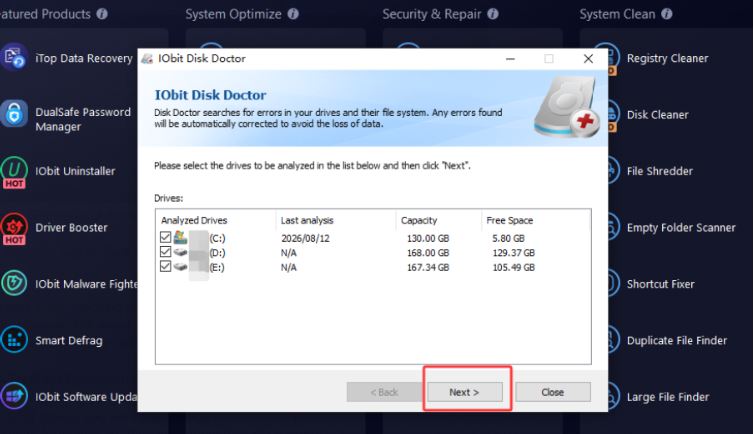
By combining disk error checking with system maintenance, Advanced SystemCare offers more than a standalone disk repair tool. It also works as a hard disk cleaner, removing unnecessary files while helping optimize overall PC performance.
3. Disk Drill – Best for Recovering Lost Files from Hard Drives
Disk Drill is a data recovery program designed to retrieve deleted or inaccessible files from HDDs, SSDs, USB drives, and external storage devices. It is particularly useful after accidental deletion, formatting, or data loss caused by drive errors.
Its main features include:
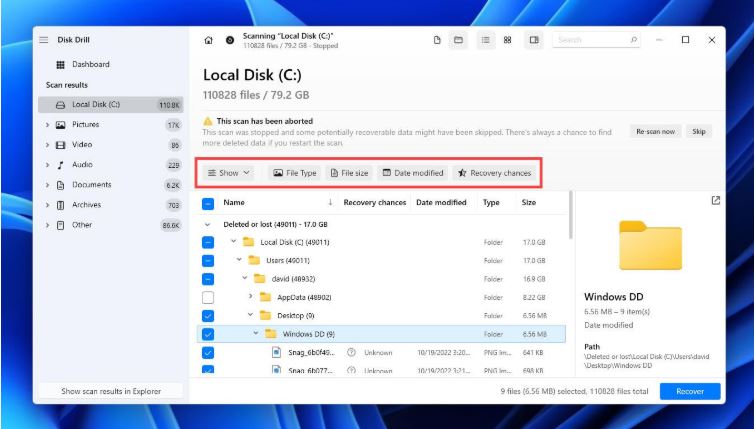
Quick and Deep Scans: Searches storage devices for recoverable files using different scanning methods.
Multiple File Types: Supports recovery of photos, videos, documents, archives, and other file formats.
File Preview: Allows users to check found files before recovery.
Partition Recovery: Helps retrieve data from lost, deleted, or inaccessible partitions.
External Drive Recovery: Scans external hard drives, USB drives, and memory cards.
Byte-to-Byte Backup: Creates a disk image to help protect data on problematic drives before recovery attempts.
How to Recover Files with Disk Drill:
Step 1: Download and install Disk Drill on a separate drive from the one containing lost files.
Step 2: Launch the program, select the affected hard drive, and start scanning.
Step 3: Preview recoverable files and save selected items to another storage device.
4. TestDisk – Best Free Tool for Recovering Lost Partitions
TestDisk is a free, open-source recovery utility that focuses on lost partitions and damaged partition structures. It is useful when a deleted partition or corrupted partition table makes a hard drive inaccessible.
Its main features include:
Partition Recovery: Finds and restores lost or deleted partitions.
Partition Table Repair: Helps rebuild damaged partition tables and rewrite the Master Boot Record (MBR).
Boot Sector Repair: Rebuilds or restores certain FAT, exFAT, and NTFS boot sectors.
File System Repair: Supports specific FAT table repairs and NTFS Master File Table (MFT) recovery.
Deleted File Recovery: Recovers certain deleted files from FAT, exFAT, NTFS, and ext2 file systems.
File Copying: Allows users to copy files from deleted or damaged partitions.
How to Recover Lost Partitions with TestDisk:
Step 1: Download TestDisk and launch it with administrator privileges.
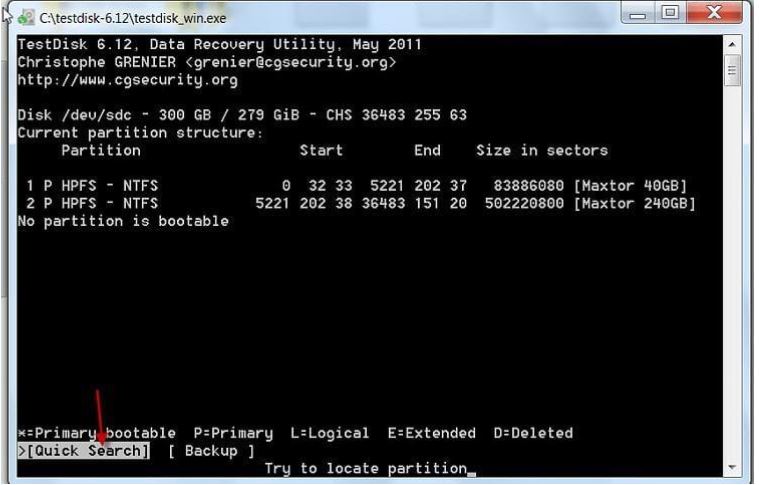
Step 2: Select the affected drive, choose the partition table type if needed, and select Analyse.
Step 3: Run Quick Search, review the detected partitions, and select Write only after confirming the correct partition structure.
5. Victoria HDD/SSD – Best for Detecting Bad Sectors and Monitoring Drive Health
Victoria HDD/SSD is an advanced diagnostic utility for examining HDD and SSD health. It helps users identify slow or unreadable sectors and investigate potential drive problems.
Its main features include:
SMART Monitoring: Reads drive health attributes, temperature, and other diagnostic information.
Surface Scanning: Checks drive sectors to identify slow, unstable, or unreadable areas.
Response Time Testing: Measures how quickly different disk sectors respond during scanning.
Sector Remapping: Provides advanced options for handling problematic sectors.
Drive Information: Displays technical details about the selected HDD or SSD.
Performance Diagnostics: Helps identify potential read-related performance issues.
How to Check Hard Drive Health with Victoria:
Step 1: Download and launch Victoria, then select the target drive.
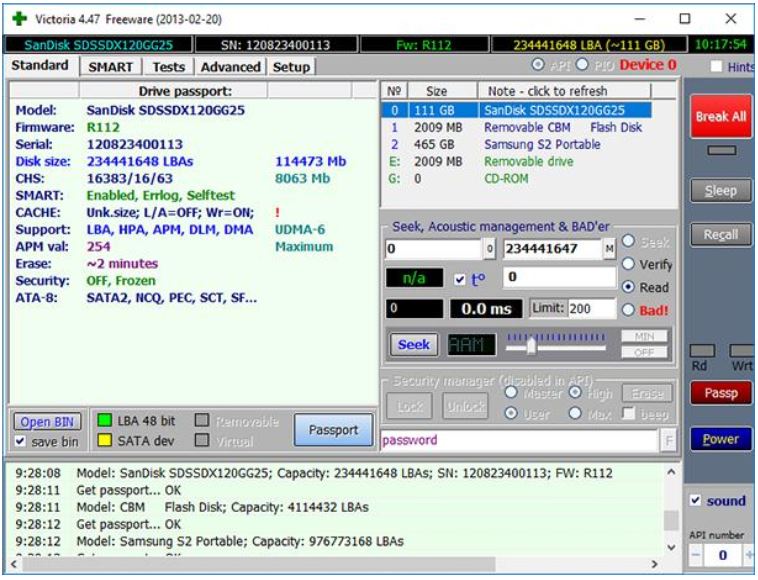
Step 2: Open the SMART tab to review its health information and diagnostic attributes.
Step 3: Run a read-only surface scan to identify slow or unreadable sectors.
What to Do Before Repairing a Hard Drive?
Before using hard disk repair software, take these precautions to protect your data:
Back Up Important Files: Save important documents and photos to another drive whenever possible.
Check Drive Connections: For an external hard drive, inspect the USB cable, port, and power supply.
Identify the Problem: Determine whether you have file system errors, lost partitions, missing files, or hardware failure.
Avoid Repeated Repairs: If the drive makes unusual noises or frequently disconnects, stop repeated scans and write operations. Consider professional data recovery.
The Bottom Line
The best hard disk repair software depends on your specific problem. CHKDSK and Advanced SystemCare handle logical errors, Disk Drill recovers lost files, TestDisk restores partitions, and Victoria diagnoses drive health. For users who want simple disk error repair alongside everyday PC maintenance, Advanced SystemCare is a practical option.