A slow Windows PC is not always a sign of aging hardware. Low disk space, fragmented files, and poorly managed partitions also affect everyday performance. Windows includes a built-in utility for basic drive management, while third-party programs offer more options for storage maintenance. The following sections cover the steps to access Windows Disk Management, along with five free disk manager Windows tools for defragmenting drives, managing partitions, and improving disk performance.
Why Do You Need a Disk Manager Windows?
A disk manager is a utility for managing storage drives, partitions, and file systems on a Windows PC. It lets you create, resize, format, delete, and organize partitions, while some programs also provide disk defragmentation, health monitoring, and performance optimization.
Windows has basic storage controls through its built-in Disk Management console, but its capabilities are limited. A third-party disk manager program shows greater flexibility when reorganizing storage, maintaining hard drives, or troubleshooting disk space problems.
How to Open Built-in Disk Management Tool on Windows
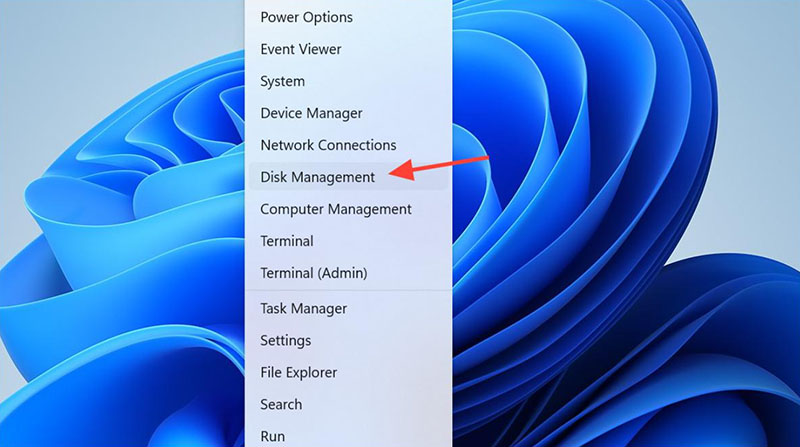
Windows 11 and Windows 10 include Disk Management for viewing physical drives, partitions, volumes, and unallocated space, requiring no extra hard disk cleaner. Three quick ways to launch it are through the Start menu, the Run dialog, and Windows Search.
Method 1. Open Disk Management from the Start Menu
Step 1. Right-click the Start button on the taskbar.
Step 2. Select Disk Management from the Quick Link menu.
Step 3. Wait for the console to load and display the connected disks and their partitions.
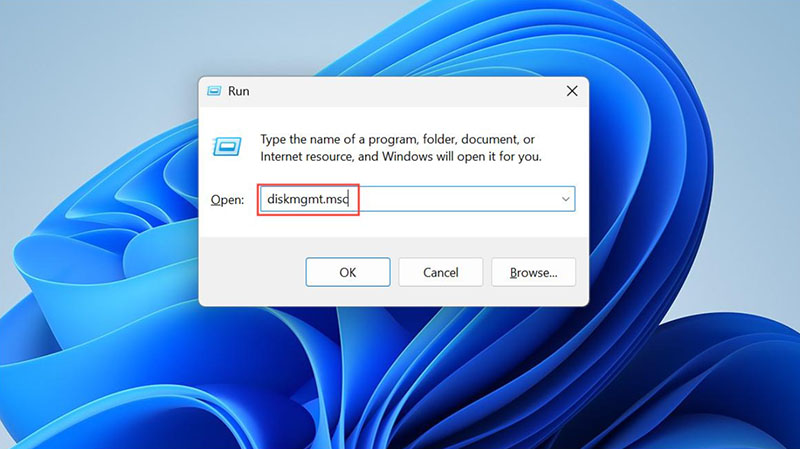
Method 2. Launch Disk Management with the Run Command
Step 1. Press Windows + R.
Step 2. Enter diskmgmt.msc in the text box.
Step 3. Press Enter or click OK to launch Disk Management.
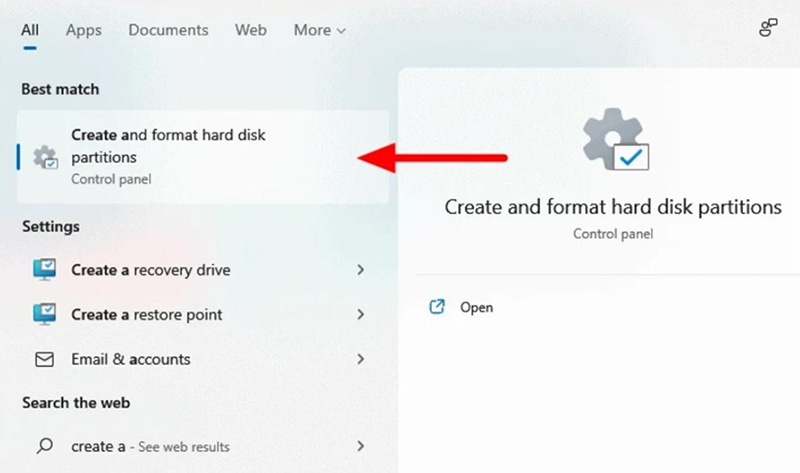
Method 3. Find Disk Management through Windows Search
Step 2. Enter Disk Management or Create and format hard disk partitions in the search field.
Step 3. Choose Disk Management to launch it on Windows.
5 Best Free Disk Manager Windows Tools (Advanced Management)
Third-party disk manager Windows utilities have different levels of control, from basic partition resizing to disk migration and file-system diagnostics. The five options below cover common storage tasks and more advanced maintenance needs.
1. MiniTool Partition Wizard – All-in-One Disk Manager
Available on: Windows 7/8/10/11
User Rating: ★★★★
System Safety: Generally safe for routine operations; partition changes still carry data-loss risks.
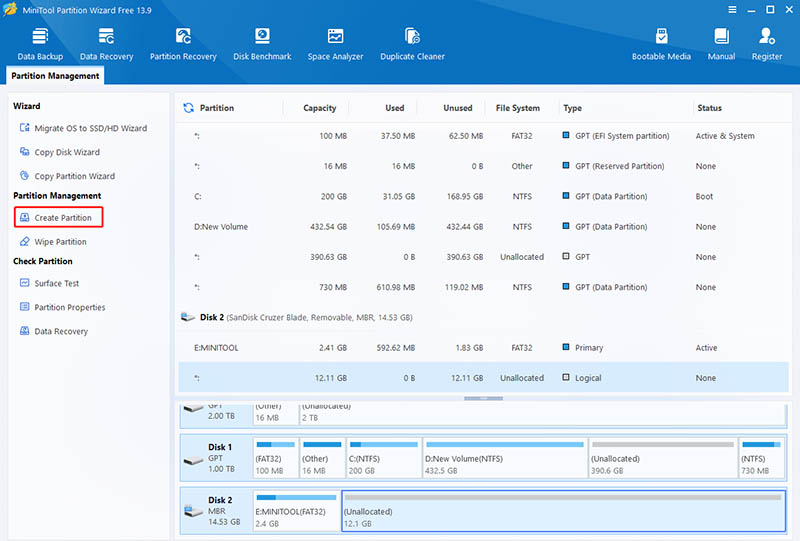
MiniTool Partition Wizard is a feature-rich disk manager Windows users can install for partition configuration, drive maintenance, and storage troubleshooting. Its interface displays disks and partitions graphically, with available operations changing according to the selected volume.
Key Features:
Creation, resizing, moving, merging, splitting, formatting, and deletion of partitions.
MBR-to-GPT conversion and FAT-to-NTFS file system conversion without reformatting.
File-system error detection, bad-sector scans, and disk space analysis.
What Users Like:
Clear graphical disk and partition layout.
Pending operation preview before applying changes.
Wide range of free basic partition management features.
What Users Dislike:
Paid OS migration, system disk cloning, and data recovery.
Frequent upgrade prompts.
2. TreeSize - Smart Disk Space Management & Cleanup
Available on: Windows
User Rating: ★★★
System Safety: Safe for disk analysis; review file paths carefully before deleting anything.
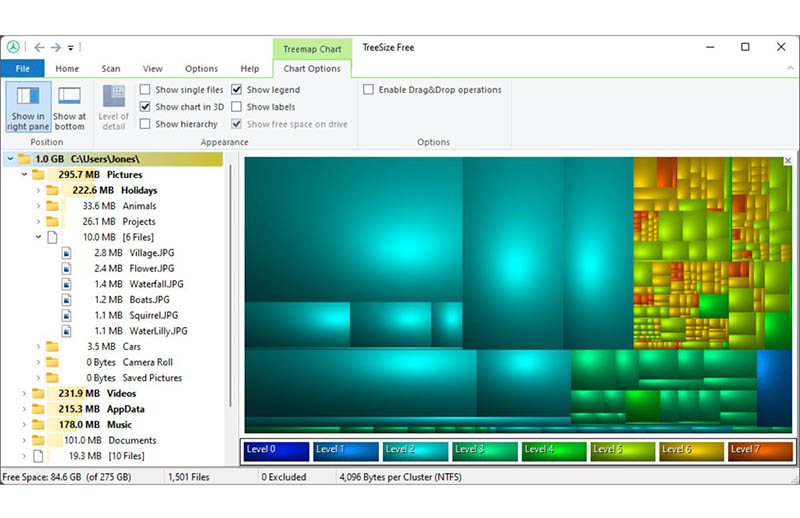
TreeSize by JAM Software takes a different approach to disk management. The disk management tool examines how storage space is distributed across folders and files, helping check hard disk health quickly. Its folder tree and treemap views make large directories easier to identify.
Key Features:
Folder and file size breakdowns, including subfolder-level storage usage.
Color-coded graphical display of disk space distribution and large directories.
File size, allocated space, item count, last-access date, and other folder details.
File-system compression information and folder-level NTFS compression controls.
What Users Like:
Easy-to-read folder hierarchy and visual storage maps.
Fast scans on local NTFS drives.
Lightweight installation and portable usage options.
What Users Dislike:
No partition resizing, merging, or disk cloning functions.
Duplicate file search and advanced cleanup filters require a paid edition.
3. IObit Advanced SystemCare - Ultimate Disk Management & Optimization
Available on: Windows 11/10/8/7
User Rating: ★★★★★
System Safety: Safe, review cleanup results before applying changes.
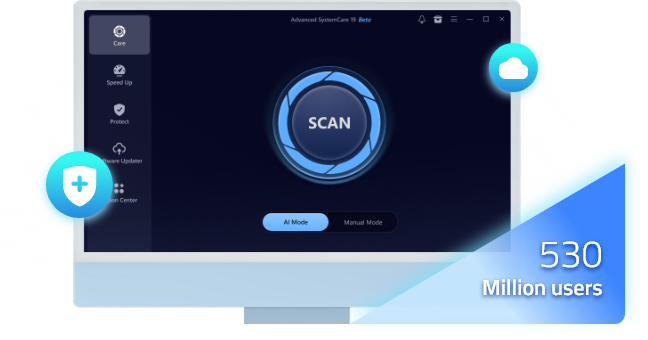
IObit Advanced SystemCare brings together tools to improve drive performance, clear unwanted files, and maintain Windows system health. Instead of handling partition layouts like a traditional disk manager tool, the Windows optimizer removes unnecessary files, optimizes HDDs and SSDs, and addresses common system issues. Advanced SystemCare free edition includes the most commonly used cleaning and optimization functions, while selected advanced features are also available.
Advanced SystemCare Free
- Clean: 420 billion traces removed & 85 EB junk files cleaned
- Protect: 80 million unauthorized access blocked & 20 million bugs fixed
- Speed Up: 6 million hours of startup time saved & Turbo boost
- Optimize: Auto clean and auto care your PC with AI mode
Key Features:
Fast & Deep Scan for Disk Management: Detect junk files, privacy traces, system issues, and unnecessary data across selected maintenance modules.
Free Disk Defragmentation for Optimization: Offer HDD defragmentation for selected volumes such as C:, D:, and E:, with separate SSD TRIM optimization.
Custom Disk Clean to Free up Disk Space: Identify junk files, duplicate files, and large files in separate disks to reclaim occupied storage space.
Auto Check & Fix Common Disk Issues: Target disk and file-system errors like 100 disk usage Windows 11 and repair them through supported diagnostic modules.
Speed up System for Top Performance: Provide startup management, registry cleanup, RAM optimizer Windows 11, and background resource optimization for smoother Windows operation.
What Users Like:
One-click scanning and system cleanup from a centralized interface.
Easy disk and PC performance optimization.
Separate optimization methods for HDDs and SSDs.
Manual mode for greater control over maintenance tasks.
What Users Dislike:
Only available on Windows.
Use the following steps to learn how to use disk management in Advanced SystemCare on your Windows PC.
Step 1. Get Advanced SystemCare Free from the official IObit website and complete the installation.
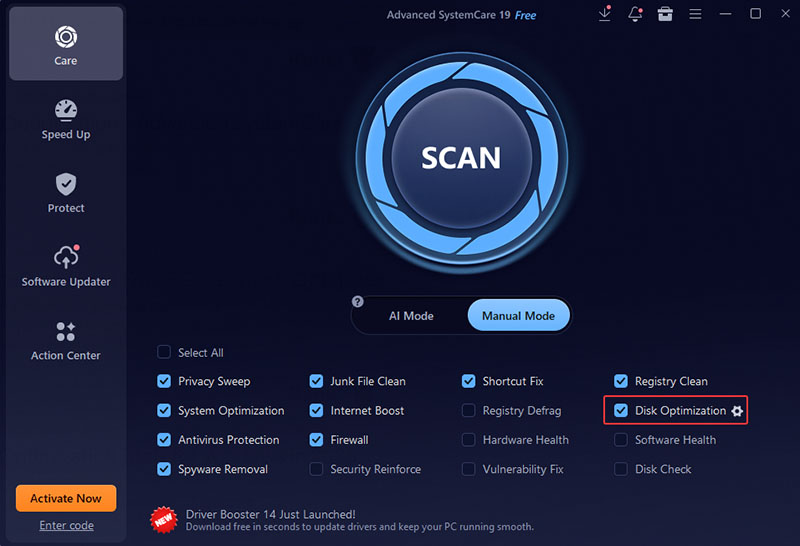
Step 2. Open the program, switch to Manual Mode, check Disk Optimization, and click the gear icon to access its settings.
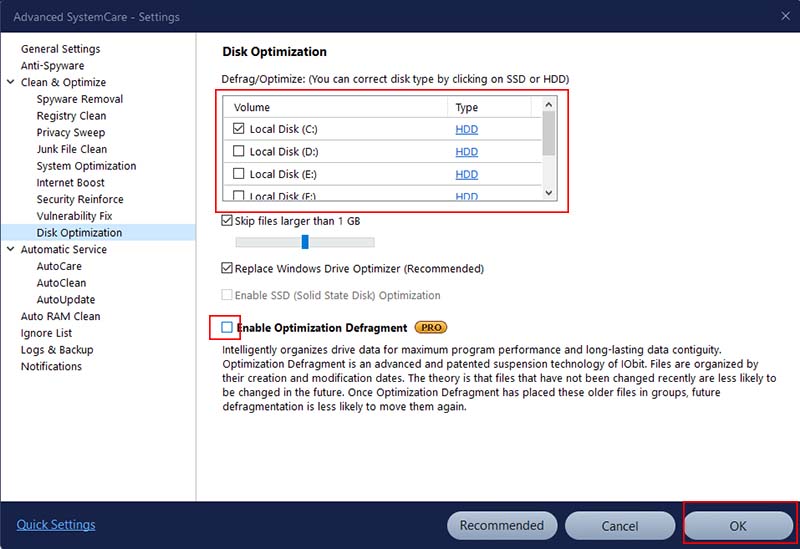
Step 3. Under Settings > Disk Optimization, select the volumes to check. Enable HDD defragmentation as appropriate, then click OK.
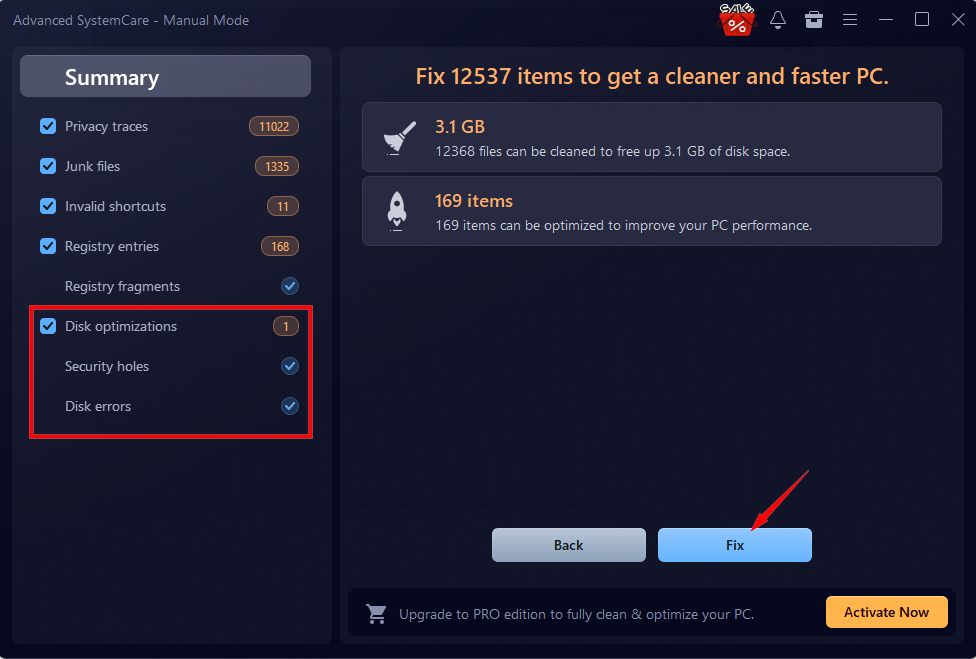
Step 4. Click SCAN on the main screen. Review the results and select Fix to apply the available optimizations.
4. EaseUS Partition Master Free - Best Disk Partition Manager
Available on: Windows
User Rating: ★★★★
System Safety: Generally safe for standard partition operations; back up important data before modifying disk layouts.
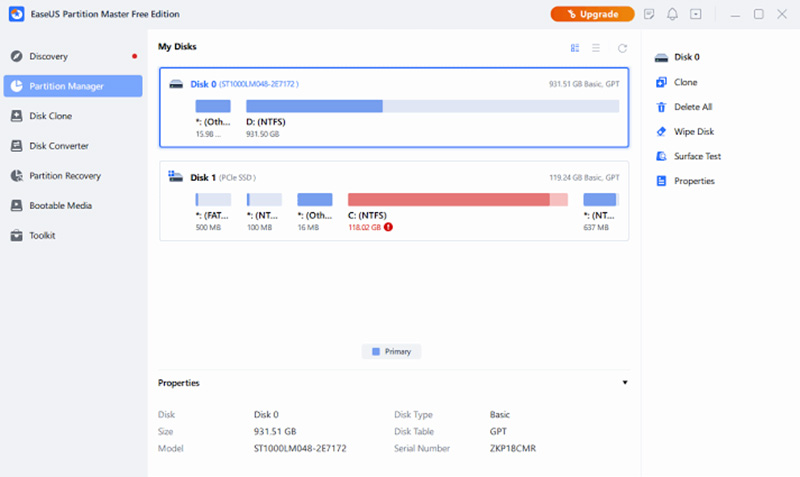
EaseUS Partition Master Free is beginner-friendly disk manager tool for more control over drive layouts than Windows provides. Its graphical interface makes it straightforward to resize, move, merge, and format partitions.
Key Features:
Create, resize, move, extend, shrink, merge, split, format, hide, and delete partitions.
Convert FAT partitions to NTFS and manage supported NTFS, FAT32, exFAT, and other file systems.
Initialize disks, change drive letters, modify partition labels, and convert supported disk layouts.
What Users Like:
Beginner-friendly interface with clear partition diagrams.
Pending-operation list for change review before execution.
Flexible partition resizing and merging options.
What Users Dislike:
8TB disk capacity limit in the free edition.
Paid upgrade required for OS migration and full-disk cloning.
>> TCP Optimizer Guide: Fine-Tune Network Settings for Better Speeds
5. GParted - Easy-to-Use Disk Partition Editor
Available on: Windows, Linux, and macOS computers through GParted Live.
User Rating: ★★★★
System Safety: Generally reliable, but incorrect partition changes can cause data loss. Back up important files before applying operations.
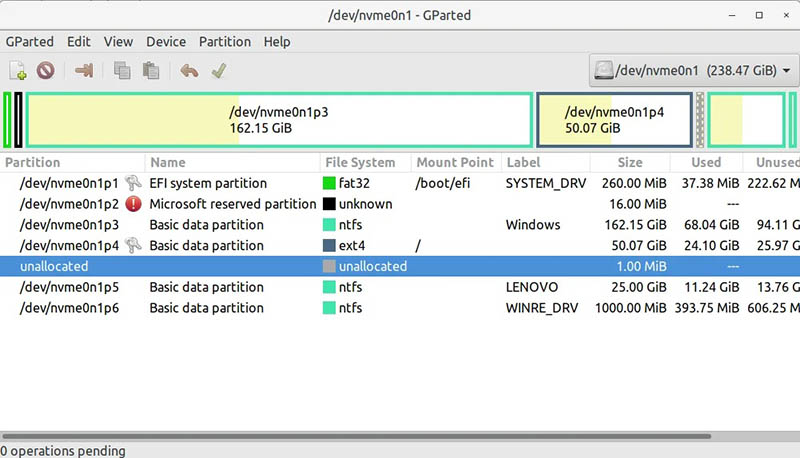
GParted is a free, open-source partition editor for reorganizing disk space across different operating systems. The graphical interface of disk management software free supports common partition tasks, including resizing, moving, copying, checking, and formatting supported file systems.
Key Features
Create, delete, resize, move, copy, check, and label partitions.
Work with NTFS, FAT16/32, exFAT, ext2/3/4, Btrfs, XFS, HFS/HFS+, and other supported formats. Available operations vary by file system.
Support for SATA, IDE, SCSI, NVMe, USB flash drives, and supported RAID devices.
What Users Like: Completely free and open-source, with no paid edition or feature restrictions.
Visual partition layout and queued operations for reviewing changes before execution.
What Users Dislike:
No standard Windows desktop installation.
The interface and partition terminology may be challenging.
Built-in Disk Management vs. Free Disk Manager Windows
Windows Disk Management is sufficient for routine tasks. Free third-party tools provide more partition controls, although features vary by product and some advanced operations are paid. The comparison below distinguishes these built-in utilities from the broader feature sets offered by third-party software.
Feature |
Windows Disk Management |
Free Third-Party Disk Manager |
Safety / Trust |
Native (No installation risk) |
High (Reputable brands) |
Basic Disk Defrag |
Yes |
Yes |
Move/Resize Non-Adjacent Partitions |
No |
Yes |
Ease of Use |
Standard/Basic |
Varies, generally easy |
Disk Space Analysis |
Basic volume capacity information |
Some tools provide folder-level usage reports, treemaps, and large-file analysis |
Disk Cloning |
No built-in cloning feature |
Available in some free editions; full-disk cloning may require a paid upgrade |
Which One Should You Choose?
Windows Disk Management is a sensible choice for everyday tasks, such as formatting a new drive, changing drive letters, or creating a simple volume.
A third-party disk manager Windows, such as EaseUS Partition Master Free and GParted, offers more flexibility when reorganizing disk layouts, while TreeSize is better suited to identifying large folders and files. Advanced SystemCare comes with disk cleanup and drive optimization rather than partition editing.
The Bottom Line
The above five disk manager Windows tools serve different storage needs, from partition editing to disk-space analysis and maintenance. For routine cleanup and drive optimization, IObit Advanced SystemCare gives convenient access to manual PC maintenance. It removes unnecessary files and optimizes storage drives without requiring complex partition operations. Download Advanced SystemCare to try it for free.
Advanced SystemCare Free
- Clean: 420 billion traces removed & 85 EB junk files cleaned
- Protect: 80 million unauthorized access blocked & 20 million bugs fixed
- Speed Up: 6 million hours of startup time saved & Turbo boost
- Optimize: Auto clean and auto care your PC with AI mode