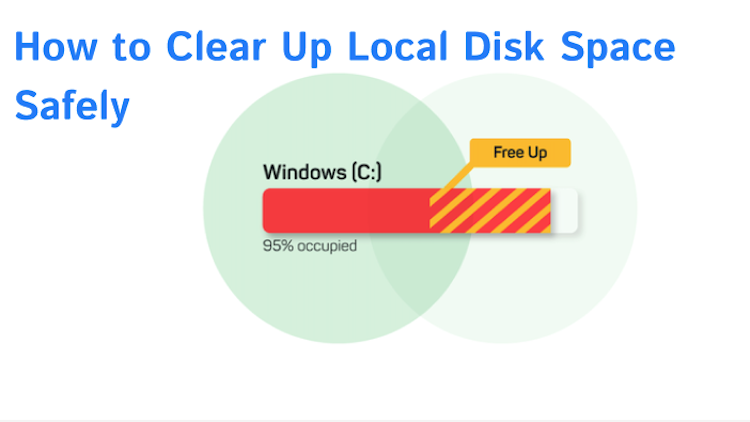
That dreaded “low disk space” warning can appear out of nowhere, particularly when Windows seems to have plenty of room left not long ago. So, what is actually taking up all that storage? Large videos, old installers, temporary files, app data, and forgotten folders can quietly add up. A disk space analyzer gives you a clear map of how your drive is being used, making it easier to spot oversized files and folders you no longer need and safely reclaim valuable space.
What is a Disk Space Analyzer?
A disk space analyzer is a utility that examines a storage drive and shows where its capacity is being used. It allows you to check which folders, files, applications, or system data occupy the most space and how much each contributes to the total.
Most tools scan a selected drive and organize the results by file size, folder, file type, or location. Some also provide visual charts, such as treemaps or bar graphs, so unusually large items stand out immediately. This can reveal storage hogs that are easy to overlook, including old downloads, duplicate media, application caches, installation packages, and forgotten folders.
The key benefit is visibility. Once you know what is consuming your storage, you can decide what to remove, move to another drive, or keep rather than deleting files blindly.
Common Causes of "Invisible" Disk Space Loss
Your free space can shrink even when you have not downloaded many new files. Several types of data accumulate quietly in the background.
System temporary files: Windows creates temporary data during updates, installations, and routine operations. Some files are removed automatically, while others can remain longer than expected.
Application caches: Browsers, video apps, games, and other programs store cached data to load content faster. These caches can grow surprisingly large.
Duplicate files: Multiple copies of photos, videos, documents, or installers can occupy space without being obvious, especially after repeated downloads or backups.
System update leftovers: Previous update packages and files from older installations may remain after an update and consume several gigabytes.
Large personal files: Videos, game libraries, ISO images, and old installation files are easy to forget and can become major storage hogs.
Recycle Bin contents: Deleted files still use disk space until the Recycle Bin is emptied. A Windows hard disk space analyzer can pinpoint these less obvious storage consumers by showing exactly where the space is going and help free up disk space more efficiently.
5 Best Disk Space Analyzer Tools to Clean Up Your Hard Drive
When Windows storage starts disappearing faster than expected, these tools can show exactly which files and folders are responsible, from a quick visual scan to detailed storage reports.
#1 Disk Analyzer Pro: Disk Management Tool
Disk Analyzer Pro is built for more than a basic folder-size list. It can break down storage by file type, size, date, attributes, and ownership. The best free disk space analyzer also includes tools for finding temporary files, old files, and duplicate images, videos, and compressed files. Search criteria can be customized, while reports can be exported in HTML, CSV, or XML formats.
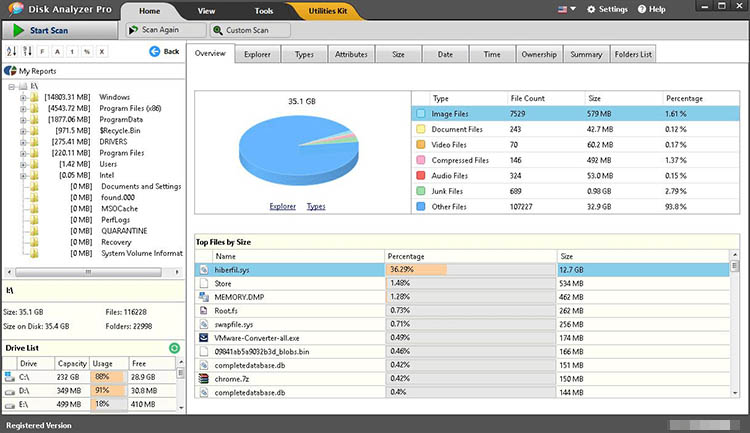
Its biggest advantage is the combination of analysis and cleanup tools in one interface. You can investigate what is using space and then work through the results without relying entirely on Windows Explorer.
#2 FolderSizes: Disk Space Analyzer & Folder Size Tool
FolderSizes displays folder and file sizes through treemaps, sunburst charts, bar graphs, and pie charts, while its search tools let you filter files by size, age, owner, attributes, and other criteria. The software can locate large, old, temporary, and duplicate files, and its reporting features make it easier to document storage usage.
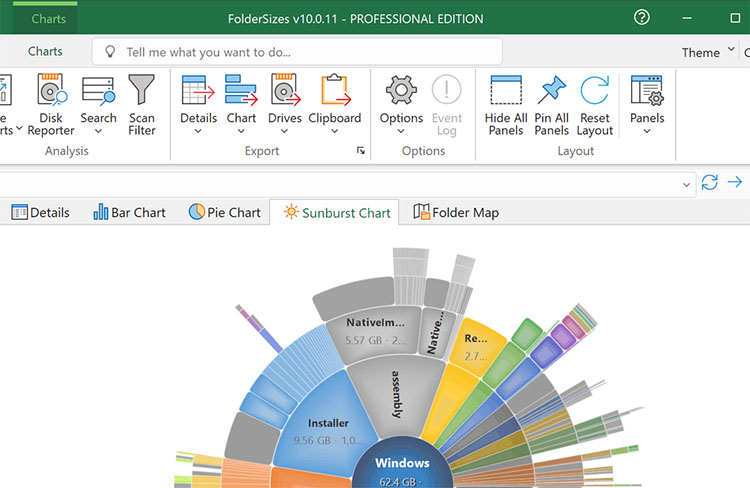
The free edition already includes advanced search, duplicate-file detection, multiple visualizations, and scan filtering. The Pro edition adds scheduled reports, exports, snapshots, and storage trend analysis. For anyone looking for a hard disk space analyzer free option with more detailed analysis than a basic folder-size viewer, the free edition is worth trying.
#3 WizTree: Fast Disk Space Analyzer
WizTree is a lightweight disk space analyzer for Windows built around one main job: showing what is taking up space on your drives as quickly as possible. On local NTFS volumes, it can read the Master File Table (MFT) directly instead of scanning every file through the usual Windows file-system path.
Its treemap provides another helpful shortcut. Large files appear as larger blocks, so storage hogs are easy to spot without opening folders one at a time. You can also sort files by size, inspect file extensions, and narrow the results to specific folders or drives. WizTree can be used for free for personal use. Its main limitation is that the MFT-based speed advantage applies to NTFS volumes.
#4 WinDirStat: Open-Source Disk Usage Analyzer
WinDirStat is a free, open-source Windows tool that combines storage analysis with basic cleanup tools. It scans selected drives or folders and presents the results in three views: a directory tree, a file-extension list, and a treemap where larger rectangles represent files occupying more space.
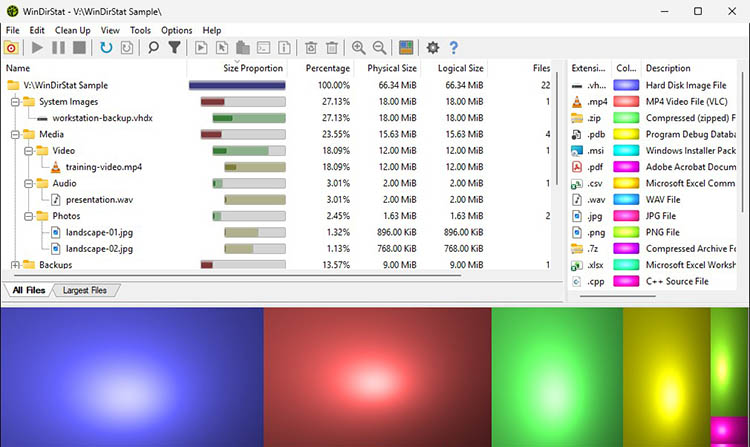
The extension view can also reveal whether videos, archives, installers, or another file type is responsible for a large portion of storage use. You can select individual folders or multiple drives for analysis and perform basic cleanup actions from the interface.
As disk space analyzer software, WinDirStat's biggest advantage is that it costs nothing and its source code is publicly available. The trade-off is its dated interface and slower scanning speed on large drives.
#5 ManageEngine Disk Space Analyzer
ManageEngine Disk Space Analyzer is geared more toward business environments than everyday PC cleanup. It analyzes Windows file-server storage and provides reports on file types, sizes, locations, and ownership.
It also identifies large, stale, duplicate, and non-business files. Reports can be used to track storage growth over time and examine which users or file categories account for the highest usage. It is more useful than a basic disk space analyzer that only scans one PC. ManageEngine Disk Space Analyzer is better suited to administrators who need centralized storage visibility than casual home users looking for the best free disk space analyze.
How to Automatically Clean up Disk to Keep It in Low Level
A full drive does not have to become a recurring problem that sends you back to a disk space analyzer every few weeks. Rather than waiting until storage is almost exhausted, you can let a PC cleaner remove unnecessary data automatically with Advanced SystemCare.
Advanced SystemCare Free
- Clean: 420 billion traces removed & 85 EB junk files cleaned
- Protect: 80 million unauthorized access blocked & 20 million bugs fixed
- Speed Up: 6 million hours of startup time saved & Turbo boost
- Optimize: Auto clean and auto care your PC with AI mode

Its AI mode can analyze the system and recommend maintenance based on detected junk and usage conditions. The manual mode gives you control over which cleanup categories to scan and remove. So you get routine maintenance without giving up control over what gets deleted.
Junk files, browser leftovers, registries, and privacy-related traces can accumulate during everyday use. With Advanced Systemcare, you can configure automatic maintenance to run at a scheduled time. The PC cleaner can scan drives for oversized files so you can review them and remove files you no longer need. This provides a quicker way to deal with major storage hogs without manually checking every folder.
How to Clean Disk Space with Advanced SystemCare?
Step 1. Download and launch Advanced SystemCare for disk space cleaning.
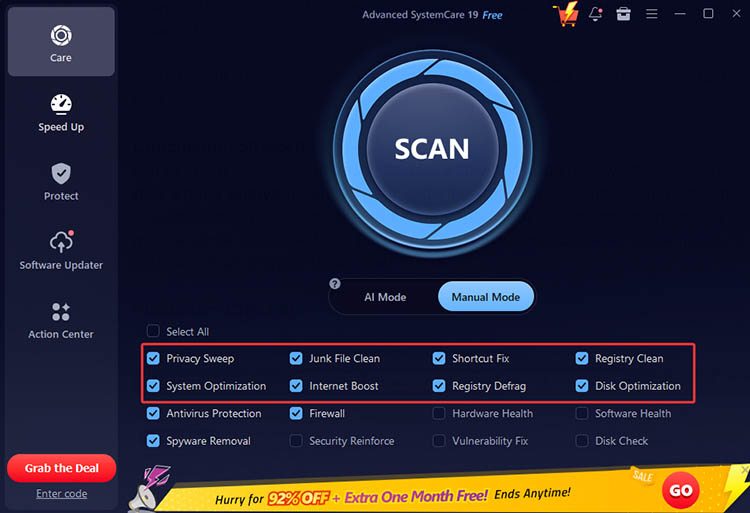
Step 2. Click the Care section and select Manual Mode. Choose the items you want to check, including Disk Optimization, Privacy Sweep, Junk File Clean, Registry Clean, etc. Then click Scan to let the program examine your system.
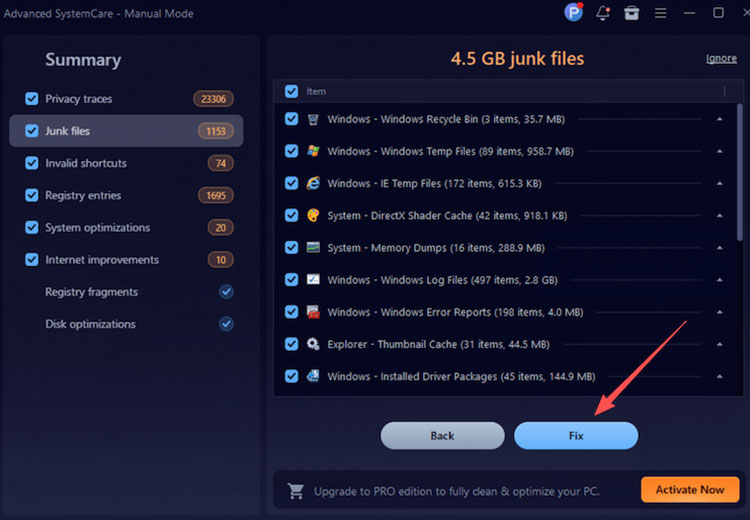
Step 3. After the scan finishes, review the categories and click Fix to remove the selected items.
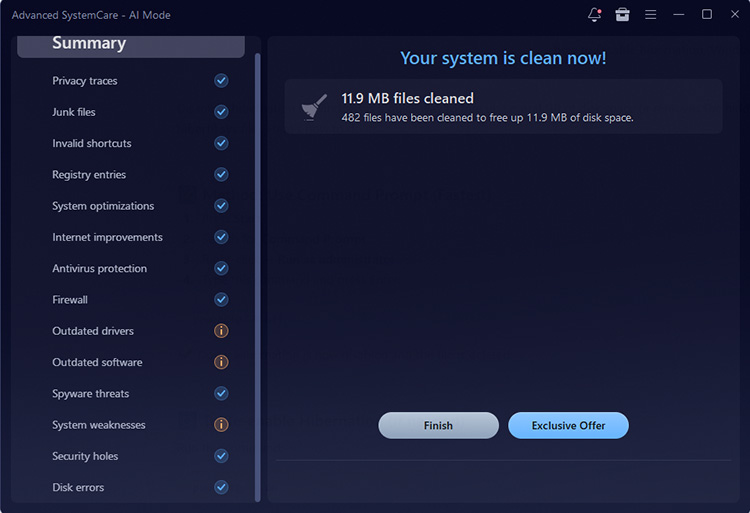
Step 4. Wait a few minutes for the process to finish, then click “Finish” to complete the task.
Conclusion
Running out of storage is easier to deal with when you know what is consuming it. A disk space analyzer can uncover large files, duplicates, caches, and other hidden storage users, while regular cleanup prevents them from piling up again. For automated maintenance and scheduled junk removal, download Advanced SystemCare to keep your Windows storage under control.